ARMR0002 error Arc Raiders is one of the most frustrating matchmaking issues players encounter when trying to join a match in the game. Whether you are attempting to start matchmaking, queue with friends, or reconnect after a disconnect, this error can block access to gameplay.
ARMR0002 error Arc Raiders usually appears with a message like “Matchmaking has failed — ARMR0002” when the game client cannot complete a connection handshake with Arc Raiders servers. In most cases, it is related to connection instability, DNS issues, or server-side interruptions.
If you’ve seen the Arc Raiders ARMR0002 error message on your screen, don’t panic. This guide breaks down what it means, why it happens, and how to fix it step by step. By the end, you will know exactly how to eliminate the Arc Raiders ARMR0002 error and prevent it from happening again.
What Is ARMR0002 Error Arc Raiders?
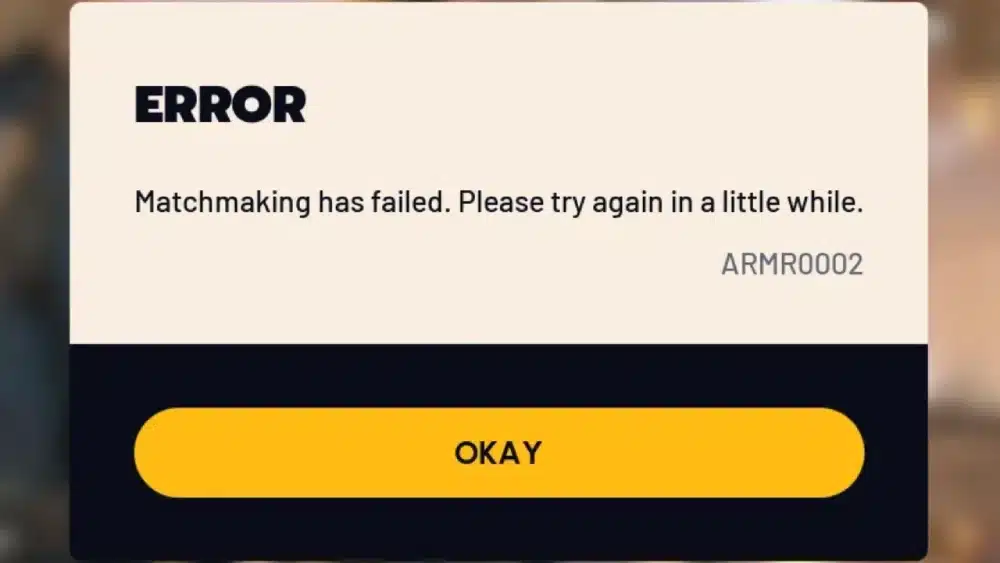
ARMR0002 is a matchmaking handshake failure code triggered when the game client fails to properly communicate with Arc Raiders matchmaking servers and cannot join online matches.
In simple terms:
- Your game tries to connect
- The server handshake fails
- Matchmaking cannot complete
- Error code ARMR0002 appears
This usually happens when:
- Attempting to join a match
- Initiating matchmaking
- Trying to connect with friends
Understanding this behavior is key to fixing it.
Why Does Arc Raiders ARMR0002 Error Happen?
The Arc Raiders ARMR0002 error can occur due to multiple causes.
Here are the most common triggers:
- Matchmaking server unreachable or overloaded
- Unstable internet connection
- DNS cache issues
- Firewall or security software blocking connections
- Corrupted network session
- Outdated client version
- Local network misconfiguration
Identifying which one applies to you determines the solution path.
ARMR0002 Error Arc Raiders: Most Common Causes
| Cause | Frequency | Difficulty to Fix | Recommended Action |
| Server Overload/Outage | High | Easy | Wait & retry later |
| Internet Instability | Very High | Medium | Restart router |
| DNS Cache Issues | High | Easy | Flush DNS |
| Firewall/Antivirus Blocking | Medium | Medium | Add exception |
| Corrupted Session | Medium | Easy | Restart client |
| Client Version Mismatch | Low | Easy | Update game |
Step-by-Step Fix for ARMR0002 Error Arc Raiders
Follow this structured troubleshooting order.
1. Check Server Status
Before changing anything:
- Visit official Arc Raiders Discord or social channels
- Check community forums for widespread reports
- Confirm if matchmaking servers are operational
If servers are having issues, there may be nothing to fix locally.
2. Restart Your Internet Connection
Network instability and DNS cache issues are common causes.
Do this:
- Turn off your router/modem.
- Wait 60 seconds.
- Turn them back on.
- Relaunch Arc Raiders.
Refreshing your network can resolve routing and handshake issues.
3. Sync Your System Clock
A desynced system clock can interfere with time-based server tokens used in matchmaking:
- Right-click time/date on taskbar.
- Select Adjust date/time.
- Enable Set time automatically.
- Click Sync now.
This often helps reduce connection handshake failures.
4. Verify Game Files
Corrupted files can prevent proper network communication.
On Steam or launcher:
- Go to game properties.
- Select Verify Integrity of Game Files.
- Allow the scan to complete.
This repair step fixes missing or broken files.
5. Add Arc Raiders to Firewall Exceptions
Security software may block matchmaking traffic.
Steps:
- Open firewall/antivirus settings.
- Add Arc Raiders executable to exceptions.
- Enable allowed connections for both Private and Public networks.
This ensures the client can reach servers unhindered.
Advanced Fixes for Persistent ARMR0002 Error
Flush DNS Cache
- Open Command Prompt as administrator.
- Type: ipconfig /flushdns
- Press Enter.
- Restart PC.
This clears stale DNS records that may block connections.
Change DNS Servers
Switch to:
- Google DNS (8.8.8.8 / 8.8.4.4)
- Cloudflare DNS (1.1.1.1)
Improved DNS resolution can reduce matchmaking failures.
Network Optimization and Stability
Arc Raiders is an always-online multiplayer experience, meaning stable matchmaking is essential. Unstable routing, packet loss, or DNS problems can cause ARMR0002 errors more frequently.
ARMR0002 Error Arc Raiders vs Other Error Codes
Not all errors are equal.
Here is a comparison:
| Error Code | Type | Primary Cause | Fix Complexity |
| ARMR0002 | Matchmaking/Network | Handshake/connect failure | Medium |
| Connection Timeout | Network/Timeout | Server/ISP routing delays | Easy |
| Session Lost | Network | Packet loss | Medium |
| Update Required | Client Version | Outdated patch | Easy |
Quick Fix Checklist
- Check official server status
- Restart router/modem
- Sync system clock
- Verify game files
- Add firewall exception
- Flush DNS cache
- Change DNS settings
Emergency Recovery Method
If the Arc Raiders ARMR0002 error persists:
- Close the game.
- Restart PC.
- Restart router/modem.
- Sync system clock.
- Flush DNS.
- Verify files.
- Launch as administrator.
This flow solves most handshake errors.
When ARMR0002 Is Server-Side
Sometimes the problem is not yours.
If:
- Many players report the same issue
- Official channels confirm outages
Then it is likely server congestion or backend instability. Wait for developers to resolve it.
How to Prevent ARMR0002 in the Future
To reduce future ARMR0002 risk:
- Keep client updated
- Use wired Ethernet when possible
- Avoid unstable Wi-Fi
- Maintain healthy network settings
- Sync system clock regularly
Stable connection equals stable matchmaking.
FAQ – ARMR0002 Error Arc Raiders
What does ARMR0002 error Arc Raiders mean?
It indicates a failure in matchmaking connection between your client and Arc Raiders servers, usually due to network or server issues.
Is Arc Raiders ARMR0002 error a server problem?
Sometimes yes. If servers are overloaded or under maintenance, the error may appear. Always check official channels first.
Can VPN cause Arc Raiders error ARMR0002?
VPNs can change routing and may interfere, though they’re not a primary documented cause.
Does verifying game files fix ARMR0002?
If corrupted files are contributing to the connection failure, verifying files can help.
How do I permanently fix ARMR0002 error Arc Raiders?
Ensure a stable internet connection, verify network settings, update your client, and follow the network troubleshooting steps listed above.
Final Thoughts on ARMR0002 Error Arc Raiders
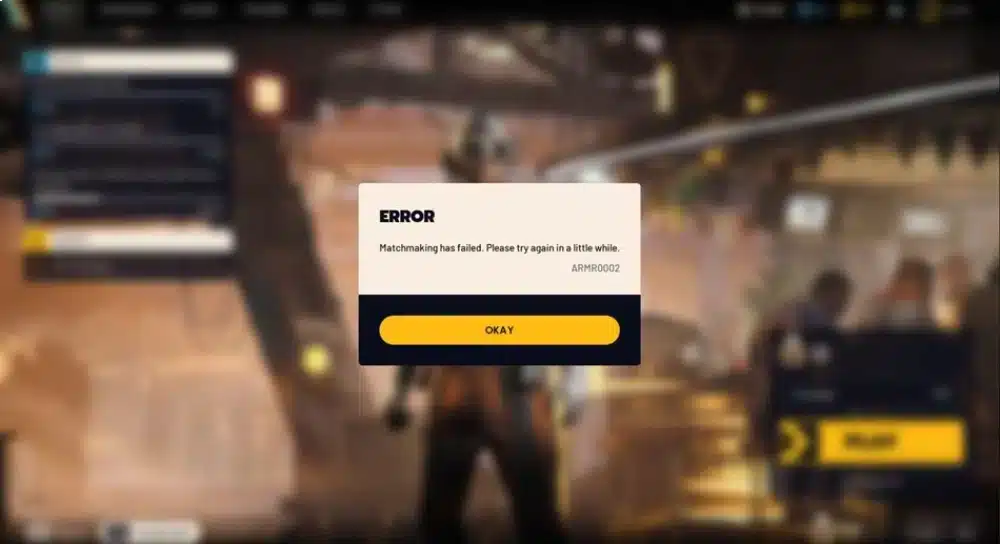
The ARMR0002 error Arc Raiders can look intimidating, but it is usually tied to matchmaking connectivity or server communication issues. Most cases resolve by:
- A router/modem restart
- Syncing system clock
- DNS tweaks
- Verifying game files
- Ensuring network configuration allows the game to connect
Matchmaking is essential in Arc Raiders, and fixing connection routes is the key to getting back into the action.