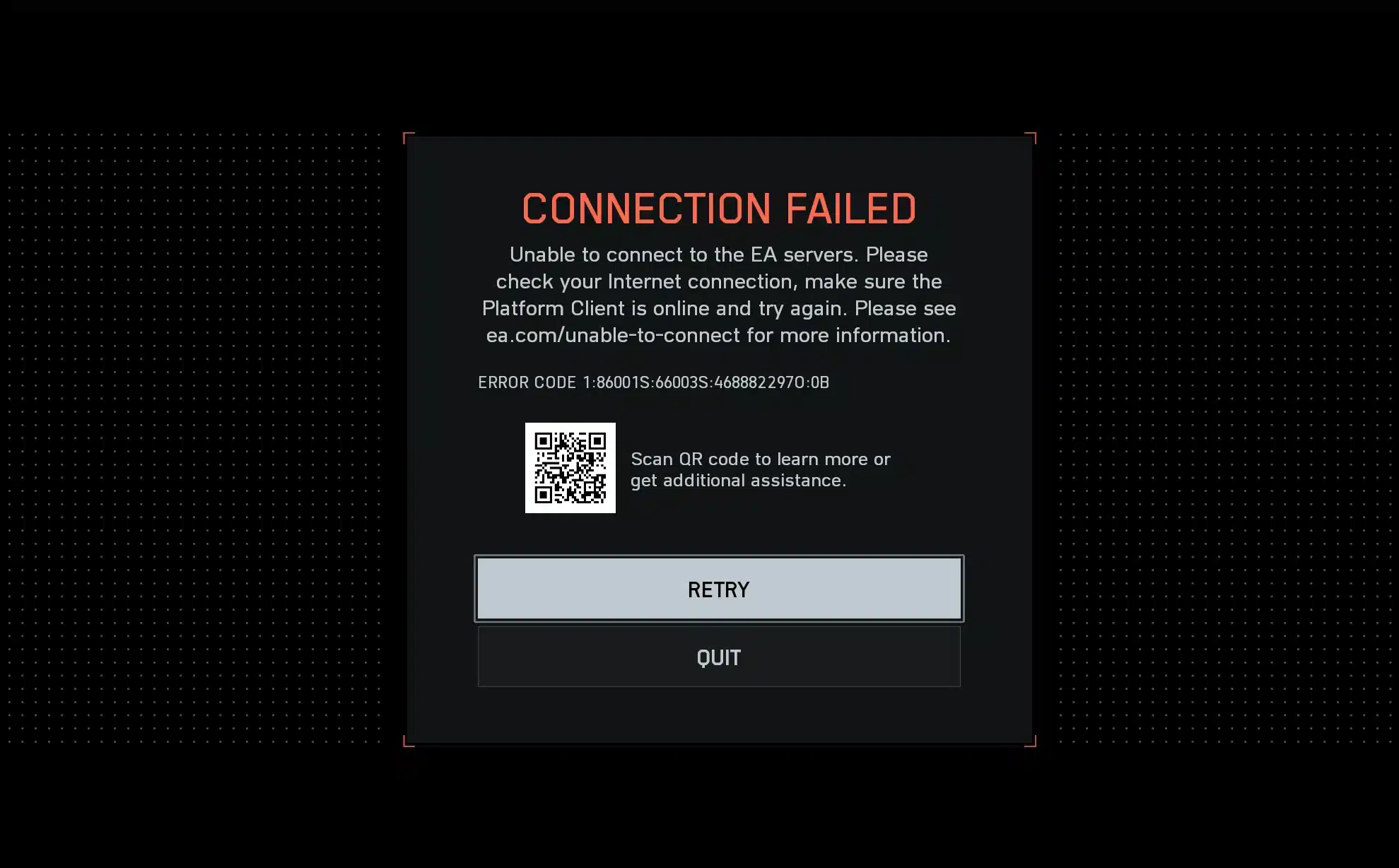
Battlefield 6 connection issues are reportedly causing frustration for players, with errors like "can't connect to server", "connection timeout", and "session failed" messages. These connection errors can ruin immersion, disrupt squad play, and force players to restart or abandon matches entirely. If you're seeing these errors, you're not alone. The latest EA server status shows Battlefield 6 as online, yet matchmaking and network issues continue to affect users worldwide, particularly during peak hours or after major game updates. These types of errors are common during high player traffic, weekend congestion, and the aftermath of seasonal content drops or balance patches.
These problems often stem from temporary EA outages, incorrect game settings, ISP-related routing issues, or corrupted game files. Understanding each possible cause is essential to fixing your access and enjoying uninterrupted gameplay. In this guide, we’ll dig deep into the most common Battlefield 6 connection problems, explain why they happen, and show you the exact steps you can take to fix them.
Whether you’re a new player experiencing issues for the first time or a long-time Battlefield veteran noticing performance drops after patches, this comprehensive troubleshooting guide is your go-to resource. We’ll even cover how tools like ExitLag can significantly improve your connection and eliminate lag for good, giving you a competitive edge in every firefight.
Common Causes of Battlefield 6 Server Errors
Server Overload and Matchmaking Queues
Peak hours or update days often cause long login times or server queue messages such as "server full" or "you are in queue." GamesRadar+ has highlighted that Battlefield 6 struggles during surge traffic, especially when new maps or game modes launch.
EA Account Conflicts
Issues with EA account authentication-especially when logged in on multiple devices-can prevent successful matchmaking or cause errors like "authentication failed." Visit help.ea.com to check for suspicious activity, reset your password, or verify your login status.
Quick Fixes to Try First
Restart Your Network Hardware
Power cycling your network devices helps resolve temporary IP and NAT issues. This resolves about half of connection problems.
Switch to a Wired Connection
Reduce Wi-Fi interference by using Ethernet, improving latency and packet delivery for smoother gameplay.
Disable VPNs and Revert DNS to Automatic
Custom DNS setups (e.g., Google DNS, Cloudflare) can conflict with Battlefield 6’s server logic. Community feedback on forums.ea.com has shown that changing DNS settings from manual back to automatic resolved issues like "ERROR CODE 1:85008S" and matchmaking timeouts.
Steps:
- Go to network settings > change DNS to "automatic"
- Restart your device
- Relaunch Battlefield 6
This is a community-supported workaround, not officially confirmed by EA, but it has worked reliably for many players.
Advanced Solutions for Persistent Issues
Repair Game Files
Corrupted assets can interrupt connection attempts. Repair your files through Steam or the EA App to sync with the latest verified build.
Clear Cache and Temporary Data
Resetting local settings often eliminates version conflicts and authentication loops.
Configure Firewall and Port Forwarding (With Caution)
Some players have reported improved performance by manually forwarding ports. However, these port numbers are not officially confirmed by EA for Battlefield 6. They are based on previous Battlefield titles and should be treated as user-reported suggestions, not verified requirements.
Unofficial example ports:
- TCP: 443, 3659
- UDP: 3659, 14000–14016, 22990–23006
⚠️ Warning: NAT or port forwarding changes require technical knowledge. Misconfiguration can expose your network or degrade performance. Only proceed if you're familiar with router settings, or consult your ISP or support forums for guidance.
Check Your EA Account
Login problems across devices or a suspended EA account can block Battlefield 6 multiplayer entirely.
- Visit help.ea.com
- Log in and verify your account status
- Log out from all other devices
- Check for messages related to account security or bans
Also see:
- Battlefield 6 server connection error
- battlefield 6 connection failed
- Battlefield 6 server error 503
- Battlefield 6 connection errors
- Can’t join match Battlefield 6
How ExitLag Helps Battlefield 6 Players
When traditional fixes fail, ExitLag can provide a superior network route directly to EA’s servers, bypassing ISP congestion and instability.
ExitLag provides:
- Real-time multipath optimization to avoid high-traffic routes
- Packet correction and failover to reduce disconnects
- Global server infrastructure fine-tuned for Battlefield 6
- Battle-tested Battlefield 6 profiles for South America, EU, NA, Asia
Getting Started with ExitLag
- Create your account at exitlag.com
- Download and install ExitLag on Windows
- Search for Battlefield 6, apply the best routes
- Launch the game with ExitLag ON
Note: ExitLag is ideal for competitive players, especially those experiencing high ping, jitter, or packet loss during matches.
By organizing the issues into structured categories-Causes, Quick Fixes, and Advanced Solutions-this guide ensures that both casual and advanced users can navigate solutions efficiently. Always remember: technical steps like DNS edits and port forwarding may not solve all scenarios and should be done carefully or skipped if you're unsure.
Session Failures and Matchmaking Disconnects
Analyze Your NAT Type
Battlefield 6 performs best under Open NAT conditions, which allow unrestricted communication between your device and EA servers. If your NAT type is Moderate or Strict, your system may block incoming or outgoing data needed for matchmaking, causing failed sessions or inability to join friends.
How to check your NAT Type (PC):
- Run cmd > type ipconfig > check your gateway IP
- Enter your router's IP in a browser to access settings
- Look for NAT type or UPnP settings
NAT Explanation: NAT (Network Address Translation) determines how easily your system can communicate with online services. "Open" NAT enables unrestricted data flow; "Strict" often causes failed lobbies.
Enable UPnP (Universal Plug and Play) in your router settings if available. It automatically manages port opening for smoother matchmaking.
Crossplay Connection Bugs
If you're playing cross-platform and encountering the "session failed" message, temporarily disabling crossplay from the in-game menu might help. This can sidestep platform-specific sync issues or version mismatches.
⚠️ Note: Disabling crossplay limits your player pool, which may increase matchmaking times or restrict access to region-specific servers.
Regional Server Lockouts
EA Automatically Routes by Region
EA assigns your game sessions to the nearest datacenter based on your IP. However, IP drift, VPNs, or DNS misrouting may assign you to incorrect regions.
To correct region mismatch:
- Turn off any VPNs or proxy services
- Revert DNS settings to automatic or your ISP’s default
- Use ExitLag to ensure optimized routing to your actual location
Players in regions like South America or Southeast Asia may experience routing issues more frequently-especially with ISPs that use shared or dynamic IPs. However, this varies by provider and does not affect all users equally.
Repeated "Network Reconnect" Errors
These errors often point to a session conflict, where login data or session tokens from other devices interrupt the current session. Alternatively, they may stem from an unstable handshake, meaning the initial connection to the server failed during verification or routing setup.
Recommended fix:
- Log out of your EA account on all devices
- Restart your router/modem
- Clear Battlefield 6 cache files from local storage
- Reboot and relaunch the game with a clean session
EA documents these as part of their official Connection and Matchmaking Troubleshooting resources.
Community-Driven Tweaks (Use With Caution)
MTU Adjustment
Altering your MTU (Maximum Transmission Unit) setting can help reduce packet loss by optimizing how much data your system sends per packet. Some players have experimented with:
- Setting MTU to 1472 or 1492
- Avoiding MTU values below 1400
- Testing optimal MTU using ping -f -l [packet size] ea.com
⚠️ Warning: This method is not endorsed by EA. Misconfiguring MTU can reduce connection stability. Only try this if you’re comfortable with networking tools and willing to experiment.
Router-Level QoS Prioritization
Quality of Service (QoS) settings prioritize Battlefield 6 traffic to reduce latency when multiple devices share your network.
Steps (generic):
- Access your router’s admin panel
- Find QoS or traffic prioritization settings
- Add your gaming device's MAC or IP address
- Set it to highest priority
⚠️ Important: Only use QoS if your router supports it and you understand the configuration. Improper setup may worsen performance.
Disable IPv6 (Optional)
Some Reddit users report improved stability by disabling IPv6 on their devices. This may help if your ISP doesn’t fully support IPv6, causing handshake failures or routing issues.
To try:
- Go to your network adapter settings
- Uncheck or disable IPv6 temporarily
- Restart your device and test Battlefield 6
If you use IPv6 and are unsure whether your network fully supports it, disabling it temporarily may help with troubleshooting. However, if performance worsens, re-enable IPv6 to restore default behavior.
Troubleshooting with ExitLag
For recurring session ID mismatches, authentication timeouts, or regional lockouts, ExitLag offers robust, real-time fixes.
- Route Lock: Sends your data through the most direct and consistent route to EA servers
- Server Stickiness: Maintains your session on a single optimized node to reduce disconnections
- Session Stability: Reduces “network reconnect” loops by preventing mid-session route changes
ExitLag is ideal for:
- Gamers with dynamic IPs or frequently changing routes
- Players located far from their EA datacenter
- Homes with many active devices (e.g., downloads, streaming)
Final Thoughts
Battlefield 6's ambitious online infrastructure demands optimal connectivity. While many fixes are straightforward, others involve advanced steps that carry risk if misapplied. Take your time, follow each step carefully, and know that ExitLag is a powerful tool to stabilize even the most stubborn network problems.
All game images used in this blog belong to Electronic Arts. They are used for informational/educational purposes only and do not imply endorsement or affiliation with the rights holders.