If you have ever emptied a full magazine into an enemy in Battlefield 6 only to die a second later behind a wall, you already know the pain of desync. It is one of the most talked about problems in the community right now.
BF6 Desync happens when what you see on your screen does not match what the game server has already decided. As a result, hits that look confirmed on your end can be rejected, and deaths can happen after you are already in cover.
So what actually causes BF6 Desync? In most cases it comes down to a mix of server tick rate limits, unstable routing between your connection and EA's data centers, and packet loss along the way. Fixing it usually means addressing your network path, not just your in-game settings.
This guide breaks down exactly why desync happens in Battlefield 6, how to tell if your own connection is part of the problem, and what steps actually reduce it. We will also cover common mistakes players make when troubleshooting this issue.
What Is BF6 Desync And Why Does It Happen?
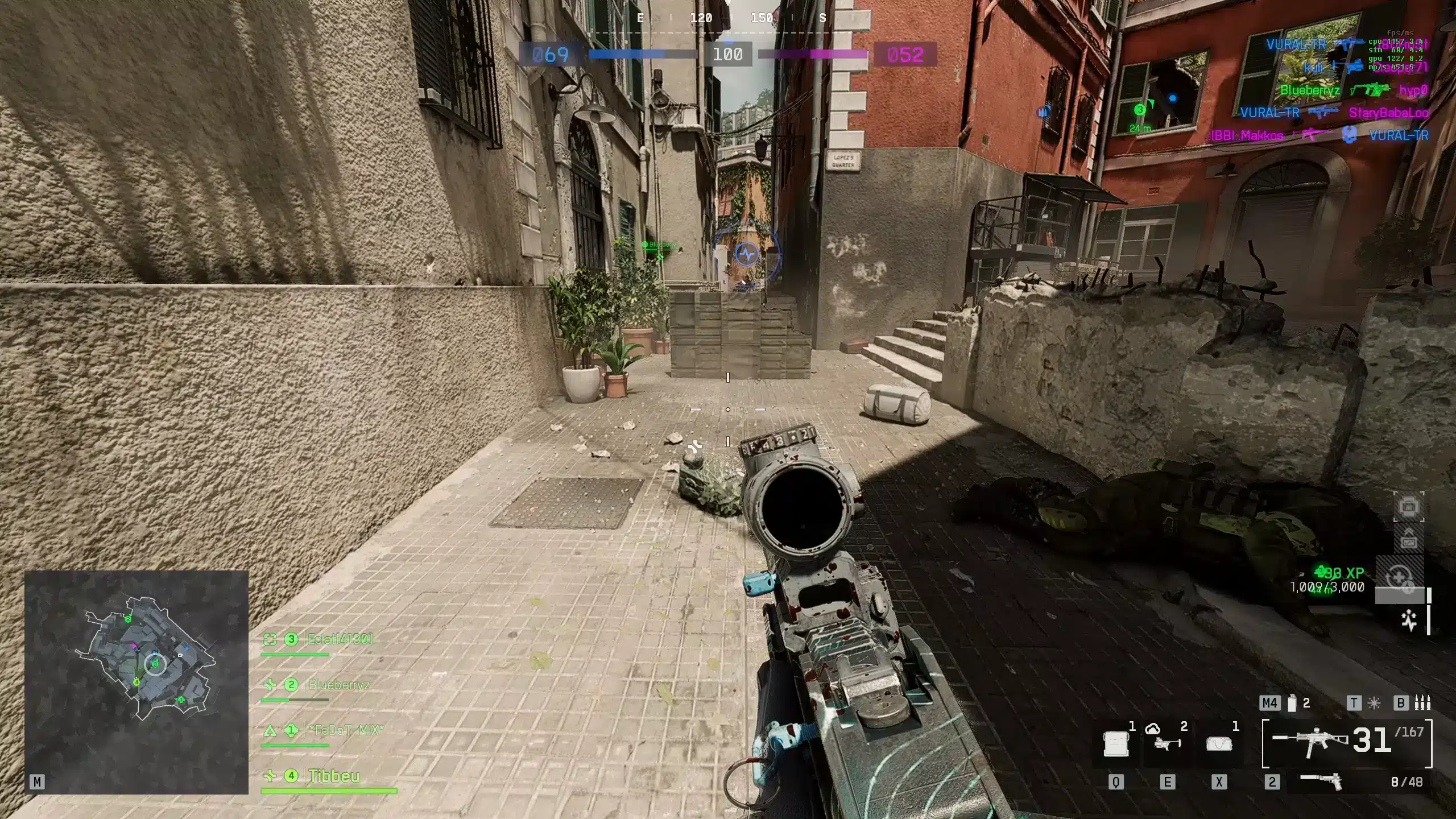
Desync is not unique to Battlefield 6, but the game's fast time to kill makes it far more noticeable. A tiny delay between client and server can decide entire gunfights.
Understanding the technical side helps explain why some fixes work and others do not.
Client-Side Hit Detection Vs Server Validation
Battlefield 6 uses a model where your client registers a shot first, based on what you see locally. That information is then sent to the server for validation.
The server compares your report against its own simulation and the other player's data. If there is a mismatch, caused by latency, Packet Loss, or timing drift, the hit can be thrown out even though your screen showed a clean shot.
This is the core mechanic behind most BF6 Desync complaints across PC and console.
Common Symptoms Of BF6 Desync
Players describe the issue in fairly consistent ways across forums and social channels. The most reported symptoms include:
- Dying after already reaching cover, sometimes a full second later
- Shots that show hit markers but deal no damage
- Enemies appearing to teleport or "rubber-band" during firefights
- Audio cues that do not match what is happening on screen
- Sudden slow-motion feeling during intense engagements
If more than one of these happens regularly, your matches are likely affected by desync rather than simple bad luck.
Main Causes Of Battlefield 6 Hit Registration Issues
Hit Registration Issues in Battlefield 6 rarely come from a single source. Instead, several factors stack on top of each other during busy server ticks.
Knowing which factor applies to you makes troubleshooting far more efficient.
Server Tick Rate And Netcode Limitations
Battlefield 6's core multiplayer modes run at a 60Hz tick rate, which is considered standard for the genre. However, many players argue the tick rate itself is not the main issue.
Instead, the underlying netcode struggles under certain conditions, especially in large modes like Conquest, where dozens of players and vehicles need constant synchronization. This is different from the RedSec battle royale mode, which runs at a lower 30Hz tick during most of a match.
Packet Loss And Unstable Server Routing
Beyond the server itself, the path your data takes to reach EA's infrastructure matters enormously. Some players have traced their connection and found it gets rerouted through distant data centers, even when closer regional servers exist.
That extra distance adds latency and increases the chance of dropped packets along the way. Consequently, even players with strong home internet can experience Battlefield 6 Server Desync simply because of how their traffic is routed.
Is BF6 Desync Caused By Your Own Connection?
Not always, but your local setup can absolutely make an existing problem worse. Before blaming the servers entirely, it is worth ruling out issues on your end.
How To Check For Packet Loss And Jitter
A quick way to diagnose your connection is running a continuous ping test to a nearby server while playing. Watch for spikes, dropped packets, or inconsistent response times.
Here is a simple process to follow:
- Close background apps that use bandwidth, such as downloads or streaming services.
- Run a ping and packet loss test during peak hours when your household uses the most data.
- Compare wired versus wireless connection results to see if Wi-Fi is adding instability.
- Note any spikes that line up with moments you experienced desync in game.
Local Network Factors That Make Desync Worse
Several everyday factors quietly contribute to a shakier connection than players realize. Common culprits include:
- Using Wi-Fi instead of a wired Ethernet connection
- Other devices on the network streaming or downloading during play sessions
- An outdated or overloaded router struggling with traffic prioritization
- ISP congestion during evening peak hours
- Background game updates downloading mid session
How To Fix Battlefield 6 Server Desync Step By Step
There is no single fix that resolves BF6 Desync for everyone, since causes vary between players. However, a layered approach tends to produce the most noticeable improvement.
Quick Settings And Hardware Checks
Start with the basics before touching anything network related. These steps are fast and cost nothing to try.
- Switch from Wi-Fi to a wired Ethernet connection whenever possible
- Restart your router and modem to clear temporary congestion
- Close background applications competing for bandwidth
- Update your network adapter drivers to the latest version
- Lower in-game resolution scaling if your PC is also struggling with frame pacing
Network-Level Fixes That Actually Help
Once the basics are covered, the next step is addressing routing and stability directly. Follow this order for the best results:
- Test your connection to confirm packet loss or high jitter is present.
- Identify whether your traffic is being routed through a distant region.
- Use a connection optimization tool to select a more stable path to game servers.
- Prioritize game traffic over other devices on your network using traffic shaping.
- Re-test in game to confirm whether hit registration feels more consistent.
Why Do Some Regions Suffer Worse BF6 Desync Than Others?
Location plays a bigger role than most players expect. Distance to the nearest healthy server route directly affects how often desync shows up.
Server Routing And Regional Latency
Players outside North America have reported being routed through far away data centers instead of a closer regional option. When that happens, ping climbs and the margin for error shrinks fast.
Even a well optimized home connection cannot fully compensate for a bad route chosen upstream by the network provider.
What Players Report Across Different Platforms
Desync complaints are not limited to one platform. Console and PC players both describe similar symptoms, though the intensity can vary.
| Platform | Common Symptom | Typical Cause |
|---|---|---|
| PC | Hit markers without damage | Netcode validation mismatch |
| PS5 / Xbox | Delayed deaths behind cover | Server tick and routing delay |
| RedSec (Battle Royale) | Rubber-banding, slow motion | Lower 30Hz tick rate |
| Cross-region play | High and inconsistent ping | Traffic routed through distant hubs |
Pro Tips: Reducing BF6 Desync
- Play during off-peak hours: Server load and regional congestion are usually lower late at night or early morning, which can noticeably reduce desync spikes.
- Prioritize a wired connection: Ethernet removes Wi-Fi interference and packet loss variables entirely, giving the server a cleaner, more predictable stream of data.
- Monitor your own network first: Before assuming it is purely a server issue, rule out your router, ISP, and other connected devices, since local congestion is a common hidden cause.
- Choose the closest healthy server route: A shorter, more stable path to the game server reduces the window where client and server data can drift apart.
- Keep your game and drivers updated: Outdated network drivers or an unpatched game client can introduce extra latency that stacks on top of existing desync problems.
Common Mistakes Battlefield 6 Players Make
- Blaming aim instead of the connection: Many players assume they missed shots when the real issue was a rejected hit due to desync. Fix: track hit marker versus actual damage patterns before adjusting sensitivity or aim training.
- Ignoring wired connections: Sticking with Wi-Fi because it feels convenient often introduces avoidable jitter and packet loss. Fix: switch to Ethernet, especially during ranked or competitive sessions.
- Not checking server routing: Players rarely check whether their traffic is taking an unnecessarily long path to the game server. Fix: use a route optimization tool to confirm and improve the path being used.
- Playing through known peak congestion: Queuing into matches during the busiest hours increases the odds of hitting overloaded routes. Fix: shift play sessions slightly earlier or later when possible.
Stop BF6 Desync With ExitLag's Connection Optimizer
Since a large part of BF6 Desync comes down to routing and packet stability, this is exactly where a dedicated connection tool makes a real difference. ExitLag is not a VPN.
It is a game connection optimizer that analyzes multiple network paths in real time and automatically selects the fastest, most stable route to Battlefield 6's servers.
What ExitLag Actually Does For Battlefield 6
ExitLag supports over 4,000 titles, including Battlefield 6, with 1,500 plus servers spread across more than 190 countries. It does not encrypt your traffic or mask your IP, it simply finds a cleaner path.
Its core features that directly target desync causes include:
- Multipath Technology: Sends data through multiple routes at once, so if one path degrades, others keep the connection stable.
- Real-time Optimization: Actively reduces delay and packet loss, which helps commands and hits register more consistently.
- Traffic Shaper: Prioritizes Battlefield 6 traffic over background apps competing for the same bandwidth.
- AI-powered routing: Automatically picks the fastest, most stable route in one click, with manual customization also available for advanced players.
Why Stable Routing Matters For Competitive Shooters
In a fast time to kill shooter like Battlefield 6, even small routing inconsistencies can be the difference between a confirmed kill and a rejected hit. Stable, low latency routing narrows that gap.
ExitLag does not modify game files, inject code, or interact with anti-cheat systems, so it is safe to use alongside Battlefield 6 and other supported titles. Just avoid running it together with a VPN, since that reduces its effectiveness.
If routing and packet loss are contributing to your BF6 Desync, you can grab the ExitLag Download and test a more stable route the next time you drop into a match.
All game images used in this blog post belong to Electronic Arts (EA DICE). They are used for informational and educational purposes only and do not imply endorsement or affiliation with the rights holders.