

If your character freezes for a split second and then teleports backward mid-fight, you already know the pain of CS2 Rubberbanding. It ruins peeks, wastes utility, and turns clean gunfights into coin flips.
The good news is that CS2 Rubberbanding almost always has a traceable cause. Once you understand what triggers it, fixing it becomes a matter of checking the right settings.
In short, CS2 Rubberbanding happens when your client predicts movement that the server later rejects, snapping you back to your last confirmed position because packets were lost, delayed, or arrived out of order. It is a connection problem, not a graphics or FPS issue. Once you fix the network path, the snapping stops.
This guide breaks down exactly why this happens in Counter-Strike 2, what settings actually matter, and how experienced players keep their connection stable during ranked matches.
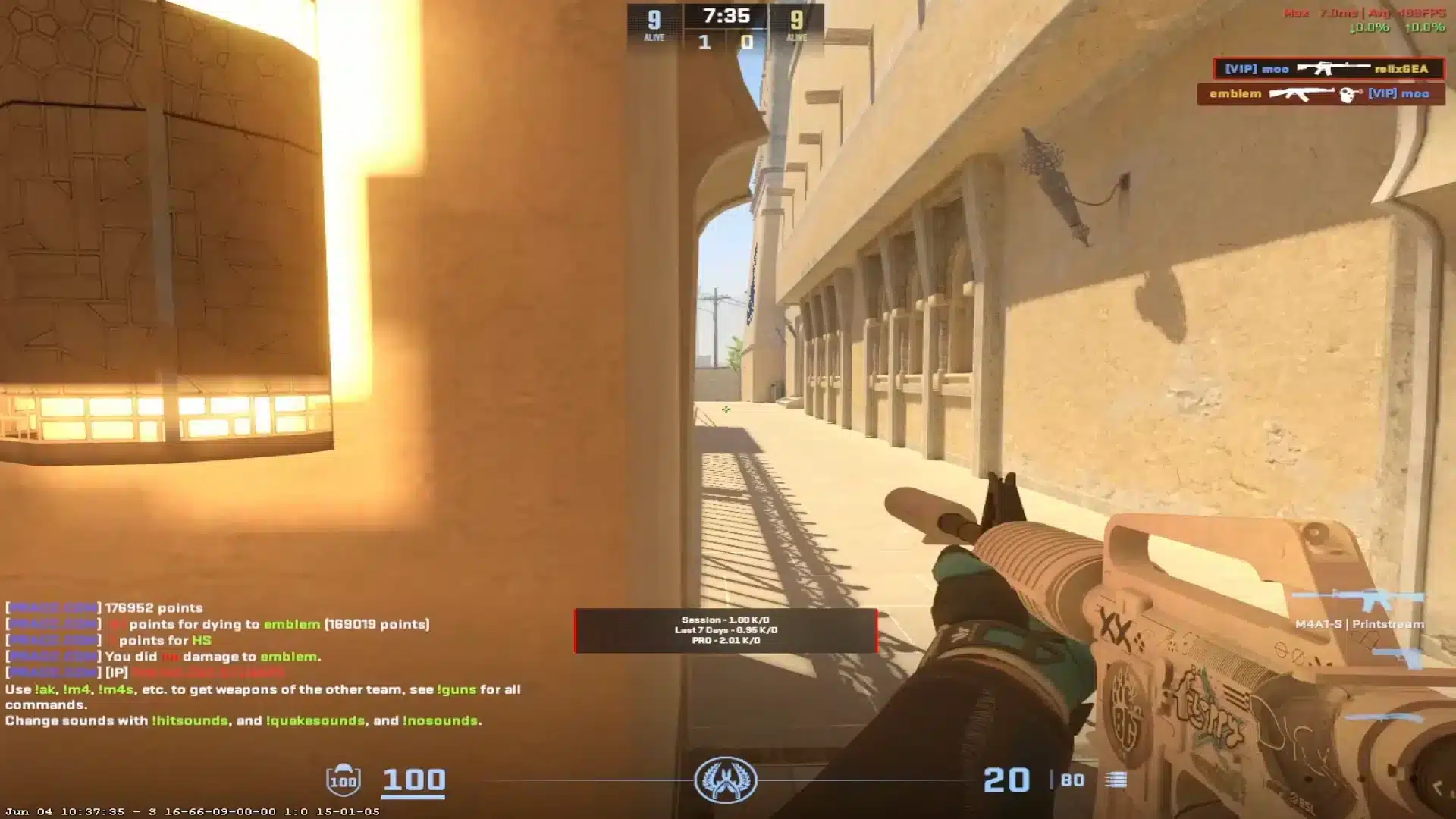
What Causes CS2 Rubberbanding?
Before jumping into fixes, it helps to understand the mechanism behind the problem. Counter-Strike 2 uses client-side prediction, which means your game shows movement instantly while waiting for server confirmation.
When that confirmation never arrives cleanly, the server has no choice but to correct your position. That correction is the rubberband effect players complain about.
The Role of Sub-Tick Networking
Counter-Strike 2 replaced the old fixed-tick model with a sub-tick system that processes inputs at a much finer resolution than CS:GO ever did. As a result, the game is far more sensitive to tiny network interruptions.
Consequently, even brief jitter or a single dropped packet can cause a visible snap. This is different from older games, where minor loss was often invisible to the player.
Packet Loss and Jitter Explained
Packet loss and jitter are the two main technical culprits behind CS2 Rubberbanding. Understanding the difference helps you diagnose the issue faster.
- Packet loss: Data sent from your PC never reaches the server, forcing a resend and a delay.
- Jitter: Packets arrive, but at inconsistent intervals, confusing the interpolation system.
- Choke: Your connection is sending more data than the server can process in time.
- Route congestion: Your ISP path to the game server passes through overloaded nodes.
Notably, none of these issues are related to your GPU or frame rate. A player running 400 FPS on a wired connection can still rubberband if their route to the server is unstable.
Diagnosing CS2 Rubberbanding With In-Game Tools
Before applying fixes, confirm what is actually happening on your connection. Counter-Strike 2 includes built-in telemetry that shows this in real time.
Therefore, guessing is unnecessary. A quick check tells you whether the issue is loss, choke, or ping spikes.
How Do You Check Network Stats in CS2?
Open the settings menu, go to Game, then Telemetry, and set Display Network Connection Issues to Always. This overlays live ping, loss, and choke data during matches.
- Launch Counter-Strike 2 and enter a match or the firing range.
- Open Settings, then navigate to the Game tab.
- Select Telemetry and enable the network connection display.
- Watch the Loss and Choke values during gameplay.
- Note any spikes that line up with moments you rubberbanded.
If Loss stays above zero for several seconds at a time, that is your primary suspect. If Choke spikes instead, your own upload bandwidth is likely the bottleneck.
Is It Your Internet or the Server?
This is one of the most common questions players ask when troubleshooting CS2 Rubberbanding. The answer depends on whether the issue is consistent across matches or isolated to specific servers.
If rubberbanding only happens on one regional server, the routing path to that specific data center is probably the issue. On the other hand, if it happens everywhere, the problem is likely local to your home network.
Best Network Settings to Reduce CS2 Rubberbanding
Many players still copy old CS:GO configuration commands into CS2, which can actually make things worse. The engine now manages most of this automatically.
Old rate commands built around manual interpolation values do not apply the same way anymore. Instead, focus on the settings that still matter today.
| Setting | Recommended Value | Why It Matters |
|---|---|---|
| Rate | 1000000 | Ensures enough bandwidth allowance for all network traffic |
| Network Interpolation | None (stable connection) | Reduces added delay when your line is clean |
| Max Acceptable Ping | 65 to 80 | Prevents matchmaking into distant, unstable servers |
| Connection Type | Wired Ethernet | Removes wireless interference and packet loss |
| Router QoS | Enabled for game traffic | Prioritizes CS2 packets over background downloads |
Should You Change Interp Settings Manually?
In most cases, no. CS2 calculates the minimum interpolation delay automatically based on your connection, and manually forcing old CS:GO-era values tends to add unnecessary delay instead of reducing it.
The in-game Network Interpolation option under Settings gives you a simple choice between None and one tick of buffering. Use None on a stable wired connection, and switch to the buffered option only if your line is genuinely inconsistent.
Router and ISP-Level Adjustments
Your home network setup plays a bigger role in CS2 Rubberbanding than most players realize. A few adjustments here often solve issues that in-game settings cannot fix.
- Enable Quality of Service (QoS) or Smart Queue Management on your router to prioritize game traffic.
- Pause large downloads, cloud backups, and streaming devices during matches.
- Restart your router periodically to clear congested connection tables.
- Switch to a wired connection if you are currently on Wi-Fi.
- Update your network adapter drivers to the latest stable version.
Advanced Fixes Most Guides Skip
Basic troubleshooting solves rubberbanding for many players, but competitive users often need to go further. This is where routing and path optimization come into play.
Furthermore, understanding how your data physically travels to the game server can reveal problems that simple settings changes cannot fix.
How Does Server Routing Affect Rubberbanding?
Your ISP does not always send your traffic through the fastest or most stable path to the game server. Instead, it often follows whatever route is cheapest for the provider, which can pass through congested exchange points.
As a result, two players in the same city can have completely different experiences on the same server. One might have a clean, direct route, while the other bounces through three extra hops.
Steps to Rule Out Hardware Issues
- Test your connection speed and stability using a wired connection first.
- Close background applications that use bandwidth, including update clients and browsers.
- Check your router's firmware for pending updates.
- Move closer to your router if using Wi-Fi as a temporary test.
- Try a different Ethernet cable if you suspect physical damage.
If rubberbanding persists after all hardware checks, the issue is almost certainly upstream, meaning it lives somewhere between your ISP and the game server.
Using ExitLag to Stop CS2 Rubberbanding
This is exactly the kind of routing problem ExitLag was built to solve. ExitLag is not a VPN. It is a connection optimizer that continuously scans multiple network paths and automatically picks the fastest, most stable route to the game server.
Because CS2 Rubberbanding is so often caused by packet loss or jitter along a congested ISP path, rerouting that traffic through a cleaner path can make a real difference. ExitLag does not encrypt your traffic or mask your IP, so it does not add the overhead that a traditional VPN would.
With Multipath Technology, ExitLag can send data through multiple routes at once. If one path experiences a hiccup, the others keep your connection stable, which directly reduces the chance of a mid-fight snap-back.
The tool supports thousands of titles across PC and mobile, including Counter-Strike 2, and it does not modify game files or interact with anti-cheat systems in any way. That makes it safe to run alongside CS2 without any risk to your account.
Here is what tends to help competitive players the most:
- Multipath Technology: Routes packets through several paths simultaneously to avoid single points of failure.
- Multi-Internet: Supports up to four simultaneous internet connections, so a dropped line does not end your match.
- AI-Powered Routing: Automatically selects the most stable path in one click, with manual customization available for advanced users.
- Traffic Shaper: Keeps CS2 traffic prioritized over background downloads and updates on your own network.
If you want to test whether a cleaner route eliminates your snapping issues, you can grab the ExitLag Download and try it during your next ranked session. Just avoid running it alongside a separate VPN, since stacking the two reduces effectiveness.
Pro Tips: CS2 Rubberbanding
- Watch Telemetry before you blame your PC: Most players assume low FPS causes rubberbanding, but checking Loss and Choke first saves hours of unnecessary GPU troubleshooting.
- Set a strict max ping in matchmaking: Keeping this around 65 to 80 filters out distant servers that are more likely to introduce routing instability.
- Avoid stacking network tools: Running a VPN and a route optimizer together often creates conflicting paths, which can make jitter worse instead of better.
- Test one change at a time: If you adjust your router, settings, and connection type all at once, you will not know which fix actually solved the issue.
- Restart your router before ranked sessions: A quick restart clears stale connection tables that quietly build up congestion over hours of use.
Common Mistakes CS2 Players Make
- Blaming FPS drops for rubberbanding: Many players assume a choppy frame rate is causing the snap-back. Fix: check Telemetry first, since Loss and Choke are the real indicators, not your FPS counter.
- Copying old CS:GO interp commands: Forcing legacy interpolation values into CS2 often adds delay instead of removing it. Fix: leave interpolation on automatic or use the in-game Network Interpolation option.
- Ignoring router congestion: Players troubleshoot in-game settings for hours while a background download saturates their upload bandwidth. Fix: enable QoS and pause other devices during matches.
- Playing on distant servers to find faster queue times: A quicker match found on a far region often introduces more routing instability. Fix: lower your max acceptable ping in matchmaking settings.
Frequently Asked Questions
Does Rubberbanding Mean I Have a Bad PC?
No. Rubberbanding is a network synchronization issue between your client and the server, not a hardware performance problem. Even high-end systems experience it if the connection path is unstable.
Can Reinstalling CS2 Fix Rubberbanding?
Reinstalling can help if the cause is corrupted game files, but this is a less common trigger than network issues. Try verifying game file integrity through Steam before a full reinstall, since it takes far less time.
Ultimately, most cases of CS2 Rubberbanding trace back to packet loss, jitter, or a congested route rather than your installation. Addressing the network path first will save you significant troubleshooting time.
Disclaimer: All game images used in this blog post belong to Valve Corporation. They are used for informational and educational purposes only and do not imply endorsement or affiliation with the rights holders.