
If your ping looks fine but your aim still feels off, you are probably dealing with CSGO Net Jitter. It is one of the most misunderstood connection problems in Counter-Strike.
Most players chase a lower ping number and ignore the real issue entirely. However, a stable 60ms connection almost always plays better than an unstable 25ms one.
CSGO Net Jitter happens when your ping value swings up and down instead of staying flat, causing enemies to warp, shots to miss registration, and movement to feel delayed. It is measured as the variance in latency over time, not the latency itself. Fixing it requires addressing the cause of the instability, not just lowering your average ping.
This guide breaks down what jitter actually is, how it differs from ping and packet loss, and exactly how to stabilize your connection for Counter-Strike. We will also cover router settings, in-game commands, and common mistakes players make when trying to fix it.
Understanding CSGO Net Jitter
Before fixing anything, it helps to understand what is actually happening on the network level. Jitter is not the same as lag, and treating it like ordinary lag usually makes troubleshooting harder.
What Exactly Is Jitter?
Jitter is the variation in your ping over time. If your ping jumps from 30ms to 55ms and back to 25ms within a few seconds, that fluctuation is jitter.
Counter-Strike relies on interpolation to smooth player positions between updates. Therefore, a jittery connection confuses this system, even when your average ping looks acceptable on paper.
- A flat ping line means excellent stability
- Small, gradual movement (under 10ms) is normal and harmless
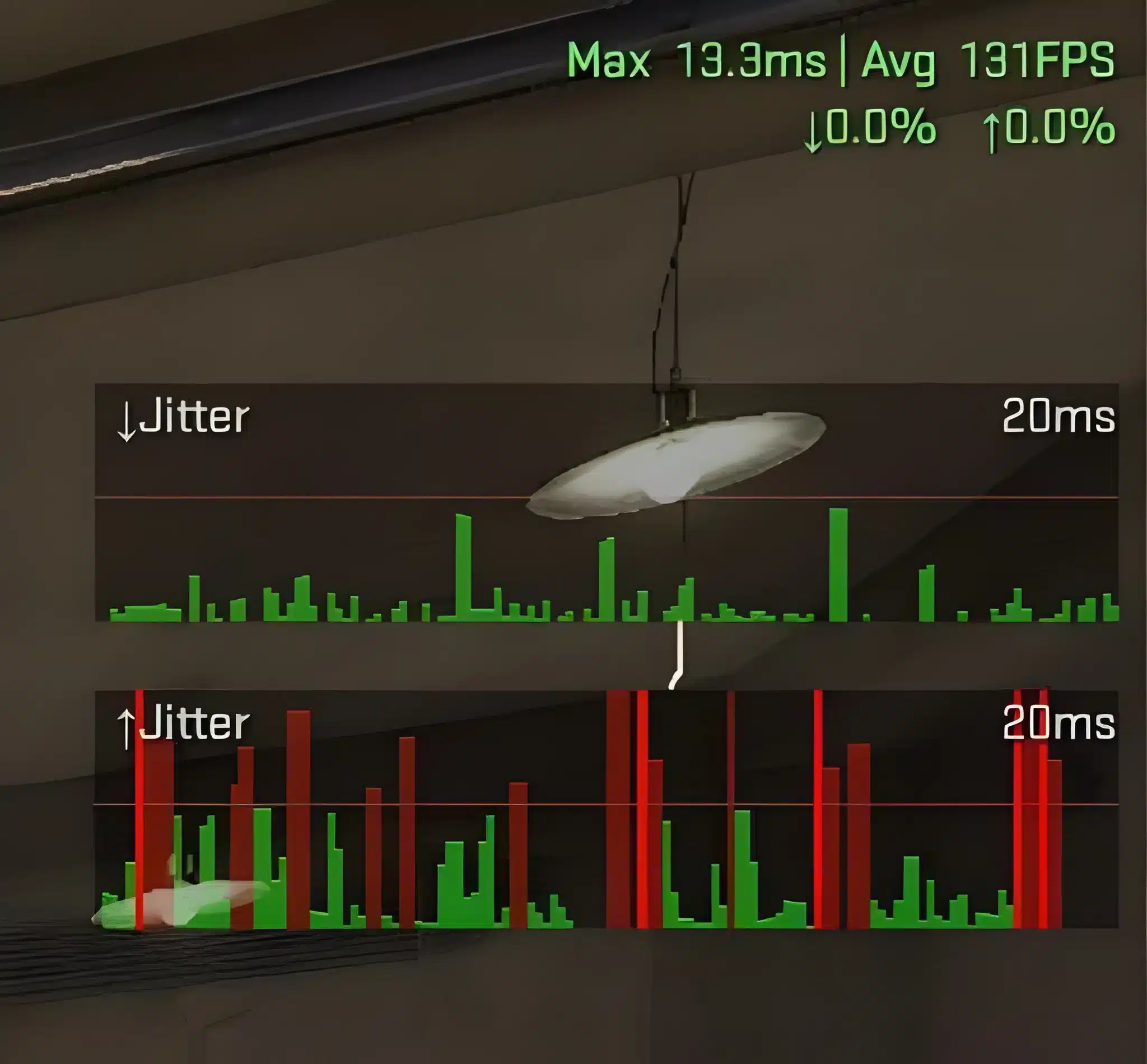
- Spikes above 20ms repeatedly indicate a real jitter problem
- A "mountain range" pattern on a ping graph is a clear red flag
Why Jitter Feels Worse Than High Ping
A stable 60ms connection is actually more predictable than a connection bouncing between 20ms and 90ms. Consequently, the game engine can compensate for consistent delay far more easily than for random spikes.
This is why some players with technically "good" ping still report warping enemies, delayed grenade throws, and shots that visually connect but do not register. The CSGO Net Jitter is often the hidden cause behind these frustrating moments.
CSGO Net Jitter vs Ping vs Packet Loss
Many players lump these three issues together, but they behave very differently and need different fixes. Understanding the distinction saves a lot of wasted troubleshooting time.
How Do Ping, Jitter, and Packet Loss Differ?
Ping measures how long it takes data to travel to the server and back, expressed as an average. Jitter measures how much that number changes from one moment to the next.
Packet loss, on the other hand, happens when data fails to arrive at all. This is often the real cause behind rubber-banding, where your character snaps back to an earlier position.
| Issue | What It Means | Typical Symptom In-Game |
|---|---|---|
| High Ping | Slow round-trip time to server | Delayed reactions, late shots |
| Net Jitter | Ping value fluctuates unpredictably | Warping enemies, inconsistent hit registration |
| Packet Loss | Data packets never reach the server | Rubber-banding, freezing, teleporting |
Notably, fixing packet loss should usually come first, followed by reducing jitter, and only then optimizing raw ping. A connection that drops packets will feel worse than one that is simply a bit slow.
What Causes Net Jitter In Counter-Strike?
Jitter rarely comes from a single source. Instead, it is usually a combination of local network conditions and routing issues between you and the game server.
Common Local Causes
Several everyday factors on your own network can introduce jitter without you noticing right away.
- Unstable Wi-Fi signal affected by walls, distance, or interference
- Outdated or corrupted network adapter drivers
- Background applications consuming bandwidth during matches
- Power-saving modes throttling your network adapter mid-game
- Bufferbloat, where your router's buffer fills up and delays packets
Common Routing Causes
Even with a perfect home setup, jitter can still occur once your data leaves your router. Internet Service Providers do not always choose the fastest or most stable path to a game server.
- Congested ISP routes during peak hours
- Suboptimal server selection by the game's matchmaking system
- Multiple network hops that each add small, inconsistent delays
- Regional routing that sends your traffic through distant exchange points
Furthermore, these routing issues are often invisible to the average player because a basic speed test does not reveal path instability.
How Do You Check For Jitter In CS2?
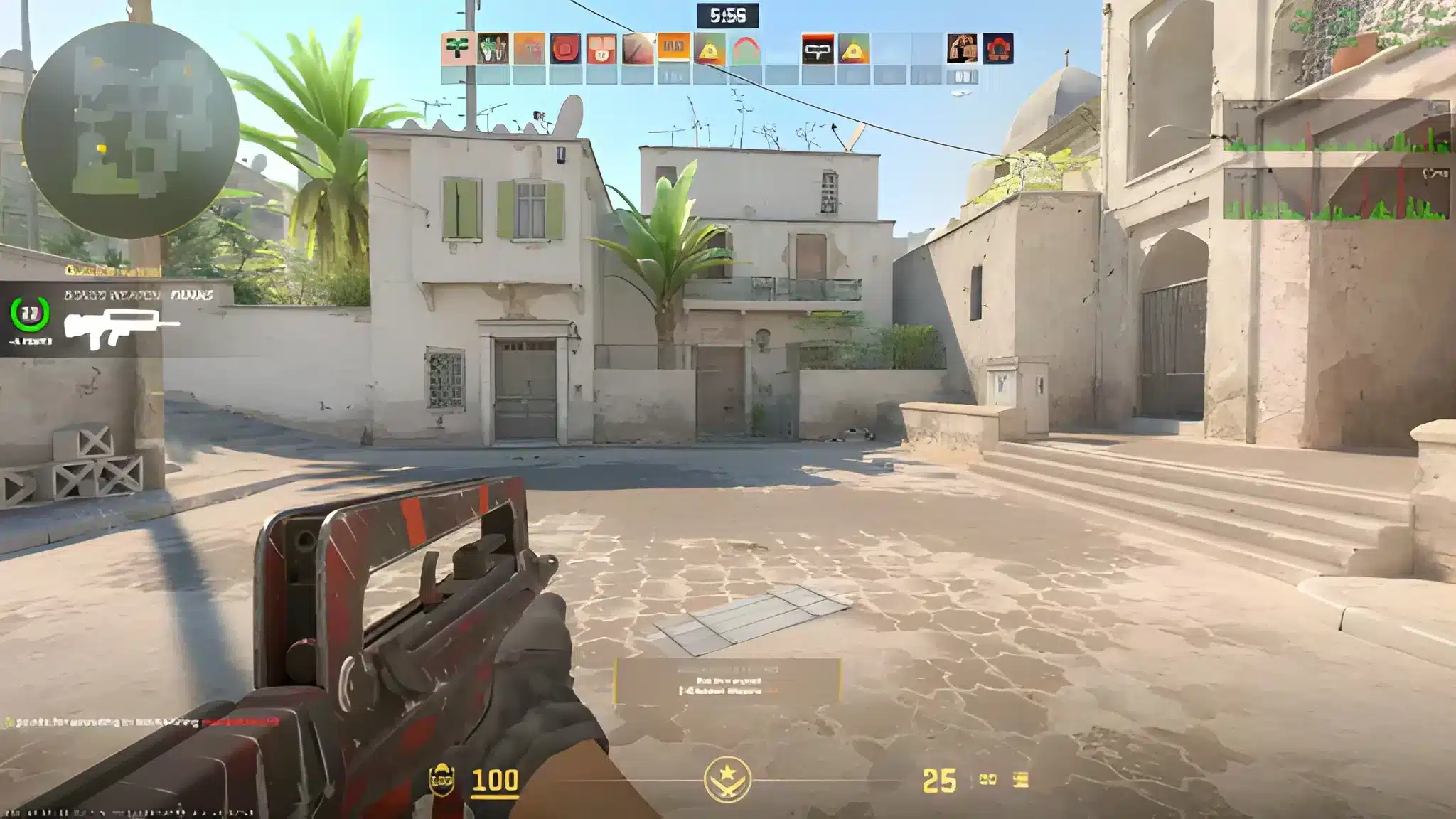
Counter-Strike 2 replaced the classic net_graph display from CS:GO with built-in telemetry you can enable through the settings menu. It shows a visual line representing your ping over time.
Reading The Network Graph
A flat or gently sloped line means your connection is healthy. A jagged, spiky line means active jitter that is likely affecting your gameplay right now.
- Enable the network graph through the game's advanced settings menu
- Watch the line during a full round, not just in the main menu
- Pay attention to spikes that happen specifically during gunfights
- Compare the pattern on Wi-Fi versus a wired connection for reference
Confirming It Is Not Your PC
Sometimes what looks like jitter is actually frame timing or stutter from the system itself. As a result, it is worth ruling out hardware causes before blaming the network entirely.
Close background applications, check your frame rate stability, and verify your drivers are current. If the ping line still looks erratic after that, the issue is genuinely network-related.
Fixing CSGO Net Jitter Step By Step
Once you know jitter is the problem, the fixes generally follow a clear order of priority. Start with the changes that give the biggest improvement first.
Network-Level Fixes
These changes address the root cause rather than just masking the symptom, and they tend to have the largest impact.
- Switch from Wi-Fi to a wired Ethernet connection whenever possible
- Update your network adapter drivers to the latest stable version
- Disable power-saving mode on your network adapter in device settings
- Enable Quality of Service (QoS) on your router to prioritize game traffic
- Restart your router and modem periodically to clear buffer buildup
- Close background downloads, cloud sync tools, and streaming apps during matches
In-Game Adjustments
Alongside network changes, a few in-game settings can help the client handle minor jitter more gracefully without introducing extra input delay.
- Keep your rate and update settings at their modern defaults rather than old configs
- Avoid outdated interp commands copied from older Counter-Strike guides
- Verify game file integrity if stutter persists after network fixes
- Clear shader cache occasionally to rule out rendering-related hitching
Pro Tips For A Stable Connection
Pro Tips: CSGO Net Jitter
- Test at different times of day: Jitter often spikes during peak hours when your ISP's network is congested. Running a quick test in the evening versus the morning reveals whether the problem is local or provider-side.
- Use a wired connection for ranked play: Even a strong Wi-Fi signal introduces micro-fluctuations that Ethernet simply does not have. This single change often solves the majority of jitter complaints.
- Monitor your router for bufferbloat: A router struggling under load will delay packets unevenly, creating jitter that looks random but is actually predictable congestion.
- Keep one device active per network when testing: Streaming, downloads, or another gamer on the same connection can quietly introduce jitter spikes during your matches.
- Reboot network hardware weekly: Routers accumulate memory buildup over time, and a simple restart clears buffers that contribute to unstable ping.
Common Mistakes CS2 Players Make
Common Mistakes CS2 Players Make
- Chasing a lower ping number instead of stability: Players often switch servers purely for a smaller ping figure, ignoring that the new server might be far less stable. Fix: prioritize a flat, consistent line over the lowest raw number.
- Copying outdated rate and interp settings: Many guides still circulate old CS:GO commands that no longer apply the same way in CS2's sub-tick system. Fix: use current, verified settings rather than legacy configs.
- Blaming the game before checking the network: Warping and desync are frequently written off as "server issues" when the real cause is local jitter. Fix: check the network graph first before assuming it is out of your control.
- Running heavy background apps during ranked matches: Cloud backups, auto-updaters, and streaming software quietly eat bandwidth mid-match. Fix: close non-essential apps before queuing.
How ExitLag Helps With CSGO Net Jitter
As someone who has chased ping graphs for years, the most reliable fix I have found for unstable routing is simply not leaving it to your ISP's default path. CSGO Net Jitter is frequently a routing problem, not just a hardware one.
ExitLag is not a VPN. It is a game connection optimizer that scans multiple network paths in real time and picks the fastest, most stable route between you and Counter-Strike's servers.
It does not encrypt your traffic or mask your IP, and it will not interfere with anything outside supported games. ExitLag supports over 4,000 titles across PC and Mobile, with more than 1,500 servers spread across over 190 countries.
Here is what makes it genuinely useful against jitter specifically:
- Real-time Optimization: Continuously reduces delay and packet loss so your commands register faster and more predictably.
- Multipath Technology: Sends your data through multiple routes simultaneously, so if one path becomes unstable, the others keep your connection smooth.
- Multi-Internet: Supports up to four simultaneous internet connections, instantly switching if one drops or degrades.
- Traffic Shaper: Prioritizes your game's traffic over background apps that might otherwise introduce spikes.
- AI-powered routing: Automatically selects the most stable route with one click, while manual customization stays available for advanced users.
ExitLag does not modify game files, does not inject code, and does not interact with anti-cheat systems, so it is safe to use with Counter-Strike and all other supported titles. Just remember not to run it alongside a VPN, since that reduces its effectiveness.
If you are tired of watching that ping line spike mid-fight, you can grab the ExitLag Download and test it on your own connection in minutes.
Frequently Asked Questions
Is CSGO Net Jitter The Same As Lag?
Not exactly. Lag is a general term for any delay or disruption, while jitter specifically refers to inconsistency in your ping over time. You can have low lag on average and still suffer from noticeable jitter.
Can A Good Gaming Router Fix Jitter On Its Own?
A quality router with proper QoS configuration helps significantly, but it cannot fix instability that originates outside your home network. If the congestion happens at your ISP or further along the route, router settings alone will not resolve it.
Does Jitter Affect Casual Matches As Much As Ranked?
Yes. Jitter affects hit registration and movement smoothness regardless of the game mode. However, players tend to notice it more in ranked and competitive matches because precision matters more in close engagements.
All game images used in this blog post belong to Valve Corporation. They are used for informational and educational purposes only and do not imply endorsement or affiliation with the rights holders.
