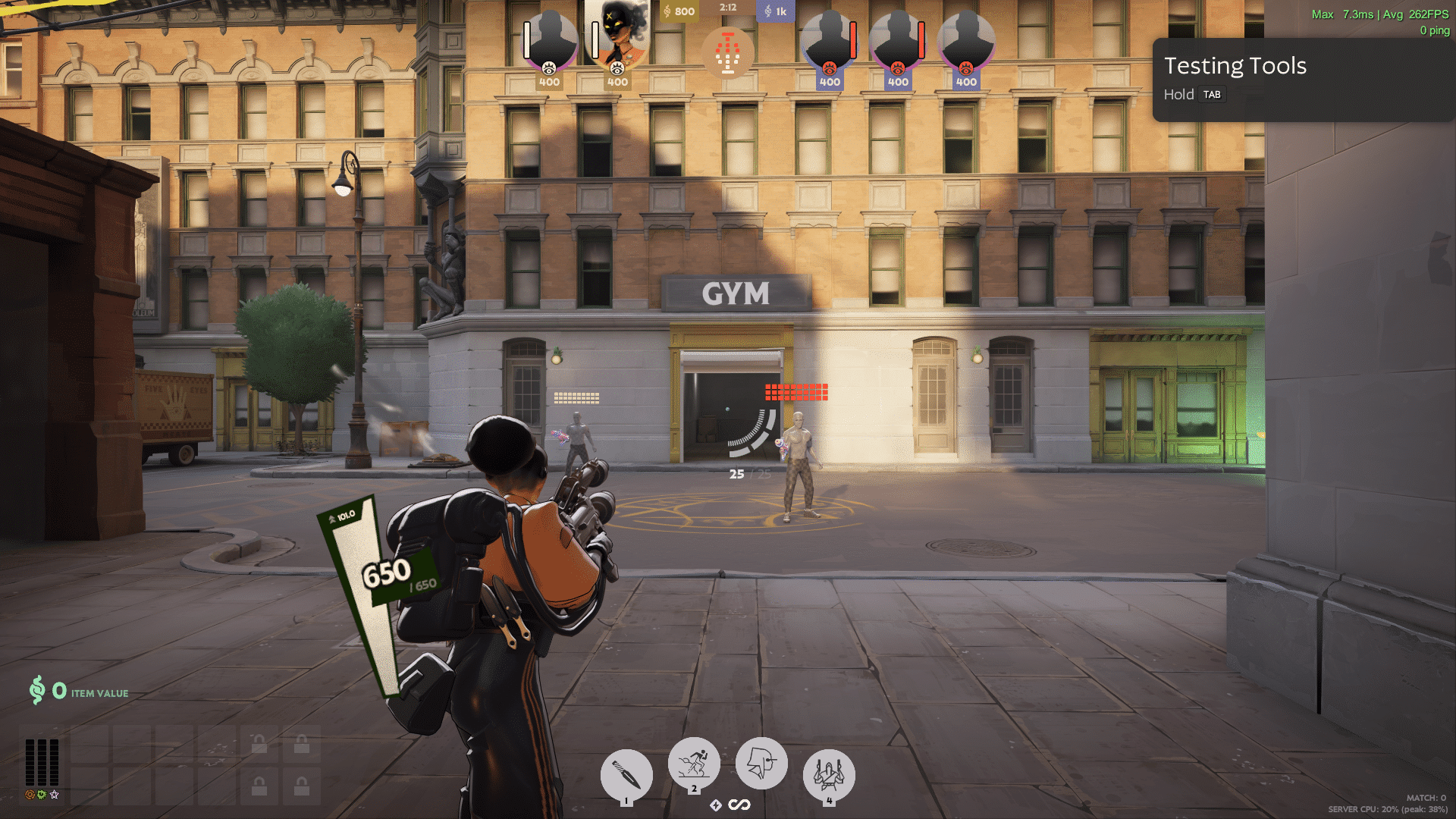
Your reticle is the one piece of the screen you stare at for every second of a match. Yet most players never touch it, and Deadlock Crosshair Codes are the quickest way to fix that without hours of trial and error.
In this guide, you will learn how Deadlock Crosshair Codes work, which settings actually matter, and how to apply a full setup in under a minute. Furthermore, you will get tested starting points for different playstyles.
So, what are they exactly? Deadlock Crosshair Codes are shareable strings of values, or console commands, that recreate someone else's reticle exactly. You paste them in, and your gap, thickness, dot and color change instantly.
What Are Deadlock Crosshair Codes And How Do They Work?
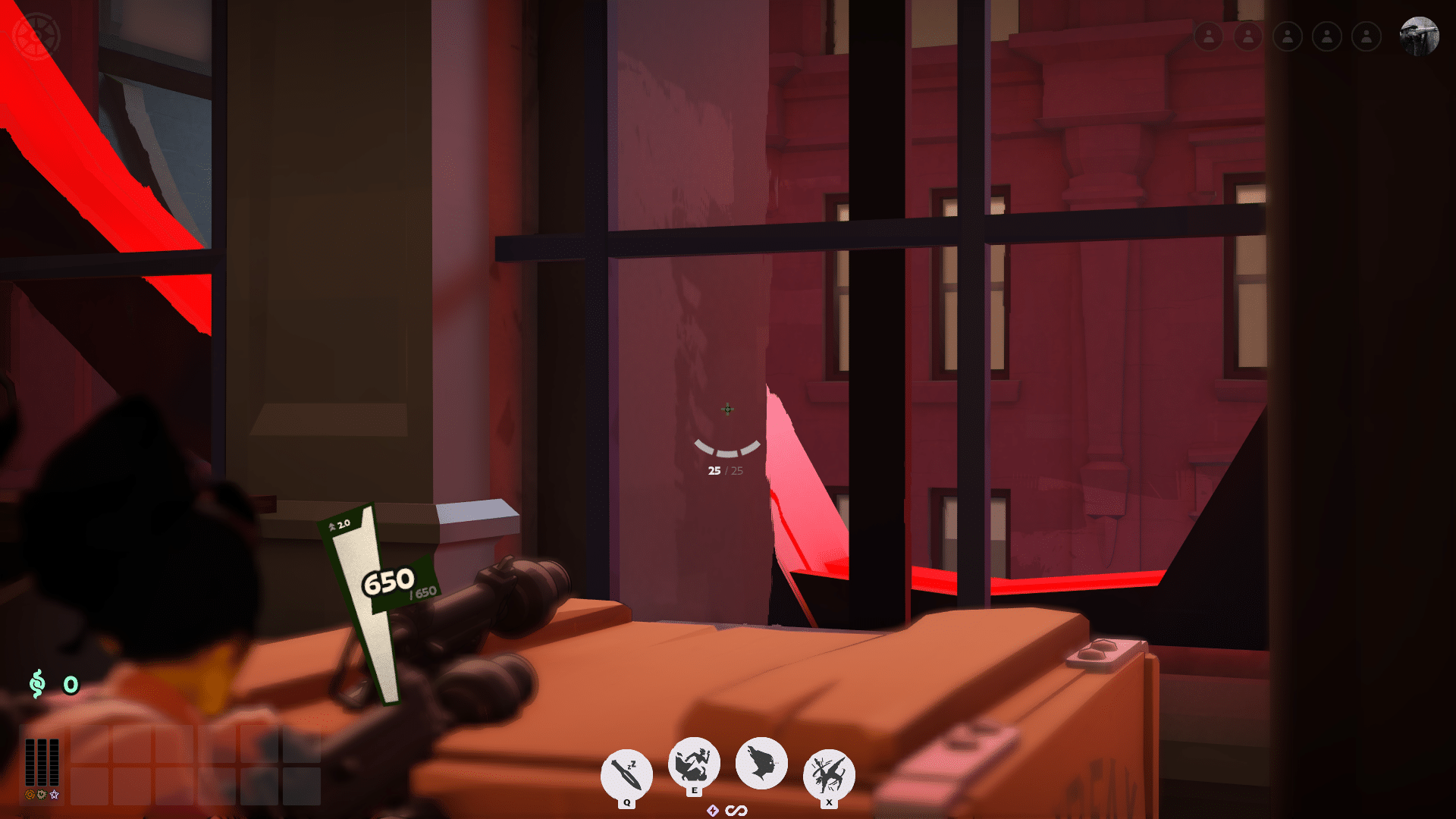
Deadlock is a hero shooter with MOBA elements from Valve, and aiming is central to almost every hero. Consequently, a clean reticle helps you track targets during chaotic fights. Deadlock does not have a single universal import button like some other shooters. Instead, community sites publish crosshairs in two common forms:- Console command lists: a set of citadel_crosshair_* commands you paste into the developer console.
- Encoded strings: a compact line of values (gap, height, width, opacity, color) that generator sites convert into commands for you.
- In-game menu values: basic color, opacity, pip length, thickness and dot options that you can match by hand.
The Commands Behind Every Code
Every shared reticle ultimately boils down to the same set of commands. These are the ones listed by community guides:| Command | What It Changes |
|---|---|
| citadel_crosshair_pip_gap | Space between the crosshair lines |
| citadel_crosshair_pip_height | Length of each line |
| citadel_crosshair_pip_width | Thickness of each line |
| citadel_crosshair_pip_opacity | Visibility of the lines |
| citadel_crosshair_pip_border | Toggles an outline on the lines |
| citadel_crosshair_dot_opacity | Visibility of the center dot |
| citadel_crosshair_dot_outline_opacity | Visibility of the dot outline |
| citadel_crosshair_color_r, _g, _b | Red, green and blue color values |
Why The Settings Menu Is Not Enough
The in-game menu covers the basics, yet it does not expose every slider. For example, the pip gap is one of the most important values and it is mainly controlled through the console. Therefore, anyone who wants a precise Deadlock Crosshair needs the console at least once. Note that variable names can change between builds, so a code that stops working may simply be outdated.How Do You Use Deadlock Crosshair Codes Step By Step?
The process is quick once you know where the console lives. Follow these steps in order:- Open the game settings and enable the developer command console.
- Launch a match or the practice area so you can see the result live.
- Press F7 to open the console.
- Paste the full list of citadel_crosshair_* commands from your chosen code.
- Press Enter, close the console and check the reticle against a bright wall and a dark corner.
How Do You Save Your Crosshair?
Console values normally stick to your profile after you set them. Nevertheless, it is smart to keep your own copy in a text file.- Save the commands in a notes file named after the hero or playstyle.
- Keep one backup version before you experiment.
- Re-paste the list after a major update, because changes to variable names can reset or break values.
Can You Share Your Own Setup?
Yes, and it is easy. Copy your command list and send it to a teammate, or paste it into a crosshair generator site that turns it into a shareable string. Always test a shared code on your own monitor, though. Brightness, resolution and map lighting make the same reticle look different for every player.Best Deadlock Crosshair Settings By Playstyle
Pro and streamer crosshairs on community libraries usually fall into a few categories. Understanding them helps you pick a starting point instead of copying blindly.| Style | Look | Best For |
|---|---|---|
| Competitive | Small, static cross | Long-range gunplay and precise tracking |
| Minimal | Tiny dot or very thin cross | Players who hate screen clutter |
| High-Visibility | Thick, bright lines | Messy team fights and fast heroes |
| Circle Or Ring | Open ring with a dot | Close-range brawlers and tanks |
Dot And Cross Starter Setups
A dot is the cleanest option for tracking, because nothing blocks your target. A thin cross adds a bit of spatial awareness for flicks. Here is a simple way to build either one:- Dot: set citadel_crosshair_dot_opacity 1 and citadel_crosshair_pip_opacity 0.
- Thin cross: keep the dot at low opacity, set a small width, and raise the gap slightly.
- Bordered cross: turn the border on if your map has bright, busy backgrounds.
Which Color Works Best?
High-contrast colors beat pretty ones. Cyan and magenta stand out against the warm tones used in many parts of the map, whereas red and orange tend to blend in. Moreover, a thin dark outline keeps the reticle readable during bright ability effects. Adjust the red, green and blue values until the reticle pops in every lane.Which Crosshair Is Best For Your Hero?
Different heroes ask different things from your aim. A slow, heavy hero does not need the same reticle as a precision gunner. If you play a durable brawler such as Abrams, close-range fighting matters most. A slightly larger gap helps you see your target's model at point-blank range. For support-style picks, such as Ivy, a medium cross works well. You need to track allies and enemies at the same time.Matching Your Gap To Your Range
Gap size is the value most players get wrong. Use this quick rule:- Larger gap: you see your character model clearly and it suits close fights.
- Smaller gap: you get better precision at range, but the center can feel crowded.
- Medium gap: the safest pick if you switch heroes often.
Learning The Hero Pool First
Before you perfect your reticle, learn the roster and choose a main, then tune your aim around it. Pair the new reticle with the right mouse settings using a Deadlock sensitivity converter. Afterward, review your matches to see whether the new reticle improves your accuracy. Smooth frames help too, so try an FPS booster and fix Discord input delay and FPS drops if aim feels off.
Pro Tips: Deadlock Crosshair Codes
- Test in the practice area first: Live matches add pressure, so a calm range lets you judge visibility without guessing. You will notice problems before they cost a fight.
- Change one value at a time: If you modify gap, width and color together, you cannot tell which change helped. Adjust a single command, then play a few minutes.
- Choose contrast over style: A reticle you can see in every room beats a fancy design. Color contrast reduces missed information in fast fights.
- Match the crosshair to your main hero: Heroes with short-range kits benefit from larger gaps. Precision heroes benefit from smaller ones.
- Keep a backup list: Updates can rename variables or reset values. A saved command list gets you back to normal in seconds.
- Check official updates: Valve ships HUD and accessibility changes, so read the news on the official Deadlock website when your setup behaves oddly.
Common Mistakes Deadlock Crosshair Players Make
- Copying a pro code without testing: A streamer's monitor and lighting differ from yours. Fix: use the code as a base and adjust gap and color to your screen.
- Making the reticle too big: Large crosshairs cover the target and hide enemy movement. Fix: shrink the length and width until you can still see the head of the model.
- Ignoring variable changes after updates: A code that silently fails is usually outdated. Fix: check a current community list and re-paste the commands.
- Using warm colors on warm maps: Orange and red vanish against many surfaces. Fix: switch to cyan, magenta or bright green.
- Blaming the reticle for lag: Missed shots are not always an aim problem. Fix: check your connection before changing a fifth crosshair.
Why Does Your Aim Still Feel Off With A Perfect Crosshair?
A perfect reticle only works when the game shows you accurate positions. If shots do not register or enemies teleport, your connection is the problem, not your settings. Look for these warning signs:- Enemies that jump a few steps while you track them.
- Hits that look clean on screen but deal no damage.
- Sudden stutters that appear only during team fights.
Ping, Jitter And Packet Loss
High ping delays everything, jitter makes it inconsistent, and packet loss drops information outright. As a result, even the best Crosshair Deadlock setup will feel unreliable. Run a quick test, close background downloads, and use a wired connection when possible. Then, if the problem remains, route optimization is the next step.Stable Aim With ExitLag
ExitLag is not a VPN. It is a game connection optimizer that checks multiple network paths in real time and picks the fastest, most stable route between you and the game servers. It does not encrypt your traffic or mask your IP. In practice, that means fewer lost packets and steadier input timing, which is exactly what a precise reticle needs. Here is what helps most in a hero shooter like Deadlock:- Real-time Optimization: reduces delay and packet loss so your shots feel faster and more precise.
- Multipath Technology: sends packets through several routes at once, so one bad path does not ruin a fight.
- Multi-Internet: supports up to 4 connections at the same time, and another takes over if one drops.
- Traffic Shaper: prioritizes game traffic over other apps on your network.
Final Thoughts On Deadlock Crosshair Codes
The best reticle is the one you can see instantly and trust completely. Start with a proven code, change one value at a time, and test in the practice area before ranked games. Remember that Deadlock Crosshair Codes are only a starting point. Pair them with a stable connection, a hero you know well, and a habit of rechecking your commands after updates. If you want one simple plan, follow this routine:- Pick a style from the table above.
- Paste the commands into the console.
- Adjust the gap for your main hero.
- Save your list as a backup.
- Play a few matches and refine.