Nothing kills a raid, a ranked match, or a casual voice call faster than a laggy connection. If your Discord Ping keeps jumping around, you already know how frustrating that stutter and delay can feel. This guide breaks down exactly why it happens and how to stop it.
Many players search "why is my discord ping so high" without realizing the answer usually has nothing to do with their download speed. Discord voice traffic behaves differently than web browsing or streaming. Discord Ping depends on routing, voice region, and how your device handles real-time audio packets, not just raw bandwidth.
If you have ever wondered why your discord ping high but internet is fine situation keeps happening, the short answer is this: your internet connection can be fast for downloads and still send voice packets through a slow, congested, or overly long route. Discord ping measures the round trip time between your device and the voice server hosting your call. A fast internet plan does not guarantee a fast path to that specific server.
This article covers the real causes behind high discord ping, the settings that quietly make it worse, and the router and ISP issues most players never check. You will also find practical fixes, a comparison table, and tips used by experienced players to keep calls smooth during long sessions.
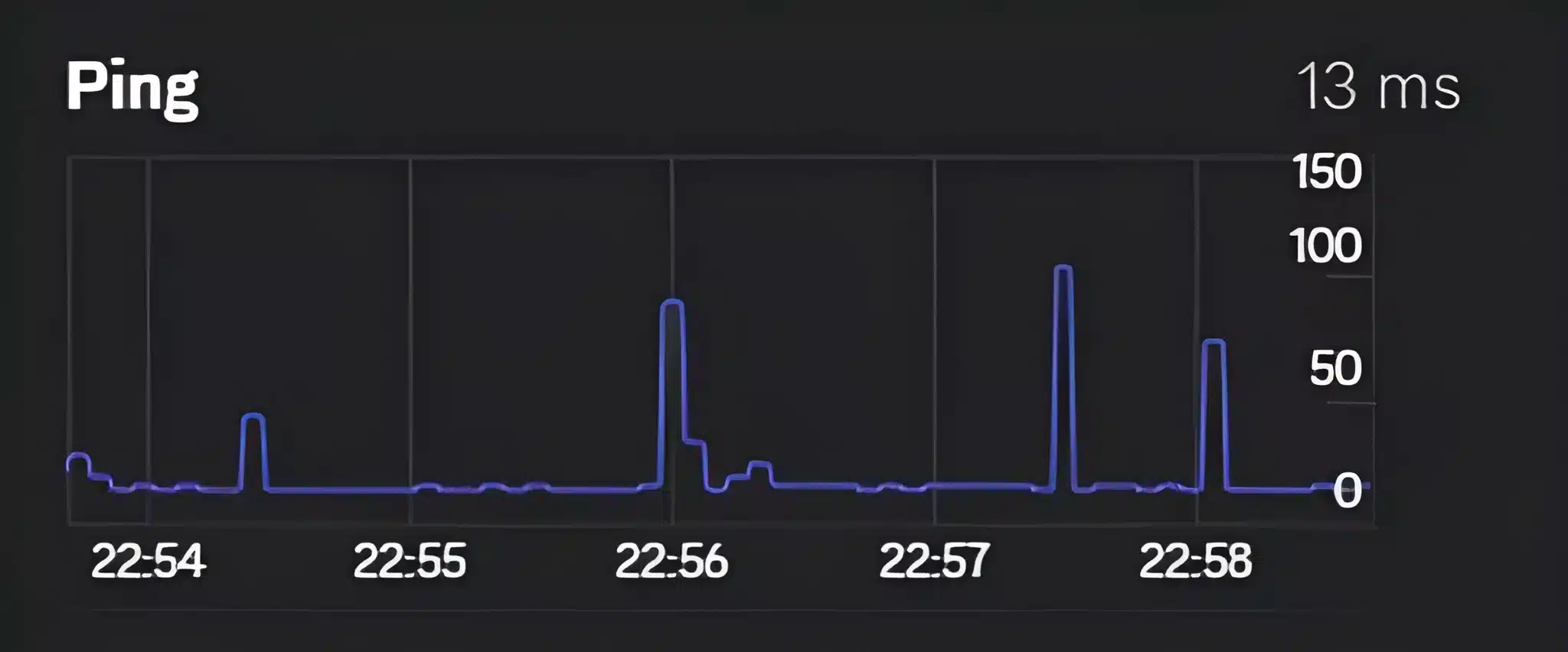
What Causes High Discord Ping
Understanding Discord Ping starts with knowing what it actually measures. It is not your download speed or your Wi-Fi signal strength alone. It is the round trip time between your device and the specific data center hosting your voice channel.
Several factors combine to push that number up. Some come from your setup, others come from Discord's own routing choices, and a few come from your internet provider.
- Voice region mismatch: Discord assigns a region automatically, often based on whoever joins the empty channel first.
- Background bandwidth usage: Downloads, streaming, or cloud backups running in the background compete for the same connection.
- Wi-Fi interference: Walls, distance from the router, and other wireless devices all add delay and jitter.
- Outdated app version: An old Discord build can carry bugs that affect voice performance.
- ISP routing inefficiency: Your provider may send traffic through extra hops before reaching Discord's servers.
Why Discord Ping Differs From In-Game Ping
A lot of players get confused when their game ping looks perfect but their discord ping high reading tells a different story. This happens because Discord and your game client connect to completely different servers.
Your game might route through a nearby regional server, while Discord's voice call connects through a completely different data center. Consequently, the two numbers rarely match exactly, and that is normal.
Furthermore, some games only refresh their ping display occasionally, which can make the in-game number look more stable than it really is. Discord tends to update its connection info more frequently, so spikes show up faster there.
How Voice Regions Affect Ping Discord Results
Discord operates voice data centers across multiple continents, including North America, South America, Europe, Asia, Australia, and Africa. When you join a channel set to Automatic, Discord picks a region based on the first person who connected while it was empty.
That default choice is not always the best one for everyone in the call. If most members are in a different country than the first joiner, everyone else pays the latency cost.
To manually check or adjust this, right click the voice channel, select Edit Channel, and look for the Region Override option. Choosing the region closest to the majority of the group usually produces the most stable ping discord experience for everyone involved.
Fixing Discord Ping Spikes Step By Step
Once you understand the causes, fixing discord ping spikes becomes a matter of working through a short checklist. Most issues get resolved within the first few steps.
- Close background apps that use bandwidth, such as cloud sync tools, torrent clients, or streaming services.
- Switch the voice channel region to the one closest to your location or the majority of your group.
- Disable Hardware Acceleration under User Settings, then Advanced, then Appearance.
- Enable Quality of Service High Packet Priority inside Voice and Video settings.
- Restart your router and modem to clear the routing table and refresh your connection.
- Update your network drivers and confirm you are running the latest stable Discord version.
- Switch from Wi-Fi to a wired Ethernet connection whenever possible.
Notably, the Quality of Service toggle only works correctly if your router also supports and respects QoS tagging. Not every home router does this by default, so it is worth checking your router's admin panel as well.
Why Is My Discord Ping So High Even After Basic Fixes
If you already tried the checklist above and still see a high ping discord result, the issue is likely deeper in your network path. This is where router configuration and ISP routing come into play.
Outdated router firmware, weak CPU power on older routers, or NAT type conflicts can all introduce jitter during voice calls. Additionally, some routers struggle to handle multiple simultaneous UDP streams, which is exactly what voice chat relies on.
Therefore, the next step is checking your router settings directly:
- Turn off UPnP if it is not required for anything else on your network.
- Confirm your router firmware is updated to the latest available version.
- Enable QoS and prioritize voice or UDP traffic if your router supports it.
- Test with a different device on the same network to isolate whether the issue is hardware specific.
Is Your ISP Causing High Discord Ping Spikes
Sometimes the bottleneck sits entirely outside your home network. Internet providers do not always choose the shortest or fastest path to reach Discord's servers.
Instead, they optimize routes for cost and overall capacity, not for gaming or voice latency specifically. As a result, your traffic can travel through extra exchange points before finally reaching the correct data center.
You can check for this by running a continuous trace route while your discord ping high issue is happening. If packet loss appears at a hop that belongs to your ISP rather than Discord, that confirms the routing problem sits upstream of your home.
Discord Ping Comparison Table
The table below shows how different ping ranges typically feel during a real voice call, helping you judge whether your current numbers need attention.
| Ping Range (ms) | Call Quality | Typical Symptoms |
|---|---|---|
| 0 to 50 | Excellent | Instant response, no noticeable delay |
| 50 to 100 | Good | Minor delay, generally unnoticeable |
| 100 to 150 | Fair | Slight lag, occasional talk over moments |
| 150 to 250 | Poor | Noticeable delay, choppy audio |
| 250 and above | Very Poor | Frequent cutouts, audio desync, dropped calls |
Pro Tips: Keeping Discord Ping Low
- Pick the closest region manually: Do not rely on Automatic if your group spans different countries. Manually setting the region closest to most members keeps latency fair for everyone.
- Run one voice app at a time: Running Discord alongside another VoIP tool doubles the audio processing load on your router and can trigger jitter.
- Schedule big downloads for later: Large downloads or game updates running in the background will always compete with real time voice packets.
- Reboot your router weekly: Routers accumulate memory clutter and stale routing tables over time, which can slowly raise latency without an obvious cause.
- Check for firmware updates monthly: Router manufacturers regularly patch bugs that affect UDP handling and connection stability.
Common Mistakes Discord Users Make
- Assuming download speed equals low ping: A 500 Mbps plan does not fix a bad route to Discord's voice servers. Fix: focus on routing quality, not just bandwidth.
- Leaving the region on Automatic in mixed groups: This can silently punish half the group with unnecessary delay. Fix: manually override the region when members are spread across countries.
- Ignoring Wi-Fi placement: Sitting far from the router with walls in between adds real, measurable latency. Fix: move closer to the router or switch to a wired connection.
- Never checking for packet loss: Many players blame Discord itself when the real issue is a lossy hop somewhere on their ISP's network. Fix: run a trace route to confirm where the loss actually starts.
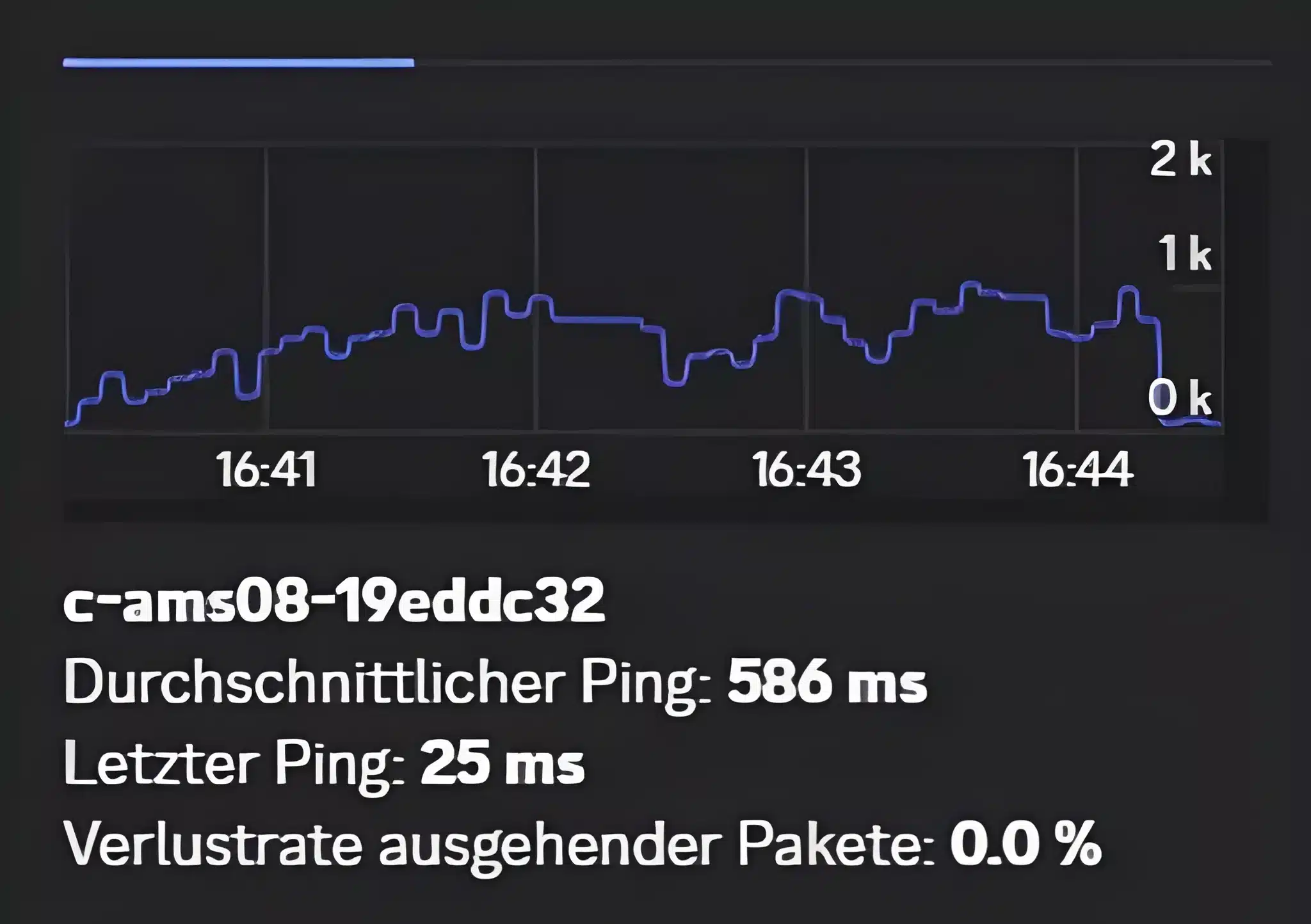
How ExitLag Helps With Discord Ping
Once you have covered the basics, the biggest remaining factor is often the route your ISP chose for you. That route is rarely the fastest one available, since providers prioritize cost and overall capacity rather than gaming or voice performance.
This is exactly the kind of problem ExitLag was built to solve. It is not a VPN. ExitLag is a connection optimizer that analyzes multiple network paths in real time and selects the fastest, most stable one for your traffic.
Instead of encrypting everything or hiding your IP, ExitLag focuses purely on routing quality. It supports over 4,000 titles across PC and mobile, with more than 1,500 servers spread across 190 plus countries, and is trusted by over 30 million users worldwide.
For voice heavy activities, the Multipath Technology feature sends your data through multiple routes at the same time. If one path becomes congested or drops, the others keep your connection alive without an interruption you would even notice.
- Real-time Optimization: Continuously reduces delay and packet loss so voice packets arrive faster and more consistently.
- Multi-Internet support: Combines up to four simultaneous internet connections, so a single dropped line does not end your call.
- Traffic Shaper: Prioritizes your game and voice traffic over other apps competing for bandwidth on the same network.
- AI-powered routing: Automatically finds the cleanest available path in one click, with manual customization also available for advanced users.
ExitLag does not modify game files, inject code, or interact with anti-cheat systems, so it works safely alongside the titles you already play while voice chatting. If you want to stop guessing and start fixing the routing behind your Discord Ping for good, you can get the ExitLag Download for your PC, or grab ExitLag for Android and ExitLag for iOS if most of your sessions happen on mobile.
All images used in this blog post belong to Discord Inc. They are used for informational and educational purposes only and do not imply endorsement or affiliation with the rights holders.