Few things kill a heist run faster than a random disconnect right before the payout screen. If you have been searching for answers to GTA V Server Issues, you are not alone.
Thousands of players hit the same wall every week: failed session joins, rubber-banding traffic, and error codes that make no sense. The good news is that most of these problems have clear causes and clear fixes.
In most cases, GTA V Server Issues come from a mix of local network instability, strict NAT settings, and the game's peer-to-peer session structure rather than Rockstar's servers actually being offline. Once you understand which part of the chain is failing, fixing it becomes a lot more straightforward. This guide breaks down every layer, from checking official server status to tightening your own connection for smoother lobbies.
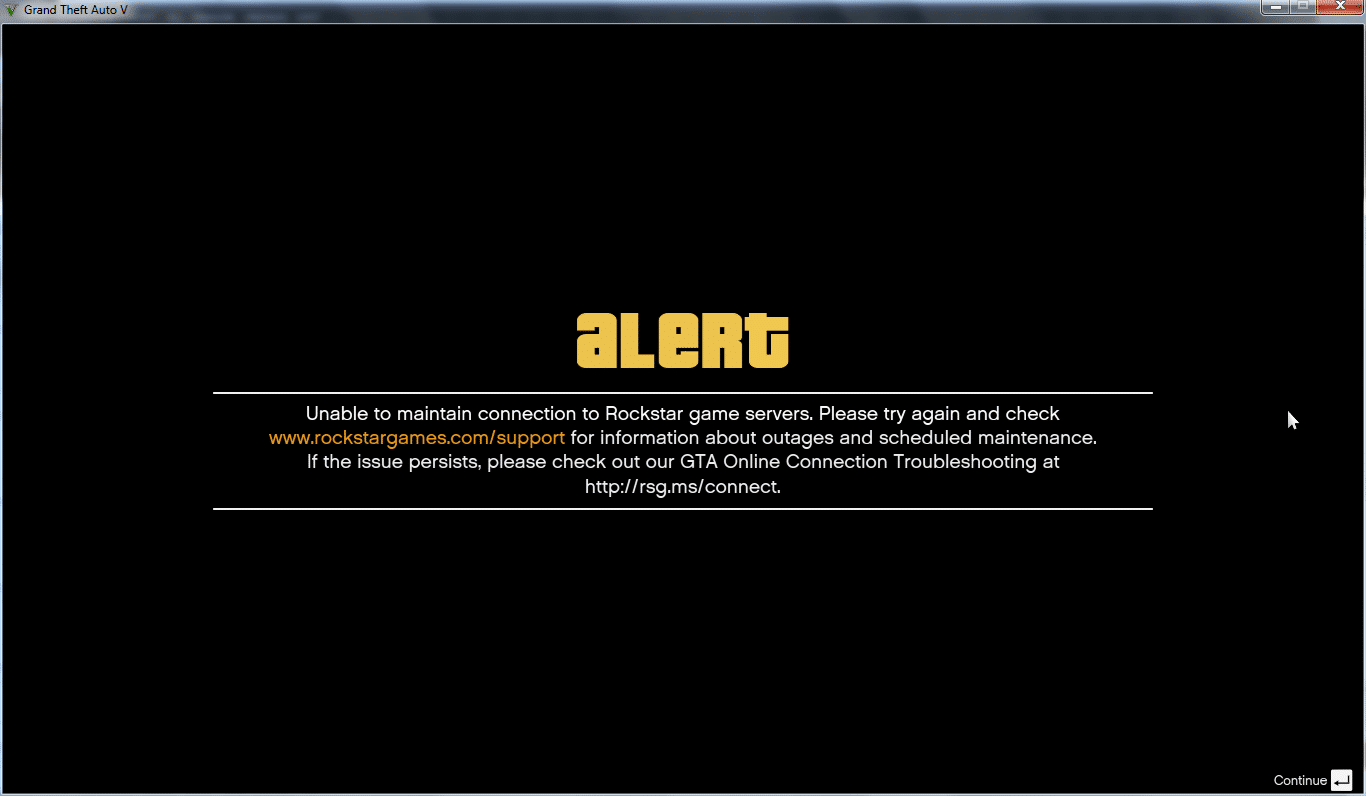
Understanding GTA V Server Issues Before You Troubleshoot
Before changing any settings, it helps to know what is actually happening behind the scenes. GTA Online does not run on a single central game server the way many modern shooters do.
Instead, sessions rely heavily on a peer-to-peer structure layered on top of Rockstar's backend services. That distinction matters a lot when diagnosing problems.
Why GTA V Server Issues Are Rarely Rockstar's Fault
Rockstar's authentication and matchmaking services do go down occasionally, especially during major updates. However, most day-to-day connection trouble actually happens between players, not between you and Rockstar.
Because one player in your session often acts as a temporary host for that lobby, your experience can degrade if that host has a poor connection. This is why two players on the same night can have completely different experiences in the same game mode.
- Rockstar backend outages: rare, usually brief, and listed on the official status page
- Peer-to-peer session instability: common, caused by any player's unstable connection
- Local network problems: the most frequent root cause, and the easiest to fix yourself
How to Check If It Is a Real Outage
Before touching your router or settings, always confirm whether Rockstar's services are actually down. This step alone saves a lot of wasted troubleshooting time.
- Check Rockstar's official service status page for any listed outage on your platform
- Search recent posts from Rockstar's support channels for confirmed incidents
- Ask in community forums whether other players are seeing the same error at the same time
- If nothing is confirmed as down, move on to local network troubleshooting
Common GTA Online Error Codes and What They Mean
Recognizing the error code you are seeing narrows down the fix considerably. Rockstar uses a fairly consistent numbering system across PC, PlayStation, and Xbox.
Some codes point to server communication failures, while others are tied to outdated game files or blocked connections. Reading the code carefully saves you from applying the wrong fix.
| Error Code | Likely Meaning | Quick Fix |
|---|---|---|
| Error Code 132 | Rockstar services unavailable or offline verification failed | Wait, check status page, retry |
| Error Code 7002.1 | Game version mismatch after a patch | Update the game fully before retrying |
| 0x10023 series | Asset loading failure from Rockstar services | Restart game, check file integrity |
| Error Code 1.000.7 | General connectivity/handshake problem | Restart router, check firewall rules |
| Timed Out Joining Session | Session handshake failed between peers | Join a private session first, then go public |
Why Timed Out Joining Session Happens So Often
This particular error is one of the most reported GTA V Server Issues among console and PC players alike. It usually happens when the game struggles to establish a direct connection to the current session host.
A known workaround is entering a private session first, letting the game stabilize, then transitioning into a public lobby. This gives the matchmaking process a cleaner path to work with.
Fixing Lag, Rubber-Banding, and Desync in GTA Online
Lag and rubber-banding are different problems from outright disconnects, but they share the same root causes. Both usually trace back to ping, jitter, or packet loss rather than your download speed.
Even a strong internet plan will not prevent lag if your route to other players is unstable. This is one of the most misunderstood parts of troubleshooting GTA V Server Issues.
- Ping above 80 to 100 ms starts to noticeably affect vehicle handling and shooting accuracy
- Packet loss above roughly 0.5 percent is enough to cause visible rubber-banding
- Jitter (inconsistent ping) causes hit registration to feel unreliable even when average ping looks fine
- Wi-Fi interference from other devices adds all three problems at once
Is Your Connection Actually the Problem?
A simple way to test this is comparing your experience in solo sessions versus public lobbies. If solo play runs smoothly but public sessions constantly stutter, the issue is almost certainly related to routing and peer connections, not your hardware.
Running a basic ping and packet loss test to common gaming routes will confirm whether your baseline connection is stable before you even load the game.
Wired Connection vs Wi-Fi: Why It Matters
Switching from Wi-Fi to a wired Ethernet connection remains one of the single most effective changes a player can make. It removes wireless interference entirely from the equation.
| Connection Type | Typical Stability | Recommended For |
|---|---|---|
| Wired Ethernet | High, consistent ping | Heists, competitive lobbies, races |
| 5GHz Wi-Fi | Moderate, some interference | Casual solo play, close to router |
| 2.4GHz Wi-Fi | Low, frequent interference | Not recommended for online sessions |
NAT Type and Router Settings for GTA V Server Issues
A strict NAT type does not necessarily slow packets down, but it does prevent certain connections from forming at all. This leads to failed invites, smaller sessions than expected, and matchmaking that keeps placing you alone.
Opening the correct ports and setting your NAT type to Open or Moderate resolves a large share of session-related GTA V Server Issues. This is one of the most overlooked fixes among casual players.
- Log into your router's admin panel using its local IP address
- Enable UPnP if it is currently disabled, or manually forward the required GTA Online ports
- Set your console or PC as a DMZ device only as a last resort, since it reduces security
- Restart the router fully and reconnect before launching the game again
What Is Causing Session Join Failures?
Session join failures are typically a NAT or firewall issue rather than a Rockstar outage. Firewalls sometimes flag GTA Online's traffic as suspicious, especially after a fresh operating system update.
Double check that your antivirus and firewall software both have explicit exceptions for the game. This single step resolves a surprising number of "unable to join session" reports.
Pro Tips: Reducing GTA V Server Issues
- Play during off-peak hours: Weekday mornings tend to have fewer active players competing for the same routing paths, which reduces congestion-related lag.
- Restart your router before long sessions: Clearing cached DNS entries with a full 10 minute power cycle forces a fresh handshake with Rockstar's authentication servers.
- Prioritize game traffic with QoS: Enabling Quality of Service on your router keeps background downloads or streaming from stealing bandwidth mid-session.
- Keep the game fully updated: Many error codes tied to version mismatches disappear the moment the client and servers are running the same build.
- Avoid mixing wireless devices on the same band: Smart home devices on 2.4GHz Wi-Fi can quietly add jitter that is hard to diagnose otherwise.
Common Mistakes GTA Online Players Make
- Blaming Rockstar immediately without checking status: Many players assume every disconnect is a server outage. Fix: always check the official status page first, since local issues are far more common.
- Ignoring NAT type warnings: A strict NAT is often dismissed as a minor detail. Fix: switch it to Open or Moderate through proper port forwarding, not just a DMZ shortcut.
- Running outdated network drivers: Old router firmware or PC network drivers introduce instability that mimics server problems. Fix: update both regularly, especially after a major game patch.
- Reinstalling the entire game as a first step: This wastes hours and rarely fixes connection-based errors. Fix: troubleshoot the network first, then consider file integrity checks.
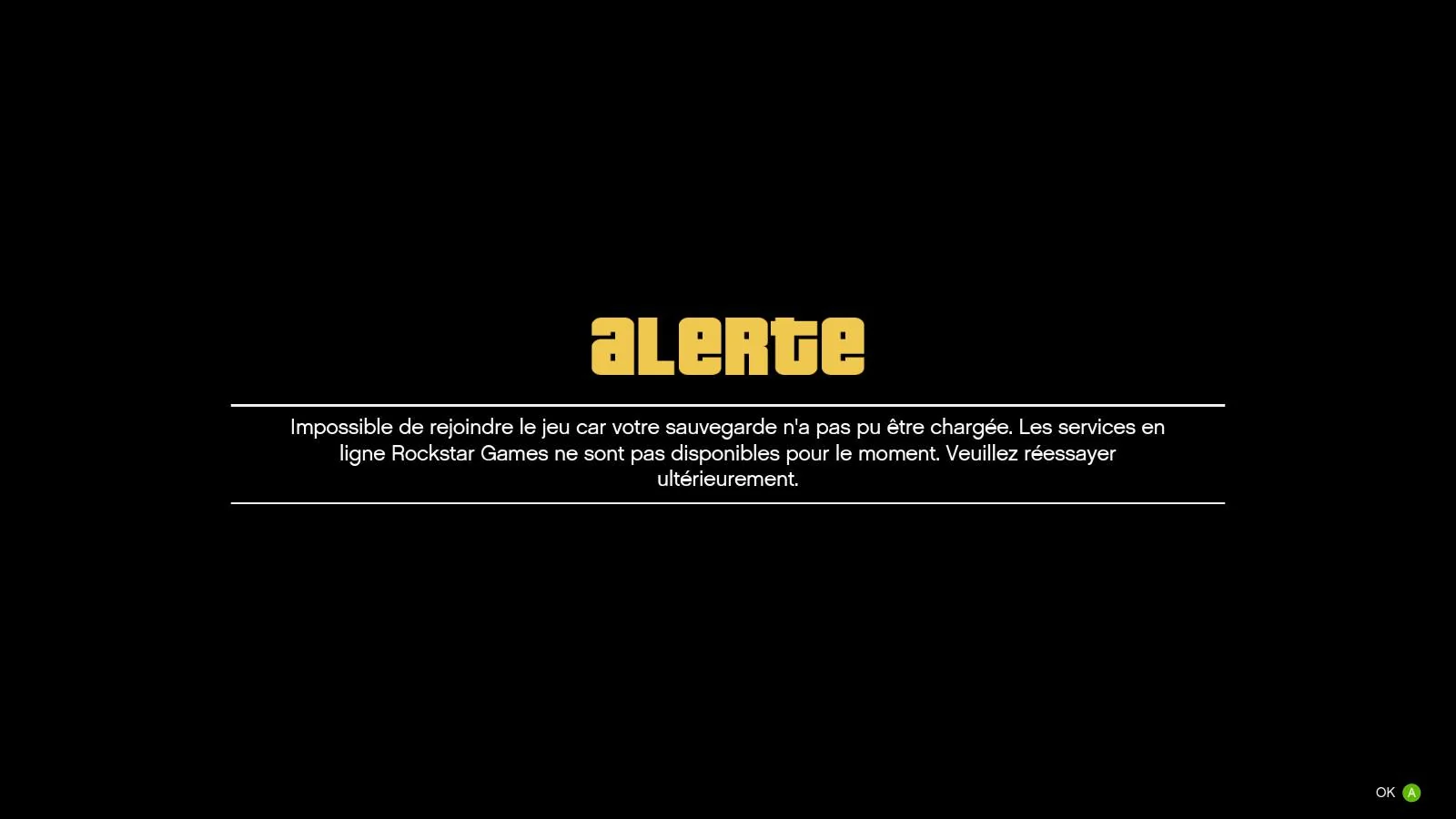
How ExitLag Helps With GTA V Server Issues
Once your local network and router settings are optimized, the next bottleneck is usually the actual route your data takes to reach other players and Rockstar's services. That is where ExitLag comes in.
ExitLag is a game connection optimizer, not a VPN. It analyzes multiple network paths in real time and automatically selects the fastest, most stable route available for your session.
Because GTA Online relies so heavily on peer-to-peer routing, an inconsistent path between you and the session host is often the real reason behind rubber-banding and dropped connections.
- Real-time Optimization reduces delay and packet loss, which directly helps with rubber-banding during heists and shootouts
- Multipath Technology sends your traffic through multiple routes at once, so if one path degrades, another keeps the session alive
- Multi-Internet support lets you combine up to 4 connections, useful if your household has a backup mobile hotspot available
- Traffic Shaper prioritizes GTA Online's traffic over background downloads or updates running on the same network
ExitLag supports thousands of titles across PC and Mobile, with a large global server network built specifically to reduce routing problems like the ones behind many GTA V Server Issues. It does not modify game files, inject code, or interact with anti-cheat systems in any way.
If you want a more stable route for your next session, you can grab the ExitLag Download and let the AI-powered routing pick the best path automatically. Manual server selection is also available if you prefer to fine-tune it yourself.
Is ExitLag Safe to Use With GTA Online?
Yes. ExitLag does not touch game files or interact with Rockstar's anti-cheat systems, so it is safe to run alongside GTA Online. It simply changes the network path your traffic takes, not the game itself.
One important note: avoid running ExitLag alongside a separate VPN at the same time, since the two can conflict and actually reduce the benefit of route optimization.
Frequently Asked Questions About GTA V Server Issues
Why Does GTA Online Keep Disconnecting Me From Sessions?
This usually points to either a strict NAT type, an unstable host in your current peer-to-peer session, or local packet loss. Working through the NAT and router steps above resolves the majority of these cases.
Can a VPN Fix GTA V Server Issues?
A standard VPN often adds latency rather than reducing it, since it routes traffic through an extra encrypted tunnel. A dedicated connection optimizer designed for gaming traffic is generally a better fit for this specific problem.
Final Thoughts on GTA V Server Issues
Most connection trouble in GTA Online comes down to local network conditions, NAT settings, and peer-to-peer routing rather than Rockstar's servers being offline. Working through status checks, router settings, and a wired connection resolves the majority of cases.
For the routing layer that is out of your direct control, a connection optimizer can make a measurable difference during heists, races, and freemode sessions. Between proper local setup and smarter routing, GTA V Server Issues become far easier to manage.
All game images used in this blog post belong to Rockstar Games. They are used for informational and educational purposes only and do not imply endorsement or affiliation with the rights holders.