Battlefield 6 lag is one of the most immersive FPS experiences ever created, combining stunning visuals, massive maps, and dynamic multiplayer warfare. Yet, nothing is more frustrating than dealing with lag in such a fast-paced environment.
Moreover, players who experience input delay, rubberbanding, or slow responses know how game-breaking this can be. Battlefield 6 lag often occurs when the connection between your system and the server becomes unstable, creating delays that ruin immersion and performance. Understanding what causes lag and how to fix it is crucial to achieving smooth, competitive gameplay.
Before diving into solutions, let’s understand exactly what lag means in Battlefield 6 and why it affects performance so heavily. In simple terms, lag refers to the delay between a player’s action and the server’s response, for example, when you shoot or move but the action appears late on screen.
What is lag in Battlefield 6?
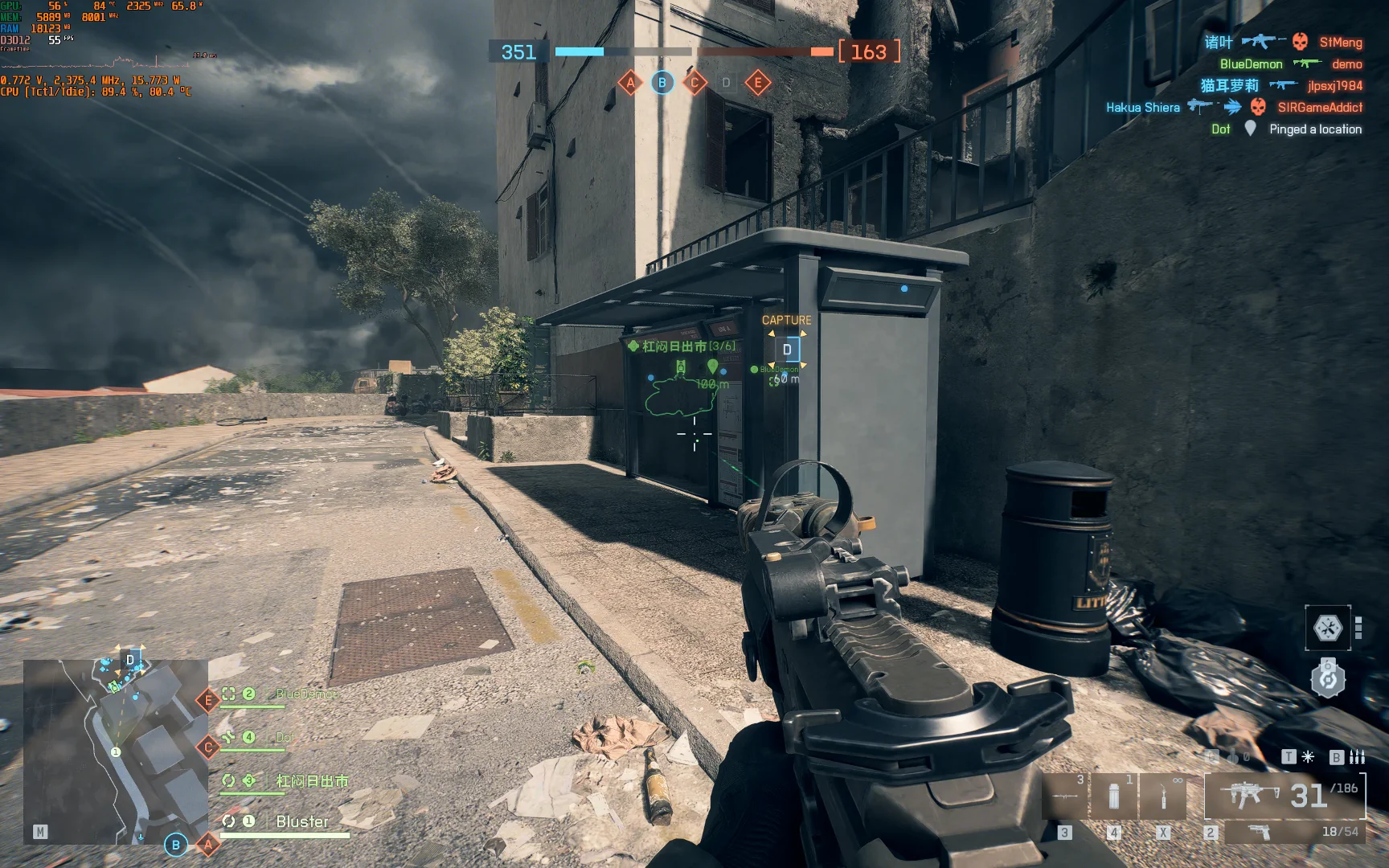
Lag refers to the delay between your actions and the game’s response on the screen. In online games like Battlefield 6, lag can occur due to high ping, unstable network connections, or overloaded servers. Essentially, your commands take longer to reach the game server and return to your screen, resulting in delayed reactions and frustrating gameplay moments.
There are several types of lag:
- Network Lag: When your connection to the server is unstable or slow.
- FPS Lag: When your PC’s hardware struggles to maintain consistent frame rates.
- Server Lag: When the Battlefield 6 servers experience overload or regional instability.
Once you understand these causes, solving them becomes much easier. And if you’re currently struggling with Battlefield 6 Lag, you’re not alone—many players face this issue daily, but there are reliable fixes available.
Main causes of lag in Battlefield 6
To address lag effectively, you must first identify its origin. Several common factors can create performance drops or delays in Battlefield 6:
| Cause | Description | Possible Fix |
| High Ping | Long response time between your PC and the server | Use ExitLag or connect to closer servers |
| Packet Loss | Data packets are lost during transmission | Optimize connection routing |
| Low FPS | Hardware performance issues | Lower graphics settings or update drivers |
| Server Instability | EA servers under heavy load | Switch to different regions temporarily |
| Background Processes | Other apps using bandwidth | Close unnecessary apps and downloads |
As you can see, some problems are hardware-related, while others depend on your internet routing. The good news is that most connection issues can be solved with the right tools.
How ping and lag affect your Battlefield 6 matches
Ping is the time it takes for data to travel between your computer and the game server, measured in milliseconds (ms). In competitive games like Battlefield 6, every millisecond counts.
A ping below 50 ms ensures near-instant reactions, but when it climbs above 100 ms, you start noticing input delays and desynchronization between actions and animations. When this happens, Battlefield 6 Lag becomes a real problem, affecting your aim accuracy, vehicle control, and overall gameplay stability.
Smooth ping equals smoother combat. Lowering ping not only improves your response time but also makes aiming and movement feel more natural.
How to reduce lag and ping in Battlefield 6
Reducing lag requires a combination of hardware optimization and network tuning. Below are the most effective solutions:
1. Check your internet connection
Ensure you have a stable, wired connection. Wi-Fi can cause packet loss and latency spikes. If possible, connect your PC or console directly via Ethernet cable.
2. Close background applications
Streaming, downloads, or cloud sync can consume bandwidth. Close apps like Steam downloads, Discord streaming, or Chrome tabs running in the background.
3. Update drivers and game files
Outdated network or graphics drivers can create micro-stutters. Make sure both your GPU and network adapter drivers are up-to-date. Verify the integrity of Battlefield 6’s game files as well.
4. Optimize graphics settings
High visual effects may drop frame rates. Try lowering:
- Shadow quality
- Ambient occlusion
- Post-processing effects
This ensures smoother rendering even on mid-range PCs.
5. Use a game optimization tool (ExitLag)
ExitLag is designed specifically to fix high ping, route instability, and server congestion. It analyzes the best possible path between your device and the game servers, ensuring data packets travel through the most stable routes.
By activating ExitLag before starting Battlefield 6, you can:
- Reduce ping and latency spikes
- Avoid packet loss
- Stabilize server connections
- Enjoy smoother gameplay in every match
Players who use ExitLag report immediate performance improvements, especially during peak hours when servers are crowded.
Comparing standard connection vs ExitLag connection
| Aspect | Without ExitLag | With ExitLag |
| Average Ping | 120 ms | 55 ms |
| Packet Loss | 2% | 0% |
| Connection Stability | Unstable | Consistent |
| Frame Drops | Frequent | Reduced |
| Gameplay Smoothness | Laggy | Fluid and responsive |
The results speak for themselves. By optimizing your route through ExitLag, Battlefield 6 runs more efficiently, improving both reaction speed and gameplay flow.
Advanced fixes for persistent Battlefield 6 lag
If lag persists even after standard fixes, consider the following advanced methods:
- Change Your Game Server Region:
Sometimes the issue is not your connection, but the server itself. Switch to a region with lower latency using in-game settings. - Adjust Network Settings in Windows:
Disable features like “Large Send Offload” in your network adapter settings to improve responsiveness. - Prioritize Battlefield 6 in Task Manager:
Open Task Manager, go to “Details,” right-click Battlefield 6, and set priority to “High.” This ensures your CPU prioritizes the game over background tasks.
These adjustments ensure that your gaming sessions are smooth, competitive, and lag-free.
Why ExitLag is the solution?
Unlike typical fixes that only treat symptoms, ExitLag works at the core of the problem your connection route. By dynamically adjusting the pathway your data travels, it ensures the fastest, most reliable connection possible.
With ExitLag:
- Your Battlefield 6 Lag problems disappear.
Ping remains consistent even during server congestion. - You gain a competitive edge in every match.
Thousands of FPS players rely on ExitLag daily to stabilize games like Battlefield, Call of Duty, and Apex Legends. It’s a must-have for anyone serious about performance.
How to use ExitLag in Battlefield 6
The process is extremely simple:
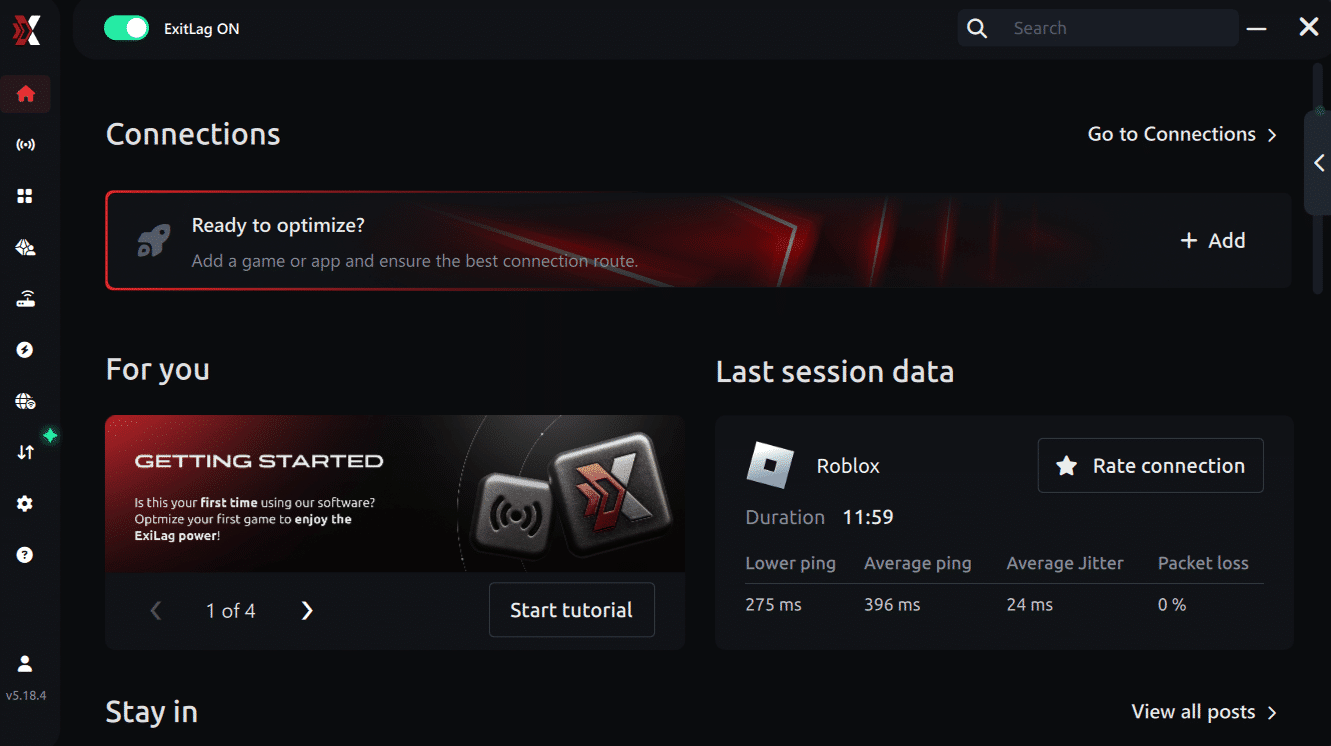
Step 1 – Access the official ExitLag website and download the application. There’s a free trial period for new users.
Step 2 – Install and open the program. Log in with your account.
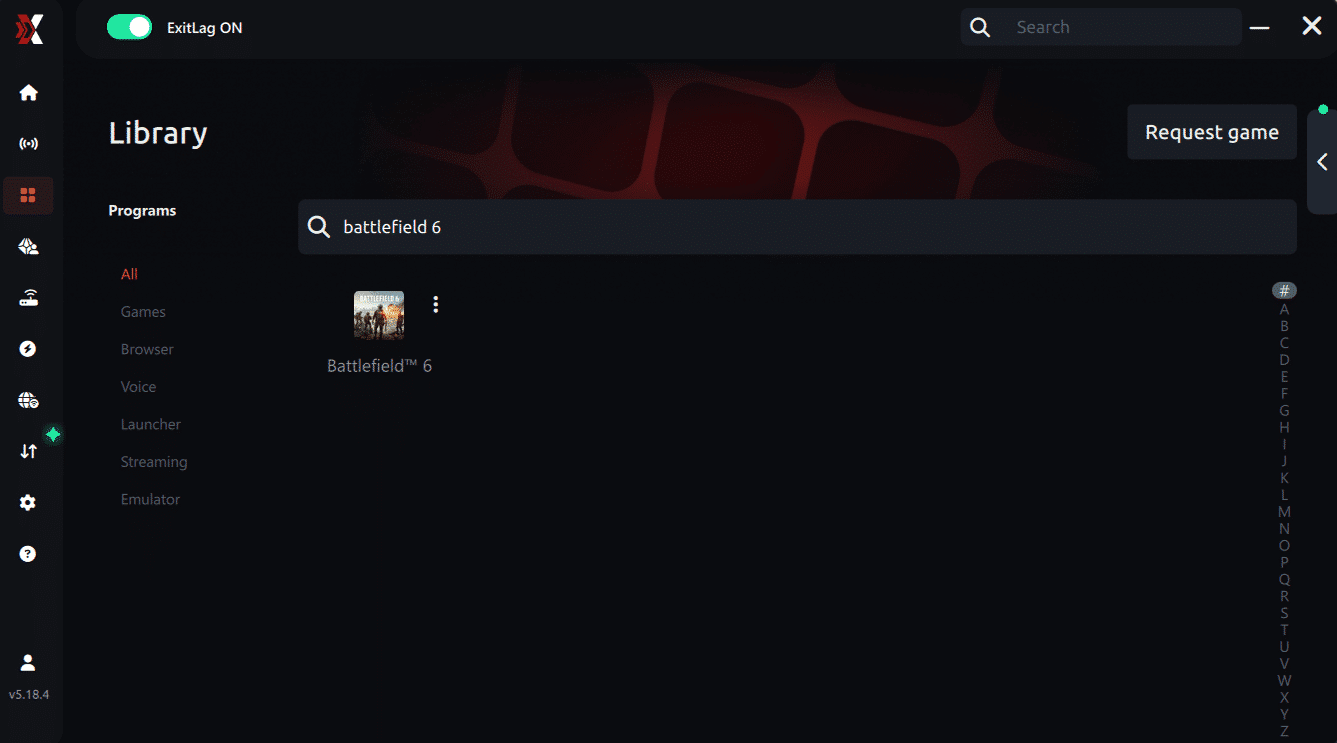
Step 3 – In the search bar, type “Battlefield 6” and select the game from the list.
Step 4 – Choose between automated or manual route
Based on the results, you can let ExitLag automatically select the best route or manually choose the server that showed the lowest latency for your connection.
AI-optimized automated route
Based on the results, you can let ExitLag automatically select the best route through AI optimization. The system analyzes multiple connection paths in real time and automatically identifies the most efficient route for your connection, ensuring the lowest possible latency without requiring manual choices.
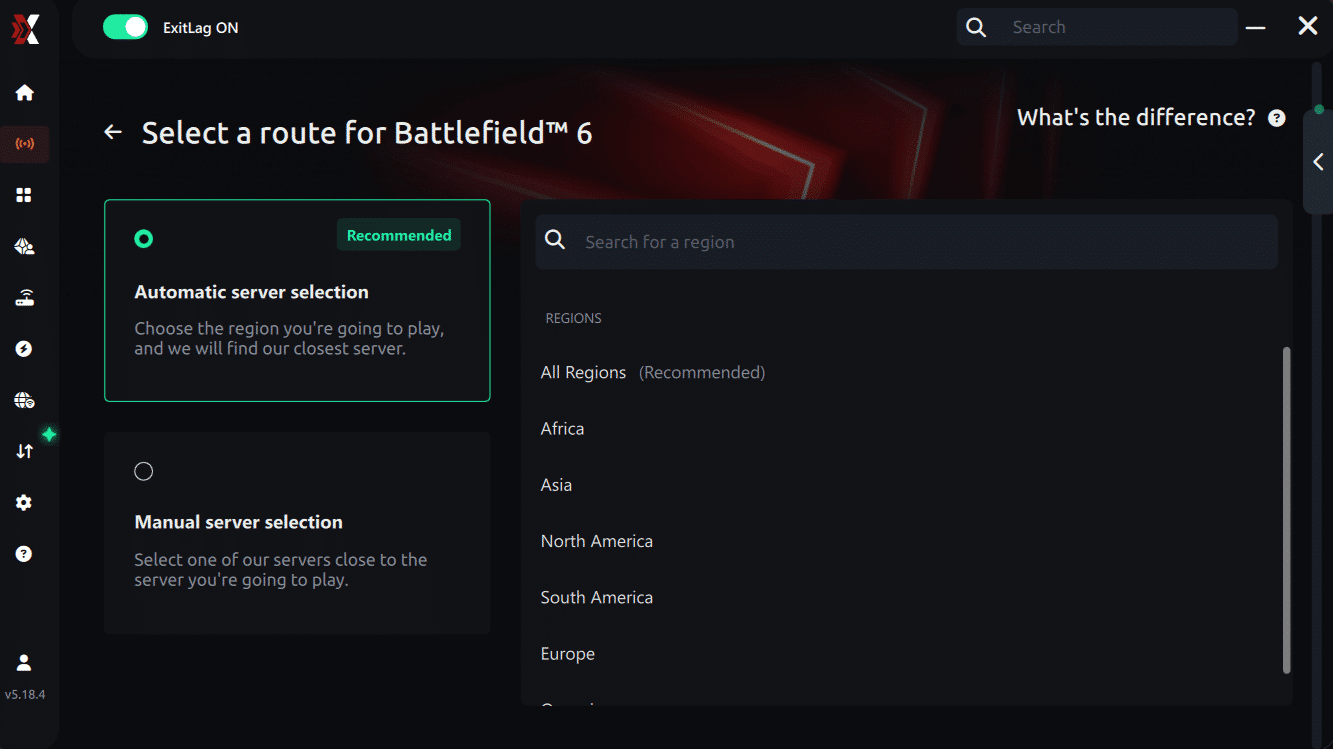
Manual route
If you prefer to have full control over your connection, you can manually choose the server based on the ping test results. Simply select the server that showed the lowest latency or the one that best meets your specific gaming needs, allowing complete customization of your experience.
Step 5 – Click “Apply routes” or the play button. ExitLag will begin optimizing your connection automatically.
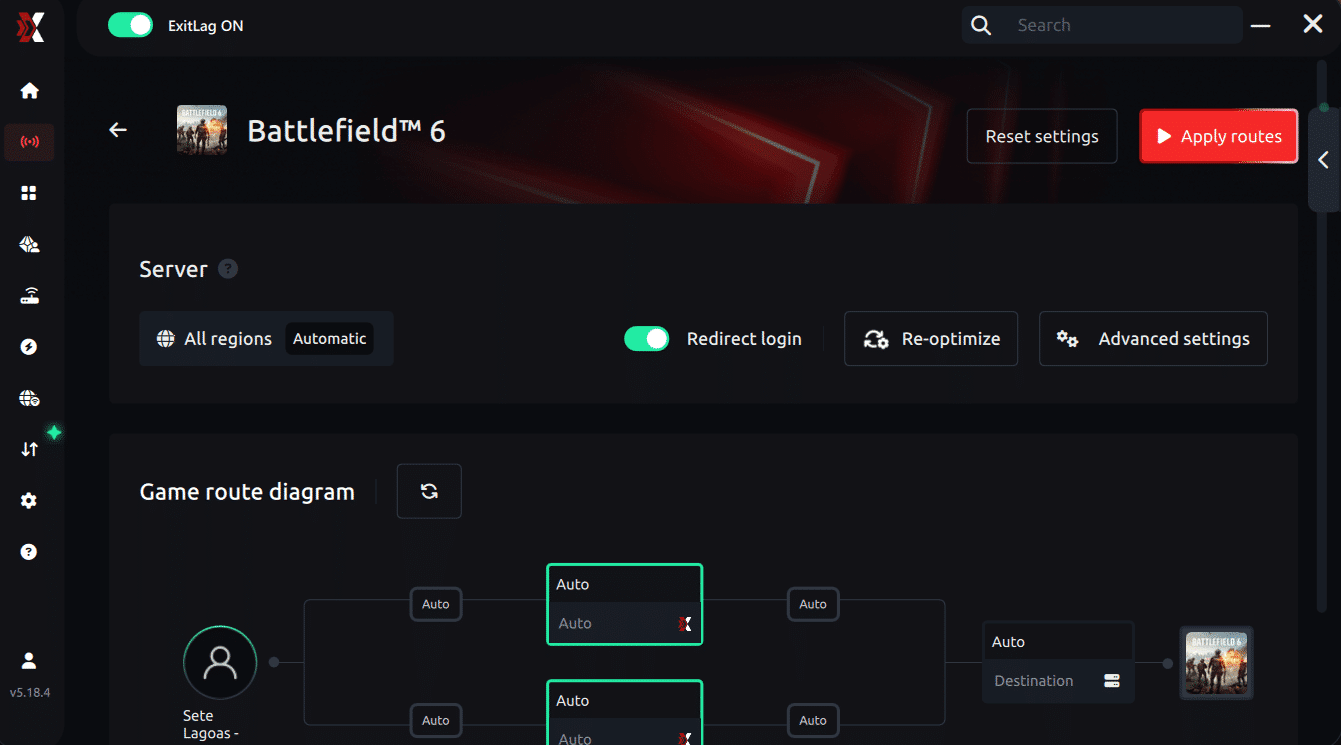
Step 6 – Wait a few seconds until optimization is complete. You’ll see ping indicators in the interface.
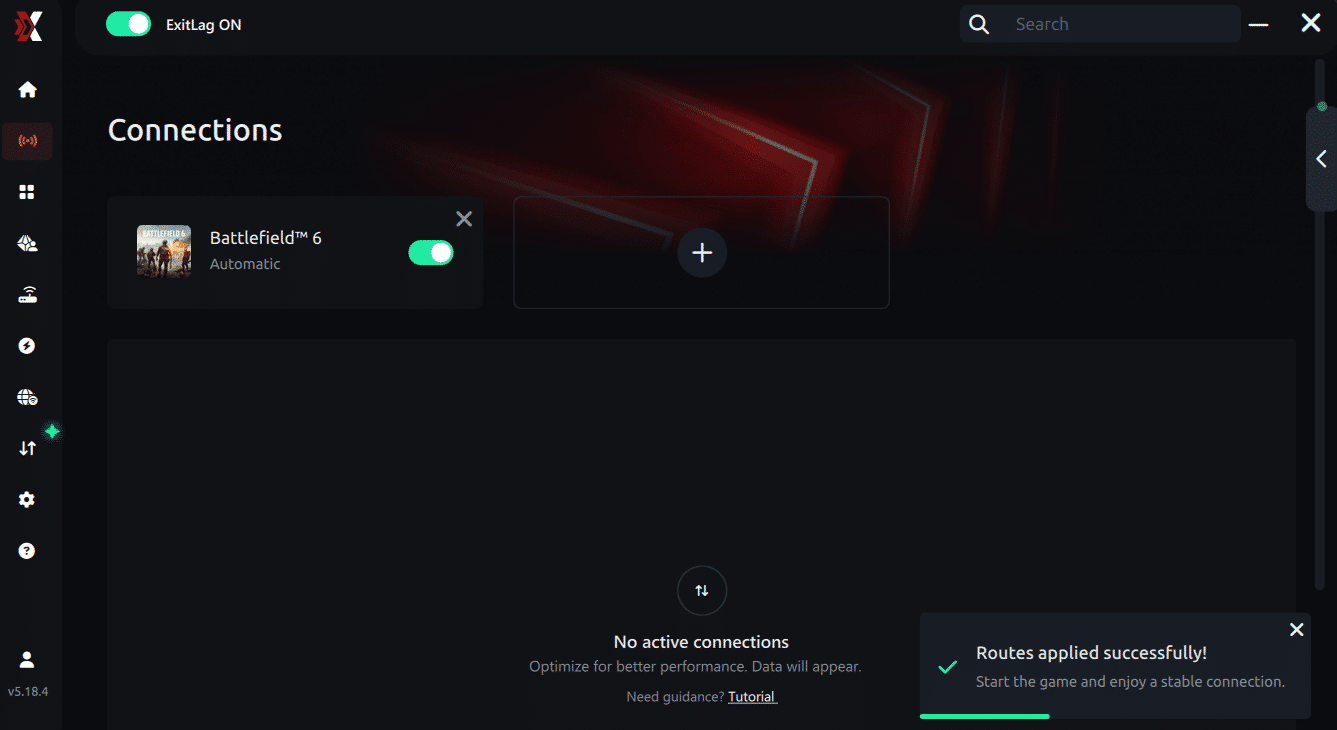
Step 7 – Launch Battlefield 6 normally. The optimization will already be active.
ExitLag runs in the background while you play, constantly adjusting routes to maintain the best possible performance.
How to use Ping for Games: step-by-step guide (Battlefield 6)
Checking your connection quality before entering a match has never been easier. Here’s how to use Ping for Games in just a few steps:
1. Open the ExitLag software on your PC
Ensure the application is installed and open. The feature is integrated into the platform and available for free to all users.
2. Access the Network Analyzer tool
Locate the Network Analyzer in the software menu. This is where you’ll find Ping for Games along with other connection analysis features.
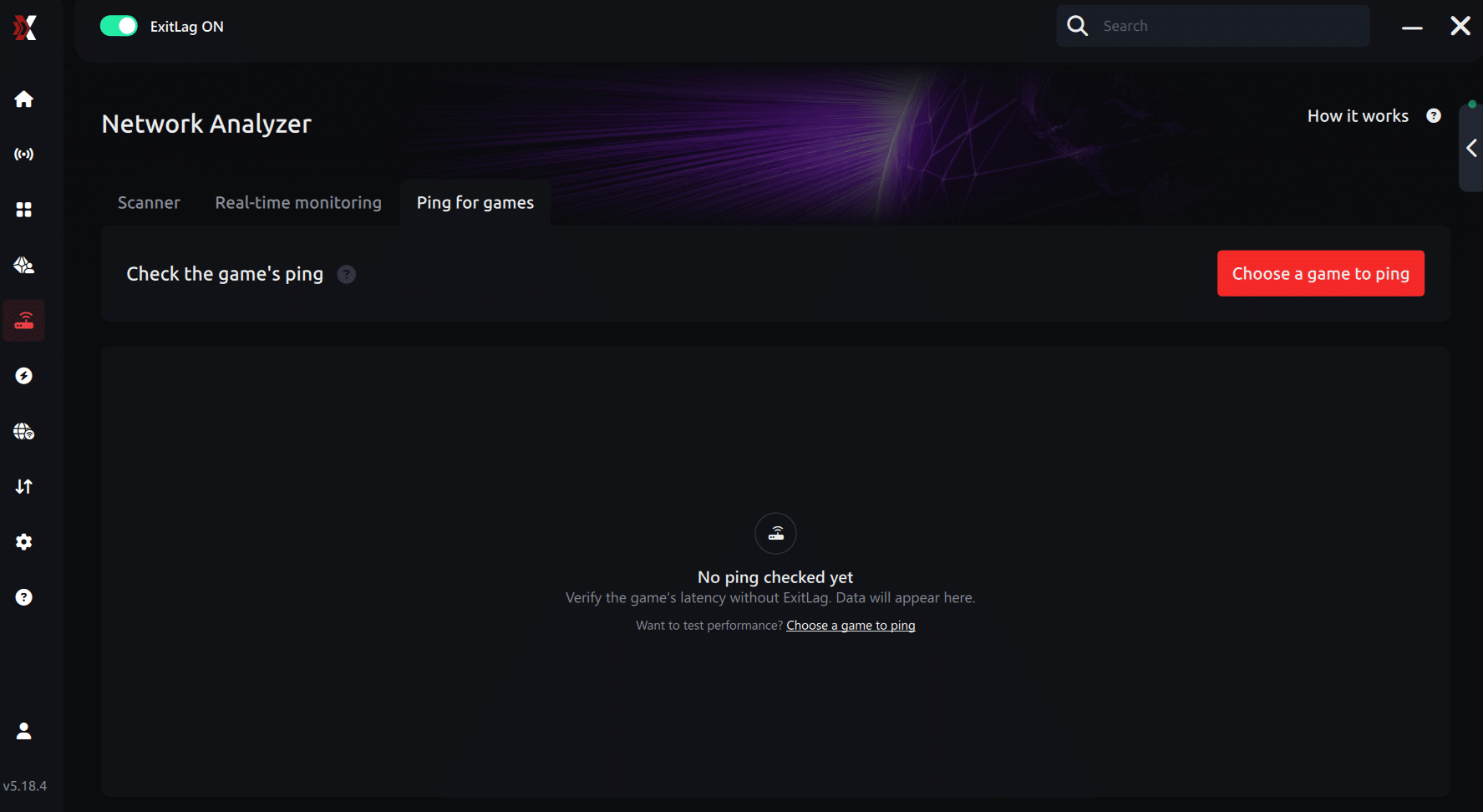
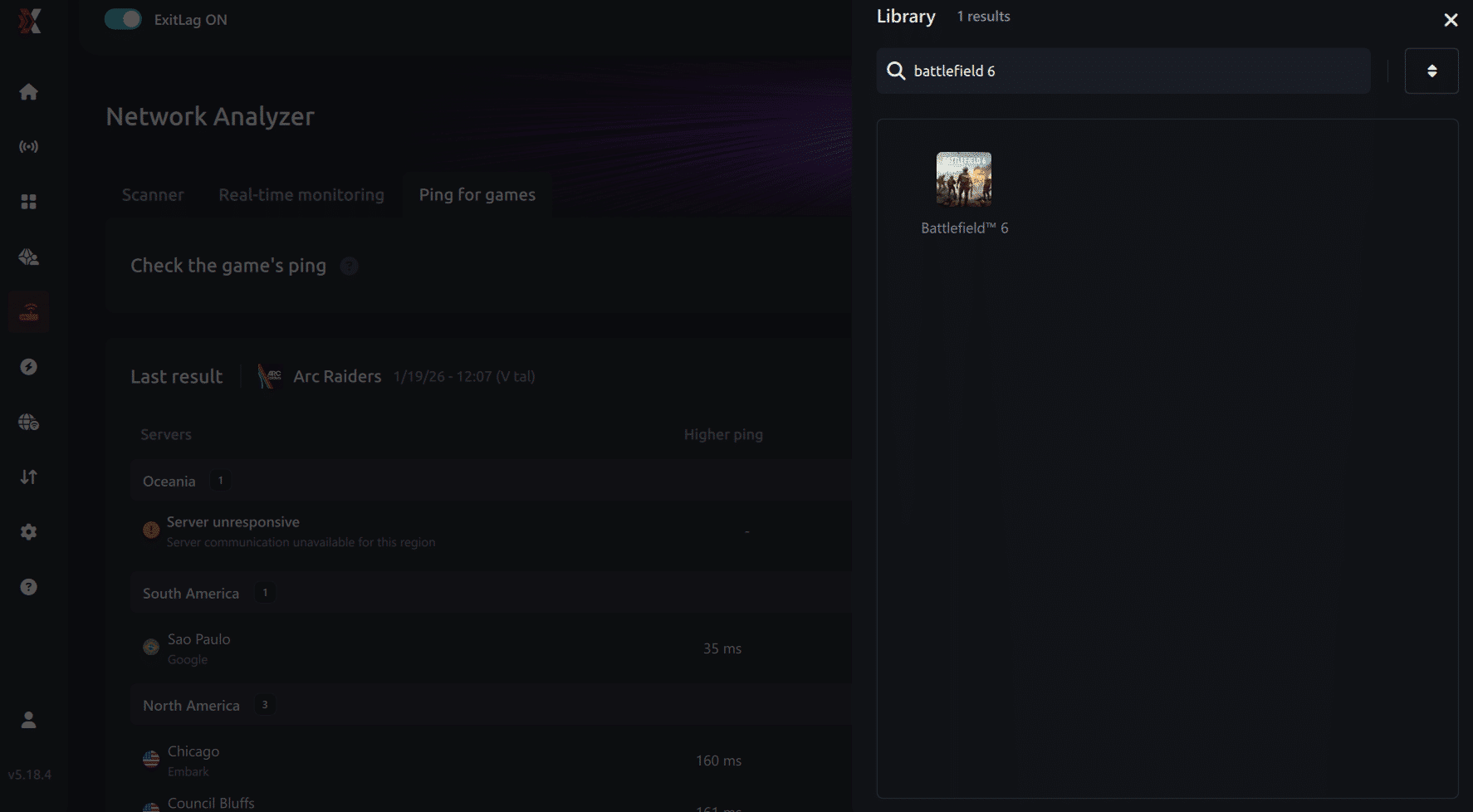
3. Select the game you want to test
Choose Battlefield 6 from the list. The tool supports major online multiplayer games, including FPS, Battle Royales, MOBAs, MMORPGs, and more.
4. Choose the specific server
Select the exact Battlefield 6 server you want to test instead of a generic region. This ensures more accurate results for your match.

5. Start the ping test
With one click, the measurement is performed in real time between your device and the selected Battlefield 6 server, considering your current connection (cable or Wi-Fi).
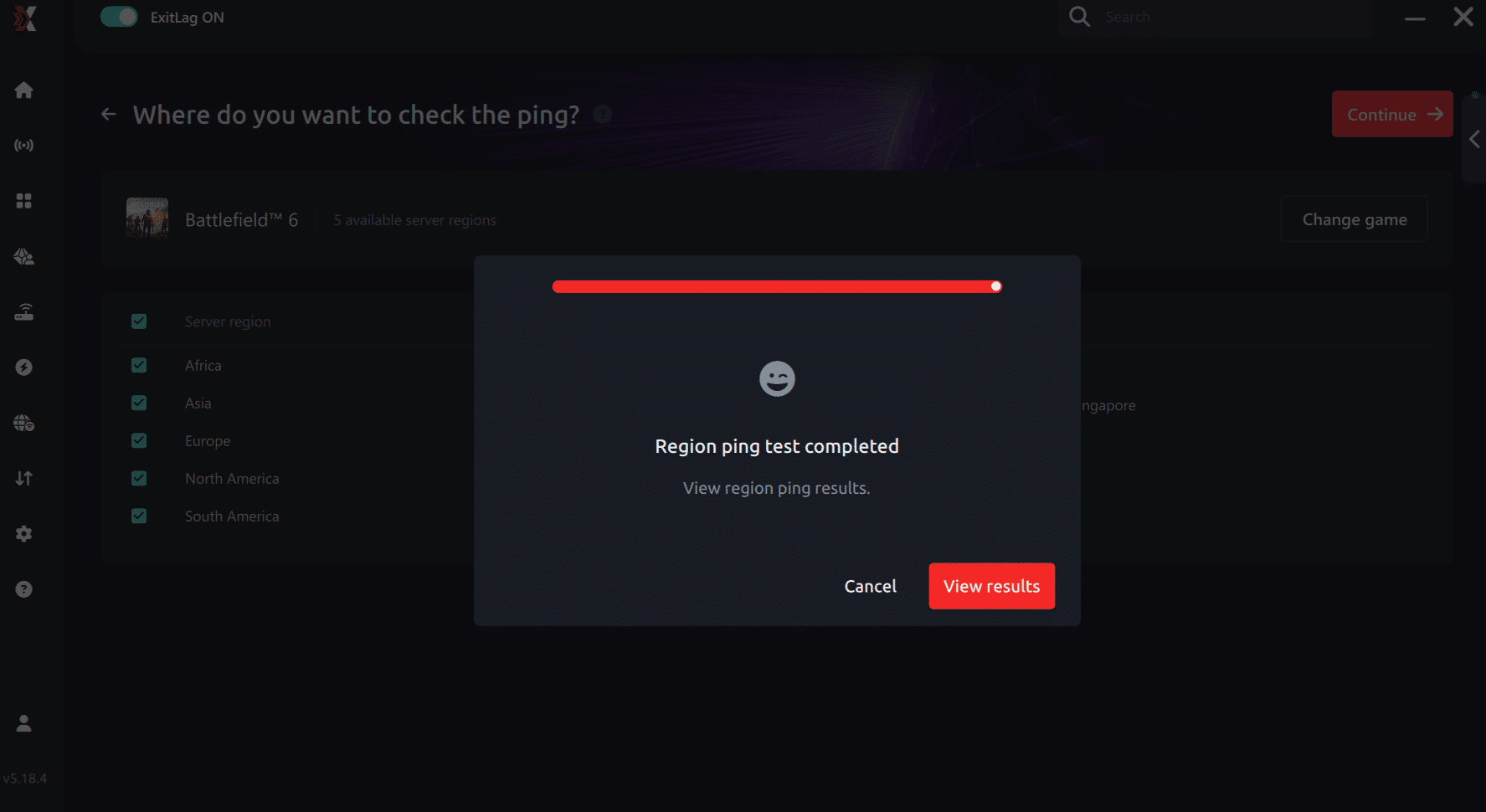
6. Analyze the results
Results appear in milliseconds (ms), automatically sorted from best to worst ping. You can also reorganize the view alphabetically if you prefer.
7. Choose the best server and play worry-free
With this information, simply select the server with the lowest latency and jump into Battlefield 6 knowing your connection is optimized.
Final thoughts: Play Battlefield 6 without lag forever
At the end of the day, Battlefield 6 lag should never decide your matches. You spend time mastering your aim, movement, and strategy your internet connection should never be the reason you lose.
With ExitLag, you finally take control of your network performance. The software finds the fastest routes, eliminates lag, and stabilizes your ping so that every shot and every action happens exactly when you want it to.
Try ExitLag for free right now and experience how smooth Battlefield 6 can be when your connection is fully optimized. Play with confidence, reach your full potential, and make lag a thing of the past.