MapleStory rubberbanding can turn normal movement, grinding, and boss fights into a frustrating experience. Your character may move forward and suddenly snap backward, enemies may update late, or skills may feel delayed even though the game still appears to run at a normal frame rate.
The first step toward fixing MapleStory rubberbanding is identifying whether the problem comes from your connection or PC performance. Rubberbanding usually points toward network communication, while choppy graphics and consistently low frame rates are more closely related to local performance.
So, what should you check first when MapleStory rubberbanding starts? Determine whether your character is snapping between positions or whether the entire game is visually slowing down. Then check MapleStory's server status and your own connection before changing graphics or reinstalling anything.
This distinction can save a lot of troubleshooting time. Lowering graphics settings may improve FPS, but it will not repair unstable network routing. Likewise, changing your network configuration will not suddenly make an underpowered PC render the game faster.
If you are searching How to Fix Rubberbanding, the best approach is therefore diagnostic. Find the source first, apply the appropriate fix, and test MapleStory after every major change.
MapleStory Rubberbanding: What Causes It?
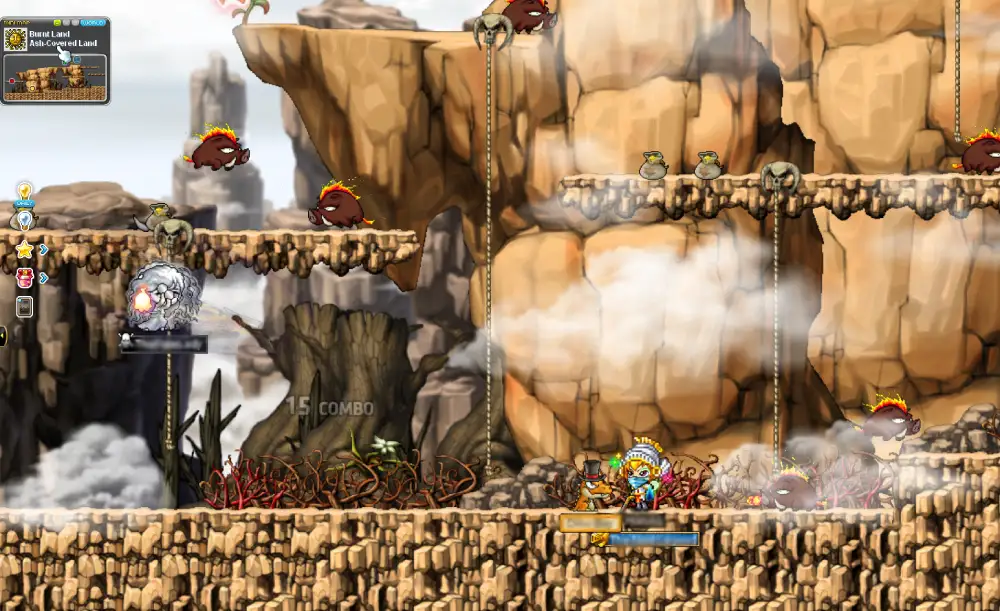
Rubberbanding happens when what you see locally and what the online game recognizes are temporarily out of sync.
However, several different problems can contribute to that experience.
Network latency and unstable routing
MapleStory communicates with online services while you play.
If those communications are delayed or inconsistent, movement and other actions can appear to update irregularly. Your character may seem to reach one position before suddenly being corrected.
Common network-related symptoms include:
- Characters snapping backward
- Delayed responses during gameplay
- Enemies appearing to update late
- Sudden movement corrections
- Short periods of unresponsiveness
- Disconnects
- Lag that appears despite normal FPS
These symptoms are different from a graphics card struggling to render the game.
Network performance can also change over time. A connection that feels normal at one hour may behave differently later because of congestion, Wi-Fi conditions, routing, or other factors between the player and online services.
That is why Massive lag - Maplestory problems should not automatically be blamed on the game's graphics settings.
FPS drops vs. rubberbanding
Low FPS affects how smoothly your computer displays MapleStory.
Nexon's support guidance describes reduced frame rate through symptoms such as choppy graphics or animations that resemble a slideshow. In that situation, graphics settings, hardware, drivers, and local software become more relevant.
Rubberbanding looks different.
If the game renders smoothly but your character suddenly changes position or actions feel delayed, the connection deserves more attention.
A quick comparison helps:
| Symptom | More Likely Network-Related | More Likely PC/FPS-Related |
| Character snaps backward | Yes | No |
| Smooth graphics but delayed actions | Yes | No |
| Choppy animations everywhere | No | Yes |
| Low FPS in busy areas | No | Yes |
| Disconnects | Yes | No |
| Lower graphics improves the problem | Usually no | Yes |
This distinction should guide every troubleshooting step that follows.
How to Fix Rubberbanding in MapleStory
Players searching How to Fix Rubberbanding often find long lists of tweaks without any indication of which one actually matches their problem.
Start with the simplest checks.
Check MapleStory server status first
Before changing Windows settings, reinstalling MapleStory, or buying new hardware, check whether the game is experiencing maintenance or a known service issue.
Nexon's support documentation specifically recommends checking MapleStory's server status when players encounter certain disconnection problems.
This matters because a server-side issue cannot be fixed by changing your graphics quality.
If many players suddenly experience similar problems, wait for the service situation to stabilize before making major changes to your system.
Server status should therefore be one of your first checks when the problem appears unexpectedly.
Restart your connection and game client
If there is no obvious server issue, restart MapleStory and the Nexon Launcher.
For persistent connection problems, restarting your local network equipment can also be a useful basic troubleshooting step.
Try this sequence:
- Close MapleStory completely.
- Exit the Nexon Launcher.
- Stop unnecessary downloads and uploads.
- Restart your router or modem when appropriate.
- Wait for the connection to return fully.
- Open the Nexon Launcher again.
- Start MapleStory.
- Test the same activity again.
Do not judge the result from a few seconds of gameplay.
Test movement, combat, and the activity where the issue was most noticeable. If possible, compare multiple maps or channels.
If MapleStory rubberbanding continues while your FPS remains normal, continue with network-focused troubleshooting.
Massive Lag - MapleStory: Is It Your Internet or PC?
The phrase Massive lag - Maplestory can describe several completely different problems.
One player may mean that the game runs at 20 FPS. Another may mean that every action reaches the server late.
Those problems require different solutions.
Signs of connection-related lag
Connection-related problems often affect communication rather than rendering.
You might notice that the game itself remains visually smooth while actions behave inconsistently.
Watch for symptoms such as:
- Sudden position corrections
- Delayed gameplay responses
- Irregular enemy updates
- Disconnect messages
- Normal FPS combined with gameplay delays
- Problems that change according to network conditions
Another useful test is consistency.
If lowering graphical settings has almost no effect on the problem, the GPU may not be the main bottleneck.
Likewise, if other online activity is saturating your connection when MapleStory becomes unstable, local network congestion deserves investigation.
Signs of PC performance lag
Local performance problems usually look more like visual slowdown.
Animations become choppy. Frame rate drops. Busy scenes may perform significantly worse than quiet maps.
Nexon recommends lowering MapleStory's Graphics Quality when investigating low frame rates.
Other signs include:
- Choppy animations
- Low FPS across several maps
- Stuttering during visually busy moments
- Performance improving at lower graphics settings
- Slow loading
- Other applications consuming significant PC resources
This is where How to make MapleStory less laggy? becomes two questions.
Do you want to improve rendering performance, or do you want to improve network consistency?
Identifying the answer prevents you from applying the wrong fix.
How to Make MapleStory Less Laggy on PC
If the problem is local performance, start with the PC itself.
MapleStory has evolved considerably over the years, and modern versions have different hardware and software requirements from the game many players remember.
Check MapleStory system requirements
Nexon's current system requirements list Windows 10 64-bit as the minimum operating system and 8 GB of RAM.
The game also requires substantial free storage space.
For its recommended configuration, Nexon specifically recommends an SSD and a faster internet connection.
An SSD can improve loading and responsiveness related to storage access, but remember that it does not reduce internet latency by itself.
A sensible PC checklist includes:
- Use a supported 64-bit Windows installation.
- Have at least the required RAM.
- Maintain sufficient free storage space.
- Install MapleStory on an SSD when possible.
- Keep Windows updated.
- Check that the PC is not overloaded by background tasks.
If the system is already comfortably above the requirements, move to software and graphics troubleshooting.
Update graphics drivers and DirectX
Old or incompatible graphics drivers can cause stability and performance problems.
Nexon recommends keeping graphics drivers and DirectX updated as part of MapleStory troubleshooting.
Modern MapleStory supports DirectX 11, while DirectX 9 is no longer supported.
If your problem looks like low FPS rather than MapleStory rubberbanding, check the graphics driver provided for your GPU.
Restart the computer after major driver changes before testing again.
Then launch MapleStory and compare performance under the same conditions that previously caused problems.
MapleStory Graphics Settings for Better Performance
Graphics settings are among the easiest variables to test when MapleStory is running poorly.
However, they are useful primarily when the problem involves rendering performance.
Reduce graphics quality
Open MapleStory's graphics options and reduce Graphics Quality.
Test the game afterward.
Do not change every Windows and game setting simultaneously. If you modify too many variables at once, you will not know which change actually improved performance.
A better process is:
- Reduce MapleStory graphics quality.
- Test the game.
- Compare FPS and responsiveness.
- Adjust additional graphics options if needed.
- Retest in a demanding area.
If performance improves significantly, the issue probably had a local rendering component.
This can be particularly useful when the slowdown is strongest in visually busy situations.
Why lowering graphics does not fix network rubberbanding
This distinction is essential for How to Fix Rubberbanding correctly.
Graphics settings control how the game is rendered on your PC. They do not determine the network route between your connection and online services.
Therefore, lowering graphics will not directly repair:
- Packet loss
- Unstable routing
- Wi-Fi interference
- Network congestion
- Server problems
- Routing-related latency
If MapleStory runs at a stable frame rate but your character repeatedly snaps backward, lowering graphical quality is unlikely to address the actual cause.
Instead, investigate the network.
Repair MapleStory Files if Lag Started After an Update
Sometimes problems appear after an update, unexpected shutdown, or damaged installation.
In those cases, checking the game files is worthwhile.
Nexon Launcher Repair Installation
Nexon provides a Repair Installation feature through its launcher.
This process checks the installation and can replace damaged or missing game files.
Use it when MapleStory begins behaving abnormally and you suspect the installation itself may be involved.
Repairing files is especially relevant when you notice:
- Errors after an update
- Missing game resources
- Unexpected client behavior
- Crashes
- Problems that began immediately after installation changes
However, corrupted files are not the usual explanation for true network MapleStory rubberbanding.
Treat repair as one diagnostic step rather than a universal connection fix.
Verify MapleStory through Steam
Steam players have a similar option.
Use Steam's file-integrity verification feature to check the MapleStory installation and redownload files that fail validation.
After verification finishes, restart the client and test again.
If the game now runs normally, damaged or incomplete local files may have contributed to the problem.
If the same positional snapping continues with normal FPS, return your attention to network conditions.
Background Apps and MapleStory Lag
Your PC does not run MapleStory in isolation.
Other programs can consume processor resources, memory, storage bandwidth, or internet bandwidth while you play.
Close unnecessary bandwidth-heavy applications
Check what else is using your connection.
Large downloads can compete with MapleStory traffic, especially on connections with limited capacity.
Common examples include:
- Game downloads
- Operating system updates
- Cloud backups
- File synchronization
- Large uploads
- Streaming on the same network
Uploads deserve particular attention.
A heavily saturated connection can affect responsiveness even if a basic speed test shows that your internet plan has a high advertised download speed.
For Massive lag - Maplestory situations, temporarily stopping unnecessary network activity provides a useful comparison.
If the problem disappears, local network congestion was likely contributing.
Test for software conflicts
Third-party applications can sometimes interfere with games.
Nexon provides clean-boot troubleshooting for situations where software conflicts may be involved.
A clean boot allows Windows to start with a reduced set of nonessential services and startup programs, helping isolate potential conflicts.
However, do not permanently disable important security services just because MapleStory experiences lag.
The objective is diagnosis.
Once you identify a conflicting application, investigate that specific program rather than leaving the system unnecessarily unprotected.
Wi-Fi vs. Ethernet for MapleStory Rubberbanding
Wi-Fi is convenient and can perform extremely well.
However, wireless connections introduce variables that do not affect a direct Ethernet connection in the same way.
Why Wi-Fi can become inconsistent
Wi-Fi quality depends on more than your internet plan.
Distance, physical obstacles, interference, router placement, and competing devices can affect the local wireless connection.
That can create instability even when your ISP connection itself is functioning correctly.
Potential problems include:
- Weak wireless signal
- Congested Wi-Fi channels
- Distance from the router
- Physical obstacles
- Interference
- Many devices sharing the connection
These issues can contribute to MapleStory rubberbanding when they cause packets to be delayed or retransmitted.
A high maximum Wi-Fi speed does not automatically guarantee stable latency.
When Ethernet is worth testing
If possible, connect the PC directly to the router with Ethernet and test MapleStory again.
This does not guarantee lower latency in every situation.
Instead, it removes much of the local wireless connection from the troubleshooting equation.
If rubberbanding disappears over Ethernet, your Wi-Fi environment deserves attention.
If the problem remains essentially identical, investigate other possibilities such as routing, server conditions, or broader internet issues.
DNS, IP, and Connection Troubleshooting
Network troubleshooting sometimes includes renewing connection information or clearing cached DNS records.
These steps can be useful in specific situations, but they should not be presented as magical ping fixes.
Flush DNS and renew the connection
Nexon's technical-support resources include DNS and IP troubleshooting among the procedures relevant to certain connectivity problems.
Windows provides commands for refreshing network configuration and clearing cached DNS information.
This can help when stale or problematic network-resolution information is involved.
After making such changes, restart the relevant applications and test MapleStory again.
Keep the test controlled.
If nothing changes, move on rather than repeatedly flushing DNS and expecting a different result.
When this will not solve the problem
DNS primarily helps translate domain names into addresses.
Once an online connection is established, changing or flushing DNS does not automatically create a faster network route for every packet.
Therefore, DNS troubleshooting should not be treated as the primary answer to How to make MapleStory less laggy?
It will not fix:
- Weak Wi-Fi
- Overloaded hardware
- Low FPS
- A distant or inefficient network route
- Server outages
- Saturated uploads
- Damaged game files
Use each troubleshooting tool for the problem it can realistically address.
MapleStory Rubberbanding Troubleshooting
A symptom-based approach is usually faster than randomly applying every optimization tip available online.
Use this table to identify where you should begin.
Match the symptom to the likely cause
| Symptom | Likely Area | First Test | Potential Fix |
| Character snaps backward | Network | Check server/network stability | Connection and route troubleshooting |
| Smooth FPS but delayed actions | Network | Stop competing traffic | Network optimization |
| Low FPS everywhere | PC/GPU | Lower graphics | Settings/driver optimization |
| Choppy animations | PC/GPU | Check FPS and resources | Lower graphics/update drivers |
| Disconnect messages | Network/server | Check Nexon status | Network/server troubleshooting |
| Problems after an update | Client files | Repair installation | Nexon Repair/Steam Verify |
| Slow loading | Storage/client | Check installation drive | SSD/free storage |
| Lag while downloading | Local network | Pause downloads | Reduce competing traffic |
| Wi-Fi-only instability | Local network | Test Ethernet | Improve wireless setup |
This table also explains why there is no single universal fix.
Test one change at a time
Controlled testing makes troubleshooting faster.
If you simultaneously change DNS, reinstall MapleStory, update your GPU driver, switch routers, and lower graphics settings, you may fix the problem without learning what caused it.
Instead:
- Identify the main symptom.
- Choose the most likely category.
- Apply one meaningful change.
- Reproduce the same gameplay situation.
- Compare the result.
- Continue only if the problem remains.
This process is especially useful for intermittent MapleStory rubberbanding, where temporary improvements can otherwise be mistaken for permanent fixes.
How ExitLag Can Help MapleStory Rubberbanding
When the problem appears to be network-related, routing becomes another factor worth testing.
The route chosen by an internet connection is not necessarily determined by physical distance alone. Traffic can travel through multiple intermediary networks before reaching online services.
Route optimization for MapleStory
ExitLag is built to optimize gaming traffic on supported PC and Mobile platforms.
Its Real-Time Optimization technology analyzes connection routes, while Multipath Connection can send packets through multiple simultaneous routes to improve stability when applicable.
For MapleStory rubberbanding caused by unstable or inefficient routing, this can help provide a more consistent network path.
ExitLag also includes technologies such as Traffic Shaper and provides automatic optimization for players who prefer a simple setup, alongside customizable settings for users who want more control.
The basic process is straightforward:
- Sign up for ExitLag.
- Download the desktop application.
- Find MapleStory.
- Apply the recommended routes.
- Launch the game.
- Compare connection behavior under the same conditions.
Testing under comparable conditions is important.
The goal is to determine whether route optimization improves the specific network problem you are experiencing.
What ExitLag cannot fix
ExitLag is a connection optimization tool, not a universal PC repair utility.
It cannot upgrade your graphics card or compensate for hardware that cannot maintain an acceptable frame rate.
Likewise, ExitLag does not:
- Repair corrupted MapleStory files
- Increase the performance of weak hardware
- Fix Nexon server outages
- Replace missing graphics drivers
- Increase available system memory
- Change MapleStory's game mechanics
- Guarantee that every lag source disappears
It also cannot physically eliminate interference between your PC and a distant Wi-Fi router.
That distinction matters.
ExitLag is most relevant when the diagnosis points toward the network path. If your actual problem is low FPS, focus on local performance first.
How to Diagnose MapleStory Lag Step by Step
At this point, the fastest approach is to combine all the troubleshooting methods into one workflow.
Start with the broadest causes and progressively narrow them down.
Quick diagnostic checklist
Follow this order:
- Check whether MapleStory is undergoing maintenance or experiencing known server problems.
- Determine whether you have rubberbanding or low FPS.
- Restart MapleStory and the launcher.
- Stop unnecessary downloads, uploads, and synchronization.
- Test Ethernet instead of Wi-Fi when possible.
- Check MapleStory's current system requirements.
- Update your graphics drivers and DirectX.
- Reduce graphics quality if the problem is FPS-related.
- Repair the game through Nexon Launcher or verify files through Steam.
- Investigate third-party software conflicts if client behavior remains abnormal.
- Test network route optimization if symptoms remain connection-related.
- Contact Nexon Support when the issue continues after reproducible troubleshooting.
This order prevents unnecessary work.
There is little reason to reinstall the entire game because your Wi-Fi becomes unstable every evening.
Likewise, route optimization is not the correct first response when MapleStory runs at extremely low FPS even while offline rendering remains choppy.
When to contact Nexon Support
Some problems require information that players cannot access themselves.
If the issue remains reproducible after reasonable troubleshooting, Nexon Support is the appropriate next step.
Document what happens.
Useful information can include:
- When the issue started
- Whether it happens on every character
- Whether it affects every map
- Whether FPS remains stable
- Whether Ethernet changes the behavior
- Whether other online games are affected
- What troubleshooting you already attempted
- Relevant error messages
For performance problems, Nexon may also request diagnostic information such as DxDiag data.
Providing specific evidence is much more useful than simply reporting "the game is laggy."
FAQ
Several different problems are casually described as "lag," which is why troubleshooting MapleStory can become confusing.
These answers separate the most common scenarios.
Why is MapleStory rubberbanding?
Rubberbanding generally indicates that movement or gameplay updates are not being communicated consistently between the client and online game services. Potential causes include local network instability, Wi-Fi problems, congestion, inefficient routing, or service-side conditions. Do not automatically assume the GPU is responsible if your frame rate remains smooth.
How do I fix rubberbanding in MapleStory?
Start by checking MapleStory server status and determining whether the problem is truly network-related. Then stop bandwidth-heavy background activity, restart the connection, test Ethernet when possible, and investigate the network route. If the problem is actually low FPS, use graphics and PC-performance troubleshooting instead.
How do I make MapleStory less laggy?
For How to make MapleStory less laggy?, first determine which type of lag you have. For local performance, check your hardware, available storage, SSD installation, graphics settings, drivers, and background applications. For network problems, investigate server status, local connection quality, bandwidth congestion, Wi-Fi, and routing. The best optimization depends on the bottleneck.
Why do I have massive lag in MapleStory but good FPS?
If FPS remains stable while movement snaps backward or actions respond late, the symptoms point more strongly toward network communication. Check server conditions and your connection before lowering graphics. You should also stop large downloads or uploads and compare Wi-Fi with Ethernet when possible.
Does lowering graphics reduce MapleStory rubberbanding?
Not when the rubberbanding is caused by network conditions. Lowering graphics can improve FPS when your PC is struggling to render MapleStory. It does not directly improve packet routing or repair an unstable internet connection.
Can ExitLag reduce MapleStory lag?
ExitLag can help when lag is related to inefficient or unstable network routing. Its Real-Time Optimization and Multipath Connection technologies focus on improving the connection path and stability for supported games. However, it cannot fix every possible cause of lag. Hardware limitations, corrupted files, server outages, and graphics-performance problems require different solutions.
MapleStory Rubberbanding: Best Settings and Connection Setup
The best setup combines a PC capable of running the current client comfortably with a stable network connection.
Neither side should be ignored.
Recommended PC setup
Nexon's current requirements provide a useful baseline.
Players should use a supported 64-bit operating system, maintain sufficient RAM and storage, and keep drivers current.
An SSD is also recommended for better storage responsiveness.
A practical setup includes:
- Supported 64-bit Windows
- At least the required system memory
- SSD installation where possible
- Sufficient free storage
- Current graphics drivers
- Supported DirectX version
- Graphics settings appropriate for the hardware
- Minimal unnecessary background load
If the game is visually smooth after these changes but still snaps positions, return to network troubleshooting.
That is the clearest sign that PC rendering is probably not the main issue.
Recommended network setup
For network-related Massive lag - Maplestory problems, prioritize consistency.
Use a stable connection, avoid saturating your bandwidth, and test Ethernet if Wi-Fi is unpredictable.
Check Nexon's service status before making major changes. Then investigate routing when the issue appears to occur between your local connection and the game's online infrastructure.
ExitLag can be particularly relevant at that stage because its focus is route optimization rather than graphics performance.
The objective is not to apply every possible tweak. It is to isolate the bottleneck and fix the correct layer of the problem.
Ultimately, MapleStory rubberbanding should be diagnosed before it is "optimized." Check whether the symptom is network-related or an FPS problem, verify Nexon's server status, reduce competing traffic, test your local connection, update and repair the client where necessary, and use route optimization when the network path appears to be the issue. For PC players whose MapleStory rubberbanding comes from inefficient or unstable routing, ExitLag provides Real-Time Optimization and Multipath Connection technology designed to improve connection stability and help keep online gameplay more consistent.
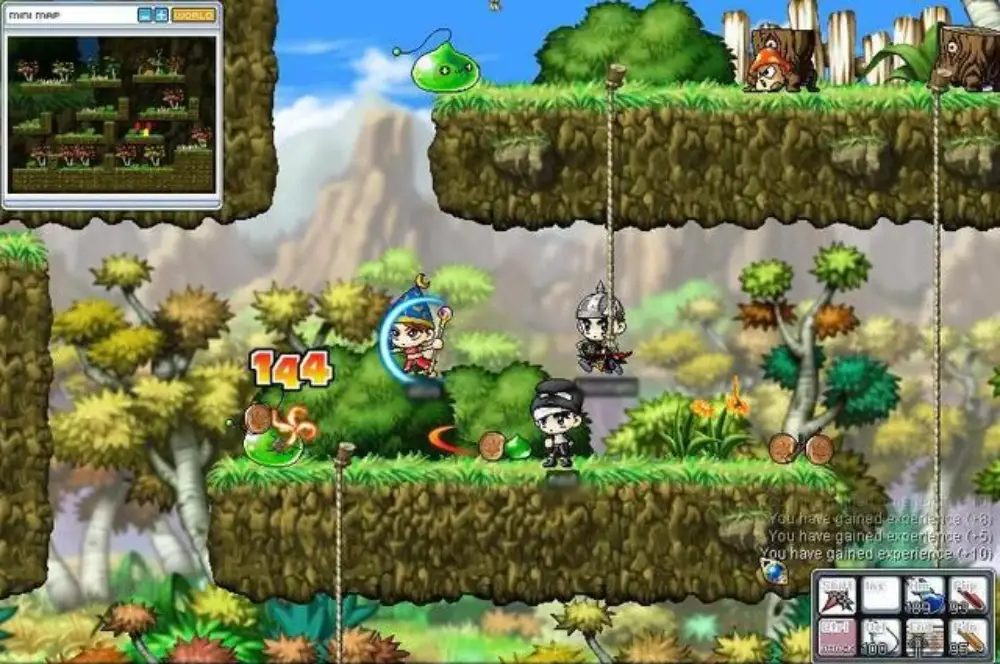
All game images used in this blog belong to Nexon. They are used for informational/educational purposes only and do not imply endorsement or affiliation with the rights holders.