You finally have a free afternoon to install that huge new release, and Steam decides to crawl at 2 MB/s instead of using your full connection. It is one of the most frustrating experiences a gamer can have, especially when your internet plan promises far more.
The good news is that Steam throttling download speed problems almost always come from a fixable cause, not a broken connection. It could be your region setting, your router, your ISP, or even a background app quietly eating bandwidth.
In short, Steam throttling download speed happens when the client connects to an overloaded content server, when a bandwidth limit is active in the settings, or when your ISP deprioritizes large file transfers. Identifying which one applies to you takes only a few minutes, and every fix below is something you can do yourself right now.
This guide walks through the real causes, the exact settings to check, and the network tweaks that consistently bring download speeds back to normal. Because this is a topic gamers deal with constantly, especially during big updates and seasonal sales, it is worth understanding thoroughly instead of guessing.
What Causes Steam Throttling Download Speed?
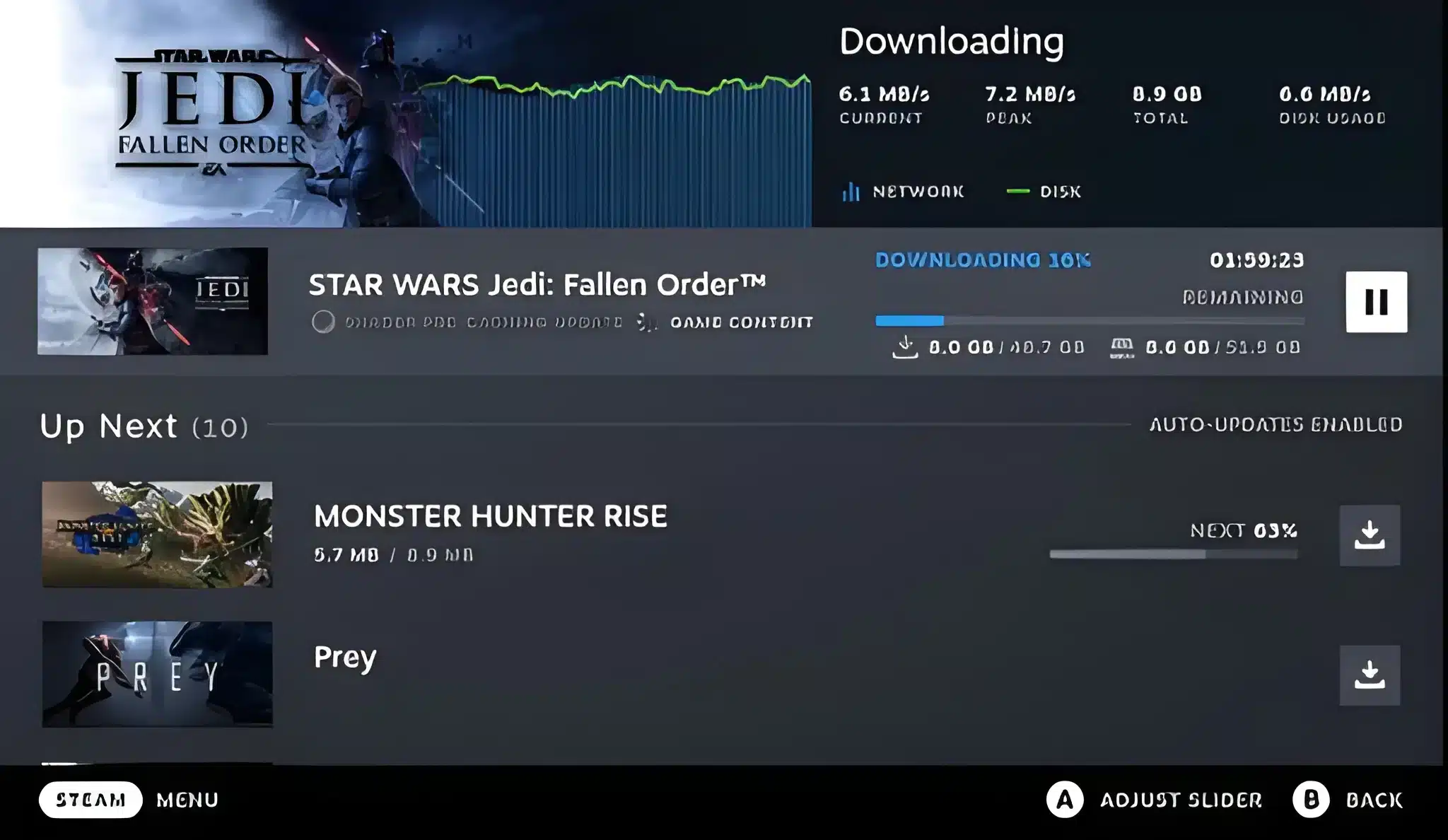
Before changing anything, it helps to understand where the bottleneck actually sits. Steam throttling download speed can originate from four different layers: the content server, your ISP, your router, or your own hardware.
Here are the most common triggers reported by players:
- Regional server congestion: Your assigned download region gets hit by thousands of players at once during a major launch.
- ISP traffic shaping: Some providers slow down large, sustained downloads to manage overall network load.
- Local bandwidth limit: Steam has a built-in setting that caps download speed, and it is easy to forget it was ever enabled.
- Hardware bottlenecks: A slow disk or an older CPU struggling to decompress files can make downloads look throttled even when the network is fine.
ISP-Level Throttling and Peak-Hour Congestion
Some internet providers actively manage bandwidth for large continuous transfers, particularly during evening peak hours when many households are streaming and downloading simultaneously. Since Steam downloads generate a steady, high-volume stream of traffic, it is exactly the kind of activity that gets flagged first.
This does not always mean your provider is deliberately singling out Steam. Often it is simply how the network handles congestion when too many users compete for the same bandwidth pool at once.
Steam Content Server Overload
Steam distributes downloads through regional content delivery servers, and each region only has so much capacity. When a hugely anticipated title updates or launches, everyone in that region hits the same servers within minutes of each other.
As a result, your download speed can drop dramatically even though your internet connection itself is perfectly healthy. Switching to a nearby but less congested region is often the fastest fix, which we cover in the settings section below.
How Do You Know If Your Steam Downloads Are Being Throttled?
Before jumping to conclusions, confirm the throttling is real and figure out where it is happening. This saves you from changing settings that were never the problem in the first place.
Follow these steps in order to diagnose the issue:
- Run a standard internet speed test while Steam is closed to confirm your baseline connection speed.
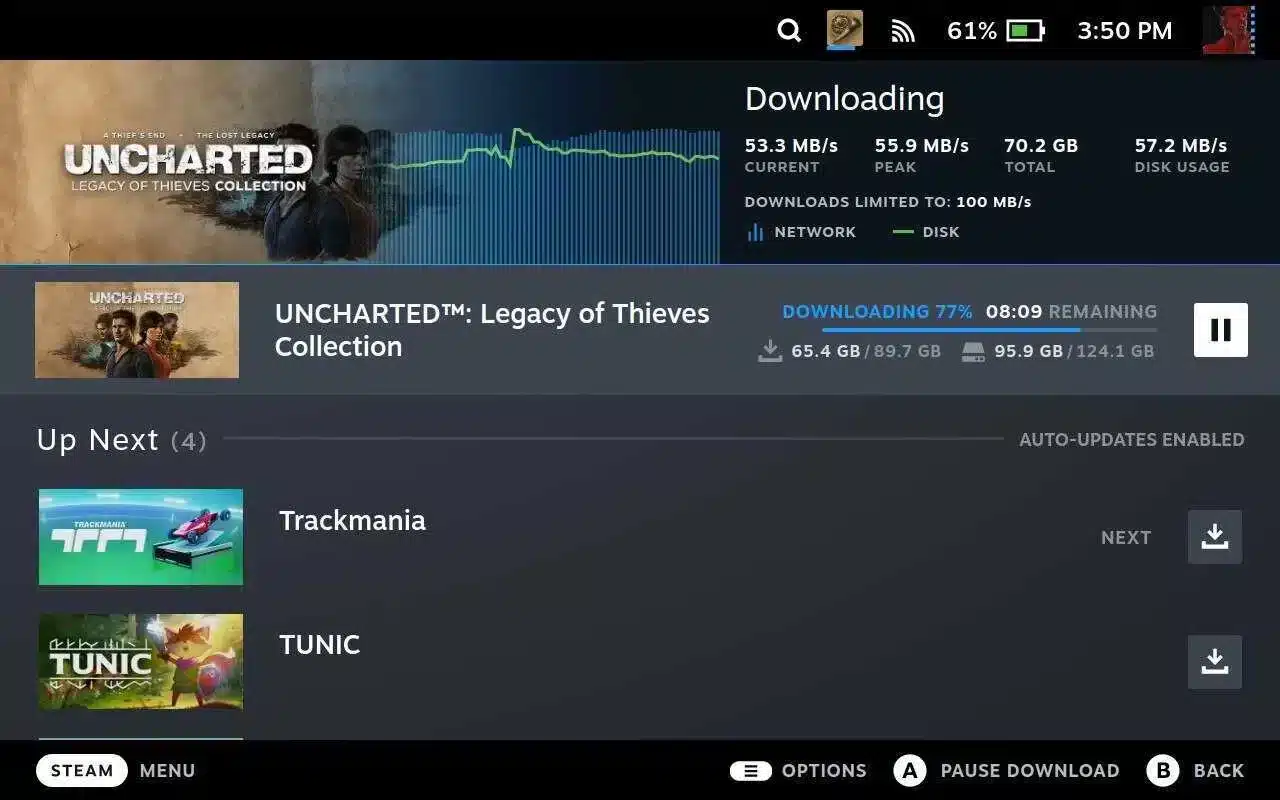
- Start a Steam download and immediately check the reported speed inside the client.
- Compare that number against your baseline speed test result.
- If Steam is far below your normal speed, pause the download and try a different download region.
- If speeds improve significantly after switching regions, the original region was congested rather than your connection being throttled.
Run a Speed Test Outside Steam
If your speed test shows normal results but Steam still downloads slowly, the issue is almost certainly on Steam's side, whether that is server congestion or a client setting. However, if your overall connection is already slow, the problem sits further upstream with your ISP or router.
Compare Speed Across Download Regions
Testing two or three nearby regions takes only a couple of minutes and gives you a clear picture. Many players find that a neighboring country's servers outperform their default region, particularly during busy hours.
Which Steam Settings Control Your Download Speed?
Steam includes several settings that directly affect download performance, and a surprising number of "throttling" complaints trace back to one of these being misconfigured. Checking them first takes less time than any network-level troubleshooting.
Here is where to find the relevant options and what they control:
- Download Region: Steam Settings, then Downloads, lets you pick the content server region closest to you.
- Limit Bandwidth To: A checkbox in the same Downloads tab that caps speed in KB/s once enabled.
- Download Restrictions: A scheduling feature that only allows updates during specific hours.
- Clear Download Cache: A button that resets a corrupted or bloated cache that can silently slow transfers.
Download Region and Content Servers
To change your region, open Steam, go to Settings, select Downloads, and pick a different option from the Download Region dropdown. Afterward, restart Steam so the new setting takes effect before starting the download again.
Steam automatically detects your location on first launch, but that default is not always the fastest choice. Testing two or three alternatives, especially during a launch day, frequently resolves speed complaints within minutes.
Bandwidth Limit and Download Restrictions
Inside the same Downloads tab, confirm that "Limit bandwidth to" is unchecked or, if you use it intentionally, that the value is not set unreasonably low. It is common to enable this once for a specific reason and forget to disable it later.
Also check the "Only auto-update games between" scheduling option, since it can silently pause downloads outside the configured window and look identical to throttling.
What Network and Hardware Fixes Actually Improve Steam Download Speed?
Once Steam's own settings are ruled out, the next layer to check is your router and local hardware. These fixes address the physical path your data travels and the equipment processing it.
The table below summarizes the most common culprits and how to address each one:
| Cause | Symptom | Fix |
|---|---|---|
| Wi-Fi interference | Speed fluctuates constantly | Connect via Ethernet cable |
| Router QoS misconfiguration | Other devices slow during download | Adjust QoS or pause other traffic |
| Slow HDD or full SSD | Download stalls, then resumes | Free up space, use a faster drive |
| Background apps updating | Speed drops without a clear cause | Close unnecessary apps before downloading |
| Outdated router firmware | Random disconnects mid-download | Update firmware and reboot router |
Router QoS and Wired Connections
Wi-Fi introduces variables that a wired connection avoids entirely, so plugging directly into your router with an Ethernet cable is one of the simplest ways to rule out local interference. If you must use Wi-Fi, staying close to the router and avoiding the 2.4GHz band when possible helps considerably.
Additionally, some routers support Quality of Service settings that can prioritize latency-sensitive traffic over bulk downloads, or vice versa. Since basic routers usually prioritize by device rather than by application, dedicating one device to the download while pausing others often works better in practice.
Disk, CPU, and Background App Bottlenecks
Steam downloads arrive compressed, and your system has to decompress and write them to disk in real time. If your drive is nearly full or your CPU is busy with other background tasks, the write speed becomes the actual bottleneck rather than your internet connection.
Closing unnecessary background applications, pausing cloud sync tools, and confirming you have enough free disk space before a large install can noticeably speed things up.
Pro Tips for Avoiding Steam Throttling Download Speed Problems
Beyond the standard troubleshooting steps, a few habits consistently keep downloads running at full speed.
- Download during off-peak hours: Early morning or late night traffic on both your ISP and Steam's servers tends to be lighter, so speeds are noticeably higher.
- Preload updates when available: Many titles let you preload before launch day, spreading the download over a longer, less congested window.
- Keep firmware and drivers updated: Outdated network drivers or router firmware can introduce bottlenecks that have nothing to do with Steam itself.
- Pause other downloads and streams: Even one device streaming 4K video in the background can meaningfully cut into your available bandwidth.
Quick Wins You Can Apply Today
Clearing the download cache, confirming no bandwidth limit is active, and testing a different region together solve the vast majority of throttling complaints. These take less than five minutes combined and require no technical expertise.
Long-Term Habits for Consistent Speed
Scheduling large downloads for off-peak windows and keeping your network hardware updated prevents most future slowdowns before they start. Consistency here matters more than any single one-time fix.
Common Mistakes That Make Steam Downloads Slower
Even experienced players fall into a few predictable traps when troubleshooting download speed.
- Assuming the ISP is always at fault: Many players blame their provider immediately, when the real cause is often a leftover bandwidth limit or a congested region. Fix: rule out Steam's own settings first before contacting your ISP.
- Ignoring the download cache: A corrupted cache can silently cause stalls and inconsistent speeds that mimic throttling. Fix: clear the download cache periodically, especially after a failed or interrupted update.
- Downloading over Wi-Fi during peak hours: This combines two variables at once, making it nearly impossible to identify the real cause. Fix: test with a wired connection during a quieter time of day to isolate the issue.
- Leaving multiple devices active on the network: Background updates, streaming, and cloud backups on other devices quietly consume the bandwidth you think is available. Fix: pause other heavy network activity before starting a large Steam download.
Settings Mistakes
Overlooking the bandwidth limit checkbox or an active download schedule is by far the most common self-inflicted issue. Both are easy to check and take seconds to correct once you know where to look.
Network Mistakes
Testing on Wi-Fi with other devices active makes diagnosis unreliable, since you cannot tell which variable caused the slowdown. Isolating one variable at a time gives a much clearer picture of where the real problem sits.
Optimizing Your Connection Beyond Steam Throttling Download Speed Fixes
Fixing Steam throttling download speed gets your library installed faster, but a stable connection matters just as much once you are actually in a match. That is where a dedicated connection optimizer becomes useful, working alongside the fixes above rather than replacing them.
ExitLag is not a VPN. Instead, it analyzes multiple real-time network paths and automatically selects the fastest, most stable route between your PC and the game server, without encrypting traffic or masking your IP address.
What ExitLag Actually Does for Downloads and Gaming
While ExitLag is built primarily to improve in-game latency and routing rather than bulk download speeds directly, its Traffic Shaper feature is genuinely relevant here. It lets you prioritize game traffic and manage how much bandwidth other applications consume, which helps once you are downloading and gaming on the same connection.
In practice, this means smoother matches even while background updates or downloads are running, since your game traffic is not competing blindly for the same bandwidth. It supports more than 4,000 titles across PC and mobile, with over 1,500 servers spread across 190-plus countries, and it is trusted by more than 30 million users worldwide who rely on it for a steadier connection.
Getting Started With ExitLag
Setup takes just a few minutes: install the client, select your game, and let the multipath routing find the best connection automatically. It does not modify game files, inject code, or interact with anti-cheat systems, though it should never be run alongside a VPN.
If you want fewer spikes and a steadier connection once your download finishes, grabbing the ExitLag Download is a straightforward next step worth trying alongside the fixes covered above.
All images used in this blog post belong to their respective owners, including Valve Corporation. They are used for informational and educational purposes only and do not imply endorsement or aff