Nothing ruins a perfect tank flank or a tight dogfight faster than a sudden frame drop. If your aim jumps because the game stutters at the worst possible moment, you are not alone.
A proper War Thunder FPS Boost does not require a new PC. Most players are sitting on hardware that can run the game much smoother than it currently does.
The fix usually comes down to three things: your in-game settings, your Windows configuration, and what is silently running in the background. Get those right, and you get a real War Thunder FPS Boost without spending a cent on new hardware.
This guide walks through every setting that matters, the hardware tweaks that actually move the needle, and the mistakes that quietly tank your frame rate. By the end, you will know exactly how to get a lasting War Thunder Performance Boost and keep it that way.
War Thunder FPS Boost: Why Your Frame Rate Matters In Battle
War Thunder is a vehicle combat game built around split-second reactions. Whether you are leading a tank column or diving into a furball at 6,000 meters, every dropped frame is a missed shot or a missed dodge.
Consequently, a stable frame rate is not just about visual comfort. It directly affects how quickly you spot enemies, how precisely you aim, and how consistently your inputs land.
What Causes Low FPS In War Thunder?
Several factors combine to create stutter and frame drops in War Thunder, and it is rarely just one culprit. Common causes include:
- Overloaded graphics settings that exceed what your GPU can comfortably render
- Outdated or misconfigured graphics drivers
- Background apps competing for CPU and RAM resources
- An overheating GPU or CPU throttling under sustained load
- Using the wrong graphics API for your specific hardware
Because these issues stack on top of each other, fixing just one setting often is not enough. You need a full pass through your system.
How Do You Know If You Need A War Thunder Performance Boost?
If your frame counter dips below your monitor's refresh rate during large ground battles or busy air maps, that is a clear signal. Similarly, if you notice input lag when panning your camera, your setup is asking for attention.
Another telltale sign is inconsistent performance: smooth one match, choppy the next, with no hardware changes in between. That pattern usually points to background processes or thermal issues rather than raw GPU power.
War Thunder Best Graphics Settings For Maximum Frames
Finding the War Thunder Best Graphics Settings for your rig is mostly about knowing which sliders actually cost frames and which ones are nearly free visually.
Texture quality and anisotropic filtering, for example, barely touch your frame rate on modern GPUs. Shadows, terrain quality, and post-processing effects are the real performance killers.
Display and Resolution Settings
Start with the basics before touching anything advanced. These display settings form the foundation of any War Thunder Optimize FPS routine.
- Set your resolution to your monitor's native maximum for the sharpest image without unnecessary scaling costs.
- Turn Vertical Synchronization off, since it adds input delay and hurts frame stability on high refresh rate monitors.
- Enable Hardware-accelerated GPU Scheduling in Windows, then restart the game to apply it.
- Cap your frame rate slightly below your monitor's refresh rate to reduce screen tearing without a big performance cost.
Settings You Should Lower Immediately
Once the display basics are set, move into the settings menu itself. The following changes deliver the biggest frame rate gains with the smallest visual trade-off:
- Shadow Quality: set to Minimal or Low, since shadows are one of the heaviest FPS costs in the game
- Landscape and Terrain Quality: keep between 20 and 30 percent for open maps
- Motion Blur and SSAO: turn both off, as they add render overhead without helping visibility
- Effects and Explosions: lower to reduce clutter during large battles and improve clarity
- Anisotropic Filtering: keep at 16x, since it barely affects FPS while sharpening textures at a distance
Notably, many competitive players intentionally lower visual fidelity even further than needed for FPS. Clearer silhouettes against a plain background make enemies easier to spot, which is its own performance advantage in a match.
War Thunder Optimize FPS: Choosing The Right Graphics API
The graphics API you select can swing your frame rate more than almost any single slider. War Thunder supports multiple rendering backends, and picking the right one for your hardware is a core part of any War Thunder Optimize FPS strategy.
DirectX 11 vs DirectX 12
DirectX 11 remains the most stable option for a wide range of systems, particularly older GPUs. On the other hand, DirectX 12 can unlock extra frames on newer hardware, though it sometimes introduces stutter on systems with older drivers.
Therefore, the best approach is to test both. Play a few matches on each API and track how consistent your frame times feel, not just the average number.
Should You Try Vulkan?
Vulkan is worth testing especially if you are on a CPU-limited system, since it tends to be lighter on processor overhead than DirectX. Some players resolve persistent stutter simply by switching to Vulkan.
However, results vary by hardware combination. If you experience crashes or visual glitches on one API, switching is quick and completely reversible, so there is little risk in experimenting.
Hardware And Windows Tweaks To Increase FPS War Thunder
Settings inside the game are only half the equation. To fully Increase FPS War Thunder players also need to look at their GPU driver configuration and what Windows is doing in the background.
GPU Driver Settings That Matter
Your graphics driver control panel has several options that directly affect War Thunder performance. Configure these outside the game for consistent gains:
- Set Power Management Mode to "Prefer Maximum Performance" in your NVIDIA or AMD control panel
- Force the game to use your dedicated GPU rather than integrated graphics on laptops
- Update your graphics driver to the latest stable version before making other changes
- Disable driver-level frame limiting if you already cap FPS inside the game
Windows Background Processes Killing Your Frames
Windows itself often works against you without you realizing it. Background apps, overlays, and telemetry services quietly consume CPU cycles that could go to your frame rate.
- Close recording or overlay software such as Steam's built-in recorder if you are not actively using it.
- Switch your Windows power plan to "High Performance" or "Best Performance" before launching the game.
- Disable unnecessary startup programs that run silently in the system tray.
- Check Task Manager for background apps using high GPU memory, since VRAM overflow can cause severe frame drops.
Is Upgrading Your PC Worth It For War Thunder Smooth Gameplay?
Not every performance problem requires new hardware. However, if your GPU sits below the recommended tier, an upgrade will deliver a more permanent War Thunder Smooth Gameplay experience than settings alone.
The table below breaks down what to expect at each hardware tier so you can decide where your system currently stands.
| Hardware Tier | Example GPU | Expected Experience | Recommended Settings |
|---|---|---|---|
| Minimum | GTX 660 or equivalent | Playable but choppy in large battles | Lowest preset, reduced resolution |
| Recommended | GTX 1060 / RX 570 | Stable frames in most matches | Medium preset, native resolution |
| Comfortable | GTX 1660 Super or better | Smooth even in 16v16 ground battles | High textures, low shadows |
| High-End | RTX 3060 or better | High refresh rate, consistent frame times | High preset with DLSS enabled |
As shown above, even a mid-range GPU from the recommended tier can deliver a strong War Thunder Performance Boost once settings are tuned correctly. A full upgrade only becomes necessary below that baseline.
Pro Tips: War Thunder FPS Boost
- Test one change at a time: Adjust a single setting or driver option per session so you know exactly what improved or hurt your frame rate.
- Watch your GPU temperature: Overheating causes silent thermal throttling. Keep an eye on temps during long play sessions, especially in summer months.
- Use an SSD for the install: Loading terrain and vehicle assets from an SSD reduces stutter when new areas of the map render.
- Restart before ranked sessions: A fresh boot clears background clutter and gives you the cleanest possible frame rate for competitive matches.
- Match your settings to the game mode: Ground battles with many vehicles need lower shadow and effects settings than smaller air-only matches.
Common Mistakes War Thunder Players Make
- Maxing out every slider first: Many players assume higher settings always look better, then wonder why FPS tanks. Fix: start low and raise only what visibly improves clarity.
- Ignoring driver updates: An outdated graphics driver can cost significant performance even with perfect in-game settings. Fix: check for driver updates monthly.
- Leaving V-Sync on by default: V-Sync feels safe but adds input lag and can cap your effective frame rate unnecessarily. Fix: turn it off and use a frame rate cap instead.
- Running heavy background apps while playing: Browsers, chat overlays, and recording tools all steal resources. Fix: close anything not essential before launching a match.
Boost Your War Thunder FPS Boost Results With ExitLag
Settings and drivers solve most of the graphical side, but a smooth match also depends on what else is happening on your PC while you play. This is where a dedicated optimizer becomes genuinely useful.
ExitLag is not a VPN. It is a connection and performance tool that analyzes your system in real time and clears out the clutter competing with your game for resources.
For a vehicle combat game like War Thunder, that matters in two ways. First, ExitLag's PC Boost feature cleans RAM, trims unnecessary background processes, and adjusts system settings for a smoother frame rate during long sessions.
Second, ExitLag's routing technology finds the fastest, most stable path to game servers, which helps reduce the packet loss that causes rubber-banding in large ground battles. Its Multipath technology keeps your connection alive even if one route becomes unstable.
Here is what makes it worth trying alongside your graphics tuning:
- PC Boost: Frees up RAM and reduces background load for a more consistent frame rate
- Real-time Optimization: Cuts delay and packet loss so your inputs feel sharper
- Multipath Technology: Keeps your connection stable by routing through multiple paths at once
- AI-powered routing: Selects the fastest route automatically, with manual options if you prefer control
ExitLag supports thousands of titles across PC and mobile, and it does not modify game files or interact with anti-cheat systems, so it is safe to run alongside War Thunder. If you want to pair your new graphics settings with a smoother connection and a cleaner system, you can grab the ExitLag Download and test it in your next match.
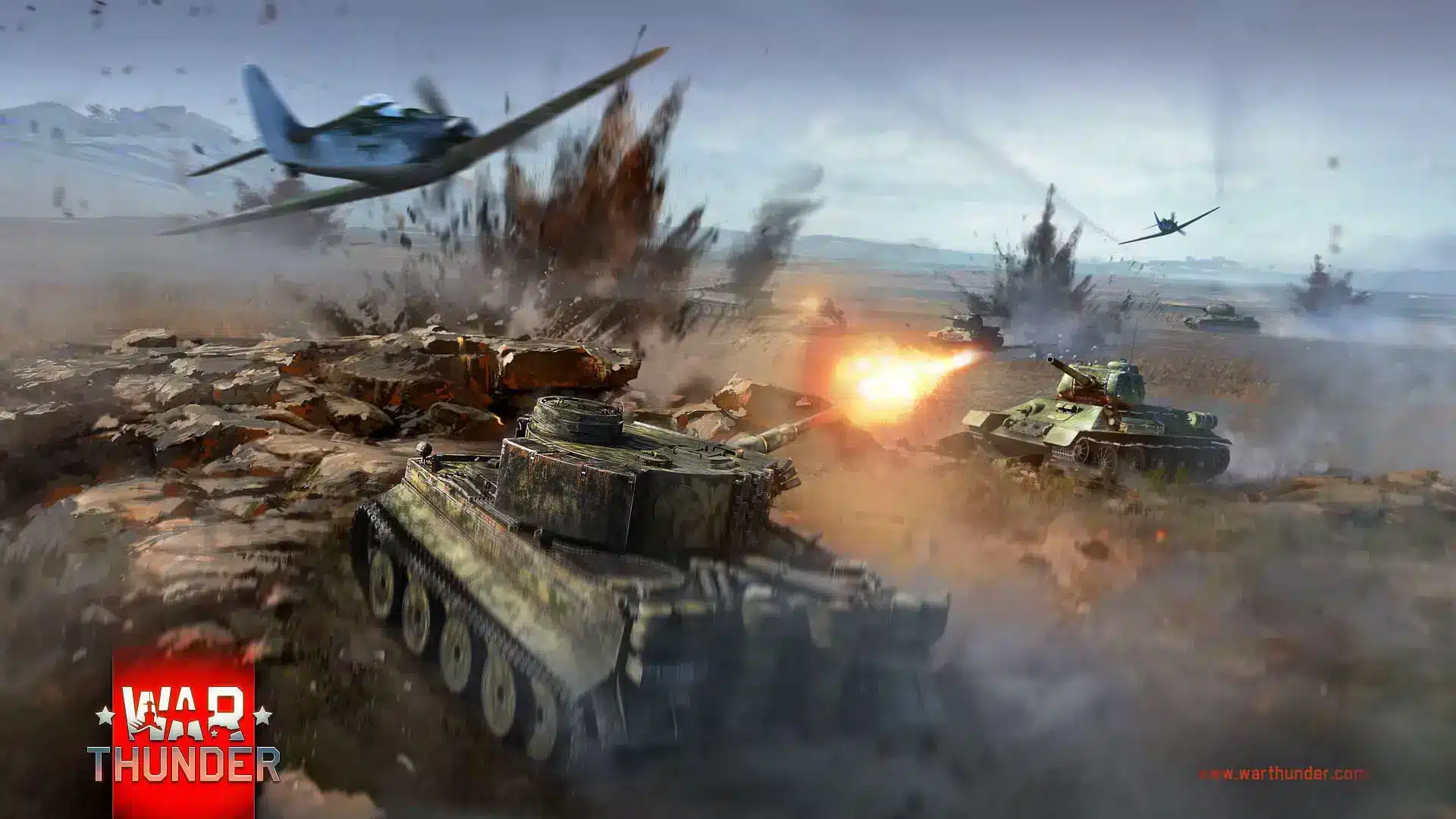
Final Thoughts On War Thunder FPS Boost For Every Battle
Ultimately, a lasting War Thunder FPS Boost comes from stacking small wins rather than chasing one magic setting. Graphics tuning, the right API, clean Windows configuration, and background management all add up.
Which Change Should You Make First?
If you only have time for one adjustment, start with shadows and effects quality, since these consistently deliver the largest single frame rate gain for the smallest visual cost.
How Often Should You Revisit Your Settings?
Revisit your configuration after every driver update or new War Thunder patch, since rendering changes can shift which settings cost the most performance.
In short, treat performance tuning as an ongoing habit rather than a one-time fix. Combine the settings above with a clean system and a stable connection, and your War Thunder Performance Boost will hold up match after match.
All game images used in this blog post belong to Gaijin Entertainment. They are used for informational and educational purposes only and do not imply endorsement or affiliation with the rights holders.