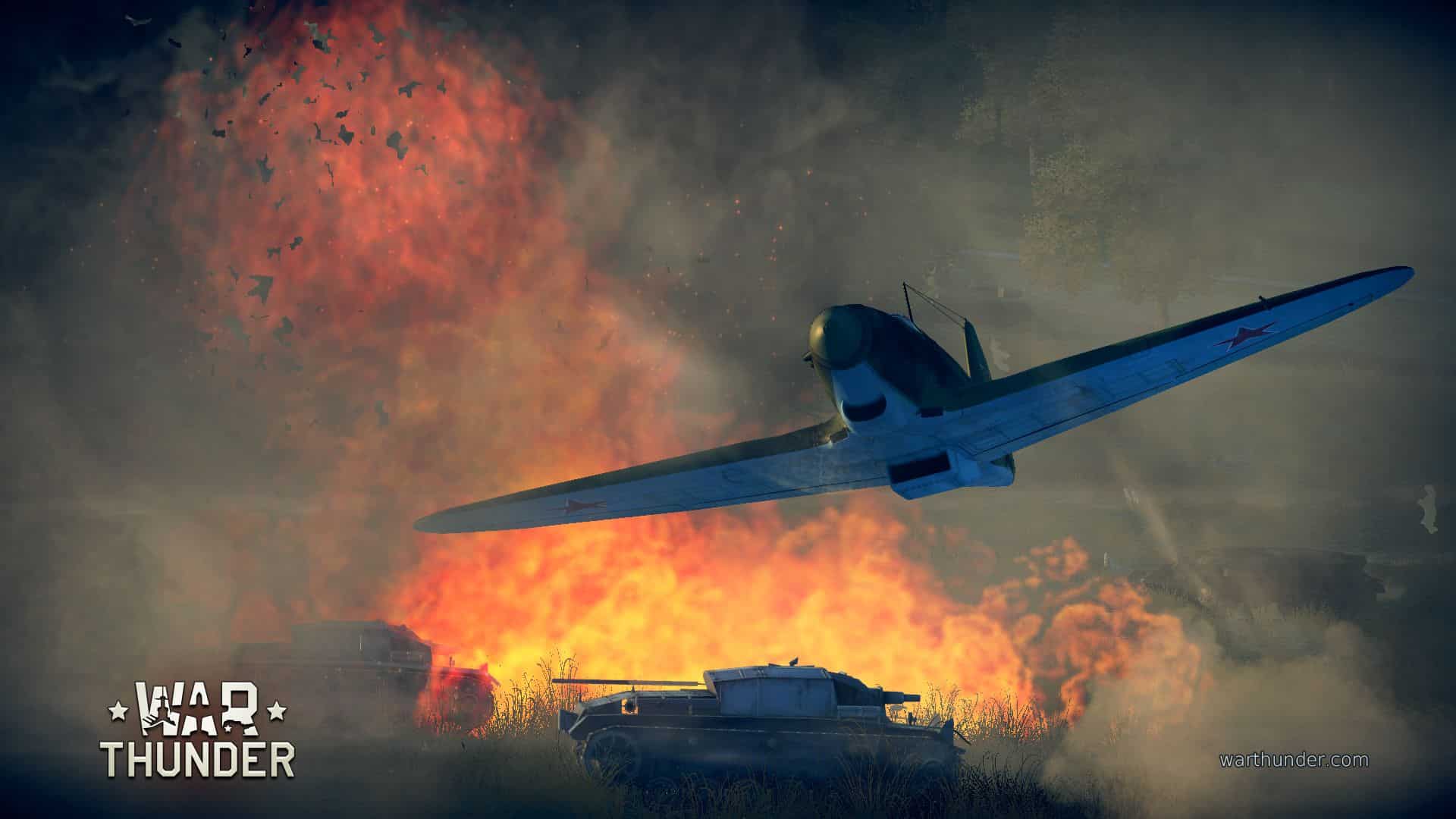
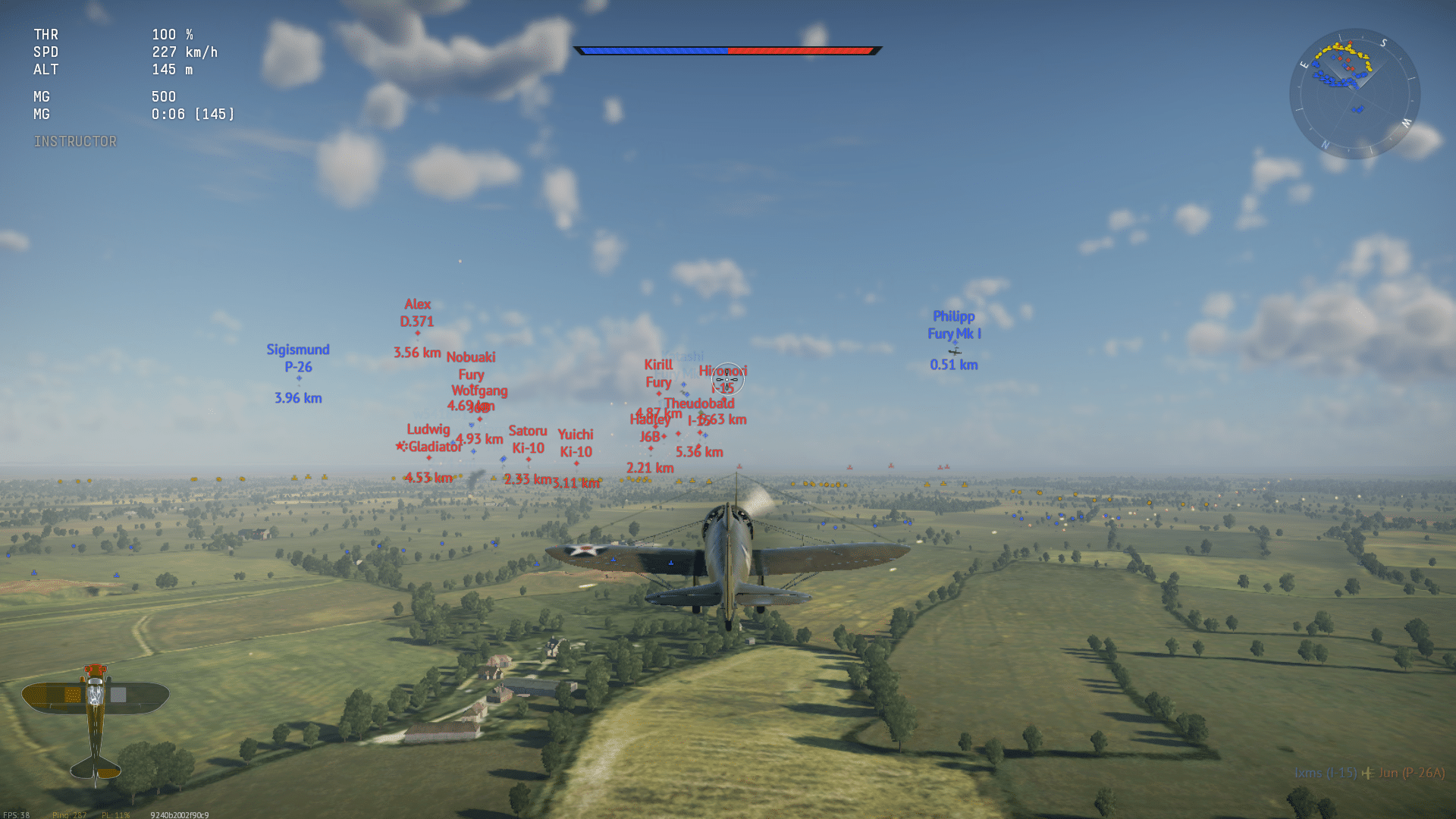
If your tank freezes mid-shot or your plane snaps back on screen, you already know how frustrating War Thunder Lag can be. It ruins otherwise perfect engagements and turns close matches into unfair losses. The good news is that most causes are fixable once you know where to look.
This guide breaks down every source of War Thunder Lag, from local hardware bottlenecks to server-side routing problems. We will cover diagnosis, in-game settings, network fixes, and the tools serious players use to stay stable during long sessions.
In short, War Thunder Lag usually comes from one of three places: your PC struggling to render the battlefield, your internet connection dropping packets, or your route to the game server being congested. Once you identify which one you are dealing with, the fix becomes much simpler. Most players deal with a mix of all three without realizing it.
Why Does War Thunder Lag Happen?
Before jumping into fixes, it helps to understand the mechanics behind the problem. War Thunder uses a client-server model where your machine renders the battle locally while the server validates positions and hits. Consequently, any delay between your client and the server shows up as visual lag, rubber-banding, or delayed hit registration.
Local Performance Lag
This type of lag happens on your own machine. It shows up as low frame rates, stuttering, or freezing during intense scenes with many vehicles and explosions.
- Outdated graphics drivers struggling with newer game builds
- Background apps eating CPU and RAM that the game needs
- Overheating hardware throttling performance mid-match
- Insufficient VRAM on older graphics cards during large battles
- Windows updates or overlays running silently in the background
Network-Based Connection Lag
Network lag is different. It is caused by the path between your router and the War Thunder servers, and it is the type most connected to War Thunder High Ping.
- Congested ISP routes during peak evening hours
- Wi-Fi interference instead of a wired connection
- Server distance, since farther regions naturally add delay
- Packet loss along international routing hops
- Router QoS settings not prioritizing game traffic
What Is the Direct Fix for War Thunder Lag?
The direct answer is this: reduce local lag by lowering graphics load and updating drivers, then fix network lag by choosing a closer server and stabilizing your route with a dedicated connection optimizer. Most rubber-banding and high ping issues disappear once both layers are addressed together. Treating only one side rarely solves the full problem.
Diagnosing War Thunder Server Lag
Before changing settings blindly, it pays to diagnose what is actually happening. War Thunder Server Lag feels different from local stutter, so identifying the pattern saves time.
- Open the in-game network overlay to check your current ping and packet loss in real time.
- Run a basic ping test to the region you play on using Windows command prompt tools.
- Note whether lag happens constantly or only during specific hours of the day.
- Check whether other online games or apps also slow down at the same time.
- Restart your router and retest before assuming the game itself is broken.
Notably, if only War Thunder lags while everything else runs fine, the issue is likely routing to that specific server cluster. On the other hand, if all your online activity slows down together, the problem sits closer to your home network or ISP.
Reduce Lag War Thunder: Graphics and System Settings
Local optimization is often the fastest win. Many players see immediate improvement just from adjusting a handful of settings correctly.
- Lower shadow quality and ground displacement, since both are heavy on frame times
- Disable V-Sync, as it can introduce extra input delay and stuttering
- Switch rendering API if one performs worse on your specific GPU
- Set your GPU driver's power mode to maximum performance instead of balanced
- Close overlays, recording software, and browser tabs before matches
| Setting | Impact on Performance | Recommended Action |
|---|---|---|
| V-Sync | Can cause stutter and input delay | Turn off |
| Ground Displacement | Heavy GPU load in large maps | Lower or disable |
| Shadow Quality | Significant FPS cost | Reduce to medium or low |
| Anti-Aliasing | Moderate GPU cost | Use FXAA over heavier options |
| Background Apps | Steals CPU and RAM | Close before playing |
Furthermore, keeping your graphics drivers updated matters more than most players expect. A driver mismatch after a big update is a common, overlooked cause of sudden frame drops.
War Thunder Connection Lag: Fixing the Network Side
Once your local settings are clean, the next step is addressing War Thunder Connection Lag directly. This is where rubber-banding and delayed hit registration usually originate.
Is Your Wi-Fi Causing the Problem?
Wireless connections introduce variability that wired ethernet does not have. Interference from other devices, walls, and distance from the router all add micro-delays that stack up during a match. Switching to a wired connection is one of the simplest ways to cut down on unpredictable spikes.
Should You Change Your Server Region?
Playing on a server far from your physical location adds unavoidable base latency. If the game gives you a choice between regions, picking the closest one usually lowers your baseline ping significantly. However, distance is not the only factor, since the actual internet route matters just as much as physical distance.
How ExitLag Solves War Thunder Lag
This is where a dedicated connection optimizer becomes valuable. Standard troubleshooting fixes obvious issues, but it cannot fix a congested route between your ISP and the game server. That routing problem is exactly what causes persistent War Thunder Lag Fix attempts to fail even after cleaning up local settings.
ExitLag is not a VPN. It is a game connection optimizer that analyzes multiple network paths in real time and automatically selects the fastest, most stable route to your game server. It does not encrypt your traffic or mask your IP, and it only affects the games you choose to optimize.
Here is what makes it effective for a title like War Thunder:
- Multipath Technology: Sends your game packets through multiple routes simultaneously. If one path degrades, the others keep your connection stable, which directly reduces rubber-banding.
- Real-time Optimization: Continuously reduces delay and packet loss, so your shots register when you actually fire them instead of a beat later.
- Multi-Internet: Supports up to four simultaneous internet connections, so if one drops mid-match, another takes over instantly without disconnecting you.
- Traffic Shaper: Prioritizes War Thunder's traffic over other apps on your network, preventing downloads or streaming from stealing your bandwidth mid-battle.
- AI-powered routing: Selects the best available path automatically, though manual server selection is also available for players who want full control.
ExitLag supports thousands of titles across PC and mobile, with servers spread across dozens of countries, and it is trusted by tens of millions of players who deal with the exact same routing problems War Thunder pilots and tankers face daily. If persistent War Thunder Server Lag has been costing you matches, grabbing the ExitLag Download is a quick way to test a cleaner route before your next session.
Pro Tips: Reducing War Thunder Lag
- Test different routing modes: ExitLag lets you try alternate paths to the same server. Some routes that look longer on a map are actually faster because of better peering agreements.
- Pair wired connections with route optimization: A stable cable connection combined with optimized routing removes both major sources of variability at once.
- Monitor ping during peak hours: If lag spikes only happen in the evening, your ISP is likely congested locally, and a rerouted path can bypass that bottleneck entirely.
- Restart your router weekly: Routers accumulate memory leaks and stale connection tables over time, which can quietly degrade performance without any obvious warning signs.
- Keep one browser tab open at most: Even a paused video stream in the background can eat bandwidth your game needs during a critical engagement.
Common Mistakes War Thunder Players Make
- Blaming the server for everything: Many players assume every stutter is server-side. Fix: run a local diagnostic first, since local hardware issues are often the real culprit.
- Ignoring driver updates: Old GPU drivers cause random FPS drops that look like network lag but are not. Fix: update drivers right after every major game patch.
- Playing on Wi-Fi during ranked matches: Wireless interference introduces spikes exactly when consistency matters most. Fix: switch to a wired connection for competitive sessions.
- Stacking every graphics setting to maximum: Higher settings do not always look meaningfully better but can tank frame rates in large battles. Fix: balance visual quality against consistent frame times.
- Never checking packet loss: Ping alone does not tell the full story. Fix: watch for packet loss specifically, since it causes the worst rubber-banding even at moderate ping.
Is War Thunder Lag Getting Worse After Updates?
Some players notice lag spikes right after a content update, and this is a common pattern across live-service games. New assets and effects increase the load on both your hardware and the server infrastructure temporarily. Waiting a few days for hotfixes, while also double-checking your own settings, usually resolves the worst of it.
Final Thoughts on War Thunder Lag
Tackling War Thunder Lag works best as a layered approach rather than a single fix. Start with your graphics settings, then verify your local network, and finally address routing with a dedicated optimizer. Together, these three layers cover almost every cause of in-game stutter and rubber-banding.
Therefore, if you have already cleaned up your settings and the lag persists, the routing layer is probably your remaining bottleneck. Testing the ExitLag Download takes only a few minutes and can reveal whether a better path to the server was the missing piece all along.
All game images used in this blog post belong to Gaijin Entertainment. They are used for informational and educational purposes only and do not imply endorsement or affiliation with the rights holders.