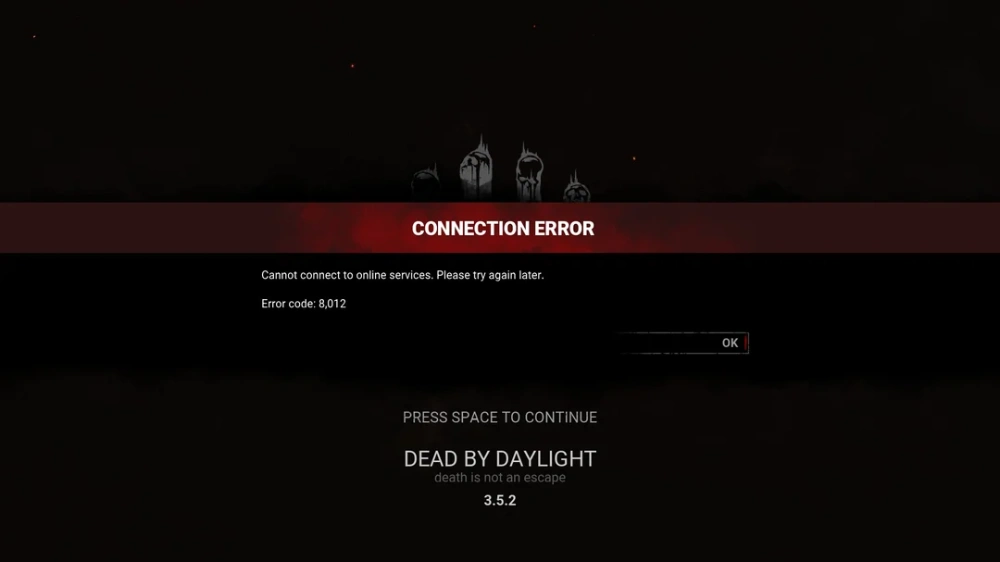
DBD error code 8012 is a frustrating problem for Dead by Daylight players who want to jump into a match but cannot connect to the game's online services. Whether you're preparing to escape as a Survivor or hunt opponents as a Killer, an unexpected connection error can interrupt your session before the action even begins.
Fortunately, understanding dbd error code 8012 can help you identify the problem and choose the right troubleshooting steps. Although this error often appears during server disruptions, it can also be associated with platform connectivity, Easy Anti-Cheat problems, or unstable internet connections.
So, what does DBD error code 8012 mean? It generally indicates that Dead by Daylight cannot establish or maintain a connection with the online services required to play. Because Dead by Daylight is an online multiplayer game, players need access to its servers and relevant platform services before entering matches.
However, not every connection failure originates from your computer or console. Sometimes, the problem affects many players simultaneously because of scheduled maintenance or unexpected service interruptions.
In other situations, the error may appear only on one device or network. Identifying this difference is essential because restarting your router will not resolve a widespread server outage.
This complete guide explains the most common causes of error 8012, practical troubleshooting methods, and ways to improve network stability. You'll also learn when to wait for official maintenance to end and when additional troubleshooting may be necessary.
DBD Error Code 8012: What Does It Mean?
Dead by Daylight relies on online services for authentication, matchmaking, and multiplayer communication.
When the game cannot communicate with the services it needs, players may encounter a connection error instead of reaching the main menu or joining a match.
The message associated with error 8012 commonly indicates that the game cannot connect to online services.
However, the error itself does not identify one guaranteed cause.
Why Dead by Daylight Displays Error 8012
The error code 8012 dbd message is associated with failures involving online connectivity.
These failures can occur at different points during the connection process.
For example, the game may be unable to establish a connection with Behaviour Interactive's online services.
Alternatively, the problem may involve the platform service responsible for account authentication.
On PC, Steam or Epic Games connectivity can affect access to online games.
Additionally, Easy Anti-Cheat problems may prevent the game from starting or functioning normally.
Because several systems interact during startup, the same visible error may appear under different circumstances.
This makes troubleshooting more effective when players begin with the simplest checks.
Before modifying network settings or reinstalling software, determine whether the issue affects other players.
If the problem is widespread, waiting for service restoration may be the only practical solution.
Common Symptoms and Connection Messages
Players encountering dead by daylight error code 8012 may notice several symptoms.
The most obvious is an error message preventing access to the game's online services.
However, the exact behavior can vary depending on the affected platform and connection conditions.
Common symptoms include:
- Failed login attempts: The game cannot establish an online session.
- Connection error messages: Error 8012 appears during startup or authentication.
- Unexpected disconnections: Players lose access to online services.
- Repeated connection attempts: Restarting the game produces the same message.
- Matchmaking interruptions: Players cannot access or continue normal multiplayer activities.
- Platform-related problems: Steam, Epic Games, or console network services may be unavailable.
Not every player experiences all these symptoms.
For example, one person may encounter the error immediately after launching Dead by Daylight.
Another may experience a disconnection while already playing.
Therefore, the timing of the error can provide useful information about its possible cause.
Is Error 8012 a Server Issue or a Local Problem?
One of the most important troubleshooting questions is whether the problem originates from the game's servers or your own connection.
A server-side problem generally affects multiple players.
It may occur during scheduled maintenance, unexpected outages, or platform service interruptions.
In contrast, a local issue may affect only your device or network.
Examples include unstable Wi-Fi, incorrect network settings, or security software interfering with connectivity.
The following table can help distinguish between common scenarios.
| Situation | Possible Cause | Recommended First Step |
| Many players report error 8012 simultaneously | Server outage or maintenance | Check official service updates |
| Steam users disconnect during maintenance | Steam service interruption | Wait for Steam services to recover |
| Only one PC experiences the problem | Local software or network issue | Restart the game and PC |
| Other online games also disconnect | Internet connection instability | Test the router and connection |
| Easy Anti-Cheat reports a separate error | Anti-cheat service or installation problem | Review Easy Anti-Cheat troubleshooting |
| Console online services are unavailable | Platform network disruption | Check the platform's service status |
These are diagnostic possibilities, not definitive explanations.
A single symptom does not prove the underlying cause.
However, identifying patterns can prevent unnecessary troubleshooting and save time.
Dead by Daylight Error Code 8012: Most Common Causes
Understanding the causes of dead by daylight error code 8012 makes it easier to select an appropriate solution.
Although the error concerns connectivity, several different services contribute to Dead by Daylight's online functionality.
A disruption involving any required component may prevent players from accessing the game.
Dead by Daylight Server Outages and Maintenance
Dead by Daylight requires online servers to support multiplayer sessions.
When these services become unavailable, players may encounter connection errors.
Scheduled maintenance can temporarily interrupt access while developers update or maintain their systems.
Unexpected outages may also occur because of technical problems.
In either case, players cannot resolve the underlying server issue by changing local settings.
The most useful response is to check official announcements and wait for the service to recover.
Behaviour Interactive publishes game updates and community information through its official channels.
The official Dead by Daylight forums may also contain reports from players experiencing similar problems.
However, forum discussions should be treated as supporting evidence rather than confirmation of an outage.
A widespread problem is more convincing when accompanied by an official service notice.
Steam, Epic Games, and Platform Service Disruptions
Dead by Daylight depends partly on the online services associated with each gaming platform.
For PC players, Steam and Epic Games provide important account and connectivity functions.
Steam occasionally performs scheduled maintenance.
During these periods, certain online features may become temporarily unavailable.
Players on Behaviour Interactive's official forums have associated error 8012 with Steam maintenance windows.
However, that does not mean every occurrence of the error is caused by Steam.
Epic Games services can also experience interruptions.
Likewise, PlayStation Network, Xbox network services, and Nintendo's online infrastructure can affect console connectivity.
Before making changes to your device, check whether the relevant platform is experiencing a service problem.
If the platform is unavailable, local troubleshooting may have little effect until service returns.
Easy Anti-Cheat Errors and Authentication Failures
Easy Anti-Cheat is part of Dead by Daylight's PC security infrastructure.
Its purpose is to help protect multiplayer matches from unauthorized software and cheating.
However, problems involving the anti-cheat service or its installation can interfere with game startup.
For example, corrupted files or service errors may prevent the game from initializing correctly.
Some historical troubleshooting guidance shared on Behaviour Interactive's forums includes repairing Easy Anti-Cheat.
Nevertheless, players should avoid assuming that error 8012 always indicates an anti-cheat problem.
If the game displays a separate Easy Anti-Cheat error, investigate that message directly.
Otherwise, check server and platform connectivity before modifying anti-cheat components.
This approach reduces the risk of making unnecessary changes.
Unstable Internet Connections and DNS Problems
Local connectivity problems can also interfere with Dead by Daylight.
An unstable internet connection may cause repeated disconnections or prevent reliable communication with online services.
Common network-related factors include:
- Weak or inconsistent Wi-Fi signals.
- Temporary router or modem problems.
- Packet loss during network communication.
- Internet service provider interruptions.
- DNS resolution failures.
- Firewall or security software restrictions.
- VPN connections that interfere with game traffic.
- Congestion on local or external network routes.
However, these problems do not automatically produce error 8012.
For example, high ping may affect match responsiveness without preventing authentication.
Similarly, packet loss may cause gameplay interruptions without displaying a specific login error.
Therefore, players should focus on identifying observable connection problems rather than assuming that every network issue has the same cause.
Error Code 8012 DBD: Quick Fixes to Try First
When error code 8012 dbd appears, begin with simple troubleshooting methods.
These steps are generally faster and less disruptive than reinstalling the game or changing advanced network settings.
Additionally, they can help determine whether the problem is temporary.
Check Server and Platform Status
The first step is to determine whether Dead by Daylight or your gaming platform is experiencing an outage.
Check Behaviour Interactive's official community announcements for maintenance information.
Next, review the status page for the platform you use.
For example, Steam players can check Steam service information, while Epic Games players can consult Epic's official status page.
Console players should check their respective network services.
If an outage is confirmed, avoid repeatedly reinstalling the game.
Instead, wait for the affected service to recover.
Once the outage ends, restart Dead by Daylight and try connecting again.
Restart Dead by Daylight and Your Gaming Platform
Restarting the game can resolve some temporary startup or connection problems.
Close Dead by Daylight completely rather than leaving it running in the background.
Then, reopen the game and attempt to connect.
If the problem continues, restart your computer or console.
PC players should also fully close and reopen Steam or the Epic Games Launcher.
This can refresh the launcher session and clear certain temporary application issues.
However, restarting will not resolve an active server outage.
If many players report the same error, checking service availability remains the priority.
Restart Your Router and Test Your Internet Connection
If online services appear operational, investigate your local network.
Start by checking whether other websites and online applications work normally.
If several services are experiencing problems, your internet connection may be unstable.
Restarting your router can sometimes resolve temporary connectivity issues.
A simple troubleshooting sequence is:
- Close Dead by Daylight.
- Turn off your computer or console.
- Restart your router or modem according to its instructions.
- Wait until the internet connection is restored.
- Turn your gaming device back on.
- Launch the game and attempt to reconnect.
If possible, test a wired Ethernet connection.
Wired connections can reduce problems caused by wireless interference.
However, Ethernet does not eliminate server outages or problems occurring elsewhere on the internet.
Check for Pending Game and System Updates
Outdated game files or platform software can occasionally interfere with online connectivity.
Make sure Dead by Daylight is fully updated.
On PC, check Steam or the Epic Games Launcher for pending downloads.
Console players should review available game and system updates.
After installing updates, restart the game and try connecting again.
If the error persists, additional platform-specific troubleshooting may be necessary.
However, avoid changing multiple advanced settings simultaneously.
Testing one solution at a time makes it easier to identify which action resolves the problem.
How to Fix DBD Error Code 8012 on PC
If dbd error code 8012 continues after restarting the game and checking server availability, PC-specific troubleshooting may help.
Windows players have several additional options, including verifying game files, checking Easy Anti-Cheat, and refreshing network settings.
However, these methods should be attempted carefully and individually.
Begin with file verification before moving to more advanced troubleshooting.
Verify Game Files on Steam or Epic Games
Corrupted or missing game files can interfere with Dead by Daylight's normal operation.
Fortunately, Steam and the Epic Games Launcher include tools for checking installed files.
These tools compare local game files against the expected installation and replace files when necessary.
How to verify Dead by Daylight files on Steam:
- Open Steam and navigate to your Library.
- Right-click Dead by Daylight.
- Select Properties.
- Open the Installed Files section.
- Select Verify integrity of game files.
- Wait for the verification process to finish.
- Restart Steam and launch Dead by Daylight.
Steam may download replacement files if it identifies problems.
How to verify files through the Epic Games Launcher:
- Open the Epic Games Launcher.
- Navigate to your Library.
- Find Dead by Daylight.
- Select the three-dot menu beside the game.
- Choose Manage.
- Select Verify.
- Wait for the process to finish before restarting the game.
Verification can resolve installation-related problems.
However, it cannot restore unavailable Dead by Daylight servers or repair an internet service provider outage.
Troubleshoot Easy Anti-Cheat
Easy Anti-Cheat helps protect Dead by Daylight's online environment.
If its installation becomes damaged or its services fail, the game may experience startup problems.
Historical Dead by Daylight support guidance has recommended repairing or reinstalling Easy Anti-Cheat when troubleshooting certain connection errors.
However, repair procedures can vary between Easy Anti-Cheat versions.
Therefore, players should avoid following outdated instructions that reference missing executables or installation folders.
Start by verifying Dead by Daylight's files.
This may restore missing components associated with the game's installation.
Next, check whether the game displays a separate Easy Anti-Cheat error message.
If it does, consult the official Easy Anti-Cheat troubleshooting documentation for that specific problem.
Avoid downloading anti-cheat installers from unofficial websites.
Additionally, do not disable security protections permanently to make the game launch.
If the problem persists, contact Behaviour Interactive support for instructions appropriate to your installation.
Flush DNS and Renew Your IP Configuration
DNS helps your computer resolve domain names into network addresses.
Occasionally, local DNS problems can interfere with online connectivity.
Refreshing your DNS cache may help when outdated or incorrect records are contributing to the issue.
Behaviour Interactive support guidance shared on its official forums has previously recommended refreshing IP configuration and DNS settings when investigating error 8012.
However, these commands will not resolve server outages or every connection problem.
On Windows, you can try the following steps:
- Close Dead by Daylight and your game launcher.
- Open the Start menu.
- Search for Command Prompt.
- Select Run as administrator.
- Enter the following command:
ipconfig /flushdns - Wait for Windows to confirm that the DNS resolver cache was cleared.
- Restart your game launcher and test Dead by Daylight.
If you continue experiencing local network problems, Windows also provides these commands:
ipconfig /release
ipconfig /renew
However, these commands temporarily release and renew your network configuration.
They may interrupt your internet connection and are not appropriate for every network setup.
If you're using a managed network, school connection, or workplace computer, consult the network administrator before changing these settings.
Review Firewall, VPN, and Background Network Interference
Firewalls and security applications help protect your computer.
However, incorrect settings can sometimes interfere with legitimate game connections.
If Dead by Daylight suddenly stops connecting after a security software update, review the application's recent changes.
Check whether the game and its launcher are permitted to communicate through the firewall.
Avoid disabling your firewall permanently.
Instead, use the security application's supported procedures to review or restore appropriate permissions.
VPN connections can also affect routing.
If you use a VPN, test whether the error continues after disconnecting through the VPN application's normal controls.
However, changing routes does not guarantee that error 8012 will disappear.
Some problems originate from the game's servers or platform authentication services.
Background applications may also consume bandwidth or interfere with game-related processes.
Closing unnecessary downloads and network-intensive applications can help reduce local congestion.
Fixing Dead by Daylight Error Code 8012 on Consoles
Although PC players have additional troubleshooting options, dead by daylight error code 8012 can also appear on consoles.
Behaviour Interactive's official forums contain reports involving PlayStation and Nintendo Switch systems.
However, console troubleshooting differs from PC troubleshooting because players generally cannot modify Easy Anti-Cheat installations or run Windows network commands.
Instead, focus on platform service availability, system updates, and network connectivity.
PlayStation Troubleshooting Steps
PlayStation players should begin by checking PlayStation Network service availability.
If the platform's online services are experiencing an outage, Dead by Daylight may be unable to connect normally.
Next, restart the console.
A complete restart can help resolve temporary application or system problems.
If the issue continues, check for pending game updates.
You should also confirm that the console's system software is current.
PlayStation includes built-in network testing tools that can help identify connection problems.
Use the network settings menu to test internet connectivity and PlayStation Network access.
If the console connects successfully but Dead by Daylight still displays error 8012, check Behaviour Interactive's official support information.
Avoid reinstalling the game immediately unless other troubleshooting steps have failed.
Xbox Troubleshooting Steps
Xbox players should check the current Xbox network service status.
A platform-wide disruption may prevent certain online games from functioning normally.
If services are operational, restart the console.
Next, confirm that Dead by Daylight has installed all available updates.
You can also use the Xbox network settings menu to test your internet connection.
If the test identifies connectivity problems, investigate your router or internet service provider.
Additionally, check whether other multiplayer games connect successfully.
If multiple games fail, the problem may involve the console's network connection rather than Dead by Daylight specifically.
However, if only Dead by Daylight experiences the issue, consult the game's official support resources.
Nintendo Switch Connectivity Checks
Nintendo Switch players may also encounter online connection problems.
Start by checking Nintendo's network maintenance and service information.
Then, restart the console and launch Dead by Daylight again.
If the error persists, test the internet connection through the console's system settings.
Weak wireless signals can affect connectivity, particularly when the console is far from the router.
Moving closer to the router may improve signal strength.
Players using a compatible wired LAN connection can also test whether Ethernet provides a more stable connection.
However, local network improvements cannot resolve unavailable game servers.
If the problem continues after service availability and network checks, contact Behaviour Interactive support.
How ExitLag Can Help Prevent Network-Related DBD Problems
Dead by Daylight depends on stable online connectivity.
Whether you're repairing generators, escaping a chase, or pursuing Survivors as a Killer, inconsistent network performance can interfere with important actions.
For players troubleshooting error code 8012 dbd, understanding the difference between connection instability and server authentication failures is essential.
Although ExitLag cannot repair every connection error, its optimization technologies can help address certain network-related problems.
Optimizing Connection Routes for Dead by Daylight
Online games communicate with servers through network routes managed by internet providers and other infrastructure.
Sometimes, these routes are inefficient or unstable.
This can contribute to higher latency, packet loss, or inconsistent connection quality.
ExitLag uses proprietary routing optimization technology designed to improve supported gaming connections.
Its Real-Time Optimization technology monitors connection conditions and helps select more efficient routes when available.
Additionally, Multipath Connection technology can use multiple simultaneous routes to improve stability.
These features may help reduce the effects of problematic network routing.
However, results depend on the player's internet connection and available network paths.
ExitLag cannot guarantee that every connection will experience lower latency.
Improving Connection Stability During Multiplayer Matches
Connection stability is particularly important in Dead by Daylight because the game relies on timing and positioning.
Survivors need responsive movement when escaping Killers.
Meanwhile, Killers depend on consistent inputs when pursuing targets and using abilities.
High latency or packet loss can make these interactions feel less predictable.
ExitLag helps PC and Mobile players optimize supported gaming connections through intelligent routing, Real-Time Optimization, and Multipath Connection technology. For Dead by Daylight players on PC, these features may help reduce network-related lag, improve connection stability, and support more consistent multiplayer performance when routing conditions allow. With an easy setup process and automatic optimization options, ExitLag provides an additional way to improve the online gaming experience without replacing essential troubleshooting or reliable internet service.
However, ExitLag is not available for PlayStation, Xbox, or Nintendo Switch.
Console players should use their platform's built-in network tools and official troubleshooting resources.
What ExitLag Can and Cannot Fix
Understanding ExitLag's limitations helps players choose the correct solution.
The application focuses on optimizing supported network connections.
Therefore, it may help when unstable routing contributes to lag, packet loss, or inconsistent gameplay.
However, it cannot directly repair every cause of error 8012.
The following table summarizes these differences.
| Problem | Can ExitLag Help? | Explanation |
|---|---|---|
| Inefficient network routing | Potentially | Route optimization may improve supported connections |
| Packet loss caused by unstable routes | Potentially | Multipath Connection may improve stability |
| High latency caused by routing problems | Potentially | More efficient routes may reduce latency |
| Dead by Daylight server outage | No | Server availability is controlled by the service provider |
| Steam or Epic Games service outage | No | Platform services must recover |
| Corrupted Easy Anti-Cheat installation | No | Requires appropriate software troubleshooting |
| Missing or damaged game files | No | Requires verification or installation repair |
| Console network problems | Not directly | ExitLag does not support consoles |
Therefore, ExitLag should be viewed as a network optimization tool rather than a universal error-code repair solution.
If error 8012 results from unavailable online services, waiting for service restoration remains necessary.
DBD Error Code 8012 FAQ: Common Questions Answered
If dbd error code 8012 continues appearing, several additional questions can help narrow down the problem.
The following answers address common concerns about repeated errors, matchmaking penalties, reinstalling the game, and checking server availability.
Why Does Error 8012 Keep Appearing?
Repeated error 8012 messages can indicate an unresolved connection problem.
However, the underlying cause may vary.
For example, Steam maintenance can temporarily interrupt access to online services.
Alternatively, unstable local connectivity may prevent the game from maintaining a reliable connection.
If the error appears repeatedly, check whether other players report similar problems.
Next, verify platform service availability.
If the issue affects only your device, investigate local network settings, game files, and relevant software.
Can Error 8012 Cause a Matchmaking Penalty?
Some players have reported receiving disconnect penalties after encountering error 8012 during matches.
Behaviour Interactive's official forums contain discussions describing these situations.
However, a forum report does not establish that every error 8012 disconnection results in a penalty.
The outcome can depend on how the game processes the interruption and the matchmaking rules in effect.
If you receive an unexpected penalty, document the error and contact Behaviour Interactive support.
Avoid repeatedly entering matches while experiencing an unresolved connection problem.
Is Reinstalling Dead by Daylight Necessary?
Reinstalling Dead by Daylight is usually not the first troubleshooting step.
Instead, begin by checking service availability, restarting the game, and verifying installed files.
Behaviour Interactive's PC troubleshooting guide includes reinstalling the game as a later option.
However, reinstalling cannot resolve an active server outage.
Additionally, it may require downloading a substantial amount of data.
Therefore, consider reinstalling only after simpler troubleshooting methods have failed.
If you're uncertain, contact official support before proceeding.
How Do You Know When the Servers Are Working Again?
The most reliable approach is to monitor official Dead by Daylight announcements and relevant platform service information.
When an outage is resolved, affected services may return to normal operation.
However, players should avoid relying exclusively on unverified social media reports.
After service restoration, restart the game and attempt to connect again.
If error 8012 continues while other players can connect normally, investigate your local network or installation.
Ultimately, resolving dbd error code 8012 depends on identifying whether the problem involves Dead by Daylight's servers, platform services, game files, or your own connection. Start with official service checks, follow the appropriate troubleshooting steps, and consider ExitLag for optimizing supported PC gaming connections when unstable routing affects performance. With the right approach, you can spend less time troubleshooting and more time enjoying Dead by Daylight's multiplayer matches.
All game images used in this blog belong to Behaviour Interactive. They are used for informational/educational purposes only and do not imply endorsement or affiliation with the rights holders.