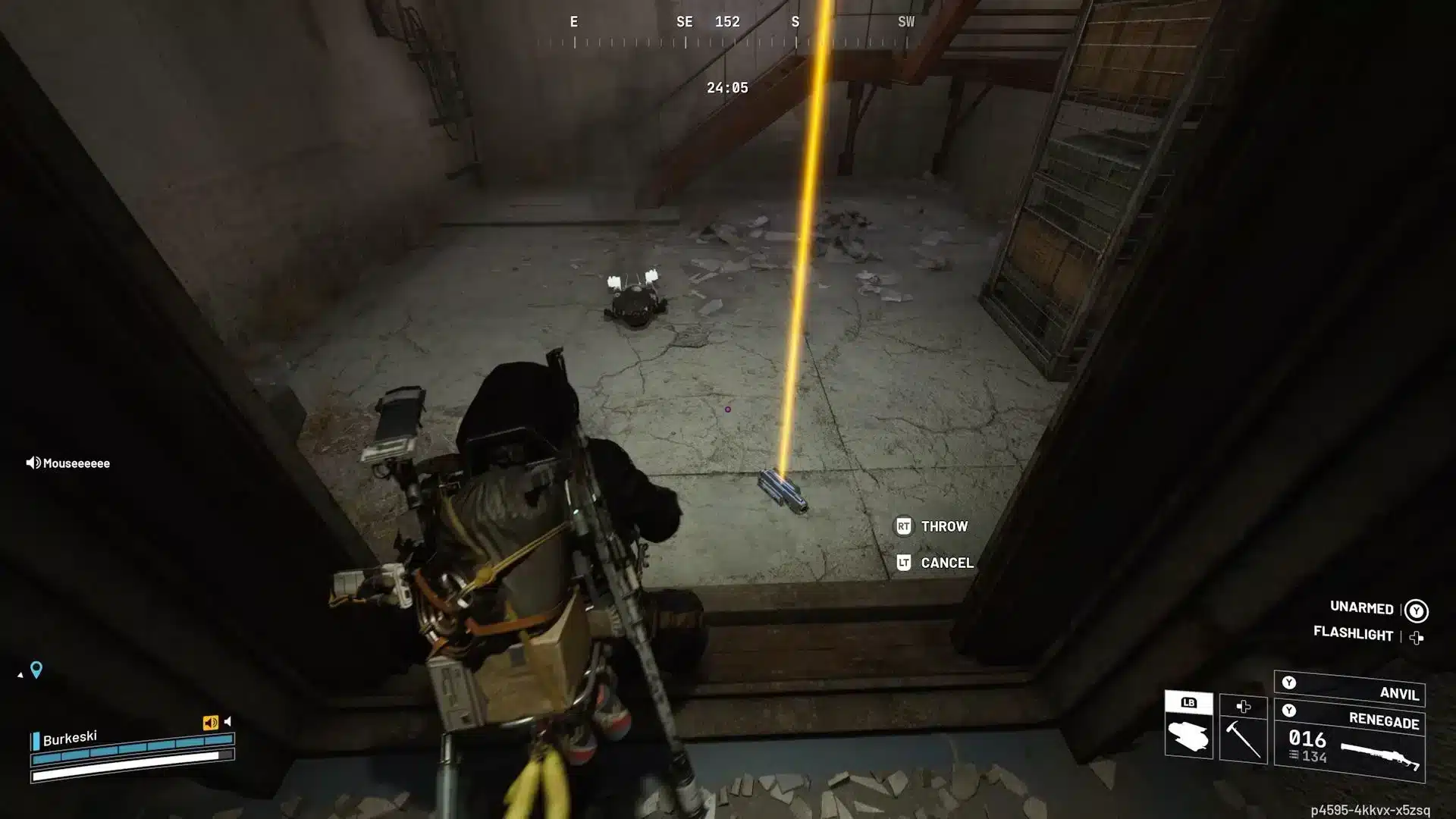
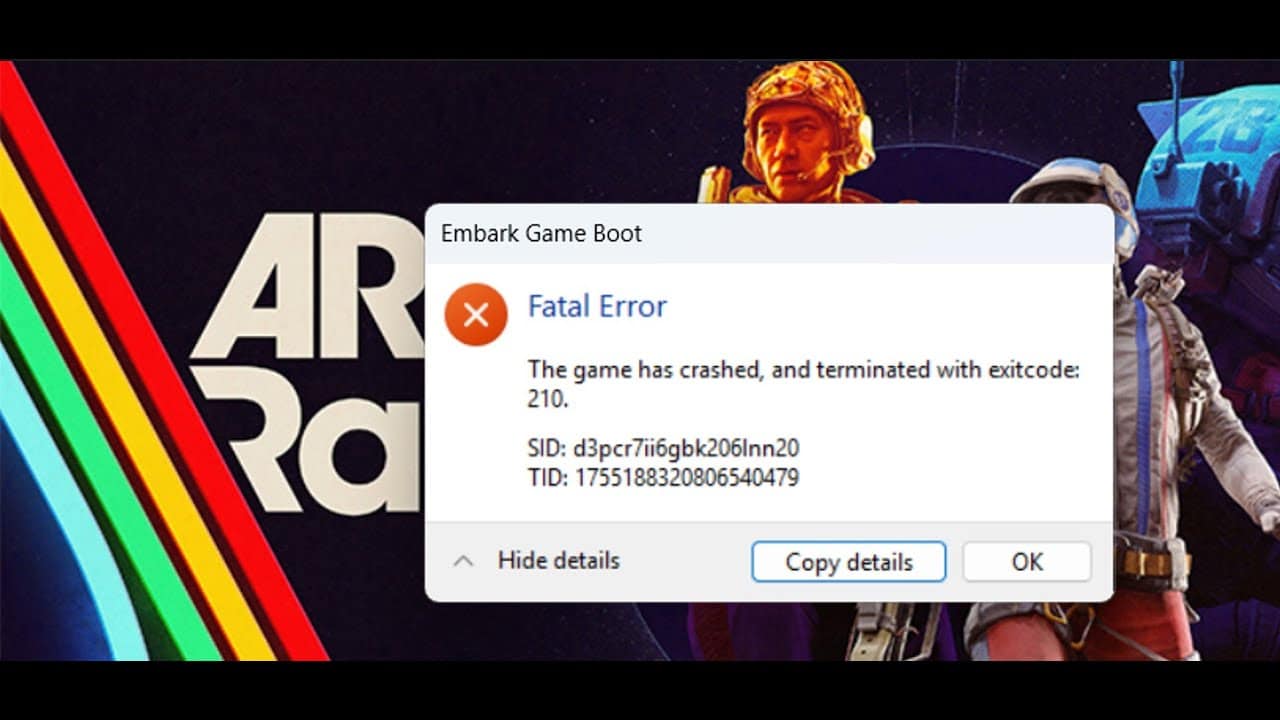
You launch Arc Raiders, the loading screen ticks along, and then it stops. A fatal message pops up before you even reach the menu. That is the Arc Raiders Embark Game Boot Error, and it is one of the most reported startup problems on PC right now.
The good news: this error almost always comes down to a small handful of causes. Easy Anti-Cheat, background software, or a shaky connection to Embark's authentication servers are usually behind it.
So what exactly triggers the Arc Raiders Embark Game Boot Error, and how do you fix it without wasting hours guessing? The short answer is that it typically means the handshake between the Embark Game Boot launcher and Easy Anti-Cheat failed, either because EAC did not install correctly, a background app got flagged, or your network could not reach the verification servers. Repairing EAC, closing conflicting apps, and stabilizing your connection resolves it for the vast majority of players.
This guide walks through every fix, in order of how likely it is to solve your specific case. It also covers the advanced steps most other guides skip, including router-level fixes and how a stable connection route can prevent the error from coming back.
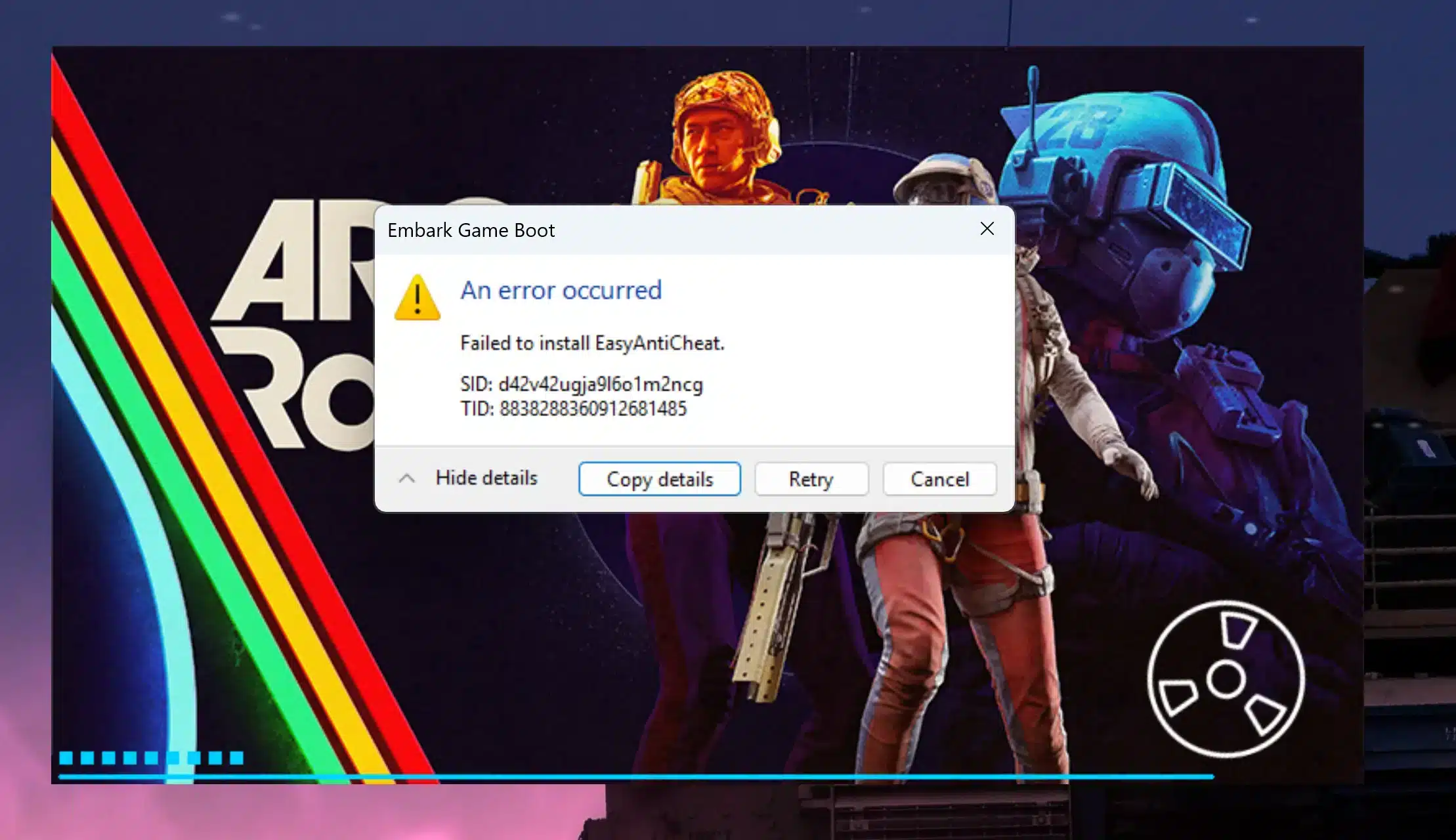
What Causes The Arc Raiders Embark Game Boot Error
Arc Raiders relies on two systems working together at launch: the Embark Game Boot process and Easy Anti-Cheat. When either one stumbles, the game refuses to load.
The EAC Handshake Problem
Easy Anti-Cheat has to verify your game files and confirm you are not running flagged software. If that verification fails, the boot process halts immediately.
- EAC service files are missing, corrupted, or outdated
- A background tool (like AutoHotkey or a macro-enabled keyboard app) gets misidentified as cheat software
- The anti-cheat driver cannot initialize because of a Windows permissions conflict
Network And Server Communication Issues
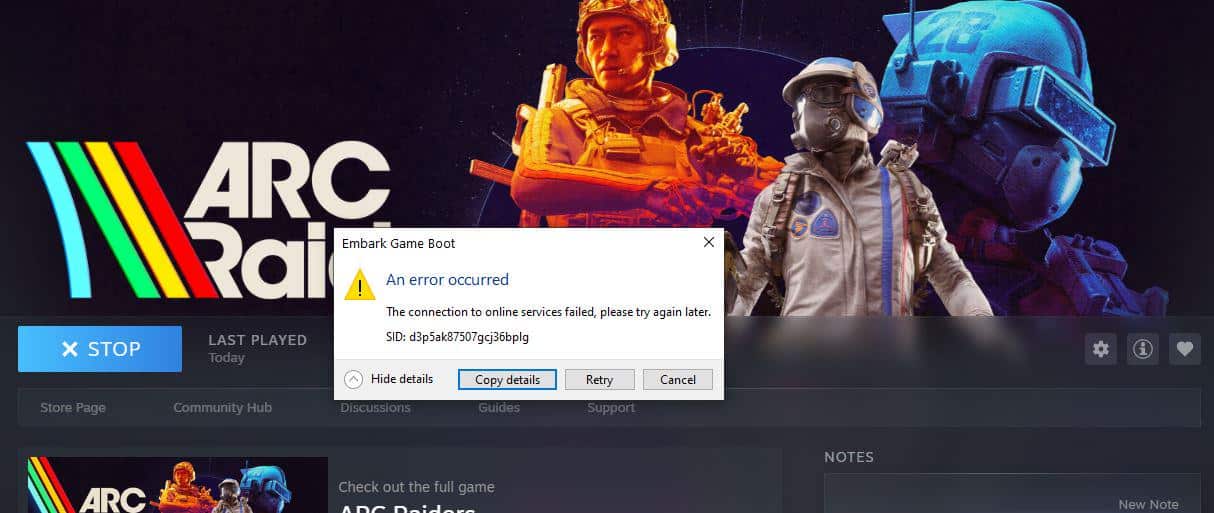
Embark Game Boot Error problems are not always local. Sometimes your PC simply cannot reach Embark's authentication servers in time.
- Unstable Wi-Fi introduces packet loss during the verification handshake
- Firewall or router settings block outbound EAC traffic
- High latency causes the connection attempt to time out before it completes
Understanding which category your error falls into saves a lot of trial and error. If the game fails instantly on every launch, it is usually EAC. If it fails intermittently or only during peak hours, it is more likely a network issue.
How To Fix The Arc Raiders Embark Game Boot Error Step By Step
Work through these fixes in order. Most players solve the issue within the first three steps.
- Restart everything. Close Arc Raiders completely, then close Steam, Epic Games Launcher, or the Xbox app entirely. Reopen the launcher and try again. A full restart clears stuck processes in the boot chain.
- Reboot your PC. If a simple app restart does not work, restart the whole machine. This clears any lingering EAC driver conflicts that a partial restart misses.
- Repair Easy Anti-Cheat manually. Navigate to the game's installation folder, find the EasyAntiCheat subfolder, right-click the setup file, and choose "Run as administrator." Select the repair option and follow the prompts.
- Delete and reinstall the EAC driver. Go to the EasyAntiCheat directory, delete the driver file, then relaunch the game so EAC reinstalls itself fresh.
- Close background software. Shut down overlays, macro tools, and any other Easy Anti-Cheat game running at the same time, since two EAC titles cannot run together.
- Check your firewall and antivirus. Add Arc Raiders and EasyAntiCheat.exe to your firewall exceptions so outbound verification traffic is never blocked.
- Verify game file integrity. Use your launcher's built-in file verification tool to catch corrupted or missing files that trigger boot failures.
- Reinstall the entire game. As a last resort, uninstall Arc Raiders and Easy Anti-Cheat completely, reboot, then reinstall from scratch.
Fixing EAC Driver Conflicts On Windows
If the repair tool does not fully resolve things, the EAC driver itself may be stuck.
- Open System Configuration (msconfig), go to the Services tab, and temporarily disable other anti-cheat or overlay services
- Restart your PC with those services disabled, then launch Arc Raiders once to let EAC reinstall cleanly
- Re-enable the disabled services afterward once the game boots normally
Fixing Network-Related Boot Failures
When the error is connection-related, the fix looks different from a software repair.
- Switch from Wi-Fi to a wired ethernet connection whenever possible
- Power-cycle your router by unplugging it for a full minute before reconnecting
- Flush your DNS and renew your IP configuration through Command Prompt
- Temporarily disable VPN software that is not optimized for gaming traffic, since some VPNs interfere with the EAC handshake instead of helping it
Is The Arc Raiders Embark Game Boot Error A Server Problem?
Sometimes, yes. During high-traffic periods or right after a patch, Embark's authentication servers can get overloaded. If everyone in your friend group hits the same error at once, it is likely server-side rather than something on your PC.
In that case, waiting 15 to 30 minutes before trying again is often the fastest fix. There is nothing wrong with your setup if the servers themselves are struggling.
Why Does Arc Raiders Flag My Software As Cheating?
Easy Anti-Cheat scans running processes for tools commonly abused by cheaters, including macro software, input remappers, and certain overlay programs. If you use a keyboard configuration app or a recording tool with scripting features, EAC may flag it even though you are not cheating.
Closing these programs before launch, or allowlisting them if your anti-cheat software allows it, usually clears the false flag.
Comparing The Main Fixes
| Fix Method | Best For | Time Required | Success Rate |
|---|---|---|---|
| Restart launcher and PC | First-time or occasional errors | 2-5 minutes | High |
| Repair EAC manually | Persistent EAC-specific errors | 5-10 minutes | High |
| Close background apps | False-positive cheat detection | 1-2 minutes | Medium-High |
| Firewall exceptions | Network-blocked verification | 5 minutes | Medium |
| Full reinstall | Corrupted files or repeated failures | 30-60 minutes | Very High |
Pro Tips: Arc Raiders Embark Game Boot Error
- Run the launcher as administrator: Windows permission conflicts are a common hidden cause. Right-clicking your launcher and selecting "Run as administrator" gives EAC the access it needs to initialize properly.
- Keep only one Easy Anti-Cheat title open: Running Arc Raiders alongside another EAC-protected game almost always triggers a boot conflict. Close every other anti-cheat game first.
- Update your GPU drivers before every major patch: Embark often ships updates alongside anti-cheat changes, and outdated drivers can cause the boot process to hang even when EAC itself is fine.
- Disable overlays you do not need: Discord, Nvidia, and Steam overlays all inject code into the game process at launch. Turning off the ones you are not actively using reduces the chance of a false anti-cheat flag.
Common Mistakes Arc Raiders Players Make
- Reinstalling the whole game immediately: Many players jump straight to a full reinstall before trying the quick fixes. This wastes hours when a simple EAC repair would have solved it. Fix: Always try the launcher restart and EAC repair first.
- Ignoring firewall exceptions: Players assume their firewall is not the issue because other games work fine. Fix: Add Arc Raiders and EasyAntiCheat.exe explicitly to your firewall's allowed list, since some rules apply per executable.
- Running multiple anti-cheat games at once: Keeping Discord open with another EAC title minimized in the background is a common oversight. Fix: Fully close, not just minimize, any other anti-cheat protected game before launching Arc Raiders.
- Skipping the router restart: Players troubleshoot every in-game setting but never touch their network hardware. Fix: A simple router power cycle resolves more boot errors than most people expect.
Keeping Your Connection Stable For Arc Raiders
Once the Arc Raiders Embark Game Boot Error is fixed, the next challenge is keeping your session stable. Server verification issues and mid-match disconnects often share the same root cause: an inconsistent route to Embark's servers.
This is where ExitLag comes in. It is not a VPN, it is a game connection optimizer that scans multiple network paths in real time and automatically routes your traffic through the fastest, most stable one available.
For a title like Arc Raiders, where extraction runs and firefights punish every dropped packet, that matters. ExitLag's real-time optimization reduces delay and packet loss, so your inputs land when they should instead of getting stuck behind a laggy hop.
The Multipath technology sends your traffic through several routes simultaneously. If one path degrades, the others keep your connection alive without a full disconnect.
- Supports over 4,000 titles across PC and mobile
- More than 1,500 servers spread across 190+ countries
- Trusted by over 30 million players worldwide
It does not modify game files, inject code, or interact with anti-cheat systems in any way, which means it stays fully compatible with Easy Anti-Cheat and Arc Raiders. Ready to stop fighting server routing issues? Grab the ExitLag Download and get a smoother, more stable connection before your next raid.
All game images used in this blog post belong to Embark Studios. They are used for informational and educational purposes only and do not imply endorsement or affiliation with the rights holders.