
Experiencing an ark connection timeout can be incredibly frustrating, especially when you're ready to join your tribe, tame dinosaurs, or defend your base. Instead of loading into your world, the game disconnects before you even spawn, leaving you staring at an error message with little explanation.
If you're seeing ark connection timeout, you're not alone. Thousands of players encounter this issue in both ARK: Survival Ascended and ARK: Survival Evolved. Fortunately, most connection timeout errors are caused by identifiable network, server, or configuration problems that can often be fixed within minutes.
So, what exactly causes this error? In most cases, the problem appears when your game cannot establish or maintain communication with an ARK server. This may happen during server maintenance, after a game update, when mods are incompatible, or because of network instability between your PC and the game server. Understanding the root cause is the first step toward getting back into the game.
Whether you're connecting to official servers, private communities, or your own dedicated server, this guide covers everything you need to know. You'll learn why timeout errors occur, how to troubleshoot them efficiently, and what you can do to reduce the chances of seeing them again.
What Is ARK Connection Timeout?
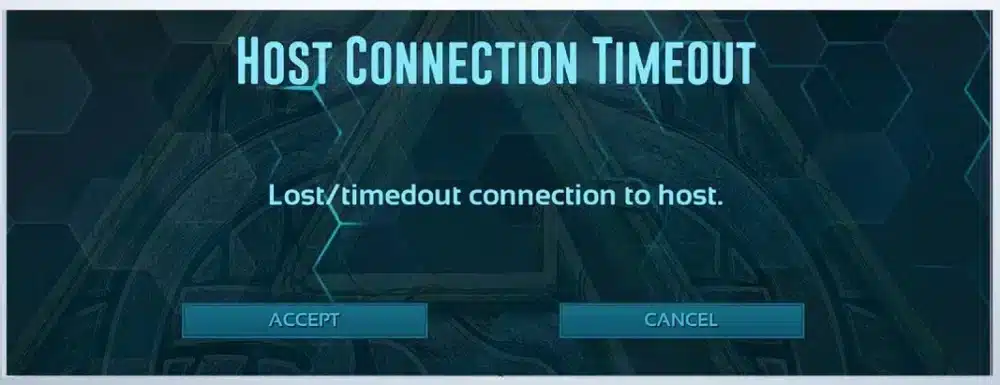
An ark connection timeout occurs when your game attempts to communicate with a server but doesn't receive a response within the expected timeframe. Rather than keeping the connection open indefinitely, ARK automatically terminates the attempt and displays a timeout error.
Unlike crashes or corrupted saves, timeout errors are usually related to networking rather than the game itself.
Some of the most common messages include:
- lost/timeout connection to host ark
- host connection timeout ark
- Connection timed out
- Joining failed
- Lost connection to host
- Failed to join server
Although the wording varies slightly between platforms, every message points to the same basic issue: your game and the server failed to complete or maintain a stable connection.
When Does the Error Usually Appear?
Players most commonly encounter timeout errors in the following situations:
- Joining an official server
- Connecting to a modded unofficial server
- Loading into a dedicated server
- Rejoining after disconnecting
- Fast traveling between clustered servers
- Connecting after a major patch
Sometimes the problem affects only one server, while other times every server becomes inaccessible until the underlying issue is resolved.
Fortunately, understanding the possible causes makes troubleshooting much easier.
Why Does ARK Connection Timeout Happen?
There isn't a single cause behind timeout errors. Instead, several factors can interrupt communication between your computer and the game server.
Here are the most common reasons.
Server Maintenance
Official ARK servers periodically undergo maintenance.
During these periods:
- Servers may reject new connections.
- Existing players may disconnect.
- Login attempts may fail completely.
Whenever Studio Wildcard deploys major updates, temporary connection issues are relatively common until every server finishes updating.
Checking server status should always be your first troubleshooting step.
Version Mismatch
After a new update releases, servers and clients must run identical versions.
If your game updated but the server hasn't—or vice versa—you may receive timeout errors instead of a clear compatibility warning.
Always verify that:
- Steam downloaded the latest patch.
- The server administrator completed updates.
- Every installed mod matches the current version.
Network Instability
Even fast internet connections can suffer from temporary instability.
Common network problems include:
- Packet loss
- High latency
- Route congestion
- ISP interruptions
- Wi-Fi interference
Because ARK constantly exchanges data with servers, even brief interruptions may trigger timeout errors.
Firewall Restrictions
Windows Firewall or third-party antivirus software may accidentally block ARK's network traffic.
This commonly happens after:
- Installing new security software
- Updating Windows
- Changing network profiles
- Installing ARK for the first time
If ARK cannot communicate through the required ports, connection attempts eventually time out.
Corrupted Game Files
Corrupted files don't always crash the game.
Sometimes they interfere with networking components, causing endless loading screens or timeout errors while joining servers.
Steam's file verification tool can usually repair these files automatically.
Mod Synchronization Problems
Unofficial servers frequently use dozens of mods.
If:
- One mod failed to download,
- A mod version differs,
- A required dependency is missing,
the server may disconnect you before the loading process finishes.
Many players mistakenly believe this is purely a network problem when the real culprit is a mismatched mod.
How to Fix Lost/Timeout Connection to Host ARK
If you're seeing lost/timeout connection to host ark, work through the following solutions one at a time.
Most players resolve the problem without reinstalling the game.
Restart Everything
It sounds simple, but restarting often clears temporary networking problems.
Restart:
- ARK
- Steam
- Your PC
- Your router
- Your modem
This refreshes local network sessions and removes temporary connection conflicts.
Verify Game Files
Steam makes file verification easy.
- Open Steam Library.
- Right-click ARK.
- Select Properties.
- Open Installed Files.
- Click Verify Integrity of Game Files.
Steam will replace damaged or missing files automatically.
This is especially important after large updates.
Update the Game
Running an outdated version almost guarantees connection problems.
Before joining any server:
- Check for pending updates.
- Restart Steam after updates finish.
- Confirm your server is running the same version.
Version mismatches are one of the easiest issues to overlook.
Disable Problematic Mods
If timeout errors occur only on one unofficial server, mods should become your primary suspect.
Try:
- Unsubscribing from outdated mods.
- Allowing Steam to redownload them.
- Removing corrupted Workshop files.
- Rejoining after synchronization completes.
Many "network" issues disappear immediately after refreshing mod downloads.
Restart Your Router
Consumer routers sometimes develop routing issues after running continuously for several weeks.
Power cycling your networking equipment can:
- Refresh routing tables.
- Obtain a new public IP.
- Clear temporary ISP conflicts.
Wait approximately one minute before reconnecting.
Flush DNS Cache
Windows users can also refresh DNS information.
Open Command Prompt as Administrator and run:
ipconfig /flushdns
Then restart your computer before reconnecting.
This removes outdated DNS entries that occasionally interfere with online services.
Check NAT Type
Console players should verify their NAT configuration.
An Open NAT generally provides the most reliable multiplayer connectivity.
Strict NAT settings may prevent stable communication with certain servers.
Consult your console's networking menu to verify your current NAT status.
Try Another Server
If only one server produces timeout errors, the problem may be entirely server-side.
Test:
- Another official server
- Another unofficial server
- A friend's dedicated server
If every other server works normally, contact the administrator instead of troubleshooting your own network further.
Quick Troubleshooting Checklist
Before moving on to more advanced fixes, complete this checklist:
- Check server status.
- Verify your game version.
- Restart Steam and ARK.
- Restart your router.
- Verify game files.
- Update all installed mods.
- Test another server.
- Temporarily disable firewall software.
- Flush DNS.
- Restart your PC.
These steps resolve the overwhelming majority of timeout issues reported by players.
Common Symptoms That Help Identify the Problem
Different symptoms often point toward different causes.
| Symptom | Likely Cause |
| Disconnects while loading | Mod mismatch |
| Timeout after update | Version mismatch |
| Official servers only | Server maintenance |
| One unofficial server only | Server configuration |
| Every server fails | Local network issue |
| Random disconnects | Packet loss or unstable routing |
Recognizing these patterns can dramatically reduce troubleshooting time.
Rather than trying every possible fix, you can focus on the most likely source of the problem.
As you'll see in the next section, dedicated and unofficial servers introduce additional causes—including configuration errors, incorrect port forwarding, and synchronization problems—that require a slightly different approach. We'll also explain how ExitLag can improve routing stability and help reduce disconnects caused by unstable network paths, followed by a complete FAQ and advanced troubleshooting tips.
Lost/Timeout Connection to Host ARK on Unofficial Servers
While official servers can experience maintenance or update-related outages, unofficial servers introduce another layer of complexity. Custom settings, mods, plugins, and dedicated server configurations can all contribute to connection problems.
If you repeatedly receive the lost/timeout connection to host ark error on one community server but can join others without issue, the problem is likely server-specific.
Server Configuration Problems
Server administrators must configure dozens of settings correctly to ensure players can connect.
Common configuration issues include:
- Incorrect server ports
- Corrupted save files
- Invalid server launch parameters
- Excessive server load
- Outdated server software
Even a small configuration error can prevent new players from joining while those already connected continue playing normally.
If you're the server owner, always verify your launch parameters after installing updates.
Port Forwarding Issues
Dedicated servers require specific network ports to remain open.
If port forwarding is incomplete or incorrectly configured, players may experience:
- Endless loading screens
- Connection timeouts
- Random disconnects
- Failure to appear in the server browser
Double-check your router configuration and firewall settings whenever hosting your own server.
Mod Synchronization
Mods remain one of the leading causes of host connection timeout ark errors on unofficial servers.
Every player must have:
- The same mod versions
- The same load order (where applicable)
- Every required dependency installed
If one Workshop download becomes corrupted, ARK may disconnect before loading finishes.
Deleting and redownloading the affected mods often resolves the issue.
Crossplay Compatibility
ARK: Survival Ascended supports cross-platform play under certain conditions.
However, server administrators must enable compatible settings for supported platforms.
If crossplay settings don't match the server configuration, connection attempts may fail before players reach the character selection screen.
Official vs. Unofficial Server Timeout Causes
| Issue | Official Servers | Unofficial Servers |
| Scheduled maintenance | ✔ | Rare |
| Version mismatch | ✔ | ✔ |
| Mod incompatibility | Rare | ✔✔✔ |
| Incorrect server settings | Rare | ✔✔✔ |
| Port forwarding problems | No | ✔ |
| Hardware limitations | Rare | Possible |
| ISP routing issues | ✔ | ✔ |
| Firewall conflicts | ✔ | ✔ |
Understanding whether the problem originates from the server or your local network can save significant troubleshooting time.
Does ExitLag Help with ARK Connection Timeout?
Although ExitLag cannot fix server outages, corrupted mods, or version mismatches, it can improve the quality of your connection when timeout errors are related to unstable routing.
Online games like ARK exchange a constant stream of data between your device and the game server. If those packets travel through congested or inefficient routes, latency spikes and packet loss may interrupt communication long enough to trigger timeout errors.
ExitLag addresses this by optimizing the network path between your PC and supported game servers.
Key benefits include:
- Lower packet loss
- More stable latency
- Optimized routing
- Reduced jitter
- Better connection consistency during long gameplay sessions
Its proprietary technologies—including Multipath Connection, Real-Time Optimization, Traffic Shaper, and Multi-Internet support—continuously analyze available routes and redirect traffic when a more stable path is available.
This doesn't guarantee that every ark connection timeout will disappear, especially if the server itself is offline. However, it can reduce disconnects caused by unstable internet routing and improve the overall multiplayer experience.
For players who frequently join PvP servers, participate in large tribe battles, or play on distant servers, maintaining a stable connection can be just as important as reducing ping.
How to Prevent ARK Connection Timeout
While no online game is completely immune to connection problems, a few habits can significantly reduce the likelihood of future timeout errors.
Follow these best practices:
- Keep ARK updated at all times.
- Verify game files after major patches.
- Remove outdated or unused mods.
- Restart your router periodically.
- Prefer a wired Ethernet connection over Wi-Fi.
- Check official server status before troubleshooting.
- Avoid downloading large files while playing.
- Ensure your firewall allows ARK network traffic.
- Keep your graphics and network drivers updated.
- Use optimized routing for more consistent online performance.
Preventive maintenance often eliminates problems before they interrupt gameplay.
Advanced Troubleshooting Tips
If basic fixes don't work, consider these additional solutions.
Reset Network Settings
Windows users can reset networking components by running:
netsh winsock reset
netsh int ip reset
Restart your PC after executing both commands.
Change Your DNS Server
Some ISP-provided DNS servers respond slowly or experience intermittent issues.
Switching to a public DNS service may improve connection reliability.
Popular options include:
- Google Public DNS
- Cloudflare DNS
Although DNS rarely causes timeout errors directly, changing providers can improve server lookup speed.
Disable VPN Software
Traditional VPNs often increase latency and introduce additional routing complexity.
If you're using one, disconnect temporarily and test ARK again.
Contact the Server Administrator
If every troubleshooting step fails and only one server remains inaccessible, the administrator may need to:
- Restart the server
- Update mods
- Repair corrupted save files
- Update server software
- Review configuration logs
Many timeout problems originate entirely on the server side.
Frequently Asked Questions
What does ARK connection timeout mean?
An ark connection timeout means your game failed to establish or maintain communication with the server before the connection request expired.
Why do I get lost/timeout connection to host ARK?
The lost/timeout connection to host ark error can occur because of server maintenance, version mismatches, unstable internet connections, corrupted mods, firewall restrictions, or dedicated server configuration problems.
How do I fix host connection timeout ARK?
Start by: 1 - Restarting your PC and router. 2 - Verifying game files. 3 - Updating ARK. 4 - Refreshing installed mods. 5 - Testing another server. 6 - Checking firewall permissions. These steps resolve most connection issues.
Can mods cause timeout errors?
Yes. Outdated or corrupted Workshop mods are one of the most common reasons players cannot join unofficial servers.
Is the error always my internet?
No. - Many timeout errors originate from: - Server maintenance - Configuration issues - Broken mods - Game updates - Server overload Always determine whether the issue affects one server or multiple servers before troubleshooting your own network.
Can ExitLag fix every timeout error?
No. ExitLag cannot resolve server outages, incompatible mods, or outdated game versions. However, it can improve routing stability, reduce packet loss, and minimize disconnects caused by unstable network paths.
Final Thoughts
Encountering an ark connection timeout doesn't necessarily mean something is wrong with your game installation. In many cases, the issue is temporary and can be resolved by identifying whether the problem lies with the server, your local network, or your game files.
If you experience lost/timeout connection to host ark or host connection timeout ark, begin with the simplest fixes: verify your game version, check server status, restart your network equipment, and confirm that all mods are fully updated. These steps solve the majority of connection issues reported by ARK players.
For long-term stability, maintaining a reliable internet connection is just as important as keeping your game up to date. While ExitLag cannot fix server-side outages or version mismatches, its intelligent routing technology can help reduce packet loss, improve connection consistency, and provide a smoother online experience during multiplayer sessions.
Whether you're exploring the Island, surviving on Scorched Earth, or building massive tribe bases in ARK: Survival Ascended, a stable connection lets you focus on surviving—not reconnecting.
All game images used in this blog belong to Studio Wildcard. They are used for informational and educational purposes only and do not imply endorsement or affiliation with the rights holders.



