

Battlefield 6 error code 1:8500 can be a major frustration for players trying to dive into the latest Battlefield warfare. Alongside error code 1:85008S and error code 1:85009S, these issues are not officially documented by EA or DICE but are frequently discussed across forums and community threads.
The most effective first step is to use ExitLag. This tool helps improve routing, reduce packet loss, and stabilize your connection. In many cases, this can help address connectivity issues.
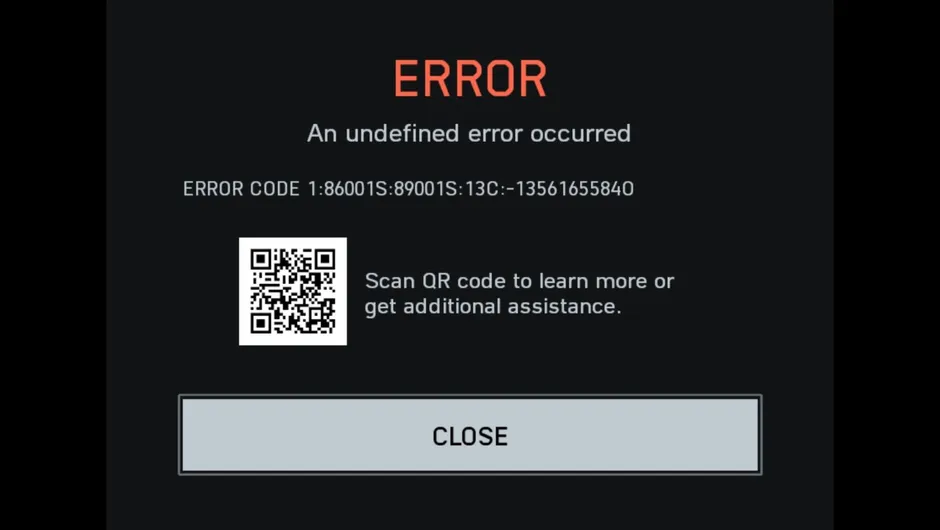
What are Battlefield 6 error codes 1:8500, 1:85008S, and 1:85009S?
These error codes do not have confirmed official explanations from EA. Community members have reported varied interpretations:
- 1:8500 is commonly associated with general connectivity loss or server timeout.
- 1:85008S has been described in forums as both a “connection failed” and “authentication failed” error, with no consensus on which is correct.
- 1:85009S is often linked to disconnections during active matches or players being unexpectedly removed from servers.
Because EA has not published detailed documentation for these codes, their meanings are speculative and may differ based on user experiences. Avoid treating them as definitive.
Fix Battlefield 6 Error Code 1:8500 Fast
Step 1: Optimize your network with ExitLag
Before attempting other steps, try ExitLag. It offers smart routing to stabilize your connection with EA servers.
Benefits include:
- Reduced ping and packet loss
- Improved server handshakes
- Lower risk of disconnects and matchmaking failure
ExitLag has proven helpful for many users, especially in regions with higher latency to EA infrastructure.
Complementary Fixes for Connectivity Issues
Step 2: Check for EA App-related bugs
- Ensure Battlefield 6 is properly recognized by your EA App
- Watch for the “Purchase to Play” bug
- Monitor @EAHelp and EA forums for service issues
Step 3: Restart and switch to wired connection
- Power cycle your router
- Use Ethernet instead of Wi-Fi for consistent latency
Step 4: Clear temporary files and cache
- Delete cache from EA App settings
- Remove data under %ProgramData%/EA Desktop and AppData
Step 5: Verify or repair installation
| Platform | Method |
| Steam | Properties > Local Files > Verify Integrity |
| EA App | My Collection > Repair |
Step 6: Review Firewall and Antivirus Rules
- Allow Battlefield 6 and EA App through your firewall
- Disable antivirus temporarily to test access
Step 7: Port Forwarding – Proceed with Caution
The following port list is based on older Battlefield titles like BF4/BF5. Battlefield 6 has not had its official port list published by EA. Avoid applying these unless guided by official support.
| Protocol | Ports (legacy reference only) |
| TCP | 443, 3659, 10000–10100 |
| UDP | 3659, 14000–14016, 22990–23006 |
Using incorrect ports may cause NAT issues or create unnecessary vulnerabilities. Always confirm with EA if needed.
Step 8: Use reliable DNS servers
- Google: 8.8.8.8, 8.8.4.4
- Cloudflare: 1.1.1.1, 1.0.0.1
Step 9: Update network drivers
- Go to Device Manager > Network adapters > Update drivers
Step 10: Check EA’s official troubleshooting steps
EA’s official Battlefield 6 help page advises general troubleshooting like:
- Restarting your game and launcher
- Checking account and license status
- Clearing cache
- Reviewing antivirus and firewall settings
It does not confirm specific causes or fixes for codes 1:8500, 1:85008S, or 1:85009S, nor does it endorse third-party services. Keep that in mind when testing solutions.
Consider Regional Network Conditions
Some players, particularly in South America and Southeast Asia, report higher rates of instability. This may relate to:
- Suboptimal routing to EA servers
- Lack of regional servers
- ISP peering limitations
These observations are based on player discussions and are not backed by statistical data.
If All Else Fails
If none of the suggestions help, contact EA Support directly:
- https://help.ea.com
They can:
- Investigate account and license issues
- Check backend logs
- Provide game-specific assistance
Explore Additional Workarounds for Persistent Errors
Try Disabling Overlays and Background Software
Some players report issues triggered by overlays from Discord, NVIDIA GeForce Experience, or Steam.
- Turn off Discord overlay
- Disable Steam overlay for Battlefield 6
- Close unnecessary apps running in the background
These apps can interfere with connection handshakes or contribute to instability during matchmaking.
Reset Windows Network Settings
Corrupted DNS or TCP/IP configurations can cause repeated disconnection.
Steps:
- Open Command Prompt as administrator
- Run the following commands:
netsh winsock reset
netsh int ip reset
ipconfig /flushdns
- Restart your computer
Create a New Windows User Profile (Advanced)
In rare cases, a corrupted user profile may interfere with game installation paths or EA App settings.
- Create a temporary new profile
- Install Battlefield 6 from scratch
- Launch and test for stability
Known Bugs and EA Platform Issues
Common Reports from the Community
- “Purchase to Play” bug despite license ownership
- EA App failing to recognize installed files
- Login looping or token expiration during authentication
These issues may present as 1:85008S or 1:85009S errors. While not officially acknowledged in every case, many are discussed openly in forums.
Community Feedback on Fixes That Worked
“Creating a new EA App cache folder helped clear my authentication problem.”
“Reinstalling EA App to a different disk prevented future launch errors.”
“Removing GeForce Experience overlay stopped the mid-match disconnects (1:85009S).”
These are anecdotal and may not apply universally but provide potential insights.
Crossplay and Platform-Specific Issues
Crossplay features and network settings can vary by platform and update; always verify with EA’s current Battlefield 6 support documentation.
Sometimes cross-platform sync or region mismatch leads to session errors.
If Playing on Console:
- Verify NAT type is Open (PS/Xbox)
- Reinstall the game and EA Link account
- Avoid switching profiles mid-session
If on PC:
- Launch both EA App and Battlefield 6 as Administrator
- Disable any third-party network boosters temporarily
- Run in a clean boot environment for testing
Log Collection for EA Support
Before contacting EA Support, collect your EA App and system logs using the diagnostics tool.
Path: EA App > Help > App Recovery > Collect Logs
Save these and attach them when submitting your ticket via EA Help
When to Escalate to EA Support
If the following apply, escalate:
- Error persists across multiple systems or networks
- Game won’t launch despite clean installs
- Repeated license verification issues
- Disconnection during every matchmaking attempt
Final Tip: Mention All Steps Tried
When contacting support, include:
- All troubleshooting steps taken
- System specs and region
- Screenshots or video (if possible)
This accelerates response time and reduces back-and-forth.
General Disclaimer:
“All game images used in this blog belong to Electronic Arts. They are used for informational/educational purposes only and do not imply endorsement or affiliation with the rights holders.”
Got questions or want to connect with other players? Join the conversation at the ExitLag Forum!

