Playing Battlefield 6 can quickly turn into a frustrating experience when packet loss disrupts your gameplay, causing delayed shots, rubber banding, or sudden disconnections. Many players search endlessly for ways to fix packet loss Battlefield 6, especially when these issues happen even with a decent internet plan. Therefore, understanding the real cause behind packet loss is essential for restoring smooth, competitive performance.
However, packet loss is not simply “lag”, it specifically occurs when your data packets fail to reach the server. Like this, your character may teleport, bullets may not register, and vehicles may feel unresponsive, creating severe Battlefield 6 connection issues during intense firefights or large-scale battles. The result is lost matches, unfair deaths, and inconsistent gameplay that does not reflect your real skill.
Finally, solving packet loss involves optimizing the route your connection uses to communicate with Battlefield 6 servers. When you understand the underlying factors and apply advanced optimization tools, you can truly reduce packet loss Battlefield 6 and transform your experience. This guide will teach you what causes packet loss, how to identify it, and how to eliminate it permanently with the most advanced connection technology.
What is packet loss in Battlefield 6?
Packet loss occurs when data packets sent from your PC to Battlefield 6 servers fail to arrive correctly or are completely dropped along the way. Since online shooters rely on constant transmission of data, any disruption leads to missing information between client and server. The effect is similar to sending messages that never reach their destination, actions fail to execute, even though you pressed the button.
When packet loss happens, Battlefield 6 cannot synchronize your movements, shots, or position with the server. This results in hit registration issues, delayed commands, rubberbanding, or even getting stuck in place. As the game expands its large-scale combat and real-time interactions, stable packet delivery becomes even more critical.
Understanding packet loss helps identify whether your interruptions come from faulty routing, network congestion, hardware issues, or server instability.
How packet loss affects gameplay in Battlefield 6
Packet loss in Battlefield 6 can cause:
- Delayed shots: you fire, but your weapon reacts seconds later
- Rubberbanding: your soldier jumps backward as if pulled by an elastic band
- Vehicle desync making driving unpredictable
- Teleporting enemies, especially snipers and fast-moving infantry
- Hit registration failures, where bullets do not count
- Inventory delays during weapon swaps
- Sudden disconnections, especially in 128-player modes
Main causes of packet loss in Battlefield 6
Inefficient routing
Your data travels through multiple network nodes before reaching the server. If one of these routes is congested or unstable, packets are dropped. Battlefield’s high server load amplifies this problem during peak hours.
Unstable connection
Issues with your ISP, router, modem, or Wi-Fi signal can generate inconsistent data flow, causing intermittent packet drops. Even fast internet can suffer from micro-instabilities.
Server distance
The farther you are from Battlefield 6 servers, the more opportunity for packet corruption or delay. Therefore, geographic distance directly increases the risk of packet loss.
Network congestion
Too many devices using your network—streaming, downloads, cloud backups—create competition for bandwidth. Like this, packets from Battlefield 6 may be deprioritized or dropped completely.
Damaged hardware or cables
Faulty ethernet cables, overheating routers, and outdated network cards can all contribute to packet loss.
How to identify packet loss in Battlefield 6
Battlefield 6 displays several symptoms when packet loss is present. You may see erratic player behavior, instant repositioning, or skills failing to activate. Even with low ping, packet loss can create severe instability, which makes the issue hard to diagnose without deeper testing.
You can run a ping test in your operating system’s terminal to see how many packets reach their destination and how many fail. If you see packet loss above 1–2%, performance in Battlefield 6 will noticeably deteriorate.
Interpreting results is straightforward: stable ping = no packet loss. Spikes, dropped packets, or inconsistent results confirm connection instability and routing problems.
Packet loss severity table
| Packet Loss Level | Gameplay Impact | Severity |
| 0% | Perfectly smooth | Low |
| 1–2% | Small delays | Medium |
| 3–5% | Noticeable issues in firefights | High |
| 5%+ | Unplayable, desync everywhere | Very high |
Basic solutions to reduce packet loss
Optimize your local connection
- Use wired ethernet instead of Wi-Fi
- Close background downloads and streaming services
- Update or reinstall network drivers
- Enable QoS on your router to prioritize Battlefield 6
- Replace damaged ethernet cables
- Lower network usage on other devices at home
Contact your isp
If basic adjustments do not help, your ISP may be using inefficient routing or experiencing line instability. Request a line check, routing adjustment, or equipment replacement. However, ISPs often cannot guarantee stable gaming routes—making specialized solutions essential.
ExitLag: the definitive solution to eliminate packet loss in Battlefield 6
What is ExitLag?
ExitLag is a specialized software built exclusively for connection optimization, using advanced technology to guarantee the most stable and consistent route between you and Battlefield 6 servers. Unlike generic tools, ExitLag focuses entirely on game traffic, analyzing and correcting instabilities in real time.
How Exitlag reduces packet loss
ExitLag uses Multi-Internet technology to stabilize your connection.
Its system includes:
- Real-time route analysis
- Multiple simultaneous connections
- Automatic route switching in case of instability
- Hop optimization to reduce unnecessary stops
- Full connection stabilization
Advantages for Battlefield 6 players
- Elimination of packet loss: Multiple routes guarantee uninterrupted data flow
- Lower ping: More direct routes improve hit registration
- Stable connection during 128-player maps
- Protection against routing failures
- Simple interface, easy for any user
- Support for server variety including regional options
These improvements create a smoother gameplay experience, especially during intense combat and large-scale multiplayer maps.
Is Exitlag worth it for Battlefield 6?
ExitLag is highly recommended for players who face persistent instability, play on distant servers, or join competitive modes. It prevents unfair deaths, desync, and missed shots caused by packet loss.
How to use ExitLag in Battlefield 6
The process is extremely simple:
Step 1 – Access the official ExitLag website and download the application. There’s a free trial period for new users.
Step 2 – Install and open the program. Log in with your account.
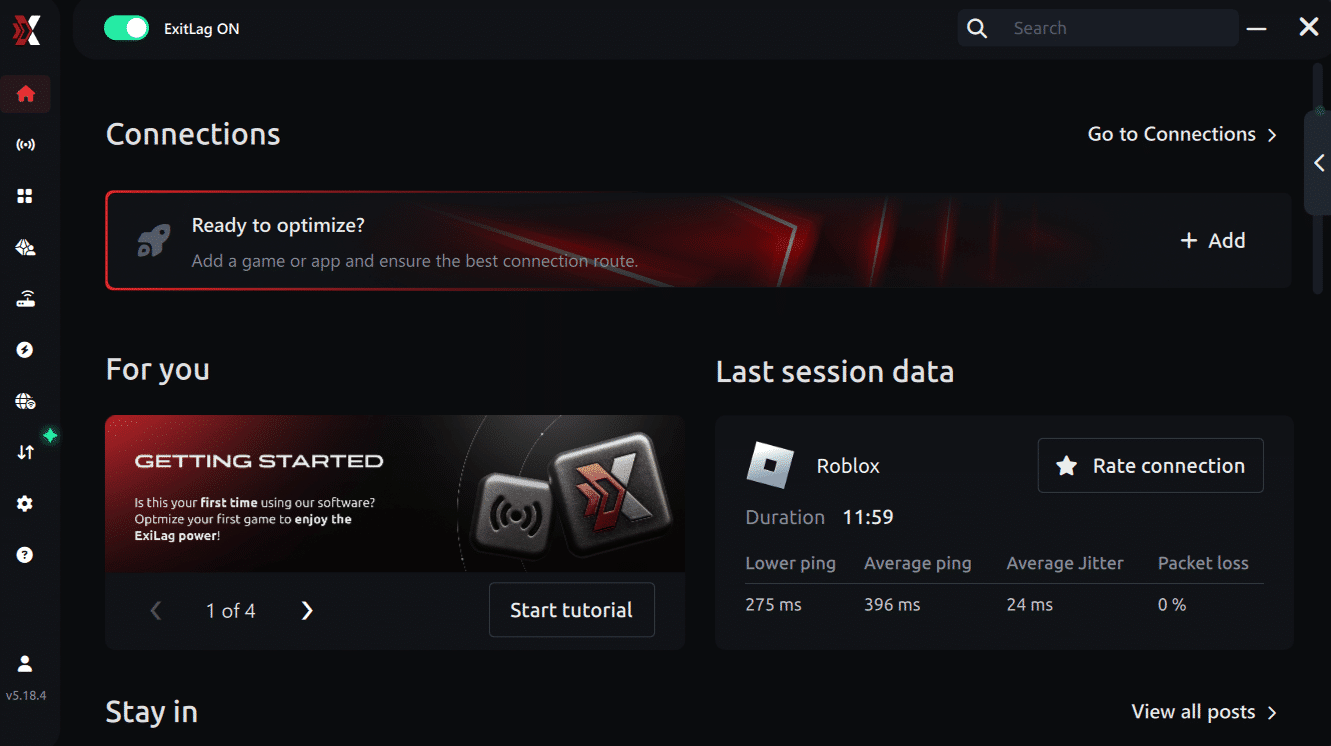
Step 3 – In the search bar, type “Battlefield 6” and select the game from the list.
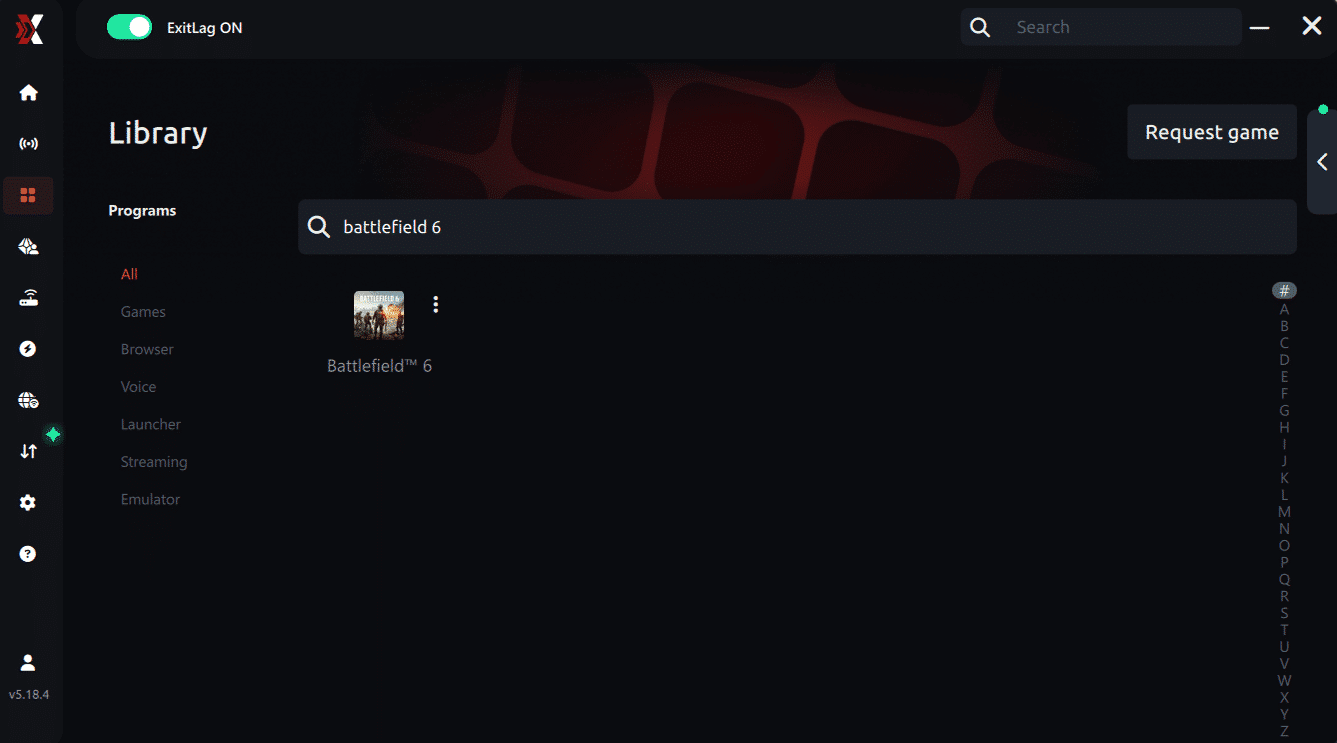
Step 4 – Choose between automated or manual route
Based on the results, you can let ExitLag automatically select the best route or manually choose the server that showed the lowest latency for your connection.
AI-optimized automated route
Based on the results, you can let ExitLag automatically select the best route through AI optimization. The system analyzes multiple connection paths in real time and automatically identifies the most efficient route for your connection, ensuring the lowest possible latency without requiring manual choices.
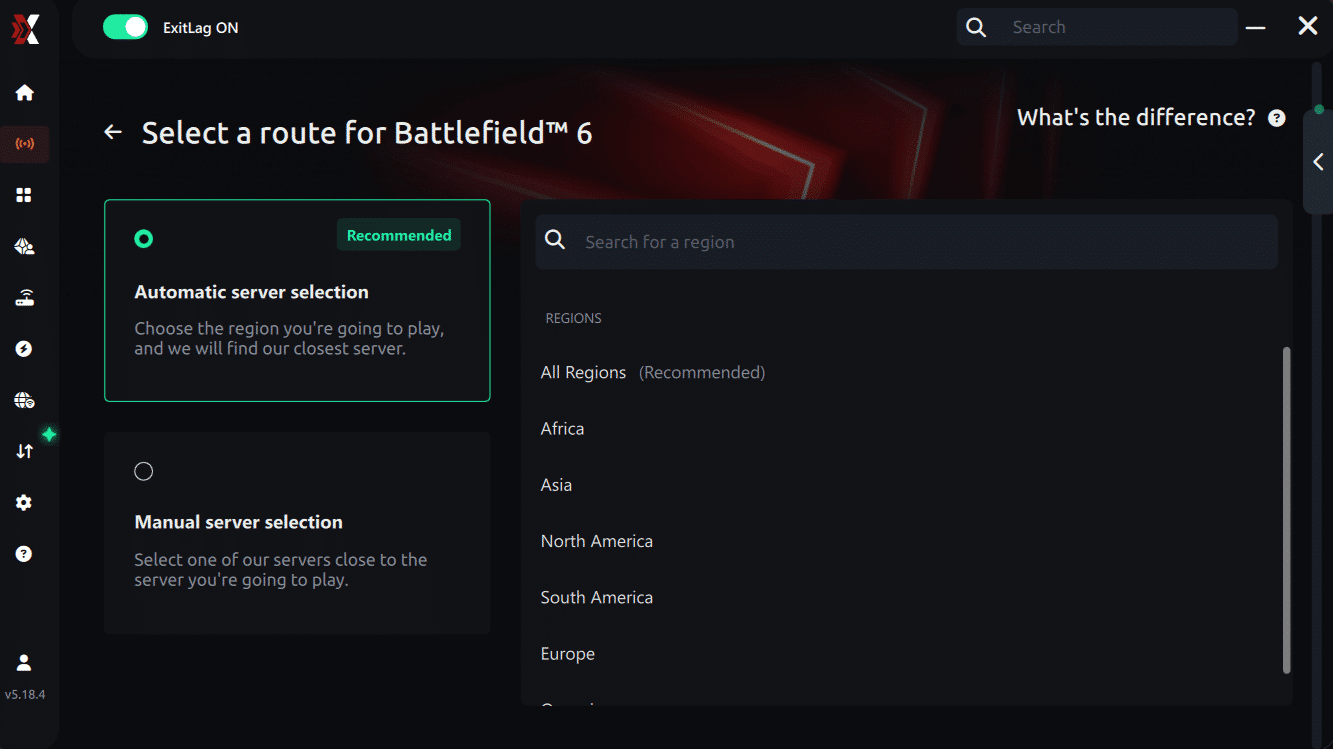
Manual route
If you prefer to have full control over your connection, you can manually choose the server based on the ping test results. Simply select the server that showed the lowest latency or the one that best meets your specific gaming needs, allowing complete customization of your experience.
Step 5 – Click “Apply routes” or the play button. ExitLag will begin optimizing your connection automatically.
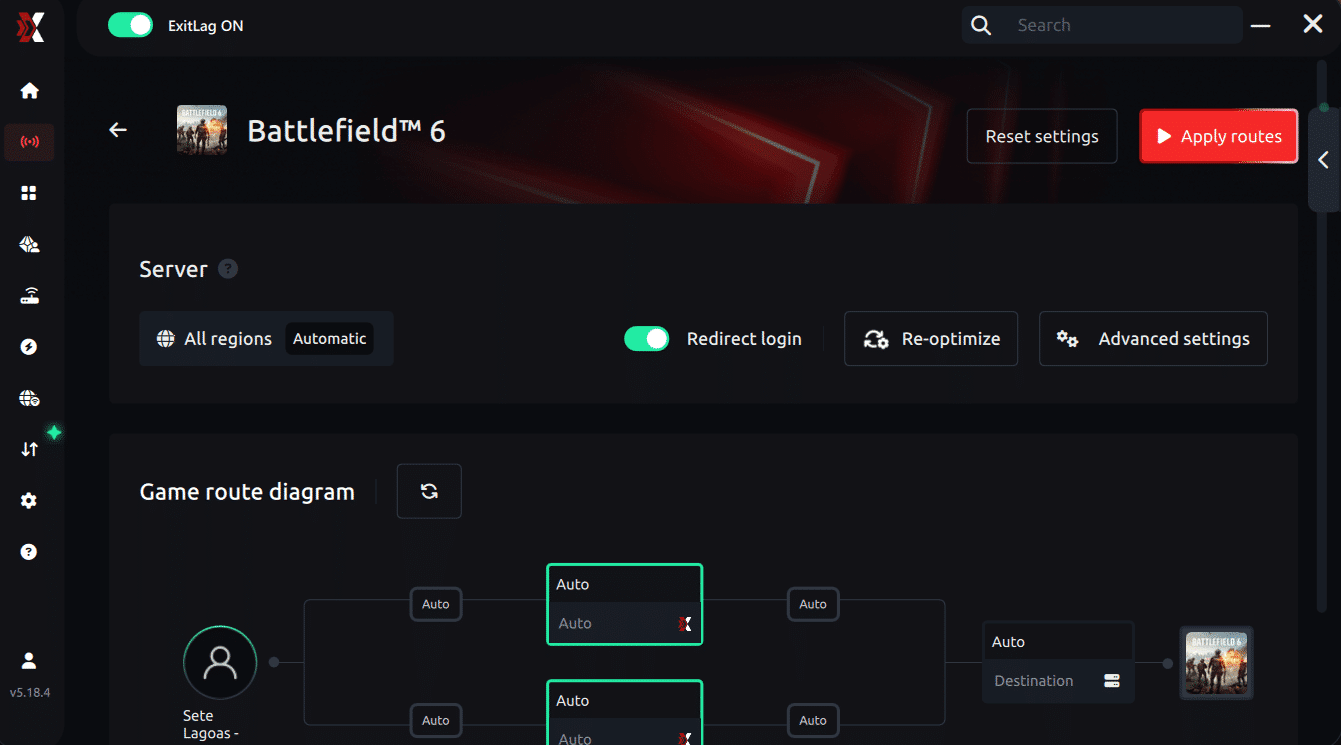
Step 6 – Wait a few seconds until optimization is complete. You’ll see ping indicators in the interface.
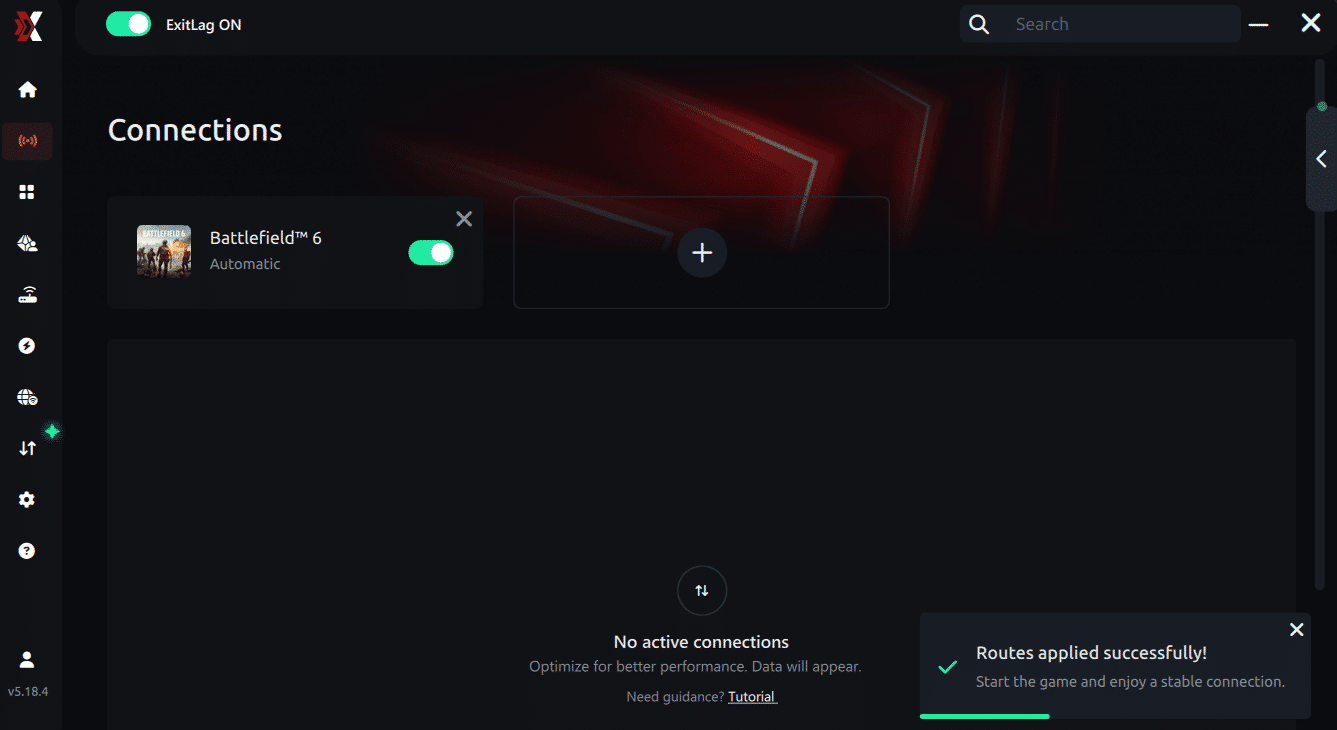
Step 7 – Launch Battlefield 6 normally. The optimization will already be active.
ExitLag runs in the background while you play, constantly adjusting routes to maintain the best possible performance.
How to use Ping for Games: step-by-step guide (Battlefield 6)
Checking your connection quality before entering a match has never been easier. Here’s how to use Ping for Games in just a few steps:
1. Open the ExitLag software on your PC Ensure the application is installed and open. The feature is integrated into the platform and available for free to all users.
2. Access the Network Analyzer tool Locate the Network Analyzer in the software menu. This is where you’ll find Ping for Games along with other connection analysis features.
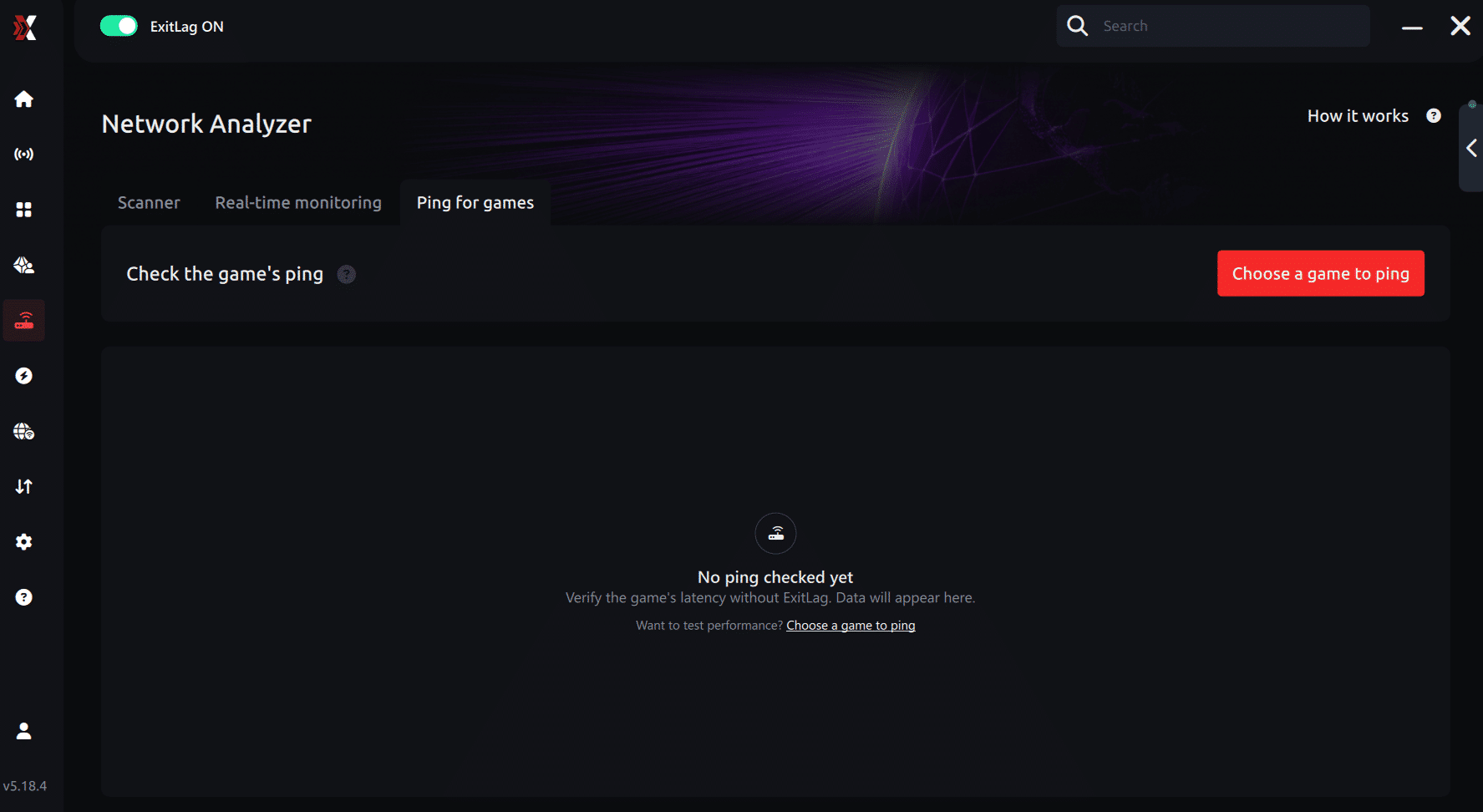
3. Select the game you want to test Choose Battlefield 6 from the list. The tool supports major online multiplayer games, including FPS, Battle Royales, MOBAs, MMORPGs, and more.
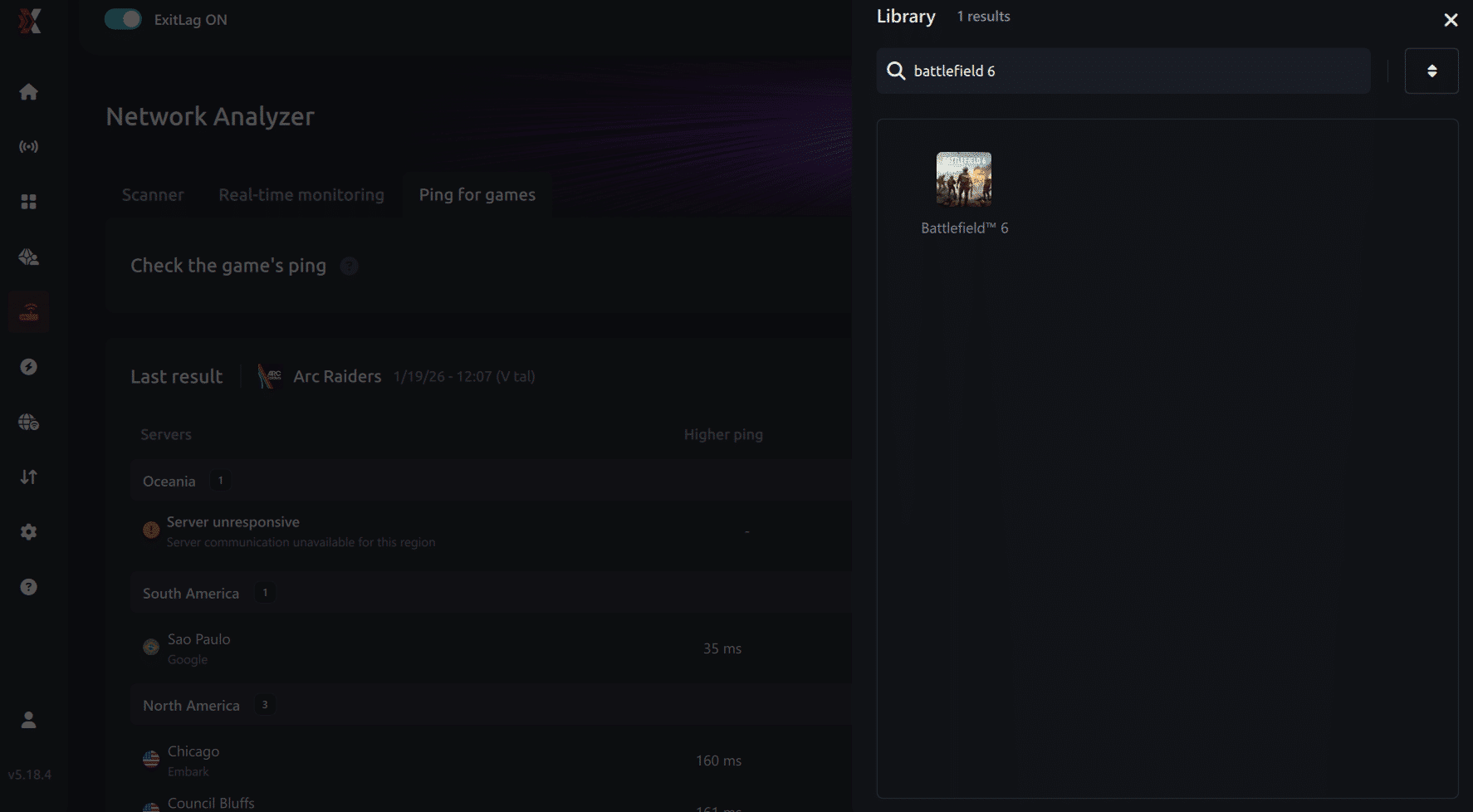
4. Choose the specific server Select the exact Battlefield 6 server you want to test instead of a generic region. This ensures more accurate results for your match.

5. Start the ping test With one click, the measurement is performed in real time between your device and the selected Battlefield 6 server, considering your current connection (cable or Wi-Fi).
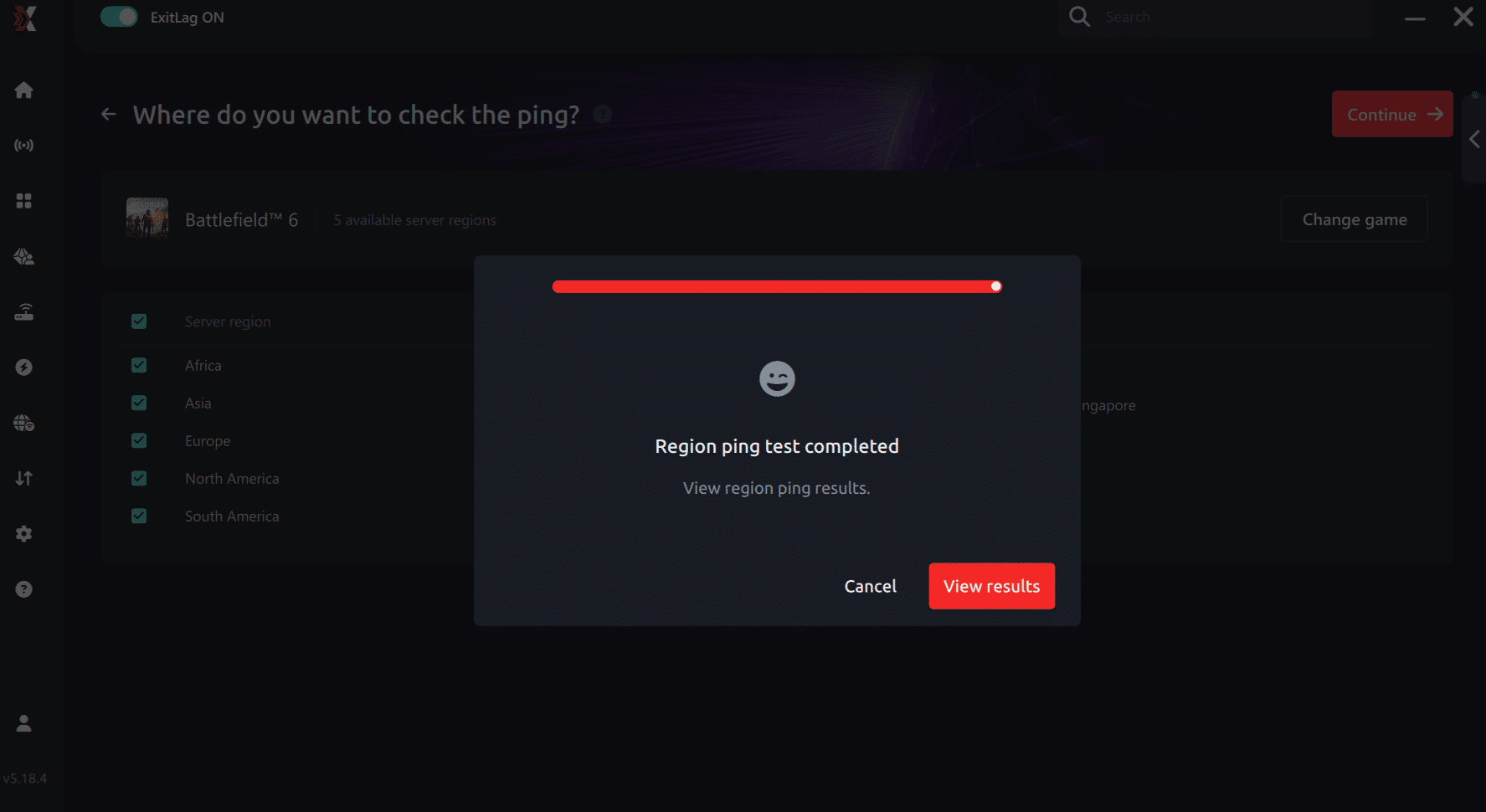
6. Analyze the results Results appear in milliseconds (ms), automatically sorted from best to worst ping. You can also reorganize the view alphabetically if you prefer.
7. Choose the best server and play worry-free With this information, simply select the server with the lowest latency and jump into Battlefield 6 knowing your connection is optimized.
Final thoughts: Play Battlefield 6 without lag forever
At the end of the day, Battlefield 6 lag should never decide your matches. You spend time mastering your aim, movement, and strategy your internet connection should never be the reason you lose.
With ExitLag, you finally take control of your network performance. The software finds the fastest routes, eliminates lag, and stabilizes your ping so that every shot and every action happens exactly when you want it to.
Try ExitLag for free right now and experience how smooth Battlefield 6 can be when your connection is fully optimized. Play with confidence, reach your full potential, and make lag a thing of the past.
Faq
Is packet loss the same as lag? No. Lag is generally caused by high ping, while packet loss results from missing packets. You can have low ping and still experience severe packet loss.
Why do I have packet loss only in Battlefield 6? Different games use different servers and routes, so Battlefield 6 may expose weak routing points that other games do not.
Can packet loss cause bans? Generally no. Packet loss creates erratic movement, not cheating behavior. Extremely unstable connections may cause temporary disconnections.
How much packet loss is acceptable for Battlefield 6? Ideally 0%. Up to 1% is manageable for casual play, but any packet loss affects competitive performance.
Can my hardware cause packet loss? Yes. Faulty network cards, old routers, broken cables, or overheating modems can contribute to packet drops.
Does ExitLag work on private servers? Yes, ExitLag works across both official and private servers as long as they are routable.
Eliminate packet loss and play Battlefield 6 without interruptions
Packet loss doesn’t need to ruin your Battlefield 6 experience. However, many players experience this problem without understanding the real root cause, unstable routing and dropped data. With the right optimization, you can restore stable gameplay, win more fights, and play without the interruptions that packet loss creates.
ExitLag provides the definitive solution for eliminating packet loss, stabilizing your connection and giving you the smooth gameplay Battlefield 6 demands.