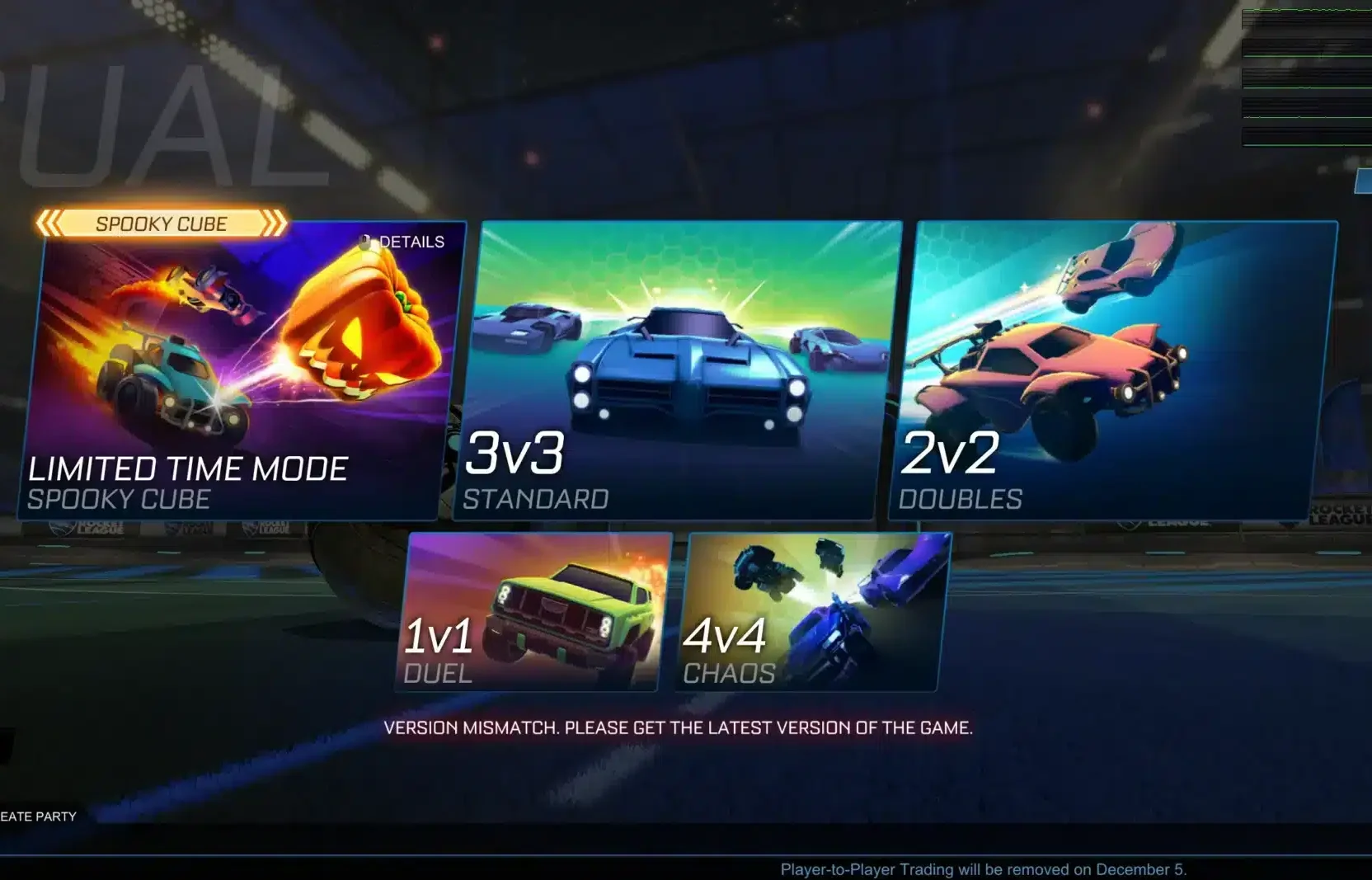
The best Rocket League settings should make the game easier to read and your car more predictable without forcing you to relearn mechanics every week. Camera, controller sensitivity, deadzones, graphics, interface options, and audio all affect how consistently you receive and react to information during a match.
Connection quality is a separate part of the experience, so the best Rocket League settings cannot solve every online problem. If your game runs smoothly but online matches show unstable latency or packet loss, the Rocket League lag troubleshooting guide can help you distinguish graphics or input problems from network-related issues before changing settings unnecessarily.
The best Rocket League settings in 2026 also include several options that did not exist in older guides. Rocket League now offers visible Rocket League MMR, a flip reset indicator, boost recharge visualization, expanded training tools, speed graphs, hitbox visualization, and additional interface options that can make practice and competitive analysis more useful.
What are the best Rocket League settings in 2026?
There is no universal configuration that automatically turns every player into a stronger competitor. However, professional and high-ranked players tend to use settings within similar ranges because they prioritize visibility, responsiveness, and consistency over cinematic presentation.
A strong starting configuration gives you that competitive baseline while still leaving room for personal adjustment.
Recommended Rocket League settings at a glance
The following setup is a practical starting point for PC and console players:
| Setting | Recommended starting point |
| Camera Shake | Off |
| FOV | 110 |
| Distance | 260–280 |
| Height | 90–110 |
| Angle | -3.0 to -5.0 |
| Stiffness | 0.35–0.50 |
| Swivel Speed | 4.0–7.0 |
| Transition Speed | 1.0–1.5 |
| Steering Sensitivity | 1.30–1.60 |
| Aerial Sensitivity | 1.30–1.60 |
| Controller Deadzone | Around 0.05–0.10 |
| Dodge Deadzone | Around 0.60–0.80 |
| VSync | Off for competitive PC play |
| Display Mode | Fullscreen where appropriate |
| Camera Shake | Off |
| Ball Cam | Toggle |
| Flip Reset Indicator | On while learning |
| Visible MMR | Personal preference |
These are starting ranges rather than mandatory values.
The most stable approach is to change one category at a time. If you adjust camera distance, sensitivity, deadzone, and keybinds simultaneously, it becomes difficult to understand which change improved or damaged your control.
This is particularly important for controller deadzone.
A very low value can make the car feel responsive, but it can also expose stick drift. If your car turns slightly without deliberate input, increase the value gradually until unwanted movement disappears.
Searches for MMR Rocket League settings sometimes imply that a configuration can directly influence matchmaking rating. It cannot. MMR changes because of competitive match results, while settings only affect the environment in which you play those matches.
Why competitive settings prioritize consistency
Rocket League is a game of repeated mechanical patterns.
Aerials, recoveries, half-flips, powerslides, fast aerials, dribbles, challenges, and rotations become easier when the visual and input environment remains predictable.
That is why constantly copying a new professional preset can slow improvement.
Professional players do not all use identical values. Even the best Rocket League camera settings vary slightly in distance, height, angle, stiffness, and transition speed.
What they generally avoid are settings that create unnecessary visual movement or make the field difficult to read.
Cosmetics also do not change vehicle performance when the underlying hitbox is the same. If you enjoy changing your car while keeping your competitive setup consistent, you can check the current Rocket League item shop guide without rebuilding your camera or controller settings every time you switch presets.
The objective is not to find a hidden configuration that everyone else has missed.
It is to remove settings that interfere with information and then give yourself enough time to build muscle memory.
What are the best Rocket League camera settings?
Camera configuration is one of the most noticeable changes you can make because it determines how much of the field you see and how you judge distance between your car, the ball, teammates, opponents, and boost pads.
Most competitive configurations favor a wide field of view and a moderate camera distance.
Recommended camera setup
A strong 2026 baseline is:
| Camera option | Recommended value |
| Camera Shake | Off |
| FOV | 110 |
| Distance | 270 |
| Height | 90–100 |
| Angle | -4.0 |
| Stiffness | 0.35–0.45 |
| Swivel Speed | 5.0–7.0 |
| Transition Speed | 1.2–1.5 |
These values sit comfortably within the ranges commonly used by experienced players.
The best Rocket League camera settings normally start with Camera Shake disabled.
Camera Shake adds movement during impacts without providing useful competitive information. Removing it gives you a more stable visual reference when challenging the ball or recovering after contact.
FOV is another common point of agreement.
A value of 110 maximizes the available field of view and makes it easier to see more of the pitch. A slightly lower value can make objects appear larger, but most competitive configurations remain near the upper limit.
Distance around 260 to 280 provides a useful compromise between field awareness and precise reads.
Too close and your peripheral information decreases. Too far away and the car and ball can become harder to judge during fine mechanical interactions.
Height and angle should be adjusted together.
A height around 90 or 100 with an angle between -3 and -5 produces a familiar competitive perspective without putting the camera excessively high above the car.
For a deeper explanation of every value, the best camera settings for Rocket League guide breaks down FOV, distance, height, angle, stiffness, and transition speed individually.
Should you copy professional camera settings?
Use professional settings as a baseline, not as a rule.
The phrase best camera settings Rocket League often leads players to copy one professional preset exactly. That can be useful for establishing reasonable values, but the difference between 90 and 100 camera height will not suddenly create professional-level mechanics.
Your own visual comfort matters.
After choosing a competitive baseline, test it during:
- Free Play;
- Ground dribbles;
- Aerial shots;
- Backboard reads;
- Shadow defense;
- Wall play;
- Kickoffs;
- Fast recoveries.
Give the setup several sessions before judging it.
Changing camera values repeatedly can make touches feel inconsistent because your visual estimate of distance keeps moving.
Swivel Speed deserves similar treatment.
A faster value lets you scan the field quickly with the right stick, which is useful for checking teammates and opponents. If the camera becomes difficult to control, reduce it until manual movement remains readable.
Transition Speed controls how quickly the camera shifts between Ball Cam and Car Cam.
Higher is not automatically better.
Use a value that makes the transition fast enough to avoid feeling delayed but not so abrupt that you lose orientation.
What are the best Rocket League controller settings?
Controller settings determine how stick movement translates to steering, aerial rotation, and dodging.
Rocket League can also be played with keyboard and mouse, but controllers remain common at high levels because analog input provides precise directional control.
The goal is responsiveness without instability.
Sensitivity and deadzone recommendations
A useful starting configuration is:
| Controller option | Starting value |
| Steering Sensitivity | 1.30–1.60 |
| Aerial Sensitivity | 1.30–1.60 |
| Controller Deadzone | 0.05–0.10 |
| Dodge Deadzone | 0.60–0.80 |
| Controller Vibration | Off or low |
| Ball Camera Mode | Toggle |
Steering Sensitivity controls how strongly the game responds to analog steering.
Aerial Sensitivity does the same for aerial rotation.
Many players keep both relatively close because that can make the relationship between ground and aerial movement easier to learn.
However, there is no requirement that they match exactly.
Controller Deadzone determines how far the analog stick must move before input is registered.
Lower values can feel more responsive, but controllers are physical devices. Two controllers of the same model may develop different amounts of drift over time.
Therefore, the best value is the lowest deadzone that does not generate unwanted input on your specific controller.
Dodge Deadzone solves a different problem.
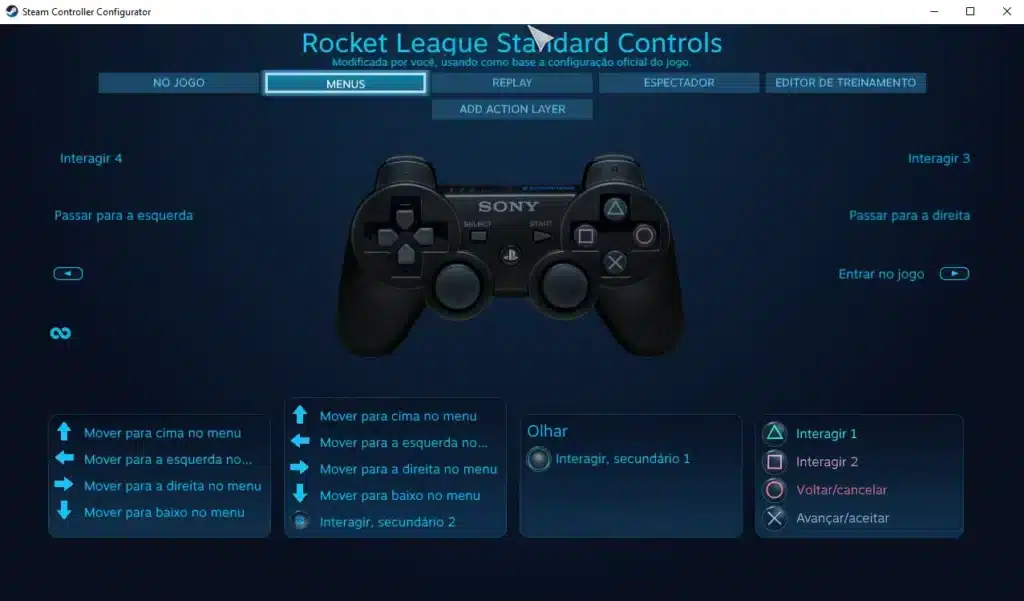
It determines how strongly the stick must be pushed before a jump input becomes a directional dodge. Raising it can help prevent accidental flips when you intended to perform a neutral jump.
The Psyonix Rocket League settings menu provides enough flexibility for these values to be tuned independently, so do not treat one YouTube preset as an official requirement.
Which controller bindings are best?
Bindings become more personal than sensitivity.
A practical setup should allow important actions to be combined without forcing uncomfortable finger movement.
Key actions include:
- Jump;
- Boost;
- Powerslide;
- Air Roll;
- Air Roll Left;
- Air Roll Right;
- Ball Cam;
- Rear View;
- Throttle;
- Brake.
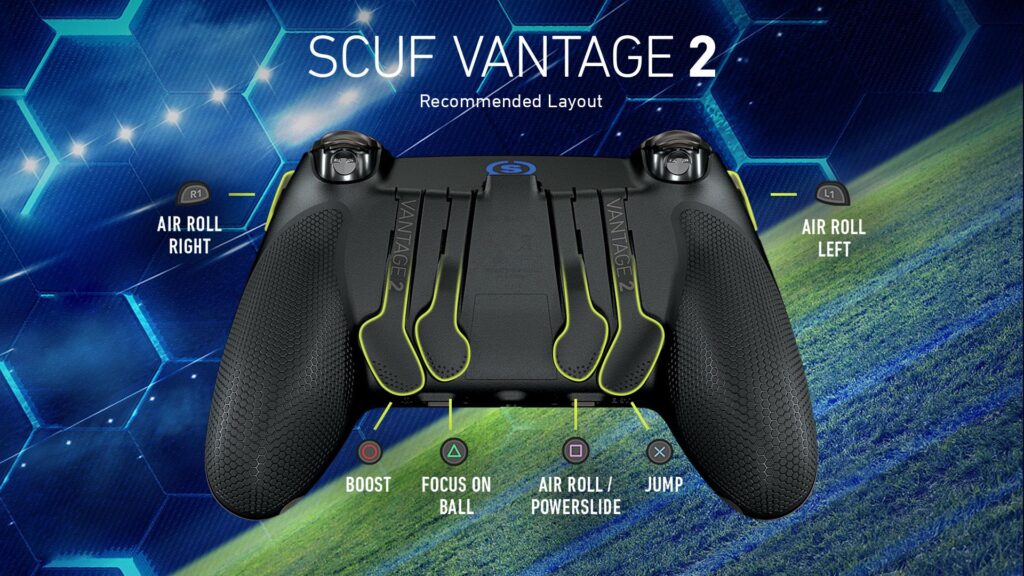
Many competitive players move boost, powerslide, or air roll away from the default face-button layout.
For example, placing powerslide and regular air roll on L1/LB can make recoveries easier because the same finger can hold both actions.
Boost on R1/RB is another common configuration because it allows players to jump and boost simultaneously without relying on a claw grip or awkward thumb movement.
Directional air roll can be mapped to another accessible button if you use it regularly.
However, do not change bindings simply because someone describes them as mandatory.
If you have hundreds of hours using another layout, rebuilding muscle memory has a cost.
Ask whether the existing setup prevents you from performing an important input combination. If it does not, the potential benefit of changing may be small.
Your Rocket League MMR will not change because R1 is objectively better than Circle or B. What matters is whether your chosen binding lets you execute mechanics consistently.
What are the best Rocket League graphics settings for FPS?
Graphics settings are different from camera settings.
Camera options change your perspective. Video options affect rendering quality, visual effects, frame rate, and potentially display latency.
Competitive PC players generally favor stable frame rates and visual clarity over maximum graphical detail.
Recommended PC video settings
A useful competitive baseline is:
| Video option | Recommendation |
| Resolution | Native monitor resolution |
| Display Mode | Fullscreen |
| Vertical Sync | Off |
| Anti-Aliasing | Off or low |
| Render Quality | Performance-focused or High Quality if FPS remains stable |
| World Detail | Performance |
| Particle Detail | Performance or low |
| Effect Intensity | Low |
| High Quality Shaders | Optional |
| Ambient Occlusion | Off for extra performance |
| Depth of Field | Off |
| Bloom | Off |
| Light Shafts | Off |
| Lens Flares | Off |
| Dynamic Shadows | Off if extra FPS is needed |
| Weather Effects | Off |
The correct FPS target depends on your monitor and hardware.
A stable frame rate is generally more useful than a much higher number that constantly fluctuates.
For example, maintaining a consistent high refresh experience is preferable to repeatedly jumping between very high and much lower FPS during important plays.
VSync is generally disabled for competitive play because synchronization can add display latency. However, players experiencing severe tearing may choose a different synchronization strategy depending on their GPU and monitor technologies.
Do not assume that every visual setting must be disabled.
If your PC maintains the desired frame rate comfortably, you can preserve visual quality without harming consistency.
The broader game continues receiving technical and gameplay changes, so the official Rocket League website remains useful when older optimization recommendations conflict with the current Psyonix Rocket League client.
Can low graphics increase Rocket League MMR?
No direct relationship exists between graphical quality and Rocket League MMR.
Reducing graphics can help if your current settings produce inconsistent frame rates, stuttering, or excessive GPU load.
That may create a better environment for consistent inputs and reads.
It does not add rating points.
Likewise, the search phrase MMR Rocket League describes the matchmaking-rating system rather than a graphics option.
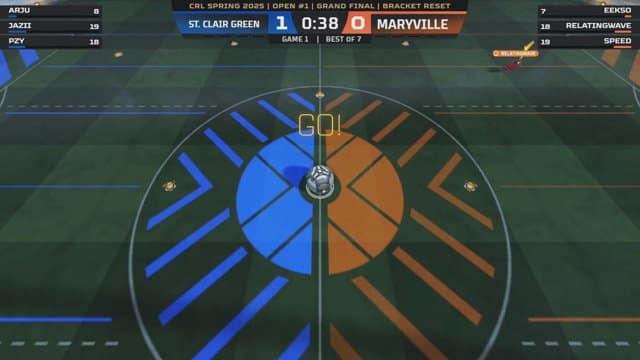
In March 2026, Rocket League added an official option to display MMR directly in Competitive playlists and on the post-match scoreboard.
That means players no longer always need third-party tools simply to view their current matchmaking rating.
Whether you should enable it depends on your mentality.
Visible MMR can be helpful when tracking progress. It can also become distracting if you start changing your playstyle after every small rating fluctuation.
For improvement, review rating trends over many games rather than reacting emotionally to every win or loss.
Which interface and gameplay settings should you change?
Rocket League has added several useful interface and training options that older settings guides do not cover.
Some help during actual matches. Others are primarily valuable for practice and mechanical analysis.
These options are worth reviewing even if your camera and controller configuration already feels comfortable.
Useful interface settings in 2026
Consider the following options:
- Visible Competitive MMR;
- Flip Reset Indicator;
- Boost Timer Visualization;
- Ball Indicator;
- Nameplate scaling;
- Team-colored boost information;
- Match notifications;
- Streamer Mode;
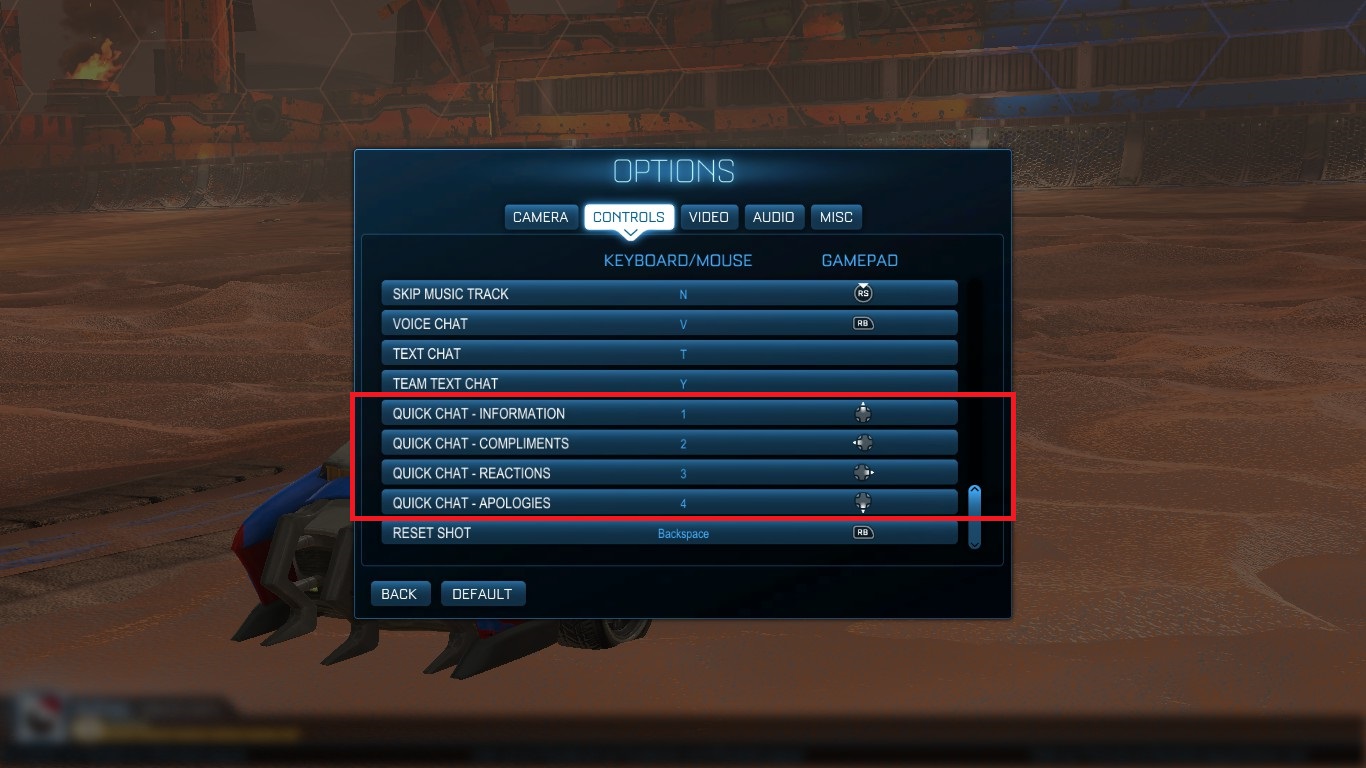
- Quick Chat configuration.
The Flip Reset Indicator is particularly useful while learning advanced aerial mechanics.
When you regain a dodge by contacting the ball correctly with enough wheels, the game can provide a visual and audio cue. That makes it easier to understand whether a failed reset resulted from the setup or from the follow-up input.
The boost timer is useful for everyone.
Large boost pads take ten seconds to respawn, and the visual recharge indicator makes the timing easier to read during rotations.
This does not eliminate the value of learning boost management, but it gives players clearer information directly from the arena.
The best Rocket League settings should take advantage of useful information without filling the screen with unnecessary distractions.
If the HUD starts drawing your attention away from the field, disable options that you do not actively use.
Use the new training tools
Season 23 expanded Rocket League's built-in practice options significantly.
Players can now use tools such as:
- Speed stat graphs;
- Hitbox visualization in Offline Free Play;
- Expanded Custom Training controls;
- Starting car velocity;
- Starting car pitch;
- Adjustable boost amount;
- Goal scorer's perspective in replays.
Hitbox visualization is especially useful when experimenting with different car bodies.
Rocket League vehicles use standardized hitbox categories rather than each cosmetic body having completely unique collision geometry.
Seeing that hitbox directly can help explain why a visual part of the car does not always correspond perfectly with the area that contacts the ball.
Speed graphs can help when practicing recoveries or comparing approaches to a mechanic.
Custom Training controls also make scenarios more realistic because creators can begin shots with specific velocity, orientation, and boost conditions instead of always starting from a static setup.
Players looking for the best Rocket League camera settings should use these tools while testing changes rather than evaluating them only in Ranked.
For recent feature additions and balance or interface updates, follow the official Rocket League news page. Psyonix Rocket League updates can add options that make older settings guides incomplete even when their basic camera recommendations remain useful.
Do the best Rocket League settings help you rank up?
Settings can remove obstacles, but they do not replace mechanics, positioning, rotations, boost management, or decision-making.
A good configuration makes your environment more consistent. Improvement still depends on how you use it.
Your rating measures match results, not whether your settings resemble a professional player's.
How settings affect competitive consistency
The best Rocket League settings can help indirectly by improving areas such as:
- Field visibility;
- Camera stability;
- Controller responsiveness;
- Frame consistency;
- Boost awareness;
- Input comfort;
- Mechanical practice;
- Replay analysis.
Those advantages matter because Rocket League is extremely fast.
A fraction of a second spent reorienting your camera can change a challenge. Poor frame pacing can make an aerial read uncomfortable. Excessive deadzone can make small corrections feel delayed.
However, those are environmental factors.
If you consistently double-commit, rotate into the same space as a teammate, challenge as last player, or waste boost, changing your camera distance from 280 to 270 will not solve the underlying problem.
Similarly, Rocket League MMR should not be used as the only measure of whether a setting works.
Test a configuration over enough games to separate adaptation from actual performance.
When should you change your settings?
Change a setting when you can identify a specific problem.
Examples include:
- You cannot see enough of the field;
- Camera transitions feel disorienting;
- Stick drift causes unwanted steering;
- You accidentally backflip during aerial attempts;
- Your controller layout prevents simultaneous inputs;
- Your frame rate drops during effects-heavy moments;
- Visual settings create unnecessary clutter.
Avoid changing settings because you lost three Ranked games.
Searches for best camera settings Rocket League often lead players into endless preset swapping. One professional player uses 90 height, another uses 100, and suddenly every defeat feels like a camera problem.
That behavior interrupts adaptation.
Choose sensible ranges, make small changes, and practice.
A stable configuration that you understand will usually be more useful than copying a theoretically optimal setup every month.
How can ExitLag help with Rocket League?
Camera, graphics, and controller settings operate locally on your device.
ExitLag works at the network-routing layer.
That means it should be considered when the game itself runs smoothly but the connection between your network and online services shows instability.
It does not modify mechanical settings or matchmaking.
What ExitLag can help with
Internet traffic can travel through several intermediate routes between you and the infrastructure supporting an online match.
Depending on your ISP, region, congestion, and available routing paths, some routes may be less stable than others.
ExitLag can help optimize traffic routes for supported games and may provide a more stable path when inefficient routing contributes to:
- Latency variation;
- Jitter;
- Packet loss;
- Routing instability;
- Connection interruptions.
Results depend on your ISP, location, server, and available routes.
ExitLag cannot guarantee a particular ping or remove every connection problem.
This distinction also matters when analyzing MMR Rocket League performance. Network consistency can make matches feel more predictable when routing is the problem, but ExitLag cannot change your rating, teammates, opponents, or matchmaking rules.
What ExitLag cannot fix
ExitLag cannot:
- Increase hardware-limited FPS;
- Change controller deadzone;
- Improve mechanical skill automatically;
- Increase Rocket League MMR;
- Change camera settings;
- Give free cosmetic items;
- Alter vehicle hitboxes;
- Fix stick drift;
- Change matchmaking;
- Resolve a global Rocket League outage.
If the game stutters locally, investigate graphics, hardware, background applications, drivers, or frame pacing.
If your controller produces unwanted input, adjust deadzone or inspect the controller.
If online latency fluctuates because of routing, network optimization becomes more relevant.
The best Rocket League settings work best when each problem is handled at the correct layer.
Frequently asked questions
The ideal configuration depends partly on hardware and preference, but several competitive ranges provide reliable starting points for most players.
Use the answers below as a baseline and then test changes in Free Play before committing to them in Ranked.
What are the best Rocket League camera settings?
A strong baseline is Camera Shake Off, FOV 110, Distance 270, Height 90–100, Angle around -4.0, Stiffness around 0.35–0.45, Swivel Speed between 5.0 and 7.0, and Transition Speed around 1.2–1.5.
The best Rocket League camera settings are ultimately the values that preserve field awareness while allowing you to judge touches consistently.
What FOV should I use in Rocket League?
110 is the most common competitive starting point because it maximizes field visibility.
If that perspective feels excessively wide, experiment slightly below it rather than dramatically lowering the value.
What controller deadzone should I use?
Start around 0.05 and increase it if your controller shows unwanted stick movement.
Older advice sometimes treats 0.03 or another extremely low value as automatically superior, but the right deadzone depends on the physical condition of your controller.
What is the best dodge deadzone?
A range around 0.60 to 0.80 is a practical starting point.
Raise it if you accidentally perform directional dodges when trying to make neutral jumps. Lower it if intentional dodges feel difficult to activate.
Should steering and aerial sensitivity be the same?
They can be, and using similar values can make control feel consistent.
However, they do not have to match exactly. Test both between roughly 1.30 and 1.60 before making larger adjustments.
Should I turn VSync off?
Competitive PC players usually disable VSync to reduce potential display latency.
If screen tearing is a problem, evaluate the synchronization options supported by your monitor and GPU rather than treating one setting as universal.
Can I see Rocket League MMR in the game?
Yes.
Since the March 2026 update, players can enable visible Rocket League MMR in Competitive playlists. The rating can appear on playlist tiles and on the scoreboard after Ranked matches.
Does MMR determine Rocket League rank?
Matchmaking rating is closely tied to competitive placement and matchmaking.
Your displayed rank represents a range within that progression system rather than being a completely separate measure.
What does the search “MMR Rocket League” mean?
MMR Rocket League generally refers to the game's matchmaking rating.
It is the hidden or optionally visible numerical rating used as part of competitive matchmaking and ranking progression.
Do camera settings affect MMR?
Not directly.
The best camera settings Rocket League players use can improve visibility and comfort, but your rating changes according to match results rather than specific camera values.
Should I enable the flip reset indicator?
It can be useful, especially while learning flip resets.
The visual and audio feedback confirms when the game has registered a successful reset, making training easier to analyze.
Advanced players can disable it if they prefer a cleaner interface.
Do professional players all use the same settings?
No.
Professional setups cluster around similar ranges, particularly for FOV and Camera Shake, but individual values vary.
Use pro settings as reference points rather than mandatory configurations.
Can ExitLag improve Rocket League FPS?
ExitLag is primarily a network-routing tool and should not be treated as a solution for hardware-limited frame rate.
Its relevant role is helping optimize network paths when routing contributes to online connection instability.
The best Rocket League settings give you a stable foundation rather than a shortcut to higher rank. Start with a wide, predictable camera, choose controller sensitivity and deadzones that suit your hardware, prioritize consistent FPS, and use newer tools such as visible Rocket League MMR, boost timers, flip reset feedback, and hitbox visualization when they help your training. Keep the configuration stable long enough to build muscle memory, then adjust only when you can identify a specific problem. If the game runs well locally but network routing is affecting your matches, try ExitLag and compare your connection across several sessions to see whether route optimization provides a more consistent online experience.
All game images used in this article belong to their respective owners. They are used for informational and educational purposes only and do not imply endorsement or affiliation with the rights holders.