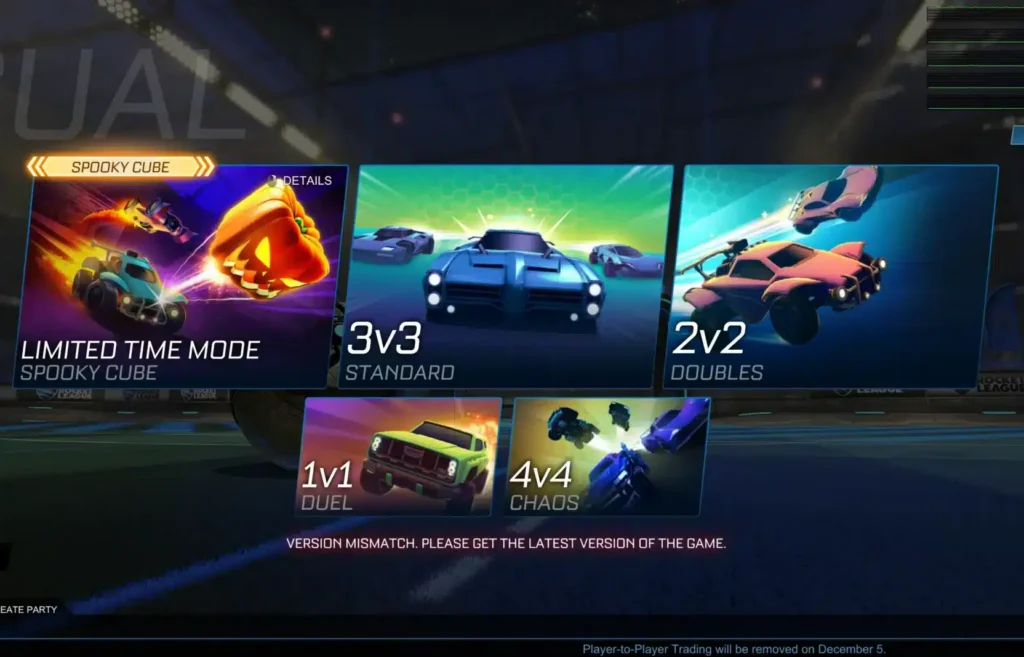
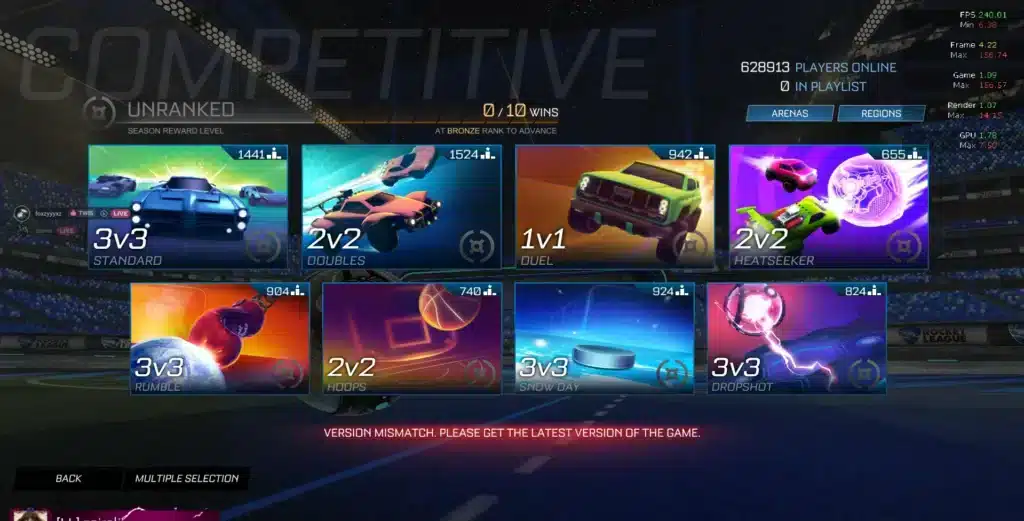
You queue up for a casual match, and instead of loading into a lobby, Steam throws a wall at you: “Version Mismatch.” Nothing crashed, your PC is fine, yet the game refuses to connect. It is one of the most common errors Rocket League players run into right after a patch drops.
The good news is that Rocket League Version Mismatch Steam errors are almost never a sign of a broken installation. In fact, they usually mean your client just has not caught up with the server yet. Once you understand why it happens, fixing it takes only a few minutes.
In short, a Rocket League Version Mismatch Steam error appears when the game servers have already updated to a new build, but your local Steam copy has not downloaded that update yet. Restarting Steam, forcing a manual update check, or verifying your game files almost always solves it.
Below, you will find every fix that actually works, plus the reasons the Rocket League Version Mismatch error keeps coming back.
This guide covers the exact causes, step-by-step fixes for Steam, Epic Games, and consoles, and the habits that prevent the error from returning every time Psyonix ships a new build.
We will also cover how a shaky connection can make update downloads stall, which is often the real culprit behind a stuck patch.
What Is The Rocket League Version Mismatch Steam Error?
A Rocket League Version Mismatch Steam message means your installed game build number does not match the build currently running on Psyonix’s servers. Consequently, the matchmaking system blocks you from joining until the versions line up again.
This is not unique to Rocket League. However, because Rocket League patches frequently and pushes server-side updates the moment a new season or event goes live, the error shows up often for Steam players specifically.
If you want the full background on how the game runs on Valve’s platform, this complete guide to playing Rocket League on Steam covers account access and setup in more detail.
Why Steam Does Not Always Update Instantly
Steam usually downloads updates automatically in the background. Still, several things can delay that process:
- Steam was closed or your PC was asleep when the patch was pushed
- Your download region or bandwidth limit is throttling the update
- A background download for another game is hogging your connection
- Steam’s own servers are experiencing high traffic right after a big patch
As a result, thousands of players can hit the same error within minutes of a new patch going live, simply because their clients have not finished pulling the update yet.
What Actually Happens Behind The Scenes
When Psyonix deploys a patch, the server fleet updates first. Rocket League then rejects any client running an older build number, since mixing versions in the same match would break physics, hitboxes, and netcode syncing between players.
Therefore, the “mismatch” is really a safety check. It stops you from playing a broken match rather than letting you connect with outdated code.
How To Fix Rocket League Version Mismatch On Steam
Most cases of Rocket League Version Mismatch on Steam are solved with one of the steps below. Work through them in order, since the fastest fixes come first.
- Close Rocket League completely, then right-click the Steam icon in your system tray and select “Exit” to shut Steam down fully.
- Wait about 10 seconds, then relaunch Steam from your desktop or Start menu.
- Open your Library, right-click Rocket League, and check whether an “Update” button now appears instead of “Play.”
- Let the update download completely before launching the game again.
If Steam still shows the same old version after relaunching, verify your local files directly:
- Right-click Rocket League in your Steam Library and choose “Properties.”
- Select the “Installed Files” tab, then click “Verify Integrity of Game Files.”
- Allow Steam to scan and re-download any files that do not match the current build.
- Restart Steam once the verification finishes and try launching Rocket League again.
Force A Manual Update Check
Sometimes Steam simply has not queued the patch yet, which is one of the sneakier causes of a lingering Rocket League Version Mismatch Steam prompt. Head into Properties, then the Updates tab, and confirm “Always keep this game updated” is selected.
Toggling that setting off and back on can also force Steam to re-check for a pending download.
Check Your Storage And Connection Before You Blame The Game
An update that keeps failing partway through is often a symptom of something simpler, not a genuine Rocket League Version Mismatch Steam bug.
If patches consistently crawl instead of finishing quickly, this guide on how to boost your Steam download speed walks through the settings worth checking first.
Before assuming your installation is corrupted, run through this quick checklist:
- Confirm you have at least a few gigabytes of free drive space
- Switch from Wi-Fi to a wired connection if downloads keep stalling
- Pause any other large downloads competing for your bandwidth
- Temporarily disable a VPN or firewall rule that might be blocking Steam’s CDN
Is The Version Mismatch Error Different On Console Or Epic Games?
Steam is not the only launcher affected. The same Rocket League Version Mismatch Steam logic applies everywhere Rocket League runs, though the exact menus differ by platform.
Fixing It On PlayStation And Xbox
On PlayStation, exit the game, open your library, highlight Rocket League, press the Options button, and select “Check for Updates.” A console restart forces the same check if that option is unavailable.
On Xbox, the process is similar. Open “My games & apps” from the Xbox button, find Rocket League, and manually check for a pending download before relaunching the title.
Fixing It Through The Epic Games Launcher
Epic Games Store players see the identical Rocket League Version Mismatch Steam-style message, just through a different launcher. Exiting the launcher, waiting a few seconds, and reopening it usually triggers the update prompt automatically.
If nothing happens, manually checking for updates in your Library resolves it in most cases.
For a broader confirmation of what is happening on the server side, Psyonix and Epic maintain an official technical support page for checking Rocket League’s Steam service status, worth bookmarking for patch days.
Why Does Rocket League Version Mismatch Keep Happening After Every Update?
This is one of the most common follow-up questions once players fix the error once, only to see it return with the next patch. The short answer is timing.
Rocket League recently rolled out Season 24 alongside patch V2.76, which launched in late September and brought new modes like Honor Duels, updated Black Market trade-ins, and a Bullet Ball limited-time mode.
With a consistently large player base still queuing every day, big updates like this affect a huge number of Steam clients at once.
Every time a patch this size goes live, the server-side switch flips before every client has finished downloading. That timing gap briefly floods Steam discussions with the same Rocket League Version Mismatch complaint.
Season Launches And Patch Timing
Large seasonal updates tend to deploy on a set schedule, often in the afternoon. Because millions of players are online at once, Steam’s download infrastructure gets a sudden spike in demand, which can slow individual update speeds.
Steam Maintenance Windows
Steam also runs routine maintenance, typically midweek in the early afternoon Pacific time. If a Rocket League patch lands close to that window, players can briefly see connection or update issues layered on top of the Rocket League Version Mismatch Steam message.
The table below breaks down how a Rocket League Version Mismatch Steam fix compares to console and Epic Games fixes, so you can jump straight to the section that matches your setup.
| Platform | Quick Fix | Typical Time To Resolve | Best For
|
|---|---|---|---|
| Steam (PC) | Restart client, then verify integrity of game files | 2 to 10 minutes | Most everyday cases |
| Epic Games (PC) | Restart launcher, force a manual update check | 2 to 5 minutes | Most everyday cases |
| PlayStation | Options menu, “Check for Updates,” or console restart | 5 to 15 minutes | Console update delays |
| Xbox | “My games & apps,” manual update check | 5 to 15 minutes | Console update delays |
| Any platform | Full uninstall and reinstall | 15 to 60+ minutes | Corrupted or stuck files |
Keep Your Connection Steady While Rocket League Updates
A slow or unstable connection is one of the quiet reasons update downloads stall out and keep throwing a Rocket League Version Mismatch error long after everyone else has moved on. This is where your network setup matters more than most players realize.
Why Connection Stability Matters After A Patch
ExitLag is not a VPN. Instead, it is a game connection optimizer that scans multiple real-time routes between your PC and the game’s servers, then automatically picks the fastest, most stable one available.
It supports over 4,000 titles across PC and mobile, with more than 1,500 servers spread across 190-plus countries, and it is trusted by over 30 million players worldwide.
Because it focuses purely on routing, it never touches your game files or interacts with anti-cheat systems. That makes it safe to run alongside Rocket League, Valorant, CS2, and League of Legends.
Getting Started With ExitLag
For a patch-heavy game like Rocket League, that stability matters twice over:
- Multipath Technology routes your traffic through several paths simultaneously, so a single dropped route does not stall an update or a live match.
- Real-time optimization reduces packet loss during download-heavy moments right after a patch, helping the client finish updating faster.
- Traffic Shaper prioritizes Rocket League’s traffic over background apps quietly eating your bandwidth.
- PC Boost clears unnecessary background processes that can slow both downloads and in-match performance.
If constant reconnects, laggy downloads, or inconsistent ping keep making patch day painful, grabbing the ExitLag Download is a quick way to give your Steam updates and your matches a steadier connection from the very first queue.
Final Checklist For Rocket League Version Mismatch Steam Errors
Before you close this tab, run through the tips and mistakes below. They cover the details that separate a one-time Rocket League Version Mismatch Steam fix from a recurring headache every patch day.
Pro Tips: Avoiding Version Mismatch Errors
- Keep Steam open during known patch windows: Rocket League updates roll out on a fairly predictable schedule, so leaving Steam running lets the download start the moment it is available.
- Enable automatic updates for every launcher you use: This removes the guesswork entirely, since Steam, Epic, and consoles all handle background patching once the setting is on.
- Verify game files after any interrupted download: A partial or corrupted download is the most common reason a Rocket League Version Mismatch Steam error returns after you thought it was fixed.
- Check official patch notes before assuming something is broken: If a new season just launched, the mismatch is expected for a short window, not a sign of a deeper problem.
Common Mistakes Rocket League Players Make
- Reinstalling immediately: Many players jump straight to a full reinstall the moment they see a Rocket League Version Mismatch Steam error. Fix: try restarting Steam and verifying game files first, since that solves the vast majority of cases in minutes.
- Ignoring the storage warning: Some updates fail silently because the drive is nearly full. Fix: free up a few gigabytes before retrying the download.
- Blaming the game instead of the connection: A stalled or throttled connection often looks identical to a corrupted install. Fix: switch to a wired connection or pause other downloads before troubleshooting further.
- Playing on an old client after a failed update: Launching an outdated build repeatedly will keep triggering the same mismatch. Fix: always let the update finish fully before queuing again.
How Long Does A Rocket League Version Mismatch Steam Fix Usually Take?
For most players, a Rocket League Version Mismatch Steam fix takes less than ten minutes. Restarting Steam and letting the update download typically resolves it on its own, and verifying game files rarely adds more than a few extra minutes.
What Slows The Fix Down
If it is taking noticeably longer, the bottleneck is usually your connection rather than the game itself. Furthermore, running through how to check if Steam is down during a major patch can confirm whether the slowdown is happening on Valve’s side.
When It Is Time To Contact Support
If the same error persists after a full reinstall and a confirmed healthy connection, reaching out to Psyonix support directly is the next step. That is rare, but it does happen after unusually large seasonal rollouts.
In summary, a Rocket League Version Mismatch Steam error looks alarming the first time you see it, but it almost always points to a simple, temporary sync issue between your client and the servers.
Restart Steam, verify your files, and keep an eye on patch timing, and you will be back in a lobby quickly.
Pairing that routine with a more stable connection means fewer stalled downloads and fewer surprises the next time Psyonix ships a new Rocket League season.
All game images used in this blog post belong to Psyonix and Epic Games. They are used for informational and educational purposes only and do not imply endorsement or affiliation with the rights holders.
Got questions or want to connect with other players? Join the conversation at the ExitLag Forum!