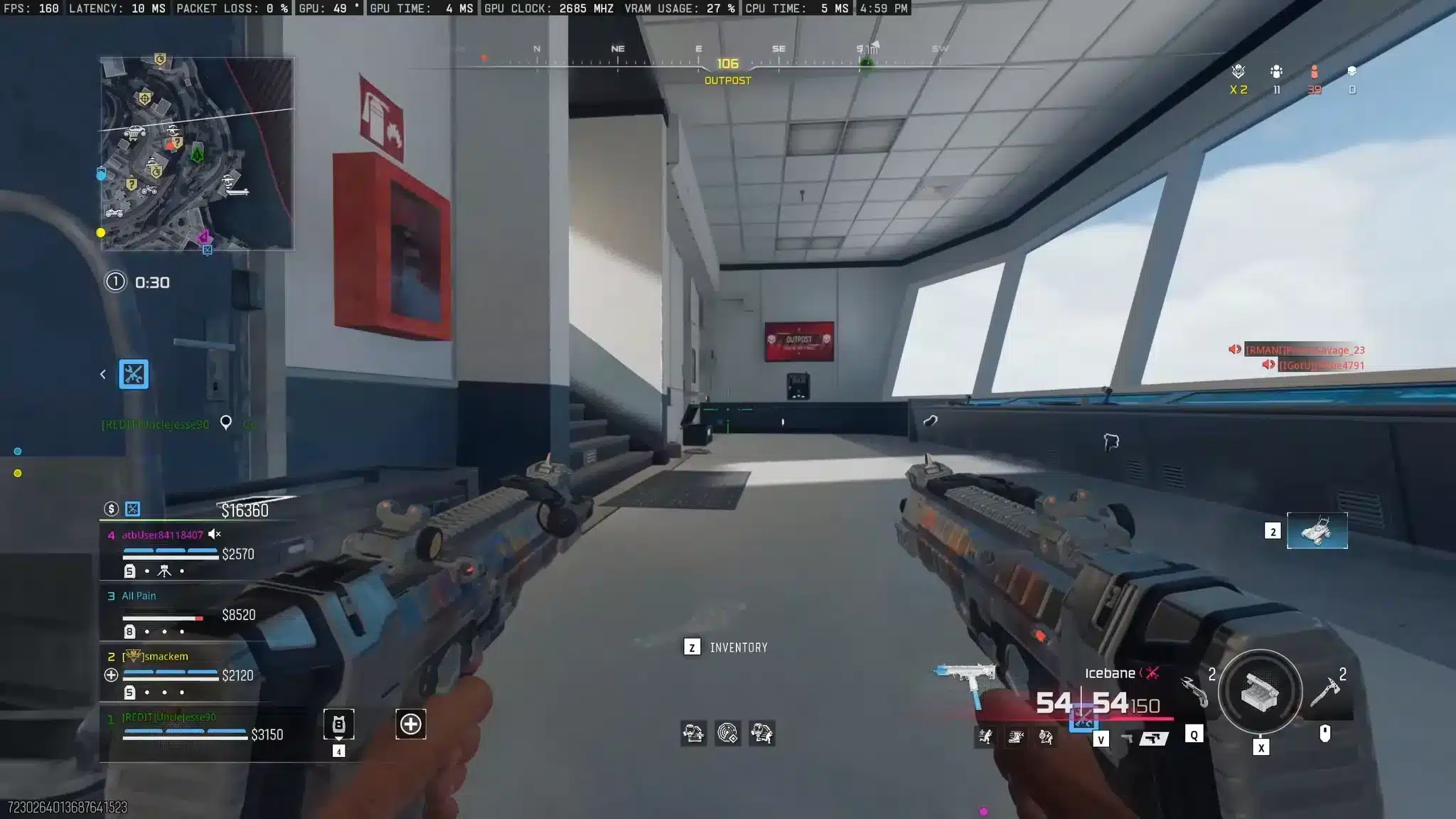
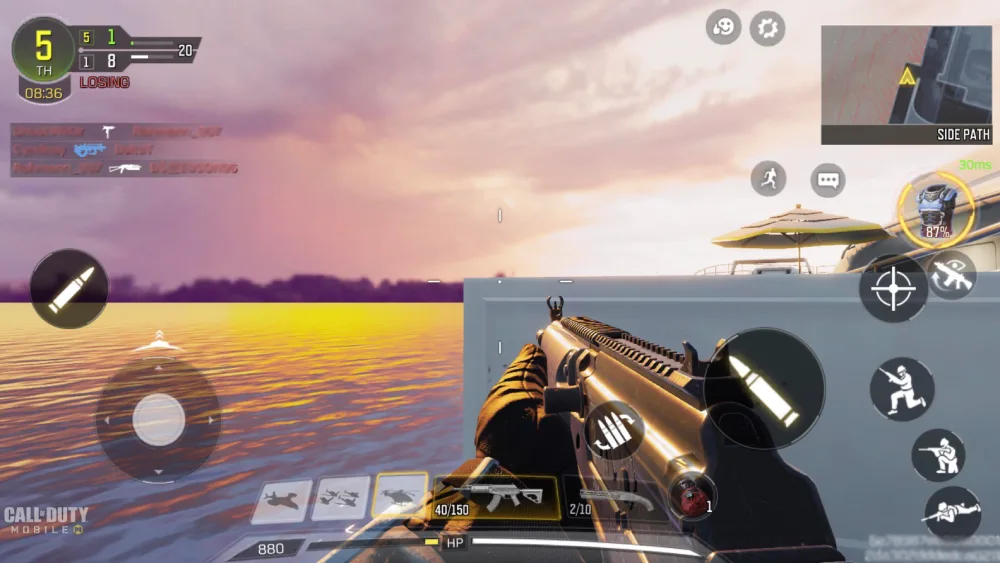
The Call of Duty Mobile download gives Android and iOS players access to a free-to-play shooter with Multiplayer, Battle Royale, Ranked Play, Zombies, seasonal events, and other modes introduced through updates. However, downloading the correct version is essential because unofficial installers may expose your device or account to unnecessary security risks.
Players interested in a larger screen may have seen older instructions in the Call of Duty: Mobile PC and emulator guide. That guide provides useful context about previous emulator methods, but current Activision support states that emulators are not supported. Therefore, the safest Call of Duty Mobile download method remains installing the mobile version directly from Google Play or Apple’s App Store.
The Call of Duty Mobile download is free, although the game includes optional purchases and downloadable resource packs. Before installing, confirm that your phone or tablet meets the current requirements, has enough free storage, and uses a stable internet connection. Logging in through an Activision account can also make it easier to protect and restore progress than relying only on a temporary guest profile.
How do you download Call of Duty: Mobile on Android and iOS?
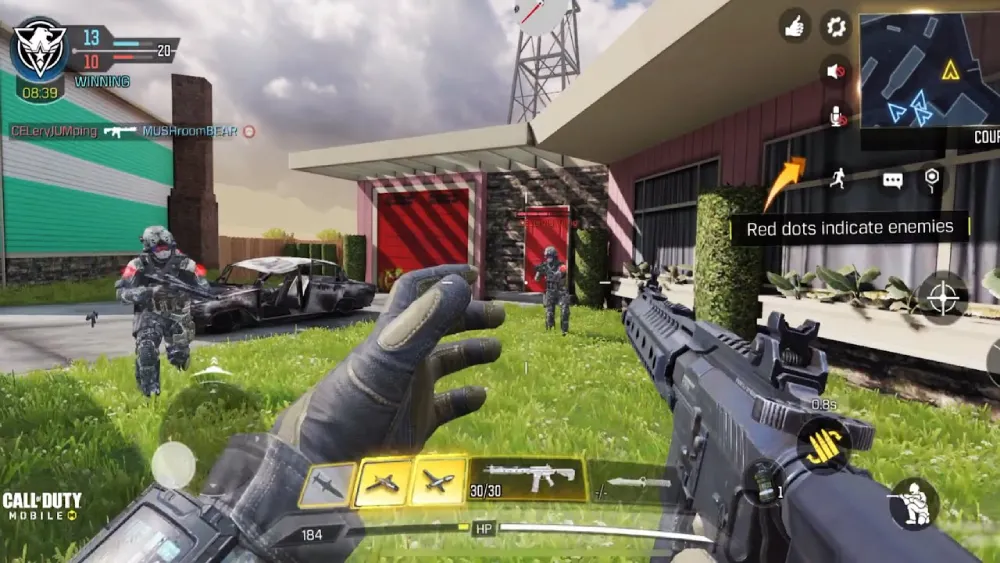
The installation process is straightforward when the game is available in your region and your device meets the minimum requirements. Android players should use Google Play, while iPhone and iPad users should use Apple’s App Store.
Avoid third-party APK websites, modified versions, unofficial launchers, and links sent through private messages. Even when a file claims to provide faster downloads, unlocked content, extra COD Points, or improved performance, it may be altered or malicious.
The initial app is only part of the total installation. After opening the game, you may be asked to download maps, weapons, operators, audio, HD textures, and other resources. The complete size can therefore vary according to the content you select.
How to download Call of Duty: Mobile on Android
Follow these steps for a legitimate Android installation:
- Open Google Play on your Android device.
- Search for Call of Duty: Mobile.
- Confirm that the listed publisher is Activision Publishing.
- Open the official store page.
- Tap Install.
- Wait for the initial download and installation.
- Open the game.
- Accept the required permissions and terms.
- Download the additional resource packages you want.
- Sign in or create an account.
Call of Duty: Mobile currently requires Android 6.0 or later and at least 2 GB of RAM. Meeting the minimum specification does not guarantee the highest graphics settings or a perfectly stable frame rate. Performance also depends on the processor, graphics hardware, thermal limits, available memory, storage speed, and background applications.
Before beginning the Call of Duty Mobile download, connect the device to power when the battery is low. Large resource packages can take time, and the phone may consume additional power while downloading, verifying, and unpacking files.
Wi-Fi is generally preferable when mobile data is limited. However, a stable mobile connection can also work if the download is allowed by your data settings and plan.
After installation, open the in-game download manager and select only the content you need first. This can reduce the initial storage requirement and let you start playing sooner. You can add optional maps, higher-quality audio, and visual resources later.
How to download Call of Duty: Mobile on iPhone or iPad
The iOS process is similar:
- Open Apple’s App Store.
- Search for Call of Duty: Mobile.
- Confirm that you selected the official Activision application.
- Tap Get.
- Authenticate with Face ID, Touch ID, or your Apple account password.
- Wait for the app to finish installing.
- Launch the game.
- Complete the initial setup.
- Download the required game resources.
- Log in using your preferred account method.
The current minimum requirement is iOS 15.0 or later and at least 2 GB of RAM. Some older Apple devices may run the required operating system but still provide limited performance because of their processor, memory, battery condition, or thermal behavior.
Make sure the device has more free storage than the initial App Store size suggests. Additional Call of Duty maps, operators, weapon models, modes, and high-resolution resources are downloaded after the app opens.
Deleting and reinstalling the application does not normally remove progress that is connected to a recognized login. However, a guest profile may be harder to recover if it was never linked. Protect your progress before removing the application.
Players should also avoid modified iOS packages and services that promise paid items for free. The risks associated with Call of Duty: Mobile hacks include account enforcement, malicious downloads, credential theft, and lost access. Legitimate installation and gameplay are safer than trusting tools that claim to manipulate COD content.
What are the Call of Duty: Mobile system requirements?
Minimum specifications indicate whether a device is theoretically compatible. They do not describe the hardware needed for maximum graphics, high frame rates, extended sessions, or the best competitive experience.
The game changes through updates, and new visual assets can increase processing or storage demands. A device that barely meets the requirements may need lower graphics, reduced frame-rate settings, and fewer downloaded HD resources.
| Platform | Current minimum requirement | Recommended preparation |
| Android | Android 6.0 or later and at least 2 GB of RAM | Update the system, free storage, close background apps |
| iOS | iOS 15.0 or later and at least 2 GB of RAM | Update iOS, free storage, restart the device |
| PC | No officially supported emulator method | Use a compatible Android or iOS mobile device |
How much storage does Call of Duty: Mobile need?
There is no single permanent size because the game allows additional content to be downloaded separately. The required space depends on your platform, current version, selected resource quality, maps, weapons, operators, and modes.
For example, a player who downloads only essential Multiplayer resources may use less storage than someone who installs every Battle Royale map, HD texture package, weapon model, voice line, and seasonal resource.
Always keep extra storage available beyond the displayed download size. Mobile systems need room to download temporary update files, unpack resources, and replace older data. An installation may fail when the device has enough space for the compressed file but not enough room to complete the update.
You can reduce storage usage by:
- removing optional maps you do not play;
- avoiding unnecessary HD resource packs;
- deleting old videos and screenshots;
- clearing temporary files from other applications;
- uninstalling applications you no longer use;
- reviewing the in-game download manager;
- keeping only the required language and audio files.
Do not repeatedly delete random folders inside the application’s data directory. Removing the wrong file can cause another large download or prevent the game from launching correctly.
How can you improve performance on a compatible phone?
Begin with conservative graphics settings. A stable frame rate is often more useful than higher visual quality, especially during Ranked Multiplayer.
Consider these adjustments:
- lower graphics quality before reducing frame rate;
- disable unnecessary visual effects;
- close video, browser, and social media applications;
- stop downloads running in the background;
- avoid playing while the device is overheating;
- remove a restrictive case during long sessions when appropriate;
- keep the operating system and game updated;
- restart the device after a major update;
- use Game Mode or the manufacturer’s gaming tools carefully.
Battery-saving modes may reduce CPU and GPU performance. If the game feels unusually slow, confirm that an aggressive power restriction is not active.
At the same time, avoid unofficial “boosters” that modify the application, unlock restricted graphics settings, or alter game files. A program does not become safe simply because it presents itself as an FPS optimizer.
The Call of Duty Mobile download includes settings for different device levels. Use those controls first instead of forcing unsupported visual options.
Can you complete a Call of Duty Mobile download on PC?
Activision currently states that Call of Duty: Mobile does not support emulators. As a result, there is no officially supported native Windows or macOS version of the mobile game.
Older guides often recommended GameLoop and described it as the standard PC method. That information should no longer be presented as an official current recommendation.
Using unsupported software can create compatibility, matchmaking, control, update, or account-enforcement risks. It may also stop working after a game or emulator update.
Why older PC instructions may be outdated
Call of Duty: Mobile has existed for several years, and its policies, support pages, matchmaking rules, and technical environment have changed during that period.
A tutorial can remain visible in search results long after its instructions stop matching current official guidance. Publication date alone is not enough because an article may have been edited without correcting its main recommendation.
Before following a PC tutorial, check whether it:
- claims that an emulator is officially supported;
- uses current Activision guidance;
- distinguishes general play from esports rules;
- provides a recent update date;
- discusses account and matchmaking risks;
- avoids unofficial APK files;
- does not promise that unsupported software is completely safe.
The safest option is to use a compatible Android or iOS device for the Call of Duty Mobile download.
Players who want a native PC experience should consider a PC title from the franchise rather than trying to convert the mobile application into an officially supported desktop version.
Can controllers or emulators be used in competitions?
Public matchmaking and official esports competition do not always use identical rules. Even when a control method appears inside the consumer game, that does not mean it is allowed in a tournament.
The official Call of Duty: Mobile esports rules prohibit competitors from using emulators. They also restrict external devices that modify the controls, including controllers, mice, and keyboards, unless tournament administration explicitly permits them.
Competitive players should read the rules for the specific event instead of relying on ordinary matchmaking behavior. Requirements can cover:
- eligible mobile devices;
- screen sizes;
- operating systems;
- external attachments;
- controllers;
- tablets;
- emulators;
- recording matches;
- tournament communication;
- approved game settings.
Using an unsupported method during a casual session and entering an official championship are separate situations. However, neither should be based on an old guide that contradicts current policy.
How do you create and protect an Activision account?
Players can sometimes begin through guest or platform-linked options, but an Activision account provides a more recognizable identity for account management and support.
Linking progress is particularly important before reinstalling the game, replacing a phone, resetting a device, or changing login methods. Guest data may be difficult or impossible to recover when the original device information is lost.
Create an account through the official Call of Duty or Activision environment. Use an email address you control and can access long term.
Why should you avoid relying only on a guest profile?
Guest access is convenient when testing the game, but it creates additional recovery risk. If the application is deleted, the device is damaged, or the local data is cleared, the player may lose the information required to restore that profile.
Before investing significant time or money, connect the game to a supported login method. Confirm that the account opens correctly before removing any local data.
An Activision account can also help when contacting support because your identity and associated game information are easier to establish.
Use these precautions:
- create a unique password;
- secure the connected email;
- never share verification codes;
- avoid account sellers;
- do not pay strangers to increase your Rank;
- ignore free COD Point generators;
- review suspicious login messages;
- use only official recovery pages;
- never install remote-access software for “support.”
A real Activision employee will not need your password through a private social media message.
Does Call of Duty: Mobile share progress with Warzone?
Call of Duty: Mobile is a separate game with its own progression, items, operators, weapons, Battle Passes, and account systems. Do not assume that every item earned in COD Mobile appears in Call of Duty Warzone.
Promotional events may occasionally connect different parts of the franchise, but these are specific campaigns with defined conditions. They do not create universal cross-progression between Call of Duty: Mobile and every console or PC title.
The distinction is also important when buying COD Points. Currency purchased for one game or platform may not function as a universal balance across all products.
Read the description before completing a purchase. Confirm the game, region, platform, quantity, and account receiving the content.
Is Call of Duty: Mobile the same as Warzone Mobile?
No. Call of Duty: Mobile and Warzone Mobile were separate applications with different content, progression structures, technical requirements, and service plans.
Call of Duty: Mobile remains focused on a collection of franchise-inspired Multiplayer maps, Battle Royale, Zombies, Ranked Play, DMZ: Recon, and seasonal content.
Warzone Mobile was designed around a mobile version of the Warzone experience, including maps such as Verdansk and Rebirth Island. However, it was removed from mobile stores in May 2025 and stopped receiving new seasonal content and gameplay updates.
The article about the status and history of Call of Duty: Warzone Mobile provides additional context. Players should not confuse that title with the current Call of Duty Mobile download available through official mobile stores.
Call of Duty: Mobile compared with Warzone Mobile
| Feature | Call of Duty: Mobile | Warzone Mobile |
| Main identity | Standalone mobile collection of Call of Duty modes | Mobile adaptation centered on the Warzone ecosystem |
| New downloads | Available through supported mobile stores | Removed from stores in May 2025 |
| Ongoing seasonal content | Continues to receive updates | New seasonal content and gameplay updates ended |
| Primary modes | Multiplayer, Battle Royale, Zombies, DMZ: Recon, Ranked | Battle Royale and supporting Multiplayer content |
| Progression | Specific to Call of Duty: Mobile | Previously connected with parts of the console and PC ecosystem |
| Recommended action | Download from an official store | Do not rely on outdated download guides |
The standard Call of Duty Warzone game on console and PC is also different from both mobile applications. It is a free-to-play title distributed through supported console and PC platforms.
A search for Warzone may therefore refer to three different contexts:
- the current console and PC Call of Duty: Warzone;
- the discontinued new-download availability of Warzone Mobile;
- Battle Royale inside Call of Duty: Mobile.
Verify the title before downloading a large application or purchasing content.
Which mobile Call of Duty game should new players download?
For a new mobile installation, Call of Duty: Mobile is the supported choice available through official mobile stores.
It offers shorter Multiplayer matches, larger Battle Royale modes, weapon progression, loadouts, Ranked Play, Zombies, seasonal events, and DMZ: Recon content within one application.
Use the official Call of Duty: Mobile website to access the legitimate store path and review current modes. The site provides direct options for Google Play and Apple’s App Store without requiring a third-party APK.
Players specifically searching for the console or PC Call of Duty Warzone should use the appropriate platform store instead. The Call of Duty Mobile download will not install the desktop or console Warzone game.
Why is the Call of Duty Mobile download not working?
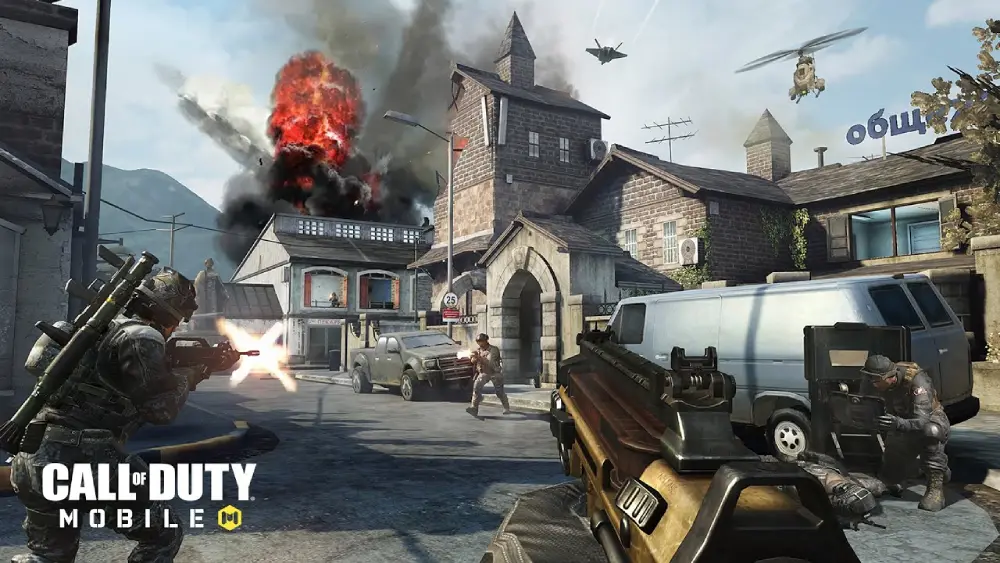
Installation failures usually come from compatibility, insufficient storage, unstable connections, app-store problems, regional availability, corrupted temporary data, or outdated system software.
Troubleshoot one possibility at a time. Repeatedly starting and cancelling the installation can create additional temporary files and make the problem harder to identify.
What should you do when the download is stuck?
Try these steps in order:
- Pause the download and resume it.
- Confirm that the internet connection is working.
- Restart the phone or tablet.
- Restart the router when using Wi-Fi.
- Check available storage.
- Update Android or iOS.
- Update Google Play or the App Store.
- Disable battery or data restrictions temporarily.
- Try another trusted network.
- Cancel and restart the official download if necessary.
On Android, clearing the Google Play cache may help with a stalled store installation. Do not clear all game data after you have created unlinked guest progress.
On iOS, restart the device and verify that the Apple account has accepted any updated store terms. Also check whether Screen Time, content restrictions, or payment verification is blocking the download.
A slow connection does not necessarily mean the server is unavailable. Large updates can also take longer during peak periods or when the device is downloading several resource packages at once.
What should you do when the game crashes or shows a black screen?
First, restart the device and launch the game again. Then confirm that both the application and operating system are updated.
Android users can clear the application cache without deleting all local data. iOS users may need to reinstall the app after confirming that progress is linked to a recoverable account.
Additional steps include:
- close all background applications;
- disable screen-recording overlays;
- remove unsupported graphics tools;
- lower graphics settings;
- let the device cool;
- check for available storage;
- remove unofficial game files;
- test without a VPN;
- review in-game support options.
Do not install a modified APK as a workaround. An unofficial file may create larger problems than the original installation error.
How can ExitLag help with Call of Duty: Mobile?
ExitLag is a network-route optimization tool. It cannot make an incompatible device run the game, increase local storage, repair corrupted application files, restore a lost Activision account, or raise FPS limited by mobile hardware.
Its role begins after the game is installed and the problem is related to the route between the player and the game service.
When that route is unstable or inefficient, ExitLag can help optimize network paths and may improve connection consistency. Results depend on the region, internet provider, mobile or Wi-Fi network, destination server, congestion, and available routes.
Which problems may be network-related?
ExitLag may be relevant when you experience:
- unstable latency;
- recurring packet loss;
- jitter;
- sudden ping variation;
- route-related disconnections;
- inconsistent response during online matches;
- a poor route to the selected game server.
Before using route optimization, compare Wi-Fi and mobile data. Restart the network equipment, stop other downloads, and check whether the problem affects every device.
The Call of Duty Mobile download itself may benefit from a more stable connection, but ExitLag should not be presented as a guaranteed download accelerator. App-store delivery, device storage, regional infrastructure, and the source server also influence speed.
Which problems are not fixed by ExitLag?
ExitLag does not correct:
- insufficient storage;
- an outdated operating system;
- unsupported emulators;
- damaged hardware;
- overheating;
- low FPS caused by the processor or GPU;
- account bans;
- forgotten passwords;
- missing purchases;
- global server outages;
- unsupported regions;
- tournament equipment restrictions.
Use ExitLag when the evidence points to a network-route problem. Use Activision support for account or game-service issues, the mobile store for installation failures, and device troubleshooting for local performance.
No network tool can guarantee a specific ping or remove every interruption. However, route optimization may provide a more stable path when the default connection route is contributing to the issue.
Frequently asked questions
The answers below cover the most common questions about price, official sources, PC support, accounts, controllers, updates, and storage.
Yes. The base Call of Duty Mobile download is free through Google Play and Apple’s App Store.
The game includes optional purchases, such as COD Points, Battle Pass content, and cosmetic items. Spending money is not required to install the application.
Use the official Call of Duty: Mobile website or search for the application directly in Google Play or Apple’s App Store.
Confirm that Activision Publishing is listed before installing. Do not use exposed APK links from unrelated websites.
There is no officially supported native PC version of Call of Duty: Mobile, and current Activision support states that emulators are not supported.
Players looking for PC gameplay should consider an officially available PC Call of Duty title instead of relying on outdated emulator instructions.
No official browser or cloud version replaces the mobile installation. The application and required resources must be downloaded to a supported device.
The game also requires an internet connection for play.
You may see multiple login options, but using an Activision account can improve account management and recovery.
Avoid leaving valuable progress connected only to a guest profile. Link the account before reinstalling the game or changing devices.
Controller availability in ordinary gameplay can differ from official competitive rules. Confirm current in-game support and compatibility before purchasing a controller specifically for the game.
Official esports rules restrict controllers and other external control devices unless tournament administration explicitly permits them.
No. Call of Duty: Mobile, Call of Duty Warzone, and the former new-download availability of Warzone Mobile are separate products and services.
Call of Duty: Mobile includes its own Battle Royale experience, but it is not the same application as console or PC Warzone.
Availability can depend on country, region, device compatibility, account settings, age restrictions, and local store policies.
Do not change to an unofficial APK immediately. Check the official website, device requirements, and store account region first.
Open Google Play or Apple’s App Store, find the application, and tap Update when a new version is available.
Afterward, open the game and allow it to download any additional required resources. Automatic updates can simplify the store portion, but in-game files may still need manual confirmation.
Progress linked to a valid login can normally be restored by signing in again. Unlinked guest progress is more vulnerable.
Confirm your Activision account or other supported login before deleting the application.
The official version from Google Play or Apple’s App Store is the appropriate download source. No online software is free from every possible risk, so keep the device updated and protect the connected account.
Avoid unofficial APKs, modified clients, free COD Point tools, cheat applications, and websites that request your password.
Complete the Call of Duty Mobile download through an official mobile store, link your progress to a secure account, and install only the resources you actually need. Once the game is running, try ExitLag when connection routing is causing instability, while using device settings and legitimate troubleshooting for storage, compatibility, and local performance problems.
All game images used in this article belong to their respective owners. They are used for informational and educational purposes only and do not imply endorsement or affiliation with the rights holders.