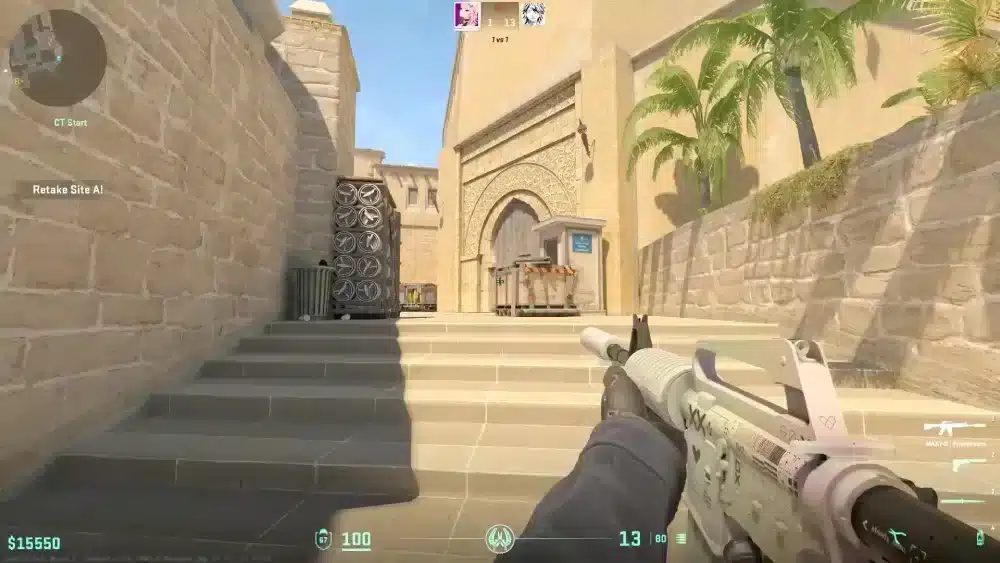
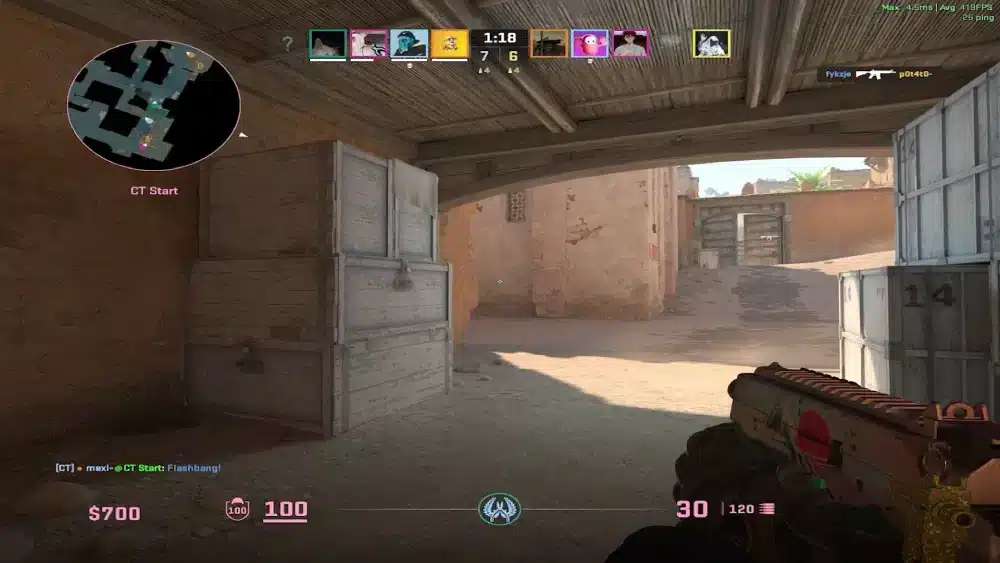
Counter Strike Global Offensive Laptop play is one of the most accessible entry points into competitive gaming. CS:GO and its successor Counter-Strike 2 have always been known for running on modest hardware, making them ideal games for players without high-end desktop setups.
Counter Strike Global Offensive was optimized for broad hardware compatibility from the start. CS2 maintains this tradition, though the new Source 2 engine does demand somewhat more from older systems than CS:GO did.
This complete guide covers everything about running Counter-Strike on a laptop: minimum and recommended specifications, the best settings to maximize performance on low-end hardware, and how to get competitive frame rates even on budget machines.

Counter Strike Global Offensive Laptop Requirements
CS2 Minimum System Requirements
To run Counter-Strike 2 at all:
| Component | Minimum Spec |
|---|---|
| OS | Windows 10 64-bit |
| CPU | Intel Core i5-750 or AMD FX 9590 |
| RAM | 8 GB |
| GPU | GTX 970 / RX 480 (4 GB VRAM) |
| Storage | 85 GB SSD |
| DirectX | Version 11 |
CS2 Recommended System Requirements for Competitive Play
For consistent competitive performance:
| Component | Recommended |
|---|---|
| OS | Windows 10 or 11 64-bit |
| CPU | Intel Core i7-9700K or AMD Ryzen 5 5600X |
| RAM | 16 GB |
| GPU | RTX 2070 / RX 5700 XT (8 GB VRAM) |
| Storage | 85 GB NVMe SSD |
| DirectX | Version 12 |
Laptop-Specific Considerations
Laptops add unique challenges beyond raw specs:
- Thermal throttling: Laptops reduce performance when overheating. A cooling pad extends performance significantly.
- Display refresh rate: Competitive CS2 benefits from 144Hz+ displays. Many budget laptops have 60Hz screens.
- Storage speed: SSD storage dramatically reduces map load times vs. HDD laptops.
- RAM expandability: Some laptops allow RAM upgrades. Going from 8GB to 16GB improves CS2 stability.
Best CS2 Settings for Laptop Performance
Video Settings for Low-End Laptops
These settings maximize frame rate on budget hardware:
- Resolution: 1280×960 or 1024×768 (lower = more FPS)
- Display Mode: Fullscreen
- Texture Detail: Low
- Shadow Quality: Very Low
- Shader Detail: Low
- Particle Detail: Low
- Ambient Occlusion: Disabled
- V-Sync: Disabled
- Multisampling Anti-Aliasing: None
Performance vs Quality Balance for Mid-Range Laptops
| Setting | Low-End Laptop | Mid-Range Laptop |
|---|---|---|
| Resolution | 1024×768 | 1920×1080 |
| Texture Detail | Low | Medium |
| Shadows | Very Low | Low |
| Anti-Aliasing | None | 2x MSAA |
| Effects Detail | Low | Medium |
Launch Options for Laptop CS2
Add these in Steam > CS2 Properties > Launch Options:
-novid -high -threads 4 -nojoy +fps_max 0
These options skip the intro video, set high process priority, specify thread count, disable joystick processing, and uncap frame rate.
Pro Tips: Counter Strike Global Offensive Laptop Play
- Use a laptop cooling pad: Sustained high CPU and GPU temperatures cause thermal throttling, which drops FPS mid-match. A $20–$40 cooling pad prevents this consistently.
- Plug in before playing ranked: Laptops on battery power frequently limit CPU performance to extend battery life. Always play competitive CS2 plugged into power.
- Close all background applications before launching CS2: Each open browser tab, Discord overlay, and background app takes RAM and CPU cycles. A clean launch gives CS2 maximum resources.
- Lower your resolution for more FPS rather than lowering detail settings: Resolution has the largest single impact on frame rate. Playing at 1280×960 on a 1080p laptop gives significantly more FPS than playing 1080p with all details on low.
- Monitor your laptop temperature while playing: Free tools like HWiNFO64 show CPU and GPU temps in real time. If you exceed 95°C consistently, you need better cooling or reduced settings.
Common Mistakes Counter Strike Laptop Players Make
- Playing on battery in competitive matches: Battery power mode limits performance dramatically. Fix: always play plugged into AC power for consistent frame rates.
- Leaving Chrome and Discord running during matches: Background apps consume RAM and CPU. Fix: close all non-essential applications before loading CS2. Even closing 5 Chrome tabs can free 500MB+ of RAM.
- Ignoring storage type: A laptop with HDD storage takes much longer to load maps and has slower texture streaming. Fix: if your laptop has an HDD and allows upgrades, installing a budget SSD is the single most impactful hardware upgrade for CS2.
Laptop + High Ping: The Biggest CS2 Problem
Even on well-optimized hardware, a high-latency connection ruins competitive play. Laptop players often connect via Wi-Fi, which adds 10–40ms of extra latency and introduces packet loss from interference.
How ExitLag Helps Laptop CS2 Players
ExitLag routes your connection to CS2 servers through the fastest available path. It is not a VPN. It reduces ping, eliminates Wi-Fi jitter, and cuts the packet loss that causes inconsistent shot registration.
For Counter Strike Global Offensive Laptop players:
- Lower ping on Wi-Fi: ExitLag’s routing compensates for wireless overhead.
- Reduced packet loss: Critical for laptop players who frequently use Wi-Fi connections.
- Multipath Technology: Multiple routing paths maintain stability even on wireless connections.
- Multi-Internet: Supports up to 4 connections, including Wi-Fi and mobile hotspot simultaneously.
- PC Boost: Reduces background process interference so your laptop dedicates resources to CS2.

Counter Strike Global Offensive Laptop: Competitive Is Achievable
Counter Strike Global Offensive Laptop play has produced legitimate high-rank players and even professional competitors at various points in the game’s history. The game is fundamentally skill-based, and hardware only provides marginal advantages at the professional level.
Focus on your settings, manage your thermals, maintain your connection quality, and practice your fundamentals. The best laptop players beat poorly-prepared desktop players every time.
All CS:GO / CS2 game images belong to Valve Corporation. Used for informational and educational purposes only.
Got questions or want to connect with other players? Join the conversation at the ExitLag Forum!