
Crossout FPS Boost is useful when battles feel less smooth than your hardware should allow. A stable frame rate can make driving, aiming, and combat feel much more responsive. Crossout FPS Boost starts with identifying what limits your system. Your GPU, CPU, RAM, temperatures, drivers, graphics settings, and background applications can all affect performance.
If Crossout FPS Boost is your goal, start with measurable changes. Crossout currently recommends Windows 10/11 64-bit, 16 GB of RAM, and a GTX 970 or RX 570 or better for its recommended PC configuration.
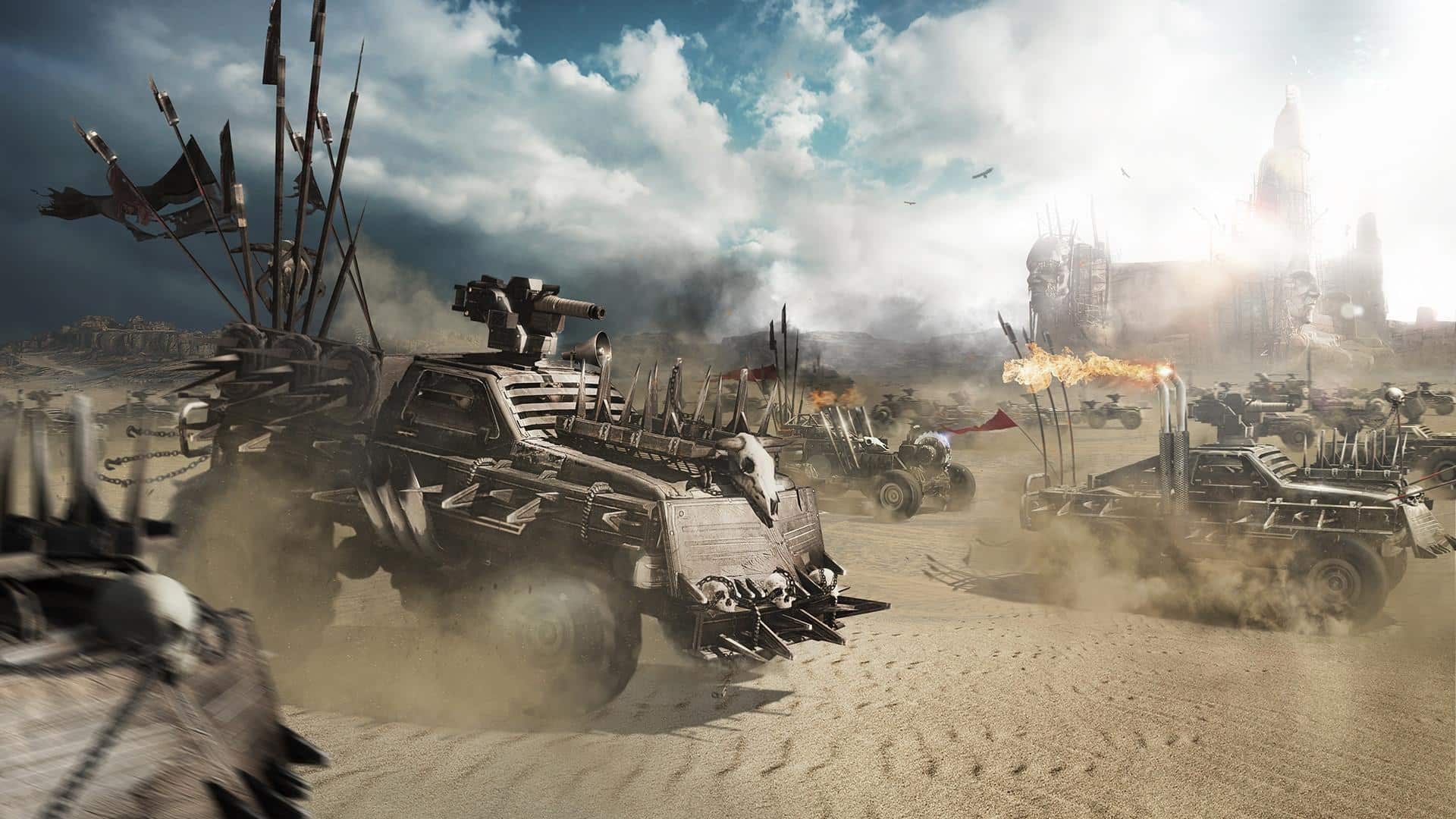
Crossout FPS Boost: Which Settings Matter Most?
Graphics settings are the easiest place to begin. However, lowering everything to the minimum is not always necessary.
Lower the Most Demanding Options First
Start by reducing settings that place a heavier load on your graphics card.
A practical order is:
- Shadows.
- Effects and particles.
- Reflections.
- Environmental detail.
- Rendering quality.
- Resolution, if necessary.
Crossout has previously added graphics options designed to influence performance, including particle density, dynamic lighting, and adaptive resolution. Lowering particle density and dynamic lighting can reduce rendering workload on suitable configurations.
Why Should You Avoid Changing Everything?
Changing every setting at once makes troubleshooting harder. You will not know which option actually improved performance. Instead, change two or three settings. Then enter another battle and compare your FPS.
Crossout FPS Boost and Your Graphics Card
Your GPU is one of the most important components for rendering Crossout. If it reaches its performance limit, lowering visual quality can provide additional headroom.
How Do You Know If Your GPU Is the Bottleneck?
Monitor GPU usage while playing. Pay attention to what happens when FPS falls. If GPU usage is consistently very high, graphics settings are a logical place to start. If GPU usage suddenly falls while FPS also falls, investigate other components. The CPU, temperature, driver, or background software may be responsible.
Is Your PC Powerful Enough?
Crossout currently lists a D3D11-compatible GPU as part of its requirements. Its recommended configuration includes a GTX 970 or RX 570 or better, alongside 16 GB of RAM. Older graphics cards can still run the game. However, weaker hardware may require lower graphics settings for consistent performance.
Crossout FPS Boost and CPU Performance
A powerful GPU cannot compensate for every CPU limitation. Crossout also relies on the processor for game calculations, physics, and other tasks.
How Can CPU Usage Affect FPS?
If the CPU becomes overloaded, the GPU may not receive information quickly enough. This can result in lower or unstable FPS. Monitor CPU usage during the exact moment performance drops. Look for a pattern rather than one isolated spike.
What Can You Close?
Before launching Crossout, close unnecessary applications.
Useful candidates include:
- Browser tabs.
- Video editing software.
- Large downloads.
- Cloud synchronization.
- Game launchers you are not using.
- Recording applications you do not need.
Do not disable essential system services. Focus on applications that you recognize and can safely close.
Crossout FPS Boost and RAM Usage
Memory can also affect gaming performance. Crossout currently lists 16 GB of RAM as part of its recommended PC configuration.
Why Does RAM Matter?
When available memory becomes limited, Windows may need to rely more heavily on storage. That can contribute to stuttering and slower asset handling. It does not mean more RAM automatically produces higher FPS. The important factor is whether your current memory capacity is becoming a limitation.
How Can You Check?
Open your system monitor while Crossout is running. Watch memory usage during a normal battle. If RAM usage is consistently close to the available capacity, close unnecessary applications and consider whether your hardware matches the game’s recommended configuration.
Crossout FPS Boost and Temperatures
Heat can quietly reduce performance. A CPU or GPU that becomes too hot may reduce its operating speed to protect the hardware.
Can Heat Cause FPS Drops?
Yes. A common pattern is strong performance immediately after launching the game. After several minutes, temperatures rise. Then FPS starts falling. That pattern deserves investigation.
How Can You Improve Cooling?
Start with basic checks.
- Keep laptop vents unobstructed.
- Improve desktop airflow.
- Remove excessive dust.
- Confirm fans are working.
- Avoid using a laptop on soft surfaces.
- Monitor CPU and GPU temperatures.
Do not change advanced voltage settings unless you understand the consequences. Basic cooling improvements are safer and easier to test.
Crossout FPS Boost and Graphics Drivers
Graphics drivers directly influence how your GPU communicates with games. Crossout’s official requirements recommend keeping graphics drivers updated when players experience graphical problems.
Should You Update Your Driver?
If your driver is outdated, updating it is a sensible step. Use software provided by your GPU manufacturer. Then restart the PC and test Crossout again.
What If FPS Became Worse After an Update?
Do not automatically assume the newest driver is always responsible. Compare the timing. If the problem appeared immediately after a driver update, document the change. Then investigate whether the game, driver, or Windows configuration changed at approximately the same time.
Crossout FPS Boost After Updates
Crossout can temporarily behave differently after game updates. One important example involves shader compilation.
Why Can Updates Temporarily Reduce FPS?
Crossout developers previously explained that its DirectX 11 structure requires shaders to be compiled again after game updates.
They also explained that this process can temporarily reduce FPS because shader compilation is demanding on the GPU.
That means a temporary performance reduction after an update does not necessarily mean your PC suddenly became slower.
What Should You Do?
Give the game some time to complete the relevant rendering work. Test several matches. If performance improves afterward, the problem may have been temporary. If the FPS issue remains across multiple sessions, continue with normal troubleshooting.
Crossout FPS Boost and Mouse Polling Rate
Mouse polling rate has become a particularly interesting troubleshooting point for some Crossout PC players.
Can High Polling Rates Affect FPS?
A current July 2026 community report described significant FPS drops while moving a mouse at a high polling rate.
The player reported that reducing the polling rate reduced the severity of the problem. This is a community report, not an official universal Crossout recommendation. If your FPS is stable until you move the mouse, this test is worth considering.
How Should You Test It?
Use the same graphics settings.
Then follow a controlled test:
- Record your normal FPS.
- Move the mouse continuously.
- Watch frame-time behavior.
- Lower the polling rate.
- Repeat the same movement.
- Compare the results.
If performance improves, you have identified a useful troubleshooting lead. Do not assume every player needs to lower their polling rate.
Crossout FPS Boost and FPS Caps
Maximum FPS is not always the same as best performance. A stable frame rate can feel better than a constantly fluctuating one.
Why Use an FPS Limit?
Imagine your system produces 140 FPS in one scene and 70 FPS in another. That large fluctuation can make gameplay feel inconsistent. A reasonable FPS cap can reduce unnecessary GPU workload. It may also help manage temperatures.
What FPS Target Should You Choose?
Choose a target your system can maintain consistently. For example, stable 90 FPS may feel better than constantly moving between 60 and 150 FPS. The ideal target depends on your hardware and display. Focus on consistency.
Crossout FPS Boost and Resolution
Resolution has a major effect on GPU workload. Higher resolutions require the graphics card to render more pixels.
Should You Lower Resolution?
If your GPU is the bottleneck, lowering resolution can provide a noticeable performance improvement. Try reducing resolution before making extreme system changes. Then compare the results in the same type of battle.
What About Adaptive Resolution?
Crossout has previously included an adaptive resolution mode that dynamically adjusts rendering resolution according to load and a target FPS. The feature was described as experimental when introduced. If the current version provides this option, test it carefully. The result can vary by system.
Crossout FPS Boost and Visual Quality
You do not need to sacrifice every visual effect. The best configuration balances image quality and frame consistency.
A Practical Performance Profile
For a system struggling with FPS, start with:
| Setting Area | Suggested Approach | Reason |
| Resolution | Native first | Preserves image quality |
| Shadows | Lower | Reduces rendering workload |
| Particles | Medium or lower | Helps during explosions |
| Dynamic lighting | Lower | Reduces lighting workload |
| Reflections | Lower | Reduces GPU demand |
| Effects | Medium | Balances quality and performance |
| FPS cap | Stable target | Reduces fluctuations |
| Texture quality | Match available VRAM | Avoids unnecessary pressure |
These are starting points, not universal optimal settings. Your hardware determines the final balance.
What If Your PC Is Already Strong?
Do not lower everything automatically. If your GPU and CPU have plenty of available headroom, investigate frame-time spikes instead. The problem may be software-related. It may also be related to a specific Crossout configuration or recent game behavior.
Crossout FPS Boost and F11 Monitoring
Crossout provides a simple way to monitor performance.
How Can You Check FPS?
Crossout’s developer information states that pressing F11 displays FPS data. Pressing it again displays ping information. A further press shows additional technical information, including resolution, GPU model, and DirectX version. This is extremely useful for troubleshooting. You can immediately separate some performance problems from network problems.
Why Does This Matter?
Suppose FPS falls from 120 to 40. That points toward a rendering performance issue. If FPS remains stable but ping suddenly rises, your problem is more likely network-related. Both can happen together. That is why monitoring matters.
Crossout FPS Boost vs Network Lag
Not every type of lag is an FPS problem. This distinction can save hours of unnecessary tweaking.
What Does an FPS Problem Look Like?
Common signs include:
- Choppy animation.
- Low FPS counter.
- GPU or CPU saturation.
- Frame-time spikes.
- Stuttering during visual effects.
- Reduced visual smoothness.
What Does Network Lag Look Like?
Network-related problems can include:
- Rubber-banding.
- Delayed actions.
- Vehicle position corrections.
- Packet loss.
- High ping.
- Connection errors.
If your FPS remains high but your vehicle suddenly jumps backward, changing graphics settings will not solve the underlying network problem.
Crossout FPS Boost and Storage
Storage is another factor worth checking. A game installed on a drive under heavy activity may experience additional loading pressure.
Should Crossout Be Installed on an SSD?
If your PC has an SSD, using it for Crossout is a practical choice. It can improve general loading behavior. However, an SSD does not automatically increase GPU-limited FPS. Treat storage as part of overall system responsiveness rather than a guaranteed frame-rate upgrade.
What Should You Check?
Monitor drive activity when stuttering occurs. Also make sure the drive has adequate free space. If storage usage spikes at exactly the same moment as stuttering, investigate further.
Crossout FPS Boost and Windows Power Settings
Power management can affect performance. This matters particularly on laptops.
Why Do Laptops Behave Differently?
A laptop can reduce CPU or GPU performance when operating in an aggressive power-saving mode. Gaming while plugged in can provide a more consistent performance profile.
Check the available Windows power settings. Use an appropriate performance-oriented configuration when gaming if your hardware supports it.
What About Battery Gaming?
Battery operation can prioritize efficiency. That can reduce performance. If you want maximum FPS, test Crossout while connected to power. Then compare the results.
Crossout FPS Boost and Background Overlays
Overlays can provide useful features. They can also introduce additional workload.
Which Overlays Should You Test?
If performance suddenly changed, temporarily test Crossout without unnecessary overlays.
Possible candidates include:
- Game recording overlays.
- Chat overlays.
- Hardware monitoring overlays.
- Browser overlays.
- Third-party performance tools.
Do not uninstall everything. Disable one overlay at a time. This makes it easier to identify whether a particular application is involved.
Crossout FPS Boost: Best Troubleshooting Order
A structured process prevents wasted time.
Follow This Sequence
- Press F11 and monitor FPS.
- Check CPU and GPU usage.
- Check temperatures.
- Confirm the correct GPU is being used.
- Update graphics drivers.
- Reduce demanding graphics settings.
- Test resolution.
- Test an FPS cap.
- Close unnecessary applications.
- Test mouse polling rate if mouse movement triggers stuttering.
- Check storage activity.
- Restart the PC and retest.
This approach starts with simple changes. It also helps identify the actual bottleneck.
What If FPS Still Does Not Improve?
Document the behavior. Record your hardware and settings. Also note exactly when the issue occurs.
Useful details include:
- Average FPS.
- Lowest FPS.
- CPU usage.
- GPU usage.
- Temperatures.
- Resolution.
- Graphics settings.
- Driver version.
- Crossout version.
- Whether mouse movement affects performance.
Crossout maintains a dedicated area for graphics and performance reports, including guidance for players experiencing performance problems.
Crossout FPS Boost: Current Performance Considerations
Crossout continues to receive updates. A July 22, 2026 update included improvements to game client stability. That means performance can change over time.
Why Should You Check Current Behavior?
A graphics configuration that worked perfectly before an update may behave differently afterward. Likewise, a temporary problem can disappear after a client update. Do not rely entirely on old optimization guides. Test the current game version.
What If Other Players Have the Same Problem?
Check current community reports. A July 2026 Crossout forum listing included a PC report describing an FPS drop from 120 to 3 FPS. That does not prove every player has the same issue. However, multiple similar reports can indicate that further game-side investigation is worthwhile.
Pro Tips
Tip 1: Monitor Before Tweaking
Use F11 to see whether the problem is actually FPS-related.
Tip 2: Lower Settings Strategically
Start with shadows, particles, reflections, and lighting.
Tip 3: Watch Temperatures
A system that gets hotter and slower may be throttling.
Tip 4: Test Mouse Polling
If moving the mouse causes the FPS to fall, test a lower polling rate.
Tip 5: Use a Stable FPS Target
A consistent frame rate can feel smoother than an unstable maximum.
Tip 6: Test After Updates
Give the game time to settle after major updates before assuming permanent performance damage.
Common Mistakes
Mistake 1: Confusing Ping With FPS
Network problems and rendering problems are different. Correction: Check both FPS and ping separately.
Mistake 2: Lowering Everything to Minimum
This can reduce image quality unnecessarily. Correction: Lower demanding settings first and test each change.
Mistake 3: Ignoring Temperatures
Thermal throttling can appear as a sudden performance problem. Correction: Monitor CPU and GPU temperatures during gameplay.
Mistake 4: Replacing Hardware Too Quickly
A new GPU is not always the answer. Correction: Identify the actual bottleneck first.
Mistake 5: Using ExitLag as an FPS Booster
ExitLag does not increase GPU performance. Correction: Use ExitLag for network-related instability, not rendering limitations.
Improve Crossout Performance With ExitLag
ExitLag can complement a Crossout FPS Boost setup when the problem is actually related to network performance. It is designed to optimize the route between your device and supported game servers. It does not increase your GPU’s rendering power.
This is useful when Crossout feels laggy because of high ping, jitter, or packet loss rather than low FPS. ExitLag does not modify Crossout game files. It also does not interact with anti-cheat systems.
When Should You Use ExitLag?
Consider testing ExitLag when your FPS is stable but gameplay still feels delayed.
Look for symptoms such as:
- High ping.
- Packet loss.
- Rubber-banding.
- Sudden latency spikes.
- Delayed server responses.
- Unstable connections.
If your FPS counter is dropping from 120 to 40, focus on your PC first.

Crossout FPS Boost: Get More Frames Fast Today!
Crossout FPS Boost works best when you identify the actual performance bottleneck before changing settings. Start with F11. Crossout’s developer information confirms that F11 can display FPS, ping, and additional system information.
If Crossout FPS Boost is needed because the GPU is overloaded, reduce demanding graphics settings. Start with shadows, particles, reflections, and lighting. If the GPU is not fully utilized, investigate CPU usage, temperatures, drivers, background applications, and storage instead.
Crossout FPS Boost can also require a different approach after game updates. Crossout developers have explained that shader compilation can temporarily reduce FPS after updates because of the game’s DirectX 11 structure.
Current community reports also show that unusual PC performance issues can occur. One July 2026 report described FPS dropping when moving a high-polling-rate mouse, with the player reporting better behavior after reducing the polling rate.
Treat this as a troubleshooting possibility, not a universal fix. The same principle applies to drivers, overlays, storage, and Windows power settings. Change one variable at a time. Then test the same type of battle. If your frame rate becomes more stable, keep the change.
If nothing improves, return to the previous configuration and investigate another possible bottleneck. Remember that network lag is different from low FPS. ExitLag can help optimize network routing when Crossout suffers from connection-related problems, but it does not directly increase your graphics performance.
For persistent Crossout FPS Boost problems, collect your FPS, hardware, temperature, and graphics information before seeking further technical support. Crossout currently provides a dedicated forum area for graphics and performance reports. The best optimization is not necessarily the configuration with the lowest graphics quality.
It is the configuration that gives you consistent frame rates while preserving as much visual quality as your hardware can handle. That balance can make Crossout feel smoother, more responsive, and more enjoyable during intense battles.



