
Crossout Packet Loss can turn a normal battle into an unpredictable fight. Your vehicle may stop responding, weapons may fail to fire, or your position may suddenly change. Crossout Packet Loss is different from simply having high ping. Ping measures latency, while packet loss means some network data does not successfully reach its destination.
If Crossout Packet Loss appears during battles, start with the game’s own connection tools. Crossout currently has an integrated internet connection test that can be launched from the login window, Garage, or directly during a battle.
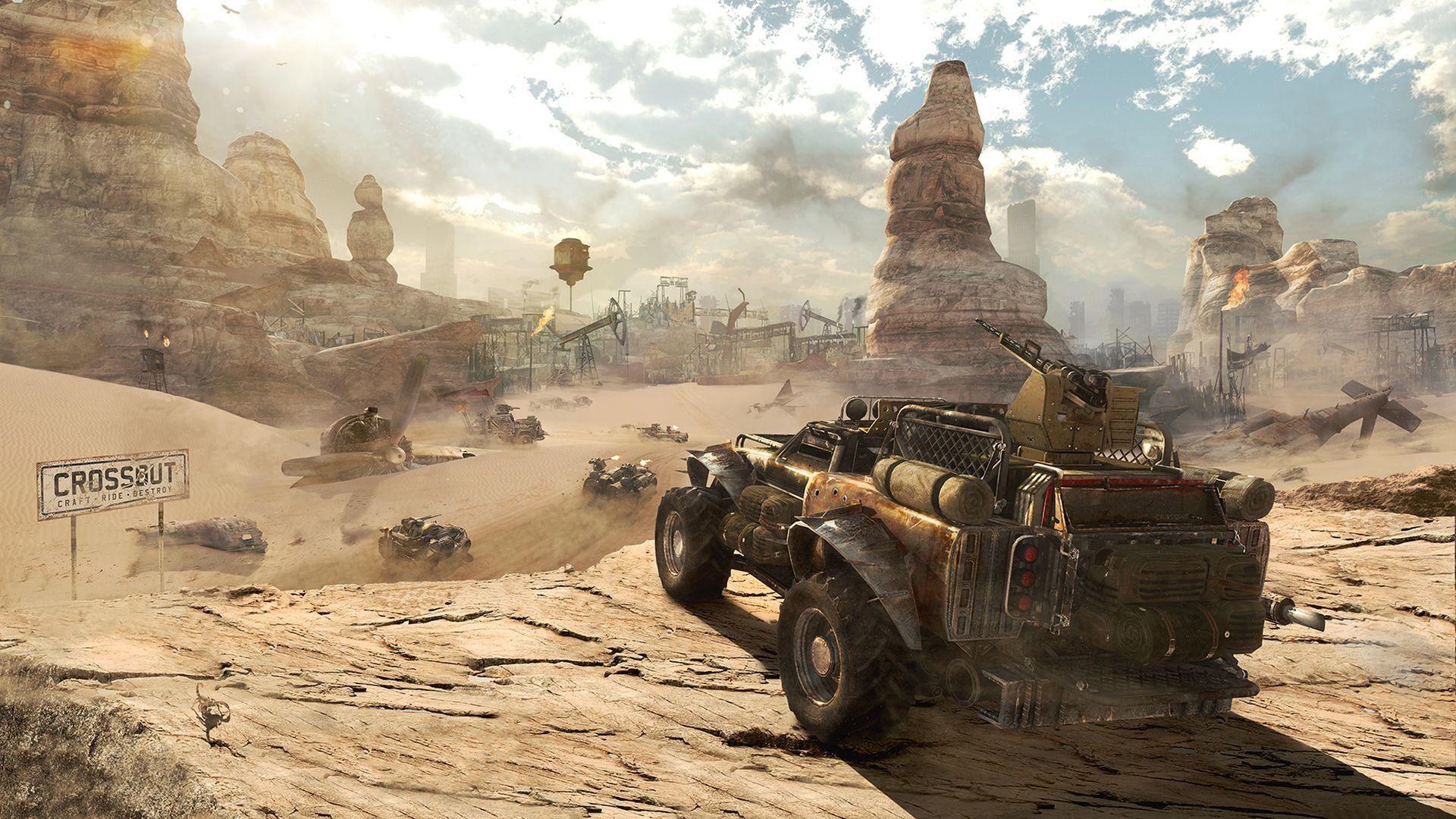
Crossout Packet Loss: What Causes It?
Packet loss happens when network packets fail to reach their destination correctly. The cause can be somewhere on your local network, along your ISP route, or closer to the game server.
Why Does Packet Loss Affect Crossout So Much?
Crossout depends on continuous communication during battles. When important information is lost, the game may need to correct your vehicle’s position or wait for updated information.
This can produce symptoms such as:
- Rubber-banding.
- Delayed vehicle movement.
- Weapons failing to respond.
- Sudden position changes.
- Temporary freezes.
- Connection errors.
- Unexpected disconnections.
Recent community reports also describe severe lag and packet loss during Crossout matches, including situations where players reported that other games remained stable on the same connection. These are player experiences, not proof of a universal server issue.
Is Packet Loss the Same as High Ping?
No. High ping means your connection has elevated latency. Packet loss means some packets are being lost or arriving unsuccessfully.
| Connection Problem | What It Means | Common Symptoms |
| High Ping | High latency | Delayed actions |
| Packet Loss | Data is lost | Rubber-banding, freezes |
| Jitter | Latency varies | Sudden lag spikes |
| FPS Drop | Rendering slows | Stuttering visuals |
| Disconnection | Connection fails | Match interruption |
These problems can also happen together. That is why checking more than one network metric is important.
Crossout Packet Loss: How Can You Test It?
Before changing your router or network configuration, measure the problem.
Use Crossout’s Built-In Test
Crossout has an integrated system for testing the internet connection to its servers. According to the current official forum documentation, the test can be launched from several locations, including directly from a battle.
That last option is especially useful. If the problem only happens during combat, testing from the Garage may not reproduce the same conditions.
Test While the Problem Is Happening
Do not wait until everything looks normal. When your vehicle starts rubber-banding or your weapons stop responding, run the available connection test. Record the result.
Useful information includes:
- Ping.
- Packet loss.
- Region.
- Game mode.
- Platform.
- Time of day.
- Connection type.
This makes troubleshooting much more precise.
Crossout Packet Loss and Wi-Fi
Wi-Fi can be a major variable when diagnosing unstable connections. A wireless connection can provide excellent download speeds while still experiencing interference or latency variation.
Why Can Wi-Fi Cause Packet Loss?
Wireless networks are affected by distance, interference, congestion, and other connected devices. For gaming, consistency matters more than raw download speed. If your Wi-Fi signal becomes unstable for even short periods, packets can be delayed or lost.
How Do You Test Wi-Fi?
The simplest test is Ethernet. Connect your PC or console directly to the router whenever possible. Then play Crossout under similar conditions.
If Crossout Packet Loss disappears or becomes significantly less frequent, your wireless connection deserves further investigation. If the problem remains unchanged, the issue may exist farther along the route.
Crossout Packet Loss and Ethernet
Ethernet is one of the most useful troubleshooting tools because it removes many wireless variables. It does not guarantee perfect routing. However, it gives you a cleaner baseline.
Why Should You Try a Wired Connection?
Suppose you experience packet loss over Wi-Fi. You switch to Ethernet. The packet loss disappears. That strongly suggests that the wireless connection is contributing to the problem. Now you can focus on router placement, wireless interference, or other Wi-Fi-specific issues.
What If Ethernet Does Not Help?
Do not keep changing Wi-Fi settings. If Ethernet produces the same packet loss, investigate other possibilities.
These can include:
- Router problems.
- ISP instability.
- Network congestion.
- Poor routing.
- Server-side problems.
- Regional matchmaking issues.
This is where broader connection testing becomes useful.
Crossout Packet Loss and Your Router
Your router is another possible source of instability. Fortunately, the first troubleshooting steps are simple.
Restart Your Router
Restarting your router can resolve temporary network problems. Turn it off according to the manufacturer’s recommended procedure. Wait for the connection to return completely. Then launch Crossout and test another battle. Compare the result with what you experienced before restarting.
Check Other Devices
Look at everything connected to the same network. A single device can consume substantial bandwidth through downloads, uploads, or streaming.
Before testing Crossout, temporarily pause:
- Large downloads.
- Cloud backups.
- Video uploads.
- Game updates.
- File transfers.
- High-bandwidth streaming.
Then check whether packet loss changes.
Crossout Packet Loss and Background Traffic
Bandwidth competition can make an unstable network harder to diagnose. A connection may appear fine when you are the only active user. The same connection may behave differently when several devices are transferring data.
What Should You Stop First?
Start with the biggest sources of traffic. Pause downloads and uploads on your gaming device. Then check other computers, consoles, phones, and smart devices. You do not need to disconnect everything permanently. The goal is simply to create a controlled test.
Does Faster Internet Prevent Packet Loss?
Not necessarily. A high-speed connection can still experience packet loss. Your internet plan determines available bandwidth. It does not guarantee that every packet will travel reliably to the Crossout server. This distinction is important when troubleshooting.
Crossout Packet Loss and Server Regions
The server region can affect your connection quality. A distant region usually means a longer route between your device and the game server.
Why Does Region Matter?
More distance can mean more network hops. It can also mean a different ISP route. A connection can therefore behave differently when you switch regions.
Current Crossout information confirms that region selection can be relevant to connection problems. In June 2026, the developer specifically advised PC players in Russia experiencing instability when searching the Europe region to switch to the Russia region and enable region locking.
Should You Lock Your Region?
If Crossout provides a region selection and lock option on your platform, it can be useful for testing. Choose the region that provides the most stable connection. Do not judge the result only by the shortest matchmaking time. A faster queue is not worth severe packet loss.
Crossout Packet Loss and ISP Routing
Sometimes your local network is completely fine. The problem can exist somewhere between your internet provider and the Crossout server.
How Does Routing Cause Problems?
Your traffic passes through multiple network devices. If one section of that route becomes congested or unstable, packets can be delayed or lost.
This explains why two players in different locations can experience completely different connection quality. It also explains why one game can work normally while another suffers from packet loss.
Why Does Another Game Work Fine?
Different games use different servers. They also use different network routes. Therefore, a stable connection in another game does not automatically prove that Crossout’s route is healthy.
It does provide useful comparison information. If only Crossout has problems, investigate its region and route more closely.
Crossout Packet Loss and Server-Side Problems
Not every connection problem can be fixed locally. Sometimes the game service itself can experience instability.
How Can You Recognize a Wider Problem?
Look for a pattern. If several players report similar problems at the same time, a broader issue becomes more plausible.
Recent Crossout community reports from August 2026 describe severe lag and connection problems, including reports of extreme in-match rubber-banding. These are community reports and should not be treated as an official confirmation of a universal outage.
What Should You Do During a Possible Server Issue?
Keep your troubleshooting simple.
- Test your local connection.
- Check Crossout’s connection information.
- Test another online game.
- Compare another Crossout region if available.
- Check current official announcements.
- Wait if the problem appears widespread.
Do not make major router changes because of one bad match.
Crossout Packet Loss and Matchmaking
Matchmaking can affect which server you receive. This becomes particularly relevant when the problem appears only in certain modes.
Can Different Modes Produce Different Results?
They can use different matchmaking conditions. If packet loss happens only in one mode, record that detail. Then compare it with other modes. A mode-specific pattern is useful evidence.
What If Your Region Changes Automatically?
Check the current region settings available to your platform. Recent Crossout discussions have included server selection and region-locking concerns from players experiencing unstable connections. If your platform allows region locking, test whether limiting matchmaking to a suitable region improves stability.
Crossout Packet Loss: How to Fix It Step by Step
Use a structured troubleshooting process.
Recommended Troubleshooting Order
- Check Crossout’s network statistics.
- Run the built-in connection test during a problematic battle.
- Record packet loss and ping.
- Restart Crossout.
- Restart your router.
- Pause background downloads.
- Test Ethernet.
- Check your selected region.
- Compare another region if available.
- Test another online game.
- Check current Crossout announcements.
- Test routing optimization if the problem persists.
This order starts with simple changes. It also reduces the chance of changing multiple variables at once.
What Should You Record?
Keep a short troubleshooting log.
Write down:
- Platform.
- General location.
- Selected region.
- Ping.
- Packet loss.
- Game mode.
- Connection type.
- Approximate time.
- Whether Ethernet helped.
- Whether other games were affected.
Crossout’s official forum also provides a dedicated area for server connection reports and identifies the game’s integrated internet-channel testing system.
Crossout Packet Loss and Network Tests
External network tests can provide additional information. They should complement Crossout’s own connection test rather than replace it.
Why Use More Than One Test?
An external test checks your general internet path. Crossout’s internal test provides information related to the game’s own servers. Comparing them can help narrow the problem. For example, your general connection may appear stable while Crossout experiences packet loss. That difference suggests the issue may be specific to the route toward the game service.
What Does a Good Test Look Like?
Run the test several times. Do not base your conclusion on one measurement. If packet loss appears repeatedly, record the pattern. Consistency is more useful than a single unusual result.
Crossout Packet Loss After an Update
Updates can sometimes coincide with new connection problems. That does not automatically mean the update caused them.
What Should You Check?
First, compare the timing. Did the problem start immediately after a Crossout update? Does it happen in every match? Are other players reporting similar symptoms?
Current Crossout development is active, with updates and planned features continuing throughout 2026. The official roadmap also notes that planned features and dates can change. That makes it important to troubleshoot against the current version.
Should You Roll Back Your Network Settings?
No. Avoid making permanent changes based only on timing. First establish whether the problem is local, regional, or widespread. This saves time and reduces unnecessary configuration changes.
Crossout Packet Loss and Disconnects
Packet loss can become severe enough to cause connection interruptions. A temporary packet-loss spike may be annoying. Persistent loss can make a match effectively unplayable.
What Can Disconnects Look Like?
You may see:
- Connection errors.
- Frozen vehicles.
- Delayed matchmaking.
- Sudden returns to menus.
- Lost connection messages.
- Severe rubber-banding.
- Inability to perform actions.
Recent community reports describe connection errors and lost-server messages alongside gameplay problems.
When Should You Stop Troubleshooting Locally?
If you have tested Ethernet, restarted your router, paused background traffic, checked regions, and confirmed packet loss, stop making random changes. At that point, collect your connection information.
If the problem appears widespread, wait for official information. If it appears specific to your connection, contact your ISP or Crossout support with useful evidence.
Pro Tips
Tip 1: Test During the Match
Do not rely only on the Garage. Run the connection test when packet loss is actually happening.
Tip 2: Use Ethernet as a Diagnostic
A wired connection can quickly reveal whether Wi-Fi is contributing to the problem.
Tip 3: Record Packet Loss
Write down the percentage or result rather than relying on memory.
Tip 4: Compare Regions
If Crossout allows you to select a region, test different options and compare stability.
Tip 5: Pause Downloads
Remove unnecessary network traffic before testing.
Tip 6: Compare Another Game
This can help determine whether the problem is general or Crossout-specific.
Common Mistakes
Mistake 1: Blaming Ping Alone
High ping and packet loss are different. Correction: Monitor both values.
Mistake 2: Assuming Fast Internet Means No Packet Loss
Bandwidth does not guarantee network reliability. Correction: Test the actual connection path.
Mistake 3: Changing DNS Immediately
DNS is often recommended as a universal gaming fix. Correction: Diagnose packet loss first.
Mistake 4: Ignoring Ethernet
Wi-Fi can introduce instability that is difficult to see during normal browsing. Correction: Test a wired connection.
Mistake 5: Changing Everything at Once
You may fix the problem without knowing what caused it. Correction: Change one variable at a time.
Improve Crossout Packet Loss With ExitLag
ExitLag can be useful when packet loss is caused by an inefficient network route to supported Crossout servers. The goal is not to increase your internet speed. Instead, ExitLag focuses on optimizing the connection route between your device and the game server.
This can be useful when your local network appears stable but the route to Crossout remains unreliable. ExitLag does not modify Crossout game files. It also does not interact with anti-cheat systems.
When Should You Try ExitLag?
Test ExitLag after checking the basics.
It can make sense when:
- Ethernet does not resolve the problem.
- Your router appears stable.
- Background traffic is not responsible.
- Packet loss remains in Crossout.
- Another game works normally.
- A different region produces better results.
- The problem appears related to routing.
Compare your connection before and after testing. Focus on packet-loss stability, not just the lowest ping.

What Should You Avoid?
Using multiple routing layers can make troubleshooting more complicated. Keep your test controlled. One connection optimization method at a time gives you a clearer result.
Crossout Packet Loss: Fix Lag & Disconnections Fast!
Crossout Packet Loss can come from Wi-Fi instability, router problems, background traffic, ISP routing, region selection, or problems affecting the game service. Start with Crossout’s own connection tools.
The official forum confirms that Crossout has an integrated internet-channel test that can be launched from the login screen, Garage, or directly during a battle.
If Crossout Packet Loss continues, test Ethernet and pause background downloads. Then compare your results across several matches. Check your selected region as well.
Crossout has specifically recommended region changes in situations where regional routing caused unstable connections, showing why server selection can matter. Do not confuse packet loss with high ping. A connection can have reasonable latency and still lose packets.
It can also experience jitter, where latency changes rapidly without necessarily producing constant packet loss. If the problem appears only in certain modes or at certain times, record that pattern. It can help distinguish a local connection problem from matchmaking or server-side instability.
Recent player reports from 2026 show that Crossout users have experienced periods of severe lag, rubber-banding, and connection problems. These reports are useful signals, but they are not official confirmation of a universal issue. For persistent Crossout Packet Loss, ExitLag is worth testing when the evidence points toward routing rather than your local network.
It cannot repair damaged hardware or fix a server outage. It also cannot eliminate packet loss that originates entirely inside your home network. The best approach is therefore simple: measure the problem, isolate the source, and then choose the appropriate solution.
When the route itself is responsible, optimizing that route can make a meaningful difference. That is the key to reducing Crossout Packet Loss and getting back to more consistent battles.



