Running into a Discord captcha not working error right when you are trying to log in or verify a bot happens more often than most players expect, and knowing the common causes turns a frustrating block into a quick fix. Whether the captcha simply refuses to load, spins indefinitely, or rejects a correct answer repeatedly, the underlying issue almost always traces back to a small handful of causes worth checking in order. Indeed, captcha systems depend on scripts loading correctly and network requests completing cleanly, and understanding that dependency is what makes the difference between a two-minute fix and a locked-out evening.
Consequently, understanding Discord captcha not working issues matters just as much for competitive players trying to log in before a scheduled match as it does for casual users verifying a new account. Furthermore, players who rely on tools like ExitLag to keep their connection stable during ranked play tend to care just as much about login reliability as they do about in-game ping, since either issue can derail an entire session before it even starts.
So, what does resolving Discord captcha not working actually involve in practice, from noticing the block to logging in cleanly? In short, it means running through a short checklist of browser, network, and account-specific checks in the right order. Additionally, the exact culprit varies depending on whether the issue happens on desktop, mobile, or through a bot verification flow. As a result, matching your specific symptom to the right fix saves considerable time compared to trying everything at random.
Understanding why captcha issues happen on Discord
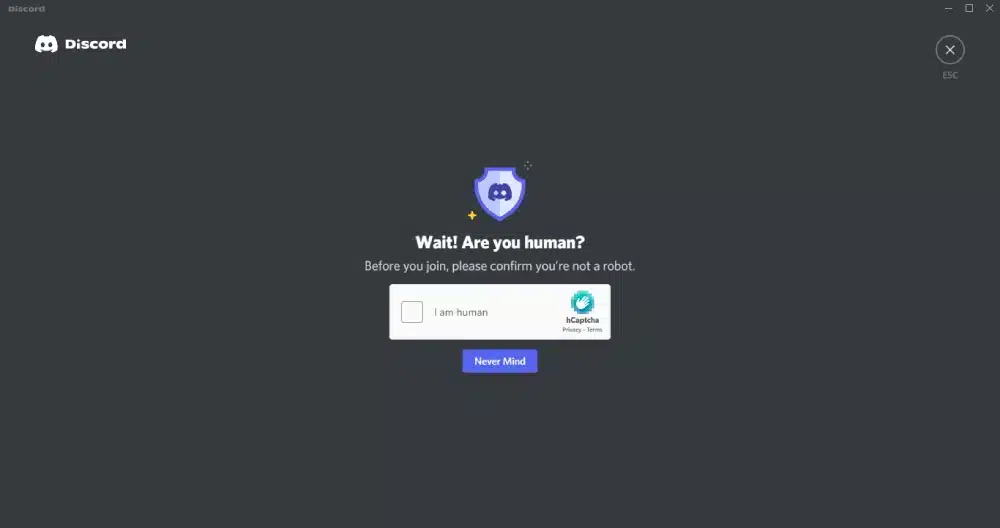
Before jumping to fixes, it helps to understand what is actually happening behind the scenes when a captcha fails to load or process correctly, since that context often points directly to the right solution.
How Discord’s captcha system actually works
Discord relies on a third-party captcha provider that runs a script inside your browser or app to verify you are human before allowing login or certain sensitive actions like verifying a new server. When that script fails to load, gets blocked, or times out partway through, the captcha appears broken even though the underlying account itself is completely fine and unaffected. Recognizing this distinction upfront saves you from wasting time investigating your account when the browser environment is actually the source of the problem.
Common triggers behind captcha failures
Ad blockers, aggressive privacy extensions, outdated browsers, and unstable network connections are the most frequent culprits behind captcha scripts failing to load or process correctly on the first attempt. Identifying which of these applies to your specific setup narrows the fix considerably before you even start troubleshooting, since testing each possibility one at a time wastes time compared to recognizing the pattern first.
Fixing Discord login captcha not working on desktop
Desktop users encountering this issue typically have the most troubleshooting options available, since browser extensions and settings are easier to adjust than on mobile.
Browser-level fixes worth trying first
Anyone dealing with Discord login captcha not working in a browser should start by disabling ad blockers and privacy extensions temporarily, since these frequently block the captcha script from loading entirely. Consider these quick checks that resolve the majority of desktop cases:
- Disable ad blockers and privacy extensions temporarily for the login page
- Clear browser cache and cookies specifically for Discord’s domain
- Try an incognito or private window to rule out extension conflicts
App-specific fixes when the browser is not the issue
If the desktop app itself shows the error rather than a browser, restarting the app fully rather than simply minimizing it, and checking for pending updates, resolves a meaningful share of cases, since outdated app versions sometimes ship with a captcha integration that Discord has since patched on their end. Reinstalling the app entirely is worth trying if a simple restart and update check does not resolve the issue.
Resolving Discord captcha bot not working during verification
Server verification bots that rely on captcha add another layer of complexity, since the issue can live with either Discord’s captcha system or the bot’s own integration.
Diagnosing a discord captcha bot not working case
When a Discord captcha bot not working issue appears during server verification, checking whether other members are experiencing the same problem in real time helps determine if the issue is server-specific or platform-wide across many communities at once. A server-specific problem usually points to the bot’s own configuration rather than Discord’s underlying captcha system itself.
Steps server admins can take to resolve bot captcha issues
Admins troubleshooting a verification bot should work through a structured sequence rather than guessing randomly at what might be wrong, which often wastes time without actually fixing the root cause. Consider this general approach for resolving bot-related captcha failures:
- Check the bot’s status page or support server for known outages
- Verify the bot has the correct permissions to run captcha verification
- Reinvite or reauthorize the bot if permissions appear to have changed
Handling captcha bot Discord not working across multiple servers
Sometimes the same captcha bot fails across several servers simultaneously, which points to a broader issue rather than a single misconfigured community.
Recognizing a widespread captcha bot discord not working pattern
If a captcha bot Discord not working pattern shows up across multiple unrelated servers at the same time, the issue almost certainly lives with the bot’s backend infrastructure rather than any individual server’s specific settings or configuration choices. Checking the bot developer’s official status channels or support server confirms whether an outage is already known and actively being addressed by their team.
What to do while waiting for a widespread fix
Temporarily disabling the captcha requirement entirely, if you have the necessary admin permissions to do so, keeps the server accessible to new members joining while the underlying bot issue gets fully resolved by the developer. Consider these steps while waiting for a broader fix to roll out:
- Notify server members about the known issue to reduce confusion
- Temporarily lower verification requirements if admin permissions allow
- Check back periodically rather than repeatedly retrying the same failing verification
Comparing common captcha failure scenarios
Matching your specific symptom to the right fix saves considerable time, since the fastest solution for one situation is often useless for another entirely different cause.
Distinguishing browser issues from account-specific ones
A captcha that fails on every browser and device you try usually points to an account-level or network-level issue rather than anything local to a specific setup, while a captcha that fails only on one particular browser almost always points to an extension or cache problem specific to that installation. Knowing which pattern you are dealing with narrows the diagnostic path immediately and saves you from testing fixes that could not possibly address the actual cause.
A quick reference for common captcha issues
Below is a compact reference for matching your specific symptom to the fix most likely to resolve it quickly:
| Symptom | Most Likely Cause | Fastest Fix |
|---|---|---|
| Captcha never loads at all | Ad blocker or extension conflict | Disable extensions, try incognito |
| Captcha loads but rejects answers | Outdated browser or app cache | Clear cache, update browser |
| Fails across multiple servers | Bot backend outage | Check bot status, wait it out |
Final thoughts on keeping Discord login smooth
Knowing why Discord captcha not working errors happen, and having a fix checklist ready before you need it, turns a frustrating login block into a quick recovery every time it comes up. Most cases resolve within a few minutes once approached in the right order rather than randomly retrying the same failing attempt over and over without changing anything about the underlying setup.
Building better login reliability habits
Keeping your browser and Discord app updated, periodically clearing cache and cookies, and knowing which extensions might interfere with captcha scripts all prevent the majority of avoidable login blocks before they ever happen in the first place. Revisiting your browser extension list every few months, especially after installing anything new, catches configuration drift that could otherwise cause frustrating logins at the worst possible moment right before a scheduled match.
Pairing reliable login with a stable connection
Ultimately, Discord captcha not working issues are just one piece of a smooth overall Discord experience, since connection quality matters just as much once you are actually logged in and ready to play. Running ExitLag alongside a properly configured browser and app setup gives players a complete foundation, one where login stays reliable and gameplay stays smooth, with neither piece of that foundation doing much good without the other. For more on setting up a clean, well-organized community from the start, our complete server setup guide covers the structural habits worth building early.
Got questions or want to connect with other players? Join the conversation at the ExitLag Forum!