
Fallout 4 script extender is one of the most important tools for players who want to expand Fallout 4 beyond what standard mods can accomplish. Better known as F4SE, the utility extends the game's scripting capabilities so advanced mods can use functions that are not normally available.
Installing fallout 4 script extender is different from downloading a normal weapon, texture, settlement, or gameplay mod. F4SE interacts directly with the Fallout 4 runtime, which means compatibility between your game version and F4SE version is essential.
So, what is fallout 4 script extender? It is a third-party scripting utility created for Fallout 4 that expands the functions available to mod authors without permanently modifying Fallout4.exe. Many sophisticated PC mods use those additional functions to implement features that would otherwise be difficult or impossible.
However, F4SE is not developed by Bethesda Game Studios. It belongs to the wider PC modding ecosystem, and game updates can temporarily affect compatibility until the F4SE developers release an appropriate version.
That makes preparation particularly important for modern Fallout 4 installations. Before adding dozens of mods, players should understand runtimes, F4SE versions, installation directories, loaders, plugins, and what happens after Bethesda updates the game.
Fallout 4 Script Extender: What Is F4SE?

The fallout 4 script extender f4se project expands the scripting environment available to Fallout 4 mods.
For regular players, that technical description can sound more complicated than it actually is. F4SE essentially provides additional functionality that mod creators can call when building more advanced modifications.
What does Fallout 4 Script Extender do?
Fallout 4 already has a scripting system that Bethesda uses to control many game functions.
However, mod developers sometimes need capabilities beyond the functions exposed by the standard game.
F4SE extends those possibilities.
That is why some mods list F4SE as a requirement. Without the extender, the additional functions expected by those mods may not be available.
F4SE can therefore serve as a foundation for a larger modded setup.
It is important to understand what it does not do as well.
F4SE is not:
- An official Bethesda expansion
- A collection of Fallout 4 mods
- A graphics overhaul
- A complete mod manager
- A guaranteed performance booster
- A replacement for Fallout 4 itself
- An official Creation Club or Creations tool
Installing it alone does not transform the Commonwealth. Its value comes primarily from enabling other compatible modifications.
Why do Fallout 4 mods require F4SE?
Simple mods may work perfectly without any script extender.
A texture replacement, for example, may only need to replace or add assets. Other modifications can operate using the functionality already exposed by Fallout 4.
More advanced mods may require additional scripting capabilities.
When a mod author builds a feature around F4SE functions, the extender becomes a dependency.
That creates an important rule for modding Fallout 4:
Always read a mod's requirements before installing it.
Do not install F4SE simply because you assume every Fallout 4 mod needs it. Likewise, do not ignore F4SE when a mod explicitly lists it as a requirement.
Fallout 4 Script Extender F4SE Compatibility Explained
Compatibility is one of the most important parts of using fallout 4 script extender f4se.
F4SE interacts with specific Fallout 4 runtimes. Consequently, installing a build designed for a different runtime can prevent the extender or dependent plugins from working correctly.
Which F4SE version should you download?
Start by identifying your Fallout 4 version.
Then compare that runtime against the versions listed on the official F4SE website.
The correct F4SE download depends on that match.
This becomes especially important after Fallout 4 receives an update. Bethesda has continued updating the game long after its original 2015 release, including the 2024 next-gen updates, the 2025 Anniversary Edition changes, and additional updates in 2026.
Never assume that an old tutorial still points to the correct F4SE package.
Instead:
- Check your installed Fallout 4 runtime.
- Visit the official F4SE website.
- Find the build corresponding to your runtime and storefront.
- Check requirements for your F4SE-dependent mods.
- Update incompatible plugins when necessary.
- Back up important files and saves before making major changes.
This approach is much safer than selecting whichever download has the highest version number.
Fallout 4 runtime and F4SE version compatibility
The official F4SE project maintains builds for different Fallout 4 runtimes.
That matters because players may intentionally remain on an older runtime for mod compatibility, while others use the newest supported game version.
A compatibility table makes the relationship easier to understand:
| Fallout 4 version | What to do |
| Current supported PC runtime | Use the matching current F4SE build |
| Older supported runtime | Use the F4SE build specifically made for that runtime |
| Fallout 4 VR | Use the dedicated Fallout 4 VR-compatible build |
| Windows Store/Game Pass build | Check F4SE restrictions before attempting installation |
| Newly released Fallout 4 update | Wait for confirmed F4SE compatibility if required |
The exact versions can change as Fallout 4 and F4SE receive updates.
Therefore, always treat the official F4SE download page as the authoritative source for the latest compatibility information rather than permanently relying on a static table in an older guide.
How to Download Fallout 4 Script Extender
Downloading fallout 4 script extender from the correct source is just as important as selecting the correct version.
F4SE is widely used, so search engines can return tutorials, archives, mod pages, and unofficial mirrors alongside the actual project.
Where to get the official F4SE download
The safest starting point is the official F4SE project website operated through Silverlock.
There you can see the currently supported builds and the Fallout 4 runtimes associated with them.
This helps avoid two common mistakes:
- Downloading an obsolete version
- Downloading files from an unknown third-party mirror
The official page also provides project information and compatibility details directly from the F4SE team.
Before downloading anything, compare those details with your Fallout 4 installation.
Choosing the correct version for your Fallout 4 runtime
Do not choose based exclusively on which F4SE package appears newest.
Your game runtime determines compatibility.
This becomes especially relevant for players maintaining older mod lists. A large mod setup may contain F4SE plugins built for a specific runtime, and updating one component without checking the others can break dependencies.
Think of the setup as a chain:
Fallout 4 runtime → F4SE version → F4SE plugins → dependent mods
Compatibility problems anywhere in that chain can create errors.
Keeping track of your versions can save considerable troubleshooting time later.
How to Install Fallout 4 Script Extender
Once you have the correct package, the next step is installing fallout 4 script extender into the appropriate location.
Unlike many standard mods, the core F4SE files belong alongside the Fallout 4 executable rather than being treated purely as ordinary Data-folder content.
Extracting F4SE correctly
First, download the appropriate archive from the official source.
Extract the archive using a compatible archive utility.
Inside, you should find the files supplied by the F4SE developers, including the loader and related components.
Do not randomly rename those files.
Also avoid mixing files from several F4SE versions in the same directory. If you are replacing an old installation, make sure you understand which old files are being replaced.
Keeping the installation clean makes troubleshooting much easier.
Placing F4SE files in the Fallout 4 directory
The important location is the Fallout 4 game directory containing the Fallout 4 executable.
For a typical Steam installation, you can locate the directory through Steam rather than manually guessing where it was installed.
The basic process is:
- Locate your Fallout 4 installation folder.
- Open the extracted F4SE archive.
- Read the included installation information.
- Copy the required F4SE files into the correct Fallout 4 location.
- Preserve the directory structure supplied by F4SE.
- Confirm that the loader is in the appropriate game directory.
- Configure your mod manager if you plan to launch F4SE through it.
Avoid blindly copying files from an outdated tutorial.
The official package instructions should take priority because installation requirements can evolve alongside the project.
How to Launch Fallout 4 With F4SE
Installing fallout 4 script extender is only half of the process.
If your mods depend on F4SE, you also need to start Fallout 4 in a way that loads the extender.
Using the F4SE loader
F4SE includes its own loader.
That loader starts Fallout 4 while injecting the additional functionality required by the extender.
Therefore, players using F4SE-dependent mods commonly launch through the F4SE loader rather than simply treating the standard Fallout 4 executable as their normal shortcut.
This is one of the most common beginner mistakes.
Someone installs F4SE correctly, installs several dependent mods, and then starts Fallout 4 normally. When the expected features do not appear, they assume the installation failed.
Before troubleshooting everything else, confirm how you launched the game.
Launching through a mod manager
Mod managers can simplify larger Fallout 4 installations.
Depending on the manager and configuration, you can add the F4SE loader as an executable and launch your modded setup from there.
This provides a convenient workflow:
- Open your mod manager.
- Check that your desired mods are enabled.
- Select the F4SE executable.
- Launch the game.
- Test your setup.
Exact steps vary between mod managers, so follow the documentation for the software you use.
F4SE itself should not be confused with the mod manager. They perform different jobs.
How to Check if Fallout 4 Script Extender Is Working
After installation, verification should happen before you add a huge collection of F4SE-dependent mods.
Testing early makes troubleshooting dramatically easier.
Verifying your installation
Begin with the basics.
Confirm that you downloaded a build intended for your Fallout 4 runtime. Then verify that the files were placed in the correct directory and that you launched through F4SE.
If an F4SE-dependent mod includes its own verification method, follow that mod author's instructions as well.
A successful game launch alone does not prove that every plugin in a complicated load order is compatible.
You need to think in layers:
| Layer | What to verify |
| Fallout 4 | Game runtime is known and working |
| F4SE | Build matches the runtime |
| Plugins | Plugins support the installed F4SE/runtime |
| Mods | Dependencies are installed |
| Load order | Mods are organized correctly |
| Saves | Test saves remain stable |
This layered approach makes identifying failures much easier.
Recognizing common installation mistakes
Many F4SE problems are caused by simple setup errors.
Common examples include:
- Wrong F4SE version
- Wrong Fallout 4 runtime
- Files copied into the wrong folder
- Launching Fallout 4 without the F4SE loader
- Outdated F4SE plugins
- Missing mod dependencies
- Mixing files from different F4SE builds
- Following instructions written for an older Fallout 4 version
Do not immediately reinstall your entire mod list.
Start with the simplest compatibility checks first.
Fallout 4 Script Extender Not Working: Common Fixes
When fallout 4 script extender stops working, the timing of the problem can provide an important clue.
If everything worked yesterday and Fallout 4 updated today, runtime compatibility should be one of the first things you investigate.
Fallout 4 and F4SE version mismatch
A version mismatch occurs when the F4SE build does not support the installed Fallout 4 runtime.
This can happen after an automatic game update.
The solution is not to repeatedly launch the same incompatible configuration.
Instead, check the official F4SE page for information about the new runtime and an appropriate F4SE release.
If support is not yet available, you may need to wait before using that updated runtime with F4SE.
Avoid downloading supposed “fixes” from random websites simply because you want immediate compatibility.
Incorrect installation path and outdated plugins
Even when F4SE itself supports your runtime, third-party plugins can create another compatibility layer.
A plugin compiled for an older runtime may need an update from its own developer.
That means “F4SE is updated” does not automatically mean “every F4SE mod is updated.”
| Problem | Possible cause | What to check |
| F4SE will not load | Runtime mismatch | Fallout 4 and F4SE versions |
| Dependent mod does not work | F4SE not loaded | Launch method |
| Crash after game update | Outdated plugin | Plugin compatibility |
| Loader error | Unsupported runtime | Official F4SE releases |
| Features missing | Missing dependency | Mod requirements |
| Game works without one plugin | Plugin conflict/version issue | Plugin documentation |
Disable and test problematic components methodically rather than changing everything simultaneously.
That way, you can identify the actual cause.
Why Fallout 4 Updates Can Break F4SE
Fallout 4 script extender depends closely on the game's executable runtime.
When Bethesda changes that runtime, F4SE may also need changes to remain compatible.
This is normal behavior for script extenders and similar utilities.
How Fallout 4 runtime updates affect script extenders
A Fallout 4 update can modify executable code that F4SE expects to interact with.
Therefore, an extender designed around the previous runtime cannot simply assume everything remains in the same place after an update.
The F4SE developers need to evaluate the new version and, when necessary, release a compatible build.
Plugins built on top of F4SE may require updates as well.
That creates a sequence:
- Bethesda releases a Fallout 4 update.
- The game's runtime may change.
- Existing F4SE compatibility is checked.
- A matching F4SE update may be required.
- Plugin developers check their own compatibility.
- Mod users update components as appropriate.
- Stable mod lists can resume normal operation.
Patience can prevent unnecessary damage to a carefully configured setup.
What to do after Bethesda updates Fallout 4
First, do not panic.
Check whether the update actually changed the PC runtime relevant to your setup.
Bethesda continues to maintain Fallout 4. For example, the company released its Anniversary Edition and new Creations experience in November 2025 and continued publishing Fallout 4 updates in 2026.
Updates can include anything from content-system changes to bug fixes.
Before changing your F4SE installation, check:
- Fallout 4's current version
- Official F4SE compatibility
- F4SE-dependent plugin updates
- Mod author instructions
- Your mod manager configuration
- Recent backups
If everything is compatible, there is no reason to perform unnecessary reinstalls.
Fallout 4 Script Extender and the Next-Gen Updates
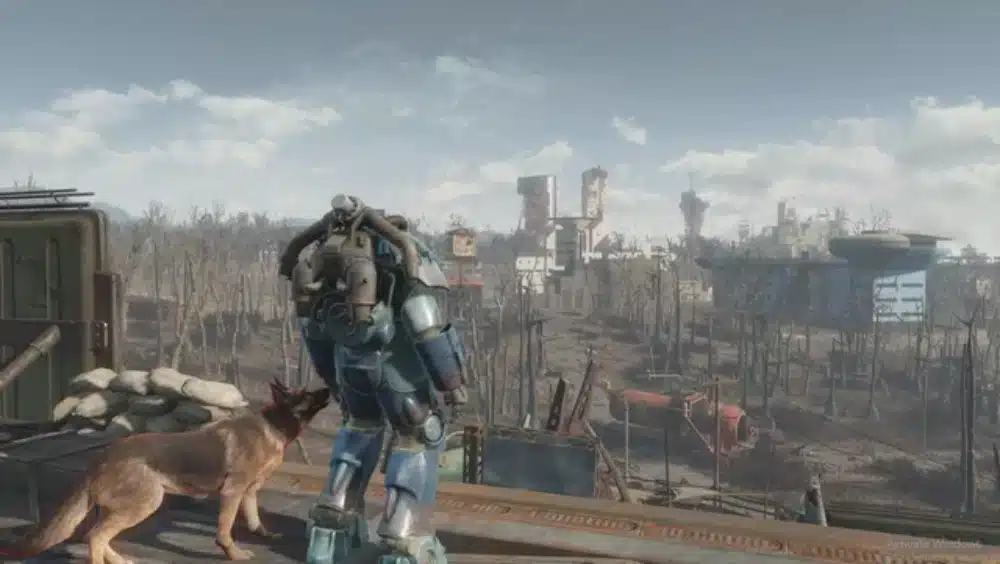
Bethesda's major April 2024 next-gen update changed Fallout 4 across PC and consoles.
On PC, Bethesda added features such as widescreen and ultrawide support, Steam Deck verification, Creation Club content, and multiple fixes.
Fallout 4 runtime 1.10.984 and F4SE
Bethesda's second next-gen update, released May 13, 2024, officially listed 1.10.984 as the version for PC.
That runtime became especially important within the F4SE ecosystem because mod users needed versions of their tools and plugins compatible with the updated executable.
The broader lesson remains relevant today.
Never refer to a guide simply as “next-gen compatible” without checking the actual runtime.
Version numbers provide much more useful information than vague labels.
Newer Fallout 4 runtimes and F4SE compatibility
Fallout 4 continued changing after 2024.
The Anniversary Edition launched on November 10, 2025, bundling the base game, all six official expansions, and more than 150 Creation Club items. Bethesda also added its newer Creations menu to Fallout 4 versions as part of that period.
Bethesda then continued maintaining the game into 2026, including a May update expanding Creations storage and fixing several related issues.
For F4SE users, the practical rule does not change:
Check the runtime, then check F4SE compatibility.
Do not assume a package that worked before a Bethesda update remains the right package afterward.
Does F4SE Work With Steam, GOG, and Microsoft Store?
Platform compatibility matters because PC storefronts can package and protect software differently.
The fallout 4 script extender f4se project therefore does not necessarily work identically with every Fallout 4 PC release.
Steam and GOG support
F4SE supports compatible Fallout 4 releases from supported PC storefronts identified by its developers.
However, Steam and GOG users should still check the current F4SE download information because runtime versions can differ.
The storefront alone is not enough.
You still need to know which Fallout 4 executable version you are running and whether the corresponding F4SE build supports it.
This is especially important for users maintaining older modded installations.
Why the Windows Store version is different
The Windows Store version presents additional restrictions for script extenders.
According to the F4SE developers, the Windows Store version does not provide the APIs required for the extender to work.
Therefore, do not assume that instructions written for Steam can simply be copied over to the Microsoft Store/Game Pass installation.
This is also different from Bethesda's official Creations support.
Bethesda can provide Creations and built-in mod functionality across platforms without that meaning every third-party PC script extender will work there.
FAQ
F4SE has existed for years, but Fallout 4 updates continue to generate compatibility questions.
Here are the essential answers for modern modded installations.
Is Fallout 4 Script Extender safe?
F4SE is a well-established third-party tool in the Fallout 4 PC modding ecosystem. However, players should obtain it from its official distribution source rather than unknown mirrors. As with any modding utility, back up important saves and understand what you are installing.
Is F4SE a Fallout 4 mod?
Not in the same sense as a typical weapon, texture, quest, or settlement mod. F4SE is a script extender. It expands the functionality available to mods, allowing developers to create features that can depend on additional scripting capabilities.
Does Fallout 4 Script Extender work with the latest update?
This answer can change whenever Fallout 4 is updated. Check the official F4SE website and compare the supported runtime against your installed Fallout 4 version. Do not rely exclusively on an old article, forum comment, or tutorial for a compatibility question that changes over time.
Why does F4SE say my Fallout 4 version is unsupported?
A runtime mismatch is one of the most likely explanations. Your Fallout 4 installation may have updated while your F4SE installation remained on a build intended for the previous executable. Alternatively, you may be using a Fallout 4 distribution that F4SE does not support. Check both the runtime and storefront before troubleshooting deeper issues.
Do all Fallout 4 mods need F4SE?
No. Many Fallout 4 mods work without F4SE. Only install the extender when your chosen mods require it or when you specifically need functionality provided by F4SE. Always read each mod's requirements.
Does F4SE work on consoles?
No. F4SE is a PC script extender and is not something players install on PlayStation or Xbox. Fallout 4 does support Bethesda's own console-compatible mod and Creations ecosystem, but that is different from F4SE. Bethesda expanded Creations storage on consoles in May 2026, demonstrating that the official Creations ecosystem remains active across those platforms.
Do I need to reinstall F4SE after an update?
Not every Bethesda update automatically means the same action is required. What matters is whether the Fallout 4 runtime changed and whether your installed F4SE build remains compatible. Check first. If a new F4SE build is required, follow the official project's instructions for updating it. Then verify dependent plugins individually because they may have their own compatibility requirements.
Fallout 4 Script Extender: Build a Stable Modded Setup
Fallout 4 script extender can become the foundation of an impressive modded Fallout 4 installation, but stability depends on managing dependencies carefully. Installing F4SE is relatively straightforward; maintaining compatibility across the game, extender, plugins, and individual mods requires more attention.
The best approach is to treat fallout 4 script extender as one part of a complete modding stack rather than a universal fix. Know your runtime, use trusted downloads, read mod requirements, keep backups, and avoid updating a heavily modded setup without first checking compatibility.
Keep Fallout 4, F4SE, and plugins compatible
A stable setup starts with organization.
Know which version of Fallout 4 you are using. Match it to the appropriate F4SE release. Then check every important F4SE plugin before assuming the complete load order will work.
A few habits can prevent many problems:
- Keep track of your Fallout 4 runtime.
- Download F4SE from its official source.
- Read dependency requirements.
- Avoid mixing files from different F4SE versions.
- Back up important saves.
- Check plugin compatibility after game updates.
- Test major changes before continuing a long playthrough.
- Change one troubleshooting variable at a time.
This approach is less exciting than downloading dozens of mods at once, but it can save hours of troubleshooting.
Improving performance beyond F4SE
F4SE itself should not be treated as a network optimizer.
Fallout 4 is primarily a single-player RPG, so reducing online ping is not the reason to install it. The extender exists to expand scripting capabilities for the PC modding ecosystem.
ExitLag becomes relevant when Fallout players switch to online and competitive games on PC or mobile. Its Real-Time Optimization and Multipath Connection technologies are designed to optimize gaming routes, reduce the impact of inefficient routing, and improve connection stability in supported online titles.
That means the two tools solve completely different problems: F4SE supports advanced Fallout 4 mod functionality, while ExitLag focuses on network optimization for online gaming.
For anyone building a heavily modded Commonwealth, keeping the game runtime, plugins, and fallout 4 script extender compatible is the key to avoiding unnecessary problems. And when you leave Fallout 4 for multiplayer games, ExitLag can help optimize your connection so network instability does not get in the way of your next online session.
All game images used in this blog belong to Bethesda Game Studios. They are used for informational/educational purposes only and do not imply endorsement or affiliation with the rights holders.
Disclaimer: The following information pertains exclusively to the fictional game 'Fallout 4' and its simulation mechanics. We do not support, encourage, or promote the use, trafficking, or any illegal activity related to controlled substances in real life. This content is purely educational about digital entertainment.



