

Cheating in online games has always been a major concern, but when it comes to competitive battle royales like Fortnite, security is even more crucial. That’s why Epic Games relies on the Fortnite Anti Cheat system to keep gameplay fair and enjoyable.
Fortnite uses Easy Anti‑Cheat (EAC) as its primary anti‑cheat system. EAC is designed to monitor memory, file integrity, and background processes to block unauthorized software or hacks.
Epic Games also integrates EAC’s kernel driver and employs statistical / machine learning techniques to detect suspicious behavior in matches.
While some online sources claim Fortnite also uses BattlEye or internal systems in addition, I did not find authoritative confirmation of those beyond the official EAC usage.
What Anti Cheat Does Fortnite Use?
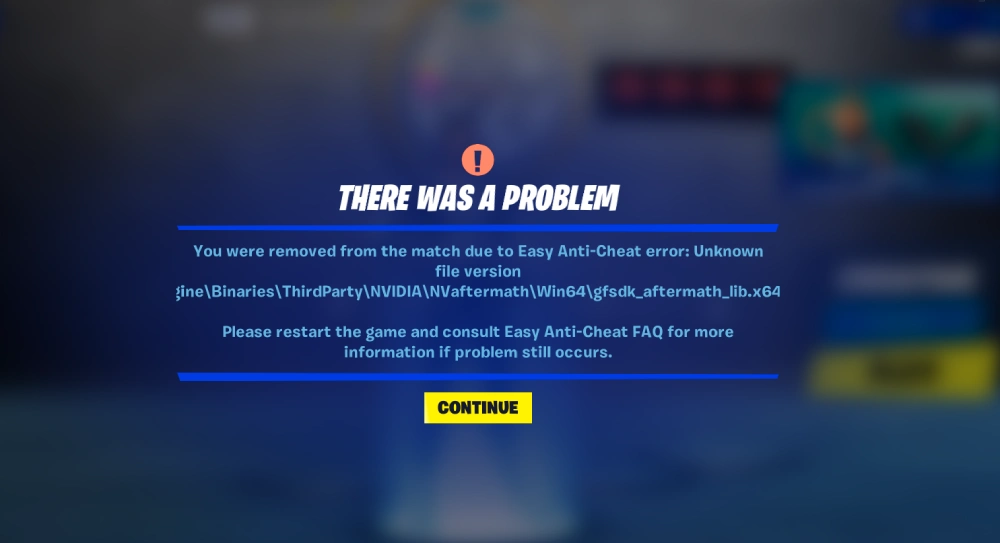
A frequent question among the community is: what anti cheat does Fortnite use?
The answer is Easy Anti-Cheat (EAC), developed by Epic Games subsidiary Kamu. It’s one of the most widely used anti-cheat solutions in modern online gaming, also implemented in titles like Apex Legends, Dead by Daylight, and Battlefield.
EAC runs in the background, monitoring memory manipulation, unauthorized third-party programs, and exploits. It doesn’t just ban cheaters—it prevents them from even launching the game when suspicious files are detected.
Why Fortnite Anti Cheat Is Important
The success of Fortnite depends on fair matches. Without protection, cheaters could ruin entire lobbies by using:
- Aimbots
- Wallhacks
- Speed modifications
- Script injectors
The Fortnite anti-cheat update system constantly evolves to counter new threats. Each patch strengthens detection and closes vulnerabilities, making Fortnite one of the most secure battle royales available.
Common Fortnite Anti Cheat Errors
Despite its importance, many players encounter issues with EAC. Here are the most reported ones:
| Error Name | Error Code/Details | Common Cause |
| Fortnite internal anti cheat error | General crash | Corrupted files or outdated drivers |
| Easy anti cheat not installed Fortnite | Startup issue | EAC not properly installed |
| Easy anti cheat error 0xea 03002 Fortnite | Specific crash code | Registry or Windows conflict |
| Anti cheat crash Fortnite 00000022 | Game closes instantly | Faulty system permissions |
| Easy anti cheat setup not opening Fortnite | Setup won’t launch | Admin restrictions or broken installer |
| Fortnite easy anti cheat error | General EAC problem | Missing updates or interference from other apps |
These errors are frustrating, especially during tournaments or live events.
Fortnite Internal Anti Cheat Error

The internal anti cheat error Fortnite typically happens when the EAC service fails to initialize correctly. This can result from corrupted installation files, outdated Windows updates, or conflicts with third-party software like overlays and antivirus programs.
In many cases, reinstalling EAC or verifying the game files fixes the issue. However, repeated occurrences might indicate deeper system-level problems.
Easy Anti Cheat Error 0xea 03002 Fortnite
Another common frustration is the easy anti cheat error 0xea 03002 Fortnite. This code often appears after major patches or when system drivers are not compatible with the latest Fortnite anti-cheat update.
Players have reported that reinstalling Visual C++ redistributables and repairing EAC can resolve this. Still, Epic frequently updates support pages to address this recurring crash.
Anti Cheat Crash Fortnite 00000022
One particularly disruptive error is Game Security Violation Detected (#00000022), triggered by Easy Anti‑Cheat when it identifies unauthorized or suspicious behavior.
Common triggers include: conflicts with third‑party software (e.g. AutoHotkey, DS4Windows), corrupted or modified game files, driver or TPM issues, or interference from antivirus or overlay tools.
To remedy it, players often disable conflicting apps, repair EAC, update drivers, or adjust permissions.
Easy Anti Cheat Setup Not Opening Fortnite
One of the most basic yet irritating issues is when the easy anti cheat setup not opening Fortnite problem appears. Instead of installing, the setup freezes or refuses to launch.
This often happens due to missing admin privileges or corrupted download files. In most cases, running the setup manually from the EAC folder in Fortnite’s directory solves the issue.
How to Install Easy Anti Cheat for Fortnite
If players face the easy anti cheat not installed Fortnite message, manual installation is required. The process is simple but must be followed carefully:
- Navigate to the Fortnite installation folder.
- Open the EasyAntiCheat subfolder.
- Run EasyAntiCheat_Setup.exe as administrator.
- Select Fortnite from the list of games.
- Click “Install” or “Repair”.
This ensures EAC is properly installed, reducing chances of Fortnite easy anti cheat error during startup.
Why Errors Happen

- Corrupted Fortnite or EAC files
- Outdated Windows or GPU drivers
- Conflicts with antivirus or overlays
- Missing Visual C++ components
- Broken installation from updates
Understanding these causes helps players troubleshoot faster and avoid repeat issues.
Quick Fixes for Fortnite Anti Cheat Errors
- Verify Fortnite game files via Epic Games Launcher.
- Reinstall or repair Easy Anti-Cheat manually.
- Update GPU and Windows drivers.
- Disable overlays like Discord or GeForce Experience.
- Temporarily turn off third-party antivirus/firewall.
- Run Fortnite and EAC as administrator.
- Reinstall Fortnite if all else fails.
These steps solve the majority of issues, ensuring players can return to their matches without major disruptions.
Fortnite Anti-Cheat Update: Staying Ahead
Epic Games frequently releases Fortnite anti-cheat updates to tackle new cheating methods. These updates not only patch vulnerabilities but also optimize system stability, often reducing the frequency of EAC-related crashes.
However, every update carries the risk of introducing compatibility issues, which is why so many players experience errors right after patches. Epic encourages users to keep both their operating systems and Fortnite clients fully updated to minimize problems.
ExitLag and Fortnite Anti Cheat
While ExitLag cannot fix anti‑cheat errors directly, in theory it can help stabilize your network connection, reduce latency, and minimize packet loss — factors that might reduce incidental issues like desync that could otherwise aggravate EAC-related errors.
Users should ensure ExitLag is compatible and does not interfere with EAC or system security, as anti‑cheat software is particularmente sensível to unauthorized network modifications.
Start your Exitlag 3 days Trial!
How Fortnite Easy Anti-Cheat Works
At its core, Easy Anti-Cheat monitors three main elements:
- Game files integrity: prevents altered or corrupted files from running.
- Memory scanning: blocks unauthorized memory injection tools.
- Network consistency: ensures packet manipulation tools can’t give unfair advantages.
When the system detects irregularities, it either prevents Fortnite from launching or triggers a Fortnite anti cheat error. This is why so many users encounter problems right after major updates or driver changes.
What Makes Fortnite Anti Cheat Different
Unlike some competitors, Fortnite’s implementation of Easy Anti-Cheat is designed for scalability. Epic Games manages one of the largest multiplayer ecosystems in the world, so the anti-cheat solution must:
- Detect new cheats within days of release.
- Handle millions of concurrent players.
- Avoid interfering with legitimate software.
Other games might rely on stricter kernel-level protection, but Fortnite balances protection with accessibility. This is one reason why Fortnite anti-cheat update patches are frequent—they ensure the system adapts without disrupting too many legitimate players.
Common Fortnite Anti Cheat Errors Revisited
Let’s expand on some of the most disruptive issues faced by players:
| Error Name | Code / Message | Common Causes / Notes |
| Game Security Violation Detected | #00000022 | Triggered by EAC when detecting unauthorized behavior; software conflicts, file corruption, driver or TPM issues |
| EAC Not Installed / Missing | “Easy Anti-Cheat is not installed” | EAC skipped or removed; install or repair via EasyAntiCheat_Setup.exe |
| Setup / Installer Doesn’t Launch | — | Lack of admin rights, corrupted installer, antivirus blocking |
| General EAC Error / Crash | — | Conflicts with overlays, antivirus, outdated drivers, background software interference |
| Other EAC-specific error codes (e.g. 0xEA03002) | Specific crash / error code | Could relate to registry, driver, system configuration issues (less well documented) |
These fixes demand patience, but most issues are solvable without reinstalling the entire game.
Advanced Fixes for Persistent Errors
If you’ve tried the basics from Part 1, here are more advanced steps:
- Clean Boot Windows – Restart with minimal services to detect third-party conflicts.
- Check Digital Signatures – EAC requires signed drivers; outdated unsigned ones may block startup.
- System File Checker – Run sfc /scannow to repair Windows core files.
- Reinstall Certificates – Some errors stem from broken Windows security certificates.
- Hardware Integrity Check – Rarely, faulty RAM or SSD corruption can mimic anti-cheat crashes.
These advanced methods tackle deep system conflicts behind recurring Fortnite anti cheat error messages.
Fortnite Anti-Cheat Update Frequency
Epic Games regularly updates Easy Anti-Cheat to:
- Patch vulnerabilities discovered by cheat developers.
- Ensure compatibility with Windows updates.
- Improve performance to avoid false positives.
Players often notice that right after a Fortnite anti-cheat update, reports of errors spike. This isn’t because the patch “breaks” the game, but because EAC becomes stricter, flagging outdated drivers or conflicting overlays more aggressively.
When to Expect Errors
- Immediately after a new Fortnite update.
- Right after major Windows system updates.
- When using third-party overlays (Discord, NVIDIA, MSI Afterburner).
- After switching hardware like GPU or SSD.
- If EAC isn’t installed correctly during setup.
Pro Tips for Stable Anti Cheat Performance
- Always keep Fortnite and Windows fully updated.
- Run Easy Anti-Cheat setup as administrator after big patches.
- Avoid running too many background programs during gameplay.
- Regularly verify Fortnite files via Epic Games Launcher.
- Keep backups of Visual C++ redistributables and reinstall when necessary.
- Disable unnecessary overlays before competitive sessions.
- Reboot your PC after every major update to clear cached conflicts.
These tips drastically reduce the chances of running into Fortnite easy anti cheat error problems.
The Future of Fortnite Anti Cheat

Looking ahead, Fortnite’s anti-cheat system will continue evolving toward:
- Machine learning detection of suspicious gameplay patterns.
- Faster ban cycles against detected cheaters.
- Deeper Windows kernel integration without harming user experience.
Epic’s goal is to strike the perfect balance: aggressive enough to protect competitive play, but forgiving enough not to punish innocent players dealing with technical errors.
FAQ – Fortnite Anti Cheat
Fortnite uses Easy Anti-Cheat (EAC), a widely adopted system that monitors game files, memory, and network traffic to prevent cheating. It is updated frequently to combat new threats.
This usually happens when EAC fails to initialize due to corrupted files, outdated drivers, or third-party conflicts. Running EasyAntiCheat_Setup.exe as administrator and verifying game files usually fixes the issue.
ExitLag doesn’t fix anti-cheat errors directly, but it prevents lag, desync, and unstable connections. This ensures that Fortnite Anti Cheat functions smoothly while you enjoy lower ping and more reliable gameplay.
All game images used in this blog belong to Epic Games. They are used for informational/educational purposes only and do not imply endorsement or affiliation with the rights holders.
Got questions or want to connect with other players? Join the conversation at the ExitLag Forum!

