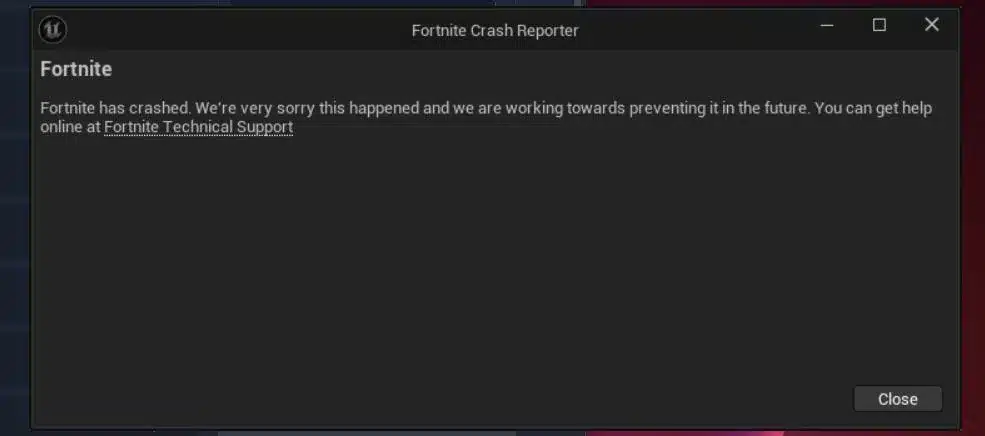
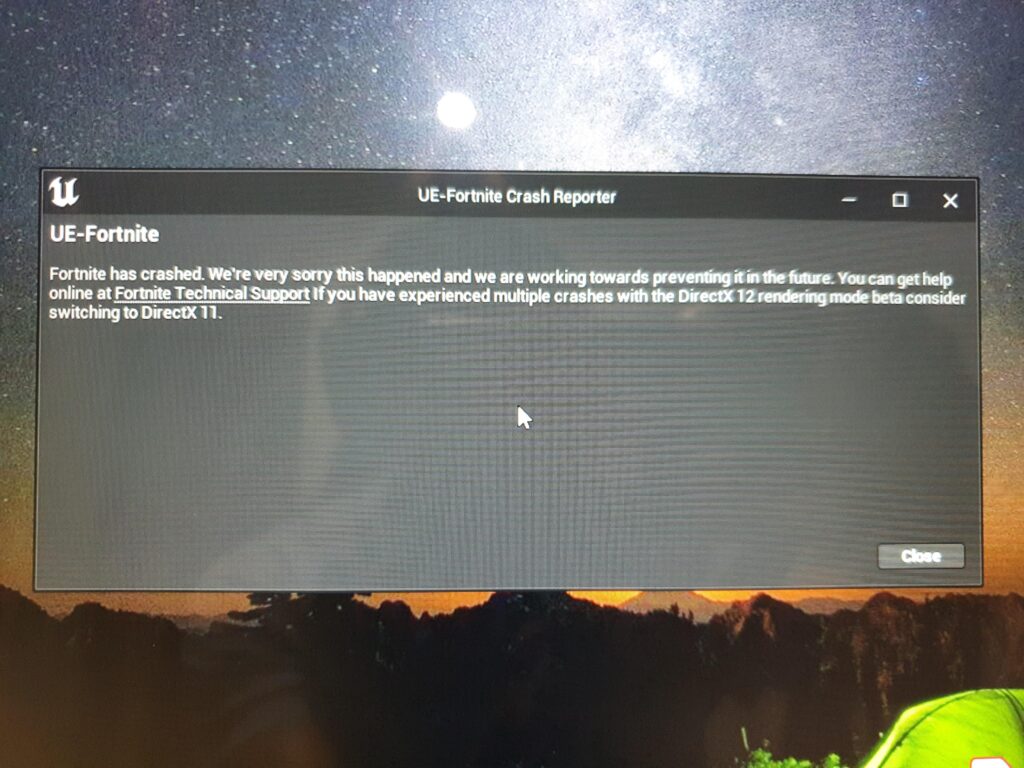
If you have been playing Fortnite and suddenly experienced Fortnite crashing, you are not alone. Players can encounter unexpected crashes on Windows 11, NVIDIA GPUs, and even high-end gaming PCs. The problem can appear without warning, interrupting matches, loading screens, or even the process of launching the game.
The most frustrating part is that Fortnite crashing does not always have one obvious cause. A game can run perfectly one day and begin closing unexpectedly after a driver update, Windows patch, Fortnite update, graphics setting change, or background application conflict. Therefore, identifying the source of the problem is the first step toward a reliable fix.
What is Fortnite crashing?
Fortnite crashing refers to Fortnite unexpectedly freezing, closing, becoming unresponsive, or returning the player to the Windows desktop during launch, loading, or gameplay. The underlying cause can involve graphics drivers, corrupted files, overheating, EasyAntiCheat, Windows compatibility, background software, or system instability.
Fortnite is a constantly evolving battle royale game, with frequent seasons, weapons, maps, visual updates, and Unreal Engine changes. These updates keep the experience fresh, but they can also create new compatibility problems. As a result, a system that previously handled Fortnite without problems may suddenly experience instability after an update.
For players trying to understand why does Fortnite keep crashing, the solution is usually a process of elimination. Checking hardware temperatures, graphics drivers, game files, Windows settings, background applications, and rendering APIs can reveal the source of the problem without immediately resorting to a complete reinstall.
What Causes Fortnite Crashing on PC?
Understanding the most common reasons for Fortnite crashing PC problems makes troubleshooting much easier. Instead of changing dozens of settings randomly, players can focus on the areas most likely to cause instability.
Hardware Incompatibility
Fortnite can run on a wide range of computers, but meeting the minimum requirements does not necessarily guarantee perfect stability. A system may technically be capable of launching the game while still struggling with demanding graphics settings, memory usage, or specific rendering features.
A graphics card that supports Fortnite may still encounter problems with particular driver versions. Similarly, insufficient RAM, an unstable power supply, or an SSD with very little free space can contribute to system instability.
Hardware problems can become particularly noticeable during graphically intensive moments. Large fights, detailed environments, special events, and demanding visual effects can push the CPU and GPU harder than ordinary gameplay.
Players should therefore consider more than the basic specifications of their PC. Stability matters just as much as raw performance.
Important areas to check include:
- GPU and CPU temperatures during gameplay.
- Available system RAM.
- Free SSD or HDD storage.
- Power supply capacity and stability.
- GPU driver compatibility.
- CPU and GPU overclocking settings.
- Cooling performance and case airflow.
If the computer becomes unstable only when Fortnite places a heavy load on the system, hardware or thermal limitations deserve particular attention.
Outdated or Unstable Graphics Drivers
Graphics drivers are another common source of Fortnite instability. This is particularly relevant when dealing with a Fortnite NVIDIA crash Windows 11 configuration.
Updating drivers is normally a good practice, but the newest driver is not automatically the most stable driver for every game and every system. A new release can sometimes introduce a compatibility problem that did not exist previously.
That creates an important distinction between outdated drivers and unstable drivers.
An outdated driver can lack important optimizations or fixes. On the other hand, a recently released driver can introduce a new issue affecting Fortnite, DirectX, Windows, or EasyAntiCheat.
If crashes began immediately after a driver update, rolling back to a previously stable version can be worth testing.
For a clean driver installation, some players use DDU, or Display Driver Uninstaller. The tool can remove previous driver components before a fresh installation, which can help when corrupted or conflicting driver files remain on the system.
Overheating and System Temperatures
Temperature is another important factor when diagnosing Fortnite crashing PC problems.
Fortnite can place substantial demand on both the CPU and GPU. If cooling is inadequate, temperatures can rise until the system becomes unstable.
A dusty computer, blocked airflow, malfunctioning fan, or poorly configured cooling system can make the problem worse. In addition, aggressive performance settings can increase the workload placed on the processor and graphics card.
Monitoring temperatures while Fortnite is running can reveal whether crashes coincide with unusually high CPU or GPU temperatures.
Players should also review:
- Fan operation.
- Case airflow.
- Dust accumulation.
- CPU cooler performance.
- GPU cooling.
- BIOS performance settings.
- Windows power settings.
A system that remains stable at lower temperatures but crashes under sustained load may require cooling improvements rather than a Fortnite-specific software fix.
Corrupted Game Files and Local Settings
Corrupted or inconsistent game files can also lead to crashes. Fortunately, Epic Games Launcher provides a Verify option that can check Fortnite's installed files and repair problems when possible.
If verification does not solve the issue, local configuration files can become the next area to investigate.
The GameUserSettings.ini file stores important Fortnite preferences. Resetting this file can sometimes resolve persistent configuration conflicts. Cached files and other local settings can also contribute to unusual behavior.
However, resetting configuration files has a downside: video settings, preferences, and some controls may return to their defaults.
Before deleting configuration files, players should therefore understand what they are changing and back up important preferences when necessary.
Background Applications
Modern gaming PCs commonly run many applications simultaneously. Discord, streaming software, RGB utilities, monitoring programs, browser processes, recording tools, and overlays can all consume system resources or interact with Fortnite.
In some cases, the problem is not the application itself but the overlay or hook it uses to interact with the game.
Temporarily disabling unnecessary overlays can therefore be a useful diagnostic step.
Common applications worth testing include:
- Discord overlay.
- NVIDIA overlays.
- Streaming and recording software.
- RGB control utilities.
- Hardware monitoring applications.
- Third-party performance tools.
- Unnecessary startup applications.
If Fortnite becomes stable after background software is disabled, players can re-enable applications one at a time to identify the conflict.
Where Does Fortnite Crashing Happen Most Frequently?
The location and timing of a crash can provide valuable information. A crash that happens before the lobby loads is different from one that occurs only during a large team fight.
Crashes During Launch
If Fortnite closes before reaching the lobby, the problem may involve corrupted files, drivers, EasyAntiCheat, configuration data, or compatibility problems.
Launch crashes are especially useful to diagnose because they often happen consistently. If the game crashes every time at the same stage, players can compare changes made immediately before the problem appeared.
Crashes During Matches
A crash that occurs during a match can be related to system load, overheating, graphics settings, drivers, or background software.
Competitive players may notice these problems more frequently because they often use high frame rates and demanding performance settings. A system that appears stable in the lobby can become unstable once the GPU and CPU are working harder during gameplay.
Crashes After Updates
Another frequent situation is Fortnite crashing more after update.
A major patch can change rendering behavior, introduce new assets, modify anti-cheat components, or interact differently with existing drivers. Consequently, a previously stable PC can begin crashing after an update without any hardware changes.
When crashes begin immediately after an update, players should avoid assuming that their hardware suddenly failed. Software compatibility should be investigated first.
Crashes in Graphics-Heavy Areas
Large fights and visually demanding areas can expose instability that remains hidden during less demanding gameplay.
High textures, shadows, ray tracing, high frame rates, and advanced rendering features can increase GPU workload. Therefore, lowering demanding settings can be useful not only for performance but also as a stability test.
How ExitLag Can Help When Network Problems Resemble Crashes
Not every Fortnite problem that looks like a crash is necessarily a conventional application crash. Network instability can produce freezes, disconnects, severe stuttering, or situations in which the player appears to lose control of the match.
This is where ExitLag can help address connection-related instability. ExitLag uses multi-path routing to optimize the path between the player's connection and the game server. The goal is to provide a more consistent route, reduce latency-related problems, and minimize random connection interruptions.
For Fortnite players, a more stable connection can be particularly useful during competitive matches where sudden packet loss or latency spikes can interrupt gameplay.
However, network optimization should not be treated as a replacement for diagnosing genuine application crashes. If Fortnite closes to the desktop, the primary investigation should focus on drivers, files, temperatures, Windows, graphics settings, and EasyAntiCheat.
If the problem instead involves freezes, disconnects, severe latency, or unstable server communication, connection optimization becomes more relevant.
Diagnosing Fortnite Keeps Crashing Problems
Before applying advanced fixes, it helps to categorize the crash.
| Crash Type | Common Cause | Quick Fix |
| Launch Crash | Drivers, corrupted files, EAC, configuration | Verify files and test drivers |
| Mid-Match Crash | Overheating, GPU overload, unstable settings | Check temperatures and lower graphics settings |
| Post-Update Crash | Patch instability, EAC conflicts, driver problems | Verify files and test a stable driver |
| Random Freeze | Background applications, network instability, system load | Disable overlays and check connection stability |
Use Windows Event Viewer
Windows Event Viewer can provide useful information about application crashes.
Players can open Event Viewer and inspect Windows logs around the exact time Fortnite stopped working. Application errors involving Fortnite, graphics components, or EasyAntiCheat may provide clues.
Event Viewer can be confusing because Windows records many unrelated events. The goal is not to treat every warning as the cause of the crash. Instead, focus on entries that occur at the same time as the Fortnite failure.
Check Minidumps and Crash Information
Crash dumps can provide more technical information when basic troubleshooting does not work.
Depending on the failure, logs may help identify whether the problem involves:
- Graphics drivers.
- Memory.
- DirectX.
- EasyAntiCheat.
- Windows components.
- Fortnite processes.
Tools designed to interpret crash information can make these reports easier to understand, although advanced diagnostics may require technical knowledge.
Check Whether Fortnite Servers Are Having Problems
Before changing drivers, reinstalling the game, or modifying Windows, players should also determine whether the problem is widespread.
Search for the current Fortnite server status, check whether is Fortnite down, and compare reports about Fortnite servers. Official service information can help distinguish a local PC problem from a broader service interruption.
The same approach applies when checking Fortnite status or investigating whether Fortnite is Fortnite down for multiple players.
If the servers are experiencing an outage, changing local graphics settings will not solve the underlying service problem.
For official support and service information, players can also consult Epic Games Support.
How to Stop Fortnite From Crashing All the Time
If Fortnite keeps crashing PC, follow a logical troubleshooting sequence rather than changing every setting at once.
Update or Roll Back Graphics Drivers
Start by determining whether the crash began after a graphics driver change.
If the system uses NVIDIA graphics and the issue appeared following an update, test a known stable driver. If the driver is significantly outdated, installing a current version may resolve compatibility problems.
For persistent driver conflicts, a clean installation can be more effective than repeatedly installing over an existing driver.
A practical troubleshooting sequence is:
- Identify the current GPU driver version.
- Determine when the crashes began.
- Compare that date with recent driver updates.
- Test a current stable driver.
- If the problem started after the update, test a previous stable version.
- Use a clean installation if conflicting files are suspected.
- Restart the PC and test Fortnite again.
This approach is more reliable than repeatedly changing drivers without recording the results.
Adjust Graphics Settings
Graphics settings can influence both performance and stability.
Players experiencing crashes should temporarily reduce the most demanding options rather than immediately changing everything.
Useful tests include:
- Set textures to Medium.
- Set shadows to Low or disable them.
- Disable Ray Tracing.
- Cap FPS at a stable value such as 120 or 144.
- Test different rendering APIs.
- Avoid aggressive overclocking.
- Reduce settings that produce unusually high GPU utilization.
If Fortnite becomes stable after lowering settings, gradually restore individual options to identify the setting that causes instability.
Switch Between DirectX 11 and DirectX 12
The rendering API can make a significant difference on different systems.
DirectX 12 can provide performance advantages, but it may behave differently depending on the GPU, driver, Windows build, and Fortnite configuration.
If DX12 is unstable, testing DX11 can provide a useful comparison. Conversely, systems experiencing problems under DX11 can test DX12.
The important point is to test one mode at a time and play long enough to determine whether stability changes.
Verify Game Files and Reset Configuration
Open the Epic Games Launcher, find Fortnite, access the game's settings, and select Verify.
Allow the process to complete before launching the game again.
If verification does not solve the problem, consider resetting local configuration data. GameUserSettings.ini is one of the files that may be relevant when persistent settings conflicts are suspected.
Because resetting configuration can restore default preferences, players should save important settings before making changes.
Manage Background Applications
Temporarily disable unnecessary applications and overlays.
This is especially important for players using streaming software, Discord, recording tools, RGB utilities, or multiple monitoring applications simultaneously.
A clean test environment makes it easier to determine whether Fortnite itself is unstable or whether another application is interfering with it.
Check for Overheating
Use a hardware monitoring tool to observe CPU and GPU temperatures while Fortnite is running.
Do not check temperatures only when the game is idle. The useful information comes from the period immediately before or during a crash.
If temperatures rise significantly before the game becomes unstable, inspect cooling, airflow, fan operation, and power settings.
Why Fortnite Keeps Crashing on Windows 11
Windows 11 can introduce additional compatibility considerations for Fortnite players.
Memory Management and Background Services
Windows 11 manages memory and background processes differently from older Windows versions. While these systems are designed to work with modern games, conflicts can occasionally occur.
Reducing unnecessary background processes can help free resources and eliminate potential software conflicts.
NVIDIA Driver Compatibility
The Fortnite NVIDIA crash Windows 11 combination deserves particular attention when crashes begin after a driver or Windows update.
A driver can interact with the operating system, DirectX, Fortnite, and the GPU simultaneously. Therefore, a crash that looks like a Fortnite problem may actually originate from the graphics driver stack.
Game Mode and Windows Features
Windows gaming features can affect how resources are allocated.
If Fortnite becomes unstable after a Windows update or configuration change, players can test features such as Game Mode and Hardware-Accelerated GPU Scheduling rather than assuming they should always be enabled.
One useful diagnostic approach is to change one feature, restart the system, and test Fortnite again.
Windows Builds and Compatibility
New Windows builds can introduce changes that affect drivers, graphics APIs, security features, and anti-cheat systems.
When a Fortnite crash begins immediately after a Windows update, checking recent system changes is important.
Players should avoid randomly uninstalling Windows updates. Instead, identify the relevant update and determine whether the timing of the crash strongly correlates with that change.
Advanced Fixes for Fortnite Crashing
When basic troubleshooting does not solve Fortnite crashing PC problems, more advanced measures can be considered.
Perform a Clean Fortnite Reinstallation
A complete Fortnite reinstallation can remove damaged installation files that verification does not resolve.
The process should include uninstalling Fortnite through the Epic Games Launcher and checking for relevant leftover configuration or cache files when appropriate.
A clean installation takes substantially more time than verifying files, so it should generally be considered after simpler solutions have been tested.
Repair EasyAntiCheat
EasyAntiCheat is an important part of Fortnite's environment. If its installation becomes corrupted or conflicts with another system component, Fortnite may fail to launch or become unstable.
Players can locate the EasyAntiCheat installation associated with Fortnite and use the available installer or repair functionality.
If crashes started after an update that changed anti-cheat components, repairing EAC can be a particularly relevant troubleshooting step.
Change the Graphics API
Testing DirectX 11 and DirectX 12 remains one of the most useful troubleshooting comparisons.
If one API consistently crashes while the other remains stable, the result provides an important clue about where the problem may originate.
However, players should not assume that one API is universally better. Stability depends on the complete combination of GPU, driver, Windows version, settings, and Fortnite build.
Update BIOS and Firmware Carefully
BIOS and firmware updates can improve hardware compatibility and stability, but they should not be treated as routine Fortnite fixes.
If a motherboard or GPU manufacturer specifically lists stability or compatibility improvements relevant to the player's configuration, updating firmware may be appropriate.
Because firmware updates carry more risk than changing a game setting, players should follow the manufacturer's instructions precisely.
Use Event Viewer for Persistent Crashes
For recurring crashes, Event Viewer can help identify whether Fortnite is consistently failing through the same Windows component.
Record the time of each crash and compare the events that appear immediately afterward.
A pattern is more useful than a single isolated warning.
Optimizing Fortnite Settings to Prevent Crashes
Fine-tuning Fortnite settings can reduce system stress and help establish a stable baseline.
Recommended In-Game Graphics Settings
A stability-focused configuration can prioritize consistent workload over maximum visual quality.
Consider the following starting point:
- Textures: Medium or High depending on available GPU VRAM.
- Shadows: Off or Low.
- Ray Tracing: Disabled.
- V-Sync: Off when using a controlled FPS limit.
- FPS limit: Use a value the PC can maintain consistently.
- Rendering API: Test DX11 and DX12 separately.
The goal is not necessarily to use the lowest possible graphics settings. Instead, the objective is to avoid sudden spikes in workload that could expose instability.
Advanced Rendering Options
Multithreaded Rendering can be beneficial on modern multi-core processors. However, systems with unusual CPU limitations may behave differently.
Players should test settings individually rather than applying a long list of changes simultaneously.
This creates a repeatable troubleshooting process. If stability improves, the player knows which change contributed to the result.
Windows 11 Adjustments
Windows settings can also be tested when Fortnite remains unstable.
Potential adjustments include:
- Testing Hardware-Accelerated GPU Scheduling.
- Reviewing Windows Game Mode.
- Using an appropriate power plan.
- Reducing unnecessary startup applications.
- Closing resource-intensive background programs.
- Testing Fortnite without overlays.
Setting Fortnite to high priority is sometimes suggested, but it should not be treated as a universal solution. Priority changes can alter resource allocation without addressing the actual cause of the crash.
Preventing Fortnite Crashes After Updates
A major Fortnite update can change enough of the game's environment to expose previously hidden compatibility issues.
Immediate Post-Update Checks
After a major patch, players experiencing instability should start with simple checks.
Verify the game files and restart the computer. Then test Fortnite before changing multiple system settings.
If the problem continues, investigate the GPU driver and EasyAntiCheat.
Identify Whether the Patch Is the Cause
Timing matters.
If Fortnite worked normally for weeks and begins crashing immediately after an update, the update should be considered a possible factor.
However, correlation does not automatically prove causation. A GPU driver, Windows update, background application, or hardware change may have occurred at the same time.
Therefore, compare recent changes rather than assuming the Fortnite patch is solely responsible.
Follow Known Issue Reports
When many players experience the same problem after an update, official Fortnite communications and issue tracking can provide useful context.
A widespread problem may require an official hotfix rather than local troubleshooting.
In that situation, repeatedly reinstalling Windows or replacing hardware is unlikely to be productive.
Permanent Fixes for Fortnite Keeps Crashing
For players who experience recurring crashes, long-term stability requires looking beyond a single Fortnite setting.
Consider Hardware Stability
If Fortnite consistently crashes under high system load, examine the complete PC configuration.
Moving Fortnite to an SSD can improve loading behavior and reduce storage-related bottlenecks. Adequate RAM is also important, with 16 GB providing a practical baseline for a stable modern gaming setup.
The power supply should also provide sufficient wattage for the installed CPU and GPU.
Test for Overclocking Instability
CPU, GPU, and RAM overclocks can produce instability that appears only in demanding games.
If the system uses overclocking or aggressive memory profiles, temporarily returning components to conservative settings can determine whether the configuration is stable.
A PC that becomes stable at default settings may have a hardware tuning problem rather than a Fortnite-specific problem.
Optimize the Network
Network optimization cannot repair a genuine application crash, but it can help when the perceived problem is actually connection instability.
Stable routing and lower latency can reduce disconnects and severe network interruptions during matches.
For players who experience both application crashes and connection problems, it is useful to troubleshoot each category separately.
Consider a Clean Windows Installation
A clean Windows installation should be considered a final measure, not the first response.
It can resolve deep conflicts between drivers, software, Windows components, and system configuration. However, reinstalling Windows is time-consuming and requires backups.
Before taking this step, players should exhaust more targeted solutions and confirm that the problem is genuinely system-wide.
A Practical Troubleshooting Flow for Fortnite Crashing
When Fortnite keeps crashing PC, use a structured process.
Start With the Simplest Checks
Begin with changes that are easy to reverse.
- Check Fortnite's current server situation.
- Restart the PC.
- Verify Fortnite's game files.
- Disable unnecessary overlays.
- Check GPU drivers.
- Monitor CPU and GPU temperatures.
- Test lower graphics settings.
- Switch between DX11 and DX12.
These steps can solve many problems without requiring a complete reinstall.
Move to Advanced Diagnostics
If the crash continues, move deeper into the system.
- Check Windows Event Viewer.
- Inspect Fortnite and EasyAntiCheat errors.
- Repair EasyAntiCheat.
- Reset local configuration files.
- Test a different graphics driver.
- Check BIOS and firmware stability.
- Test the system without overclocking.
- Consider a clean Fortnite installation.
The key is to make one meaningful change at a time.
Record What Changes
Troubleshooting becomes much easier when players keep track of what they have tested.
For example, if Fortnite crashes under DX12 but remains stable under DX11, that result is valuable. If the game crashes only when an overlay is enabled, that is also valuable.
A simple record can include:
| Test | Result | What It Suggests |
| Verify files | Stable/unstable | Possible corruption |
| DX11 test | Stable/unstable | Rendering API clue |
| DX12 test | Stable/unstable | Rendering API clue |
| Overlay disabled | Stable/unstable | Background software conflict |
| Lower FPS | Stable/unstable | GPU workload clue |
| Driver rollback | Stable/unstable | Driver compatibility clue |
| Temperature monitoring | Normal/high | Thermal stability clue |
This method prevents players from repeatedly testing the same solutions without learning anything from the results.
Who Is Most Affected by Fortnite Crashing?
Different types of Fortnite players can experience different instability patterns.
Competitive Players
Competitive players often run high frame rates and performance-focused configurations.
Because these systems prioritize responsiveness, GPU and CPU workloads can be high for extended periods. A small stability problem can therefore become noticeable quickly.
Competitive players should prioritize consistent frame pacing and stability over maximum graphical quality when troubleshooting.
Casual Players
Casual players may encounter crashes less frequently, but they can still experience them during special events, large fights, or major updates.
A crash that happens only occasionally can be more difficult to diagnose because it may not reproduce during every test.
In these cases, documenting when the crash occurs is particularly useful.
Streamers and Content Creators
Streaming setups can be more complicated because Fortnite may run alongside OBS, Discord, browsers, recording tools, overlays, and other applications.
The combined resource load can increase the likelihood of instability.
Testing Fortnite without streaming software or overlays can determine whether the additional workload is contributing to the problem.
What to Check Before Assuming Fortnite Is Broken
It is easy to blame the game immediately when Fortnite crashes. However, several external factors can produce identical symptoms.
Before concluding that Fortnite itself is responsible, check the following:
- Did the crash begin after a GPU driver update?
- Did Windows recently update?
- Did Fortnite receive a major patch?
- Did you install new software?
- Are CPU and GPU temperatures normal?
- Are you using an overclock?
- Does the crash happen only with DX12?
- Does disabling overlays change anything?
- Are other demanding games also crashing?
- Are Fortnite's servers experiencing a broader issue?
If other demanding games also crash, the problem may be broader than Fortnite.
If only Fortnite crashes and the issue began immediately after a game update, Fortnite-specific compatibility is more likely.
If the game crashes only when a particular application is running, background software becomes the stronger suspect.
This distinction saves time because it directs troubleshooting toward the most relevant layer of the system.
Final Thoughts on Fortnite Crashing
Ultimately, Fortnite crashing can result from many different factors, from unstable graphics drivers and corrupted files to overheating, Windows compatibility, EasyAntiCheat conflicts, background applications, and demanding graphics settings.
The best solution is not to apply every possible fix simultaneously. Instead, identify when and how the crash occurs, check whether the problem is local or widespread, and then test the most likely causes systematically.
Start with server availability, game-file verification, drivers, temperatures, graphics settings, and background applications. If those checks do not resolve the issue, move to configuration resets, EasyAntiCheat repair, rendering API changes, Event Viewer diagnostics, and deeper system troubleshooting.
For players dealing with Fortnite crashing, a structured approach can turn a frustrating problem into a manageable diagnosis. By isolating the cause and prioritizing stability, you can reduce unexpected interruptions and create a more reliable Fortnite experience across launches, loading screens, matches, and major updates. And to improve your experience even further you can count on tools such as ExitLag, which help you reduce lag and optimize your connection.
Frequently Asked Questions About Fortnite Crashing
Why does Fortnite keep crashing on PC?
Fortnite can keep crashing on PC because of outdated or unstable graphics drivers, corrupted game files, overheating, background applications, EasyAntiCheat conflicts, or incompatible graphics settings. Windows 11 updates and Fortnite patches can also introduce temporary compatibility issues.
How do I stop Fortnite from crashing on Windows 11?
Start by verifying Fortnite's game files, updating or rolling back your GPU drivers, checking CPU and GPU temperatures, disabling unnecessary overlays, and testing different rendering APIs. Switching between DirectX 11 and DirectX 12 can also help identify rendering-related instability.
Why is Fortnite crashing after an update?
Fortnite may crash after an update because a new patch can conflict with existing GPU drivers, EasyAntiCheat, Windows components, or local configuration files. Verifying the game files, testing a stable graphics driver, and temporarily changing advanced graphics settings are useful first steps.
How can I tell if Fortnite servers are causing the problem?
Check the current Fortnite server status before changing PC settings. Searching for Fortnite server status, checking whether Fortnite is down, and reviewing reports about Fortnite servers can help determine whether the problem is widespread. If multiple players are experiencing the same outage, the issue may be server-side rather than related to your PC.
Can ExitLag fix Fortnite crashing?
ExitLag cannot directly repair a genuine Fortnite application crash caused by drivers, corrupted files, overheating, or EasyAntiCheat. However, it can help with connection-related problems such as unstable routing, latency spikes, and random disconnects that may sometimes resemble a crash or freeze during online matches.