Fortnite error code 91 appears when the game is unable to join a party, preventing you from connecting with friends and playing together. The problem can be related to Fortnite services, corrupted game files, console cache, crossplay settings, NAT configuration, or your network connection.
The best way to fix Fortnite error code 91 is to start by checking whether the Fortnite servers are operational. If there is no outage, PC players should verify their game files, while console players can clear their cache before checking crossplay, NAT, and network settings.
If Fortnite error code 91 continues after those steps, restart your router and gaming device, then investigate whether packet loss, high latency, or another connection issue is interfering with Fortnite. Working through the possible causes in order is usually faster than immediately reinstalling the entire game.
What Is Fortnite Error Code 91?
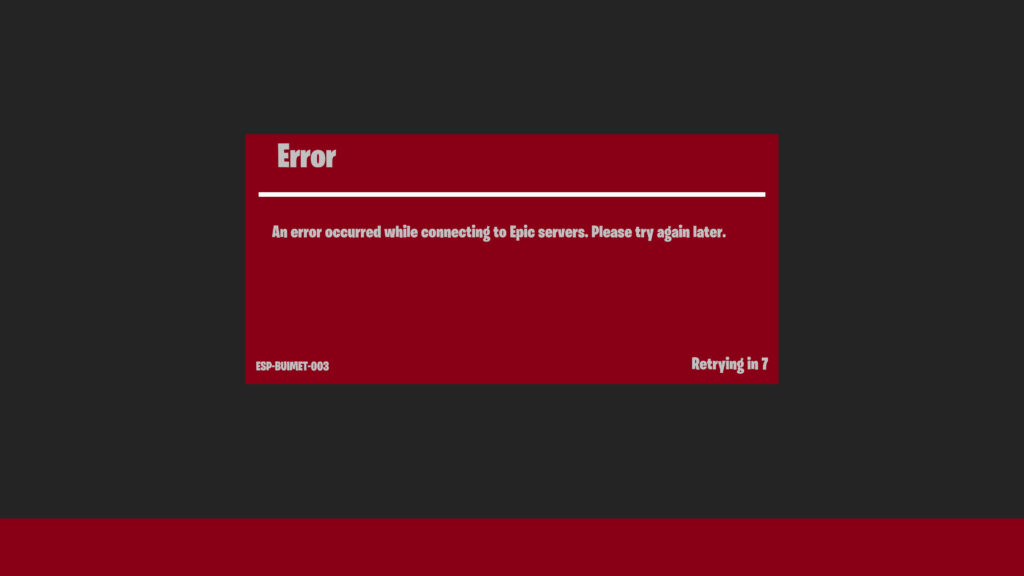
Fortnite error code 91 is associated with a failure to join a party. You may encounter it while attempting to connect with friends before entering a match.
The error does not automatically mean that something is wrong with your Fortnite account. Several different technical conditions can prevent the party connection from being established successfully.
Possible causes include:
- Fortnite server outages;
- Temporary Epic services problems;
- Corrupted Fortnite files;
- Console cache problems;
- Crossplay configuration;
- Restrictive NAT;
- Router or network issues;
- Packet loss;
- Temporary device problems.
Because there are multiple possibilities, identifying the cause before making major changes is the most efficient approach.
Fortnite Error Code 91 Quick Fix
If you want to get back into your party quickly, follow the troubleshooting sequence below.
| Step | What to do | Platform |
| 1 | Check Fortnite server status | All |
| 2 | Verify Fortnite game files | PC |
| 3 | Clear system cache | Consoles |
| 4 | Check crossplay | PlayStation/Xbox |
| 5 | Check NAT | Consoles |
| 6 | Restart router | All |
| 7 | Test your connection | All |
| 8 | Restart device | All |
| 9 | Contact support if necessary | All |
Do not begin by reinstalling Fortnite. Several simpler solutions should be tested first, and the problem may even be outside your device.
1. Check the Fortnite Servers First
Before changing your PC, console, router, or Fortnite account, determine whether Fortnite itself is experiencing an outage.
This should always be your first troubleshooting step because no local fix can restore an Epic service that is currently unavailable.
Check the official Epic Games status information and look for incidents affecting systems related to Fortnite.
Pay particular attention to services involving:
- Fortnite;
- Login;
- Parties;
- Friends;
- Matchmaking;
- Epic Online Services.
If an outage is confirmed, the best solution is usually to wait until Epic resolves the affected service.
How do you know if Fortnite is down?
Server problems can affect many players simultaneously. Possible signs include:
- Friends cannot join parties;
- Matchmaking fails;
- Login problems;
- Friends list problems;
- Party invitations fail;
- Multiple Epic services show errors;
- Many players report the same issue simultaneously.
One player’s Error 91 does not prove that the servers are down, which is why checking the official service status is more useful than assuming an outage.
2. Try Joining the Party Again
If the Fortnite servers are working normally, try the simplest solution before changing anything. Leave the current party and attempt to join again.
Temporary communication problems between the client and party services can sometimes disappear on a second attempt, particularly if the error happened only once.
You can also try:
- Leave the party;
- Return to the Fortnite lobby;
- Wait briefly;
- Ask your friend to send another invitation;
- Join the new party;
- Test matchmaking.
If Error 91 immediately returns, continue with the next troubleshooting steps.
3. Verify Fortnite Game Files on PC
PC players should verify their Fortnite installation through the Epic Games Launcher.
Verification checks installed files and can replace damaged or missing data without requiring you to download the entire game again.
This makes it a much better troubleshooting step than immediately uninstalling Fortnite.
How to verify Fortnite files
In the Epic Games Launcher:
- Open your Library;
- Find Fortnite;
- Open the options menu for the game;
- Select Manage;
- Choose Verify;
- Allow the verification process to finish;
- Launch Fortnite again;
- Try joining your party.
Do not interrupt the process while the launcher checks the installation.
Will verifying Fortnite delete your account?
No.
Verifying local game files does not delete your Fortnite account, purchased cosmetics, Battle Pass progression, or other account-based content.
The process checks the game installation on your computer rather than resetting your Epic account.
4. Clear the Cache on Consoles
If you encounter Fortnite error code 91 on a console, corrupted or outdated cached data may contribute to connection or game behavior problems.
Clearing the cache allows the system to rebuild temporary information.
This troubleshooting method can apply to:
- PlayStation;
- Xbox Series X|S;
- Nintendo Switch.
The exact procedure varies by platform, so follow the current instructions appropriate for your console.
After clearing the cache, restart the system, launch Fortnite, and try joining the party again.
5. Check Fortnite Crossplay Settings
Crossplay is especially important when party members use different platforms.
For example, one player might be using PlayStation while another is on Xbox. If the required cross-platform settings are disabled, joining or playing together can become problematic.
PlayStation and Xbox users experiencing Error 91 should therefore confirm that crossplay is enabled.
When is crossplay especially important?
Check this setting when your party includes players using different ecosystems, such as:
- PlayStation and Xbox;
- Console and PC;
- Different supported console families.
If everyone can join same-platform friends but problems appear with players on another platform, crossplay deserves particular attention.
6. Check Your NAT Type
NAT, or Network Address Translation, affects how your console communicates with other systems and online services.
A restrictive NAT configuration can interfere with multiplayer connectivity, voice communication, matchmaking, and party functionality.
This makes NAT an important troubleshooting area for console users.
NAT problems can cause:
- Difficulty joining parties;
- Multiplayer connection failures;
- Problems communicating with other players;
- Longer matchmaking attempts;
- Inconsistent online connectivity.
The terminology varies between Xbox, PlayStation, and Nintendo platforms, so follow the troubleshooting guidance for your specific console.
Avoid changing advanced router settings randomly. Incorrect configuration can create additional network problems instead of solving Error 91.
7. Restart Your Router
If Fortnite services are operational and your game configuration looks correct, restart your network equipment.
A router or modem can remain online while still experiencing temporary communication problems.
A proper restart establishes a fresh connection with your internet service provider and can clear some temporary network conditions.
How to restart your network
A basic sequence is:
- Close Fortnite;
- Turn off your gaming device;
- Turn off or unplug your modem/router;
- Wait briefly;
- Power the network equipment back on;
- Wait for the internet connection to return;
- Turn your device back on;
- Launch Fortnite;
- Try joining the party again.
Avoid repeatedly restarting your router if the first attempt makes no difference. At that point, continue diagnosing the connection.
8. Restart Your PC or Console
A complete device restart is another simple step that is easy to overlook.
Closing and reopening Fortnite does not necessarily reset every process or network state associated with your system.
Restarting the entire device can refresh:
- Network settings;
- Fortnite processes;
- Epic Games Launcher processes;
- System services;
- Temporary system states.
After the restart, launch Fortnite normally and test the party again before making additional changes.
9. Test Your Internet Connection
If Fortnite error code 91 continues while Epic’s services appear operational, investigate your internet connection.
A connection can appear to work normally for websites and streaming while still behaving poorly during online gaming.
Gaming depends not only on download speed but also on stability.
Important factors include:
- Latency;
- Packet loss;
- Routing;
- Connection stability;
- Wi-Fi quality;
- Network congestion.
A very fast connection can still produce a poor Fortnite experience if packets are being lost or latency fluctuates heavily.
How to Check Packet Loss in Fortnite
Fortnite includes network statistics that can help determine whether your connection is unstable.
You can enable Net Debug Stats from the game’s interface settings. Once enabled, network information appears while you are playing.
This can show metrics such as:
- Ping;
- Packet loss;
- Network activity.
Packet loss means some data traveling between your device and the game infrastructure fails to reach its destination.
That can create a poor online experience even when your internet speed test looks excellent.
What Is Packet Loss?
Online games continuously exchange small pieces of information called packets between your device and game infrastructure.
When some of those packets fail to arrive, you have packet loss.
Potential symptoms include:
- Players appearing to teleport;
- Delayed actions;
- Connection instability;
- Match interruptions;
- Unresponsive gameplay;
- Party or matchmaking problems.
Occasional tiny fluctuations may occur, but persistent packet loss deserves investigation.
What Is Ping in Fortnite?
Ping measures how long data takes to travel between your device and Fortnite infrastructure and return.
It is measured in milliseconds.
Lower and more stable latency generally creates a more responsive online experience, while high or rapidly fluctuating latency can make gameplay feel delayed.
Several factors influence ping:
- Physical distance;
- Internet provider;
- Network congestion;
- Wi-Fi conditions;
- Routing;
- Data center selection.
Importantly, having a high-speed internet plan does not guarantee low ping.
Routing Can Affect Fortnite Connections
Routing describes the path your data takes across the internet before reaching its destination.
That path is not necessarily the geographically shortest route.
Internet providers send traffic through multiple networks and exchange points, and congestion or problems along those routes can increase latency or create instability.
This explains situations where:
Your internet works → other services work → Fortnite still has connection problems.
The problem can exist somewhere along the route rather than inside your PC or console.
Wi-Fi vs. Ethernet for Fortnite
If possible, test Fortnite using an Ethernet connection.
Wi-Fi is convenient, but wireless signals can be affected by distance, walls, interference, competing devices, and congestion.
| Wi-Fi | Ethernet |
| Convenient | Requires cable |
| Allows mobility | Fixed connection |
| Can suffer interference | Generally more consistent |
| Signal varies by distance | Less affected by wireless conditions |
| May experience packet loss | Often preferable for gaming |
Switching to Ethernet will not fix an Epic server outage, but it can help determine whether your local wireless network is contributing to the problem.
Try a Different Network
Testing another internet connection can be extremely useful because it helps isolate the cause.
Suppose Error 91 consistently appears on your home internet but disappears when the same device and Fortnite account use another connection.
That strongly suggests your original network deserves further investigation.
Conversely, if the problem follows your account or device across different networks, the cause may lie elsewhere.
Use this as a diagnostic test rather than assuming that changing networks permanently solves the underlying issue.
Check Whether Your Friends Have the Same Error
Ask the other members of your party whether they are also experiencing connection problems.
This provides useful diagnostic information.
If everyone has Error 91
A broader Fortnite or Epic service problem becomes more plausible.
If only you have Error 91
Focus more closely on:
- Your game installation;
- Your cache;
- Your crossplay settings;
- Your NAT;
- Your network;
- Your device.
If only one friend cannot join
The issue may be associated with that player’s configuration rather than yours.
Troubleshooting collectively can save considerable time.
Try Creating a New Party
Instead of repeatedly joining the same party, create a new one.
Have everyone leave the existing group, then ask another player to become party leader and send fresh invitations.
This helps test whether the problem is associated with the current party session. Try:
- Everyone leaves the party;
- Return to the lobby;
- Choose a different party leader;
- Send new invitations;
- Join individually;
- Test matchmaking.
If the new party works normally, no additional troubleshooting may be necessary.
Check Your Fortnite Privacy Settings
Party privacy settings can affect who is allowed to join a group, although they should not automatically be blamed for every Error 91 occurrence.
Still, if one specific friend cannot join while everyone else can, checking party permissions is reasonable.
Make sure the party configuration matches what you intend.
Also verify that:
- You are Epic friends;
- The player is not blocked;
- Invitations can be received;
- Party permissions are appropriate.
This is particularly useful when the issue consistently affects the same players.
Does Error 91 Mean Your Fortnite Account Is Banned?
No. Fortnite error code 91 by itself should not be interpreted as evidence that your account has been banned.
It specifically appears in the context of being unable to join a party.
If Epic takes an enforcement action against a Fortnite account, you should rely on the information provided by Epic rather than assuming a party connection error represents a ban.
This distinction can prevent unnecessary concern.
Does Changing Your Fortnite Account Fix Error 91?
Usually, changing accounts should not be one of your first troubleshooting steps.
The official troubleshooting sequence focuses on servers, files or cache, crossplay, NAT, network conditions, router restart, and device restart.
That tells us something important:
Error 91 is primarily a party/connectivity troubleshooting problem, not automatically an account problem.
Only investigate account-specific issues when you have evidence pointing in that direction.
Should You Reinstall Fortnite?
Reinstallation should be considered a later troubleshooting step rather than your first response.
Fortnite is a large game, and downloading everything again can consume considerable time and bandwidth.
On PC, verifying game files is a much more efficient first option.
Before reinstalling, try:
- Check Epic Games status;
- Retry the party;
- Verify files or clear cache;
- Check crossplay;
- Check NAT;
- Restart the network;
- Restart the device;
- Test another network.
Only consider a full reinstall after simpler troubleshooting has failed and there is reason to suspect the installation itself.
Should You Change DNS?
Changing DNS is sometimes recommended for connection troubleshooting, but it should not be presented as a guaranteed Error 91 fix.
DNS primarily helps translate domain names into network addresses. It does not magically repair every Fortnite connectivity problem.
Still, using a reliable public DNS can be a reasonable advanced troubleshooting step after basic solutions fail.
Do not change several network settings simultaneously.
If you modify DNS, test Fortnite afterward before changing anything else. This makes it easier to determine whether the adjustment actually made a difference.
Should You Open Fortnite Ports?
Port forwarding is another advanced network troubleshooting method that should not be the first solution you attempt.
Incorrectly changing router settings can cause more problems, and different platforms may have different network requirements.
Before touching ports, test:
- Server status;
- Game files/cache;
- Crossplay;
- NAT;
- Router restart;
- Ethernet;
- Another network.
If NAT remains restrictive, follow guidance appropriate for your router and gaming platform instead of copying random port configurations from outdated forum posts.
Fortnite Error Code 91 on PC
For PC players, troubleshooting should focus initially on Epic services, the game installation, and the network. A practical order is:
- Check Epic Games status;
- Restart Fortnite;
- Restart Epic Games Launcher;
- Verify Fortnite files;
- Restart the PC;
- Restart the router;
- Test Ethernet if possible;
- Check ping and packet loss;
- Test another network;
- Escalate to support if necessary.
PC players generally do not need to investigate console-specific crossplay or NAT interfaces in exactly the same way.
Fortnite Error Code 91 on PlayStation
PlayStation users should add console cache, crossplay, and NAT troubleshooting to the process. A practical sequence is:
- Check Fortnite servers;
- Restart Fortnite;
- Clear the appropriate console cache;
- Confirm crossplay;
- Check network/NAT conditions;
- Restart the router;
- Restart PlayStation;
- Test another connection.
If other online PlayStation games also have problems, investigate the broader console/network connection rather than focusing exclusively on Fortnite.
Fortnite Error Code 91 on Xbox
Xbox players can follow a similar process. Start with server status and then investigate console-specific conditions. Check:
- Fortnite services;
- Xbox connectivity;
- Cache;
- Crossplay;
- NAT;
- Router;
- Network stability;
- Console restart.
A restrictive NAT is especially worth investigating when multiplayer or party connectivity problems appear across several games rather than Fortnite alone.
Fortnite Error Code 91 on Nintendo Switch
Nintendo Switch players should also begin with Fortnite servers, then move to local troubleshooting. Try:
- Check Epic services;
- Restart Fortnite;
- Clear the appropriate cache;
- Check network connectivity;
- Investigate NAT if necessary;
- Restart the router;
- Restart the Switch;
- Test another connection.
Wi-Fi conditions can be particularly relevant on portable devices, so testing closer to the router can also help isolate wireless signal problems.
Server Problem vs. Connection Problem
Determining whether the issue exists on Epic’s side or yours can save a huge amount of troubleshooting.
| Sign | More likely cause |
| Many players affected simultaneously | Server/service issue |
| Epic reports an outage | Server/service issue |
| Only your device is affected | Local/device issue |
| Other online games also fail | Network/platform issue |
| Error disappears on another network | Original network |
| Packet loss appears in Fortnite | Connection issue |
| Same issue across multiple devices | Network/server issue |
| Corrupted files detected | Installation issue |
This table does not provide absolute proof, but it helps narrow down the possibilities.
What If Epic Games Status Shows an Outage?
Wait. It may sound too simple, but this is often the correct solution.
If Epic confirms that an essential Fortnite service is experiencing an incident, repeatedly reinstalling the game, changing DNS, modifying router ports, or resetting your console is unlikely to solve the underlying outage.
Instead:
- Monitor service recovery;
- Avoid unnecessary configuration changes;
- Try again after the incident is resolved.
Once services return to normal, launch Fortnite and test the party again.
What If Fortnite Servers Are Working?
If the servers appear operational but Error 91 persists, move your attention toward your device and connection.
Start with the least invasive actions:
Retry party → verify files/clear cache → check crossplay → check NAT → restart router → restart device → test network.
This order is important. Changing five advanced network settings simultaneously makes troubleshooting harder because you no longer know which change helped or created a new problem.
How to Know If Your Network Is the Problem
A few tests can provide strong clues. Your network deserves more attention if:
- Fortnite shows packet loss;
- Ping fluctuates heavily;
- Other online games disconnect;
- Voice communication is unstable;
- Error 91 appears repeatedly;
- Ethernet works better than Wi-Fi;
- Another internet connection solves the problem.
You can also enable Fortnite’s network debugging information to monitor connection behavior during actual gameplay.
This is much more useful than relying exclusively on download speed.
High Ping vs. Fortnite Error Code 91
High ping and Error 91 are not the same thing.
High ping describes latency between your device and game infrastructure. Error 91 specifically relates to being unable to join a Fortnite party.
However, both can sometimes exist alongside broader connection instability.
| High ping | Error 91 |
| Latency problem | Party joining problem |
| Measured in milliseconds | Error code |
| Often routing/distance related | Multiple possible causes |
| Mainly affects responsiveness | Prevents party connection |
| Can occur during matches | Often appears while joining party |
Do not assume that lowering your ping will automatically solve Error 91.
Packet Loss vs. Fortnite Error Code 91
The same distinction applies to packet loss.
Packet loss means data is failing to reach its destination, while Error 91 indicates a party joining failure.
Network instability can potentially contribute to connectivity problems, but Error 91 can also occur for completely different reasons, including server problems, cache, crossplay, or NAT configuration.
This is why diagnosis matters.
When Should You Contact Epic Games Support?
Consider contacting Epic Games Support after you have completed the normal troubleshooting steps and Error 91 continues consistently.
Before contacting support, gather useful information such as:
- Platform;
- Error code;
- When the problem started;
- Whether it affects every party;
- Whether friends have the same issue;
- Whether another network works;
- NAT information if applicable;
- Ping/packet loss observations;
- Troubleshooting already completed.
Providing specific details is more useful than simply saying, “Fortnite doesn’t work.”
What Information Should You Give Epic Games Support?
Describe the problem clearly and chronologically.
For example, explain that Error 91 appears every time you attempt to join a party, whether it occurs with every friend, and which troubleshooting methods you have already tried.
Mention whether:
- Fortnite servers appear operational;
- Files were verified;
- Cache was cleared;
- Crossplay is enabled;
- NAT was checked;
- Router was restarted;
- Another network was tested.
This can reduce unnecessary repetition during the support process.
Can ExitLag Fix Fortnite Error Code 91?
ExitLag should not be considered a guaranteed fix for Fortnite error code 91.
If the problem is caused by an Epic server outage, corrupted game files, disabled crossplay, cache, or a Fortnite-side party issue, network route optimization does not address that root cause.
However, ExitLag can be relevant when troubleshooting shows that your problem involves the network path, such as:
- Routing instability;
- Packet loss;
- High latency;
- Latency spikes;
- Unstable connection paths.
This is why checking the cause first is essential.
How ExitLag Can Help With Fortnite Connection Problems
Online traffic can travel through several network routes before reaching gaming infrastructure.
ExitLag is designed to analyze and optimize routes for supported games, helping select more efficient connection paths when routing is contributing to network problems.
This is different from changing:
- Fortnite files;
- Epic account settings;
- Crossplay;
- Console cache;
- Fortnite server status.
Think of ExitLag as a network-route optimization tool rather than a universal Fortnite error repair tool.
If Error 91 is caused by something outside routing, address that specific cause instead.
Common Mistakes When Fixing Fortnite Error Code 91
Players often make troubleshooting more complicated than necessary by jumping immediately to advanced fixes. Avoid these common mistakes:
- Reinstalling Fortnite before checking servers;
- Assuming Error 91 means your account is banned;
- Changing router settings randomly;
- Opening ports without understanding NAT;
- Ignoring crossplay settings;
- Assuming fast download speed means a perfect gaming connection;
- Ignoring packet loss;
- Testing several fixes simultaneously;
- Assuming every Error 91 is caused by Epic;
- Assuming every Error 91 is caused by your internet.
A structured troubleshooting process is faster and safer.
Best Troubleshooting Order for Fortnite Error Code 91
If you want one sequence to follow from beginning to end, use this:
- Check Epic Games status;
- Confirm Fortnite services are operational;
- Leave and recreate the party;
- Restart Fortnite;
- Verify files on PC or clear cache on console;
- Confirm crossplay where applicable;
- Check NAT on console;
- Restart the router;
- Restart your PC or console;
- Test Ethernet if available;
- Check packet loss and latency;
- Test another internet connection;
- Investigate advanced network settings only if necessary;
- Contact your ISP if the connection appears responsible;
- Contact Epic Games Support if the problem persists.
Following this order prevents unnecessary changes while gradually narrowing down the cause.
FAQ
Fortnite error code 91 can originate from several different conditions, so understanding whether you are dealing with Fortnite services, your console, or your network is essential. These five questions cover the most common situations.
Fortnite Error Code -91 indicates that the game was unable to join a party. Possible causes include Fortnite service problems, corrupted game files, console cache, crossplay, NAT, or network connectivity issues.
They can be, which is why checking Epic Games status should be your first step. If Fortnite services are experiencing an outage, wait for Epic to resolve the incident before making major changes to your device or network.
Start by checking server status. If servers are working, verify Fortnite files on PC or clear the cache on console, check crossplay and NAT where applicable, restart your router, restart your device, and test your network connection.
No. Error 91 should not automatically be interpreted as a ban on your Fortnite account. It is associated with being unable to join a party. Account enforcement issues should be verified separately through official Epic information.
If the servers are operational and you have completed the standard troubleshooting steps, test another network and check for packet loss or unstable latency. If the problem persists, contact Epic Games Support with details about your platform, connection, and the troubleshooting you have already completed.
Fix Fortnite Error Code 91 and Get Back Into Your Party
Fortnite error code 91 can be frustrating because it prevents you from doing something as basic as joining friends, but the error does not point to only one possible cause. Server outages, game files, console cache, crossplay, NAT, and network conditions can all deserve investigation.
Start with the Fortnite servers before changing anything locally, then work through the fixes methodically. Verify files or clear cache, check crossplay and NAT, restart your network and device, and investigate packet loss or latency only when the evidence points toward your connection.
If network routing is contributing to the problem, Fortnite error code 91 troubleshooting may also reveal packet loss or unstable latency that deserves attention.
In those situations, ExitLag can optimize supported game connection routes, while server outages, account issues, corrupted files, and other non-routing problems should be addressed through the appropriate Epic or platform troubleshooting process.
Got questions or want to connect with other players? Join the conversation at the ExitLag Forum!