Fortnite for Nintendo Switch remains one of the most accessible and exciting ways to jump into the world’s most popular battle royale. Nintendo’s hybrid console brings a perfect mix of portability and home-console performance, letting players experience Fortnite wherever they go.
With Fortnite to Nintendo Switch, players can enjoy the game in handheld mode on the move or docked on the big screen at home, all while accessing the full Fortnite experience. Free-to-play access, seamless updates, and full cross-platform compatibility make the Switch a top-tier option for fans of the game.
Recently, new content like the Stark Mobile Armory has been added, enhancing gameplay for Switch players and bringing exciting tactical options.
But what is Fortnite for Nintendo Switch exactly, and how can you get the best performance out of it? This complete guide covers everything: installation steps, gameplay setup, performance tweaks, and tips to avoid lag during matches.
How to install Fortnite on Nintendo Switch
Setting up Fortnite to Nintendo Switch is simple, even for new users. Whether you're trying Fortnite for the first time or returning from another platform, installation is quick and intuitive thanks to Nintendo’s user-friendly interface.
How to get Fortnite on Switch
Follow these steps to install Fortnite:
- Access the Nintendo eShop: From the home menu, open the eShop icon.
- Search “Fortnite”: Enter the title in the search bar and select the correct game listing.
- Download the game: Click “Free Download.” No payment info required.
- Storage check: Ensure you have at least 12GB of space available.
Fortnite may require additional space for updates and seasonal content over time.For example, recent updates introduced gameplay elements like the Ballistic Shield, offering new defensive strategies that are perfect for both handheld and docked play.
How to play Fortnite on Switch
After downloading:
- Launch the game: Open Fortnite from the home screen.
- Sign into or create an Epic Games account: This is needed to save progress and enable crossplay.
- Link your Epic account: When prompted, connect to your existing account or create a new one.
- Adjust your controls and preferences: Set up sensitivity, HUD scale, and aim assist.
- Choose a mode: Enter Solo, Duos, Squads, or Creative.
This entire process takes only a few minutes and gives you access to the full Fortnite experience, including online matchmaking, seasonal updates, and access to cosmetics.
Is Fortnite free to download and play on Switch?
Yes — Fortnite is free on Switch and doesn't require a Nintendo Switch Online subscription for most modes. This makes it one of the best-value titles on the platform.
What you get for free
- Access to Battle Royale and Creative modes
- Regular events and season updates
- Online play with players around the world
What’s optional and paid
- V-Bucks: Currency for cosmetic purchases
- Battle Pass: Unlocks premium rewards during seasons
- Bundles and Packs: Exclusive skins, emotes, and more
No gameplay advantages are locked behind paywalls — all payments are cosmetic only. Content like the Cerberus skin, recently introduced, is a great example of optional customization Switch players can purchase.
What are the best performance settings for Fortnite on Switch?
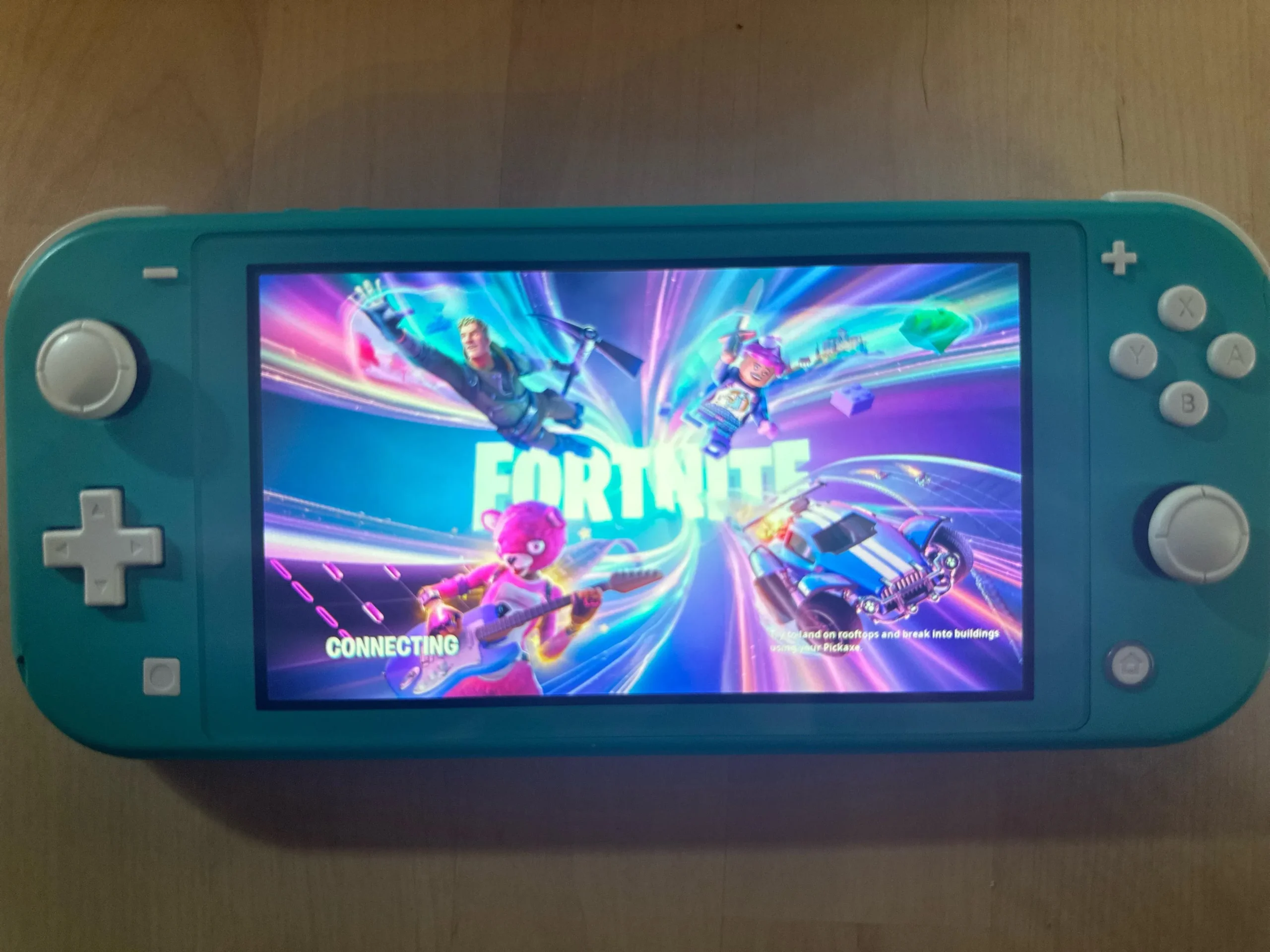
Fortnite on Switch is well-optimized, but due to hardware limitations, tweaking settings is essential for the smoothest gameplay. The game runs at 30 FPS with dynamic resolution scaling based on your mode (handheld or docked).
Fortnite Switch settings recommendations
| Setting | Recommended Value |
| Motion Blur | Off |
| Show FPS | On |
| HUD Scale | 85% |
| Sensitivity | Custom (around 6.0–6.5) |
| Controller Auto-Run | On |
| Edit Hold Time | 0.100–0.120 seconds |
Extra tips for improving performance
- Use handheld mode for steadier performance: The Switch automatically reduces resolution, which helps maintain frame rate.
- Play docked with cooling clearance: Avoid blocking vents to prevent thermal throttling.
- Disable extra effects: Visual enhancements can decrease clarity in fast-paced moments.
- Use a Pro Controller: More reliable than Joy-Cons, especially in docked mode.
Keeping your system updated and reducing visual clutter ensures smoother gameplay, even during large-scale battles or creative builds.
How to avoid lag and improve connection on Switch
Online performance can vary significantly depending on your network setup. Since Fortnite is a real-time competitive game, minimizing lag and packet loss is crucial.
Why does Fortnite Switch lag?
- Weak Wi-Fi signal in handheld mode
- High ping to game servers
- Network congestion or ISP throttling
How ExitLag helps improve Switch performance
Though originally designed for PC, ExitLag can reduce lag on Nintendo Switch using a PC or router setup. It works by rerouting your game data through the most efficient server paths.
Here's how to set it up:
- Install ExitLag on a Windows PC connected to the same router.
- Activate bridge or shared connection mode on ExitLag.
- Connect your Switch to that network (wired or wireless).
- Select Fortnite in ExitLag and let it optimize your route.
You’ll experience lower ping, fewer disconnections, and more consistent performance — especially valuable in Ranked or tournament play.
Cross-platform play with Nintendo Switch
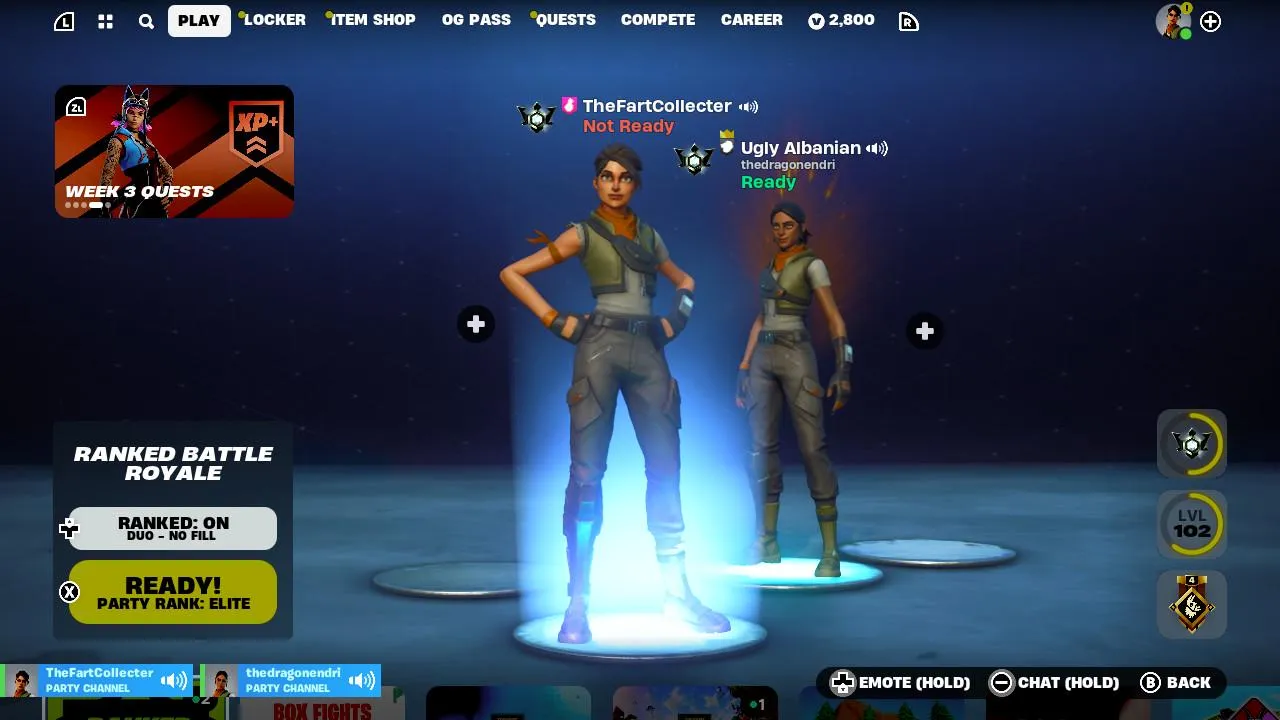
One of Fortnite’s most compelling features is cross-platform play. With Fortnite to Nintendo Switch, players aren't confined to their own ecosystem—they can join lobbies with friends using PC, PlayStation, Xbox, or mobile devices.
This flexibility means that no matter where your friends are playing, you can always squad up. The Epic Games account serves as your universal login, preserving all your progress, cosmetics, and purchases.
Additionally, Nintendo recently announced exciting news: Fortnite is coming to the Nintendo Switch 2, promising even better performance and graphical upgrades for the next-gen handheld experience.
How to enable cross-platform play
Activating crossplay on the Switch is quick and easy:
- Log into your Epic Games account: Make sure this is the same account used on other platforms to unify your profile.
- Turn on crossplay in Fortnite’s settings: Navigate to “Account and Privacy” and ensure “Cross-Platform Play” is enabled.
- Add friends across platforms: Use the Epic username of your friends to send requests.
- Form a party or join one: Once friends are added, you can create squads with them regardless of device.
Cross-platform play empowers Nintendo Switch users to stay competitive and social within Fortnite’s vast player community.
Crossplay advantages for Switch players
Here’s why you should enable crossplay:
- Instant access to larger matchmaking pools
- No device restrictions for playing with friends
- Consistent gameplay progress across platforms
- Unified inventory of skins, emotes, and rewards
Whether you're at home or traveling, crossplay ensures that Fortnite remains accessible, social, and synced.
Switch players will also have the chance to participate in exciting limited-time events like the Death Star Sabotage live event, bringing narrative-driven gameplay moments and exclusive rewards that sync across all platforms.
FAQ — Fortnite on Nintendo Switch
How to install and play Fortnite on Nintendo Switch?
Download Fortnite from the Nintendo eShop, then launch the game and link your Epic Games account. This allows access to crossplay, syncing, and cosmetic progression.
Is Fortnite free to download and play on Switch?
Yes. Fortnite is 100% free on the Nintendo Switch. Optional purchases include V-Bucks, skins, and seasonal Battle Passes.
What are the best performance settings for Fortnite on Switch?
Disable unnecessary effects like motion blur, set HUD scale to 85%, use custom sensitivity, and enable Show FPS. Using a Pro Controller also enhances precision.
Does Fortnite run smoothly on the Nintendo Switch?
Yes, within expectations. Fortnite runs at 30 FPS on the Switch with dynamic resolution, and optimizing your settings can greatly improve playability.
Can I play cross-platform with Switch?
Yes. Crossplay is supported by linking your Epic Games account and enabling the feature in settings. You can play with friends across all major platforms.
Conclusion: Fortnite to Nintendo Switch is accessible, powerful, and portable
With Fortnite to Nintendo Switch, players enjoy a premium battle royale experience wrapped in a flexible, portable platform. From casual gaming to competitive play, the Switch proves to be a capable and reliable choice.
Thanks to its free-to-play model, simplified setup, and full support for online play and cross-platform features, the game feels right at home on the hybrid console. While the Switch has technical limitations, these are offset by smart performance settings and network solutions.
Why ExitLag makes a difference
ExitLag isn't just for elite PC gamers. Through router or bridge configurations, Switch users can:
- Reduce ping and latency spikes
- Stabilize jittery connections
- Improve consistency in critical moments
How to use ExitLag with Nintendo Switch:
- Install ExitLag on a Windows PC
- Connect both the PC and Switch to the same router
- Enable network bridge or sharing mode
- Activate Fortnite optimization within ExitLag
Even without native app support, this method significantly improves real-time performance. For ranked play or zero-build modes, a low-latency connection could be the edge you need.
If you’ve been losing fights due to lag—not aim—ExitLag is your secret weapon.