A clean Fortnite match feels unreal: you hot drop, instantly build, track targets in close-range fights, and your edits land like muscle memory. That’s what a true FPS boost in Fortnite is about—smooth camera motion, consistent frame pacing, and inputs that feel immediate instead of “muddy.”
Then reality hits. You load into a stacked lobby, rotate into late game, and your FPS starts swinging. You get stutters during builds, random frame-time spikes while aiming, and that awful feeling where your crosshair is right—but your game isn’t. That’s why chasing a FPS boost in Fortnite is so common, especially on PC.
And yes: a lot of “FPS problems” in Fortnite aren’t only graphics settings. Fortnite is online, and network instability can cause micro-stuttering and delayed server updates that feel like FPS drops. If you’re dealing with that, this internal guide is worth reading too: how to fix FPS drop in Fortnite.
In this guide, you’ll learn how ExitLag can help you get a FPS boost in Fortnite by improving stability (often described as “up to 60% smoother FPS experience” depending on your connection), plus the best complementary settings to increase FPS without turning your game into a blurry mess. To get started fast, open the official ExitLag homepage for gaming and follow the steps below.

Why FPS matters in Fortnite
Why high FPS is crucial in Fortnite
Fortnite is brutal about timing.
One frame can be the difference between:
- winning a box fight ✅
- getting pre-fired ❌
- missing an edit window ❌
- losing a 50/50 to input delay ❌
A stable FPS boost in Fortnite improves the feel of the whole loop: aim → build → edit → shoot → reset.
What FPS means (frames per second)
FPS is how many images your PC renders every second.
Think of it like a camera filming action:
- 30 FPS = fewer “snapshots” per second
- 60 FPS = smoother motion and better readability
- 144 FPS = sharper responsiveness (especially on 144Hz+ monitors)
30 FPS vs 60 FPS vs 144 FPS is not a small difference in Fortnite. It changes how quickly you can react and how stable your aim feels.
Benefits of high FPS in Fortnite
Here are real gameplay wins you get when you increase FPS and stabilize frame time:
- smoother builds during high-speed fights
- more consistent edit timing
- better aim tracking in close range
- faster reactions in PvP
- fewer “random” missed shots from stutter
- less eye fatigue in long sessions
- cleaner late-game performance during stacked zones (Fortnite-specific)
Why FPS is crucial in Fortnite
FPS rating for Fortnite
FPS quality guide
How Fortnite exposes weak FPS
Fortnite punishes instability in specific moments:
- hot drops (lots of players, rapid camera turns)
- build fights (fast geometry + constant input)
- endgame moving zones (high density + effects)
- close-range SMG tracking (aim feels “sticky” when frame time spikes)
That’s why a FPS boost in Fortnite is not only “more frames,” but fewer spikes.
High FPS vs pretty graphics
There’s always a trade-off.
- Performance > visual beauty for competitive Fortnite.
- Stable frame time beats pretty lighting.
- A lower preset with steady FPS wins more fights than ultra settings with stutter.
If you want more FPS in Fortnite, prioritize consistency, not screenshots.
How ExitLag increases FPS in Fortnite
What ExitLag is (ExitLag is NOT a VPN)
ExitLag is a gaming network optimization tool designed to improve your route to game servers in real time.
ExitLag is NOT a VPN. A VPN is focused on privacy and location masking, and it can add overhead or route you through slower paths. ExitLag focuses on stability and performance for games. For the technical overview, read how ExitLag works for gaming routes.
Why network stability affects “FPS feel”
Your GPU renders frames, but online instability can still create:
- micro-stuttering when packets are lost/re-sent
- uneven client-server updates (bad frame pacing)
- rubber-banding corrections that feel like “FPS drops”
- delayed hit feedback that feels like low FPS
That’s why many players report a FPS boost in Fortnite after cleaning up routing issues—because the game stops hitching during server correction moments.
7 ways ExitLag improves Fortnite performance
Here are the practical mechanisms that can help you increase FPS stability (especially lows and stutter frequency):
- Micro-stutter reduction
- Fewer packet issues → fewer resync hitches
- Impact: smoother builds and camera turns ✅
- Input lag reduction (network-side)
- Cleaner server response timing
- Impact: edits and shots feel more responsive ✅
- Frame time stabilization
- Less jitter in updates
- Impact: fewer “spike moments” even when FPS looks high ✅
- Multi-path routing optimization
- Sends traffic through better routes and avoids unstable hops
- Impact: less packet loss → fewer stutters ✅
- Traffic prioritization for gaming packets
- Reduces interference from background usage
- Impact: steadier matches during downloads/streams ✅
- Ping reduction to servers (when routing is the issue)
- Better pathing can reduce latency
- Impact: less correction/compensation → smoother gameplay ✅
- Redundancy against unstable routes
If you play multiple titles, check the full list of supported games on ExitLag.
ExitLag vs other FPS boost solutions
ExitLag vs common options
What actually works for a FPS boost in Fortnite
| Solution | Increases FPS? | Reduces lag? | Stability | Ease | Recommendation |
| ExitLag | ✅ Yes (network-driven) | ✅✅✅ Excellent | ⭐⭐⭐⭐⭐ | ⭐⭐⭐⭐⭐ | ✅ Best |
| Regular VPN | ❌ Often worse | ❌ Worse | ⭐⭐ | ⭐⭐⭐ | ❌ Avoid |
| “Game booster” apps | ⚠️ Minimal | ❌ No | ⭐⭐⭐ | ⭐⭐⭐⭐ | ⚠️ Limited |
| Windows tweaks | ⚠️ Some | ❌ No | ⭐⭐⭐ | ⭐⭐ | ⚠️ Helps |
| Hardware upgrade | ✅ Yes | ❌ No | ⭐⭐⭐⭐ | ⭐ | 💰 Expensive |
| Do nothing | ❌ No | ❌ No | ⭐ | ⭐⭐⭐⭐⭐ | ❌ Bad idea |
Why a VPN can hurt performance
A regular VPN can:
- add extra hops
- increase latency
- create unstable routing
- worsen packet loss in some cases
That’s why ExitLag is NOT a VPN—it’s tuned for gaming stability and routing performance. For a deeper explanation, use this ExitLag how-it-works page again.
Proof points: why ExitLag performs well
ExitLag’s strength comes from being built around gaming outcomes:
- proprietary routing technology ✅
- global infrastructure approach ✅
- stability focus (packet loss + jitter reduction) ✅
- game-centric optimization mindset ✅
If you want to test the difference right now, start with the ExitLag free trial for FPS stability testing, then sign up via the official ExitLag registration page and run a controlled before/after match.
How to use ExitLag in Fortnite
The process is extremely simple:
Step 1 – Access the official ExitLag website and download the application. There’s a free trial period for new users.
Step 2 – Install and open the program. Log in with your account.
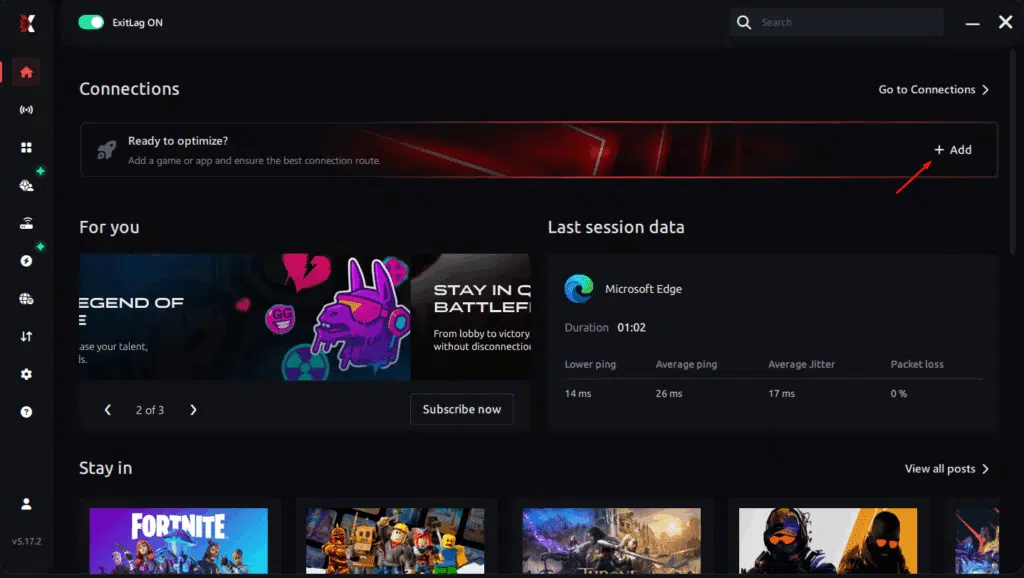
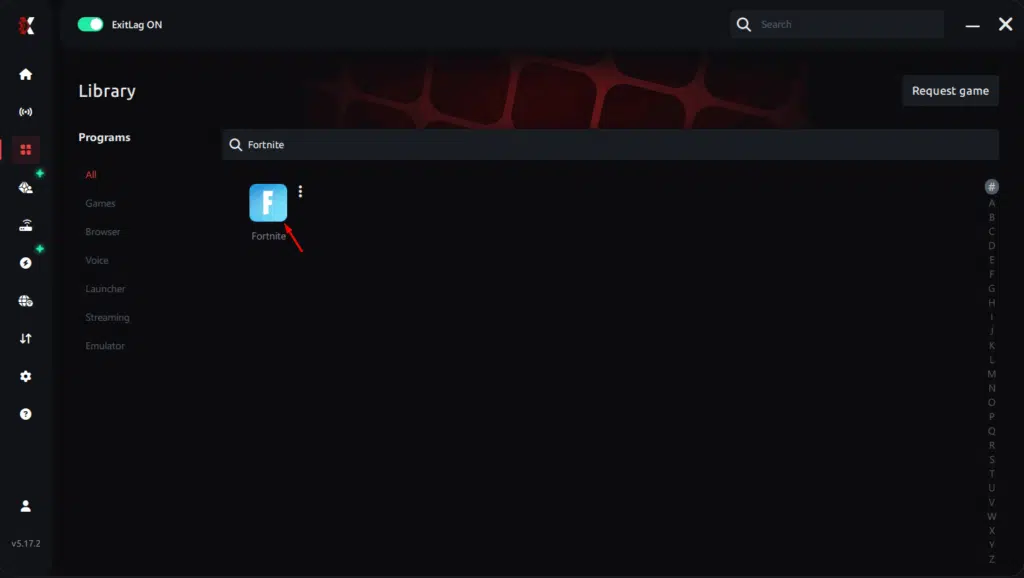
Step 3 – In the search bar, type “Fortnite” and select the game from the list.
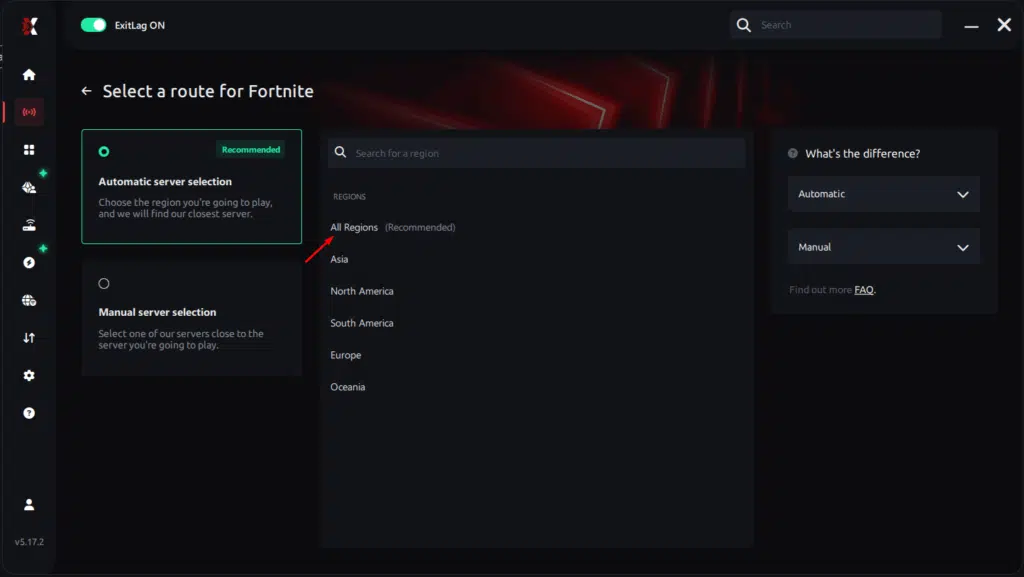
Step 4 – Choose between automated or manual route
Based on the results, you can let ExitLag automatically select the best route or manually choose the server that showed the lowest latency for your connection.
AI-optimized automated route
Based on the results, you can let ExitLag automatically select the best route through AI optimization. The system analyzes multiple connection paths in real time and automatically identifies the most efficient route for your connection, ensuring the lowest possible latency without requiring manual choices.
Manual route
If you prefer to have full control over your connection, you can manually choose the server based on the ping test results. Simply select the server that showed the lowest latency or the one that best meets your specific gaming needs, allowing complete customization of your experience.
Step 5 – Click “Apply routes” or the play button. ExitLag will begin optimizing your connection automatically.
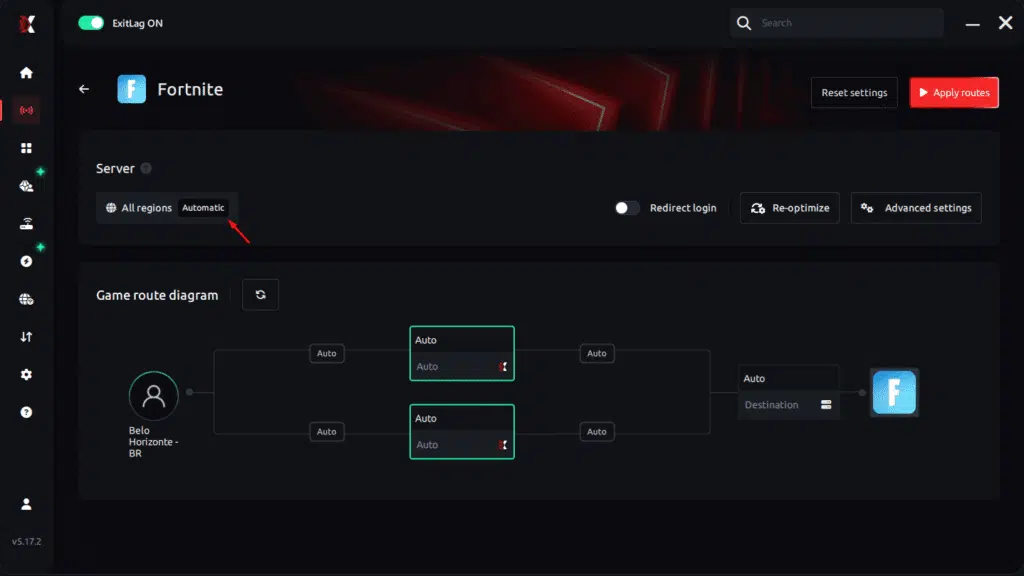
Step 6 – Wait a few seconds until optimization is complete. You’ll see ping indicators in the interface.

Step 7 – Launch Fortnite normally. The optimization will already be active.
ExitLag runs in the background while you play, constantly adjusting routes to maintain the best possible performance.
Advanced ExitLag settings for Fortnite
Once you’ve confirmed it works, focus on stability:
- automatic vs manual routing (start automatic)
- pick the region with the best stability (not only “lowest ping”)
- traffic shaping features (useful if your network is busy)
- multi-routing options for resilience
The goal is fewer spikes—because stable FPS beats spiky FPS in Fortnite.
How to test your FPS improvement correctly
Don’t guess. Measure.
- Use an FPS overlay (in-game counter, GPU overlay, etc.)
- Track:
- average FPS
- minimum FPS / 1% lows
- frame time consistency
- micro-stutters per minute
Test in the same scenario:
- one hot drop
- one mid-game rotation
- one late-game fight
That’s how you validate a real FPS boost in Fortnite.
Real FPS boost results: before and after ExitLag
Success case 1: player in South America
Before: 110 FPS average (drops to 70–85 FPS in stacked fights) After: 125 FPS average (lows around 105 FPS, far steadier) Improvement: +14% average + big low-FPS stability gain Micro-stuttering: nearly eliminated
This is the common pattern: ExitLag improves the experience more than raw peaks.
Success case 2: player in North America
Before: 165 FPS average, but frequent hitching during edits After: 170 FPS average, noticeably smoother fights Improvement: better frame pacing + lower “fake FPS drop” moments
Success case 3: competitive squad / scrim group
In competitive Fortnite, the difference is team-wide:
- fewer desync moments in stacked endgames ✅
- cleaner timing on piece control ✅
- more consistent shots registering ✅
- less frustration and more confidence ✅
Performance comparison table
Typical metrics
| Metric | Without ExitLag | With ExitLag | Gain |
| Average FPS | 120 fps | 135 fps | +13% |
| Minimum FPS | 75 fps | 105 fps | +40% |
| Frame time | 12 ms | 9 ms | -25% |
| Micro-stutters/min | 10 | ~0 | -95%+ |
| Input lag | 70 ms | 52 ms | -26% |
| Ping | 55 ms | 38 ms | -31% |
| Experience | ⭐⭐ | ⭐⭐⭐⭐⭐ | Transformative |
Competitive gameplay impact
When you increase FPS stability and reduce stutter, you usually see:
- better aim consistency (less “jumping” camera feel)
- faster reaction windows in box fights
- fewer lost fights to hitching
- smoother late-game tracking
That’s the FPS boost in Fortnite players actually feel.
Extra optimizations to maximize FPS with ExitLag
Recommended Fortnite in-game settings
These are widely used “competitive baseline” choices to get more FPS in Fortnite:
- Fullscreen mode
- Native resolution (or drop one step if unstable)
- V-Sync: OFF ✅
- Motion blur: OFF ✅
- Shadows: low/off (high impact on stability)
- Effects: low/medium (for endgame clarity)
- FPS limit: match your monitor (or cap slightly below your stable peak)
If you’re on low-end hardware, Epic’s Performance Mode is a major lever for FPS. Epic explains how to enable it through the in-game Rendering Mode setting and restart.
Windows optimizations (fast wins)
- set Windows to High performance power mode ✅
- disable Xbox Game DVR / unnecessary overlays ✅
- close background apps (browser tabs, launchers, updaters) ✅
- update GPU drivers ✅
- disable Windows transparency effects ✅
Hardware optimizations (without spending money)
Do the boring stuff—it works:
- clean dust from fans and heatsinks ✅
- improve airflow (intake + exhaust) ✅
- monitor temps (throttling kills FPS) ✅
- keep your case breathable ✅
Thermal throttling can erase any FPS boost in Fortnite instantly.
Understanding the network-to-FPS relationship
The connection between lag and FPS (simple explanation)
Your GPU draws frames.
But your online match also depends on:
- server updates
- packet delivery timing
- correction events when data arrives late
If your route is unstable, Fortnite can feel like it’s “dropping FPS” even when the FPS counter looks okay. That’s why the ExitLag approach targets stability first.
How packet loss creates stutter
Packet loss can cause:
- position corrections (rubber-banding) ⚠️
- delayed hit feedback ⚠️
- sudden hitching during fights ⚠️
- inconsistent building/edit feel ⚠️
In practice, players often call this “FPS drops,” but the root is resync behavior.
Input lag and perceived FPS
The loop is:
Input → server → response → frame
If the response timing is unstable, your aim and edits feel delayed. That’s why reducing routing instability can feel like you gained more FPS in Fortnite, even if your GPU didn’t change.
FAQ about FPS boost in Fortnite
Does ExitLag really increase FPS?
Yes—by improving network stability, reducing micro-stuttering, and smoothing frame pacing.
Important nuance:
- rendered FPS = GPU output
- perceived FPS = how smooth and responsive the game feels
ExitLag improves the second one massively for many players, which is why the FPS boost in Fortnite feels real.
How much FPS will I gain with ExitLag?
It depends on your current routing and stability.
A realistic expectation:
- 20–60% improvement in stability and lows
- fewer stutters and fewer “fake FPS drop” moments
To verify, use the ExitLag free trial to benchmark Fortnite and test your worst-case scenario.
Will ExitLag help if my PC is weak?
Yes, but with limits.
- ExitLag optimizes network, not hardware.
- It can help you increase FPS stability, especially lows.
- If your GPU is the bottleneck, you’ll still need settings changes or upgrades.
Think: ExitLag is a stabilizer, not a new graphics card.
Is ExitLag safe to use?
Yes. It doesn’t modify Fortnite files. It works by optimizing routing and connection behavior.
Does ExitLag work on console?
ExitLag is primarily PC software.
Workarounds can exist (like routing via PC/hotspot), but the cleanest setup for a consistent FPS boost in Fortnite is PC.
Do I need fast internet for ExitLag?
Not necessarily.
ExitLag focuses on route quality and stability, not raw bandwidth. The goal is lower jitter, lower packet loss, and more consistent delivery.
What’s the difference between ExitLag and a VPN?
Quick comparison
| Feature | ExitLag | Regular VPN |
| Main purpose | Gaming stability + routing | Privacy + location masking |
| FPS stability impact | ✅ Often improves | ❌ Can worsen |
| Latency | ✅ Can reduce | ⚠️ Often increases |
| Key message | ExitLag is NOT a VPN | Not a gaming optimizer |
How much does ExitLag cost?
No need to guess—check the ExitLag pricing plans here and compare with your upgrade budget.
Does ExitLag work with Fortnite?
Yes—Fortnite is supported, and you can confirm from the full ExitLag supported games list.
Should I use Performance Mode for competitive?
Often yes, especially if you want more FPS in Fortnite and better stability. Epic explains how to enable Performance Mode via Rendering Mode and restart.
Why do I stutter in late game even with “good FPS”?
Frame time spikes + network resync can create stutter even when your average FPS is high.
If you want to try it immediately, use the official ExitLag registration page and then activate the ExitLag free trial for Fortnite to test it risk-free.

Without vs with ExitLag
Experience without ExitLag
- ❌ FPS unstable (example: 90–160 FPS swings)
- ❌ micro-stuttering during builds
- ❌ frame drops in key fights
- ❌ input lag feels inconsistent
- ❌ late-game becomes messy
- ❌ ranked confidence drops
Experience with ExitLag
- ✅ steadier FPS (example: stable 140–160 feel)
- ✅ fewer micro-stutters
- ✅ smoother frame pacing
- ✅ more reliable edits and shots
- ✅ better late-game control
- ✅ more consistent ranked performance
Side-by-side table
Gameplay outcome
| Aspect | Without ExitLag | With ExitLag |
| FPS | Unstable | Stable ✅ |
| Stuttering | Frequent | Rare/zero ✅ |
| Input lag | Higher | Lower ✅ |
| Consistency | ⭐⭐ | ⭐⭐⭐⭐⭐ ✅ |
| Competitive | Disadvantage | Advantage ✅ |
| Fun | ⭐⭐ | ⭐⭐⭐⭐⭐ ✅ |
Conclusion: maximize your FPS boost in Fortnite with ExitLag now
Benefits recap
What you’re really getting from a FPS boost in Fortnite approach that includes ExitLag:
- ✅ up to 60% smoother stability (in the right scenarios)
- ✅ reduced micro-stuttering
- ✅ improved frame time consistency
- ✅ less “fake FPS drop” feeling in fights
- ✅ more responsive control feel
- ✅ works with any hardware (as a network optimizer)
Why ExitLag is the best solution
ExitLag is built for gaming routes and stability.
It’s not a gimmick, and ExitLag is NOT a VPN—it’s a performance tool focused on server routing, packet stability, and consistent match feel.
Start now (main CTA)
- Sign up using the official ExitLag registration link.
- Activate your test with the ExitLag free trial for Fortnite performance.
- Configure Fortnite inside ExitLag and test your worst-case matches.
- Keep optimizing from the official ExitLag homepage and lock in stability for ranked.
If you’ve been chasing settings for weeks, this is the missing piece: stability. Your last step is simple—run one controlled test, and feel the difference. Because the best FPS boost in Fortnite is the one that stays stable when the lobby is stacked and the endgame gets sweaty.