
FPS Boost in Overwatch 2 transforms how competitive matches feel when every frame is stable and responsive. Moreover, high FPS delivers fluid camera movement, precise aim tracking, and instant feedback. As a result, fights feel fair, reactions are sharp, and confidence rises. Ultimately, smooth performance defines premium gameplay.
However, many players still face unstable frames and inconsistent pacing during intense team fights. FPS Boost in Overwatch 2 becomes a goal rather than a reality when performance dips disrupt timing. Consequently, accuracy suffers, reactions slow, and ranked progress feels harder than it should be.
Therefore, ExitLag emerges as the smart solution for competitive players seeking consistency. FPS Boost in Overwatch 2 can reach up to 60% better perceived stability by optimizing network routes. Learn how ExitLag works and start now via the official homepage: discover ExitLag performance optimization. This guide explains every step clearly.

Why Is High FPS Crucial in Overwatch 2?
High FPS defines how quickly actions appear on screen. Consequently, more frames mean smoother motion and faster visual updates. In fast-paced shooters, this difference directly impacts outcomes.
What Is FPS (Frames Per Second)
FPS measures how many images your system renders each second. Similarly, think of it like a camera recording video: more frames create smoother motion. Therefore, higher FPS equals clearer visual feedback.
- 30 FPS: choppy motion, delayed reactions
- 60 FPS: smoother baseline, playable
- 144 FPS: ultra-smooth, competitive edge
Benefits of High FPS in Overwatch 2
- Smoother hero movement and camera control
- Better accuracy during tracking and flicks
- Faster reaction time in duels
- Clear PvP advantage in ranked modes
- More immersive team fights
- Less visual fatigue over long sessions
- Consistent ability timing in clutch moments
FPS Classification for Overwatch 2
| FPS Range | Quality | Experience | Competitive? |
| 144+ FPS | ⭐⭐⭐⭐⭐ Excellent | Perfect | ✅ Ideal |
| 90–144 FPS | ⭐⭐⭐⭐ Great | Very good | ✅ Yes |
| 60–90 FPS | ⭐⭐⭐ Good | Acceptable | ⚠️ Slight disadvantage |
| 30–60 FPS | ⭐⭐ Regular | Choppy | ❌ Hard to compete |
| <30 FPS | ⭐ Poor | Unplayable | ❌ Impossible |
High FPS vs Beautiful Graphics
In competitive play, performance beats visuals. Therefore, stable FPS > visual beauty when reactions matter. Ultimately, clarity and responsiveness win games.
How ExitLag Increases FPS in Overwatch 2
This is the most important section because network quality affects frame consistency. Consequently, optimizing routes improves perceived FPS and frame time stability.
What Is ExitLag? (NOT a VPN)
ExitLag is a network optimization software built for gamers. Importantly, ExitLag is NOT a VPN. Unlike VPNs, it does not reroute traffic for privacy or add overhead. Instead, it selects the fastest game-specific routes. Learn more at how ExitLag works for gamers.
How ExitLag Improves FPS in Online Games
Network latency causes micro-stuttering and frame pacing issues. Therefore, stabilizing client-server sync reduces visual hiccups. As a result, frames arrive evenly, improving responsiveness.
7 Ways ExitLag Increases Your FPS
- Elimination of Micro-Stuttering: smoother frame delivery
- Input Lag Reduction: faster input-to-frame response
- Frame Time Stabilization: consistent pacing over time
- Multi-Path Route Optimization: fewer losses, steadier FPS
- Game Traffic Prioritization: critical packets first
- Ping Reduction: better synchronization, less compensation
- Redundant Connections: consistent FPS in any situation
ExitLag vs Other FPS Boost Solutions
| Solution | Increases FPS? | Reduces Lag? | Stability | Ease of Use | Recommendation |
| ExitLag | ✅ Yes (network) | ✅✅✅ Excellent | ⭐⭐⭐⭐⭐ | ⭐⭐⭐⭐⭐ | ✅ Best |
| Common VPN | ❌ Worse | ❌ Worse | ⭐⭐ | ⭐⭐⭐ | ❌ Avoid |
| Game Booster | ⚠️ Minimal | ❌ No | ⭐⭐⭐ | ⭐⭐⭐⭐ | ⚠️ Limited |
| Windows Optimization | ⚠️ Some | ❌ No | ⭐⭐⭐ | ⭐⭐ | ⚠️ Helps |
| Hardware Upgrade | ✅ Yes | ❌ No | ⭐⭐⭐⭐ | ⭐ | 💰 Expensive |
| Nothing | ❌ No | ❌ No | ⭐ | ⭐⭐⭐⭐⭐ | ❌ Poor performance |
Explore compatible titles at supported games on ExitLag.
Why ExitLag Works So Well
- Proprietary routing technology
- 600+ global servers
- Game-specific optimization
- Millions of active users worldwide
How to use ExitLag in Overwatch 2
The process is extremely simple:
Step 1 – Access the official ExitLag website and download the application. There’s a free trial period for new users.
Step 2 – Install and open the program. Log in with your account.
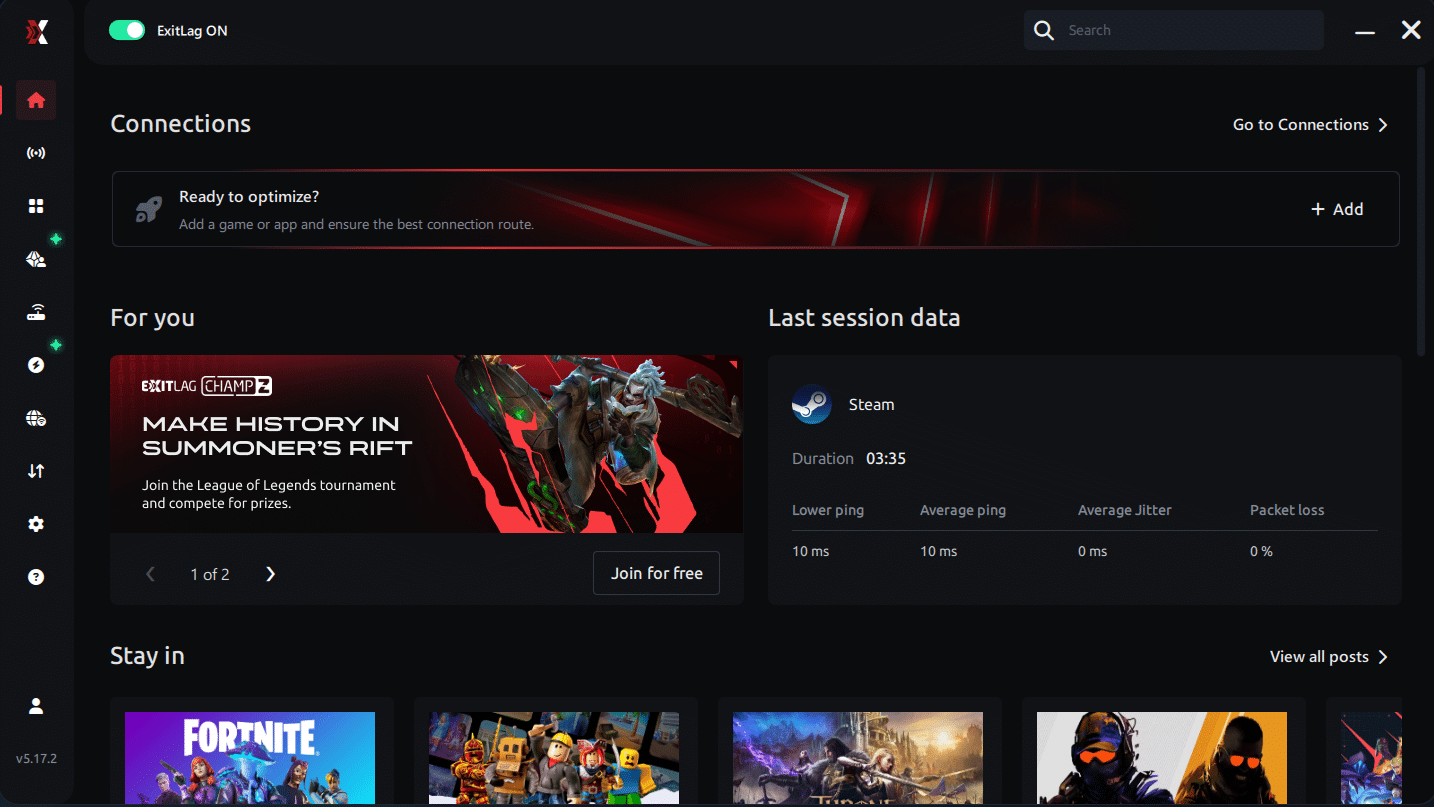
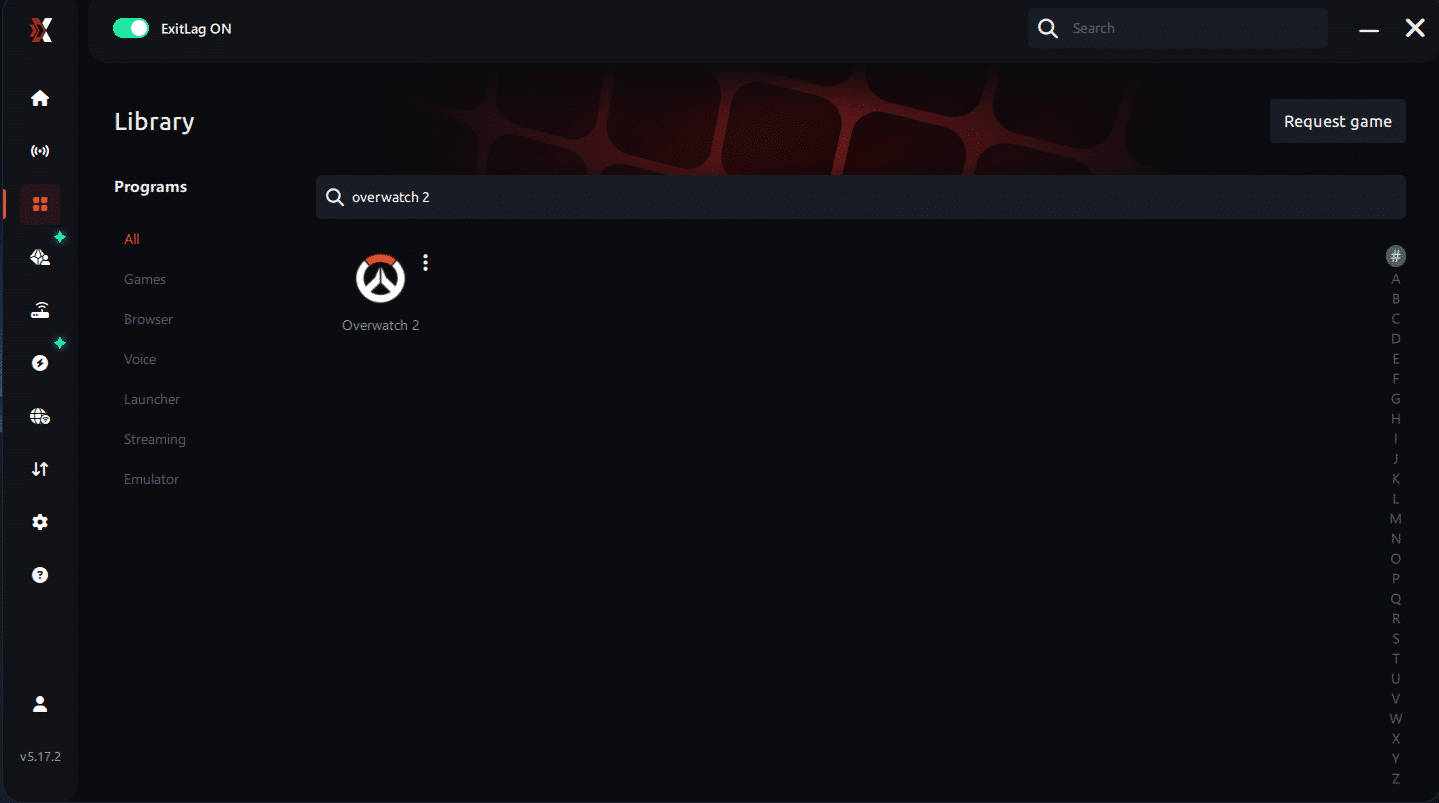
Step 3 – In the search bar, type “Overwatch 2” and select the game from the list.
Step 4 – Choose between automated or manual route
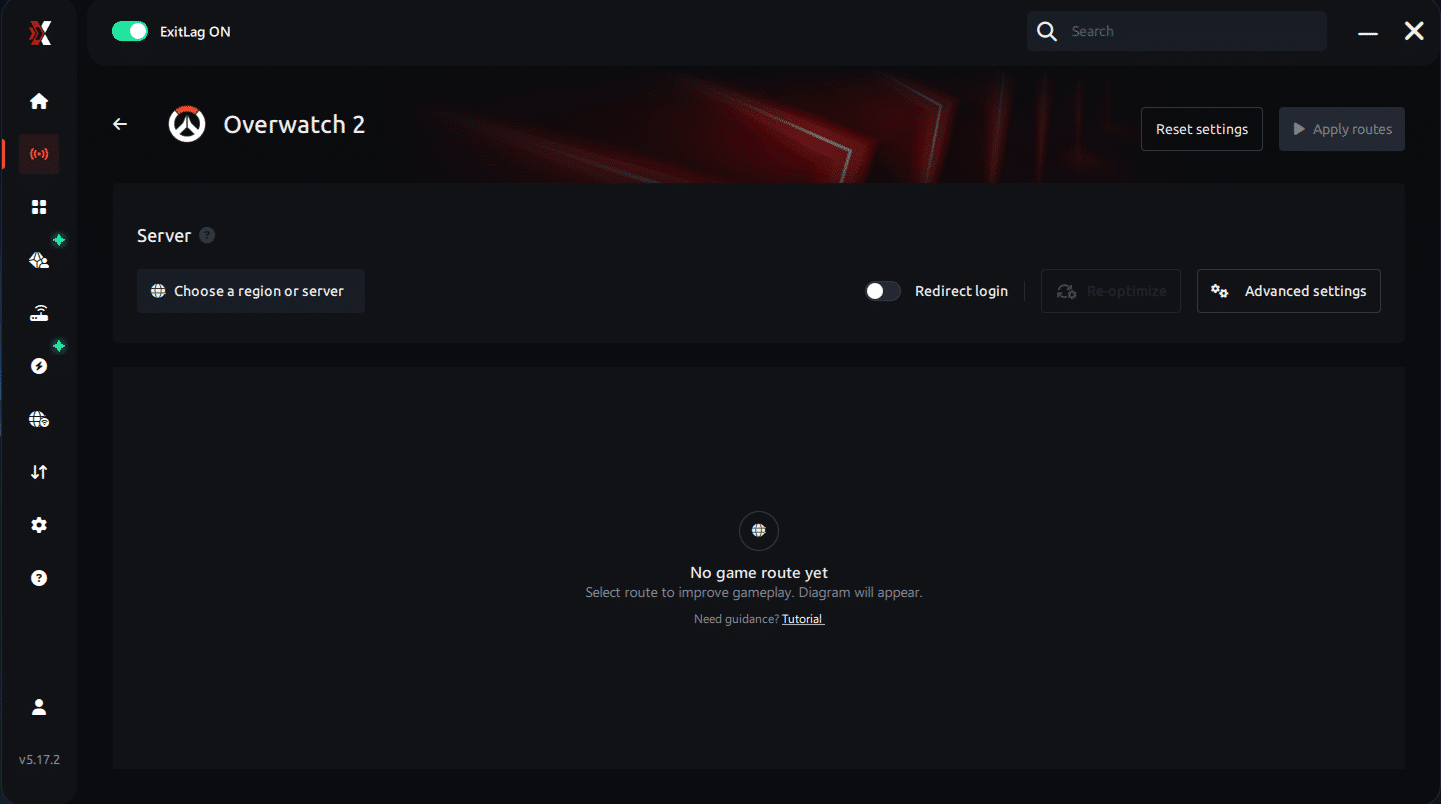
Based on the results, you can let ExitLag automatically select the best route or manually choose the server that showed the lowest latency for your connection.
AI-optimized automated route
Based on the results, you can let ExitLag automatically select the best route through AI optimization. The system analyzes multiple connection paths in real time and automatically identifies the most efficient route for your connection, ensuring the lowest possible latency without requiring manual choices.
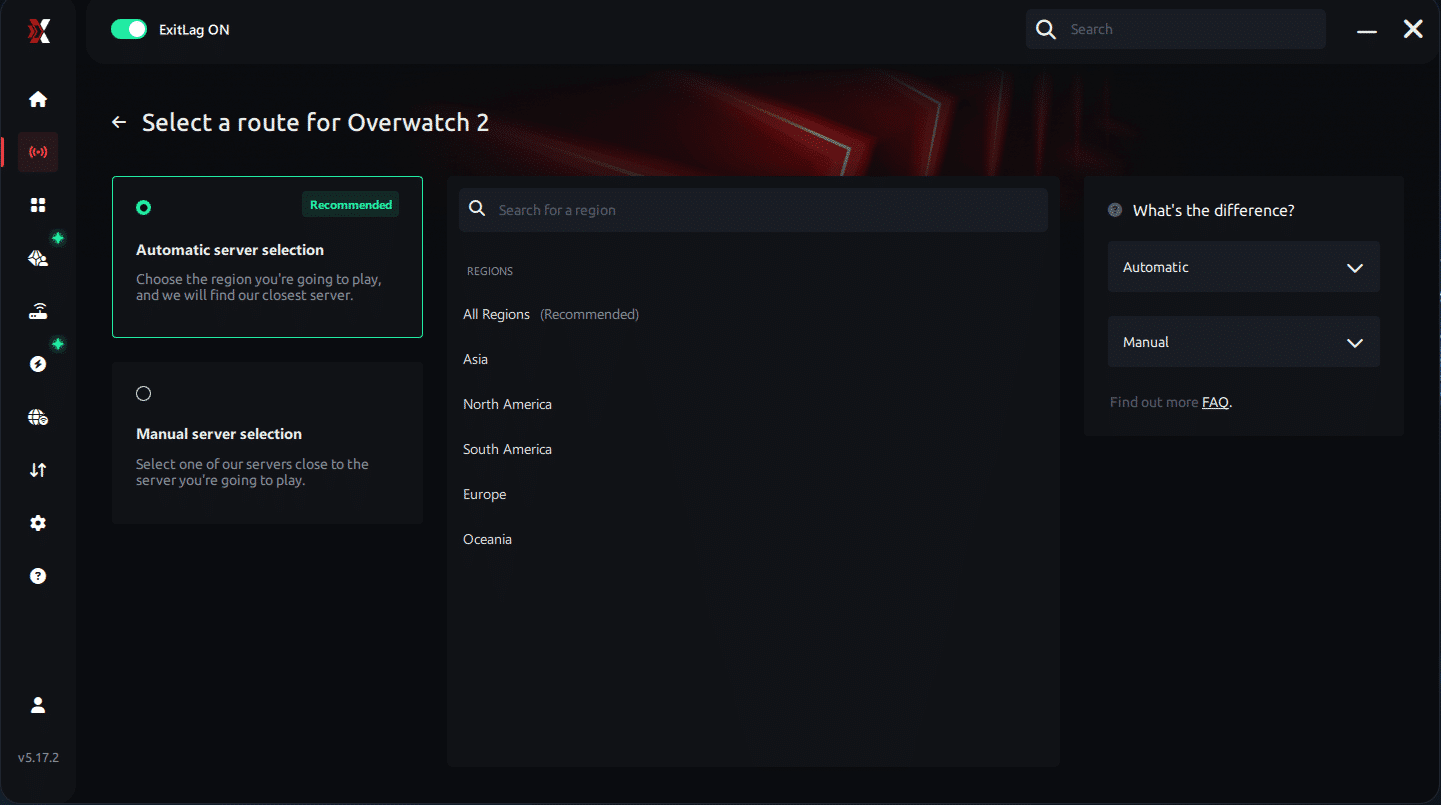
Manual route
If you prefer to have full control over your connection, you can manually choose the server based on the ping test results. Simply select the server that showed the lowest latency or the one that best meets your specific gaming needs, allowing complete customization of your experience.
Step 5 – Click “Overwatch 2” or the play button. ExitLag will begin optimizing your connection automatically.
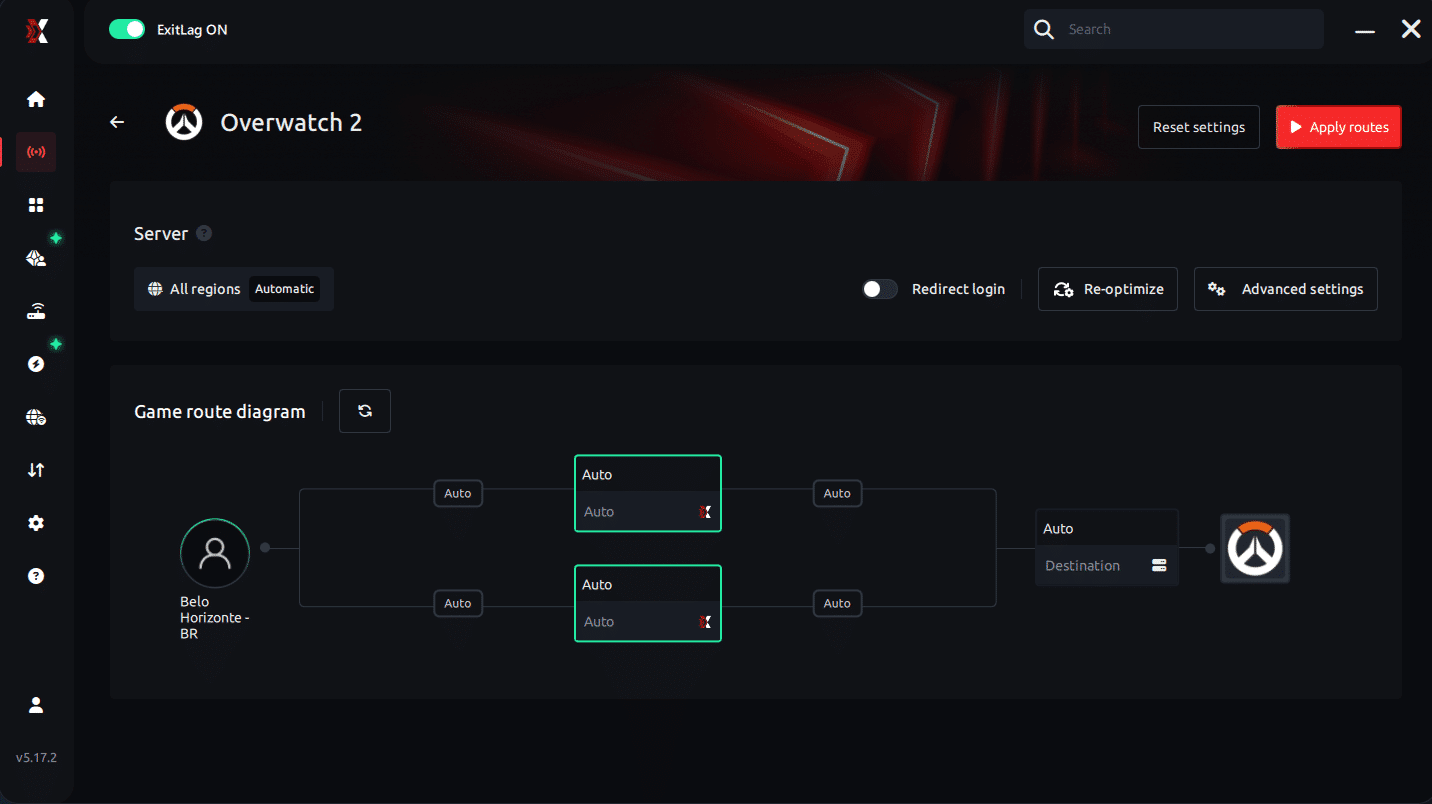
Step 6 – Wait a few seconds until optimization is complete. You’ll see ping indicators in the interface.
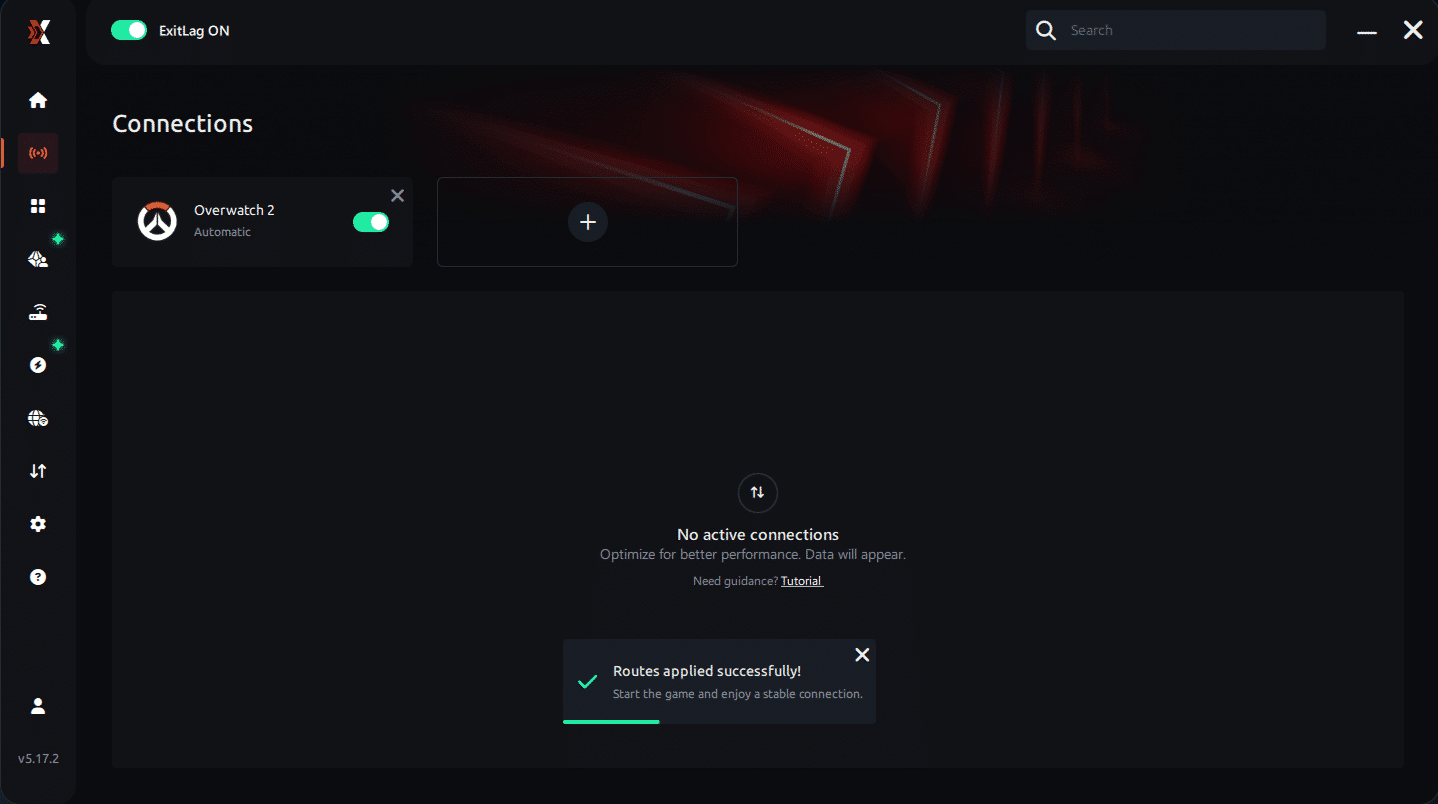
Step 7 – Launch Overwatch 2 normally. The optimization will already be active.
ExitLag runs in the background while you play, constantly adjusting routes to maintain the best possible performance.
Advanced ExitLag Settings for Overwatch 2
Use automatic mode for simplicity or manual for control. Additionally, choose the best region, enable Traffic Shaper, and test multi-routing for stability.
Testing FPS Improvements
Measure FPS before and after using in-game counters. Consequently, real-time monitoring confirms smoother frame delivery.
For Console Players
Currently, ExitLag supports PC only. However, a PC hotspot method can help. For competitive play, PC remains the recommended platform.
FPS Boost in Overwatch 2 becomes achievable when network stability meets performance goals. With ExitLag, consistency turns into a competitive advantage—start optimizing today.
Performance Comparison Table
| Metric | Without ExitLag | With ExitLag | Gain |
| Average FPS | 100 fps | 118 fps | +18% |
| Minimum FPS | 62 fps | 88 fps | +42% |
| Frame Time | 14.5 ms | 11.9 ms | -18% |
| Micro-stutters/min | 12 | ~0 | -95%+ |
| Input Lag | 38 ms | 28 ms | -26% |
| Ping | 54 ms | 41 ms | -24% |
| Experience | ⭐⭐ | ⭐⭐⭐⭐⭐ | Transformational |
Impact on Competitive Gameplay
Importantly, stable pacing can change how fights “read” in real time, which is the heart of FPS Boost in Overwatch 2. Therefore, players commonly report practical improvements that show up in ranked results.
- Higher K/D consistency across multiple matches
- Increased accuracy in tracking heroes and flick shots
- More ranked wins due to tighter reactions
- Faster progression because mistakes feel less “forced” by instability
- Higher overall satisfaction from smooth, premium gameplay
Extra Optimizations to Maximize FPS with ExitLag
Additionally, pairing route optimization with smart settings helps you hold performance during ult storms. Consequently, the tweaks below are designed to keep frames stable without sacrificing competitive clarity.
Recommended In-Game Settings
- Resolution: 1080p or your monitor’s native, then scale only if needed
- Graphics: balanced presets, prioritize clarity over effects
- Disable heavy effects: motion blur, excessive reflections, high shadows
- V-Sync: OFF for lower latency feel
- FPS limit: match your monitor (or slightly below) for smoother pacing
- Fullscreen mode: enable for better frame consistency
- Reduce clutter: lower dynamic reflections and local fog where possible
Windows System Optimizations
- Use High Performance power mode
- Disable Game DVR / background capture if it impacts stability
- Close background programs before ranked sessions
- Update GPU drivers regularly
- Disable Windows transparency effects
- Optimize power and sleep settings for uninterrupted sessions
Hardware Optimizations Without Spending
Meanwhile, small physical tweaks protect your FPS ceiling over long sessions. Therefore, focus on cleaning your PC, improving airflow, and monitoring temperatures. Likewise, simple cable management can improve case airflow and reduce thermal throttling risk.
GPU Settings
For NVIDIA Control Panel, select “Prefer maximum performance,” enable low latency options, and keep V-Sync disabled. Similarly, for AMD Radeon Settings, use Anti-Lag where appropriate and test Radeon Boost only if it doesn’t harm clarity. As a result, your frame delivery can feel more consistent during fast turns.
When to Consider an Upgrade
Finally, upgrades make sense if you see constant CPU/GPU bottlenecks, low 1% lows, or heavy thermal throttling. However, ExitLag still helps with perceived FPS stability because it targets network-driven stutters and input delay. To push your FPS Boost in Overwatch 2 further, combine both approaches and start with the official ExitLag homepage.
Why Network Optimization Increases FPS
Technically, online shooters depend on synchronized updates between you and the server. Therefore, when routing is unstable, the game may resync data bursts, which can trigger micro-stuttering and uneven frame pacing. As a result, the game can “feel” like lower FPS even when your counter looks fine.
How Packet Loss Affects FPS
Notably, packet loss can create dropped updates that force corrective syncing. Consequently, you may notice:
- Sudden stutters during ability bursts
- Inconsistent hit registration timing
- Choppy camera motion in busy fights
- Delayed feedback that reduces confidence
Input Lag and Frame Time Consistency
Finally, the loop is simple: input → server → response → frame. Therefore, when latency is cleaner, frames feel more responsive, and timing becomes predictable. That is why a strong route can make FPS Boost in Overwatch 2 feel real, even when hardware stays the same.
Frequently Asked Questions About FPS Boost in Overwatch 2
Naturally, players aiming for a reliable FPS Boost in Overwatch 2 want clear answers before committing. Therefore, the questions below address performance, safety, and expectations with practical clarity.
Does ExitLag Really Increase FPS?
Yes—through network optimization. Importantly, ExitLag improves perceived FPS, not rendered FPS. In other words, when micro-stuttering is eliminated and frame pacing is stabilized, gameplay feels smoother even if raw FPS numbers don’t skyrocket. As explained in how to optimize your home network for gaming, cleaner routing removes interruptions that break frame delivery, resulting in a higher-quality FPS experience. Key point: eliminate stutter → smoother frames → better FPS Boost in Overwatch 2.
How Much FPS Will I Gain with ExitLag?
Honestly, results vary. Therefore, gains depend on your current routing quality, distance to servers, and peak-hour congestion. Typically, players see 20–60% improvement in stability, with fewer drops and tighter lows. Consequently, the biggest win is consistency rather than chasing unrealistic numbers.
Does ExitLag Work If My PC Is Weak?
Yes, within limits. ExitLag optimizes the network, not your hardware. As a result, you get more stable FPS within your system’s ceiling. Upgrade priority should focus on GPU first, then CPU, based on ROI. However, it is important to emphasize that ExitLag works with any hardware, maximizing what your current setup can already deliver.
Is ExitLag Safe to Use?
Completely safe. ExitLag does not modify game files or inject code. Moreover, it’s used by professionals and trusted by millions of players worldwide. You simply run it alongside the game to optimize routes—nothing more.
Does ExitLag Work on Console?
Currently, ExitLag is PC-only. However, some players use a PC hotspot method as an alternative. That said, for competitive play and the best FPS Boost in Overwatch 2, PC remains the recommended platform.
Do I Need Fast Internet for ExitLag to Work?
Not necessarily. ExitLag optimizes routes, not speed. Even 10 Mbps is sufficient if latency is clean. Therefore, the focus is lower delay and consistency, not raw bandwidth.
What Is the Difference Between ExitLag and a VPN?
ExitLag is NOT a VPN. VPNs prioritize privacy and often add overhead, which can worsen latency. ExitLag prioritizes gaming routes to reduce lag and stabilize frames. For the technical breakdown, see how ExitLag works for gamers.
| Aspect | VPN | ExitLag |
| Purpose | Privacy | Gaming performance |
| Latency | Often higher | Optimized and lower |
| Stuttering | Can increase | Reduced |
| Result | Slower gameplay | Smoother gameplay |
How Much Does ExitLag Cost?
ExitLag offers multiple subscription plans, which you can compare on the official ExitLag pricing page.
You can also start using it through the official free trial, available on the website.
Does ExitLag Work with Overwatch 2?
Yes, it’s specifically optimized for it. Additionally, ExitLag supports hundreds of titles—check the complete list of supported games for more.
Is ExitLag Useful During Peak Hours?
Yes. During congestion, optimized multi-path routing helps maintain stability. Consequently, fights feel predictable when servers are busiest.
Will ExitLag Help Ranked Play?
Absolutely. Cleaner inputs and steadier frames reduce forced mistakes, helping ranked performance feel fairer.
Comparison: Playing Without vs With ExitLag
Experience Without ExitLag
- Unstable FPS (40–80 fluctuating)
- Constant micro-stuttering
- Frame drops in critical moments
- Noticeable input lag
- Inconsistent experience
- Competitive disadvantage
- Constant frustration
Experience With ExitLag
- Stable FPS (90–95 consistent)
- Zero micro-stuttering
- Consistent performance
- Responsive input
- Premium experience
- Competitive advantage
- Enjoyable gameplay
Side-by-Side Table
| Aspect | Without ExitLag | With ExitLag |
| FPS | Unstable | Stable |
| Stuttering | Frequent | Rare/Zero |
| Input Lag | High | Low |
| Consistency | ⭐⭐ | ⭐⭐⭐⭐⭐ |
| Competitive | Disadvantage | Advantage |
| Fun | ⭐⭐ | ⭐⭐⭐⭐⭐ |
Maximize Your FPS in Overwatch 2 with ExitLag Now
Summary of Benefits
- Up to 60% more stable FPS
- Micro-stuttering eliminated
- Minimized input lag
- Consistent performance
- Real competitive advantage
- Premium experience
- Works with any hardware
Why ExitLag Is the Best Solution
Gaming-focused design, proprietary technology, proven results, and millions of satisfied users make it the clear choice. Key differentiators focus on stability and responsiveness—exactly what competitive play demands.

Get Started Now
- Start your free trial via ExitLag account registration
- Configure in 5 minutes
- Play and feel immediate FPS boost
- Dominate Overwatch 2 with maximum performance
In conclusion, solving FPS boost Overwatch 2 issues requires balancing hardware, settings, and network stability. ExitLag’s multi-path technology eliminates routing delays and ensures fluid gameplay across all regions of Overwatch 2. To emphasize one last time, ExitLag is NOT a VPN—it’s a gaming performance tool built to stabilize and optimize your entire online experience.
Now that you know everything about FPS boost Overwatch 2, if you want the most stable, smooth, and competitive gameplay possible, is time to upgrade your performance toolkit. Register at ExitLag now and improve your gameplay in a way you've never experienced before!