Overwatch 2 players know the frustration of entering a match ready to win, only to see their hero rubberband across the screen because of Overwatch 2 Lag. Even with a good internet plan, the experience can suddenly become unstable, delaying actions and turning every team fight into a guessing game. That’s why so many players search for definitive ways to stabilize performance.
Therefore, it’s important to understand that lag isn’t always your fault. Even strong hardware and fast connections can suffer from network route conflicts, packet loss, and server congestion. These issues often happen behind the scenes, leaving players confused and unsure how to fix them.
Like this, the goal of this guide is to explain clearly what causes lag in Overwatch 2, how it works, why it happens even with good internet, and finally present ExitLag as the solution specifically designed to stabilize your connection and give you the smooth competitive experience you expect.
What is lag in Overwatch 2?
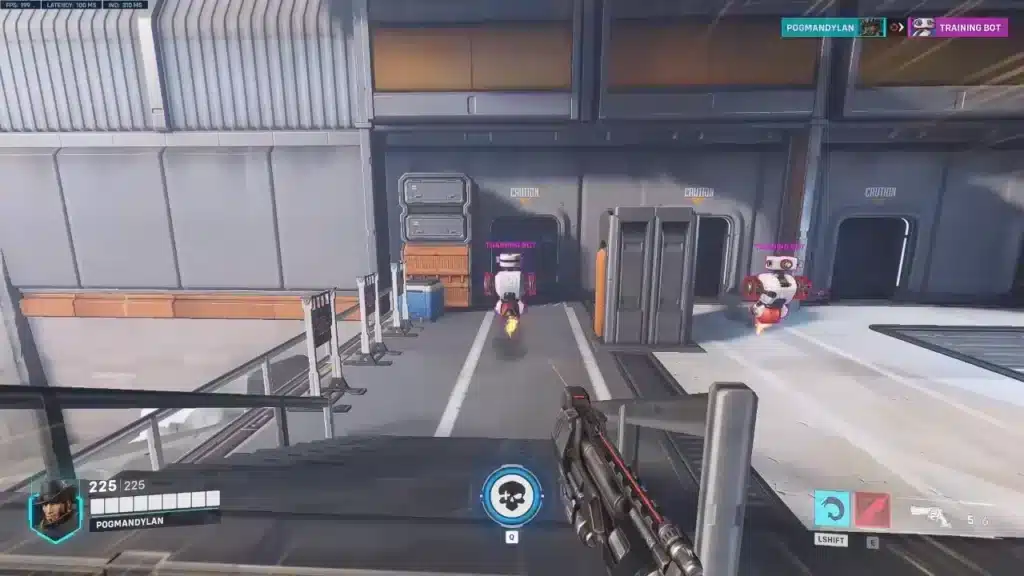
Lag is the delay between the command you perform and the moment it registers on the server. In a fast-paced shooter like Overwatch 2, even a few milliseconds can break a match. Instead of your hero reacting instantly, abilities feel slow, positions desync, and opponents appear to teleport.
Lag, ping and fps: the essentials
Before fixing performance issues, it’s crucial to understand the difference between lag, ping, and FPS:
- Lag: delay in communication between you and the game server.
- Ping: numerical measurement (in ms) of how fast data travels from your PC to the server and back.
- FPS: graphical performance of frames per second rendered on your screen.
However, many players confuse these three factors. They might upgrade their GPU thinking gameplay will improve, when in reality the problem is network routing. Therefore, identifying the true cause of instability is the first step to resolving it.
Why lag happens even with good internet
The main reason Overwatch 2 still lags on stable connections is routing. Your internet provider chooses automatic paths to reach the server, but those paths are not always the fastest. Sometimes they pass through congested regions, unstable nodes, or long geographical detours.
Think of it like sending a digital package: even if your home Wi-Fi is strong, your “package” may still get stuck in digital traffic. This traffic creates issues such as:
- Packet loss
- High ping spikes
- Rubberbanding
- Desynchronization
- Slow ability responses
Therefore, improving the route, not the speed, is the key to solving most Overwatch 2 connection issues.
How Exitlag solves Overwatch 2 lag
At this point, many players ask: “What if I could choose the best route instead of relying on my ISP?”
And that’s exactly what ExitLag does.
ExitLag is an advanced connection optimizer designed specifically for games. It uses multi-routing technology to choose the best and shortest path between you and the Overwatch 2 server. Like this, it avoids congested routes, stabilizes unstable segments, and drastically reduces delays.
Key benefits of Exitlag
- Lower and more stable ping for instant response
- Reduction of packet loss and rubberbanding
- More precise hit registration
- Smoother gameplay even during peak hours
- Intelligent multi-routing for maximum server stability
- Simple setup: no technical skills required
Practical benefits for Overwatch 2 players
Below is a quick comparison of gameplay experience with and without ExitLag:
| Feature | Without ExitLag | With ExitLag |
| Ping stability | Frequent spikes | Consistently low and stable |
| Packet loss | Common during busy hours | Highly reduced |
| Hit registration | Inconsistent | More accurate |
| Competitive performance | Impacted by delays | Optimized for reaction time |
| Overall gameplay | Unpredictable | Smooth and reliable |
Why Exitlag is ideal for competitive players
In Overwatch 2, milliseconds truly define the outcome of every fight. A single delayed shot, a mistimed dash, or an ultimate that activates a fraction too late can be the difference between clutching a team fight or losing the entire round. Competitive players rely on precision, immediate feedback, and absolute consistency, something a standard connection often cannot guarantee.
With optimized routing, ExitLag sends and receives data through the fastest and most stable paths available. This means smoother inputs, fewer interruptions, and a more accurate exchange of information with the game server.
Here’s one essential benefit:
Better reaction time: optimized routing allows your game data to travel through shorter and cleaner paths, giving you server updates faster and helping you see enemy actions sooner than you normally would.
Like this, ExitLag becomes more than just a fix for lag; it becomes a decisive competitive advantage for players who want every millisecond working in their favor.

How to use ExitLag in Overwatch 2
The process is extremely simple:
Step 1 – Access the official ExitLag website and download the application. There’s a free trial period for new users.
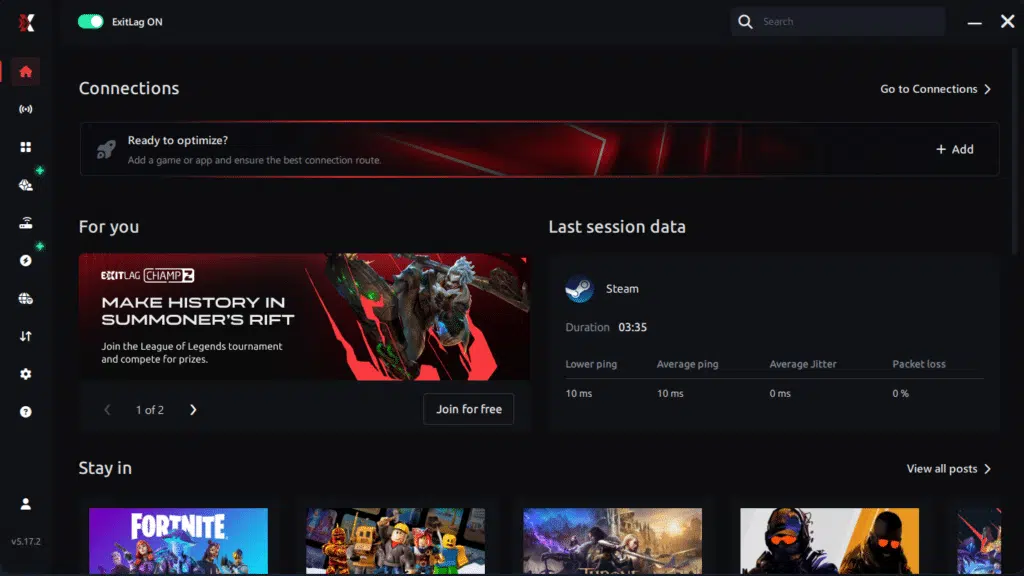
Step 2 – Install and open the program. Log in with your account.
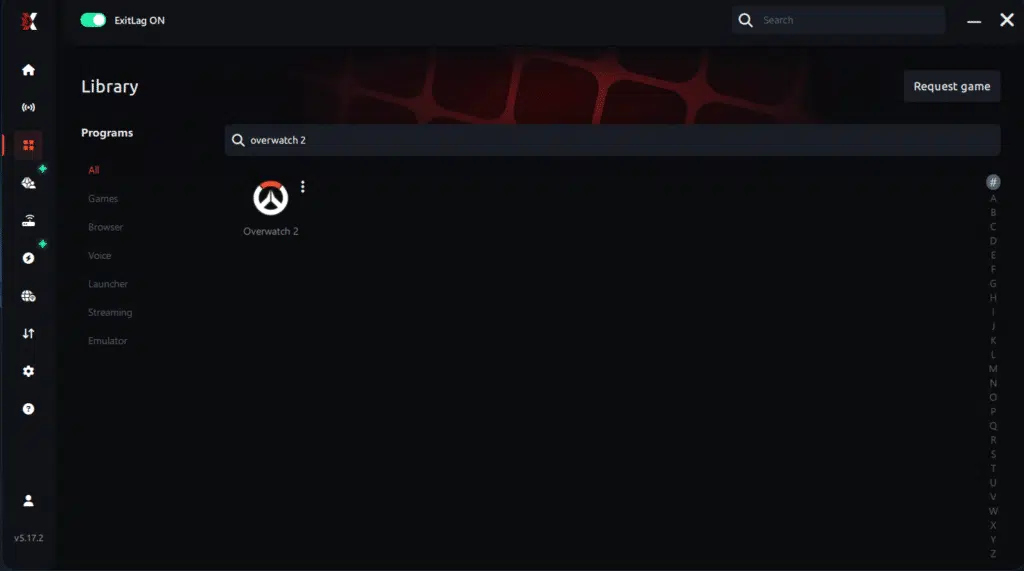
Step 3 – In the search bar, type “Overwatch 2” and select the game from the list.
Step 4 – Choose between automated or manual route

Based on the results, you can let ExitLag automatically select the best route or manually choose the server that showed the lowest latency for your connection.
AI-optimized automated route
Based on the results, you can let ExitLag automatically select the best route through AI optimization. The system analyzes multiple connection paths in real time and automatically identifies the most efficient route for your connection, ensuring the lowest possible latency without requiring manual choices.
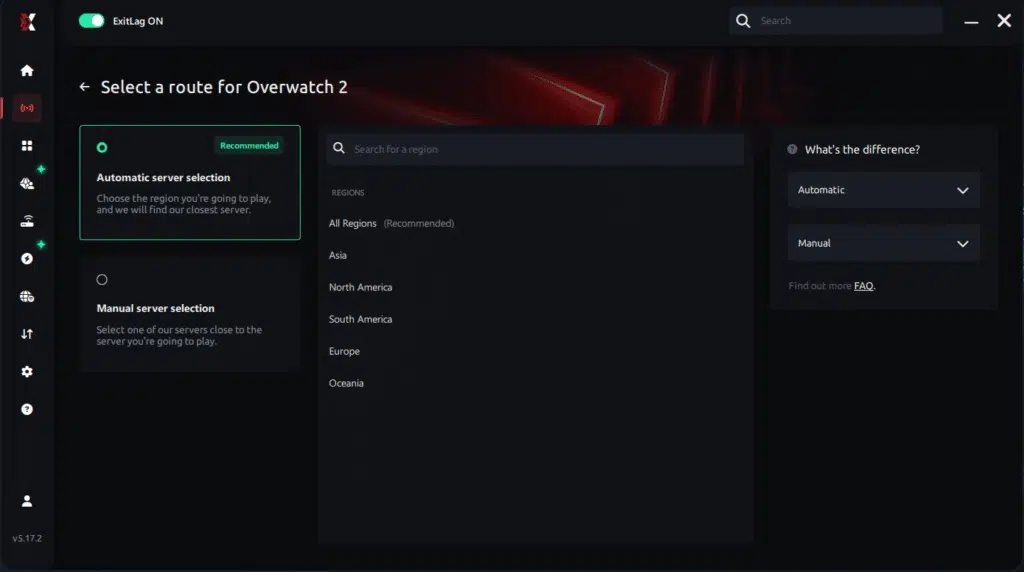
Manual route
If you prefer to have full control over your connection, you can manually choose the server based on the ping test results. Simply select the server that showed the lowest latency or the one that best meets your specific gaming needs, allowing complete customization of your experience.
Step 5 – Click “Overwatch 2” or the play button. ExitLag will begin optimizing your connection automatically.

Step 6 – Wait a few seconds until optimization is complete. You’ll see ping indicators in the interface.
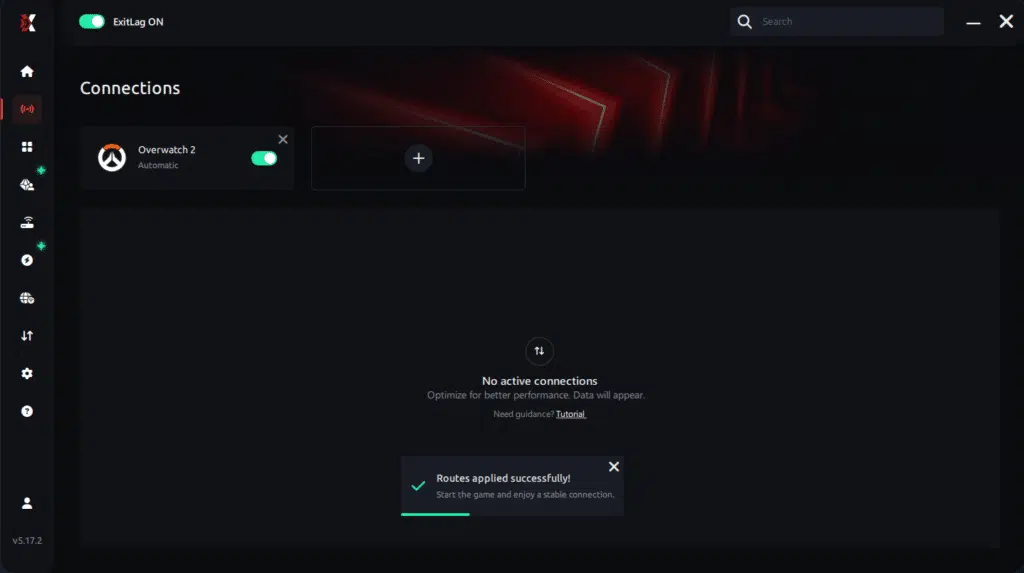
Step 7 – Launch Overwatch 2 normally. The optimization will already be active.
ExitLag runs in the background while you play, constantly adjusting routes to maintain the best possible performance.
Final thoughts
Overwatch 2 offers intense, fast-paced gameplay, but connection issues can ruin even the best strategy. When Overwatch 2 Lag starts affecting your plays, it’s not only frustrating—it holds back your potential. However, you don’t need to keep suffering with unstable routes, packet loss, or random ping spikes.
ExitLag gives players full control of their connection, ensuring optimized routes, smoother gameplay, and a competitive advantage you can actually feel. Try ExitLag for free today and experience Overwatch 2 with maximum performance, zero interruptions, and no more Overwatch 2 Lag.
Got questions or want to connect with other players? Join the conversation at the ExitLag Forum!