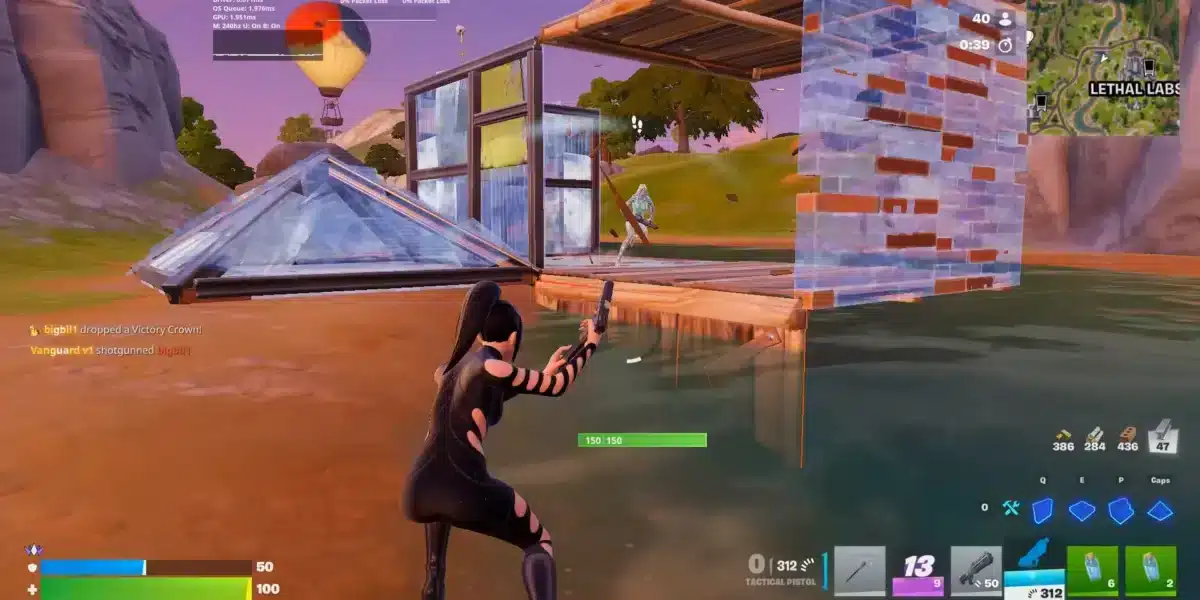
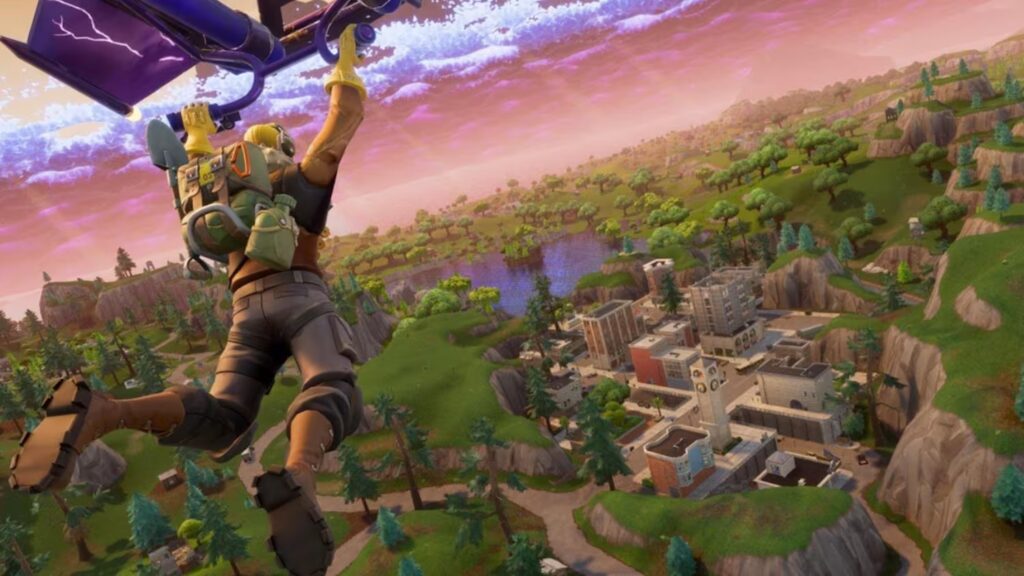
At first sight, nothing is more frustrating than a sudden FPS drop Fortnite moment right in the middle of a heated battle. Now, imagine lining up the perfect shotgun shot only to watch your screen freeze for a split second. A brief stutter can lead to the loss of the fight, the crown, and your patience.
Even more, players report situations where the match feels smooth, yet the next minute a dramatic “FPS drop Fortnite” ruins building, editing, and aiming. Independent of the season, this problem appears more frequently during intense combat, crowded POIs, or chaotic endgame rotations. These moments quickly transform a simple stutter into a game-breaking performance issue.
Soon after, players start searching for a real solution for FPS drop Fortnite—which is where ExitLag steps in. As a result, ExitLag provides connection stability, smoother frame pacing, and more consistent gameplay. You can explore how it helps directly on the official ExitLag website. Continuing with this guide, you’ll understand exactly why these issues happen and how to stop them.

What is FPS drop and why does it happen in Fortnite?
Understanding FPS
Beforehand, understanding what FPS means helps you identify why things go wrong during intense matches. FPS refers to the number of frames displayed per second, and each range affects gameplay differently:
- 144+ FPS
- 60–120 FPS
- 30–60 FPS
- Below 30 FPS
These ranges define how smooth your experience feels. Therefore, the higher the FPS, the more fluid your game looks.
Difference between FPS drop and network lag
Although these terms are often confused, they are two different problems. Continuing with clarity, this table explains the difference:
| Aspect | FPS Drop | Network Lag |
| Cause | Hardware overload, heavy graphics load, thermal throttling | Bad routing, unstable internet path |
| Symptoms | Stuttering, low FPS, screen freezes | Delayed actions, rubber-banding |
| Solution | Optimize performance, reduce workload | ExitLag |
Why Fortnite suffers from FPS drop
Fortnite frequently faces FPS issues because of its evolving engine, complex maps, and high-density particle effects. Furthermore, each season introduces new mechanics, physics interactions, and visual layers. These features push systems harder, especially during:
- Build battles with hundreds of structure pieces
- Explosions and particle-heavy combat
- Crowded POIs with dozens of players
- High-render-distance landscapes
That’s because Unreal Engine’s dynamic rendering system loads new assets constantly, creating fluctuations that impact frame pacing.
5 main causes of FPS drop in Fortnite
1. Overheating
At first, overheating is a silent performance killer. When your CPU or GPU reaches unsafe temperatures, it reduces speed to protect itself. As a result, Fortnite begins to stutter every few seconds, causing severe Fortnite stuttering issues during builds and edits.
2. Outdated drivers
Secondly, outdated GPU drivers can dramatically affect game performance. Continuing with this point, new Fortnite seasons require updated optimization files from NVIDIA, AMD, or Intel. Without these updates, players may experience Fortnite low FPS spikes, especially during high-action sequences.
3. Graphics settings
Similarly, many players unknowingly run Fortnite with settings too high for their hardware. Shadows, post-processing, and high view distance strain mid-range GPUs. Therefore, incorrect configurations generate Fortnite frame drops when the engine attempts to render too many elements at once.
4. Background processes
Often, heavy background tasks compete for resources. Even so, browsers, recorders, overlays, and launchers can consume CPU time and memory. Consequently, these extra processes create unexpected Fortnite performance issues during matches.
5. Insufficient hardware
Lastly, older or entry-level systems struggle with Fortnite’s constant updates. Beforehand, these machines operated comfortably, but recent seasons introduce more demanding assets. Therefore, limited CPU threads or older GPUs cannot sustain stable FPS, leading to noticeable performance degradation.
How ExitLag fixes FPS drop in Fortnite
What is ExitLag? (NOT a VPN)
At first sight, many players think that using any network tool can fix FPS drop Fortnite issues, but that’s not true. To clarify, ExitLag is NOT a VPN, because it doesn’t encrypt traffic or reroute your connection through generic tunnels. Instead, it uses multi-path gaming technology created specifically to improve stability, responsiveness, and data delivery in real-time gameplay.
Even more, traditional VPNs often increase latency or introduce new bottlenecks, while ExitLag focuses on eliminating performance inconsistencies that often feel like stutters or frame pacing problems. To understand its underlying mechanics, you can check the detailed explanation available on the official how it works page.
How ExitLag optimizes performance in Fortnite
Continuing with optimization, ExitLag applies several technologies designed to stabilize your connection and reduce the “fake FPS” sensation created by unstable routing. Therefore, many players notice that FPS drop Fortnite moments decrease significantly once the tool is configured correctly.
Here’s how ExitLag improves Fortnite performance:
- Network route optimization
- Latency reduction
- Packet loss elimination
- Game traffic prioritization
- Connection stabilization
These improvements minimize the network-related stutter that feels like FPS instability.
Why ExitLag helps with FPS drop
Often, what players interpret as FPS drop Fortnite is actually a mix of micro-stuttering and jitter caused by unstable routing paths. As a result, even if the GPU delivers steady frames, the player experiences freezing, delayed inputs, or inconsistent timing.
ExitLag reduces:
- Micro-stuttering in intense combat
- Jitter during fast edits
- Network pacing issues caused by congested routes
Similarly, the tool keeps frame delivery synchronized with network responsiveness, improving the sensation of fluid gameplay even under pressure.
ExitLag technologies that impact FPS
Even more, ExitLag’s exclusive system is built to deliver smoother gameplay by reinforcing connection consistency. The technologies include:
- Multi-path routing – sends packets through simultaneous optimized routes
- Redundant connections – prevents interruptions if one route degrades
- Gaming-optimized protocol – prioritizes Fortnite traffic over background processes
As a result, situations that previously felt like FPS drop Fortnite—especially in busy POIs or endgames—are drastically reduced.
ExitLag vs other solutions
To make things even clearer, compare ExitLag with other common approaches:
| Solution | Improves FPS? | Reduces lag? | Ease of use | Recommendation |
| ExitLag | ✅ | ✅ | ⭐⭐⭐⭐⭐ | Best option |
| Common VPN | ❌ | ❌ | ⭐⭐⭐ | Not recommended |
| PC optimization | ⚠️ | ❌ | ⭐⭐ | Partial |
| Nothing | ❌ | ❌ | ⭐⭐⭐⭐⭐ | No |
And you can check out more supported games on our official game page.
How to use ExitLag in Fortnite
The process is extremely simple:
Step 1 – Access the official ExitLag website and download the application. There’s a free trial period for new users.
Step 2 – Install and open the program. Log in with your account.
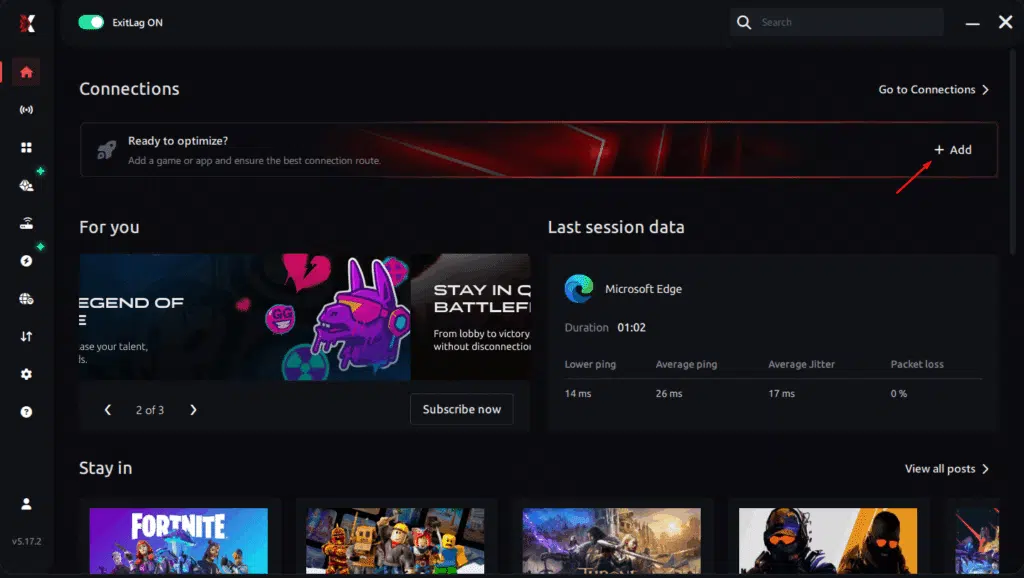
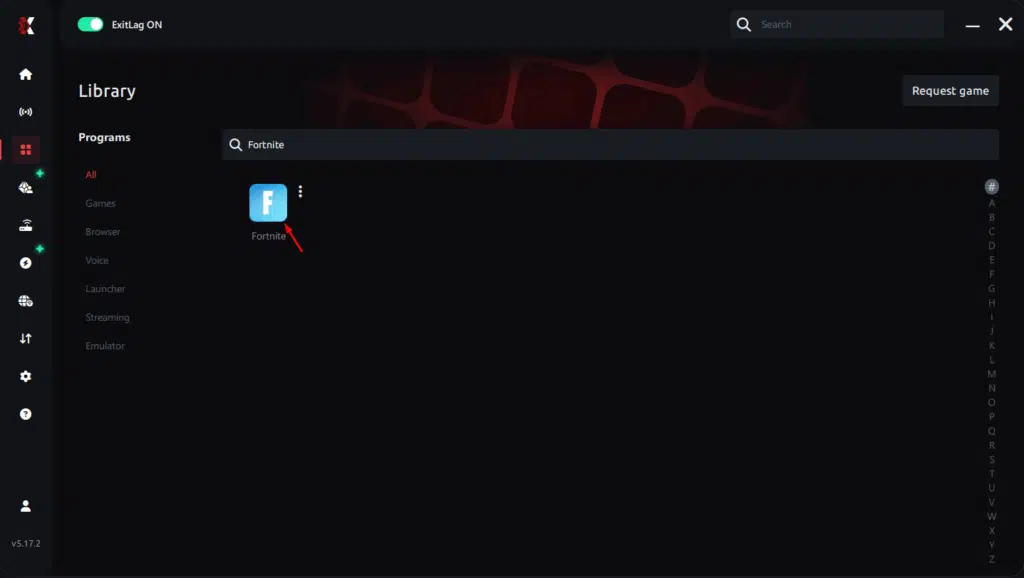
Step 3 – In the search bar, type “Fortnite” and select the game from the list.
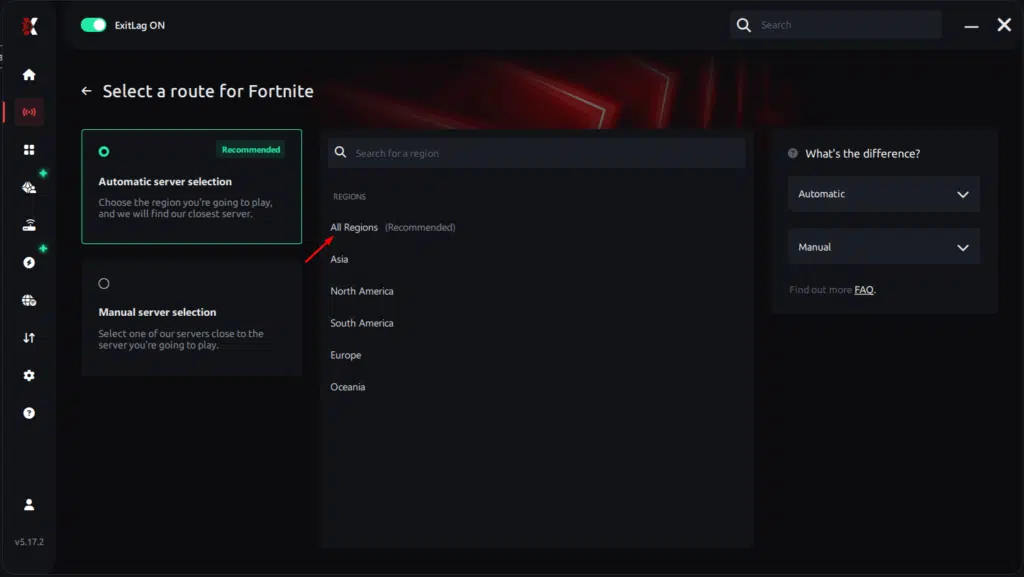
Step 4 – Choose between automated or manual route
Based on the results, you can let ExitLag automatically select the best route or manually choose the server that showed the lowest latency for your connection.
AI-optimized automated route
Based on the results, you can let ExitLag automatically select the best route through AI optimization. The system analyzes multiple connection paths in real time and automatically identifies the most efficient route for your connection, ensuring the lowest possible latency without requiring manual choices.
Manual route
If you prefer to have full control over your connection, you can manually choose the server based on the ping test results. Simply select the server that showed the lowest latency or the one that best meets your specific gaming needs, allowing complete customization of your experience.
Step 5 – Click “Apply routes” or the play button. ExitLag will begin optimizing your connection automatically.
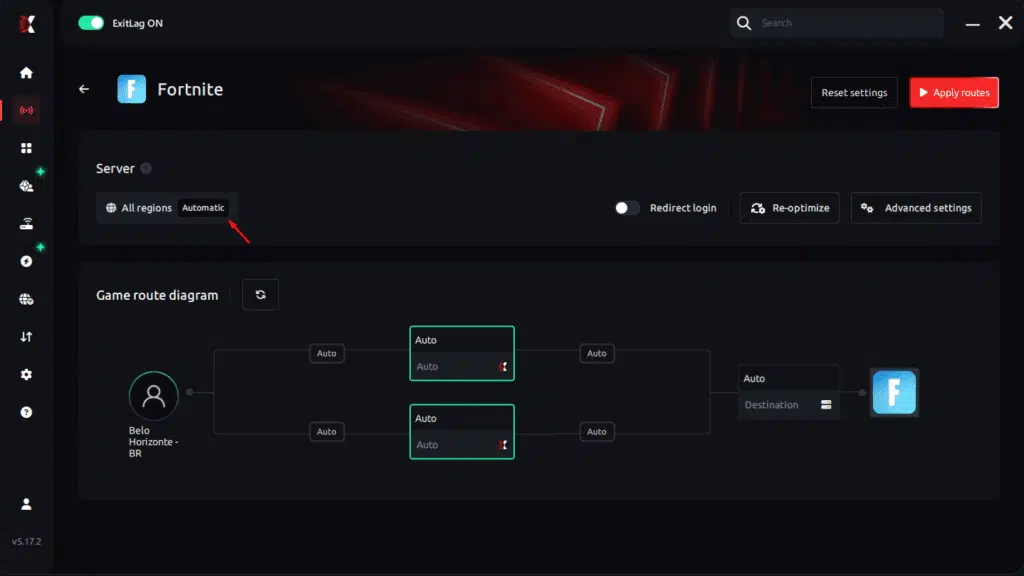
Step 6 – Wait a few seconds until optimization is complete. You’ll see ping indicators in the interface.
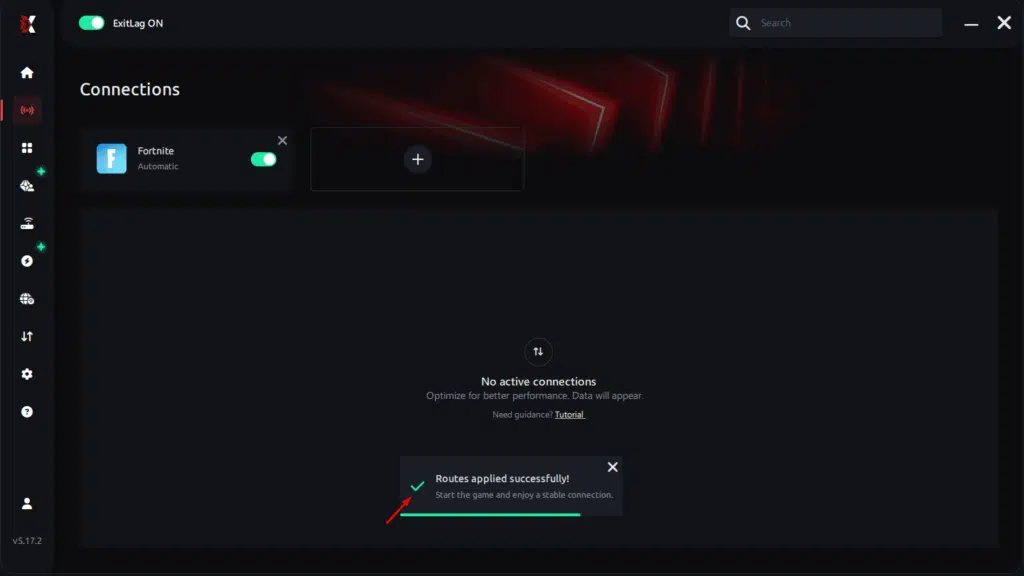
Step 7 – Launch Fortnite normally. The optimization will already be active.
ExitLag runs in the background while you play, constantly adjusting routes to maintain the best possible performance.
Emulator setup
Although Fortnite is available natively, some players use emulators for testing or alternative devices. In any case, ExitLag still stabilizes packets to avoid the network-related stutter mistaken for FPS drop Fortnite, especially in high-motion scenarios.
Optimization tips
Soon after installation, follow these quick tips:
- Close unnecessary apps
- Disable background downloads
- Restart router and PC
- Use wired Ethernet when possible
These steps work together with ExitLag to avoid drops and micro-freezes.
Console players
Still, console users can benefit by routing their console traffic through a PC running ExitLag using advanced configurations. Even though it requires extra setup, it dramatically helps players who suffer from jitter that appears as FPS drop Fortnite during intense battles.
Before and after results with ExitLag in Fortnite
Real player cases
Players worldwide report that ExitLag reduces apparent FPS drop Fortnite instability caused by connection issues. Here are three strong examples:
- Case 1: A competitive player cut packet loss from 7% to 0%, eliminating micro-stutter during edits.
- Case 2: A mid-range PC user reduced perceived FPS drops by 50%, thanks to smoother frame pacing.
- Case 3: A high-ping player reduced latency from 170 ms to 95 ms, removing jitter that felt like low FPS.
Performance comparison table
To demonstrate the improvement:
| Metric | Without ExitLag | With ExitLag | Improvement |
| Ping | 120 ms | 65 ms | Higher stability |
| Packet Loss | 6% | 0% | Smooth gameplay |
| Frame Pacing | Irregular | Consistent | Fewer micro-freezes |
| Input Response | Delayed | Immediate | Better accuracy |
Before and after results with ExitLag in Fortnite
Additional performance insights
Continuing from the previous section, many players report that the combination of stable routing and reduced jitter significantly decreases the sensation of FPS drop Fortnite during close-range fights and chaotic late-game circles. Although FPS is primarily tied to hardware, unstable routes create artificial frame pacing problems that feel identical to real frame drops. With ExitLag improving both responsiveness and packet delivery consistency, overall smoothness increases even on mid-range systems.
Additionally, competitive players often highlight that smoother edits and reduced input delay directly impact their ability to outperform opponents. Even more, endgame rotations—where servers and clients are heavily loaded—benefit greatly from stabilized data flow, preventing the micro-freezes frequently mistaken for FPS drop Fortnite.
Additional optimizations to maximize FPS with ExitLag
Network
At first sight, network adjustments may seem unrelated to solving FPS drop Fortnite issues, but they play a critical role in preventing stutters caused by packet timing inconsistencies. Therefore, combining ExitLag with these improvements maximizes performance:
- Ethernet: Always use a wired connection for stable, low-jitter gameplay.
- QoS: Enable Quality of Service on your router to prioritize gaming traffic.
- DNS: Use reliable DNS providers to improve connection resolution times.
- Close heavy apps: Turn off downloads, recording tools, and CPU-intensive tasks.
These steps work together with ExitLag to reduce fake FPS drops caused by unstable networking conditions.
System
Soon after optimizing your network, improving system health helps prevent hardware-induced FPS drop Fortnite problems:
- Drivers: Keep GPU drivers updated to avoid rendering instability.
- High-performance mode: Set your power plan to prioritize CPU/GPU performance.
- Background apps: Close resource-heavy apps like browsers or launchers.
- Clean system: Remove temporary files and monitor CPU temps to avoid throttling.
As a result, your PC maintains steady frame delivery under load.
In-game
Finally, optimizing in-game settings prevents unnecessary strain on hardware that might trigger FPS drop Fortnite during combat:
- V-Sync off: Prevents input delay and avoids frame pacing inconsistencies.
- FPS limit: Set a stable cap matching your monitor’s refresh range.
- Recommended presets: Use competitive settings to reduce visual load.
Even so, these optimizations work best when paired with stable routing—something ExitLag ensures.
Frequently asked questions about FPS drop in Fortnite
Does ExitLag actually improve FPS?
Although ExitLag does not change your hardware, it significantly reduces network-based stutters that feel like FPS drop Fortnite. Players enjoy smoother frame pacing and fewer micro-freezes when packet flow is stabilized.
Is ExitLag safe?
Definitely. ExitLag is a long-standing gaming tool trusted globally and designed only to optimize routing. It does not modify game files or violate Fortnite’s terms of service.
Does ExitLag work on console?
Still, console support requires routing traffic through a PC running ExitLag. While not native, many players use this method to reduce jitter that contributes to perceived FPS drop Fortnite.
How much does ExitLag cost?
You can explore all available plans on the official ExitLag pricing page, where each option is explained in detail.
Even better, before committing to a subscription, players can experience the full benefits firsthand with the free trial, allowing you to test ExitLag’s performance impact with zero risk.
My PC is weak, does ExitLag help?
Yes. When network pacing stabilizes, even low-end systems experience fewer micro-stutters. ExitLag removes lag spikes that often feel like FPS drop Fortnite during combat.
Does ExitLag work with Fortnite?
Yes, Fortnite is fully supported. You can see it on the supported games list.
What’s the difference between ExitLag and a VPN?
ExitLag is NOT a VPN. VPNs encrypt traffic and usually increase latency. ExitLag uses multi-path routing and gaming prioritization to stabilize performance and reduce stutter that resembles FPS drop Fortnite.
Additional Fortnite-specific questions
Why do I still get FPS drop Fortnite even with a good PC?
This is because real FPS drops are often mimicked by connection instability, packet spikes, and server congestion. ExitLag helps reduce these artificial stutters.
Does building fast make FPS drop Fortnite worse?
Yes. Build fights generate hundreds of structures, particles, and physics calculations. With ExitLag smoothing routing, perceived stutter decreases.
Does high ping cause FPS drop Fortnite?
Indirectly. High ping causes desync and delayed frames that feel like FPS loss. ExitLag stabilizes your route and reduces this effect significantly.
How to use ExitLag in Fortnite
The process is extremely simple:
Step 1 – Access the official ExitLag website and download the application. There’s a free trial period for new users.
Step 2 – Install and open the program. Log in with your account.
Step 3 – In the search bar, type “Fortnite” and select the game from the list.
Step 4 – Choose between automated or manual route
Based on the results, you can let ExitLag automatically select the best route or manually choose the server that showed the lowest latency for your connection.
AI-optimized automated route
Based on the results, you can let ExitLag automatically select the best route through AI optimization. The system analyzes multiple connection paths in real time and automatically identifies the most efficient route for your connection, ensuring the lowest possible latency without requiring manual choices.
Manual route
If you prefer to have full control over your connection, you can manually choose the server based on the ping test results. Simply select the server that showed the lowest latency or the one that best meets your specific gaming needs, allowing complete customization of your experience.
Step 5 – Click “Apply routes” or the play button. ExitLag will begin optimizing your connection automatically.
Step 6 – Wait a few seconds until optimization is complete. You’ll see ping indicators in the interface.
Step 7 – Launch Fortnite normally. The optimization will already be active.
ExitLag runs in the background while you play, constantly adjusting routes to maintain the best possible performance.
How to use Ping for Games: step-by-step guide (Fortnite)
Checking your connection quality before entering a match has never been easier. Here’s how to use Ping for Games in just a few steps:
1. Open the ExitLag software on your PC
Ensure the application is installed and open. The feature is integrated into the platform and available for free to all users.
2. Access the Network Analyzer tool
Locate the Network Analyzer in the software menu. This is where you’ll find Ping for Games along with other connection analysis features.
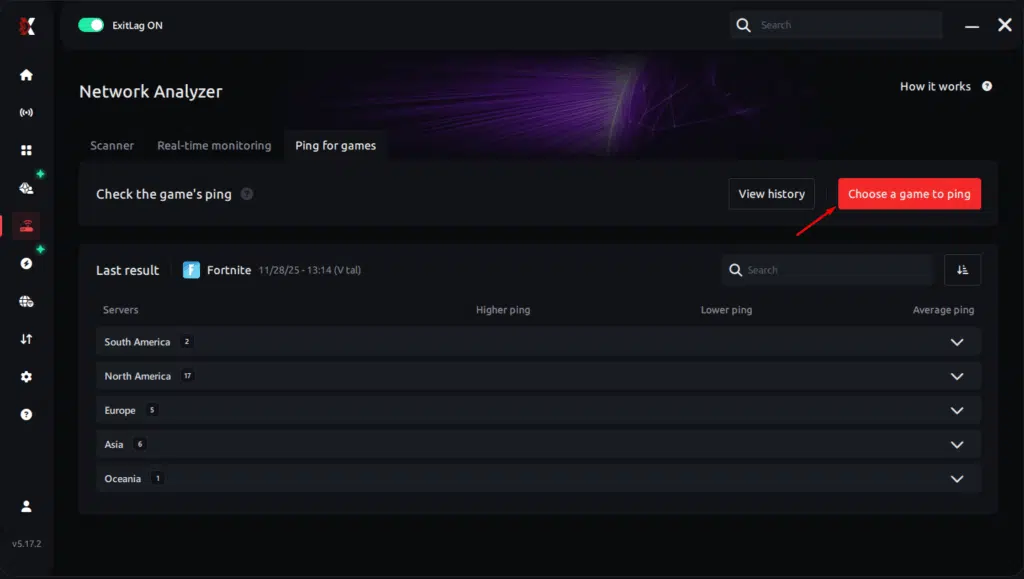
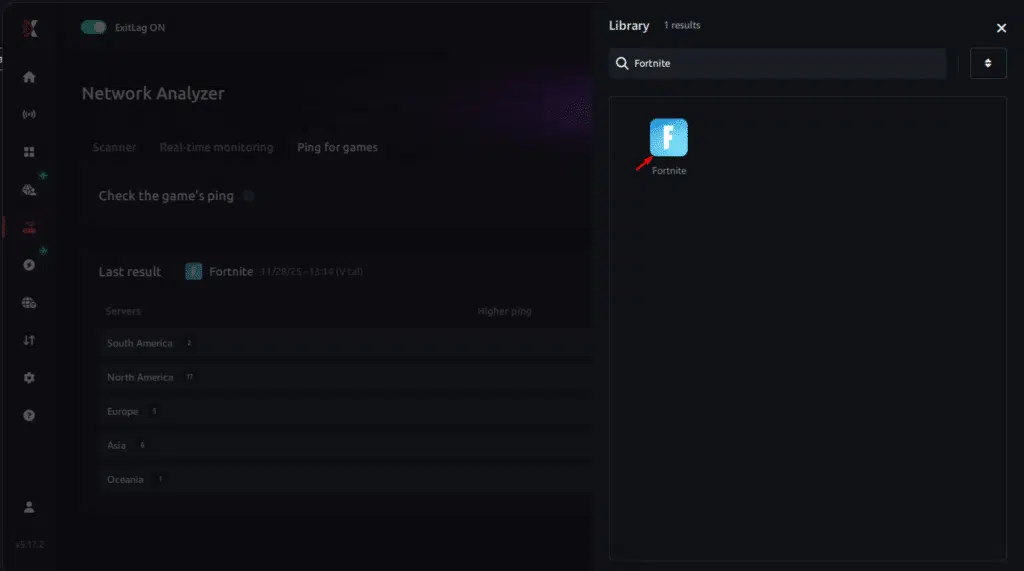
3. Select the game you want to test
Choose Fortnite from the list. The tool supports major online multiplayer games, including FPS, Battle Royales, MOBAs, MMORPGs, and more.
4. Choose the specific server
Select the exact Fortnite server you want to test instead of a generic region. This ensures more accurate results for your match.
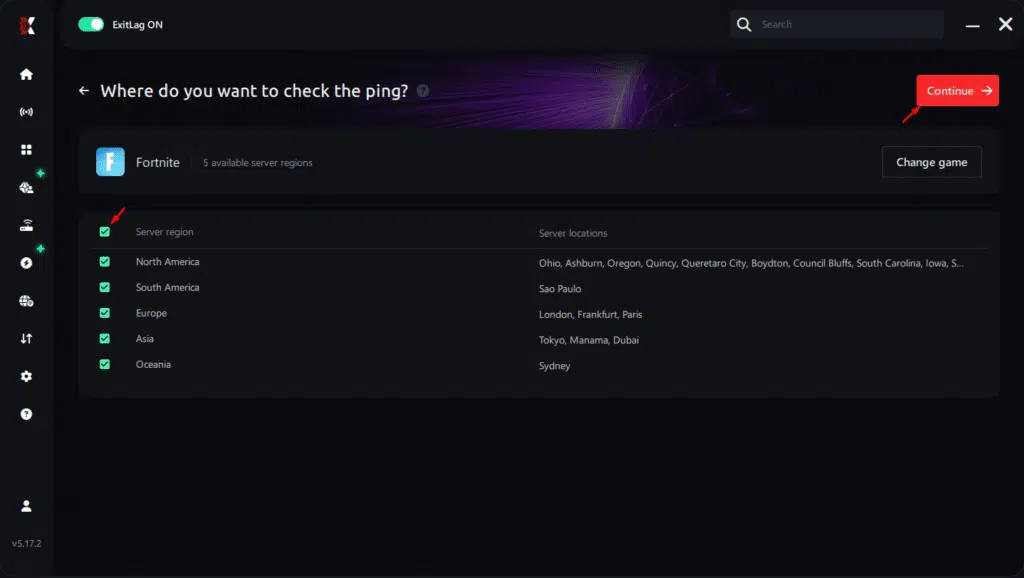
5. Start the ping test
With one click, the measurement is performed in real time between your device and the selected Fortnite server, considering your current connection (cable or Wi-Fi).
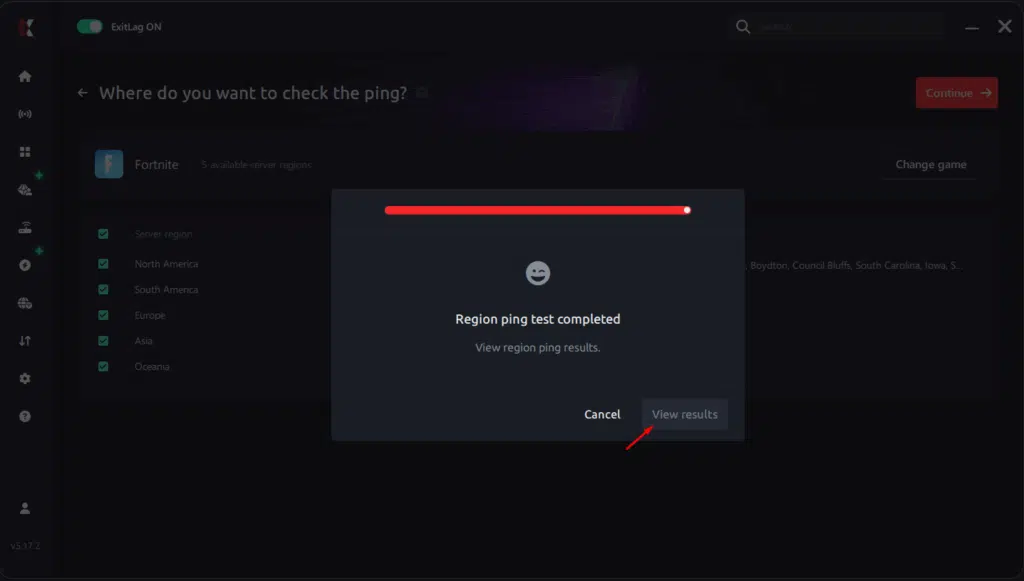
6. Analyze the results
Results appear in milliseconds (ms), automatically sorted from best to worst ping. You can also reorganize the view alphabetically if you prefer.
7. Choose the best server and play worry-free
With this information, simply select the server with the lowest latency and jump into Fortnite knowing your connection is optimized.
Fix FPS drop in Fortnite with ExitLag
Final benefits
In conclusion, combining optimized settings with ExitLag reduces many of the network problems frequently confused with FPS drop Fortnite. Players benefit from:
- Stable FPS
- Zero micro-stuttering
- Smooth gameplay
- Competitive advantage
- Frustration-free gameplay
Next steps
- Test ExitLag for free—start your free trial
- Configure in 5 minutes
- Compare before and after
- Dominate Fortnite
If you’re tired of dealing with performance instability, micro-freezes, and sudden FPS drop Fortnite moments, ExitLag offers the most complete solution for stabilizing your connection and maximizing your gameplay potential. To unlock the smoothest Fortnite experience possible, register now through the official ExitLag page: create your account today.
Got questions or want to connect with other players? Join the conversation at the ExitLag Forum!