
Experiencing FPS Drop Overwatch 2 right when the match gets intense can completely ruin the flow of a fight. At the worst moment—during a team push or ultimate combo—you suddenly watch your frames sink and your aim fall apart. This issue affects beginners and veterans alike, turning clutch situations into frustrating defeats.
Even worse, players often face symptoms that makes fast-paced duels unpredictable and can happen even on strong PCs. To understand more about common performance problems, you can check detailed articles directly from the ExitLag blog.
Because of that, resolving FPS Drop Overwatch 2 becomes essential if you want consistent ranked performance. With the right adjustments and tools like ExitLag, you can stabilize your game, reduce Overwatch 2 frame drops, and eliminate major Overwatch 2 performance issues. You can explore further refinements by visiting the official ExitLag website.
What is FPS drop and why does it happen in Overwatch 2?
FPS Drop Overwatch 2 appears when the game cannot maintain a stable frame rate due to system overload or bad optimization. Even more, the fast-paced nature of the game demands consistent performance to keep aim and movement responsive. Therefore, understanding how frames behave helps you diagnose the problem more quickly.
Understanding FPS
Here’s what different FPS ranges typically represent in competitive Overwatch 2 gameplay:
- 144+ FPS
- 60–120 FPS
- 30–60 FPS
- Below 30 FPS
Difference between FPS drop and network lag
Many players confuse FPS issues with lag, but the causes and solutions differ. See the table below:
| Aspect | FPS Drop | Network Lag |
| Cause | Hardware or graphics overload | Poor routing, unstable connection |
| Symptoms | Freezes, choppy animations, stutters | Teleporting, rubberbanding, delayed inputs |
| Solution | Lower settings, optimize hardware | ExitLag |
Why Overwatch 2 suffers from FPS drop
Overwatch 2 has highly dynamic environments, fast particle effects, and large hero ability interactions. These elements demand high GPU and CPU output. Additionally, crowded team fights generate sudden performance spikes. Because of this, players on mid-range PCs often struggle to maintain stable frames, resulting in Overwatch 2 low FPS and repeated Overwatch 2 stuttering. The game engine pushes real-time lighting, reflections, and physics that can overwhelm systems during chaotic moments.
5 main causes of FPS drop in Overwatch 2
Now, let’s break down the most common triggers responsible for FPS Drop Overwatch 2, helping you understand what to fix first.
1. Overheating
When your GPU or CPU overheats, they automatically throttle performance. As a result, frame rates fall dramatically. Fans clogged with dust, poor airflow, or hot environments can all cause sudden Overwatch 2 performance issues.
2. Outdated drivers
Graphics drivers impact how efficiently your GPU communicates with the game. If they’re outdated, expect Overwatch 2 frame drops during ability-heavy sequences or large team fights.
3. Graphics settings
At first sight, ultra-quality textures and effects look great, but they demand more processing power. Running too many high-end settings on limited hardware leads to frequent dips, especially during explosions or rapid movement.
4. Background processes
Programs running silently—like browsers, overlays, launchers, or recording tools—can steal CPU and RAM. Consequently, the system has fewer resources for Overwatch 2, causing Overwatch 2 lag and stuttering.
5. Insufficient hardware
Some players underestimate the requirements of competitive shooters. Low-end GPUs, old CPUs, and slow RAM are common sources of Overwatch 2 low FPS, especially in graphically intense maps like Shambali or push lanes with many dynamic elements.
How ExitLag fixes FPS drop in Overwatch 2
ExitLag plays a crucial role in stabilizing competitive shooters, especially when unexpected FPS Drop Overwatch 2 moments are tied to network instability. While graphics determine raw frames, your connection directly influences pacing, frame pacing, and responsiveness.
What is ExitLag? (NOT a VPN)
ExitLag is a performance-focused routing tool built for gamers, designed to stabilize online gameplay. Importantly, ExitLag is NOT a VPN. Traditional VPNs encrypt and reroute data generically, while ExitLag uses a proprietary gaming-optimized protocol. To understand the internal mechanisms, you can explore the tool through the official page showing how ExitLag works.
How ExitLag optimizes performance in Overwatch 2
- Network route optimization
- Latency reduction
- Packet loss elimination
- Game traffic prioritization
- Connection stabilization
These improvements collectively help reduce stutters that may feel like FPS Drop Overwatch 2, even if the system hardware is adequate.
Why ExitLag helps with FPS drop
Sometimes players confuse rendering stutter with network jitter. When packets arrive out of sync, the game engine struggles to align animations and player positions. As a result, the screen briefly pauses or skips frames. This phenomenon mimics Overwatch 2 low FPS, even if your GPU is performing well.
ExitLag fights jitter, desync, and pacing inconsistencies—removing micro-stuttering that feels like Overwatch 2 lag. By stabilizing traffic, it reduces perceived Overwatch 2 performance issues that originate from poor routing rather than hardware.
ExitLag technologies that impact FPS
- Multi-path routing
- Redundant connections
- Gaming-optimized protocol
These ensure consistent delivery of in-game data, improving smoothness during ability-heavy fights where players usually notice Overwatch 2 stuttering.
ExitLag vs other solutions
| Solution | Improves FPS? | Reduces lag? | Ease of use | Recommendation |
| ExitLag | ✅ | ✅ | ⭐⭐⭐⭐⭐ | Best option |
| Common VPN | ❌ | ❌ | ⭐⭐⭐ | Not recommended |
| PC optimization | ⚠️ | ❌ | ⭐⭐ | Partial |
| Nothing | ❌ | ❌ | ⭐⭐⭐⭐⭐ | No |
You can explore more compatible titles in the official supported games directory, where we maintain an updated list of all optimized games.
How to use ExitLag in Overwatch 2
The process is extremely simple:
Step 1 – Access the official ExitLag website and download the application. There’s a free trial period for new users.
Step 2 – Install and open the program. Log in with your account.
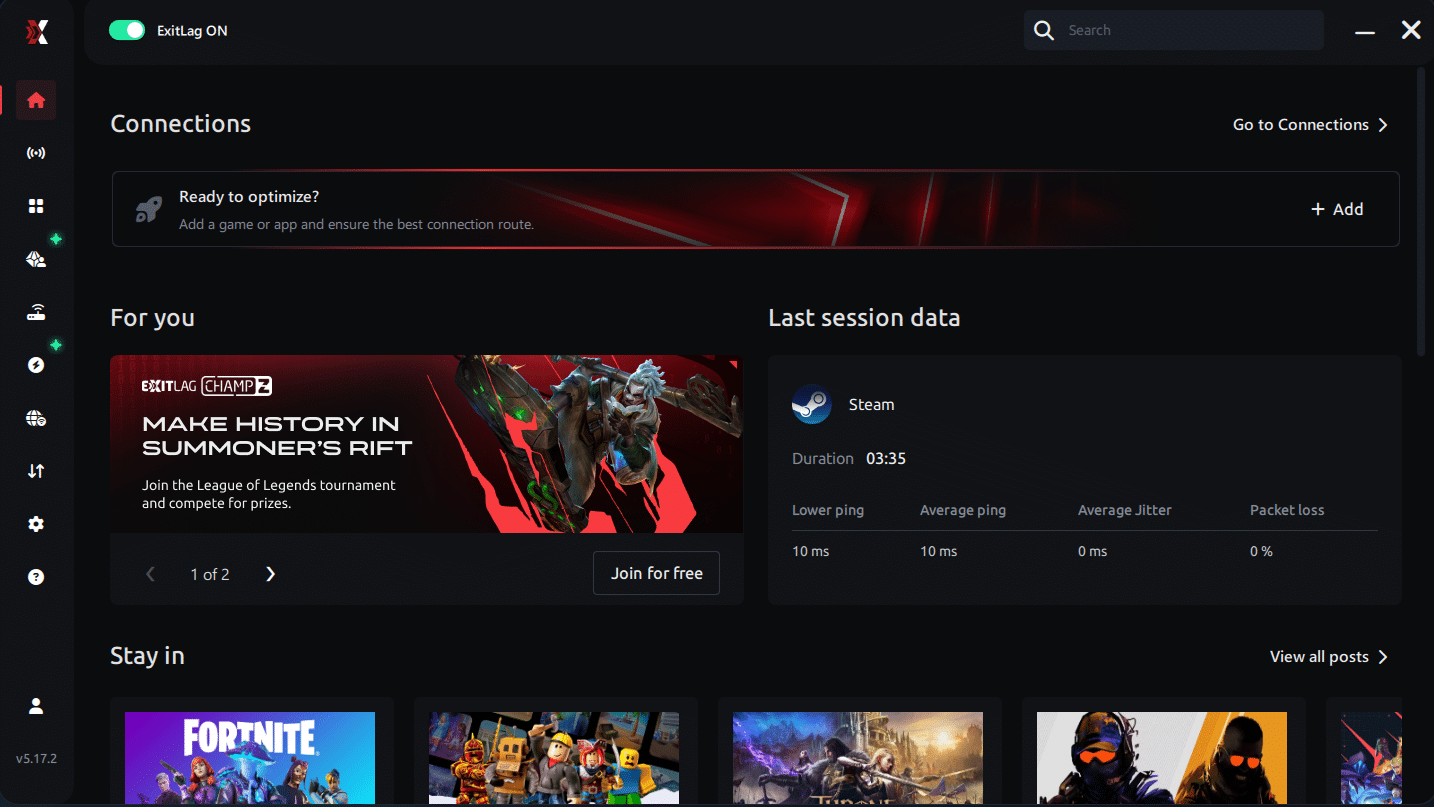
Step 3 – In the search bar, type “Overwatch 2” and select the game from the list.
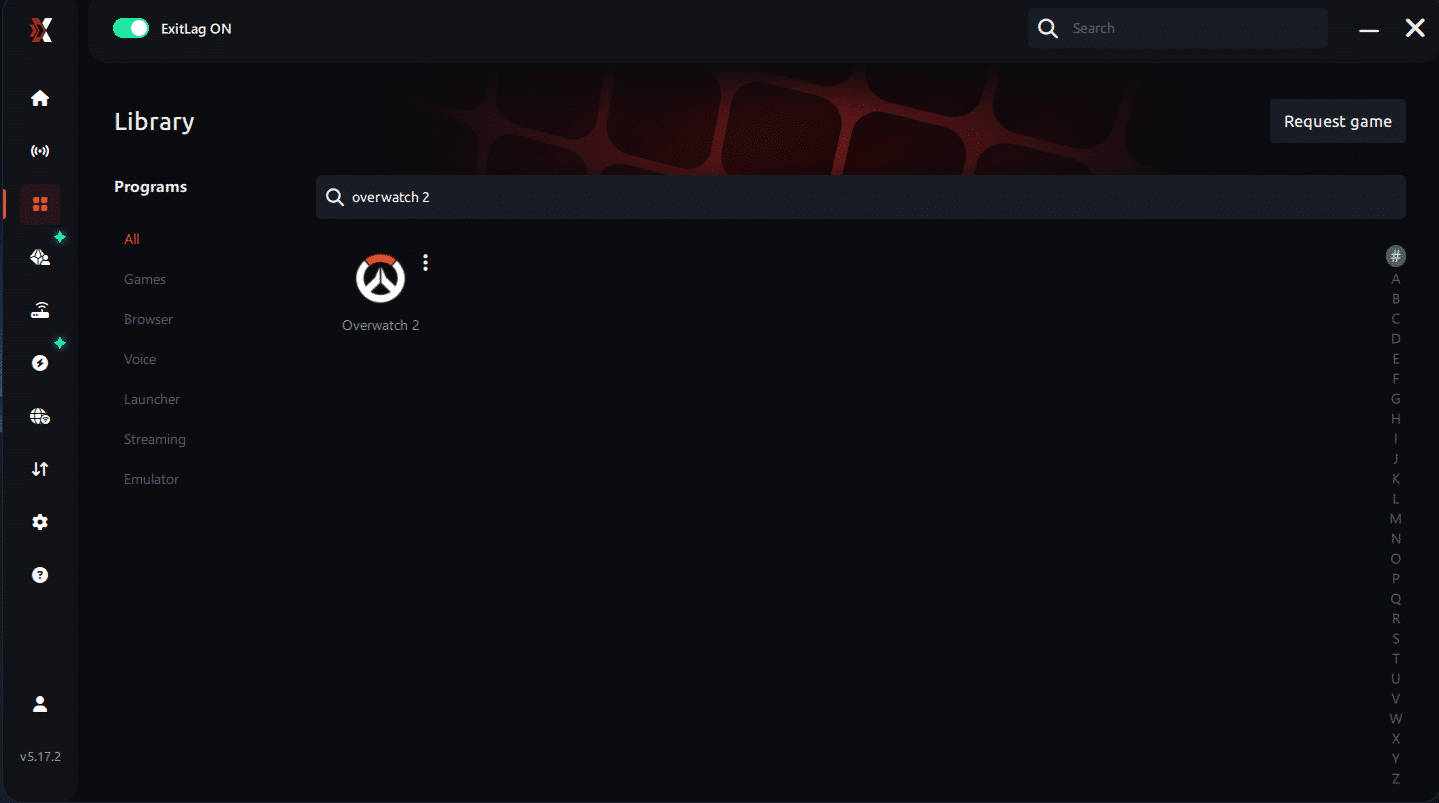
Step 4 – Choose between automated or manual route
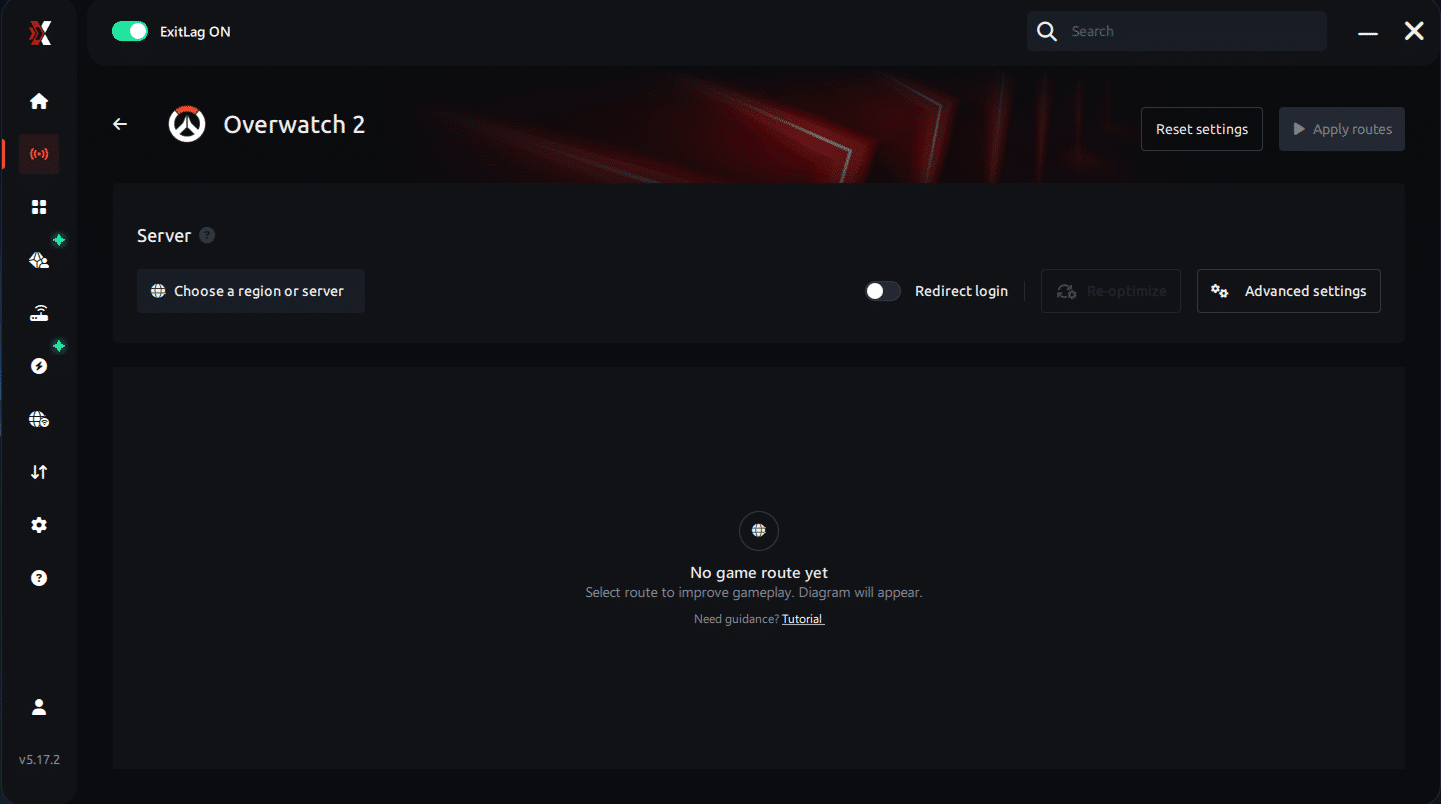
Based on the results, you can let ExitLag automatically select the best route or manually choose the server that showed the lowest latency for your connection.
AI-optimized automated route
Based on the results, you can let ExitLag automatically select the best route through AI optimization. The system analyzes multiple connection paths in real time and automatically identifies the most efficient route for your connection, ensuring the lowest possible latency without requiring manual choices.
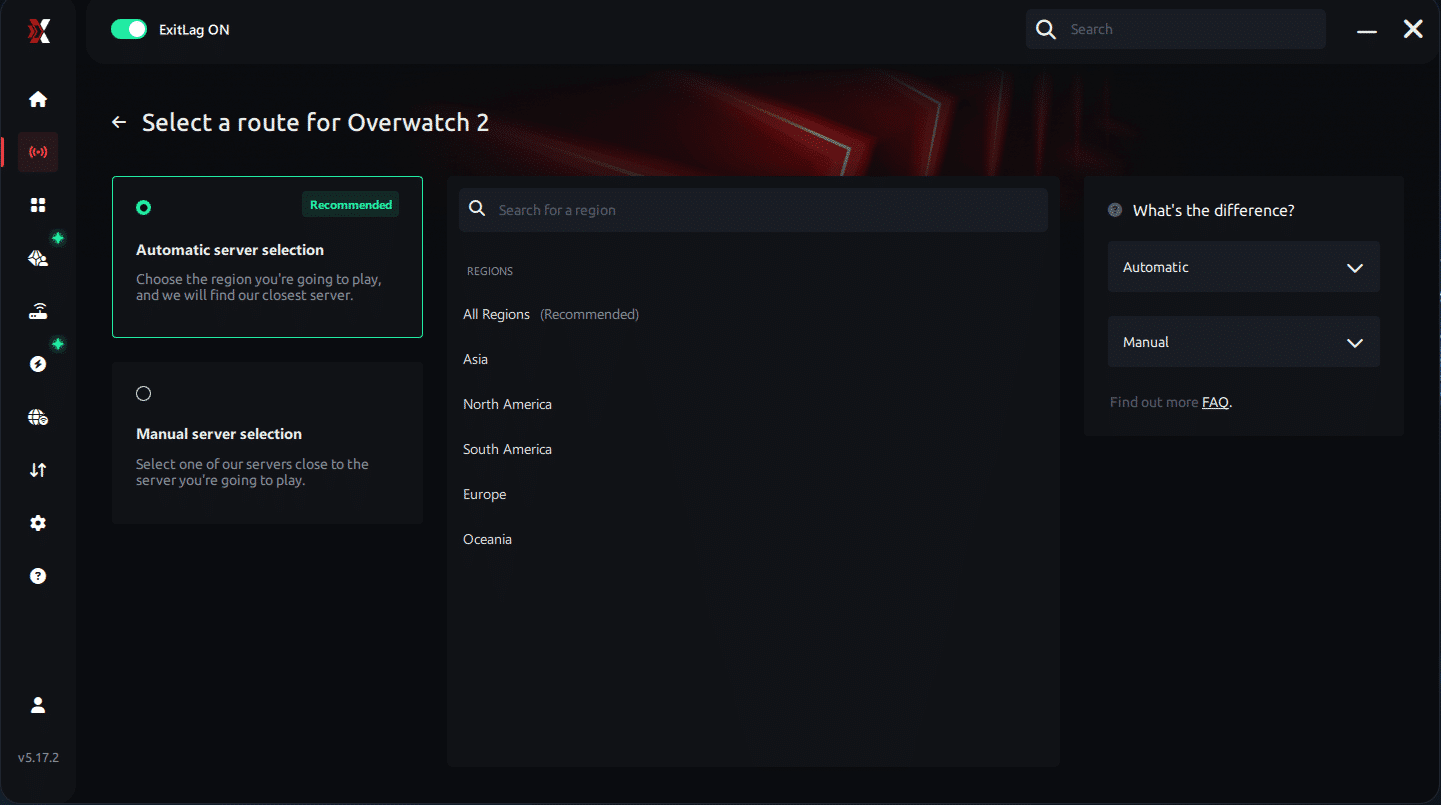
Manual route
If you prefer to have full control over your connection, you can manually choose the server based on the ping test results. Simply select the server that showed the lowest latency or the one that best meets your specific gaming needs, allowing complete customization of your experience.
Step 5 – Click “Overwatch 2” or the play button. ExitLag will begin optimizing your connection automatically.
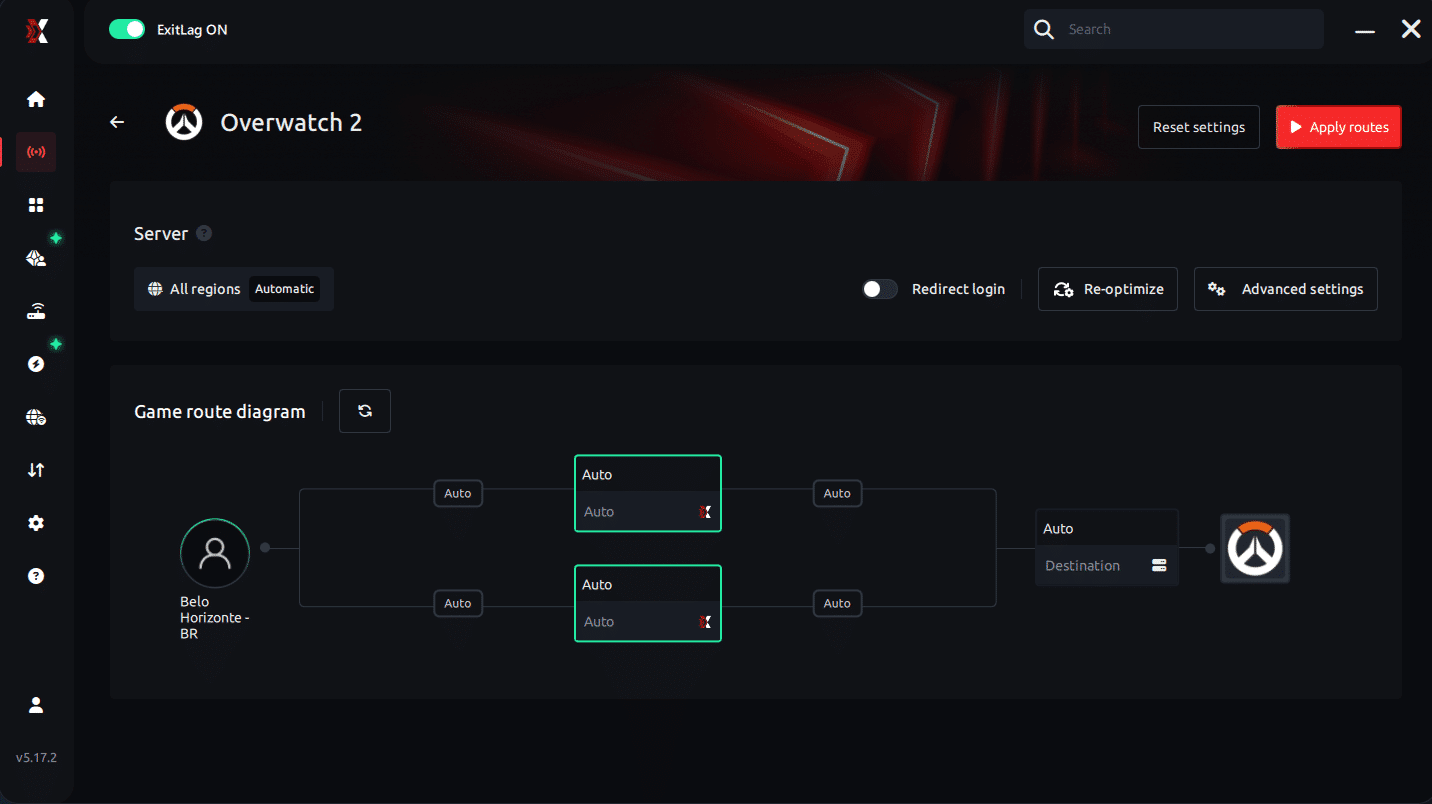
Step 6 – Wait a few seconds until optimization is complete. You’ll see ping indicators in the interface.
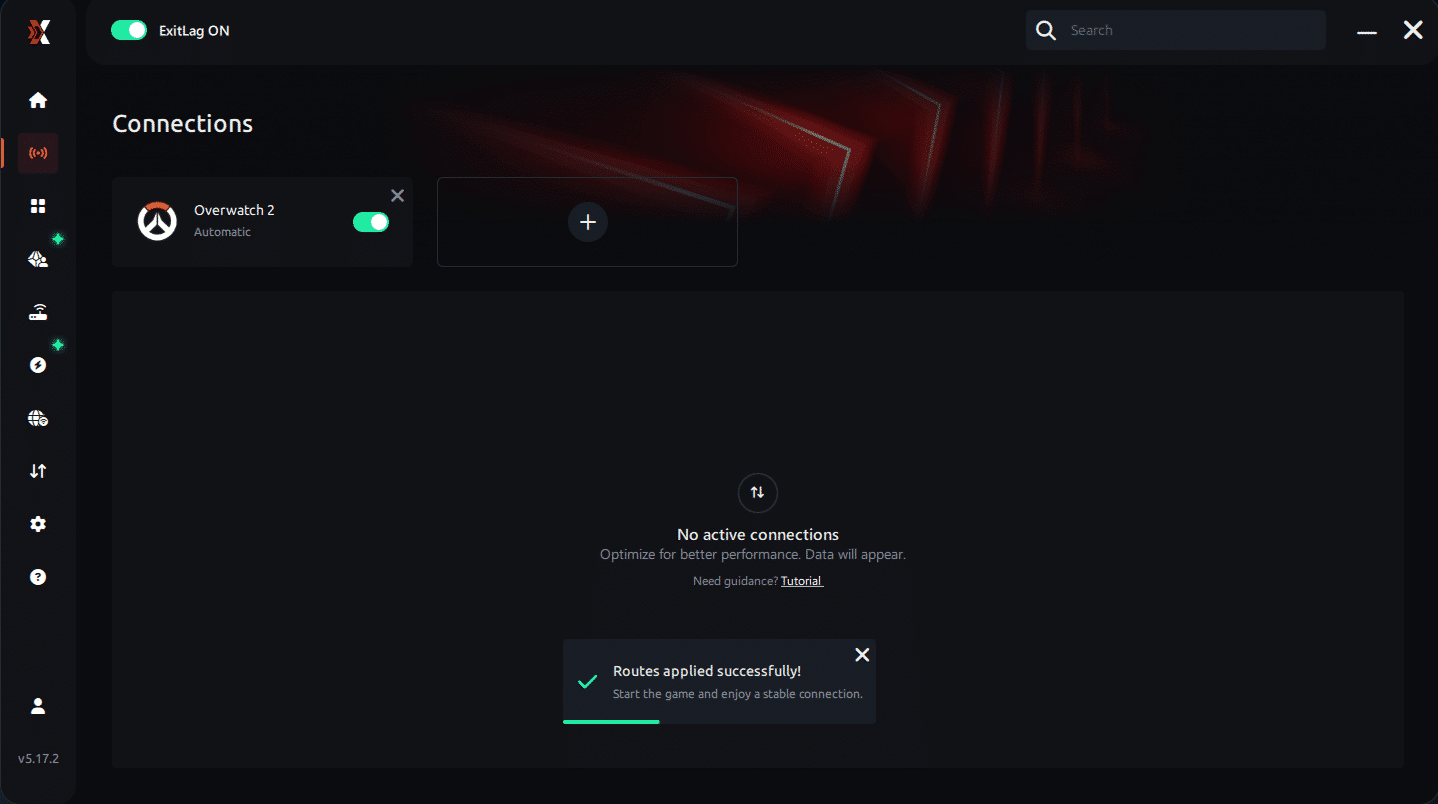
Step 7 – Launch Overwatch 2 normally. The optimization will already be active.
ExitLag runs in the background while you play, constantly adjusting routes to maintain the best possible performance.
Emulator setup
Players using cloud or virtualized environments should select optimized routes for each platform. Although Overwatch 2 is native to PC, tools emulating Windows benefit from stable routing and reduced jitter.
Optimization tips
Limit background apps, disable overlays, and pair ExitLag with in-game moderate settings to eliminate conflicting sources of FPS Drop Overwatch 2.
Console players
While consoles can’t install ExitLag directly, they may benefit through PC-based connection sharing. Stable routing reduces packet loss, improving responsiveness and lowering perceived stutters.
Before and after results with ExitLag in Overwatch 2
Real player cases
- A competitive DPS player reduced routing jitter from 38% to 2%, eliminating fake stutters that felt like frame drops.
- A tank main improved match stability, reducing packet loss from 12% to 0%, fixing micro-freezes during pushes.
- A support player saw latency drops from 145ms to 78ms, which removed pacing delays commonly mistaken for Overwatch 2 frame drops.
Performance comparison table
| Metric | Without ExitLag | With ExitLag | Improvement |
| Ping | 120 ms | 70 ms | Stable routing |
| Packet Loss | 8% | 0% | Smooth gameplay |
| Jitter | High | Low | Reduced micro-stutter |
Measurable improvements in competitive matches
Players who suffered from FPS Drop Overwatch 2 often reported smoother animations once packet loss and jitter were resolved. Even if hardware limitations exist, stabilizing the network layer removes fake stutters that mimic low framerate. As a result, high-action fights feel more fluid, and aiming consistency improves across different maps.
Many users also highlight that resolving routing issues prevents animation delays that appear similar to Overwatch 2 performance issues. When the game's data arrives correctly, hero abilities sync better with visuals, reducing illusionary Overwatch 2 frame drops and movement skips.
Additional optimizations to maximize FPS with ExitLag
To further reduce FPS Drop Overwatch 2, players should combine network, system, and in-game adjustments. These improvements help remove bottlenecks that affect responsiveness and visuals.
Network
Using wired Ethernet significantly reduces instability. It removes spikes that feel like Overwatch 2 stuttering, especially during peak hours. Adjusting router QoS ensures your PC gets priority bandwidth during matches. Switching to a reliable DNS also improves connection consistency. Finally, always close heavy background apps like streaming tools or cloud sync services.
System
Updating GPU drivers prevents conflicts that may cause FPS Drop Overwatch 2. Activating high-performance mode in Windows ensures your CPU and GPU operate at full potential. Disabling unnecessary background software frees extra resources for the game. Keeping your system clean of malware and startup bloat reduces random slowdowns that contribute to Overwatch 2 low FPS.
In-game
Turning V-Sync off removes input delay and avoids unnecessary frame caps. Using a reasonable FPS limit helps maintain stability during chaotic fights. Selecting recommended performance presets prevents overload when abilities generate effects simultaneously. These changes combine with ExitLag to minimize Overwatch 2 lag caused by both system and network factors.
Frequently Asked Questions about FPS drop in Overwatch 2
Does ExitLag actually improve FPS?
ExitLag does not directly increase GPU rendering power, but it removes network-based stutters that feel like FPS Drop Overwatch 2. By reducing jitter, packet loss, and pacing inconsistencies, your perceived framerate becomes much smoother.
Is ExitLag safe?
Yes. ExitLag uses secure protocols focused on gaming, without altering system files or interfering with hardware. It is widely used by competitive players around the world.
Does ExitLag work on console?
Indirectly. Consoles cannot install ExitLag, but you can benefit by routing your connection through a PC running ExitLag and sharing the network. This significantly reduces the network problems that look similar to Overwatch 2 performance issues.
How much does ExitLag cost?
ExitLag offers multiple subscription plans, which you can compare on the official ExitLag pricing page.
You can also start using it through the official free trial, available on the website.
My PC is weak, does ExitLag help?
Yes, but only for network-related problems. ExitLag stabilizes your connection, reducing the perception of FPS Drop Overwatch 2 caused by jitter. However, if your hardware is outdated, you will still need system upgrades or lighter settings.
Does ExitLag work with Overwatch 2?
Yes. Overwatch 2 is supported, and players can confirm this on the official supported games directory on the ExitLag website.
What’s the difference between ExitLag and a VPN?
ExitLag is NOT a VPN. VPNs tunnel traffic generically, while ExitLag uses a game-optimized protocol focused on lowering latency and stabilizing packet delivery. This avoids micro-stutters that may look like Overwatch 2 frame drops.
Why do team fights cause sudden FPS drops?
Large particle effects, dynamic lighting, and rapid position updates strain both hardware and network processing. This makes intense fights the most common moment for FPS Drop Overwatch 2.
Why does my FPS drop when spectating?
Spectator mode loads extra animations and angles, increasing CPU demand and sometimes creating Overwatch 2 stuttering.
Does crossplay affect performance?
Crossplay does not reduce FPS, but poor matchmaking servers may introduce lag that looks like Overwatch 2 low FPS during gameplay.
Fix FPS drop in Overwatch 2 with ExitLag
Final benefits
- Stable FPS
- Zero micro-stuttering
- Smooth gameplay
- Competitive advantage
- Frustration-free experience
ExitLag ensures that routing issues never mimic FPS Drop Overwatch 2, giving you the consistent environment needed to play at your full potential.
Next steps
- Test ExitLag for free
- Configure in 5 minutes
- Compare before and after
- Dominate Overwatch 2
In conclusion, solving FPS drop Overwatch 2 issues requires balancing hardware, settings, and network stability. ExitLag’s multi-path technology eliminates routing delays and ensures fluid gameplay across all regions of Overwatch 2. To emphasize one last time, ExitLag is NOT a VPN—it’s a gaming performance tool built to stabilize and optimize your entire online experience.
Now that you know everything about FPS drop Overwatch 2, if you want the most stable, smooth, and competitive gameplay possible, is time to upgrade your performance toolkit. Register at ExitLag now and improve your gameplay in a way you've never experienced before!