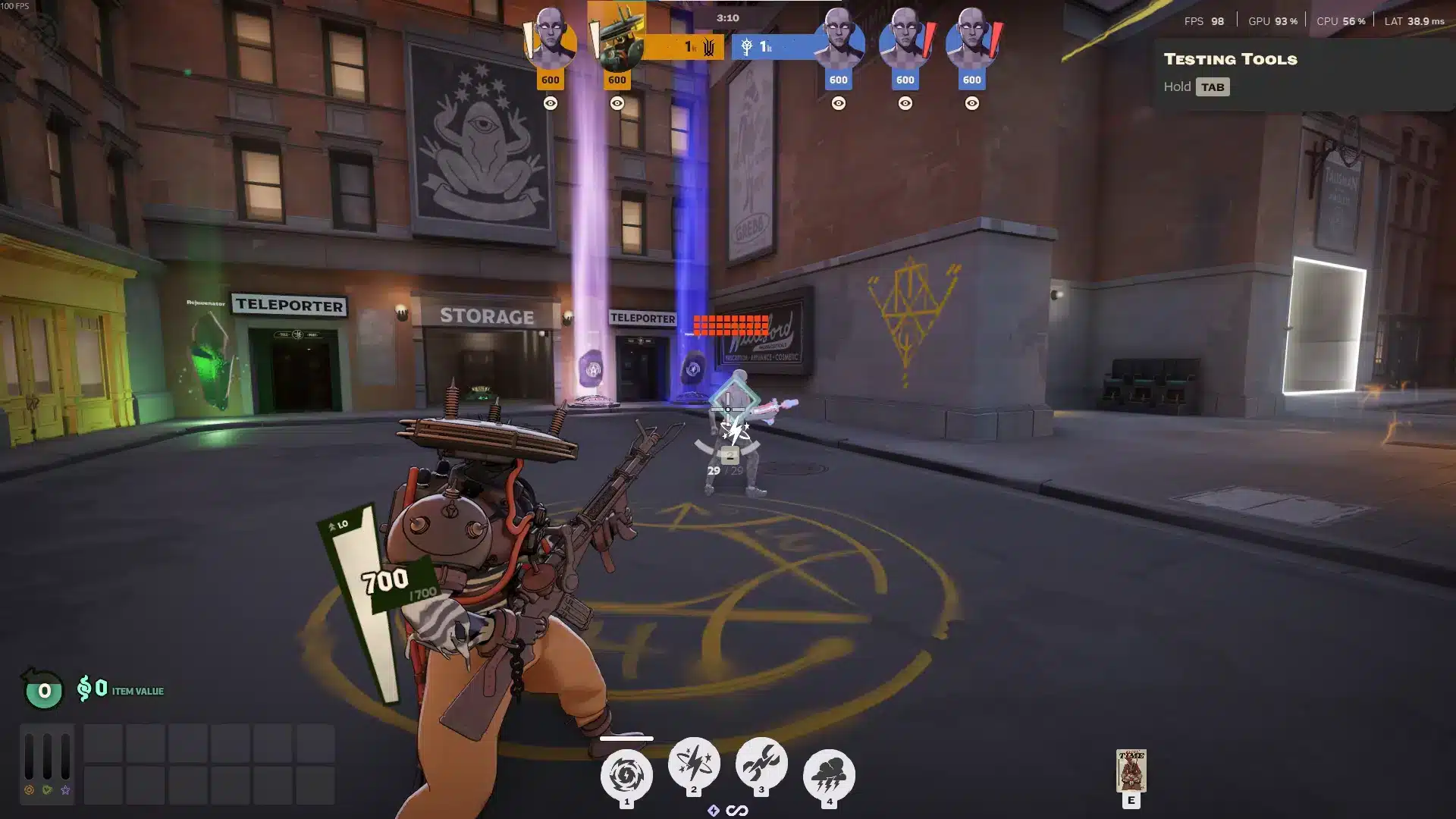
Your field of view decides how much of the battlefield you actually see. In a fast hero shooter with lanes, jungle camps and flanking enemies, a tight view can make you feel boxed in and a little queasy.
If you are looking up How To Change FOV In Deadlock, you are not alone. Plenty of players want a wider picture without wrecking their aim, and the answer has changed a lot recently.
In short, open the settings menu, find the camera FOV slider and drag it to your preferred value. Valve added that slider in the Old Gods, New Blood update, so a normal adjustment needs no hack.
If you want to go beyond the slider, a config edit is the extra step, and this guide covers both.
Try one value for a full week. Constantly changing it keeps you from building muscle memory.
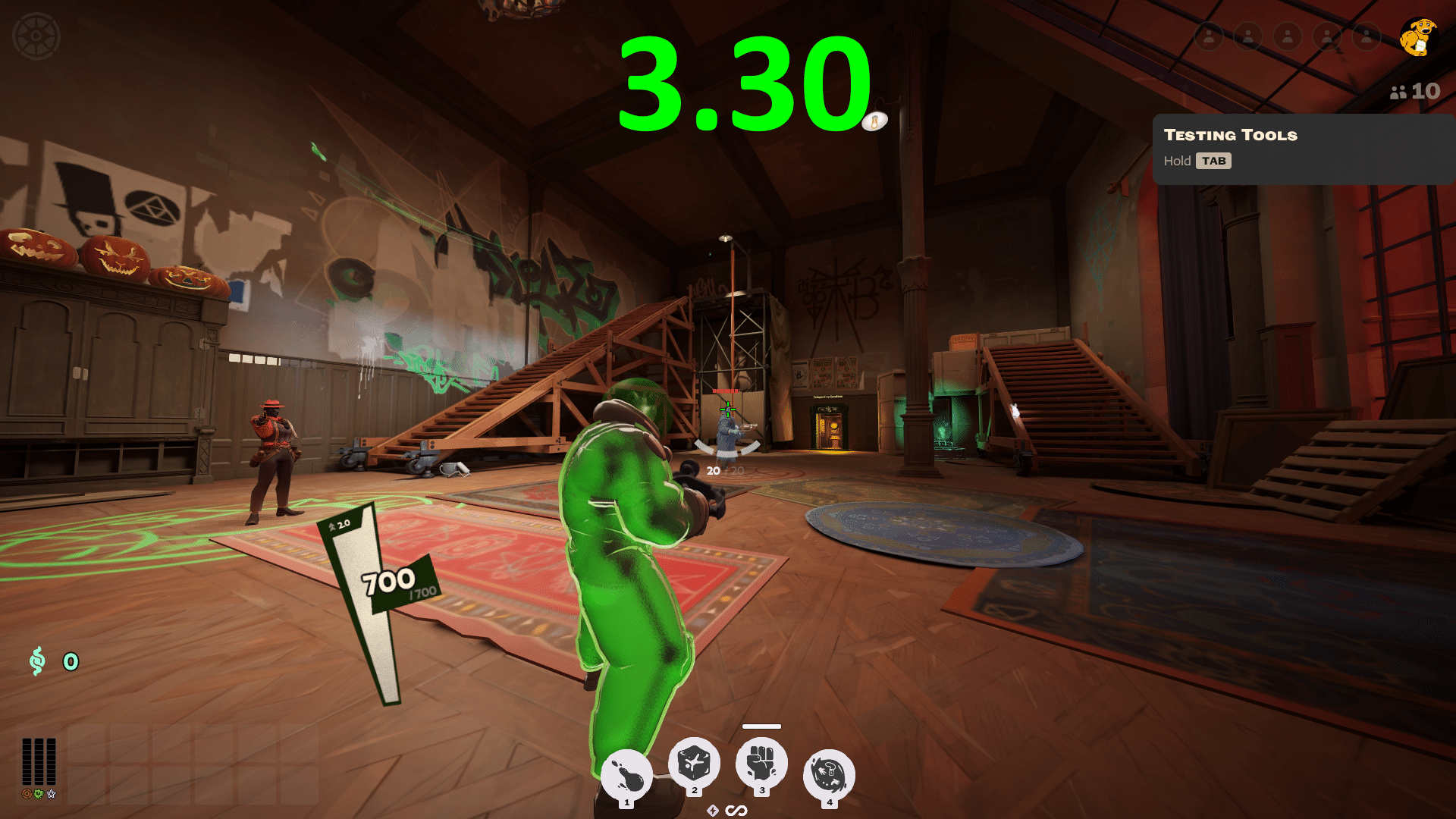
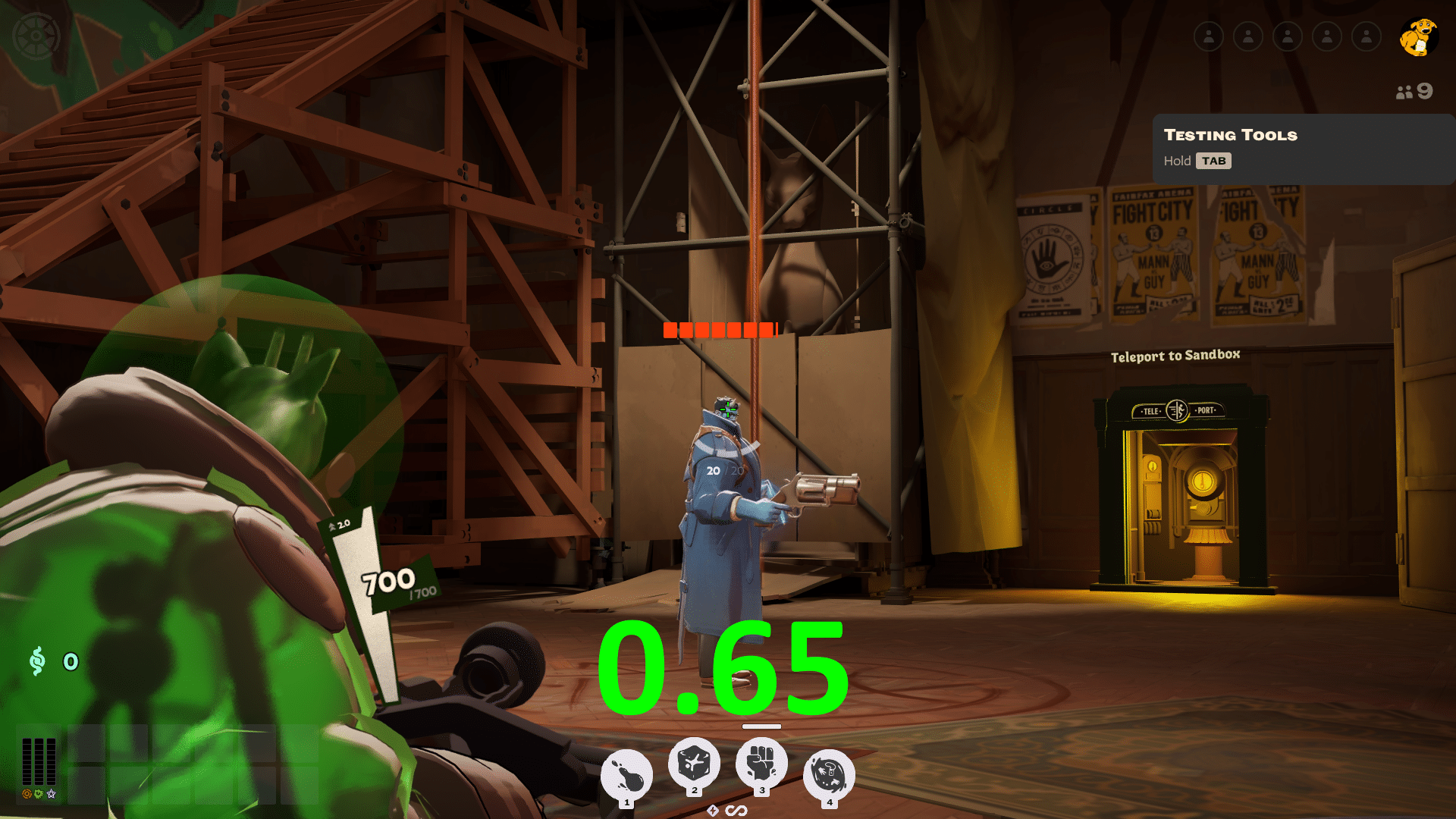
How To Change FOV In Deadlock Using The Settings Menu
The safest way to apply How To Change FOV In Deadlock advice is the official route. It takes under a minute, it survives restarts, and it does not touch any game files.What Changed With The New FOV Slider?
Before the Old Gods, New Blood update, Deadlock only had a single legacy FOV option. According to the update notes on the community-run Deadlock Wiki, you can now adjust the camera more gradually with a proper slider. The same patch also added a settings search and a camera system that reduces sudden camera jumps when you run behind obstacles. Here is what the new options give you:- A smooth slider instead of one fixed legacy setting.
- A settings search box, so you can type "FOV" and jump straight to it.
- Less unexpected camera movement near walls and obstructions.
- A cleaner way to test values mid-session without restarting.
Step By Step: Change The Slider
Follow these steps to apply a Deadlock FOV Change from the menu. This is the simplest answer to How To Change FOV In Deadlock:- Launch Deadlock and open the Settings menu from the main screen.
- Use the search bar and type "FOV" to find the camera option.
- Drag the Camera FOV slider up for a wider view or down for a tighter one.
- Jump into a practice match and run a lap around the lane.
- Adjust again until the edges of the screen feel comfortable.
Why Does The Slider Stop At 90?
Here is the catch that frustrates many players who learn How To Change FOV In Deadlock for the first time. Based on a thread on the official Valve forums, the in-game Camera FOV setting currently tops out at 90. Several players in that thread argue that 90 is too low and ask for a higher limit of 120. Some mention headaches below roughly 103 and suggest an ideal range somewhere between 105 and 115. That limit is exactly why people search for How To Increase FOV Deadlock beyond the menu. Keep in mind this is community feedback, not an official promise that the cap will change.What Is A Good FOV For Deadlock?
There is no perfect number, because comfort depends on your monitor, distance and playstyle. Still, this table gives a practical starting point:| FOV Range | Best For | Trade-Off |
|---|---|---|
| Around 80 | Precise long-range aim | Narrow view, easier to get flanked |
| Around 90 | Balanced play, current slider maximum | Safe default for most players |
| 100 and above | Wide awareness in teamfights | Targets look smaller, needs a config edit |
Deadlock FOV Command: How The Config Method Works
When the slider is not enough, players use a console variable to extend How To Change FOV In Deadlock beyond the menu. The community has long used a Deadlock FOV Command called citadel_camera_fov, set through the gameinfo.gi file. A Valve forum thread documented this trick working at 90 and 120 in bot matches. Remember that it is a workaround, not an official feature.How To Change Deadlock FOV Through gameinfo.gi
If you want to know How To Change Deadlock FOV past the slider, treat the file with care:- Close Deadlock completely.
- Open your Steam library, right-click Deadlock, and choose Manage, then Browse local files.
- Go to the game folder, then the citadel folder.
- Make a backup copy of gameinfo.gi before touching anything.
- Open the original in a text editor and find the ConVars section.
- Add the FOV line you want, save the file, and launch the game.
Is The Aspect Ratio Trick A Safe Way To Change FOV In Deadlock?
Another community method, popular with players who ask Deadlock Change FOV questions, forces a wider view with an aspect ratio value in the same file. Guides on Steam list 1.75 for roughly 80 FOV, 2.15 for roughly 90 and 2.49 for roughly 100. However, several comments on that kind of guide report crashes. For that reason, this is a last resort, and the in-game slider should always come first.- Back up first: One copy of the original file saves you from a reinstall.
- Change one thing at a time: If the game crashes, you know the cause.
- Verify files in Steam: This restores the stock file if something breaks.
Can You Use Mods To Change FOV Deadlock Players Share?
What Do FOV Mods Actually Do?
You will also see experimental mods that add a slider for wider values. One community mod on GameBanana describes itself as an experimental slider that adjusts the aspect ratio from 1.78 to 3.00. Mods carry the same risk as config edits, and an update can break them. Therefore, read the mod page carefully and avoid anything that asks for odd permissions.Which Method Of How To Change FOV In Deadlock Should You Pick?
Use this quick comparison before you decide. Whichever you choose, the goal is the same: Change FOV Deadlock settings without breaking your install.- Settings slider: Official, stable and the right choice for most players.
- Config edit: Fast and free, but needs reapplying after updates.
- Community mod: Convenient interface, yet experimental and unofficial.
How Do You Fix Blurry Or Stretched Visuals After A Deadlock Change FOV?
Sometimes a wider view looks odd. Characters seem stretched near the edges, or the weapon model sits strangely on screen. That is normal at high values, because the game must fit more world into the same display. In most cases, lowering the number slightly fixes it.Quick Visual Checks
Run through this list when something looks off:- Confirm your resolution matches your monitor's native setting.
- Turn off any old mod or leftover config line you forgot about.
- Lower the FOV by 5 points and test again.
- Restart the game, since some changes apply only on launch.
Pro Tips: How To Change FOV In Deadlock Like A Pro
- Test in a lane, not a menu: Movement exposes comfort problems that a static screen hides.
- Match your sensitivity: A wider view makes the same mouse speed feel slower, so retune it. Re-test your sensitivity after every FOV change.
- Lower motion blur and camera shake: Less screen movement reduces eye strain during long sessions.
- Keep FPS high: A wider view renders more of the map, so a stable frame rate matters. Learn to read your frames with the CS2 FPS Counter guide, which shows the idea clearly.
Common Mistakes Players Make With FOV
- Maxing it out instantly: Extreme values shrink targets and hurt your aim. Fix: raise it in small steps and test over several matches.
- Skipping the backup: A bad edit can stop the game from launching. Fix: copy gameinfo.gi first and verify game files if needed.
- Ignoring performance: A wider view can cost frames on weaker PCs. Fix: lower shadows or effects before blaming the slider.
- Blaming FOV for network trouble: Rubberbanding is not a camera problem. Fix: check your connection, as explained below.
Does Learning How To Change FOV In Deadlock Affect Your Frame Rate Or Ping?
How To Change FOV In Deadlock is purely a visual choice, so FOV itself only affects what your PC renders, so it will not change your ping. However, rendering a wider scene can lower your frame rate, and that makes inputs feel delayed. Many players mix up the two problems. Input delay from low FPS and delay from the network can feel identical, so it helps to know which one you have. Our guide on what lag is and what causes it in games explains the difference.Reduce Input Latency On The PC Side
If frames are the issue, a driver feature can help. Radeon owners can read our Radeon Anti Lag guide to see whether the setting suits their system.
How Does ExitLag Keep Your Wider View Smooth?
Knowing How To Change FOV In Deadlock helps you spot enemies, but it cannot fix a bad route to the server. When packets take a congested path, you get spikes, rubberbanding and hits that do not register. ExitLag is not a VPN. It is a game connection optimizer that checks multiple network paths in real time and picks the fastest, most stable route to the game's servers.What ExitLag Does For Deadlock
For a team shooter like Deadlock, these features matter most:- Multipath Technology: Sends packets through several routes at once, so one weak path does not ruin a fight.
- Real-time Optimization: Cuts delay and packet loss so abilities and shots feel precise.
- Multi-Internet: Uses up to 4 connections and switches instantly if one drops.
- PC Boost: Frees RAM and background processes for steadier FPS.