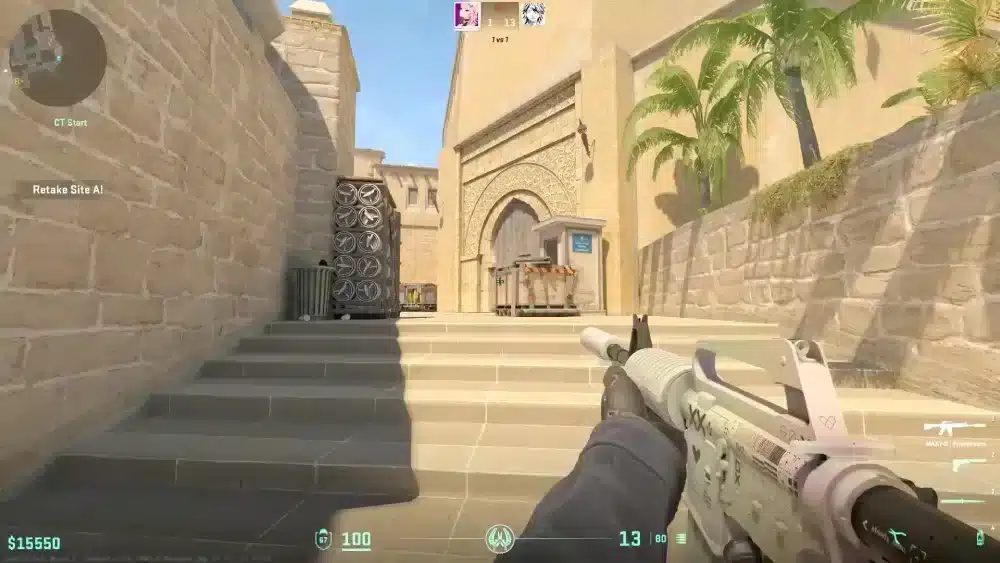
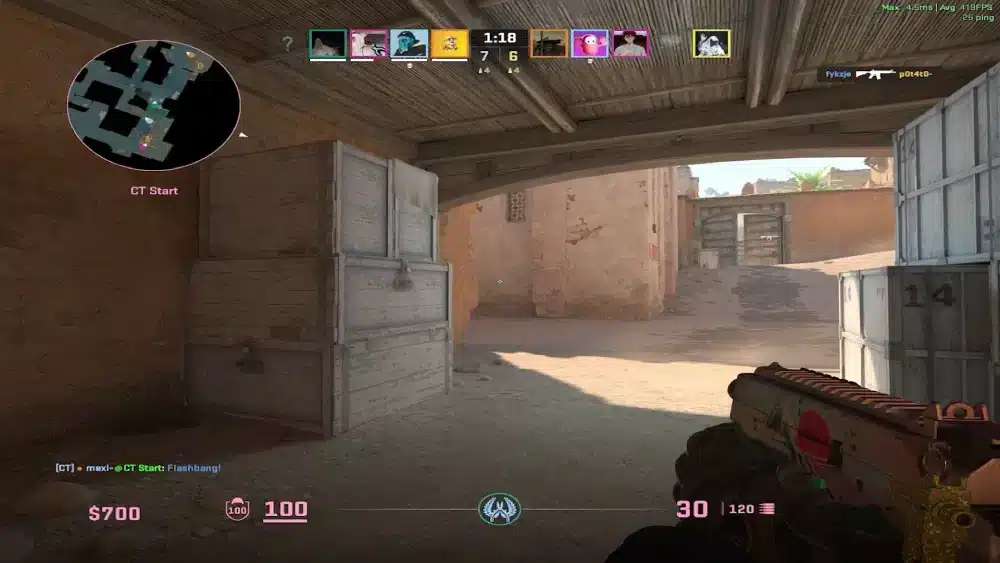
The CS2 FPS Counter is one of the most useful tools for players who want to monitor game performance and identify potential issues during matches. Whether you play casually or compete at a high level, tracking your frame rate helps you understand how well your PC handles Counter-Strike 2.
Using the CS2 FPS Counter lets you quickly check if your hardware delivers stable performance in different situations. Heavy smoke grenades, multiple players on screen, and detailed maps can all affect your FPS. By monitoring these changes, you can adjust your graphics settings and improve overall responsiveness.
If you are wondering what the CS2 FPS Counter is and where to enable it, the answer is simple. Counter-Strike 2 includes built-in commands that display your current frame rate directly on the screen. You can also use Steam’s performance overlay or third-party monitoring software for more detailed statistics.

CS2 FPS Counter: Why Monitoring FPS Matters
A high frame rate is essential in Counter-Strike 2 because every millisecond can influence your reaction time. While mechanical skill remains the most important factor, smooth gameplay makes aiming, movement, and tracking opponents much more consistent.
Unlike single-player games, competitive shooters demand stable performance throughout an entire match. Sudden FPS drops during firefights may lead to missed shots or delayed reactions.
Several factors can reduce performance, including:
- High graphics settings
- Background applications
- Outdated GPU drivers
- CPU bottlenecks
- Limited system memory
- Thermal throttling
Keeping an eye on your FPS allows you to identify these problems before they become frustrating during ranked matches.
How FPS Affects Gameplay
Higher FPS provides several gameplay advantages.
- Smoother animations
- Faster visual updates
- Reduced input delay
- Better target tracking
- More responsive mouse movement
Although FPS alone will not improve your aim, it creates a more consistent experience that allows your skills to shine.
Recommended FPS Targets
Different monitors benefit from different frame rates.
| Display Refresh Rate | Recommended FPS | Competitive Experience |
| 60 Hz | 60 to 90 FPS | Playable |
| 120 Hz | 120+ FPS | Smooth |
| 144 Hz | 144+ FPS | Competitive |
| 165 Hz | 165+ FPS | Excellent |
| 240 Hz | 240+ FPS | Professional level |
Generally, maintaining FPS close to your monitor’s refresh rate delivers the best experience.
How to Enable the FPS Counter Command CS2
Counter-Strike 2 includes built-in console commands that display your current frame rate without installing additional software. Before using console commands, make sure the Developer Console is enabled in the game settings.
Enable Developer Console
Follow these steps:
- Open Settings.
- Select the Game tab.
- Enable Developer Console.
- Press the ~ key.
- Type the desired command.
Once enabled, you can access the console at any time during gameplay.
FPS Counter Command CS2
The simplest command is: cl_showfps 1
This displays your current FPS directly on the screen while playing.
If you want additional frame timing information, use:
cl_showfps 2
To hide the counter again:
cl_showfps 0
These commands are lightweight and have virtually no impact on game performance.
Benefits of the Built-in Counter
Using the built-in counter offers several advantages.
- No additional software required
- Quick access during matches
- Minimal performance impact
- Accurate real-time FPS monitoring
- Easy to enable or disable
For most players, this built-in option is more than enough to monitor performance during competitive games.
Steam FPS Counter vs CS2 FPS Counter Command
While the built-in CS2 FPS Counter is the fastest way to monitor your frame rate, it is not the only option. Steam also includes a native FPS overlay that works across many games, including Counter-Strike 2.
The Steam overlay is ideal for players who prefer a graphical interface instead of console commands.
How to Enable the Steam FPS Counter
You can activate the Steam FPS Counter in just a few steps.
- Open Steam.
- Click Steam and then Settings.
- Select In Game.
- Find In-game FPS Counter.
- Choose where you want the counter to appear.
- Launch Counter-Strike 2.
Unlike the console command, the Steam overlay works even if the Developer Console is disabled.
CS2 FPS Counter Command vs Steam Overlay
| Feature | CS2 FPS Counter Command | Steam FPS Counter |
| Built into CS2 | Yes | No |
| Requires Developer Console | Yes | No |
| Easy to enable | Yes | Yes |
| Performance impact | Extremely low | Very low |
| Additional frame information | Yes | No |
| Works in other Steam games | No | Yes |
Both methods are reliable. However, competitive players generally prefer the built-in command because it integrates directly with Counter-Strike 2.
How to Increase FPS in Counter-Strike 2
Monitoring FPS is only part of the process. Once you identify performance drops, you can optimize your system to achieve smoother gameplay.
Optimize Your Graphics Settings
Lowering demanding visual settings usually produces the biggest FPS improvements.
Consider reducing:
- Shadow Quality
- Global Illumination
- Ambient Occlusion
- Particle Detail
- Shader Detail
- Anti-Aliasing
- Texture Filtering
Lower settings often improve visibility while increasing performance.
Keep Drivers Updated
Graphics driver updates frequently include optimizations for new game updates.
Before launching Counter-Strike 2, make sure you have:
- Updated GPU drivers
- Updated Windows
- Latest motherboard chipset drivers
- Current Steam client version
These updates can improve stability as well as performance.
Close Background Applications
Many applications consume CPU resources and memory even when running in the background.
Examples include:
- Web browsers
- Video recording software
- RGB controller utilities
- File synchronization tools
- Streaming software
- Automatic update services
Closing unnecessary applications frees system resources for Counter-Strike 2.
Can Network Lag Affect Your FPS?
Many players confuse FPS drops with network lag. Although they create similar symptoms, they have different causes. FPS is determined by your hardware. Ping depends on your internet connection. Packet loss affects communication between your PC and the game servers. Understanding this difference helps you troubleshoot problems more effectively.
FPS Problems
Symptoms include:
- Choppy animations
- Stuttering
- Screen freezing
- Delayed rendering
- Low GPU utilization
Network Problems
Typical signs include:
- Rubber banding
- Delayed hit registration
- Teleporting players
- High ping
- Packet loss
If your FPS remains high while gameplay still feels delayed, your network connection may be the real issue.
How ExitLag Complements the CS2 FPS Counter
The CS2 FPS Counter measures rendering performance, but it cannot improve your network connection. This is where ExitLag becomes valuable.
ExitLag optimizes data routing between your computer and Counter-Strike 2 servers, helping reduce latency, stabilize packet delivery, and minimize connection instability. It does not modify Counter-Strike 2 files, interact with VAC, or interfere with the game’s anti-cheat systems.
Using ExitLag together with the CS2 FPS Counter allows you to monitor two critical aspects of performance:
- Stable frame rates
- Lower latency
- Reduced packet loss
- More consistent online matches
Together, these improvements create a smoother competitive experience.
Pro Tips
- Keep your FPS at or above your monitor’s refresh rate whenever possible.
- Test different graphics settings after every major Counter-Strike 2 update.
- Monitor both FPS and temperatures to avoid thermal throttling.
- Restart your PC before long competitive sessions to maximize available system resources.
Common Mistakes
Using Maximum Graphics Settings
Higher settings do not necessarily improve competitive gameplay. Fix: Prioritize smooth performance over visual effects.
Ignoring Driver Updates
Old GPU drivers may reduce stability after game updates. Fix: Install the latest official graphics drivers regularly.
Confusing FPS with Ping
Many players blame low FPS for issues actually caused by network latency. Fix: Monitor both FPS and your network statistics separately.
Frequently Asked Questions
What is the best CS2 FPS Counter command?
Most players use:
cl_showfps 1
It displays your current FPS with minimal screen clutter.
What is the FPS Counter Command CS2 for detailed information?
Use:
cl_showfps 2
This displays additional frame timing information.
Does the Steam FPS Counter work in Counter-Strike 2?
Yes. Steam provides a built-in FPS overlay that works alongside Counter-Strike 2 without requiring console commands.
Can low FPS increase input lag?
Yes. Lower frame rates often increase input latency, making aiming and movement feel less responsive.
The CS2 FPS Counter is one of the simplest yet most effective tools for monitoring your game’s performance. Whether you use the built-in console commands or the Steam overlay, tracking your frame rate helps identify bottlenecks and maintain a smoother experience during competitive matches.
Combining stable FPS with a reliable network connection creates the best possible environment for Counter-Strike 2. While the FPS counter helps you monitor rendering performance, ExitLag can optimize your route to game servers without modifying game files or interacting with anti-cheat systems, allowing you to focus entirely on your gameplay.
Advanced Performance Tweaks for the CS2 FPS Counter
Once you have enabled the CS2 FPS Counter, the next step is understanding how to keep your frame rate stable during every match. Many players focus only on average FPS, but frame consistency is equally important. Frequent fluctuations can make aiming feel inconsistent, even if the average FPS appears high.
Monitor Frame Consistency
A stable frame rate provides a smoother experience than one that constantly jumps between high and low values.
For example:
- 240 FPS locked feels smoother than fluctuating between 180 and 300 FPS.
- Consistent frame pacing reduces visible stuttering.
- Stable performance improves mouse responsiveness.
- Predictable frame delivery makes recoil control easier.
When using the FPS Counter CS2, pay attention to sudden drops during smoke grenades, Molotovs, or crowded bombsites. These situations place additional load on both the CPU and GPU.
Adjust Video Settings One at a Time
Many players lower every graphics option simultaneously. While this may increase FPS, it also makes it difficult to identify which setting has the biggest impact.
Instead, change one option at a time.
- Launch a practice map.
- Enable the CS2 FPS Counter.
- Record your average FPS.
- Change one graphics setting.
- Compare the new results.
- Repeat until you find the best balance.
This method helps you optimize performance without unnecessarily sacrificing visual quality.
Best Hardware Components for High FPS
Counter-Strike 2 benefits from balanced hardware. A powerful graphics card alone cannot compensate for a slow processor.
CPU Performance
The CPU is responsible for:
- Player movement calculations
- Physics
- Game logic
- AI behavior
- Tick processing
A modern processor with strong single-core performance generally delivers the best competitive experience.
GPU Performance
Your graphics card handles:
- Lighting
- Textures
- Particle effects
- Shadows
- Post-processing
Reducing GPU-heavy settings often provides immediate FPS gains.
Memory and Storage
Fast memory and SSD storage also contribute to smoother gameplay.
Recommended components include:
- At least 16 GB RAM
- Dual-channel memory configuration
- NVMe SSD
- Updated BIOS
- High-performance power plan enabled
These improvements may not dramatically increase FPS, but they help reduce loading times and eliminate small performance hiccups.

Should You Use Third-Party FPS Monitoring Software?
Besides the built-in CS2 FPS Counter Command, many players use hardware monitoring applications for additional statistics.
Popular tools can display:
- GPU usage
- CPU usage
- Frame times
- GPU temperature
- CPU temperature
- RAM usage
These metrics are especially useful when diagnosing hardware bottlenecks. However, for everyday gameplay, the built-in FPS Counter Command CS2 is usually sufficient because it is lightweight and easy to access.
Why Stable FPS Matters More Than Peak FPS
Many players chase the highest FPS possible, but consistency is often more important than peak numbers.
For example:
| Scenario | Gameplay Experience |
| 320 to 110 FPS | Noticeable stuttering |
| 240 FPS locked | Very smooth |
| 180 to 240 FPS | Slightly inconsistent |
| 165 FPS locked | Consistent and responsive |
Competitive players generally prefer stable performance because predictable frame delivery improves muscle memory and aiming consistency. Maintaining a steady frame rate also makes it easier to react during intense situations, especially in clutch rounds where every millisecond matters.
Got questions or want to connect with other players? Join the conversation at the ExitLag Forum!