Experiencing sudden stuttering or latency spikes while playing your favorite titles can instantly ruin your competitive experience. When you need to know How To Fix Pc Lag, identifying whether the root cause comes from your operating system, system hardware, or internet connection is the critical first step.
Learning How To Fix Pc Lag requires a methodical approach that targets both local processing bottlenecks and external routing problems. Consequently, resolving these bottlenecks restores smooth frame delivery and eliminates distracting input delays during intense gaming sessions.
To fix PC lag immediately, adjust your power plan to high performance, close resource-draining background applications, update your graphics drivers, optimize your in-game visual settings, and stabilize your network routing with dedicated optimization software.
How To Fix Pc Lag Across Hardware And Software
System delays often occur when background tasks consume excessive processor cycles or system memory. Therefore, taking direct control over your active Windows background tasks provides an immediate boost to your available gaming resources.
First, identify which applications launch automatically whenever you turn on your computer. Disabling unnecessary startup services ensures your hardware dedicates all available computing power directly to rendering your favorite titles.
- Open the Windows Task Manager by pressing Ctrl + Shift + Esc on your keyboard.
- Navigate to the Startup Apps tab to inspect all programs configured to launch automatically.
- Right-click and disable heavy background launchers, communication tools, or unnecessary cloud sync utilities.
- Restart your machine to ensure a completely fresh memory state before launching any heavy game.
Optimizing Operating System Settings
Windows includes multiple automated background features that can interfere with real-time frame pacing. Consequently, adjusting core system configurations creates a much more stable environment for hardware-intensive software.
Furthermore, enabling the built-in Game Mode prioritizes CPU and GPU resources specifically for active titles. This setting restricts background Windows updates from initiating downloads while you play competitive matches.
- Enable Windows Game Mode inside your system gaming settings menu.
- Disable background recording and Xbox Game Bar captures if you do not record gameplay clips.
- Set your Windows Power Plan to High Performance or Ultimate Performance to prevent CPU core parking.
- Clean temporary system directories using the native Storage Sense utility.ystem Configuration Checklist:
- Windows Game Mode: Active
- Xbox Game Bar Capture: Disabled
- Power Plan: Ultimate Performance
- Visual Effects: Adjusted for best performance
Upgrading Display Drivers And Firmware
Outdated GPU drivers frequently cause sudden frame drops, visual artifacting, and severe shader compilation stutter. Therefore, updating your display software ensures maximum compatibility with modern rendering engines and performance patches.
Additionally, performing a clean driver installation removes corrupted registry entries left behind by older revisions. This simple maintenance step frequently restores lost smoothness in modern competitive titles.
- Download the latest official graphics drivers directly from your GPU manufacturer's software suite.
- Select the Custom or Clean Installation option during the setup wizard to remove legacy profile cache.
- Open your graphics control panel and configure shader cache sizes to at least 10 GB.
- Set power management mode inside the GPU control panel to Prefer Maximum Performance.
How To Fix Lag On Pc Caused By Hardware Bottlenecks
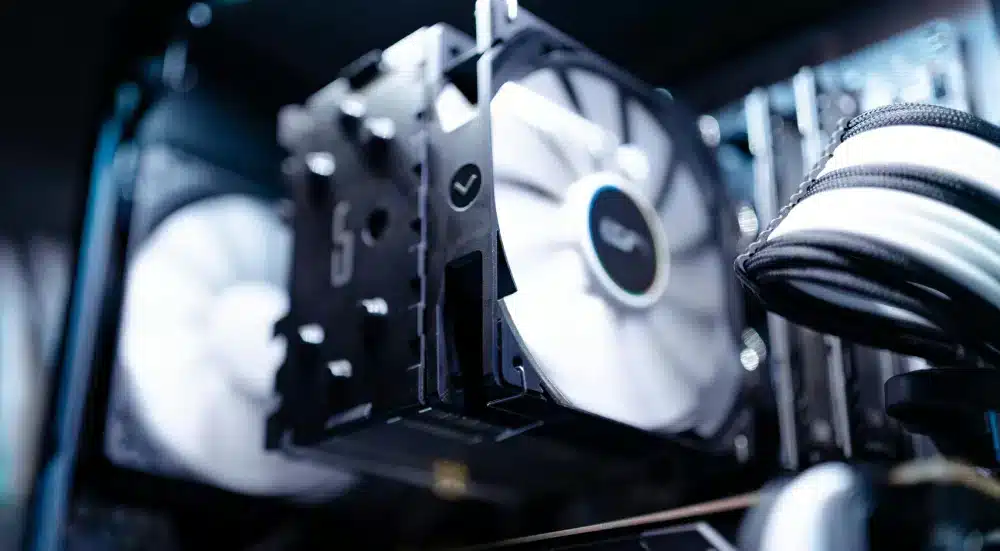
Thermal throttling represents one of the most overlooked causes of severe performance drops during long gaming sessions. When internal temperatures exceed safe operating thresholds, modern processors automatically downclock to protect internal circuitry.
Moreover, inadequate system memory forces your operating system to utilize virtual memory stored on slower storage drives. This paging process generates massive stuttering whenever new assets stream into the active game world.
- Monitor operating temperatures using dedicated hardware monitoring utilities to verify your cooling efficiency.
- Clean dust accumulation from intake filters, radiator fins, and GPU cooling fans every few months.
- Ensure dual-channel memory configuration is enabled in your motherboard firmware for maximum bandwidth.
- Upgrade older mechanical hard drives to high-speed NVMe solid-state storage to eliminate asset load stalls.
Troubleshooting Fortnite Pc Lag And Heavy Multiplayer Titles
High-speed competitive battle royale titles demand consistent CPU throughput and fast texture streaming. If you experience Fortnite Pc Lag, rendering settings and asset streaming options require precise calibration.
Furthermore, running the title in DirectX 12 mode allows better multithreaded CPU utilization on modern systems. However, enabling performance rendering mode offers the highest competitive frame rates on mid-range hardware.
- Switch rendering mode inside video settings to Performance Mode for maximum frame stability.
- Disable high-resolution textures and disable cosmetic streaming within the launcher installation options.
- Lower view distance, shadows, and post-processing effects to reduce load on your graphics processor.
- Cap your in-game frame rate just below your monitor's maximum refresh rate to maintain steady frame times.
Fortnite Recommended Settings:
- Rendering Mode: Performance (Lower Graphical Fidelity)
- 3D Resolution: 100%
- View Distance: Medium
- Textures: Low
- Auto-Download High-Resolution Textures: Off
Resolving Beamng Lag On High End Pc Configurations
Physics simulation titles place extreme loads on individual CPU cores to calculate real-time vehicle deformation. When encountering Beamng Lag On High End Pc builds, physics calculation threads and mod management must be optimized.
In addition, active community modifications often contain unoptimized scripts that cause heavy memory leaks. Managing your active vehicle count directly stabilizes your physics rendering engine.
- Limit the maximum number of AI traffic vehicles to match your physical CPU core count.
- Disable dynamic reflections and reduce shadow resolution to relieve load on your graphics pipeline.
- Clear the title's cache directory after major updates to remove conflicting physics data.
- Run the built-in 64-bit executable using native Vulkan rendering support for improved multi-core scaling.
Network Latency Versus System Stutter: Why Widdeadvi Lags In My Pc
Many players confuse visual hardware stutter with network delay, yet both create frustrating gameplay experiences. Understanding this critical distinction allows you to apply the exact fix needed for your specific technical issue.
Hardware lag manifests as low frame rates, uneven frame pacing, and screen tearing caused by local computing bottlenecks. Conversely, network lag creates rubber-banding, delayed hit registration, and erratic ping spikes due to poor packet routing.
- Frame rate drops indicate your graphics card or processor cannot render frames quickly enough.
- Rubber-banding and desynchronization mean your network packets are arriving late or dropping entirely.
- Input latency can stem from high system buffer queues or network round-trip delays.
- Visual stuttering often correlates with background disk activity or aggressive thermal throttling.
How To Stop Lag On Minecraft Pc And Sandbox Worlds
Java-based sandbox titles require dedicated memory allocation to process expansive block updates and mob AI. If you want to know How To Stop Lag On Minecraft Pc, optimizing Java runtime arguments makes an immediate difference.
Additionally, installing community performance optimization mods completely overhauls the internal rendering pipeline. These modern modifications replace outdated legacy code with efficient multithreaded rendering routines.
- Allocate between 4 GB and 8 GB of RAM inside your custom installation launch arguments.
- Install modern performance optimization mods such as Sodium, Lithium, and FerriteCore.
- Reduce simulation distance to 8 or 10 chunks while keeping render distance at a comfortable visual level.
- Disable heavy animated terrain textures and entity shadows to maximize your frame pacing.
Java Launch Optimization Parameters:
-Xms4G -Xmx6G -XX:+UseG1GC -XX:+ParallelRefProcEnabled -XX:MaxGCPauseMillis=200
Eliminating Stutter In Roblox Lag Fix Pack Pc Setups
Massive user-generated platforms like Roblox frequently suffer from unoptimized scripts and automatic asset streaming bottlenecks. Utilizing a dedicated Roblox Lag Fix Pack Pc strategy clears unnecessary background textures and unlocks fluid performance.
Furthermore, the default client imposes an internal 60 FPS cap that creates visual stutter on high-refresh-rate monitors. Removing this artificial limitation provides significantly smoother motion clarity during gameplay.
- Use a lightweight FPS unlocking utility to match your monitor's native refresh rate.
- Lower the internal manual graphics quality slider to level 3 or 4 in demanding community experiences.
- Clear the platform's local AppData cache folder to purge corrupted sound and texture assets.
- Disable unnecessary micro-profiler overlays and background diagnostic logging.
Restoring Classic Titles: Need For Speed Mostwanted Pc Lag Fix
Legacy titles designed for older operating systems often fail to recognize modern multi-core processors and widescreen resolutions properly. Applying a proper Need For Speed Mostwanted Pc Lag Fix restores silky smooth racing performance on contemporary hardware.
Moreover, modern graphics drivers often struggle with legacy DirectX 9 API calls without compatibility wrappers. Using updated community wrapper libraries translates older rendering instructions into modern Vulkan or DirectX 11 calls seamlessly.
- Download and install modern widescreen fixes and compatibility scripts into the game executable directory.
- Utilize a Direct3D-to-Vulkan translation wrapper to bypass legacy driver performance penalties.
- Set process CPU affinity in Task Manager to use 2 to 4 cores to prevent engine timing errors.
- Force vertical sync and frame rate limits through your graphics control panel rather than in-game menus.
Legacy Racing Optimization Guide:
- Compatibility Mode: Windows 7 or Windows XP Service Pack 3
- CPU Affinity: Cores 0, 1, 2, 3 only
- Renderer: DXVK Translation Layer
- Resolution: Native Desktop Resolution via Widescreen Script
Complete Gaming Performance And Lag Breakdown
The table below outlines common lag types, their primary symptoms, and the most effective methods to resolve them quickly.
| Lag Type | Primary Symptom | Root Cause | Best Solution |
| Hardware Throttling | Sudden FPS drop after 20 minutes | High CPU or GPU temperatures | Clean dust filters, reapply thermal paste |
| Frame Pacing Stutter | Jerky camera motion despite high FPS | Background disk access or memory leak | Enable Game Mode, upgrade to NVMe SSD |
| High Ping & Latency | Delayed shot registration | Inefficient ISP server routing | Use optimized network routing software |
| Packet Loss | Teleporting, desync, rubber-banding | Congested network nodes or Wi-Fi drops | Switch to Ethernet cable, route through dedicated gaming servers |
| Asset Streaming Stutter | Micro-freezes when entering new zones | Insufficient VRAM or slow storage | Lower texture quality, install game on SSD |
Pro Tips: How To Fix Pc Lag
- Lock Frame Rates Below Monitor Refresh: Cap your frame rate 3 FPS below your display limit to ensure active G-Sync or FreeSync variable refresh rate modules maintain zero tear without adding input latency.
- Enable Hardware-Accelerated GPU Scheduling: Turn on this Windows feature to allow your graphics card to manage its own video memory directly, reducing CPU overhead in modern titles.
- Isolate Background Bandwidth Hogs: Pause cloud backup software, torrent clients, and automatic streaming uploads before joining any competitive multiplayer lobby.
- Clean Shader Cache Directories Regularly: Clear GPU shader caches after major driver updates to prevent outdated, corrupted shaders from causing persistent micro-stutters during asset compilation.
Common Mistakes Players Make When Fixing PC Lag
- Overclocking On Inadequate Cooling: Pushing clock frequencies higher on hot components triggers severe thermal throttling. Fix: Focus on undervolting components to achieve lower operating temperatures and sustain maximum boost clocks indefinitely.
- Relying Exclusively On Wireless Wi-Fi: Gaming over congested wireless frequencies introduces severe packet loss and jitter. Fix: Connect your system directly to your router using a shielded Cat6 Ethernet cable for uninterrupted packet delivery.
- Using Automated Registry Cleaners: Installing unverified third-party optimization suites often deletes critical system dependencies. Fix: Rely strictly on native Windows administrative tools and official hardware control panels.
- Setting All Visual Options To Ultra: Maximizing volumetric fog, ray tracing, and ultra shadows overwhelms even modern enthusiast GPUs. Fix: Lower non-essential visual settings to Medium or High while keeping core textures sharp.
Optimize Your Network Routes With ExitLag
Hardware optimizations eliminate local frame drops, but severe online lag requires intelligent network traffic management. Even the fastest gaming computer cannot compensate for bad internet routing provided by standard commercial internet providers.
ExitLag solves this problem directly by functioning as a proprietary game connection optimizer. The software constantly analyzes multiple network paths in real time and automatically routes your data packets through the fastest, most stable servers available.
By utilizing advanced Multipath Technology, your data travels across several distinct server connections simultaneously. Therefore, if one intermediate routing node encounters packet loss or jitter, the remaining active paths maintain your uninterrupted connection seamlessly.
ExitLag Key Features:
- Multipath Routing: Sends packets through multiple dedicated routes simultaneously.
- Traffic Shaper: Prioritizes active gaming packets over background software bandwidth.
- PC Boost: Cleans system RAM and tunes operating system parameters for higher FPS.
Furthermore, the software includes a built-in PC Boost feature that frees up background memory and optimizes CPU thread allocation. This dual-action approach fixes both internal system bottlenecks and external network latency in a single application.
To stabilize your connection, lower your ping, and eliminate packet loss across thousands of titles, secure yourExitLag Download today and experience perfectly smooth competitive gameplay.
How To Fix Pc Lag For Seamless Gaming Performance
Maintaining a smooth, responsive computer requires routine software maintenance, clean hardware cooling, and stable network routing. Regularly updating display drivers, trimming unneeded startup background tasks, and tuning in-game graphical presets ensures your hardware delivers steady frame pacing.
When you take the time to learn How To Fix Pc Lag, you eliminate frustrating frame drops, input delays, and network rubber-banding. Implement these comprehensive optimization strategies today to unlock the maximum competitive performance your gaming system can deliver.
All game images used in this blog post belong to their respective developers and publishers. They are used for informational and educational purposes only and do not imply endorsement or affiliation with the rights holders.