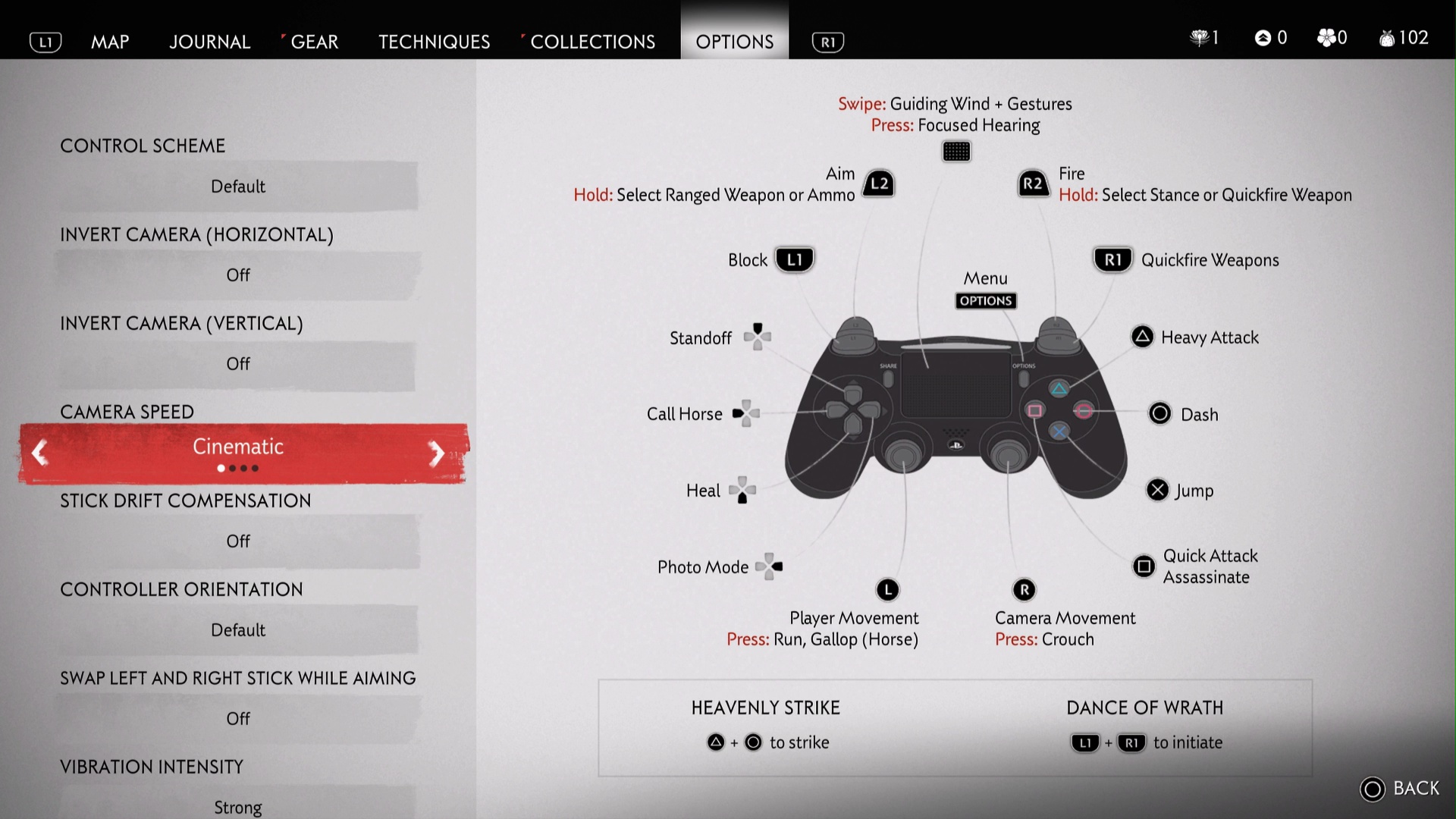
Learning how to set up custom controls in Ghost of Tsushima is one of the easiest ways to improve comfort and responsiveness during combat and exploration. Whether you're playing on PC or using a controller, customizing your controls allows you to create a layout that matches your playstyle.
Many players searching for how to set up custom controls in Ghost of Tsushima want faster access to combat actions, smoother movement, or a more familiar button layout. The game's flexible control options make it possible to adjust many settings without changing the core gameplay experience.
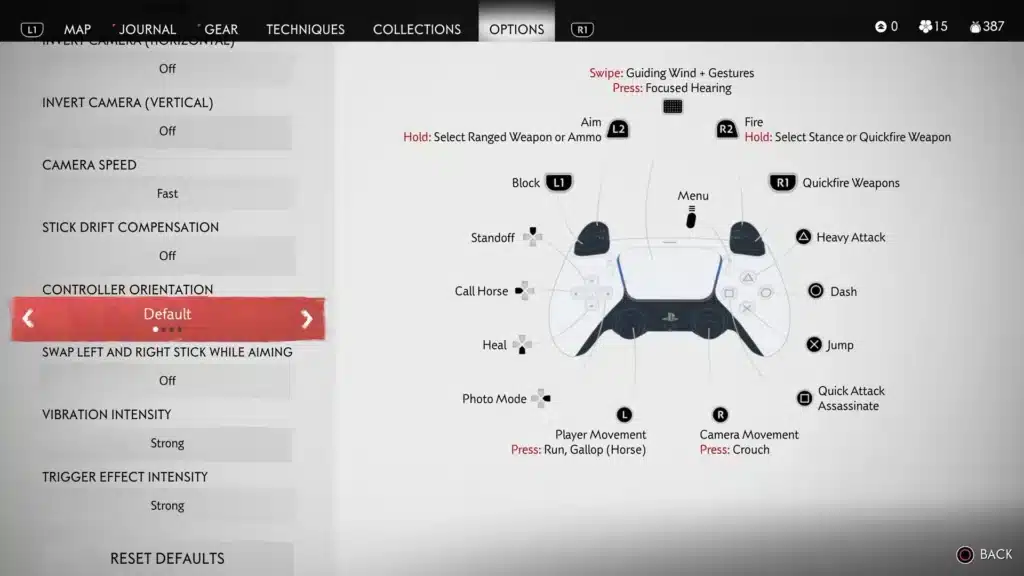
This guide explains how to set up custom controls in Ghost of Tsushima, which settings are worth changing, how different layouts affect gameplay, and how to optimize your Ghost of Tsushima controller configuration for maximum performance.
Why Customize Controls in Ghost of Tsushima?
Every player develops unique habits while playing action-adventure games. Some prioritize quick combat reactions, while others focus on exploration, stealth, or ranged combat.
Custom controls help reduce unnecessary finger movement, improve comfort during long gaming sessions, and make frequently used actions easier to access.
Although the default layout works well for most players, small adjustments can significantly improve your overall experience.
What Can You Customize?
Depending on your platform, several gameplay elements can be adjusted. These commonly include:
- Button assignments;
- Camera sensitivity;
- Aim sensitivity;
- Camera inversion;
- Vibration intensity;
- Adaptive trigger settings (supported controllers);
- Accessibility shortcuts.
PC players may also customize keyboard and mouse bindings where supported.
Understanding the Default Control Layout
Before making changes, it's helpful to understand how the default layout is designed.
The standard controls balance combat, traversal, stealth, ranged weapons, and interaction without heavily favoring any single playstyle.
For many players, only a few adjustments are necessary rather than rebuilding the entire layout.
Common Default Functions
| Action | Default Purpose |
| Movement | Character navigation |
| Camera | View adjustment |
| Light Attack | Fast melee strikes |
| Heavy Attack | Strong melee attacks |
| Dodge | Avoid enemy attacks |
| Block | Defensive stance |
| Interaction | Talk, collect, examine |
| Weapon Selection | Switch equipment |
Understanding these assignments makes customization much easier.
How to Access the Control Settings
The control configuration menu is straightforward. Generally, players should:
- Open the main menu;
- Navigate to Settings;
- Select Controls;
- Review available customization options;
- Save any changes before exiting.
Some options may vary depending on the platform or input device.
Choosing the Best Controller Layout
Many players using a Ghost of Tsushima controller prefer layouts that minimize hand movement during intense combat.
The ideal configuration depends on personal preference rather than one universally perfect setup.
Players who rely heavily on melee combat often prioritize quick access to attack, dodge, and parry commands.
Meanwhile, stealth-focused players may emphasize crouching, aiming, and gadget selection.
Best Sensitivity Settings
Camera sensitivity affects both exploration and combat.
A camera that's too slow may delay reactions, while one that's too fast can reduce precision.
Many players find success using medium sensitivity before making small adjustments based on personal comfort.
Recommended Starting Point
| Setting | Suggested Range |
| Camera Sensitivity | Medium |
| Aim Sensitivity | Medium |
| Camera Acceleration | Moderate |
| Vibration | Personal Preference |
| Invert Camera | Optional |
These values provide a balanced starting point for further refinement.
Optimizing Controls for Combat
Combat is one of the strongest aspects of Ghost of Tsushima. Fast reactions become increasingly important when facing multiple enemies or higher difficulty levels.
Players should prioritize easy access to frequently used actions such as:
- Light attacks;
- Heavy attacks;
- Dodge;
- Block;
- Parry;
- Healing;
- Weapon switching.
Keeping these commands comfortable reduces unnecessary mistakes during challenging encounters.
Keyboard and Mouse Considerations
PC players have additional flexibility when customizing controls.
Unlike controller users, keyboard players can assign many actions to keys that better fit their hand positioning and gaming habits.
When creating custom layouts, try to keep combat actions close together while separating less frequently used commands to avoid accidental inputs.
Accessibility Features
Ghost of Tsushima includes several accessibility options designed to make gameplay more comfortable for a wider range of players.
Useful features may include:
- Input adjustments;
- Camera options;
- Visual assistance;
- Subtitle customization;
- Audio accessibility;
- Controller vibration adjustments.
These settings can be combined with custom controls to create a highly personalized experience.
Common Mistakes When Customizing Controls
Although customization is helpful, changing too many settings simultaneously can make adaptation more difficult.
Avoid these common mistakes:
- Rebinding every button at once;
- Using extremely high sensitivity;
- Ignoring muscle memory;
- Forgetting to test changes;
- Creating inconsistent layouts;
- Frequently changing configurations.
Making gradual adjustments allows your hands to adapt naturally.
Custom Controls for Different Playstyles
One of the greatest advantages of learning how to set up custom controls in Ghost of Tsushima is the ability to tailor the game to your preferred playstyle.
While the default layout is well-balanced, customizing your controls can make specific actions feel more natural depending on how you approach combat and exploration.
Players who enjoy aggressive sword combat often prioritize quick access to attack, parry, and dodge commands. Those who prefer stealth may instead focus on making crouching, aiming, and gadget selection easier to reach without interrupting movement.
Finding the right balance between comfort and efficiency is more important than copying another player's layout.
Best Controller Tips
Using a Ghost of Tsushima controller provides precise movement and smooth combat transitions, but small adjustments can further improve responsiveness.
Consider these recommendations:
- Keep attack buttons easy to reach;
- Avoid placing frequently used actions on awkward combinations;
- Test changes during regular combat before challenging bosses;
- Leave less common actions on secondary buttons;
- Adjust vibration intensity based on personal comfort.
The objective is to reduce unnecessary hand movement while maintaining consistent muscle memory.
Optimizing Controls on PC
Players using keyboard and mouse have additional customization options compared to controller users.
A good keyboard layout groups combat-related actions close together while leaving utility functions on less prominent keys.
This minimizes finger travel during fast-paced encounters and makes transitions between movement, attacks, and defensive actions more fluid.
Mouse sensitivity also plays a major role. Rather than choosing the highest possible value, many players prefer a moderate setting that balances precision with quick camera movement.
Camera Settings That Improve Gameplay
Although control customization receives most of the attention, camera settings are equally important.
An optimized camera makes it easier to:
- Track multiple enemies;
- React during duels;
- Explore dense environments;
- Maintain awareness during combat;
- Aim ranged weapons comfortably.
Experiment with sensitivity in small increments until movement feels natural instead of forcing yourself to adapt to uncomfortable settings.
Testing Your New Layout
After changing your controls, spend some time practicing before committing to the configuration.
A good testing routine includes:
- Explore an open area;
- Fight several groups of enemies;
- Practice dodging and parrying;
- Switch between melee and ranged combat;
- Ride your horse and interact with objects;
- Complete a few missions before making additional adjustments.
This gradual approach helps identify which settings genuinely improve gameplay.
When Should You Change Your Controls?
Not every situation requires a new layout.
If the default controls already feel comfortable and you perform consistently during combat, major changes may not provide significant benefits.
However, you should consider customization if you experience:
- Difficulty reaching important buttons;
- Frequent accidental inputs;
- Hand fatigue during long sessions;
- Slow reactions in combat;
- Discomfort with camera movement.
Small improvements often produce noticeable results over time.
Additional Accessibility Recommendations
Ghost of Tsushima includes accessibility options that work well alongside custom controls.
Players may benefit from adjusting:
| Setting | Benefit |
| Camera sensitivity | Smoother movement |
| Aim sensitivity | Improved precision |
| Subtitle size | Better readability |
| Vibration strength | Increased comfort |
| Camera inversion | Personal preference |
| Visual accessibility | Easier navigation |
Combining these options with a personalized control layout creates a more enjoyable experience without changing the game's core mechanics.
Why Performance Matters Alongside Controls
Even the best control layout cannot compensate for inconsistent performance.
Smooth frame rates, responsive inputs, and a stable network connection all contribute to a better experience, particularly for players enjoying the PC version or using cloud gaming services.
When performance remains consistent, custom controls become easier to learn because button presses, camera movement, and combat actions respond predictably.
For supported online games, ExitLag optimizes network routes through intelligent multi-path technology, helping improve connection stability and reduce routing-related issues.
FAQ
How do I set up custom controls in Ghost of Tsushima?
Open the Settings menu, navigate to Controls, adjust the available options, and save your preferred configuration. Available settings may vary depending on your platform and input device.
Can I customize the Ghost of Tsushima controller layout?
Yes. Depending on your platform, several controller settings, including sensitivity, vibration, and certain button configurations, can be adjusted to better match your preferences.
Are custom controls better than the default layout?
Not necessarily. The default controls are designed to work well for most players, but custom layouts can improve comfort, accessibility, and efficiency based on individual playstyles.
What sensitivity is best for Ghost of Tsushima?
There is no universal setting. Many players start with medium camera and aim sensitivity before making gradual adjustments until movement feels comfortable.
Should PC players use keyboard and mouse or a controller?
Both options are viable. Keyboard and mouse offer extensive key customization, while a Ghost of Tsushima controller provides a console-style experience with smooth analog movement. The best choice depends on personal preference.
Master Your Ghost of Tsushima Controls
Learning how to set up custom controls in Ghost of Tsushima allows you to create a more comfortable and responsive gameplay experience.
By making thoughtful adjustments to your controller or keyboard layout, testing changes gradually, and combining them with optimized camera settings, you'll enjoy smoother exploration and more confident combat throughout your adventure.
Download ExitLag today for a smoother and more stable online gaming experience!