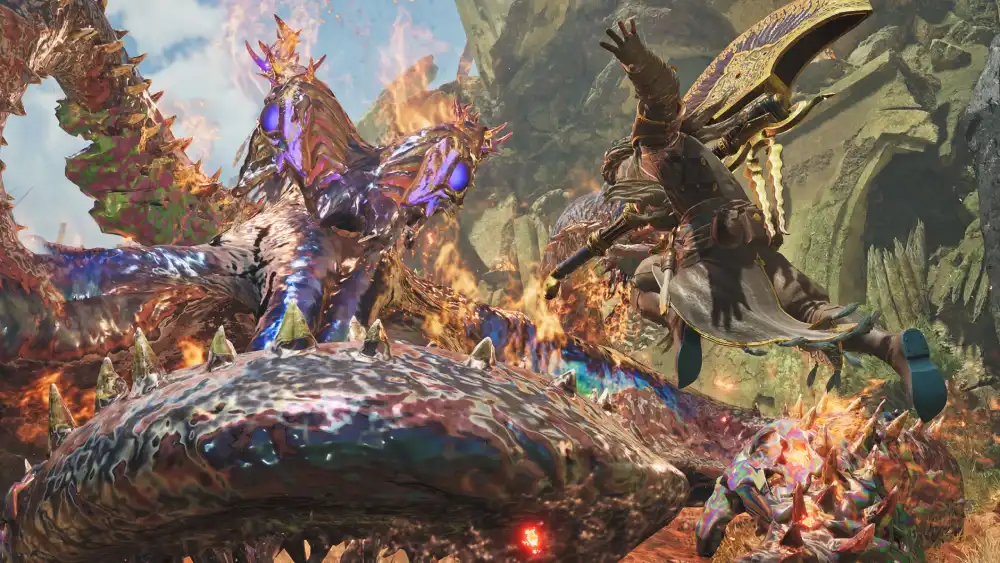
Monster Hunter Wilds Mods have transformed what is already one of the best action RPGs of 2025 into a completely customizable hunting experience. The Nexus Mods community built a thriving library within weeks of the game’s launch, covering everything from quality-of-life fixes to visual overhauls and gameplay tweaks that address the few rough edges the base game left behind.
Monster hunter wilds mods are installed primarily through REFramework and the Fluffy Mod Manager, both available on Nexus Mods for free. REFramework is the foundation that almost all mods depend on, while Fluffy Mod Manager simplifies the process of enabling and disabling individual mods without touching game files directly. Installing without this toolchain leads to broken load orders and file conflicts.
The best monster hunter wilds mods available right now range from visual cleanups and monster weakness indicators to stuttering fixes that improve the experience on hardware that struggles with the game’s demanding DirectStorage implementation. This guide covers the full installation process, the recommended mod list, and the multiplayer safety rules every modded player should know before jumping into a hunt with others.
Monster Hunter Wilds Mods: How to Install
Step 1: Install REFramework First
REFramework is the core modding framework for Monster Hunter Wilds and must be installed before any other mod. It provides the Lua scripting API, performance fixes, and the loader infrastructure that most mods depend on.
Installation process:
- Navigate to nexusmods.com and search for “REFramework Monster Hunter Wilds.”
- Download the latest version of REFramework manually.
- Extract the downloaded zip file.
- Copy the extracted dinput8.dll file directly into your Monster Hunter Wilds game folder. The default path is steamapps\common\MonsterHunterWilds.
- Launch the game through Steam to verify REFramework loads. A small overlay notification confirms successful installation.
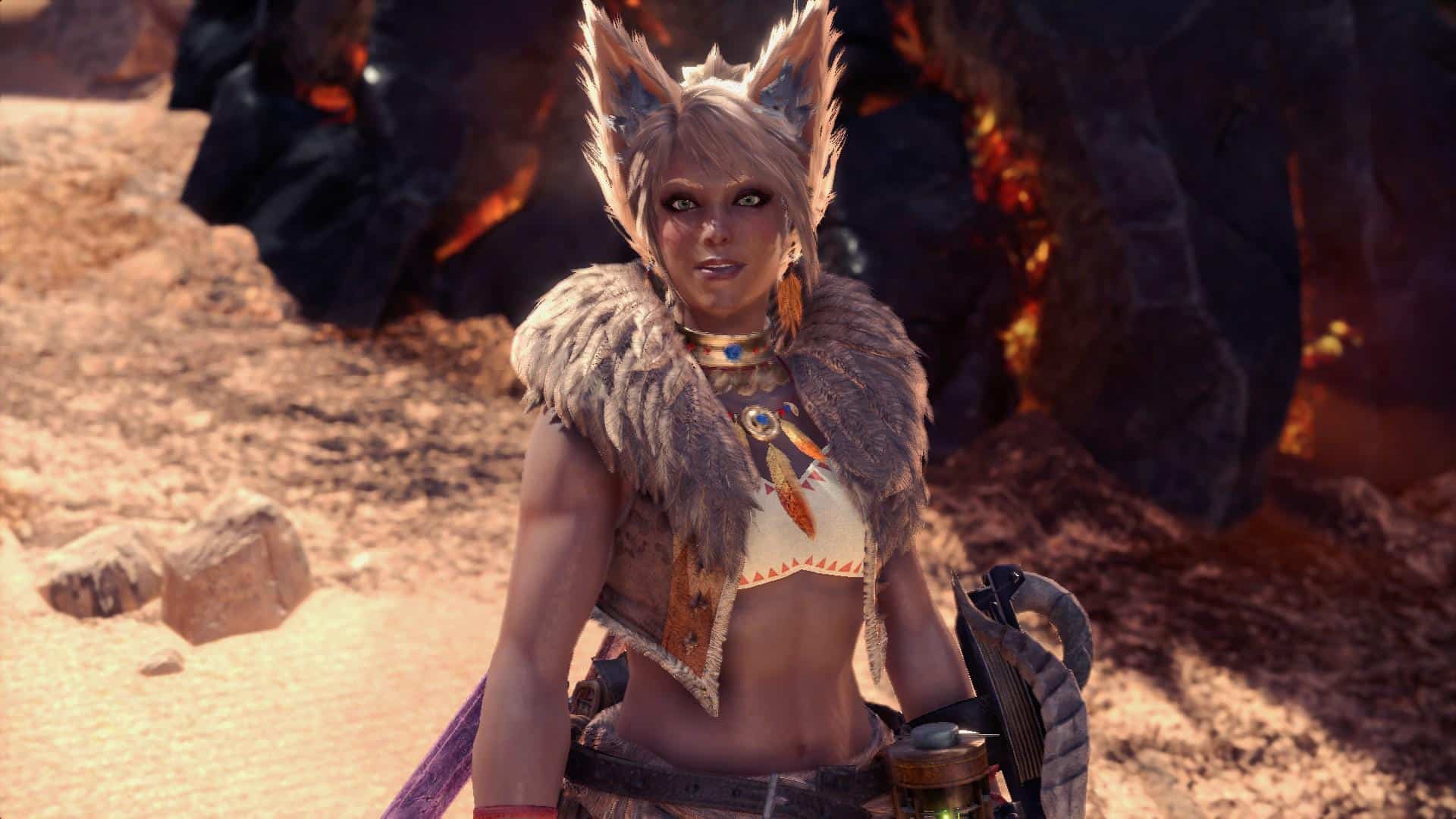
REFramework itself adds FreeCam, Timescale control, FOV adjustment, ultrawide support, and a powerful developer console useful for troubleshooting mod conflicts.
Step 2: Install Fluffy Mod Manager
The Fluffy Mod Manager is the recommended tool for managing all non-REFramework mods. It handles enabling, disabling, and load order without requiring manual file management.
Installation and usage:
- Download Fluffy Mod Manager from its Nexus Mods page.
- Run the installer and point it to your Monster Hunter Wilds game folder.
- Download any mod you want as a .zip file using the Manual Download option on Nexus.
- Drag the downloaded .zip file into the Fluffy Mod Manager window.
- Click Mod List, find the mod, and toggle it on.
- Launch the game through Steam as normal.
Fluffy Mod Manager allows you to toggle mods on and off between sessions without reinstalling or deleting files, which is essential for switching between modded solo play and clean multiplayer sessions.
Multiplayer Safety Rules
Using certain mods in multiplayer is both unfair to other players and may result in account consequences. Follow these rules before hunting with others:
- Never use damage mods, one-shot mods, or any mod that increases your stats beyond base game values in multiplayer sessions
- Visual and UI mods (weakness indicators, HUD adjustments) are generally safe and do not affect other players
- Always disable mods using Fluffy Mod Manager before joining public sessions if you are unsure about a mod’s multiplayer impact
- Stick to solo play for testing new mods before determining whether they are safe to use with others
Best Monster Hunter Wilds Mods Right Now
Quality-of-Life Mods
These mods improve the experience without changing gameplay balance and are safe for all play modes:
Monster Weakness Icon Indicator: Adds a small icon next to large monster artwork in the HUD showing that monster’s elemental weakness. Eliminates the need to manually check the Hunter’s Notes during a hunt and speeds up weapon and element selection significantly.
Skip Pouch Replace Prompt: Removes the confirmation prompt that appears when your item pouch is full and you collect a new item. The prompt interrupts hunts at inconvenient moments; this mod removes it entirely.
DirectStorage 1.2.3 Fix: Replaces the game’s bundled DirectStorage DLL files with the updated 1.2.3 version, resolving severe I/O stutters that affect a significant portion of PC players even on high-end hardware. This is among the most universally recommended mods in the community regardless of hardware tier.
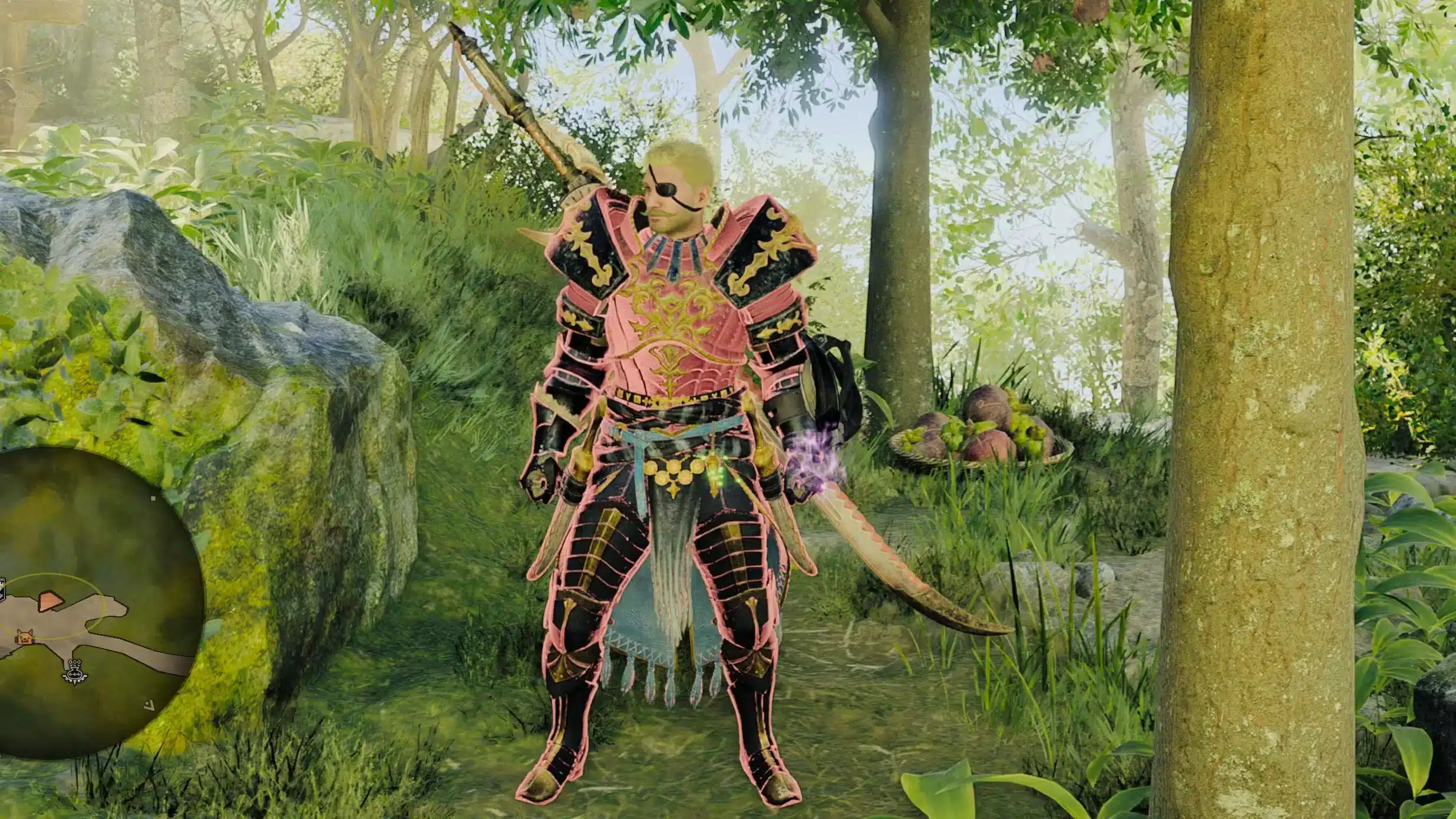
Wilds Rehydrated: A visual cleanup mod that removes the hazy, washed-out color grading applied to the game by default. It adjusts lighting, contrast, and color balance to produce a crisper, more saturated image that makes environments and monster designs look significantly better.
Performance and Technical Mods
| Mod Name | Function | Impact |
|---|---|---|
| DirectStorage Fix | Fixes I/O stutter on load | Major (universal benefit) |
| REFramework | Core framework + FPS fixes | Foundational |
| DLSS/FSR Unlocker | Enables upscaling options | Medium (GPU dependent) |
| Shader Cache Fix | Reduces shader compilation stutter | Medium |
| Wilds Rehydrated | Visual clarity improvement | Aesthetic |
Gameplay Enhancement Mods
Extended Field Guide: Adds additional monster information to the in-game Hunter’s Notes, including weakpoint breakdowns, part-break rewards, and carve rate estimates displayed directly on the monster’s profile page.
Improved Item Box Sorting: Overhauls the item box organization system with better category filters, search functionality, and quick-access favorites for frequently used consumables.
Custom Crosshair: Replaces the default aiming reticle for ranged weapons with cleaner, higher-contrast crosshair options that improve visibility in the game’s visually busy environments.
Pro Tips: Monster Hunter Wilds Mods
- Always install REFramework before any other mod: Mods that depend on REFramework will not load or will cause crashes if REFramework is missing from the game folder. Make it the first file you drop into the game directory.
- Use Fluffy Mod Manager’s toggle system for multiplayer: Do not delete mods when joining multiplayer. Simply toggle them off in Fluffy Mod Manager before launching, then toggle them back on for solo sessions.
- Read each mod’s description page on Nexus before installing: Some mods conflict with each other or require specific load order configurations. The mod author’s description page always lists known conflicts and dependencies.
- Apply the DirectStorage Fix immediately: The I/O stutter issue affects hunters regardless of PC spec. This fix has no downside and dramatically improves the session-to-session smoothness of launching and loading into hunts.
- Keep a clean backup of your game folder before heavy modding: Copying the base MonsterHunterWilds folder to a backup location before installing mods allows you to restore a clean state if a mod combination causes a persistent crash.
Common Mistakes Monster Hunter Wilds Mods Players Make
- Installing mods by manually dropping files into game folders without REFramework. Many mods require REFramework’s loader to function. Without it, the mod either does nothing or prevents the game from launching. Fix: Install REFramework first, verify it loads in-game, and then add additional mods through Fluffy Mod Manager.
- Using gameplay-affecting mods in public multiplayer sessions. Damage mods and stat modifications in multiplayer create an unfair experience for other players and can trigger anti-cheat detection in games using Capcom’s online systems. Fix: Use Fluffy Mod Manager’s disable toggle before joining any multiplayer session and keep gameplay mods strictly for solo hunts.
- Not checking mod compatibility after game updates. Capcom releases patches that can break mods, particularly those that hook into game memory or specific DLL files. Fix: After any Monster Hunter Wilds update, check the REFramework and Fluffy Mod Manager Nexus pages for updated versions before launching with your mod list active.
Hunt Modded Builds Lag-Free With ExitLag in Multiplayer
Monster hunter wilds mods like the DirectStorage Fix and Wilds Rehydrated improve your single-player experience, but multiplayer hunting still depends entirely on connection quality. High-latency sessions cause attack desync, mistimed rolls, and hitbox inconsistencies that no mod can fix.
ExitLag is a game connection optimizer that routes your traffic through the fastest, most stable network path to Monster Hunter Wilds servers in real time. It is not a VPN and does not interact with game files or mod systems.
For monster hunter wilds mods users playing in online co-op hunts, ExitLag provides:
- Reduced ping and packet loss during multiplayer hunts
- Multipath Technology automatically selecting the fastest route to your region’s servers
- Multi-Internet support for instant fallback if your primary connection drops mid-hunt
Download ExitLag for PC and take your modded Monster Hunter Wilds sessions online without lag
All game images used in this blog post belong to Capcom. They are used for informational and educational purposes only and do not imply endorsement or affiliation with the rights holder.