

If your crosshair lands right but the kill still does not register, Net Jitter CS2 problems are probably the reason. Jitter is not the same as high ping, and most players never learn the difference until it costs them a round. Once you understand what is actually happening on your connection, fixing it becomes a lot easier.
This guide breaks down everything about Net Jitter CS2 issues, from the technical cause to the exact settings and router changes that solve it. We will also cover the in-game tools you need to diagnose the problem yourself. Furthermore, we will show you how a connection optimizer can smooth things out when your ISP routing is the real culprit.
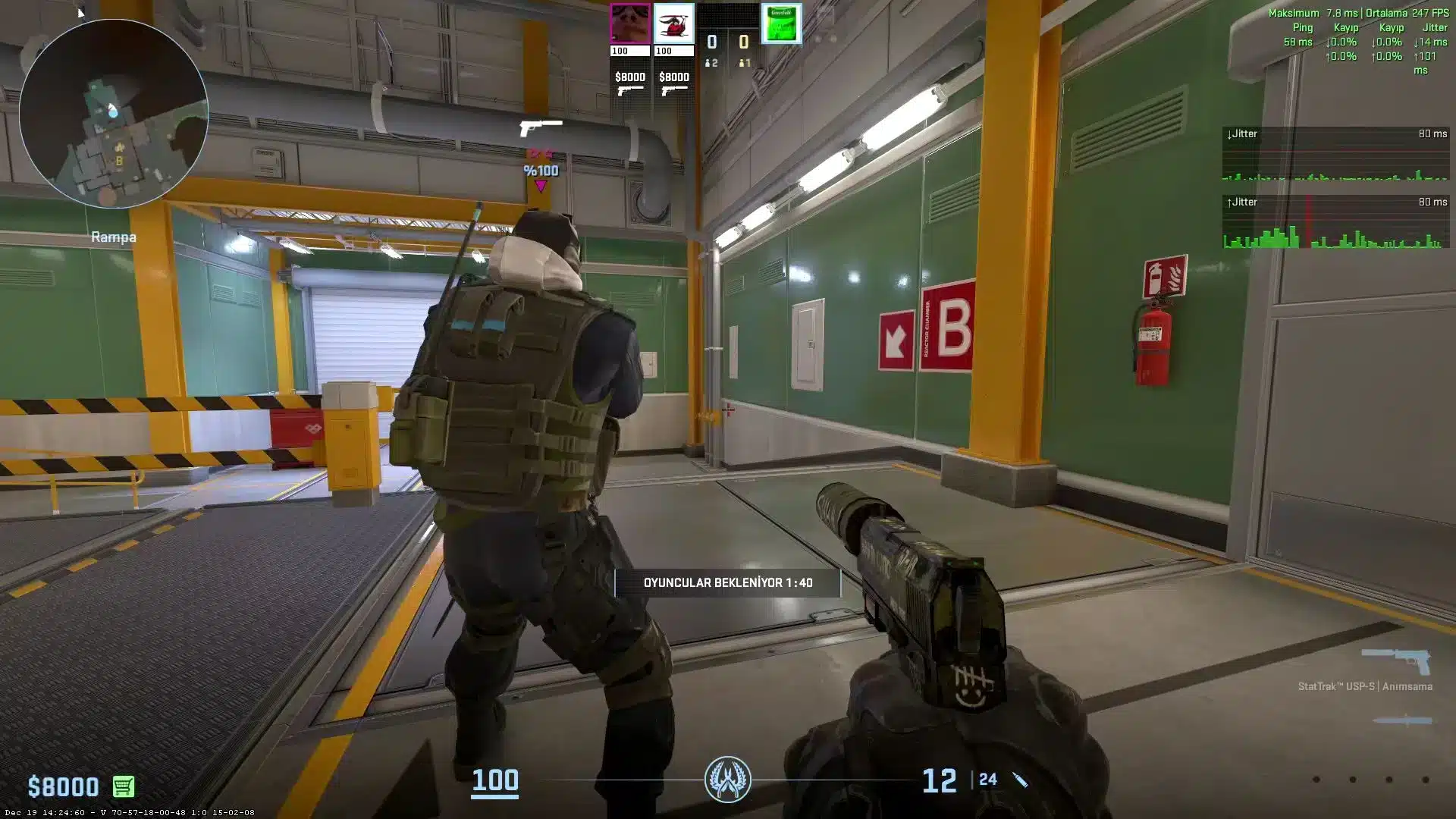
In simple terms, net jitter in CS2 is the variation in how long each packet takes to reach the server, not the average delay itself. Your ping might read 25ms most of the time, then randomly spike to 45ms and drop back down a second later. That inconsistency is what causes rubber-banding, delayed peeks, and shots that should have landed but did not.
What Is Net Jitter CS2 And Why Does It Happen?
Ping measures average delay. Jitter measures how much that delay swings from one moment to the next. A stable 40ms connection will almost always feel better than an unstable 20ms connection.
Since a recent update, Valve changed how CS2 handles unstable data. CS2 Net Jitter spikes are now treated similarly to packet loss. If a packet arrives too late due to a jitter spike, the server can simply discard it to keep the game state synchronized, which means your inputs vanish instead of registering late.
Common Causes Of CS2 Jitter
Several things can trigger inconsistent packet timing during a match. Most of them are fixable once you know where to look.
- Wi-Fi interference from walls, microwaves, or neighboring routers
- Bufferbloat, where your router queues too many packets before releasing them at once
- Background apps like cloud sync, streaming, or downloads eating bandwidth mid match
- Outdated router firmware or an aging router that cannot handle modern traffic
- Poor ISP routing that sends your packets through congested or overseas paths
- Peak-hour congestion on your local network or your ISP's backbone
How Jitter Differs From Choke And Packet Loss
CS2 telemetry reports three separate numbers, and confusing them leads to the wrong fix. Loss means packets that never arrive at all. Choke means packets your own client or router is holding back because the pipe is full. Jitter is the variance around your average ping.
Understanding this distinction matters because the fix for each one is different. Throwing bandwidth at a jitter problem will not help if the real issue is your Wi-Fi signal.
How To Fix Net Jitter CS2 Step By Step
Knowing how to fix net jitter CS2 issues starts with confirming the problem exists, then working through connection, software, and router-level fixes in order. Skipping straight to advanced settings without checking the basics wastes time.
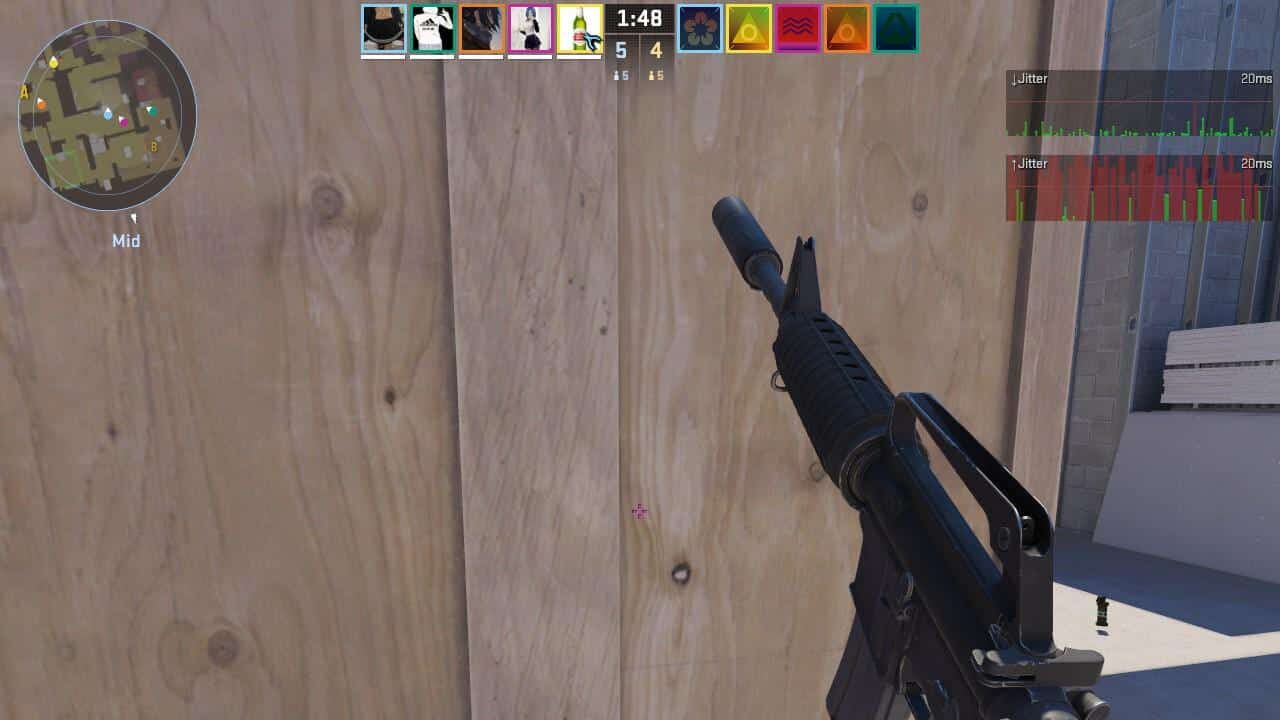
- Enable CS2 telemetry from Settings, then Game, then scroll to the Telemetry section to watch ping variance live.
- Switch from Wi-Fi to a wired Ethernet connection using a Cat5e or Cat6 cable straight into your router.
- Close background applications like Discord calls, cloud backups, and any active downloads before queuing.
- Set Network Buffering to "1 Packet" or "2 Packets" in your CS2 network options to smooth out spikes.
- Set Max Acceptable Game Traffic Bandwidth to Unrestricted, since artificial limits can worsen choke.
- Enable Quality of Service on your router and give your gaming device the highest priority.
- Restart your router and modem to flush stuck processes that quietly build up over time.
Best CS2 Network Settings To Reduce Jitter
Console commands still matter even though CS2 no longer uses the old net_graph overlay from CS:GO. A conservative rate configuration gives your connection room to breathe without overloading a shaky pipe.
- rate 786432: A safe bandwidth ceiling for most home connections above 6 Mbps.
- cl_updaterate 128: Matches server tick updates for smoother state syncing.
- cl_cmdrate 128: Sends your commands to the server at the same rate it expects.
- cl_interp_ratio 1: Keeps interpolation tight without adding unnecessary delay.
Note that cl_interp itself has far less impact in CS2 than it did in CS:GO, since Valve's sub-tick system now handles most interpolation internally.
Cs2 Net Jitter Fix Options For Your Router And PC
A Cs2 Net Jitter Fix is rarely just about the game client. Your router configuration and background processes on your PC play just as large a role in packet timing consistency.
Router-Level Adjustments That Actually Help
Bufferbloat is one of the sneakiest causes of jitter because your connection can look fast in a speed test while still feeling terrible in-game. If your router supports Smart Queue Management, CAKE, or FQ-CoDel, enable it instead of basic QoS.
| Fix | What It Does | Difficulty |
|---|---|---|
| Wired Ethernet | Removes Wi-Fi interference entirely | Easy |
| QoS / SQM enabled | Prioritizes game packets over downloads | Medium |
| Firmware update | Patches bugs affecting packet handling | Easy |
| Router restart | Clears stuck buffers and processes | Easy |
| Static IP + priority | Guarantees consistent bandwidth allocation | Medium |
| Connection optimizer | Reroutes traffic around congested paths | Easy |
Why Does CS2 Jitter Happen Even On A Fast Connection?
This is one of the most common questions competitive players ask, and the answer surprises most of them. A fast download speed does not guarantee stable packet timing, because speed and consistency are measured differently.
Your ISP might route your traffic through a congested hop that has nothing to do with your local bandwidth. Consequently, you can have 500 Mbps at home and still see CS2 Network Jitter during peak hours because the bottleneck is somewhere between your ISP and the game server.
Advanced Fixes For Persistent CS2 Jitter
If you have already tried the basics and jitter still shows up, the problem is likely happening outside your home network entirely. This is where most players get stuck without realizing it.
How To Stop Net Jitter CS2 During Peak Hours
Peak-hour congestion is notoriously hard to fix on your end alone, since it happens on infrastructure you do not control. However, there are still practical steps that help.
- Schedule large downloads and updates outside your play sessions
- Contact your ISP if jitter is consistent at the same time every day
- Try a different DNS provider to rule out slow resolution as a factor
- Use a route optimization tool to bypass congested ISP paths automatically
How To Get Rid Of Net Jitter CS2 On Wi-Fi Only Setups
Some players genuinely cannot run an Ethernet cable to their setup, and that is a real constraint worth planning around. If wired is not an option, these adjustments reduce the damage significantly.
- Switch your router to the 5GHz or 6GHz band instead of 2.4GHz whenever possible.
- Position your PC closer to the router and remove physical obstructions.
- Change your Wi-Fi channel manually to avoid overlap with neighboring networks.
- Disable other devices on the same band during ranked matches.
Pro Tips: Reducing CS2 Jitter
- Watch telemetry before you blame your aim: A sudden jitter spike explains missed shots far more often than players assume, so check the overlay before tweaking crosshair placement.
- Disable Energy Efficient Ethernet on your adapter: This power-saving feature can introduce micro-delays on your network card that show up as jitter spikes in-game.
- Avoid stacking optimization tools: Running a VPN alongside a route optimizer usually adds latency instead of removing it, since traffic gets tunneled twice.
- Test at different times of day: If jitter only appears in the evening, the cause is almost certainly network congestion rather than your hardware.
- Keep firmware current: Router manufacturers regularly patch bugs that affect packet queuing, and an outdated router is a common hidden cause of instability.
Common Mistakes CS2 Players Make
- Blaming FPS drops for what is actually jitter: Low frame rate and inconsistent ping feel similar but come from different sources. Fix: check telemetry first, then GPU usage, before touching graphics settings.
- Restricting bandwidth to "save" connection quality: Capping Max Acceptable Game Traffic Bandwidth often increases choke instead of reducing it. Fix: leave it on Unrestricted unless you have a very limited connection.
- Ignoring router placement: A router buried in a closet or behind metal objects weakens signal and increases packet variance. Fix: place it centrally and elevated, away from interference sources.
- Never restarting network hardware: Routers accumulate stuck connections and memory leaks over weeks of uptime. Fix: reboot your router and modem regularly, especially before ranked sessions.
Fixing Net Jitter CS2 With A Connection Optimizer
Once you have covered the basics on your own network, the next layer is the path your packets take to reach the CS2 servers. This is exactly where ExitLag becomes useful for competitive players.
ExitLag is not a VPN. It is a game connection optimizer that analyzes multiple network routes in real time and automatically selects the fastest, most stable path between your PC and the server. It does not encrypt your traffic and does not mask your IP.
For FPS and competitive titles like CS2, this translates directly into faster inputs, lower ping, and fewer packet loss spikes during firefights. The Multipath technology sends your data through several routes at once, so if one path degrades, the others keep your connection stable.
ExitLag supports over 4,000 titles across PC and mobile, with more than 1,500 servers spread across 190+ countries. It is trusted by over 30 million users and processes 18 million optimizations every week.
- Real-time Optimization: Actively reduces delay and packet loss so your commands land faster and more precisely.
- Multipath Technology: Routes packets through multiple paths simultaneously, keeping your connection alive if one route fails.
- Traffic Shaper: Prioritizes CS2 traffic over other apps running in the background on your PC.
- PC Boost: Frees up RAM and background processes so your system has more room to run smoothly.
It is completely safe to use alongside CS2, and it does not modify game files or interact with anti-cheat systems in any way. Just avoid running it at the same time as a VPN, since that combination reduces its effectiveness.
If ISP routing is behind your Net Jitter CS2 struggles, grab the ExitLag Download and let the optimizer find a smoother path to your matches. Competitive rounds are decided in milliseconds, so a stable route matters just as much as raw speed.
All game images used in this blog post belong to Valve Corporation. They are used for informational and educational purposes only and do not imply endorsement or affiliation with the rights holders.