Palworld servers became one of the most discussed topics in gaming after the explosive launch of Pocketpair’s survival hit. With millions of players jumping in simultaneously, multiplayer stability quickly became a central concern for both casual adventurers and hardcore server hosts.
From official matchmaking to palworld servers hosted by the community, understanding how the infrastructure works is essential if you want smooth gameplay. Whether you’re dealing with palworld launch server issues, configuring a palworld server, or exploring palworld dedicated servers, knowing the fundamentals makes all the difference.
Palworld servers are the online environments that allow players to host persistent multiplayer worlds, supporting co-op survival with large player counts. On Steam, dedicated servers can host up to 32 players simultaneously, creating dynamic shared experiences with base-building, exploration, and Pal management.
At launch, server congestion caused instability, timeouts, and world connection errors. However, as updates rolled out, optimization improved significantly. Still, proper configuration and connection stability remain critical for a seamless experience.
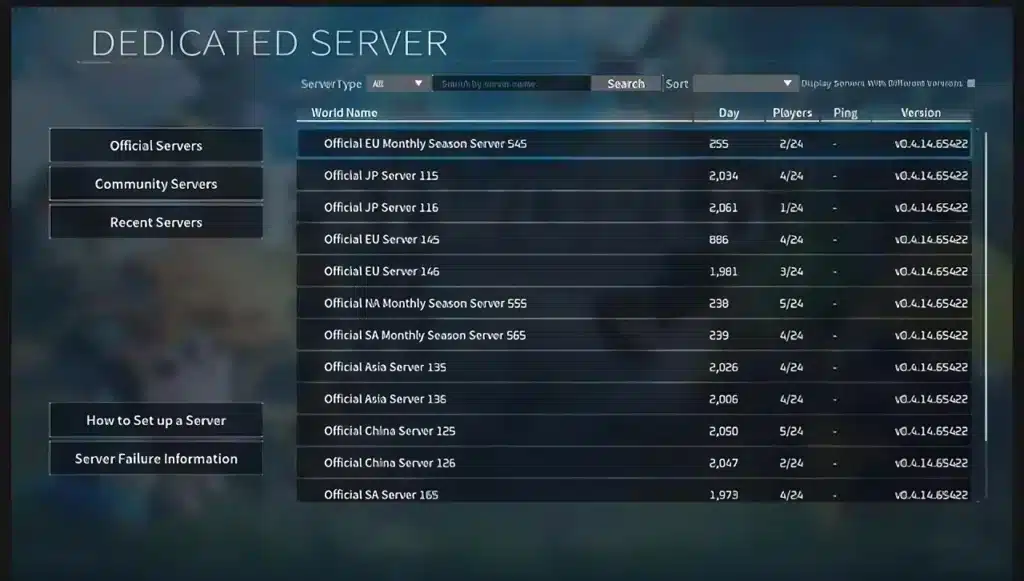
How Palworld Servers Work
Understanding how palworld servers function helps you avoid common mistakes and maximize performance.
Official Multiplayer Hosting
When playing through Steam or Xbox, players can join multiplayer sessions directly through the in-game menu. These sessions may operate through peer-to-peer hosting or public listings depending on configuration.
Official matchmaking allows players to:
- Join public multiplayer worlds
- Invite friends to private sessions
- Access community-hosted environments
However, peer-to-peer hosting depends heavily on the host’s internet stability. If the host experiences lag or packet loss, everyone in the session feels it.
Palworld Dedicated Servers Explained
For larger groups, palworld dedicated servers provide the most stable and scalable option.
Dedicated servers:
- Support up to 32 players (Steam version)
- Run independently from a player’s active session
- Allow persistent worlds that remain online 24/7
- Require SteamCMD installation for manual setup
Unlike casual hosting, a dedicated server separates the game client from the server environment. This reduces crashes and improves overall multiplayer reliability.
Palworld Launch Server Issues: What Happened?
During launch week, palworld launch server issues dominated community discussions. The game exceeded expectations with massive concurrent player numbers, pushing backend systems to their limits.
Overload During Launch
High concurrency created several problems:
- Server timeouts during login
- Inability to join multiplayer worlds
- World save corruption in rare cases
- Matchmaking delays
The surge overwhelmed authentication systems and database layers responsible for tracking persistent world data.
How Stability Improved
Developers responded quickly by scaling backend infrastructure and deploying hotfix patches.
Improvements included:
- Increased server capacity allocation
- Backend matchmaking adjustments
- Performance optimizations for world synchronization
- Stability patches for multiplayer memory leaks
While major outages have stabilized, players hosting their own environments still need to optimize properly to avoid localized performance issues.
Palworld Server Settings You Should Optimize
Correctly configuring palworld server settings can drastically improve performance and gameplay balance.
Every dedicated installation includes a configuration file typically named:
PalWorldSettings.ini
Inside this file, hosts can customize gameplay variables.
Key Configuration Options
Important adjustable values include:
- ServerName
- MaxPlayers
- DayTimeSpeedRate
- NightTimeSpeedRate
- EXP Drop Rate
- PalSpawnNumRate
Increasing spawn density or experience gain may sound appealing, but excessive multipliers can strain server CPU performance.
Best Settings for Stability
For optimal results, consider the following guidelines:
- Keep Pal spawn multipliers below 2.0
- Avoid extreme day/night cycle compression
- Limit player count if hardware is under 16GB RAM
- Use NVMe storage for world persistence
Balancing gameplay tweaks with hardware capacity prevents rubberbanding and desync issues.
Additionally, firewall configuration and proper port forwarding are essential to ensure players can connect without interruption.
How to Specify World on Server in Palworld
Many hosts want to control exactly which world loads when launching a server. Learning how to manage palworld specify world on server configuration ensures continuity and prevents accidental overwrites.
World Save File Location
Dedicated servers generate save data inside a structured directory typically located within the server installation folder.
Inside the SaveGames directory, each world has a unique identifier folder.
To back up your world safely:
- Stop the server completely
- Copy the entire world folder
- Store it externally before making changes
Switching or Migrating Worlds
If you want to load a different world:
- Stop the server
- Replace the existing SaveGames folder with your backup
- Confirm the configuration file references the correct directory
- Restart the server
Improper shutdown during migration can corrupt world data, so always close the server safely before modifications.
Choosing the Best Palworld Server Host
Selecting the right palworld server host is crucial for maintaining consistent uptime and player satisfaction.
Self-Hosting vs Paid Hosting
Self-hosting gives you total control but requires:
- Strong upload bandwidth
- Stable fiber connection
- Modern multi-core CPU
- 16GB+ RAM for 32 players
Paid hosting services provide managed infrastructure and DDoS protection, making them ideal for larger communities.
What to Look for in a Hosting Provider
If choosing external hosting, prioritize:
- NVMe SSD storage
- Automatic backups
- 99.9% uptime guarantee
- Low-latency regional data centers
- Easy server settings control panel
A high-quality hosting environment reduces lag spikes, world rollback errors, and player disconnects.
Boosting Palworld Multiplayer Performance
Even with properly configured palworld servers, your connection quality directly affects gameplay.
Multiplayer survival games constantly sync player movement, Pal AI, combat calculations, and base structures. Any instability can cause rubberbanding or delayed actions.
ExitLag enhances multiplayer performance by optimizing your routing path in real time. Using Multipath Connection technology, it sends packets through multiple optimized routes simultaneously, reducing latency spikes and preventing packet loss. This ensures smoother interactions inside raids, base defense scenarios, and high-activity multiplayer hubs.
Instead of relying on a single unstable connection path, ExitLag dynamically adapts to network congestion, keeping your Palworld experience responsive and competitive.
Whether you’re hosting a server or joining one, stable routing is just as important as server hardware.
When optimized correctly, palworld servers deliver a seamless survival experience with large-scale multiplayer interaction, persistent world progression, and cooperative base building. By understanding launch issues, configuring smart server settings, properly managing worlds, and selecting the right hosting solution, you can transform your multiplayer sessions into a stable and high-performance environment.
Advanced Palworld Dedicated Servers Setup Guide
Setting up advanced palworld servers requires more than simply launching the executable. For long-term stability, proper installation, configuration, and performance monitoring are essential.
Installing with SteamCMD (Windows & Linux)
To deploy palworld dedicated servers, Steam users must install the dedicated server tool through SteamCMD.
Follow these steps:
- Download SteamCMD from Valve’s official developer page.
- Extract the files into a clean directory (e.g., C:\SteamCMD).
- Run steamcmd.exe.
- Log in anonymously using: login anonymous.
- Install the Palworld Dedicated Server tool using the correct App ID.
- Wait for installation to complete.
- Navigate to the installation folder and locate PalServer.exe.
Linux servers follow the same logic but require execution permissions and proper dependency installation.
Running the server separately from the game client ensures that the world remains persistent even when no players are actively connected.
Launch Command Parameters Explained
Advanced hosts can fine-tune palworld server settings using launch parameters.
Common flags include:
- -port=8211 (Default game port)
- -players=32 (Maximum allowed players)
- -servername=”YourServerName”
- -log (Enables logging output)
Two ports are especially important:
- Game Port (Default 8211 – UDP)
- Query Port (Used for server browser visibility)
Misconfigured ports are one of the main reasons players cannot connect to private servers.

Fixing Persistent Palworld Server Crashes
Even properly installed palworld servers may experience instability if hardware or configuration limits are exceeded.
Common Crash Causes
Frequent crash triggers include:
- RAM exhaustion under high player load
- Excessive Pal spawn multipliers
- Corrupted save files after forced shutdowns
- Outdated server builds after patch releases
- CPU bottlenecks during large base simulations
Large multiplayer bases generate AI calculations, structure checks, and environmental updates simultaneously. This can overwhelm underpowered systems.
Step-by-Step Crash Fix Checklist
If your palworld server keeps crashing, apply this checklist:
- Verify server files through SteamCMD.
- Update to the latest patch version.
- Reduce PalSpawnNumRate in the configuration file.
- Lower MaxPlayers if hardware is limited.
- Allocate at least 16GB RAM for 20+ players.
- Increase virtual memory (page file) if running Windows.
- Restore a backup if world corruption is suspected.
Preventive maintenance is critical. Scheduling automatic restarts every 12-24 hours can reduce memory buildup.
Palworld Server Port Forwarding & Firewall Setup
Proper networking configuration is essential for publicly accessible palworld servers.
Required Ports
By default, Palworld uses:
- 8211 (UDP – Game traffic)
- 27015 (Optional query port depending on configuration)
To enable external access:
- Log into your router
- Locate Port Forwarding settings
- Forward UDP 8211 to your server’s local IP address
- Save and restart router
Failing to open UDP correctly will prevent players from joining even if the server appears online locally.
Windows Firewall Configuration
On Windows systems:
- Open Windows Defender Firewall
- Select Advanced Settings
- Create a New Inbound Rule
- Allow UDP traffic on port 8211
- Allow PalServer.exe through the firewall
Firewall restrictions frequently cause silent connection failures.
Crossplay Limitations and Platform Differences
Understanding platform differences helps manage expectations when configuring palworld servers.
Steam vs Xbox Server Differences
Steam Version:
- Supports up to 32 players via dedicated hosting
- Allows community server listings
- Full configuration control via .ini files
Xbox Version (Launch Limitations):
- Limited to 4-player co-op
- No public dedicated server browser at initial release
- Backend infrastructure handled differently
These differences significantly affect how communities organize multiplayer gameplay.
Future Crossplay Roadmap
Developers have indicated interest in expanding cross-platform functionality. However, technical backend synchronization between platforms requires careful integration.
Until full crossplay becomes available, Steam remains the most flexible platform for large-scale hosting.
Best Palworld Server Host Comparison
Choosing the right palworld server host depends on your community size and budget.
| Hosting Type | Max Players | Cost | Performance | Control Level | Recommended For |
| Self-Hosted PC | Up to 32 | Low (hardware cost) | Depends on hardware | Full | Small private groups |
| VPS Hosting | 10-32 | Moderate monthly | Good with NVMe | High | Medium communities |
| Dedicated Machine Rental | 32+ | Higher monthly | Excellent | Full | Large persistent worlds |
| Game Server Providers | 10-32 | Subscription | Optimized | Limited | Casual groups |
Key hardware recommendations:
- Minimum 16GB RAM for 20+ players
- Modern multi-core CPU (Ryzen 5 / i5 or higher)
- NVMe SSD storage
- Stable fiber upload speed (minimum 20 Mbps recommended)
Underpowered hosting leads to rubberbanding and delayed structure loading.
Optimizing Palworld Server Settings for Competitive Play
Competitive environments require stricter palworld server settings for fairness and stability.
Competitive Stability Settings
Recommended adjustments:
- Keep PalSpawnNumRate under 1.5
- Maintain default Day/Night cycle for balance
- Avoid extreme EXP multipliers
- Limit base object counts if server lags
Balanced configuration reduces AI strain and keeps tick rates stable.
Performance Optimization Checklist
To maximize performance:
- Use wired Ethernet instead of Wi-Fi
- Close background applications
- Monitor CPU usage under 75%
- Schedule automated restarts
- Keep operating system updated
- Avoid excessive third-party modifications
Monitoring tools help identify memory spikes before crashes occur.
Why Network Routing Matters for Palworld Servers
Even perfectly configured palworld servers can suffer from instability caused by poor network routing.
Multiplayer survival games constantly synchronize:
- Player movement
- Combat calculations
- Pal AI behavior
- Structure updates
- Inventory transactions
If packets are delayed or lost, players experience rubberbanding, delayed actions, and desync.
ExitLag improves connection stability by using Multipath Connection technology. Instead of sending data through a single route, it distributes packets across multiple optimized paths in real time. If one path becomes unstable, traffic is redirected instantly.
Core advantages include:
- Real-Time Route Optimization
- Traffic Shaper for consistent packet flow
- Multi-Internet support for redundancy
- Reduced packet loss
- Lower latency spikes
ExitLag works on PC and supports thousands of online titles, including large multiplayer survival games. By stabilizing routing before packets reach the game server, it enhances responsiveness during raids, boss fights, and high-activity base defense scenarios.
For competitive communities and server hosts alike, routing stability is just as important as hardware power.
Well-configured palworld servers combined with optimized routing create the foundation for long-term, high-performance multiplayer worlds.
All game images used in this blog belong to Pocketpair. They are used for informational/educational purposes only and do not imply endorsement or affiliation with the rights holders.
Got questions or want to connect with other players? Join the conversation at the ExitLag Forum!