

The Finals game has quickly become one of the most intense competitive FPS experiences available today. With destructible environments, dynamic arenas, and high-stakes matches, it delivers a level of chaos and excitement few shooters can match. However, despite its innovation and polish, many players encounter stability problems that interrupt the action.
If you’re struggling with The Finals game crashing, freezing, or failing to start, you’re not alone. Reports of The Finals crashes, UE5 errors, and game not launching problems are common, especially after patches or system updates. Fortunately, most of these issues can be solved with structured troubleshooting.
What is The Finals game?
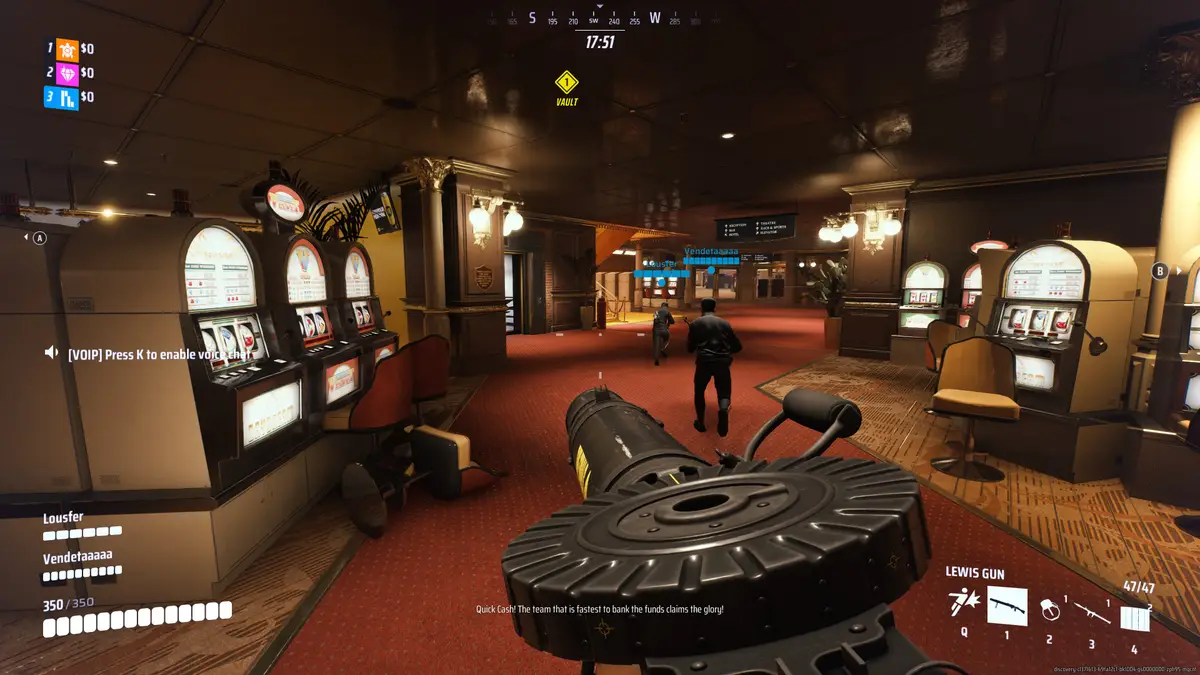
The Finals game is a competitive first-person shooter developed by Embark Studios that features team-based matches inside fully destructible arenas powered by Unreal Engine 5. Players compete in virtual game show-style tournaments where environmental destruction, mobility, and strategy define victory.
The Finals Game: Why Unreal Engine Crashes Happen
Understanding why crashes happen is the first step toward solving them permanently. Unreal Engine 5 is powerful, but it is also demanding.
Hardware Stress and UE5 Errors
UE5 errors typically appear when your system runs out of available resources. High VRAM usage, insufficient RAM, overheating components, or unstable overclocks can all trigger crashes.
Because The Finals game uses real-time destruction physics, particle systems, and high-resolution assets, it can quickly max out GPU memory. When that happens, the engine may close unexpectedly.
Corrupted Files and Game Not Launching Issues
Another common cause involves corrupted installation files. If The Finals crashes immediately after startup or the game not launching issue appears without an error message, damaged local files may be responsible.
Patch interruptions, antivirus interference, or incomplete updates can all corrupt game data.
Background Conflicts and System Instability
Overlay applications, RGB control software, screen recorders, and aggressive antivirus programs often conflict with UE5. When multiple applications compete for hardware access, instability increases.
Therefore, a structured troubleshooting guide is essential.
The Finals Crashes: Step-by-Step Troubleshooting Guide
If The Finals crashes frequently, follow these steps in order. Do not skip steps, even if they seem basic.
1. Update Graphics Drivers Properly
Outdated drivers are one of the leading causes of UE5 errors.
- Visit your GPU manufacturer’s official website.
- Download the latest stable driver.
- Perform a clean installation.
Avoid third-party driver tools. Clean installs remove corrupted driver fragments that may cause instability.
2. Verify Game Files Integrity
On Steam:
- Right-click The Finals game in your library.
- Select Properties.
- Open Local Files.
- Click Verify Integrity of Game Files.
This process replaces missing or corrupted files automatically.
3. Lower In-Game Graphics Settings
If The Finals game crashes during matches, reduce GPU load immediately.
Lower these settings first:
- Texture Quality
- Shadow Quality
- Effects Quality
- Post-Processing
Additionally, disable ray tracing if enabled. This significantly reduces GPU strain.
4. Check Windows Updates
Missing system updates can cause compatibility conflicts. Install all pending updates, including optional cumulative patches.
Restart your system after updates are complete.
Performance Fixes for The Finals Game Stability
Optimizing your system goes beyond fixing crashes. Performance fixes improve overall consistency.
Disable Overclocking
Even stable overclocks can trigger instability under UE5 loads.
Return CPU and GPU to stock frequencies. Test The Finals game for at least one hour of gameplay before re-enabling any custom profiles.
Adjust Virtual Memory (Pagefile)
Low virtual memory may cause unexpected shutdowns.
Set virtual memory to “System Managed” or configure a custom size:
- Minimum: 1.5x RAM
- Maximum: 3x RAM
Restart your PC afterward.
Close Background Applications
Use Task Manager to close:
- RGB control software
- Screen recording apps
- Overlay tools
- Browser tabs
Reducing background usage minimizes memory spikes.
Advanced UE5 Errors Fix Methods
If The Finals crashes continue, apply deeper fixes.
Clear Shader Cache
Shader corruption often causes startup crashes.
Delete DirectX shader cache:
- Open Disk Cleanup
- Select system drive
- Check DirectX Shader Cache
- Confirm deletion
Restart the system.
Reinstall The Finals Game
If file verification fails repeatedly, uninstall completely. After removal:
- Restart PC
- Reinstall fresh
- Avoid interrupting download
A clean installation eliminates hidden corruption.
The Finals Game System Requirements and Stability Comparison
Below is a useful comparison table to evaluate your configuration:
| Component | Minimum | Recommended | Stability Impact |
| CPU | 4-core processor | 6-core modern CPU | High |
| RAM | 12GB | 16GB+ | Critical |
| GPU | GTX 1060 / RX 580 | RTX 2060 / RX 6600+ | Very High |
| Storage | HDD | SSD | Moderate |
| VRAM | 6GB | 8GB+ | Critical |
If your system barely meets minimum requirements, crashes are more likely.
Preventing Lag and Network-Related Crashes
Although many stability issues are hardware-based, connection instability can mimic crashes.
Sudden latency spikes may disconnect you from matches. This can appear similar to The Finals crashes.
Using optimized routing software improves packet delivery consistency. ExitLag reroutes traffic through optimized pathways, reducing jitter and packet loss. This ensures smoother matches and reduces unexpected disconnects.
Additionally, consider:
- Using wired Ethernet instead of Wi-Fi
- Restarting your router weekly
- Avoiding downloads during gameplay
Optimizing Graphics Settings for Long-Term Stability
Balancing visual quality and performance is essential.
Recommended Stability Settings
- Medium textures
- Low shadows
- Motion blur disabled
- V-Sync off
- FPS capped slightly below monitor refresh rate
Capping FPS reduces GPU spikes.
DLSS or FSR Usage
If supported, enable DLSS (NVIDIA) or FSR (AMD). These technologies reduce rendering load while maintaining visual clarity.
This dramatically improves stability in The Finals game.
Clean Boot Method for Persistent Game Not Launching Issues
If the game not launching problem persists, try a clean boot.
- Press Windows + R.
- Type msconfig.
- Disable all non-Microsoft services.
- Restart.
Launch The Finals game before enabling services again.
When to Contact Official Support
If no solution works, consult official resources.
Provide crash logs and system specifications when submitting a support ticket.
Detailed information accelerates troubleshooting.
The Finals Game Stability Best Practices
Maintaining stability requires routine maintenance.
Weekly Checklist
- Update GPU drivers
- Check Windows updates
- Clear temporary files
- Restart modem/router
Monthly Checklist
- Clean dust from PC
- Check temperatures
- Test memory health
- Verify storage health
Consistency prevents recurring crashes.
Why The Finals Game Demands System Optimization
Because The Finals game leverages Unreal Engine 5’s destruction physics and dynamic lighting, it behaves differently than older FPS titles. Stability depends heavily on:
- VRAM headroom
- CPU thread availability
- Storage speed
- Network consistency
Optimizing these elements reduces both crashes and lag.
Competitive Edge: Stability Equals Performance
In competitive matches, even one crash can cost rank progression.
Reducing The Finals crashes not only improves enjoyment but also ensures competitive integrity.
Lower latency, stable FPS, and reliable system performance directly influence reaction time and aiming consistency.
Long-Term Performance Fix Strategy
To maintain optimal stability:
- Avoid experimental drivers.
- Keep BIOS updated (if experienced).
- Maintain adequate cooling.
- Upgrade RAM if below 16GB.
- Install the game on SSD.
These long-term performance fixes significantly improve The Finals game reliability.
Final Thoughts on The Finals Game Crash Fixes
Because The Finals game runs on Unreal Engine 5, it pushes hardware aggressively. That means system configuration, drivers, memory allocation, and background processes all directly impact stability. Additionally, connection instability may worsen perceived crashes, which is why optimizing both system performance and network routing is essential. Tools like ExitLag help stabilize routing paths and reduce latency spikes that can trigger disconnections or apparent crashes during matches.
FAQ
Why does The Finals game keep crashing on startup?
Startup crashes are usually caused by corrupted files, outdated drivers, or shader cache issues.
How do I fix UE5 errors in The Finals game?
Update drivers, verify files, clear shader cache, and disable overclocking.
Why is The Finals game not launching after an update?
Updates can corrupt files. Verifying integrity or reinstalling often fixes this.
Can low RAM cause The Finals crashes?
Yes. UE5 is memory intensive. 16GB RAM is strongly recommended.
Does network instability cause crashes?
It can cause disconnects that appear like crashes. Optimizing routing reduces this risk.



