
Tom Clancy’s Ghost Recon Jitter can quickly turn a tactical mission into a frustrating experience. Stuttering movement, delayed reactions, and inconsistent network performance make it difficult to coordinate with teammates or react to enemy threats during critical moments.
If you’re dealing with Tom Clancy’s Ghost Recon Jitter, you’re not alone. Many players experience unstable gameplay caused by network fluctuations, hardware bottlenecks, or incorrect game settings. Fortunately, most of these issues can be identified and resolved with the right troubleshooting steps.
What is Tom Clancy’s Ghost Recon Jitter? It refers to irregular movement caused by unstable network latency or inconsistent frame delivery. Unlike constant lag, jitter creates sudden spikes that make characters, vehicles, and enemies appear to skip or teleport across the screen, especially during online sessions.
Whether you play solo or cooperatively, understanding what causes jitter is the first step toward improving your experience. This guide explains the most common reasons behind the issue and the best ways to reduce it for smoother gameplay.
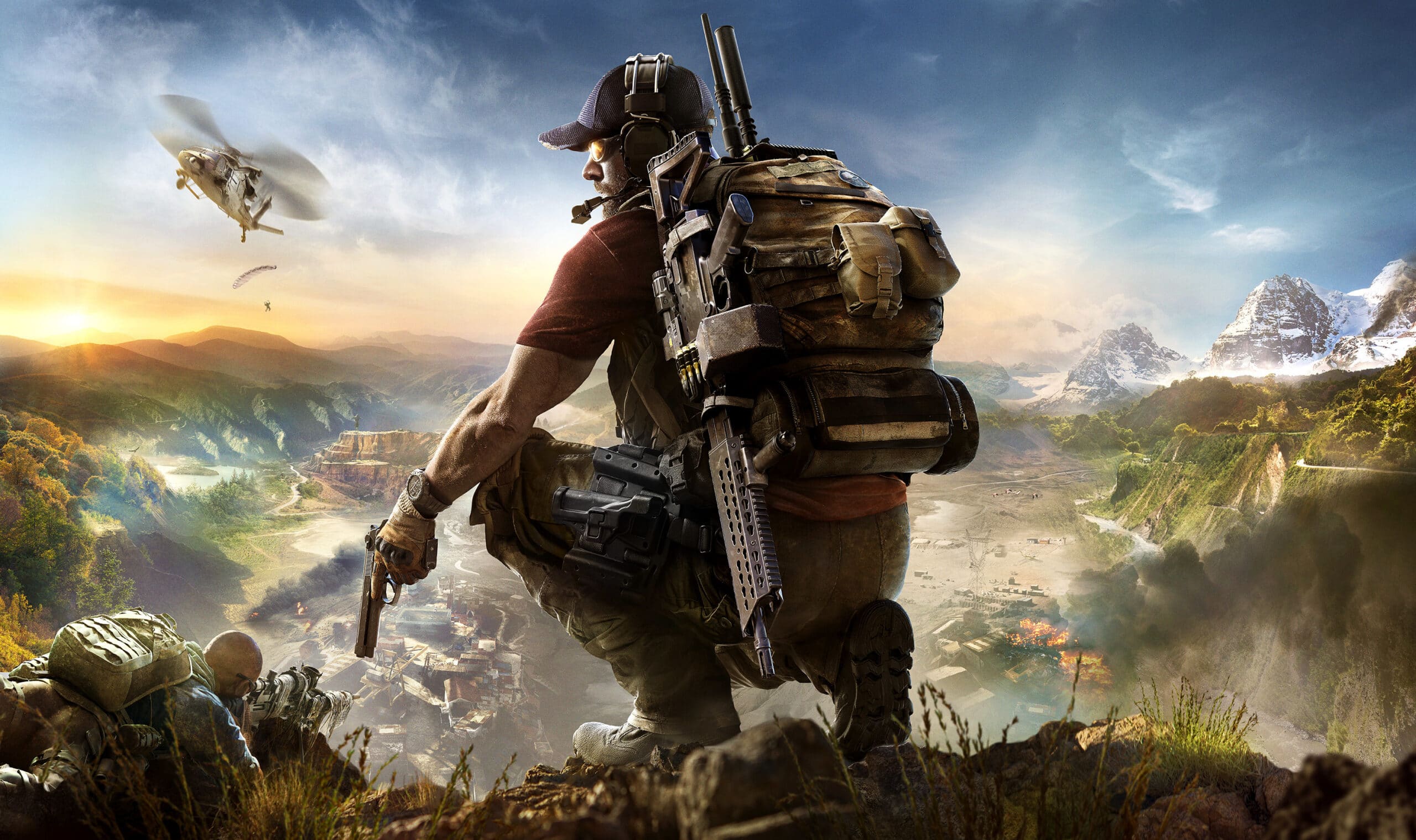
What Is Tom Clancy’s Ghost Recon Jitter?
Understanding Network Jitter
Network jitter measures the variation in the time required for data packets to travel between your device and the game server. A stable connection delivers packets at nearly identical intervals. An unstable connection sends packets at inconsistent speeds. As a result, the game struggles to synchronize player actions.
This often creates sudden movement interruptions that negatively affect combat and exploration. Unlike high ping, which introduces consistent delay, jitter creates unpredictable behavior. You might experience smooth gameplay for several seconds before sudden interruptions occur.
How Jitter Affects Ghost Recon
Ghost Recon games emphasize tactical movement and precision. Because of that, even small network fluctuations can have noticeable consequences.
Common symptoms include:
- Characters teleporting during firefights.
- Vehicles skipping across the terrain.
- Delayed hit registration.
- Rubberbanding while sprinting.
- Desynchronized enemy animations.
These issues become even more noticeable during cooperative missions where synchronization between players is essential.
Common Causes of Tom Clancy’s Ghost Recon Jitter
Unstable Internet Connection
The most common reason behind Tom Clancy’s Ghost Recon Jitter is an inconsistent internet connection.
Several factors contribute to instability:
- Wi-Fi interference.
- Congested local networks.
- ISP routing issues.
- Temporary packet loss.
- Network congestion during peak hours.
Even if your download speed appears high, unstable routing can still generate noticeable jitter.
Wireless Network Limitations
Wireless connections are convenient, but they are often less stable than Ethernet.
Wi-Fi signals can be interrupted by:
- Walls and furniture.
- Nearby electronic devices.
- Bluetooth accessories.
- Multiple connected devices.
- Neighboring wireless networks.
For competitive or cooperative gameplay, a wired connection remains the preferred option.
Background Applications
Many programs consume bandwidth without players realizing it.
Examples include:
- Cloud synchronization software.
- Streaming services.
- Automatic game updates.
- Operating system downloads.
- Video conferencing applications.
Closing unnecessary applications before launching Ghost Recon can improve connection stability.
Hardware Factors That Can Create Jitter
CPU Bottlenecks
Not every case of apparent jitter originates from the network. Heavy CPU usage may delay frame rendering, creating symptoms that resemble network instability.
Watch for:
- High processor utilization.
- Sudden FPS drops.
- Background processes consuming resources.
- Thermal throttling.
Keeping your operating system optimized helps maintain consistent performance.
GPU Performance
Graphics settings also influence gameplay smoothness. Running extremely demanding settings on unsupported hardware may introduce inconsistent frame pacing. Lowering certain options often improves stability.
Examples include:
- Shadow quality.
- Volumetric lighting.
- Ambient occlusion.
- Reflection quality.
- Post-processing effects.
Finding the right balance between visuals and performance is usually more beneficial than simply selecting the highest preset.
How to Diagnose Tom Clancy’s Ghost Recon Jitter
Check Your Network Statistics
Before changing settings, determine whether the problem comes from your internet connection.
Useful metrics include:
| Metric | Ideal Value | Impact on Gameplay |
| Ping | Below 50 ms | Faster response |
| Jitter | Under 10 ms | Stable movement |
| Packet Loss | 0% | Smooth synchronization |
| Upload Speed | Stable | Better multiplayer performance |
| Download Speed | Stable | Faster asset loading |
Several online network testing tools can measure these values before you launch the game.
Monitor System Performance
In addition to network testing, monitor your hardware while playing.
Pay attention to:
- CPU usage.
- GPU usage.
- RAM consumption.
- Disk activity.
- Temperature levels.
If one component constantly reaches maximum utilization, hardware optimization may be necessary.
Basic Fixes for Tom Clancy’s Ghost Recon Jitter
Restart Your Network Equipment
This simple step often resolves temporary routing issues.
Follow these steps:
- Turn off your modem.
- Turn off your router.
- Wait at least one minute.
- Restart the modem first.
- Restart the router after the modem reconnects.
- Launch Ghost Recon again.
Many temporary ISP routing problems disappear after reconnecting.
Switch to Ethernet
Whenever possible, replace Wi-Fi with a wired Ethernet connection.
Benefits include:
- Lower latency.
- Reduced packet loss.
- Improved connection consistency.
- Less wireless interference.
- Better multiplayer stability.
For tactical shooters, connection consistency is often more valuable than raw download speed.
Adjust In-Game Settings
Reduce Heavy Graphics Features
High graphical settings can sometimes create frame pacing issues that feel similar to network jitter.
Consider lowering:
- Shadow Quality.
- Volumetric Fog.
- Terrain Detail.
- Reflection Quality.
- Motion Blur.
Experiment with different combinations until gameplay becomes consistently smooth.
Enable Frame Rate Limits
Unlimited frame rates can create unstable frame delivery. Instead, cap your FPS according to your monitor refresh rate.
Examples include:
- 60 FPS.
- 120 FPS.
- 144 FPS.
- 165 FPS.
A stable frame rate generally feels smoother than constantly fluctuating performance.
Why Network Routing Matters
Many players assume their ISP always uses the fastest route. In reality, internet traffic may travel through inefficient paths before reaching Ubisoft’s game servers.
Poor routing increases:
- Latency variation.
- Packet retransmissions.
- Connection instability.
- Server synchronization delays.
This is one reason why two players living in the same city can experience completely different online performance.
Preparing for Stable Multiplayer Sessions
Before starting a long Ghost Recon session, it’s worth spending a few minutes preparing your system.
A simple checklist includes:
- Restart your PC.
- Close unnecessary applications.
- Pause background downloads.
- Verify your network stability.
- Update graphics drivers if needed.
- Confirm that no other devices are saturating your internet connection.
These small steps often eliminate many common performance issues before they appear. Beyond local optimization, network routing also plays an important role. ExitLag improves connection stability by optimizing traffic routes between your PC and game servers, helping reduce latency fluctuations without modifying game files or interacting with anti-cheat systems.
In the next section, we’ll cover advanced troubleshooting methods, compare different optimization strategies, share Pro Tips, highlight common mistakes players make, answer frequently asked questions, and explain additional ways to reduce Tom Clancy’s Ghost Recon Jitter for consistently smoother gameplay.
Advanced Solutions for Tom Clancy’s Ghost Recon Jitter
Update Network Drivers
Outdated network drivers can create connection instability even when your internet service is performing normally. Visit your motherboard or network adapter manufacturer’s website and install the latest driver available for your hardware.
Updated drivers often improve:
- Network stability.
- Packet handling.
- Compatibility with recent Windows updates.
- Overall system performance.
Avoid relying solely on generic operating system drivers whenever possible.
Configure Quality of Service (QoS)
Many modern routers include Quality of Service (QoS) settings. QoS prioritizes gaming traffic over less important activities on your network.
If several people share the same internet connection, enabling QoS can reduce interruptions caused by:
- Video streaming.
- Large downloads.
- Cloud backups.
- File synchronization.
Proper router configuration helps maintain consistent latency during long gaming sessions.
Optimize Windows for Gaming
Disable Unnecessary Startup Programs
Too many applications launching automatically can consume valuable system resources. Consider disabling software that is not required during gameplay.
Examples include:
- Chat applications you are not using.
- RGB management tools.
- Cloud storage clients.
- Automatic launchers.
- Background utilities.
A cleaner startup often results in more consistent frame delivery.
Enable Game Mode
Windows Game Mode helps prioritize gaming workloads. Although it is not a miracle solution, it can reduce interruptions caused by background processes. Combined with proper driver updates, Game Mode contributes to smoother overall performance.
Compare Common Jitter Solutions
| Solution | Difficulty | Expected Improvement | Best For |
| Ethernet Connection | Easy | High | All players |
| Restart Router | Easy | Medium | Temporary network issues |
| Lower Graphics Settings | Easy | Medium | Hardware bottlenecks |
| Update Drivers | Medium | Medium | System optimization |
| Configure QoS | Medium | High | Shared internet connections |
| Optimize Network Routing | Easy | High | Multiplayer stability |
No single solution works for every player. The best results usually come from combining several optimization methods.
Pro Tips
Small improvements often produce significant long-term benefits.
Keep these recommendations in mind:
- Restart your router before long multiplayer sessions.
- Keep graphics drivers updated regularly.
- Use an Ethernet connection whenever possible.
- Close unnecessary applications before launching the game.
- Monitor CPU and GPU temperatures during extended gameplay.
- Keep sufficient free storage space on your SSD or hard drive.
Developing good maintenance habits helps prevent recurring performance issues.
Common Mistakes
Many players unintentionally make changes that worsen performance. Avoid these common mistakes.
Increasing Graphics Beyond Hardware Limits
Ultra settings may look impressive. However, unstable frame pacing often creates gameplay that feels worse than slightly reduced visuals. Instead, prioritize stable performance over maximum graphical quality.
Playing on Congested Wi-Fi
Wireless interference remains one of the leading causes of inconsistent online gameplay. Whenever practical, switch to Ethernet. If Ethernet is unavailable, position your router closer to your gaming setup and minimize interference.
Ignoring Background Downloads
Automatic downloads can suddenly consume large amounts of bandwidth.
Before starting a multiplayer session, verify that:
- Windows Update is idle.
- Game launchers are not downloading updates.
- Cloud synchronization has finished.
- Streaming devices are not consuming excessive bandwidth.
These simple checks help maintain a stable connection.
How ExitLag Helps Reduce Jitter
While local optimization solves many problems, internet routing remains outside the player’s direct control. Sometimes your connection travels through inefficient network paths before reaching Ubisoft servers. ExitLag addresses this issue by optimizing network routes in real time.
Benefits include:
- Reduced latency variation.
- Improved routing efficiency.
- Lower packet loss.
- More consistent multiplayer responsiveness.
- Better connection stability during long sessions.
Frequently Asked Questions
What causes Tom Clancy’s Ghost Recon Jitter?
The most common causes include unstable internet connections, packet loss, poor ISP routing, wireless interference, outdated drivers, and inconsistent frame delivery.
Is jitter the same as high ping?
No. High ping creates a consistent delay between your actions and the game server. Jitter causes latency to fluctuate constantly, resulting in irregular movement and rubberbanding.
Does lowering graphics reduce jitter?
If your issue is related to hardware performance rather than networking, lowering graphics settings can improve frame consistency and eliminate stuttering that resembles network jitter.
Is Ethernet better than Wi-Fi?
Yes. A wired Ethernet connection generally provides lower latency, fewer interruptions, and more consistent packet delivery than wireless networks.
Can ExitLag fix Tom Clancy’s Ghost Recon Jitter?
ExitLag cannot solve hardware problems or ISP outages. However, it can improve routing efficiency, reduce latency fluctuations, and stabilize connections when inefficient network routes contribute to jitter.
Tom Clancy’s Ghost Recon Jitter can significantly impact tactical gameplay, especially during cooperative missions where every movement and decision matters.
Fortunately, most cases result from identifiable issues that can be addressed through proper troubleshooting. Optimizing your hardware, maintaining your operating system, using a stable wired connection, and reducing unnecessary background activity all contribute to smoother gameplay.
For players affected by inefficient network routing, Tom Clancy’s Ghost Recon Jitter can also be minimized by improving the path between their PC and Ubisoft’s servers. Combining local optimization with intelligent routing provides a more responsive experience without modifying game files or interfering with anti-cheat protections.
By following the recommendations in this guide, you can enjoy more stable movement, better synchronization with teammates, and a smoother Ghost Recon experience.



