
Tom Clancy’s Ghost Recon Lag can completely change the outcome of a mission. Whether you’re coordinating with your squad, engaging enemies from long range, or navigating dangerous environments, connection issues can cause delayed actions, rubberbanding, and inconsistent gameplay that put your success at risk.
If you’re experiencing Tom Clancy’s Ghost Recon Lag, you’re not alone. Network instability affects players worldwide, regardless of internet speed or hardware configuration. Fortunately, most lag problems can be diagnosed and resolved with the right combination of network optimization and system adjustments.
What is Tom Clancy’s Ghost Recon Lag? It refers to delays between your actions and the game’s response, usually caused by high latency, packet loss, unstable routing, or local network issues. Unlike FPS drops, which originate from hardware limitations, lag is primarily related to communication between your PC and the game servers.
This guide explains the most common causes of lag in Ghost Recon, how to identify the source of the problem, and the most effective ways to improve your online experience.
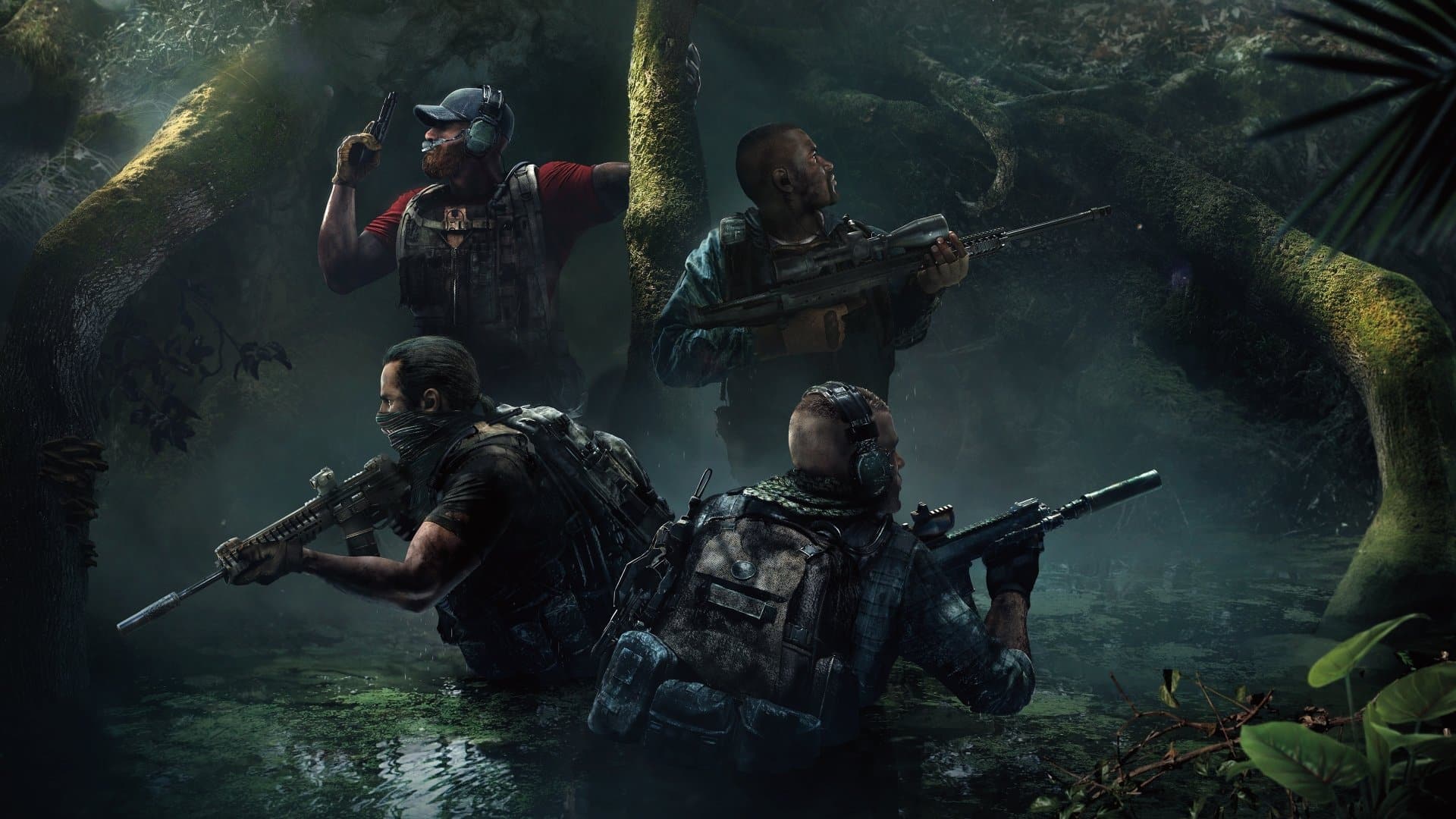
What Is Tom Clancy’s Ghost Recon Lag?
Understanding Online Lag
Every online action in Ghost Recon travels between your computer and Ubisoft’s game servers. When that communication is delayed, your gameplay becomes less responsive.
Lag may appear as:
- Delayed movement.
- Slow hit registration.
- Rubberbanding.
- Characters teleporting.
- Delayed interactions.
- Connection interruptions.
Even small increases in latency become noticeable during tactical firefights.
Why Lag Matters in Ghost Recon
Ghost Recon rewards precision and teamwork.
Stable connections improve:
- Squad coordination.
- Accurate shooting.
- Vehicle control.
- Enemy tracking.
- Mission execution.
A reliable connection allows every action to register when you expect it.
What Causes Tom Clancy’s Ghost Recon Lag?
High Latency
Latency measures the time required for information to travel between your PC and the game server.
Several factors increase latency:
- Long routing paths.
- ISP congestion.
- Server distance.
- Poor network infrastructure.
- Temporary internet instability.
Lower latency results in more responsive gameplay.
Packet Loss
Missing data packets interrupt communication between the player and the server.
Packet loss often creates:
- Rubberbanding.
- Delayed actions.
- Teleporting players.
- Connection instability.
Even low packet loss percentages can affect multiplayer performance.
Network Jitter
Jitter measures variations in packet delivery times.
Instead of a consistent delay, jitter creates unpredictable responsiveness.
Players often experience:
- Smooth gameplay followed by sudden interruptions.
- Inconsistent movement.
- Delayed enemy updates.
Stable packet delivery is just as important as low ping.
Local Network Problems
Wi-Fi Interference
Wireless connections are convenient but less stable than Ethernet.
Common interference sources include:
- Thick walls.
- Smart home devices.
- Bluetooth accessories.
- Neighboring wireless networks.
- Household electronics.
Using Ethernet eliminates many of these variables.
Network Congestion
Shared internet connections often create lag.
Bandwidth-intensive activities include:
- Video streaming.
- Cloud synchronization.
- Large downloads.
- Operating system updates.
- Multiple gaming devices.
Reducing simultaneous internet usage improves stability.
Hardware Factors That Affect Responsiveness
Background Applications
Several programs consume bandwidth or system resources while you play.
Before launching Ghost Recon, close:
- Streaming software.
- Cloud storage applications.
- File synchronization services.
- Automatic downloads.
- Unnecessary browser tabs.
Freeing resources improves both system performance and network responsiveness.
Outdated Network Drivers
Old drivers may reduce networking efficiency.
Regular updates improve:
- Connection stability.
- Hardware compatibility.
- Packet processing.
- Overall reliability.
Always download drivers from your hardware manufacturer’s official website.
How to Diagnose Tom Clancy’s Ghost Recon Lag
Check Your Network Performance
Measure your connection before changing game settings.
Monitor these values:
| Metric | Recommended Value | Gameplay Impact |
| Ping | Below 50 ms | Faster response |
| Packet Loss | 0% | Stable synchronization |
| Jitter | Under 10 ms | Smooth movement |
| Upload Stability | Consistent | Reliable multiplayer |
| Download Stability | Consistent | Stable communication |
Testing at different times of day helps identify ISP congestion.
Monitor System Performance
Although lag is usually network-related, hardware problems can produce similar symptoms.
Monitor:
- CPU usage.
- GPU usage.
- RAM utilization.
- Storage activity.
- Hardware temperatures.
Stable hardware eliminates unnecessary performance variables.
Basic Fixes for Tom Clancy’s Ghost Recon Lag
Restart Your Network Equipment
Refreshing your network often resolves temporary routing issues.
Follow these steps:
- Turn off your modem.
- Turn off your router.
- Wait one minute.
- Restart the modem.
- Restart the router.
- Launch Ghost Recon again.
Many temporary connection issues disappear after reconnecting.
Use a Wired Ethernet Connection
Ethernet provides a much more stable connection than Wi-Fi.
Benefits include:
- Lower latency.
- Reduced packet loss.
- Less interference.
- Improved connection consistency.
- Better multiplayer stability.
Competitive players almost always prefer wired networking.
Optimize Windows for Online Gaming
Close Unnecessary Applications
Background software can consume both bandwidth and processing power. Disable programs you do not need while gaming.
Examples include:
- Cloud synchronization.
- Video streaming.
- Automatic software updates.
- Large downloads.
- File-sharing applications.
Reducing background activity improves network availability.
Enable Windows Game Mode
Windows Game Mode helps prioritize gaming processes over unnecessary background tasks. Although results vary between systems, enabling it is generally recommended.
Prepare Before Every Gaming Session
Developing a simple preparation routine improves long-term stability.
- Restart your PC.
- Restart your router if necessary.
- Pause downloads.
- Close background applications.
- Verify your internet connection.
- Launch Ghost Recon.
These habits reduce the likelihood of interruptions during online missions. Unlike graphics settings, network routing cannot be optimized directly from within the game. ExitLag improves the connection between your PC and supported game servers by selecting more efficient network routes in real time. It does not modify game files and does not interact with anti-cheat systems.
Advanced Solutions for Tom Clancy’s Ghost Recon Lag
Update Your Network Drivers
Outdated network drivers can negatively affect communication between your PC and Ubisoft’s servers. Installing the latest drivers improves compatibility, stability, and packet handling.
For the best results:
- Download drivers from your motherboard or network adapter manufacturer.
- Install the latest certified version.
- Restart your PC after installation.
- Test your connection before making additional changes.
Keeping your networking hardware updated helps eliminate avoidable connection problems.
Configure Quality of Service (QoS)
Many modern routers include a Quality of Service (QoS) feature. QoS prioritizes gaming traffic over other network activities. This is especially useful when multiple devices share the same internet connection.
QoS helps reduce lag caused by:
- Video streaming.
- Cloud backups.
- Large downloads.
- Video calls.
- Smart home devices.
Proper router configuration creates a more stable multiplayer experience.
Optimize Your Home Network
Position Your Router Correctly
If you must use Wi-Fi, router placement plays an important role.
For the strongest possible signal:
- Place the router in a central location.
- Keep it away from thick walls.
- Avoid placing it near microwaves.
- Keep it away from cordless phones.
- Reduce interference from Bluetooth devices.
A stronger wireless signal often reduces latency fluctuations.
Restart Your Router Regularly
Routers can accumulate temporary networking errors after running continuously for long periods. Restarting the router every few weeks refreshes the connection and may improve routing performance. This simple habit often resolves temporary instability without requiring advanced troubleshooting.
Compare the Best Lag Fixes
| Solution | Difficulty | Expected Improvement | Best For |
| Ethernet Connection | Easy | High | Every player |
| Restart Router | Easy | Medium | Temporary network issues |
| Update Network Drivers | Medium | Medium | Driver-related instability |
| Configure QoS | Medium | High | Shared home networks |
| Close Background Applications | Easy | Medium | Bandwidth optimization |
| Optimize Network Routing | Easy | High | Online multiplayer sessions |
Combining several of these solutions usually provides the most consistent improvement.
Pro Tips
Maintaining a stable connection is easier when you develop good habits.
Follow these recommendations:
- Prefer Ethernet over Wi-Fi whenever possible.
- Keep router firmware updated.
- Restart networking equipment regularly.
- Pause downloads before playing.
- Keep Windows and drivers updated.
- Test your internet connection during different times of the day.
- Monitor packet loss and jitter in addition to ping.
Preventive maintenance often eliminates many common connection issues before they appear.
Common Mistakes
Many players unknowingly create conditions that increase lag. Avoid these common mistakes.
Playing on an Overloaded Wi-Fi Network
Too many connected devices compete for available bandwidth. If several people are streaming videos or downloading files while you play, lag becomes much more likely. Whenever possible, reserve bandwidth for gaming sessions.
Ignoring Router Firmware Updates
Router manufacturers release firmware updates that improve stability and security. Running outdated firmware may reduce networking performance. Always install updates provided by the router manufacturer.
Assuming Internet Speed Solves Everything
High download speeds do not automatically eliminate lag. Stable routing, low packet loss, and consistent latency are often far more important than raw bandwidth. A 100 Mbps connection with stable routing usually performs better than a much faster connection experiencing congestion or poor routing.
Why ExitLag Helps Reduce Lag
Many connection problems occur outside your home network. Even with a fast internet plan, traffic may travel through congested or inefficient routes before reaching Ubisoft’s servers. ExitLag helps optimize this communication by selecting more efficient network paths in real time.
Players may experience benefits such as:
- Lower latency.
- Reduced packet loss.
- More stable routing.
- Better multiplayer responsiveness.
- More consistent online sessions.
Frequently Asked Questions
What causes Tom Clancy’s Ghost Recon Lag?
The most common causes include high latency, packet loss, unstable routing, Wi-Fi interference, ISP congestion, outdated network drivers, and heavy bandwidth usage on your local network.
Is lag the same as FPS drops?
No. Lag is caused by communication delays between your PC and the game server. FPS drops originate from hardware limitations that reduce your computer’s rendering performance.
Does Ethernet reduce lag?
Yes. Ethernet connections provide lower latency, greater stability, and fewer interruptions than Wi-Fi because they eliminate wireless interference.
Can router settings improve Ghost Recon performance?
Yes. Enabling QoS, updating router firmware, and reducing unnecessary network traffic can significantly improve connection stability during multiplayer sessions.
Can ExitLag fix Tom Clancy’s Ghost Recon Lag?
ExitLag cannot resolve ISP outages or hardware failures. However, it can reduce lag caused by inefficient routing by optimizing the communication path between your PC and supported game servers.
Tom Clancy’s Ghost Recon Lag can make tactical gameplay less responsive, affecting everything from precision shooting to squad coordination.
Fortunately, most connection problems can be minimized through proper troubleshooting. Using a wired connection, updating network drivers, optimizing your router, reducing background network activity, and maintaining a stable home network all contribute to a smoother online experience.
When routing issues occur outside your local network, Tom Clancy’s Ghost Recon Lag may also be reduced through intelligent route optimization. Combining local network improvements with optimized routing creates a more responsive multiplayer experience without modifying game files or interfering with anti-cheat protections.
By following the recommendations in this guide, you can reduce latency, improve synchronization with teammates, and enjoy smoother Ghost Recon missions from start to finish.



