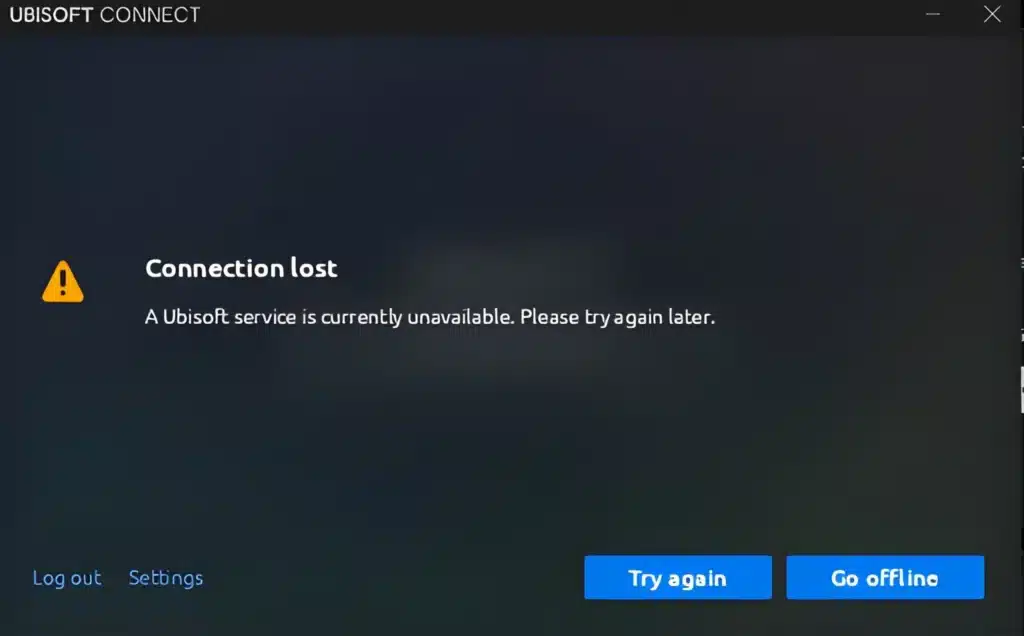
Few things ruin a gaming session faster than a Ubisoft Connect Connection Lost popup right in the middle of a match. One second you are pushing an objective in Rainbow Six Siege, and the next you are staring at an error screen wondering what happened.
This problem is extremely common, and it affects players across Assassin’s Creed, Ghost Recon, The Crew, and pretty much every title that runs through Ubisoft’s launcher. The good news is that Ubisoft Connect Connection Lost almost always has a fixable root cause.
If you are hitting this error right now, here is the short version: the launcher lost its handshake with Ubisoft’s authentication servers, usually because of network instability, a blocked connection, outdated software, or a temporary server issue on Ubisoft’s side. Working through firewall, DNS, and network stability fixes resolves it in most cases.
This guide walks through every practical fix, from the simple restarts to the deeper network-level solutions that most articles skip. Whether the error hits at login or mid-session, you will find a clear path to a stable connection below.

Why Does Ubisoft Connect Connection Lost Happen?
Understanding the cause makes the fix much faster. Ubisoft Connect Connection Lost is essentially a broken communication link between your PC and Ubisoft’s servers.
That break can happen locally, on your network, or on Ubisoft’s end. Each source needs a different kind of fix.
Local and Software Causes
Sometimes the launcher itself is the problem, not your internet connection. This is more common than most players expect.
- Outdated Ubisoft Connect client version
- Corrupted cache or configuration files
- Conflicting background applications, including overlays and recording software
- Antivirus or Windows Defender blocking the launcher’s processes
- Ubisoft Connect stuck in Offline Mode after a bad shutdown
Network and Connectivity Causes
The other major bucket of causes lives entirely in your network path. These are trickier to diagnose because everything can look “fine” on the surface.
- Unstable Wi-Fi signal or a router that needs a reboot
- DNS servers that are slow or failing to resolve Ubisoft’s domains
- Firewall rules blocking outbound traffic to Ubisoft’s authentication servers
- A VPN interfering with routing or IP detection
- Packet loss or latency spikes between your device and Ubisoft’s data centers
Notably, Ubisoft’s own servers occasionally experience brief outages or maintenance windows. If the issue is server-side, no local fix will help until Ubisoft resolves it, so it is worth checking their status page before spending an hour troubleshooting.
How Do You Fix Ubisoft Connect Connection Lost?
Work through these steps in order. Most players solve the Ubisoft Connect Connection Lost error within the first four or five steps.
- Restart Ubisoft Connect and your PC. This clears temporary session errors and resets the launcher’s connection handshake.
- Check Ubisoft’s server status. If servers are down, wait it out instead of reinstalling anything.
- Disable Offline Mode. Open Settings inside Ubisoft Connect and uncheck “Always start in Offline Mode.”
- Update the launcher. An outdated client, especially one bundled through Steam, often cannot authenticate against current servers.
- Flush your DNS. Run ipconfig /flushdns followed by ipconfig /renew in an elevated Command Prompt.
- Switch DNS providers. Google DNS (8.8.8.8) or Cloudflare (1.1.1.1) resolve faster and more reliably than many ISP defaults.
- Allow Ubisoft Connect through your firewall. Add both the launcher and the game executable as exceptions.
- Temporarily disable VPN or proxy tools. These frequently interfere with how Ubisoft detects your connection.
- Perform a clean boot. This isolates whether a background program is silently conflicting with the launcher.
- Reinstall Ubisoft Connect as a last resort. A fresh install clears corrupted files that a simple cache clear cannot fix.
Fixing Ubisoft Connect Connection Lost During Active Gameplay
If the drop happens mid-match rather than at login, the cause usually shifts toward your active network stability. This is a different problem than a launcher that will not open at all.
Consider these checks specifically for in-game disconnects:
- Switch from Wi-Fi to a wired Ethernet connection whenever possible
- Test for packet loss using a route-tracing tool during a play session
- Check whether other devices on your network are consuming bandwidth
- Confirm your router firmware is current and QoS settings prioritize gaming traffic
Furthermore, if disconnects happen at a predictable point (same map, same server region), the issue is more likely routing-related than local hardware.
Is It Your Network or Ubisoft’s Servers?
This is one of the most common questions players ask when troubleshooting. Telling the difference saves a lot of wasted effort.
| Symptom | Likely Cause | Best First Fix |
|---|---|---|
| Error appears for many players at once | Ubisoft server issue | Check status page, wait for resolution |
| Only you are affected, error is consistent | Local software or firewall | Update client, check firewall rules |
| Disconnects happen randomly during play | Network instability | Test for packet loss, switch to Ethernet |
| Error only after using a VPN | VPN conflict | Disable VPN, reconnect |
| Works on other networks, fails on yours | Router or ISP routing issue | Reboot router, change DNS |
As the table shows, isolating the pattern is the fastest way to know where to focus your energy.
Common Mistakes Players Make With Ubisoft Connect
- Reinstalling immediately without checking server status: Many players wipe and reinstall the launcher when the real problem is a Ubisoft outage. Fix: always check the status page first, since a reinstall will not fix a server-side issue.
- Leaving Offline Mode enabled by accident: After a crash, Ubisoft Connect sometimes defaults to Offline Mode, which blocks online features entirely. Fix: check Settings every time a connection error appears unexpectedly.
- Ignoring firewall prompts during installation: Dismissing the Windows Firewall permission popup on first launch silently blocks future connections. Fix: manually add Ubisoft Connect and your games as firewall exceptions.
- Running an old client bundled through a third-party store: Steam and other platforms sometimes ship an outdated Ubisoft Connect build. Fix: always download the latest installer directly from Ubisoft’s official site.
- Blaming the game when the issue is network routing: Players often assume a specific title is broken when the real cause is packet loss on the path to Ubisoft’s servers. Fix: test connectivity independently of any single game.
Pro Tips: Ubisoft Connect Connection Lost
- Keep a wired connection as your default for online sessions: Wi-Fi introduces variable latency and packet loss that wired Ethernet avoids almost entirely, which matters a lot for authentication-heavy launchers.
- Allowlist Ubisoft Connect in your antivirus, not just your firewall: Some security suites scan and throttle the launcher’s network calls independently of Windows Firewall, causing intermittent drops that look random.
- Restart your router on a schedule: Routers accumulate memory leaks and stale routing tables over days of uptime, and a periodic reboot prevents the slow degradation that leads to sudden disconnects.
- Avoid stacking a VPN on top of other optimization tools: Running multiple network-layer tools at once creates routing conflicts that are hard to diagnose and often trigger connection lost errors.
- Monitor your connection during long sessions, not just at launch: A stable login does not guarantee a stable multi-hour session, especially during peak ISP congestion hours in the evening.
How ExitLag Helps Stabilize Your Connection
Once you have ruled out local software issues, the next lever to pull is the quality of the route between your PC and Ubisoft’s servers. This is exactly where ExitLag comes in.
ExitLag is not a VPN. It is a game connection optimizer that analyzes multiple network paths in real time and automatically routes your traffic through the fastest, most stable path available.
For a problem like Ubisoft Connect Connection Lost, that matters because unstable or congested routing is one of the leading causes of authentication drops and mid-match disconnects. A cleaner route means fewer handshake failures with Ubisoft’s servers.
Here is what makes it useful specifically for connection stability issues:
- Multipath Technology: Sends your packets through multiple routes simultaneously, so if one path degrades, another keeps your session alive.
- Multi-Internet support: Combines up to four internet connections at once, meaning a hiccup on one line does not necessarily drop your game.
- Real-time optimization: Continuously reduces latency and packet loss instead of relying on a single fixed route that can degrade over time.
- AI-powered routing: Automatically selects the best path with one click, though manual server selection is also available for players who want full control.
ExitLag supports thousands of titles across PC and mobile, with servers spread across more than 190 countries, and it does not modify game files or interact with anti-cheat systems in any way. It is safe to run alongside Ubisoft Connect and any Ubisoft title.
If disconnects keep interrupting your sessions after trying the software fixes above, it is worth giving your route the same attention you gave your firewall settings. You can grab the ExitLag Download and test it against your current connection in minutes.
Frequently Asked Questions
Why Does Ubisoft Connect Keep Losing Connection Even With Good Internet?
A fast download speed does not guarantee a stable route. Latency spikes and packet loss can occur several hops away from your home network, well outside your ISP’s local segment, which is why “good internet” can still produce connection lost errors.
Does Reinstalling Windows Fix Ubisoft Connect Connection Lost?
Rarely, and it should be considered a last resort. In most cases, the problem lives in network configuration, firewall rules, or Ubisoft’s servers rather than the operating system itself, so a full reinstall is usually unnecessary effort for the result it produces.
Wrapping Up
The Ubisoft Connect Connection Lost error is frustrating, but it is rarely unsolvable. Start with the basics: restart, check server status, and confirm Offline Mode is off.
From there, move into firewall, DNS, and network stability checks. Consequently, most players find their fix somewhere in the first ten steps outlined above.
If the issue keeps returning despite clean software and firewall settings, the remaining variable is usually your route to Ubisoft’s servers. Tools like ExitLag exist precisely to solve that layer of the problem.
All game images used in this blog post belong to Ubisoft. They are used for informational and educational purposes only and do not imply endorsement or affiliation with the rights holder
Got questions or want to connect with other players? Join the conversation at the ExitLag Forum!