If your War Thunder FPS Drop keeps ruining tank pushes and dogfights, you are not alone. Thousands of players hit random stutters even on decent rigs, and it usually comes down to a handful of fixable causes. The good news is that most of these issues have clear, repeatable solutions.
This guide breaks down exactly why War Thunder FPS Drop problems happen and how to solve them step by step. We will cover in-game settings, driver fixes, hardware bottlenecks, and network-side factors that many guides ignore completely.
In short, War Thunder frame drops are almost always caused by a GPU or CPU bottleneck, background software eating resources, outdated drivers, or heavy graphics settings like shadows and ray tracing. Fixing these in the right order usually restores smooth frame rates within minutes. Below, we go through every layer of the problem so you can stop guessing and start fixing.
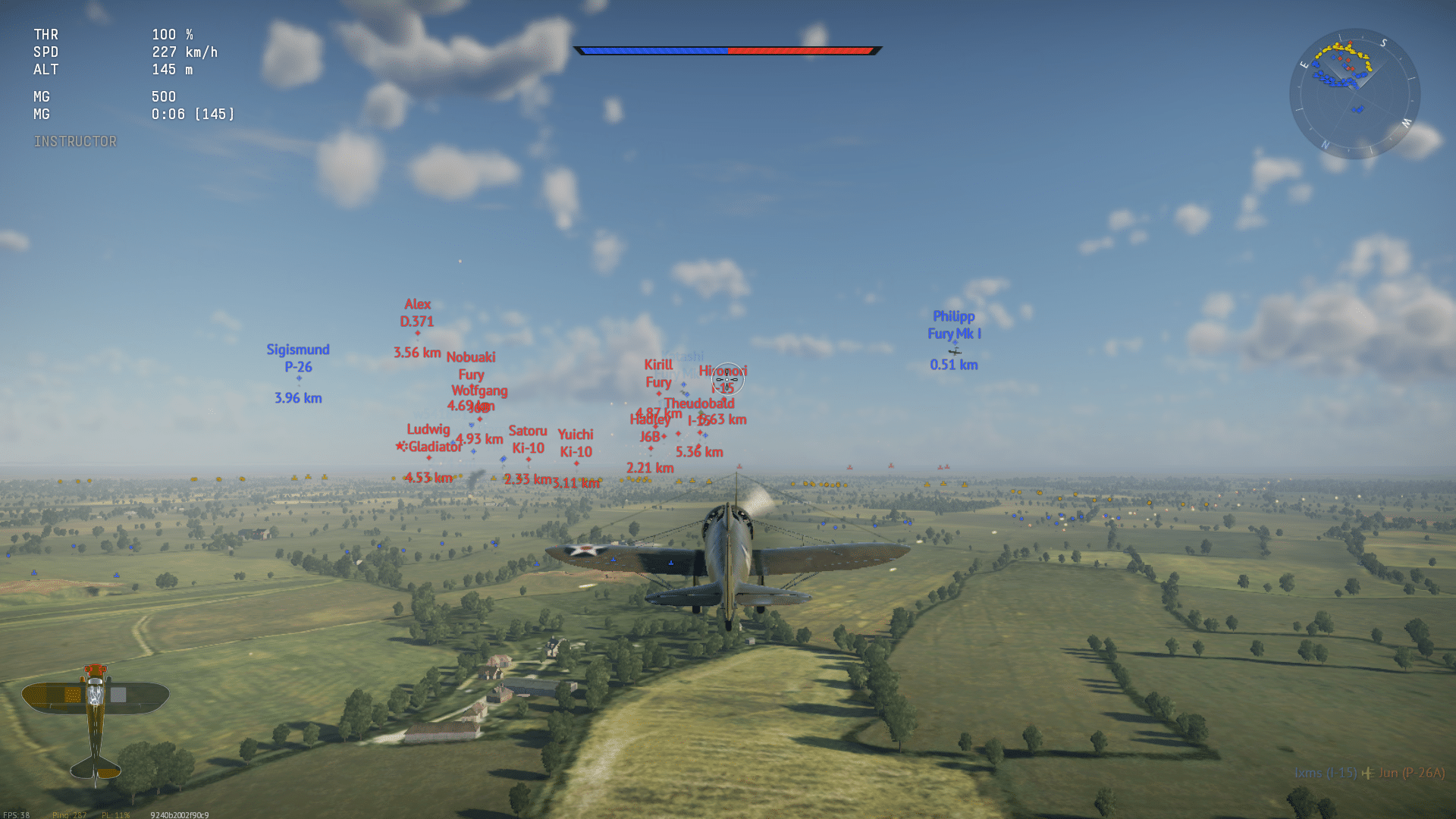
What Causes War Thunder FPS Drop Issues?
War Thunder runs on the Dagor Engine, which handles complex terrain, vehicle physics, and large-scale battles with dozens of players at once. That complexity is exactly why performance can swing wildly between matches.
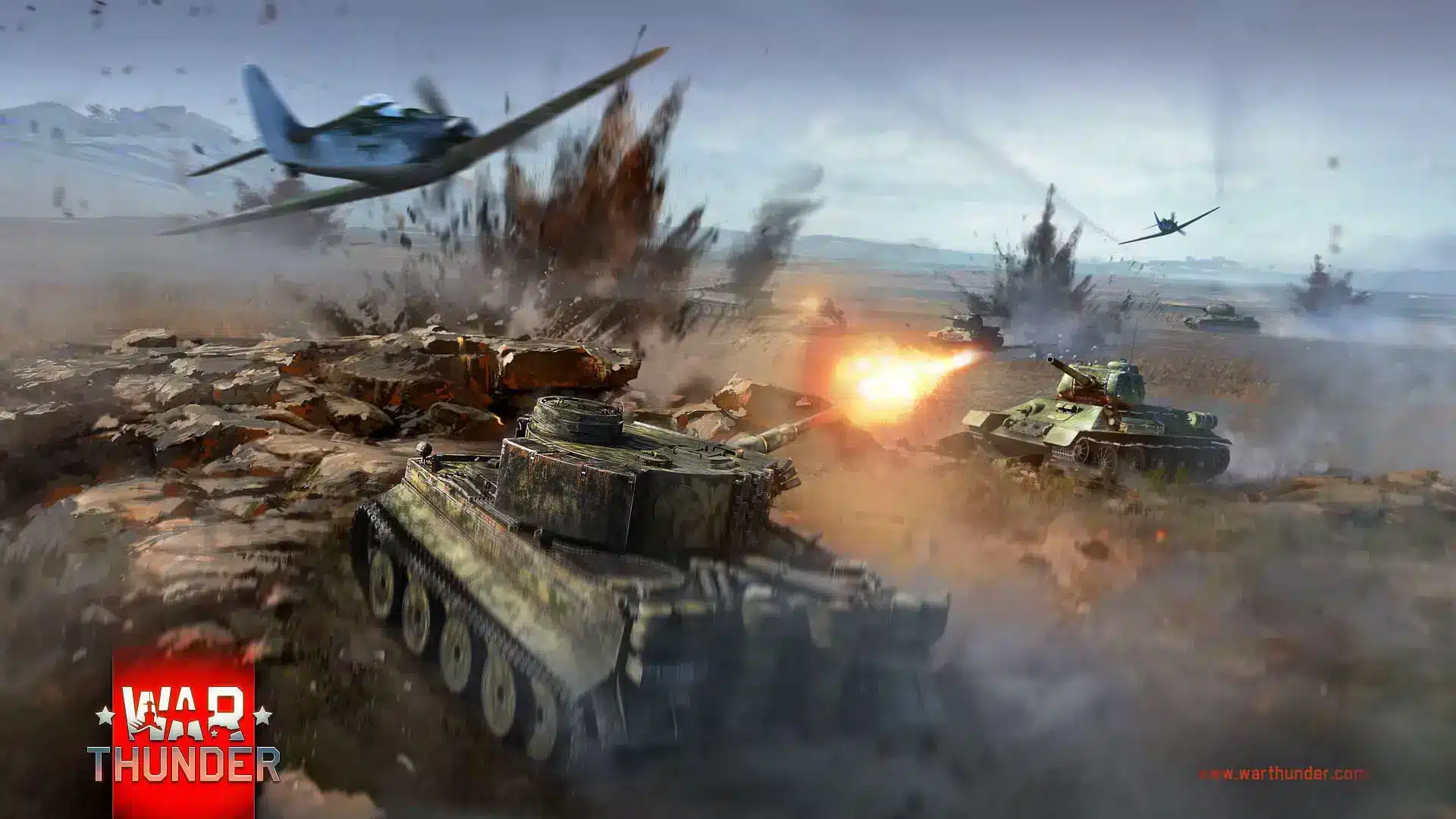
Furthermore, ground battles with heavy foliage and dynamic shadows tend to hit frame rates much harder than air-only matches. Consequently, a setup that runs fine in a jet dogfight can chug badly once you drop into a tank battle on a vegetation-heavy map.
Hardware Bottlenecks
Your CPU and GPU need to work together, and when one lags behind the other, stutters appear. Here is how to spot which one is holding you back:
- GPU bottleneck: Usage sits near 100% while CPU usage stays lower. Expect this at higher resolutions or with ray tracing enabled.
- CPU bottleneck: GPU usage sits below 90% during busy scenes with many vehicles and explosions on screen.
- Thermal throttling: FPS drops gradually during long sessions instead of instantly. This points to overheating rather than a settings problem.
- RAM shortage: Stuttering combined with long loading times often signals the game running out of available memory.
Software and Background Interference
Sometimes the problem has nothing to do with your graphics settings at all. Background processes, overlays, and outdated drivers can quietly steal performance.
- Overlay software (Discord, GeForce Experience, browser recording tools) adds overhead
- Outdated or corrupted GPU drivers cause micro stutters, even on capable hardware
- Windows updates running in the background compete for CPU and disk resources
- Antivirus scans triggered mid-match can cause sudden, sharp frame drops
How Do You Fix War Thunder Low FPS Right Now?
Start with the basics before touching advanced settings. Most War Thunder Low FPS Fix attempts fail simply because players skip a step that actually matters.
- Restart your PC fully before launching the game, since a fresh boot clears background clutter.
- Update your graphics drivers to the latest stable version from Nvidia or AMD directly.
- Close Discord overlays, browser tabs, and any recording software before queuing into a match.
- Verify game files through the launcher to rule out corrupted data causing stutters.
- Clear the shader cache if you recently changed drivers or updated the game.
Notably, many players report that simply switching between DirectX and Vulkan resolves persistent stutter for their specific hardware combination. Therefore, it is worth testing both graphics APIs in the game's video settings menu.
Adjusting In-Game Graphics Settings
The single fastest way to fix War Thunder Stuttering is trimming the settings that cost the most performance for the least visual benefit. Render resolution, anti-aliasing, and shadow quality are the three biggest frame rate killers in the entire settings menu.
Here is a practical settings table to guide your adjustments:
| Setting | Performance Impact | Recommended for Low-End | Recommended for Mid-Range |
|---|---|---|---|
| Render Resolution | Very High | 80-90% | 100% |
| Shadow Quality | High | Low | Medium |
| Anti-Aliasing | High | FXAA or Off | TAA |
| Ray Tracing | Very High | Off | Off |
| Terrain/Foliage Quality | Medium | Low | Medium |
| Anisotropic Filtering | Low | 16x | 16x |
| Motion Blur | Low | Off | Off |
Additionally, if your GPU supports upscaling, enabling DLSS or FSR before lowering other settings is often the smartest first move. This is because upscaling gives you a large frame rate gain without a major visual downgrade.
Boost FPS War Thunder With Smarter Windows Settings
Beyond in-game settings, Windows itself can be tuned to prioritize the game. As a result, these tweaks help squeeze out extra frames without touching a single graphics option.
- Set War Thunder's process priority to High in Task Manager during play
- Enable Game Mode in Windows settings to reduce background interruptions
- Disable unnecessary startup programs that run silently in the background
- Use the high-performance or balanced power plan instead of power saver mode
Is Your Network Connection Causing War Thunder Performance Issues?
This question comes up often, and the answer is more nuanced than most guides admit. War Thunder is an online game with constant data exchange between your client and the server, so connection quality does affect perceived smoothness.
However, true FPS (frames rendered locally) is separate from network-related hitching, which feels similar but has a different root cause. Rubber-banding, sudden freezes, or vehicles teleporting are signs of a network issue rather than a rendering bottleneck.
Consequently, if your local frame counter shows a stable number but the game still feels choppy, your connection to the game server is the more likely culprit. This distinction matters because the fix is completely different from adjusting graphics settings.
Why Does War Thunder Frame Rate Drop Only in Big Battles?
Large ground battles push significantly more data and rendering work than smaller air matches. Consequently, a War Thunder Frame Rate Drop that only appears in 16 vs 16 ground battles usually points to CPU load rather than raw GPU power.
More vehicles on screen means more physics calculations, more draw calls, and more network packets being processed simultaneously. Therefore, lowering vehicle count visibility settings and reducing foliage density helps more in these specific scenarios than adjusting shadow quality alone.
Pro Tips: War Thunder FPS Drop
- Cap your frame rate below your monitor's max refresh: This reduces GPU strain and keeps frame times more consistent, which feels smoother than an uncapped but unstable frame rate.
- Test Vulkan and DirectX separately: Some GPU and driver combinations perform noticeably better on one API, so a five minute test can solve stutters instantly.
- Keep your OS and chipset drivers current, not just GPU drivers: Outdated motherboard chipset drivers can silently bottleneck CPU-to-GPU communication during busy scenes.
- Lower foliage and terrain quality before touching texture quality: Foliage costs more performance per visual gain than textures, so this trade is almost always worth it.
- Monitor GPU and CPU temperatures during long sessions: If FPS drops gradually rather than suddenly, thermal throttling is likely, and improving airflow solves it directly.
Common Mistakes War Thunder Players Make
- Maxing out settings on mid-range hardware: Players assume higher settings always look better, but ultra shadows and ray tracing tank FPS for a difference most cannot spot mid-match. Fix: drop to medium and only raise settings that show a clear visual improvement to you.
- Ignoring driver updates for months: Old drivers accumulate bugs and lose out on engine-specific optimizations that Nvidia and AMD release regularly. Fix: check for driver updates monthly, especially after a major War Thunder patch.
- Blaming the game for every stutter: Many stutters actually come from background apps, thermal issues, or an unstable connection rather than the game itself. Fix: isolate the cause using Task Manager and temperature monitoring before changing any in-game setting.
- Running the game on a nearly full hard drive: Low disk space slows shader caching and asset streaming, which directly causes stutter during battles. Fix: keep at least 15-20% of your drive free at all times.
Boost Your Connection and FPS With ExitLag
Smooth gameplay is not just about your graphics card. It is also about how consistently your PC and connection perform together during a match. That is exactly where ExitLag comes in as a smart addition to your setup.
ExitLag is a connection optimizer, not a VPN. It analyzes multiple network routes in real time and picks the fastest, most stable path between your PC and the War Thunder servers. This directly helps with the network-side stutter and rubber-banding we covered earlier.
Beyond routing, ExitLag's PC Boost feature is especially relevant for a performance topic like this one. It cleans up RAM, trims unnecessary background processes, and adjusts system settings to give War Thunder more room to breathe, which pairs perfectly with the in-game tweaks above.
Here is what makes it worth trying for War Thunder players specifically:
- Multipath Technology sends your connection through multiple routes at once, so a single failing path does not tank your session.
- Real-time Optimization reduces delay and packet loss, keeping your inputs feeling responsive during close-range tank duels.
- Traffic Shaper prioritizes War Thunder's data over other apps quietly using your bandwidth in the background.
- PC Boost frees up system resources right before you queue into a match, complementing every settings change covered in this guide.
ExitLag supports thousands of titles across PC and mobile, with servers spread across dozens of countries, and it never modifies game files or interacts with anti-cheat systems. If you want to pair your new settings with a smoother, more stable connection, you can grab the ExitLag Download and test it during your next session.
Final Thoughts on War Thunder FPS Drop
Fixing a persistent War Thunder FPS Drop rarely comes down to one single change. Instead, it is usually a combination of trimming heavy settings, updating drivers, freeing up system resources, and stabilizing your connection.
Work through the steps in order: settings first, then drivers, then background software, then network. Most players see a real improvement after just the first two steps alone.
All game images used in this blog post belong to Gaijin Entertainment. They are used for informational and educational purposes only and do not imply endorsement or affiliation with the rights holders.