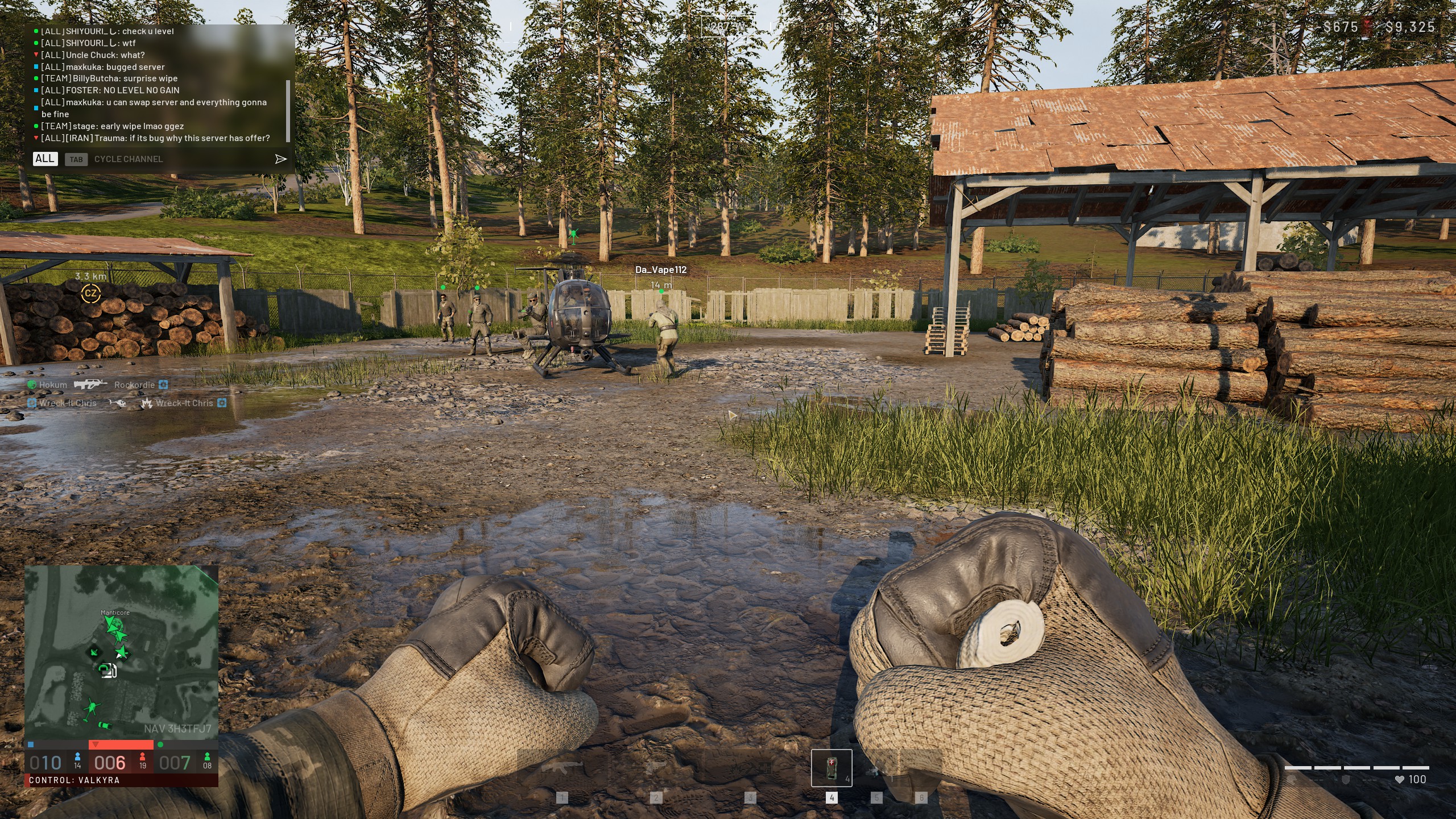
WARDOGS just landed in Early Access, and running the Wardogs Best Settings from day one matters here. It already feels like one of the most ambitious tactical shooters on PC.
With 100 players fighting across a massive, destructible map, skipping the Wardogs Best Settings step means small mistakes get punished fast.
That is exactly why finding the Wardogs Best Settings matters so much right now. The right combination of graphics, mouse, and audio options can be the difference between spotting an enemy first or getting flanked in the open.
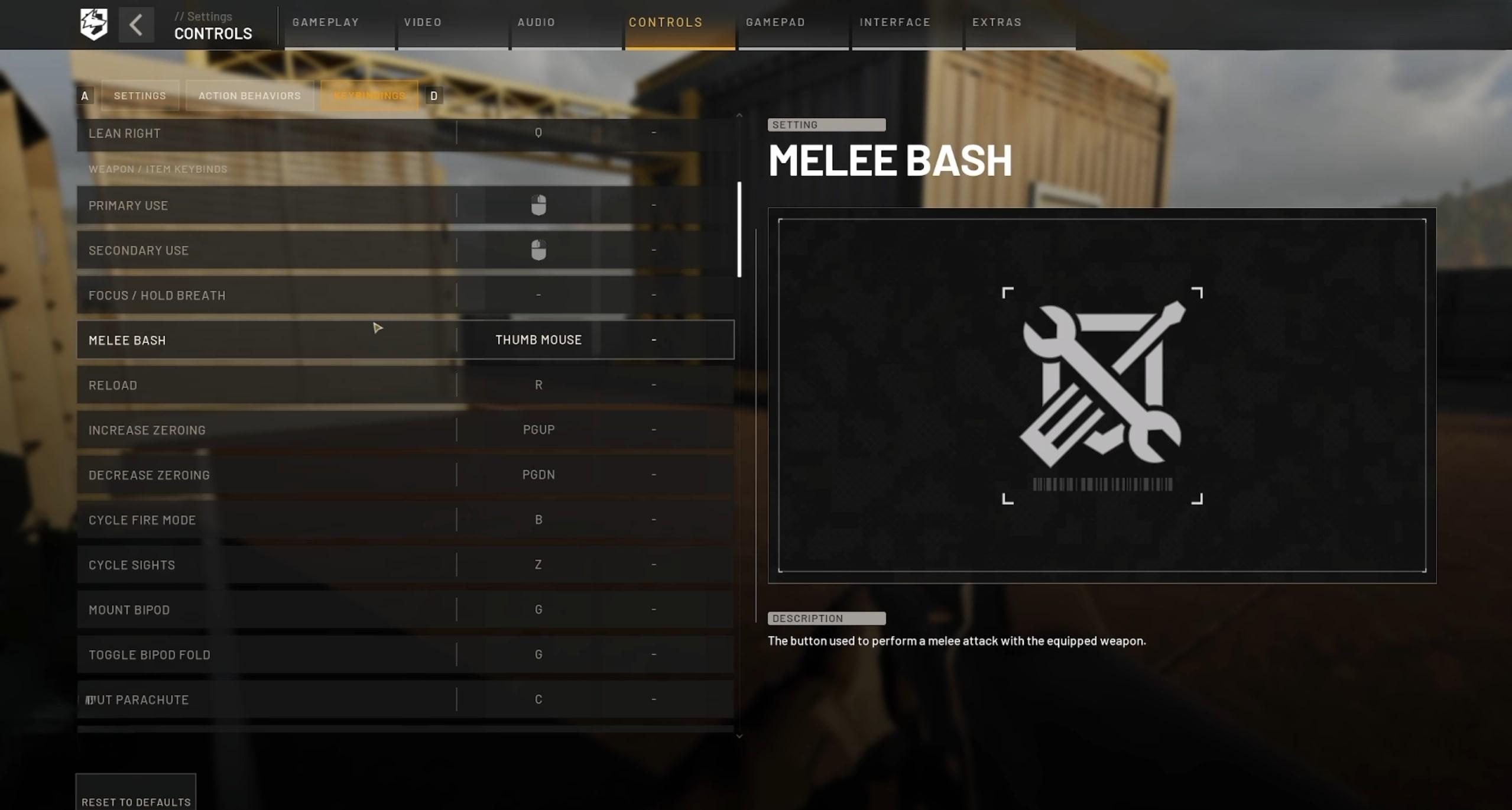
If you are asking what the single best starting point is, here it is. Run native resolution with DLSS or FSR on Quality mode.
Add motion blur off, field of view at 95, and NVIDIA Reflex turned on.
That combination alone fixes most of the visibility and input lag complaints new players report.
This guide covers the Best Wardogs Settings for graphics, controls, vehicles, and audio, based on what actually works in the current build.
We will also cover common mistakes, quick pro tips, and how to keep your connection stable during chaotic 100-player fights.
Wardogs Best Settings: Understanding The Game Before You Tune It
WARDOGS is a large-scale tactical shooter built by Bulkhead and published by Team17. It puts up to 100 players into three competing teams fighting for control of shifting zones.
Before touching any menu, it helps to understand why this game punishes bad settings harder than most shooters. The scale and systems are simply bigger than a typical arena shooter.
What Makes Wardogs Different From Other Shooters
WARDOGS blends battle royale scale with base-building and vehicle warfare. That mix changes what "optimized settings" even means here.
- Teams earn points by holding 2x2km control zones, and the first team to 100 points wins the match
- Players start each match with a shared cash pool used to buy loadouts and gear
- Environments can be destroyed and rebuilt, which changes sightlines constantly
- Vehicles like tanks and helicopters add a second layer of controls to configure
- Proximity voice chat means audio settings directly affect tactical awareness
Why Settings Matter More In 100-Player Matches
With this many players on screen, particle effects, shadows, and long view distances all compete for your GPU and CPU at once. Consequently, a setup that runs fine in a small lobby can chug fast.
That usually happens once three teams collide near a single zone.
Furthermore, because zones can be miles apart, you need clear long-range visibility just as much as close-quarters clarity. That tension is exactly what the settings in this guide are built to solve.
Best Settings For Wardogs Graphics And FPS
Getting a stable frame rate in WARDOGS is not about maxing every slider. Most players searching for Best Settings For Wardogs just want a clear starting point.
It is about knowing which options cost performance without adding useful information.
Recommended Graphics Settings Table
The table below reflects the settings that consistently deliver strong FPS without hurting your ability to see enemies at range.
| Setting | Recommended Value | Why It Matters |
|---|---|---|
| Resolution | Native monitor resolution | Keeps the image sharp for spotting distant players |
| Upscaling (DLSS/FSR) | Quality mode | Best balance of clarity and extra frames |
| Anti-Aliasing | DLAA or TAA (Quality) | Smooths edges without heavy blur |
| Shadows | Low | Frees up GPU headroom with minor visual cost |
| Global Illumination | Off | One of the biggest FPS drains in large fights |
| View Distance | High | Critical for seeing players across open zones |
| Motion Blur | Off | Removes smearing during fast movement or vehicles |
| Post-Processing | Low | Cleaner, flatter image with fewer distractions |
| Particle Effects | Low or Medium | Prevents explosions from tanking your frame rate |
| VSync | Off | Reduces input lag |
| NVIDIA Reflex | On | Lowers system latency during firefights |
How To Balance Visibility And Performance
If your frame rate is still unstable after applying the table above, drop the upscaling mode from Quality to Balanced before touching anything else. That single change usually recovers several frames per minute of tuning time.
Notably, avoid lowering View Distance to save FPS. In a game built around 2x2km zones, cutting your draw distance means enemies simply appear closer and later, which is far more dangerous than a few extra frames.
Best Settings For Wardogs On Lower-End PCs
Players on older hardware often look up the Best Settings Wardogs communities recommend, and a smooth experience is still possible with a few extra adjustments.
- Set resolution scale or upscaling to Performance mode instead of Quality
- Lower texture quality to Medium, since this has minimal visual impact at a distance
- Disable reflections completely, as they rarely matter in outdoor combat
- Cap your frame rate slightly below your monitor's refresh rate to avoid stutter
- Close background apps and overlays before launching, since 100-player servers are CPU-hungry
Best Wardogs Settings For Mouse, Keyboard, And Vehicles
Graphics settings win you clarity, but control settings win you gunfights. This section focuses on the inputs that decide whether your shots land.
Field Of View And Sensitivity Settings
A wider field of view helps enormously in a shooter built around open zones and vehicle combat. Most competitive players currently settle around these baseline numbers.
- Field of View: 95, which gives strong peripheral awareness without distorting weapon models
- Mouse Sensitivity: Around 0.70 at 800 DPI as a starting point, then adjust to taste
- Mouse Acceleration: Disabled, since consistent tracking matters more than raw speed
- ADS Multiplier: 1.00, keeping your aim-down-sights speed matched to your hip-fire feel
- ADS FOV: Set to Affected so zooming in feels natural rather than jarring
Vehicle Control Settings You Should Not Skip
Vehicles are where most new players lose fights simply because they never touched the control menu. Helicopters especially use a different input scheme than infantry movement.
For helicopters, enable rotary vehicle mouse control so pitch and roll are handled by mouse movement. Meanwhile, yaw stays on your A and D keys, and vertical thrust sits on Space and Shift.
This layout mirrors how many flight-focused shooters handle helicopter controls, so it should feel familiar if you have flown before. Practicing it in an empty area of the map is highly recommended.
Do this before your first real vehicle fight, not during it.
Is There A Best Sensitivity For Wardogs Right Now?
There is no single universal number, since sensitivity depends on your DPI, mouse pad size, and personal aim style.
However, starting near 0.70 sensitivity at 800 DPI gives a controllable baseline that most players adjust from rather than reinvent.
From there, small tweaks of plus or minus 0.05 are usually enough. Large jumps tend to break muscle memory faster than they fix it.
Best Settings For Wardogs Audio And Communication
Because WARDOGS uses proximity voice chat and directional combat audio, sound settings deserve just as much attention as your graphics menu.
Wardogs Optimized Settings For Directional Sound
Enable 3D spatial audio if it is not already active, since it is one of the most important Wardogs Optimized Settings for tactical awareness. This setting alone can tell you an enemy's direction before you ever see them.
- Set effects volume to high so footsteps and gunfire cut through clearly
- Lower or mute in-game music, since it can mask distant audio cues
- Keep voice chat volume enabled for both team and proximity channels
- Use a headset rather than speakers whenever possible for accurate positional cues
How Do You Fix Audio Cutting Out During Big Fights?
If voice or effects seem to cut out when many players are nearby, check that your audio channel priority favors game sound over background apps.
Additionally, make sure Windows exclusive audio mode is not conflicting with in-game spatial audio settings.
Restarting the audio device from the in-game settings menu often resolves temporary glitches without needing a full game restart.
How Wardogs Settings Compare To Other Tactical Shooters
Not every shooter approaches settings the same way, and it helps to see where WARDOGS sits relative to other current titles. Bodycam, for example, takes an almost opposite philosophy.
Why Bodycam Best Settings Focus On Realism
Bodycam is a found-footage style extraction shooter that leans heavily on realistic lighting and camera effects for atmosphere.
As a result, the Bodycam Best Settings community tends to accept a lower frame rate in exchange for that visual realism.
Why Wardogs Prioritizes Performance Over Realism
WARDOGS, on the other hand, is built around large-scale competitive combat, so clarity and frame rate consistently win over visual fidelity.
If you are used to tuning Bodycam Best Settings, expect to disable far more effects here to stay competitive.
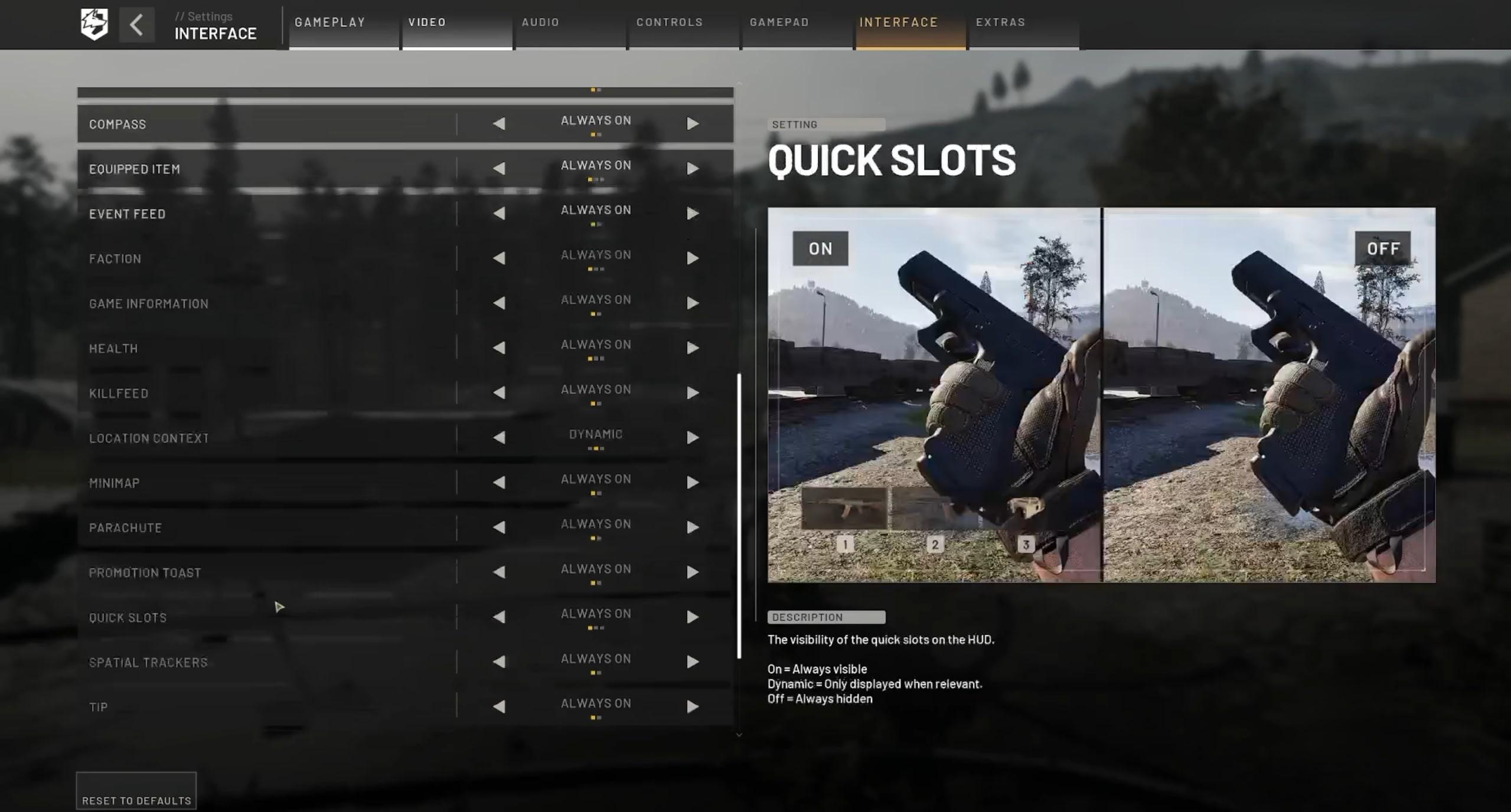
Wardogs Best Settings: Pro Tips And Mistakes To Avoid
Knowing the right values is only half the job. This section covers the habits that separate players who adapt fast from players who keep guessing.
Pro Tips: Best Wardogs Settings
- Save a settings preset before major patches: Early Access titles change default values often, so screenshotting your menu saves time after updates reset options.
- Retest FPS after every map rotation: Because zones vary in size and vegetation density, a setting that runs smoothly in one area may need adjustment in denser terrain.
- Bind a quick-swap key for vehicle mode: Switching fast between infantry and vehicle control schemes prevents fumbling controls during ambushes.
- Prioritize View Distance over Shadows: In long-range zone fights, spotting players matters far more than shadow detail, so always keep visibility settings higher on your priority list.
- Warm up sensitivity in a private lobby: Testing your Best Wardogs Settings for sensitivity in a low-pressure match avoids ruining your aim during ranked-style fights.
Common Mistakes Wardogs Players Make
Even experienced shooter players bring bad habits into WARDOGS simply because the game plays differently at this scale.
- Maxing out every graphics slider: Many players assume higher always means better, but ultra shadows and global illumination tank FPS for almost no competitive benefit. Fix: follow the settings table above and prioritize clarity over eye candy.
- Ignoring vehicle control settings entirely: Jumping into a helicopter with default keyboard-only controls leads to constant crashes. Fix: set up rotary vehicle mouse control before your first vehicle match.
- Playing with default low field of view: A narrow FOV hides flanking enemies and feels disorienting during fast vehicle combat. Fix: raise FOV to around 95 and adjust from there.
- Skipping audio settings completely: Relying only on default sound misses the tactical value of proximity and spatial audio. Fix: enable 3D spatial audio and lower music volume for clearer footsteps.
- Chasing a copied pro sensitivity exactly: Copying someone else's exact sensitivity without adjusting for your own DPI and mouse pad often hurts aim consistency. Fix: use 0.70 at 800 DPI only as a starting baseline, then fine-tune.
Keep Your Connection As Sharp As Your Settings
Even with perfect graphics and control settings, a laggy connection can undo everything in a 100-player match.
Zone fights involve dozens of players, vehicles, and destruction events syncing at once, which puts real strain on your route to the server.
What ExitLag Actually Does
This is where ExitLag becomes genuinely useful for WARDOGS players. It is not a VPN, so it never encrypts or reroutes all of your traffic.
Instead, ExitLag analyzes multiple network paths in real time and picks the fastest, most stable route to the game server.
That matters a lot here, since packet loss during a chaotic zone fight can cause rubber-banding or delayed hit registration at the worst moment.
With Multipath technology sending your data across several routes at once, a single unstable hop is far less likely to disrupt your match.
Why It Helps During 100-Player Matches
ExitLag also includes a Traffic Shaper to stop background downloads or other devices from stealing bandwidth during a fight.
Combined with PC Boost, which clears background processes before you launch, your system and connection both work in your favor.
It currently supports more than 4,000 titles across PC and mobile, with over 1,500 servers spread across more than 190 countries.
If you want steadier ping and fewer disconnects while pushing zones in WARDOGS, you can grab the ExitLag Download and set it up in minutes before your next match.
Final Thoughts On Wardogs Best Settings
Quick Recap Of Wardogs Best Settings
Dialing in the Wardogs Best Settings is not about copying a single list and forgetting it. It is about understanding why each option matters in a 100-player, destruction-heavy shooter.
Start with native resolution, Quality upscaling, disabled motion blur, and a 95 field of view. From there, use the table, tips, and mistake fixes above to refine your setup match by match.
What To Do Next
Adjust for your own hardware and playstyle rather than copying every number exactly. Small, deliberate tweaks beat a total overhaul every time.
Between smarter graphics choices, dialed-in controls, and a stable connection through ExitLag, the Wardogs Best Settings in this guide will cut down on deaths that had nothing to do with your actual aim.
All game images used in this blog post belong to Team17 and Bulkhead. They are used for informational and educational purposes only and do not imply endorsement or affiliation with the rights holders.