

You finally squad up, hit the launcher, and the game greets you with Wardogs Your Connection Could Not Be Verified. No match, no queue, just a wall between you and the battlefield.
It is frustrating, especially in an Early Access shooter where hundreds of players are trying to log in at the same time. The good news is that this message almost always has a fixable cause on your side.
Wardogs Your Connection Could Not Be Verified usually means the game could not complete its handshake with the online services. In practice, the most common triggers are a wrong system clock, blocked or interrupted network traffic, overlays or security software interfering, or an unstable route to the servers. Work through the checks below in order and you will fix most cases in minutes.
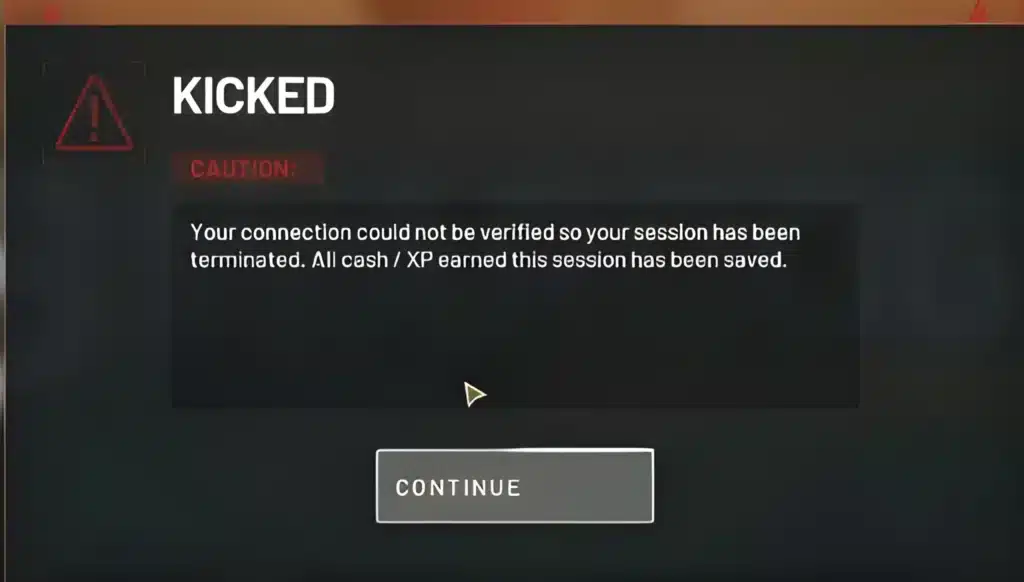
Why Does Wardogs Your Connection Could Not Be Verified Appear?
Wardogs is a three-team, up to 100-player shooter from developer BULKHEAD and publisher Team17, currently in Early Access on PC. Because it relies on online services for login and matchmaking, any break in that chain can trigger a Wardogs Login Error like this one.
Think of the verification step as a quick conversation between your PC and the game’s backend. If any part of that conversation is delayed, blocked, or looks wrong, the game gives up and shows the message.
What Does the Message Actually Mean?
The game tried to confirm who you are and that your connection is healthy, and the check failed or timed out. It does not automatically mean your account is banned or your game is broken.
Sometimes the problem is simply that the service is busy. Other times your PC is sending information that looks inconsistent, such as a wrong time zone.
Common Causes at a Glance
- Incorrect date, time, or time zone: Secure connections depend on accurate system time.
- Overlays and monitoring tools: Apps hooking into the game can interrupt the login process.
- Security software: Firewalls or antivirus tools may block the game or its launcher.
- Outdated drivers or missing runtimes: Broken dependencies can cause silent failures.
- Unstable routing or packet loss: Data fails to reach the servers reliably.
- Busy services: Launch-period traffic can slow or reject logins temporarily.
Quick Fixes To Try First
Start with the cheap, fast checks before touching anything advanced. Team17 support has pointed players with login problems toward several of these steps on the official Steam discussion pages.
Step-By-Step Basic Fix
- Restart everything: Close Steam and Wardogs completely, then reopen Steam first and launch the game again.
- Sync your clock: Right-click the clock, choose Adjust date/time, and turn on automatic time and time zone.
- Enable location services: If the clock fix does not help, turn on Windows location services and relaunch.
- Close overlays: Shut down MSI Afterburner, RTSS, and any GPU control panel overlays before logging in.
- Check the service status: Look at the official Steam community discussions to see whether other players report the same problem right now.
How Do You Check Whether It Is Your PC or the Servers?
Open the Steam discussion hub for Wardogs and scan recent threads. If many players report the same message at the same time, the issue is likely service-side and waiting is the right call.
If almost nobody else mentions it, the cause is probably local. In that case, keep going with the deeper fixes below.
For the official details on the game, including platform and Early Access information, check the official Wardogs page on Steam before assuming something is broken.
Fixing the Wardogs Connection Error on Your PC
If the basics did not work, the next layer is your system and security setup. These fixes are safe and reversible.
Security Software and Windows Repairs
Add both your Steam folder and the Wardogs install folder to your antivirus exclusions. Windows Defender is the most common culprit because it can interrupt unfamiliar game traffic.
Then repair Windows itself. Open an elevated Command Prompt and run these in order:
- Run sfc /scannow and wait for it to finish.
- Run the DISM restore health command, then restart your PC.
- Install the latest Visual C++ redistributables from Microsoft.
- Update your GPU driver to the newest stable release.
Game Files and Launch Problems
If the game also refuses to start correctly, a corrupted install can be the real source. Our guide on how to fix when you are unable to launch Wardogs explains the WD-L error family and how to repair each one.
In Steam, right-click the game, open Properties, then Installed Files, and verify the integrity of game files. This replaces damaged files without a full reinstall.
Comparison: Which Fix Solves Which Problem?
| Symptom | Likely Cause | Best Fix
|
|---|---|---|
| Message appears instantly | Wrong clock or time zone | Enable automatic time and location services |
| Stuck on Logging In | Overlay or security interference | Close overlays, add exclusions |
| Fails only at peak hours | Busy services | Wait, retry, check community threads |
| Works, then drops mid-session | Packet loss or Wi-Fi | Use Ethernet, test your route |
| Fails after an update | Corrupted files | Verify game files in Steam |
Is Your Network the Real Problem?
When every local fix fails, look at the path between you and the servers. A Wardogs Connection Error can come from a connection that looks fast on a speed test but quietly loses data.
Speed tests measure bandwidth. Game verification cares about stability, which is a different thing.
Wi-Fi, Router, and ISP Checks
Try these network steps in order:
- Plug in with an Ethernet cable instead of Wi-Fi.
- Restart your modem and router, then wait two minutes.
- Pause downloads, streaming, and cloud syncs on every device at home.
- Switch temporarily to a mobile hotspot to see whether your ISP is the issue.
If the hotspot works while your home connection fails, your ISP route is the likely culprit. That is exactly the situation a route optimizer is built for.
Could Packet Loss Be Breaking the Handshake?
Yes. When packets disappear on the way to the servers, the verification step can time out even though your ping looks fine. We covered the symptoms and diagnosis in our breakdown of Wardogs packet loss.
Run a ping test in Command Prompt for a few minutes and watch for dropped replies. Any loss at all during a quiet period is a red flag.
Pro Tips: Keeping Your Wardogs Connection Stable
- Use a wired connection: Ethernet removes wireless interference, which is the most common source of random packet loss.
- Log in before peak hours: Fewer players means less queue pressure, so the verification step is more likely to succeed on the first try.
- Keep background apps quiet: Cloud backups and game downloads fill your upload and cause bufferbloat that delays the handshake.
- Restart your router weekly: Home routers accumulate errors, and a regular reboot clears stale connections that can interfere with game traffic.
- Update router firmware: Old firmware can mishandle modern game traffic, so a quick update often removes strange timeouts.
Can You Prevent Lag After You Get In?
Fixing the login is only half the battle. Once you are inside a 100-player match, a shaky connection shows up as rubber-banding, delayed shots, and desync.
Local settings matter here too. Our guide to Wardogs input lag covers VSync, NVIDIA Reflex, and monitor choices that make controls feel sharper.
Quick Performance Checklist
- Disable VSync in both the game and your GPU control panel.
- Enable NVIDIA Reflex if your card supports it.
- Cap your frame rate slightly below your monitor refresh rate.
- Keep your drivers up to date.
Common Mistakes Players Make With Connection Errors
- Reinstalling immediately: Players wipe the whole game before trying simple checks. Fix: verify files and sync your clock first, since it takes two minutes.
- Ignoring the clock: A wrong time zone looks harmless but can break secure logins. Fix: turn on automatic time and location services.
- Running a VPN while testing: A VPN adds extra hops and can disrupt verification. Fix: disconnect it before launching the game.
- Trusting speed tests alone: A fast result hides packet loss. Fix: test with a continuous ping and look for dropped replies.
- Spamming the login button: Repeated attempts can make queue congestion worse. Fix: wait a minute between tries.
How Does ExitLag Help With Wardogs?
If your local setup is clean and you still see the error, the weak link is usually the route your data takes to the servers. This is where ExitLag fits in as a practical tool, not a magic switch.
ExitLag is not a VPN. It is a game connection optimizer that analyzes multiple network paths in real time and selects the fastest, most stable route to the game’s servers. It does not encrypt your traffic or mask your IP.
What Features Matter Most Here?
- Multipath technology: Sends packets through several routes at once, so if one path fails the others keep your connection alive.
- Real-time optimization: Reduces delay and packet loss, which keeps the login handshake and the match stable.
- Multi-Internet: Uses up to 4 connections at once, so a drop on one network does not kick you out.
- Traffic Shaper: Prioritizes game traffic over other apps on your network.
- PC Boost: Cleans RAM and reduces background processes for smoother performance.
ExitLag supports 4,000+ titles with 1,500+ servers in 190+ countries and is used by 30M+ players. It does not modify game files or interact with anti-cheat systems.
One important note: do not run ExitLag together with a VPN, since that reduces its effectiveness. If Wardogs keeps failing verification on your home network, try ExitLag with the ExitLag Download and let the AI pick the best route in one click.
Final Checklist for Wardogs Your Connection Could Not Be Verified
Fixing Wardogs Your Connection Could Not Be Verified comes down to working through the causes in a sensible order. Start local, then move outward to your network and the route.
Your Fix Order in Short
- Sync your clock and enable location services.
- Close overlays and add antivirus exclusions.
- Verify game files and update drivers.
- Switch to Ethernet and test for packet loss.
- Use ExitLag if the route is the problem.
When Should You Just Wait?
If the Steam discussion hub shows a wave of identical reports, the issue is on the service side. Retrying every few minutes is fine, but heavy troubleshooting will not help.
Once your connection is stable and verified, you can focus on what matters: holding the zone with your squad.
All game images used in this blog post belong to BULKHEAD and Team17. They are used for informational and educational purposes only and do not imply endorsement or affiliation with the rights holders.
Got questions or want to connect with other players? Join the conversation at the ExitLag Forum!



