Getting a real WARDOGS boost is not about one magic setting. It comes from stacking several smart changes that together make a noticeable difference during huge 100-player fights.
Between vehicles, destruction, and dozens of players on screen, WARDOGS asks a lot from your PC. The good news is that most performance headroom is sitting in settings most players never touch.
So where should you start? Native resolution with the right upscaling mode and a few key graphics toggles usually deliver the biggest FPS boost with the smallest visual cost.
This guide walks through the exact settings, hardware checks, and safe tools that give WARDOGS a genuine performance boost without risking your account.
WARDOGS Boost: The Settings That Matter Most
Not every graphics setting affects performance equally. Some cost a lot of FPS for very little visual gain, while others barely matter at all.
Therefore, knowing which settings to prioritize first is the fastest way to get a real WARDOGS boost without guessing.
Settings To Change First
Start with these adjustments before touching anything else:
- Run native resolution with VSync turned off
- Enable NVIDIA Reflex if your GPU supports it
- Set upscaling to DLSS, FSR, or DLAA on Quality mode
- Turn Global Illumination off for the biggest single FPS gain
- Reduce Shadows to Low next
Settings Impact Comparison
Use this table to prioritize changes based on how much performance they actually return:
| Setting | FPS Gain | Visual Trade-Off |
|---|---|---|
| Global Illumination Off | High | Moderate |
| Shadows Low | High | Low to Moderate |
| Effects Medium | Moderate | Low |
| Post-Processing Low | Moderate | Low |
| Particle Spawn Rate Low | Moderate | Low during firefights |
How Do You Boost FPS During Big Firefights Specifically?
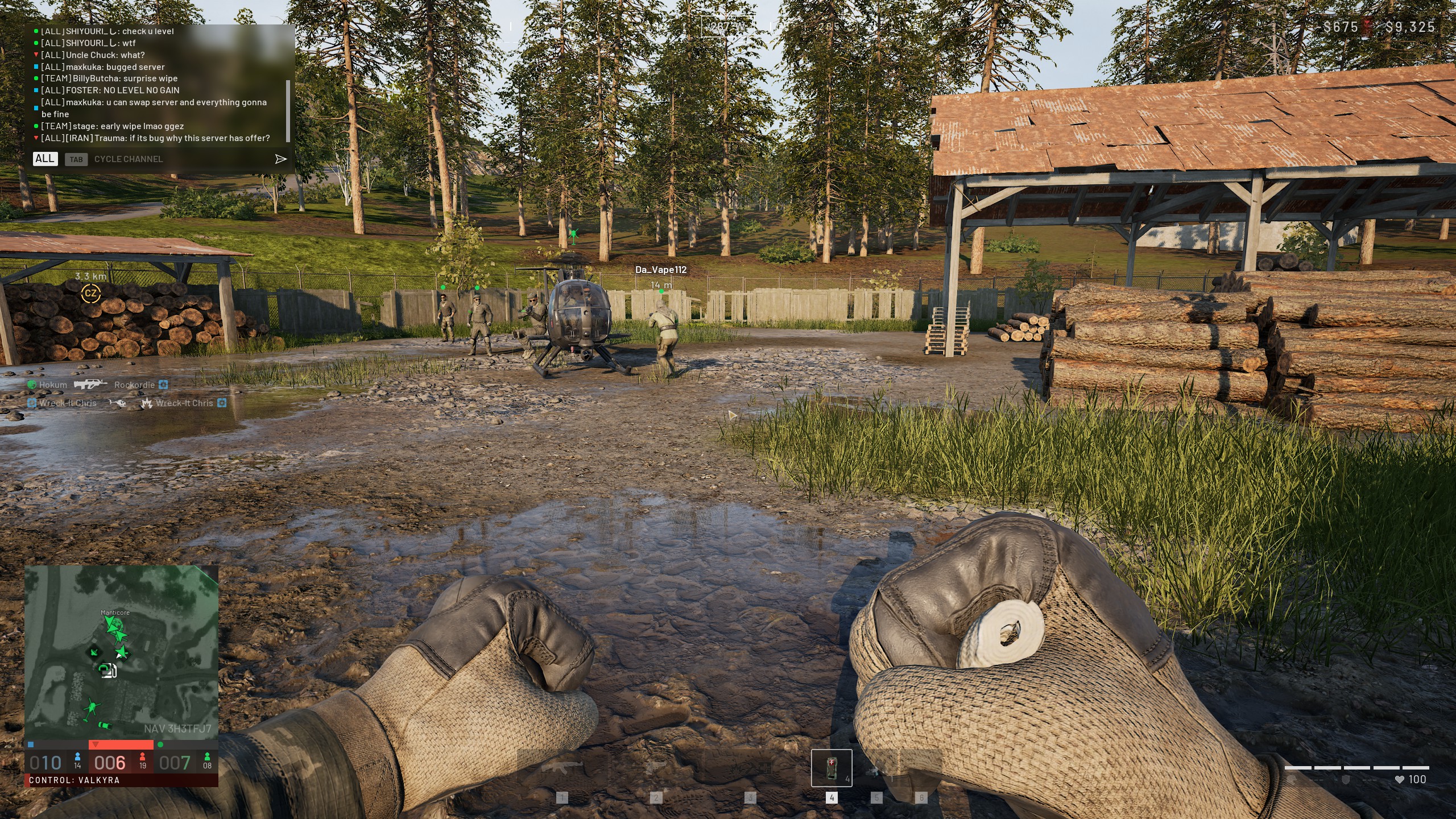
Big Control Zone fights are exactly where your WARDOGS boost settings get tested the hardest. Explosions, gunfire, and dozens of players clustered together can tank your frame rate faster than any other moment in a match.
Settings That Target Firefight Performance
These specific toggles help the most during chaotic, effects-heavy engagements:
- Set Particle Spawn Rate to Low
- Set Effects to Medium instead of High or Ultra
- Disable Motion Blur entirely
- Disable Depth of Field, Lens Flare, and Bloom
- Cap your frame rate slightly below your average to smooth spikes
Why Upscaling Is A Bigger Boost Than It Looks
Enabling a quality upscaling mode is one of the single largest steps toward hitting higher frame rates, and it holds more image clarity than simply dropping the overall preset to Low. If you have not tried it yet, this is often the fastest win available.
Is Reflex Boost Worth Using On NVIDIA GPUs?
Yes, for most NVIDIA users it is worth testing. Reflex is designed to reduce latency in the rendering pipeline, while Boost helps keep GPU clocks higher during demanding scenes.
How Reflex Boost Actually Helps
Together, these two features can meaningfully reduce input delay while also stabilizing your frame rate during intense fights. Testing both on and off during a real match is the best way to confirm the difference on your specific hardware.
What About AMD And Intel GPUs?
AMD and Intel users will not have access to Reflex Boost specifically, but FSR upscaling offers a similar performance boost. Focus on the same core settings: Global Illumination off, reduced Shadows, and Quality-mode upscaling.
Should You Boost FPS With Hardware Overclocking?
Overclocking can offer an additional boost, but it comes with more risk than software settings alone. It is worth understanding before you touch anything in your BIOS or GPU software.
Safe Ways To Push Extra Performance
If you want more performance beyond in-game settings, these options carry less risk than a full manual overclock:
- Use your GPU manufacturer's one-click boost or performance mode
- Enable XMP or EXPO in your BIOS to run RAM at its rated speed
- Ensure your CPU is not being throttled by conservative default settings
- Keep case airflow clean so boost clocks can sustain longer
When Overclocking Is Not Worth The Risk
If your system already meets the recommended specs and runs WARDOGS comfortably, aggressive overclocking often adds instability for a marginal gain. It makes more sense for players already hitting a hard performance ceiling on older hardware.
Does Windows Background Cleanup Actually Boost FPS?
Yes, and it is one of the easiest boosts to apply since it costs nothing and takes only a few minutes. A cluttered background eats into the same RAM and CPU cycles WARDOGS needs during large battles.
Quick Cleanup Steps Before Launching WARDOGS
Run through this short checklist before your next session:
- Close browser tabs and unused applications
- Disable startup programs you do not actively need
- Clear temporary files that accumulate over time
- Restart your PC if it has been running for several days straight
- Confirm no large downloads or updates are running in the background
A clean system baseline makes every other setting change you apply that much more effective.
Pro Tips: WARDOGS Boost
- Stack settings changes together: A single setting rarely delivers a dramatic boost alone. Combine several for a noticeable overall gain.
- Test in an actual firefight, not the menu: Menu FPS does not reflect real performance during 100-player battles. Test changes in live matches.
- Keep your drivers current: GPU driver updates frequently include performance improvements for newly released titles like WARDOGS.
- Avoid over-capping your frame rate: Cap only slightly below your average, since capping too aggressively wastes available performance headroom.
Common Mistakes WARDOGS Players Make When Trying To Boost FPS
- Using third-party optimizer tools or config packs: WARDOGS uses Easy Anti-Cheat, and modifying game files is a fast way to create a compatibility or ban risk. Fix: stick to in-game settings and official driver tools only.
- Lowering resolution before other settings: Resolution has a lower performance-to-visual cost ratio than Global Illumination and Shadows. Fix: adjust those settings first.
- Ignoring upscaling entirely: Some players skip DLSS or FSR assuming it hurts image quality. Fix: try Quality mode first, since it often looks better than a lowered native resolution.

What FPS Should You Realistically Expect After Boosting?
Expectations matter here, since even a perfectly tuned system will not hit the same numbers on every hardware tier. Use these rough targets to judge whether your boost efforts are working.
Realistic FPS Targets By Hardware Tier
Here is a general reference point once settings and background cleanup are applied:
| Hardware Tier | Resolution | Expected FPS Range |
|---|---|---|
| Minimum spec (GTX 1660 class) | 1080p Low | 60+ fps with upscaling |
| Mid-range (RTX 3060 class) | 1080p to 1440p | 90-120 fps |
| High-end (RTX 4070 and above) | 1440p to 4K | 120+ fps with upscaling |
Tracking Your Progress Over Time
Keep a simple record of your FPS before and after each round of changes. That way, you can confirm whether a specific boost setting actually helped or if the improvement came from something else entirely, like a driver update or background cleanup.
Give Your Connection A Boost Too
A graphics boost only solves half the equation. If your connection is unstable during those same intense firefights, all the FPS gains in the world will not stop rubber-banding or delayed hits.
ExitLag is not a VPN: it is a game connection optimizer that scans multiple network paths in real time and automatically selects the fastest, most stable route to the server.
Why A Network Boost Complements Your FPS Boost
While your graphics settings handle what you see, your connection handles how responsive the game feels. Both need to be dialed in for WARDOGS to feel truly smooth during large-scale battles.
- Reduced packet loss during graphically intense firefights
- More consistent hit registration even at high frame rates
- Fewer disconnects during peak server congestion
- General connection stability across all your online games
Getting Your Full Boost Set Up
ExitLag supports over 4,000 games and is trusted by more than 30 million users running 18 million optimizations every week. It does not modify game files, inject code, or interact with anti-cheat systems, so it is completely safe to run alongside WARDOGS.
Once your graphics settings are dialed in, grab the ExitLag Download to make sure your connection matches the performance boost you just unlocked. ExitLag also includes a PC Boost feature that cleans RAM and reduces background processes, giving your system one more layer of optimization on top of your manual settings changes.
All game images used in this blog post belong to Bulkhead and Team17. They are used for informational and educational purposes only and do not imply endorsement or affiliation with the rights holders.